
Update Listing
Edit, republish, restrict, or clone your existing AWS Marketplace listings from the Suger Console.
Overview
Once a product is listed on AWS Marketplace, you can keep it up to date from the Suger Console — updating its details, pricing, and fulfillment URL, changing its visibility, or cloning it into a new draft. What you can edit depends on the listing’s current status in AWS Marketplace and your role in Suger.
Permissions required
To edit AWS listings, you need the correct permissions in both Suger and AWS.
- AWS: Suger must be connected through an IAM role that has permissions to manage Marketplace listings.
- Suger: Admin or Editor role. If you don’t have access yet, ask your company admin to invite you to the organization. See Manage Users and Roles.
Listing status and editing permissions
Your editing options depend on the listing’s status in AWS Marketplace:
| Status | Visibility | What you can edit in Suger |
|---|---|---|
Draft | Private | Full access. You can edit all fields before submitting the listing. |
Limited | Allowlisted accounts | You can edit product information, pricing, and fulfillment URL for testing. |
Public | All AWS buyers | You can edit product information and fulfillment URL. Pricing changes are restricted by AWS rules. |
Restricted | Existing customers only | You can only download the listing’s data spreadsheet. |
Edit a listing’s info, pricing, and fulfillment URL
- Go to the Product menu in the Suger Console.
- Open the relevant AWS listing.
- Click More actions in the top right corner.
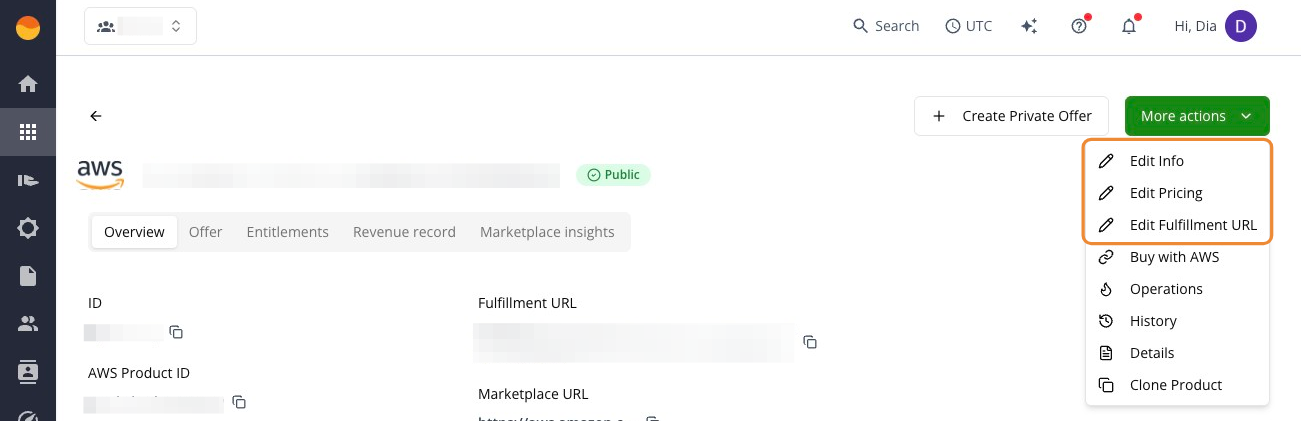
- Select the action you need:
- Edit Info: Update listing details like title, description, highlights, categories, and keywords.
- Edit Pricing: Update contract pricing and usage dimensions (subject to AWS restrictions for live listings).
- Edit Fulfillment URL: Update the redirect link that sends buyers to your onboarding or registration flow after subscription.
- Make your adjustments in the dialog box and click Save.
After saving, Suger submits a change request to AWS. Allow 10 to 20 minutes for the updates to be fully processed and appear on both platforms.
Change a listing’s visibility
In Suger, you can update an AWS listing’s visibility to control whether it’s in testing, live, or restricted.
Make a Limited listing Public
- Go to the Product menu in the Suger Console.
- Open the relevant AWS listing (it displays a yellow
Limitedbadge). - Click More actions in the top right corner, then Publish Product.
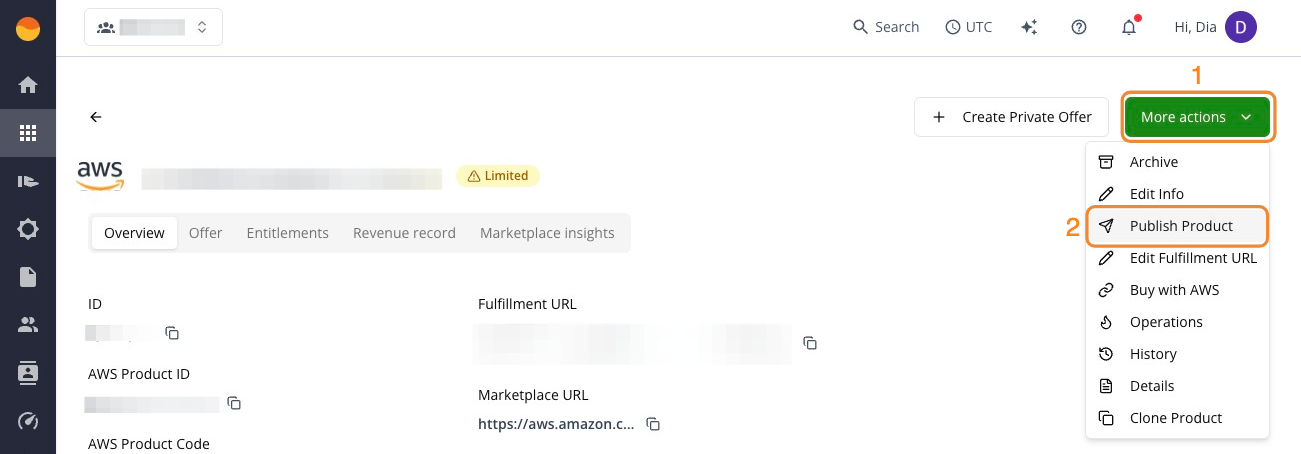
- Review your pricing and click Save to submit the change request to AWS.
Restrict or sunset a Public listing
AWS doesn’t allow listings to be deleted. Instead, you can change a listing’s status to Restricted to stop new subscriptions while keeping existing customers active. This is done in the native AWS Marketplace Management Portal (AMMP):
- Log in to the AWS Marketplace Management Portal.
- Go to the Products tab and select your listing.
- Click the Request changes dropdown, then Update product visibility.
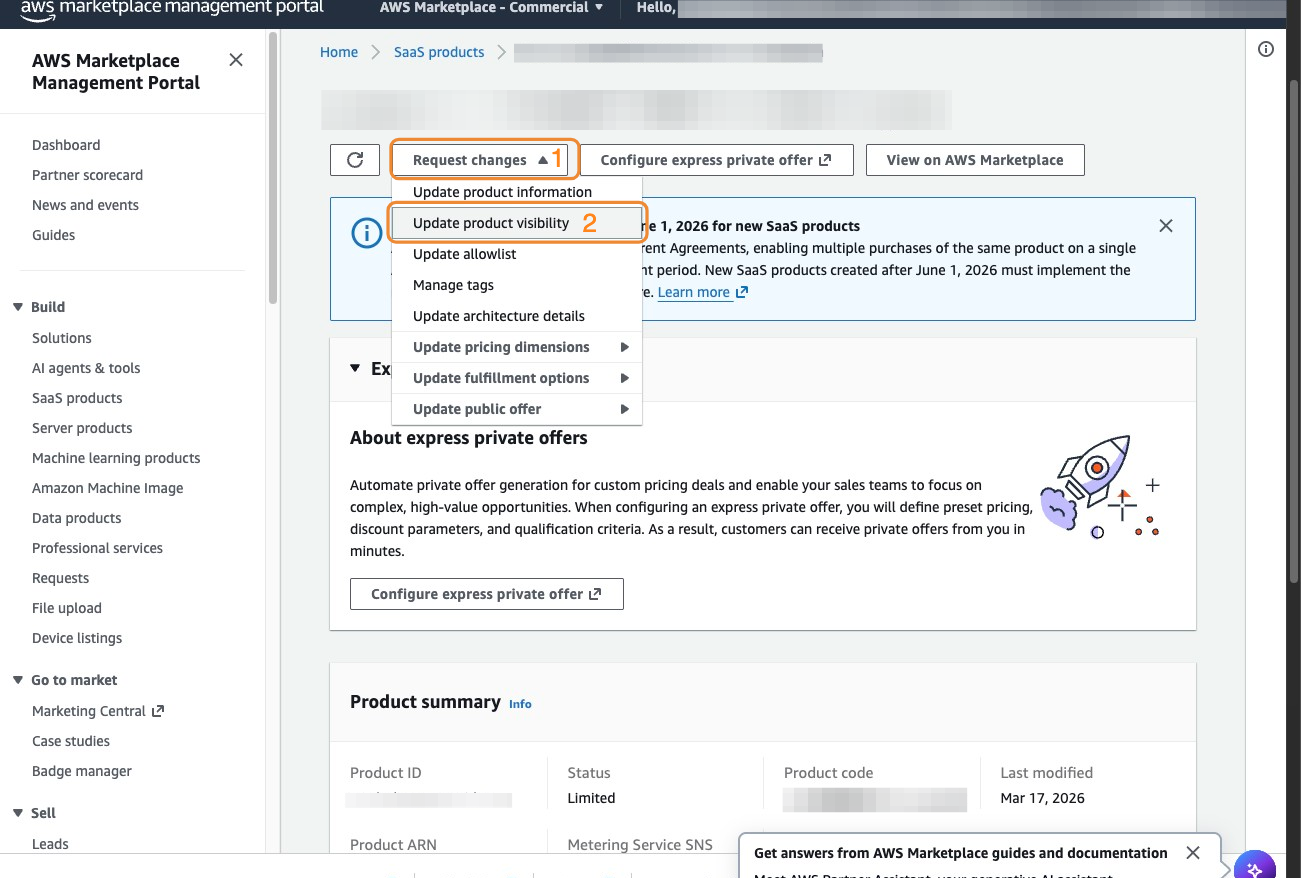
- Select Restricted.
- (Optional) Add a Replacement product ID. Use this field if you’re replacing this listing with a new one. AWS will notify existing subscribers and guide them to the new listing.
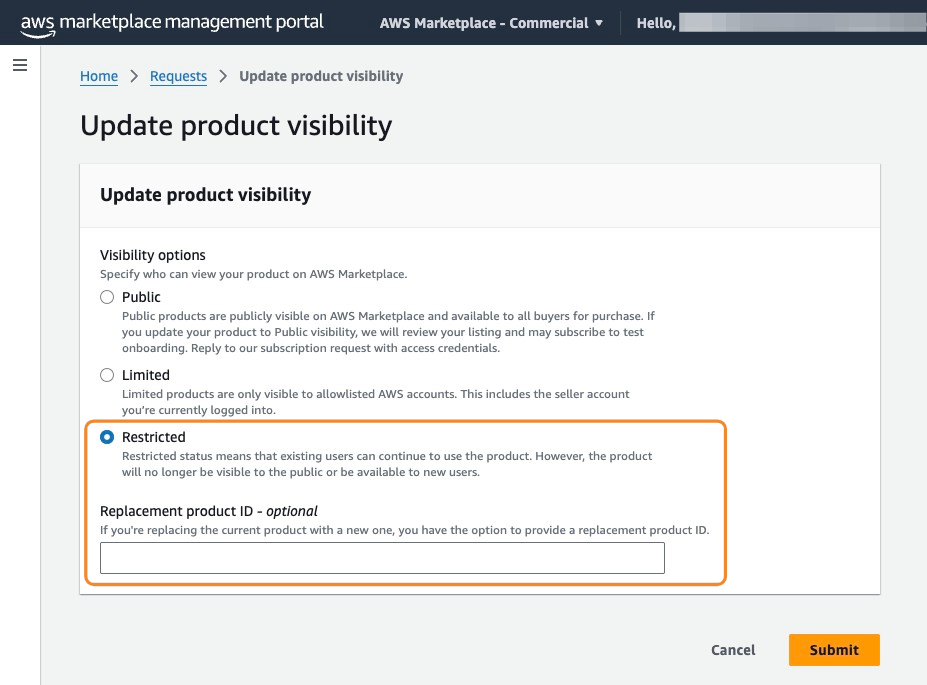
- Click Submit to start the takedown process.
Clone an AWS listing
The Clone Product feature lets you duplicate an existing AWS listing in Suger. This creates a new draft pre-filled with your existing setup, so you can reuse the details and update only what’s needed.
Step 1: Clone the listing in Suger
- Go to the Product menu in the Suger Console.
- Open the relevant AWS listing.
- Click More actions in the top right corner, then Clone Product.
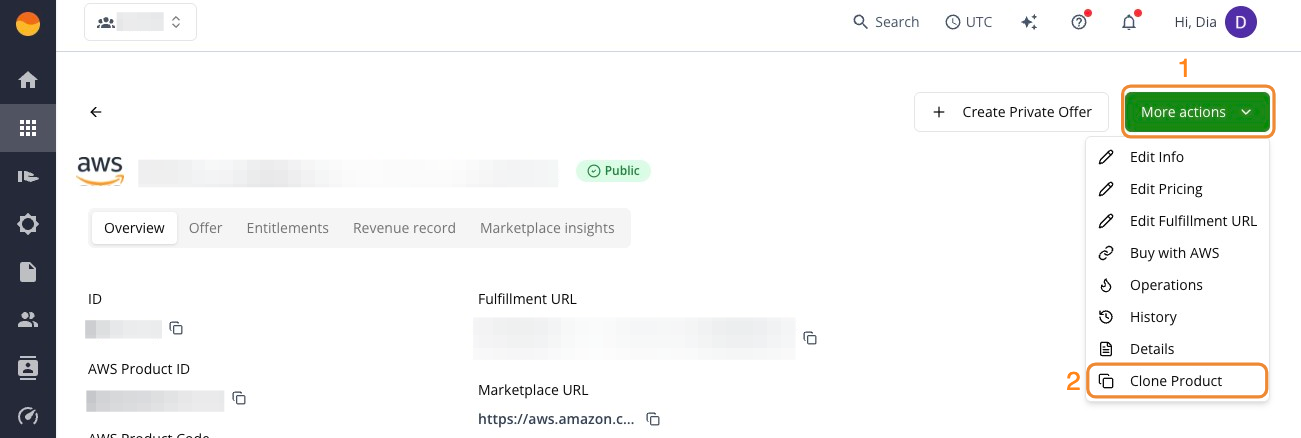
- Edit the newly created draft to update its specific details (such as the Product ID or pricing) and save your changes.
Step 2: Finalize and submit the new listing
Once cloned, the new listing appears in your catalog as a Draft. You can now modify it and submit it to AWS.
- Open the cloned draft in Suger.
- Update unique fields like pricing or Product ID.
- Click Create or Save to submit the listing directly to AWS for approval.
Step 3: Test and publish the listing
Once AWS processes your cloned draft, it appears in your Suger Console with a Limited status. Since the clone is treated as a new AWS listing, you’ll need to complete the standard go-live steps before it can be used by new buyers. See Create and publish an AWS Marketplace listing for the full test and publishing process.
FAQ
-
Why can’t I change my pricing immediately after updating it?
AWS has a 90–120 day restriction on pricing changes for marketplace listings. Once you update pricing, you must wait this period before making another pricing change.
-
Should I make changes in Suger or directly in the AWS Marketplace console?
For most listing changes, use the Suger Console, as it syncs with AWS. However, for Professional Services listings, you must make changes directly in the AWS Marketplace Management Portal — these can’t be edited through Suger.
-
How long do listing changes take to appear publicly?
Most changes require AWS approval and can take anywhere from a few hours to several days, depending on the type of change.
-
My changes aren’t saving or syncing properly. What should I do?
This can happen due to sync issues between Suger and AWS. First, refresh your browser and check if the changes appear. If not, contact Suger support.
-
What parts of my listing can I edit, and what’s locked?
You can typically edit descriptions, pricing (subject to the 90-day rule), images, and most metadata. However, some core product attributes and Professional Services listings have restrictions. The Suger interface shows you which fields are editable for your specific listing type.