
Migrate to AWS Partner Central 3.0
Migrating to AWS Partner Central 3.0 (PC3) moves your AWS Partner Central experience into the AWS Management Console, giving your team a single place to access co-selling, funding, and Marketplace partner tools. This guide walks you through the steps required to complete the migration, including setting up the required user access and permissions.
Prerequisites
Gather your team
This process touches core AWS account settings and user permissions. Make sure these three roles are available before you begin:
- Alliance Lead or Cloud Admin: The primary account owner in AWS Partner Central. This person must have the authority to accept AWS Partner Network terms and conditions on behalf of your company. The Alliance Lead can delegate account linking to a user with the Cloud Admin role.
- IAM Administrator: Manages user permissions through IAM. Typically sits in IT Security, Information Security, or Governance and Compliance. Responsible for implementing IAM policies, configuring SSO solutions, and maintaining role-based access control.
Plan your migration window
Migrations are scheduled for Fridays at 5
PM PT and may involve up to 3 hours of downtime. During this window, Partner Central is completely unavailable to all users.Step 1: Check your migration status
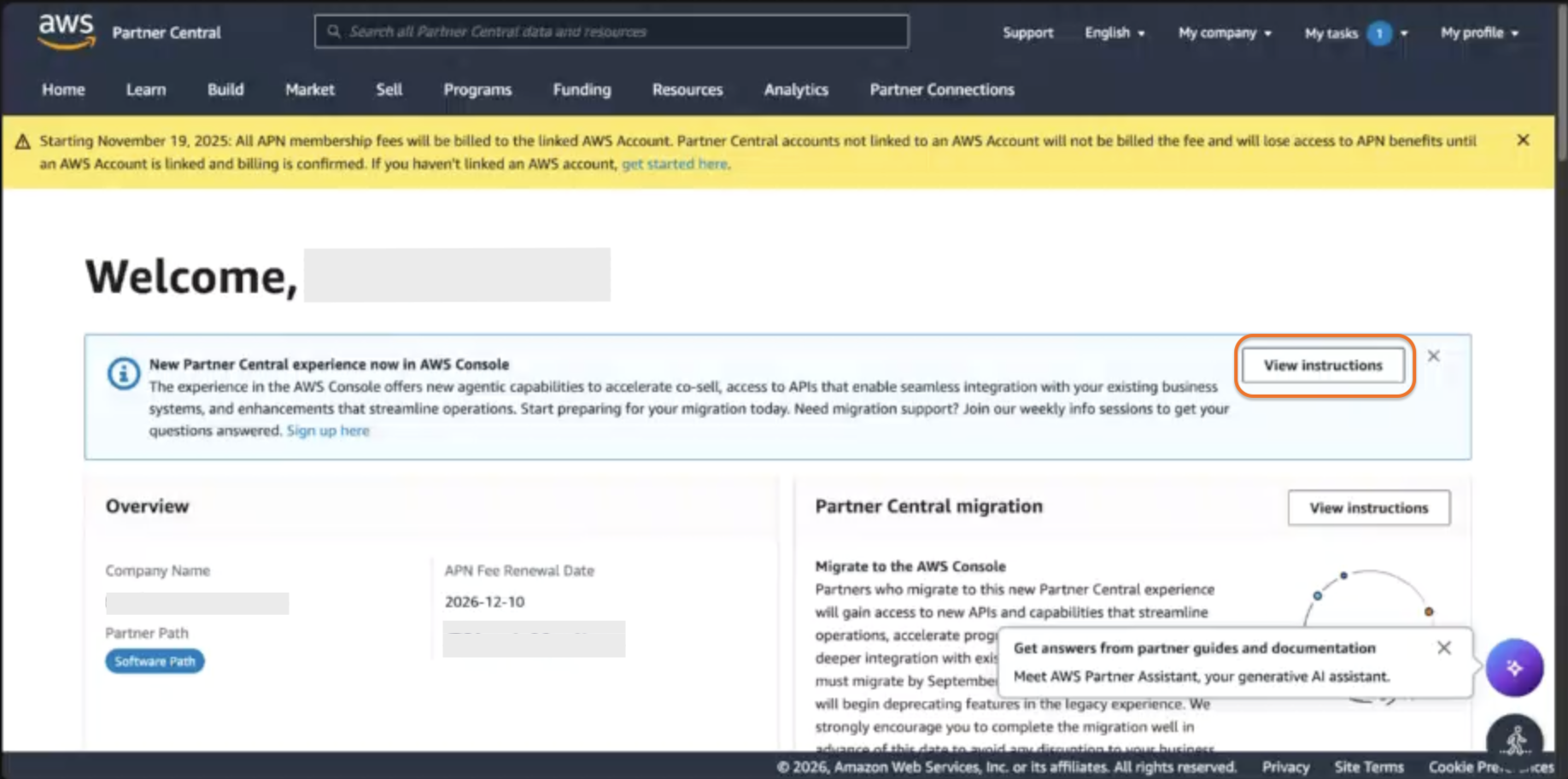
- Log in to the legacy AWS Partner Central portal using your Alliance Lead or Cloud Admin credentials.
- Check whether a migration banner or instructions are still shown.
- If you still see migration prompts or a banner, your account has not migrated yet. Click View instructions.
- If no migration prompts appear, your account has likely already been migrated.
Step 2: Complete the migration tasks
After you click View instructions, a new tab opens with your migration checklist. You need to complete three tasks before you can run the migration.
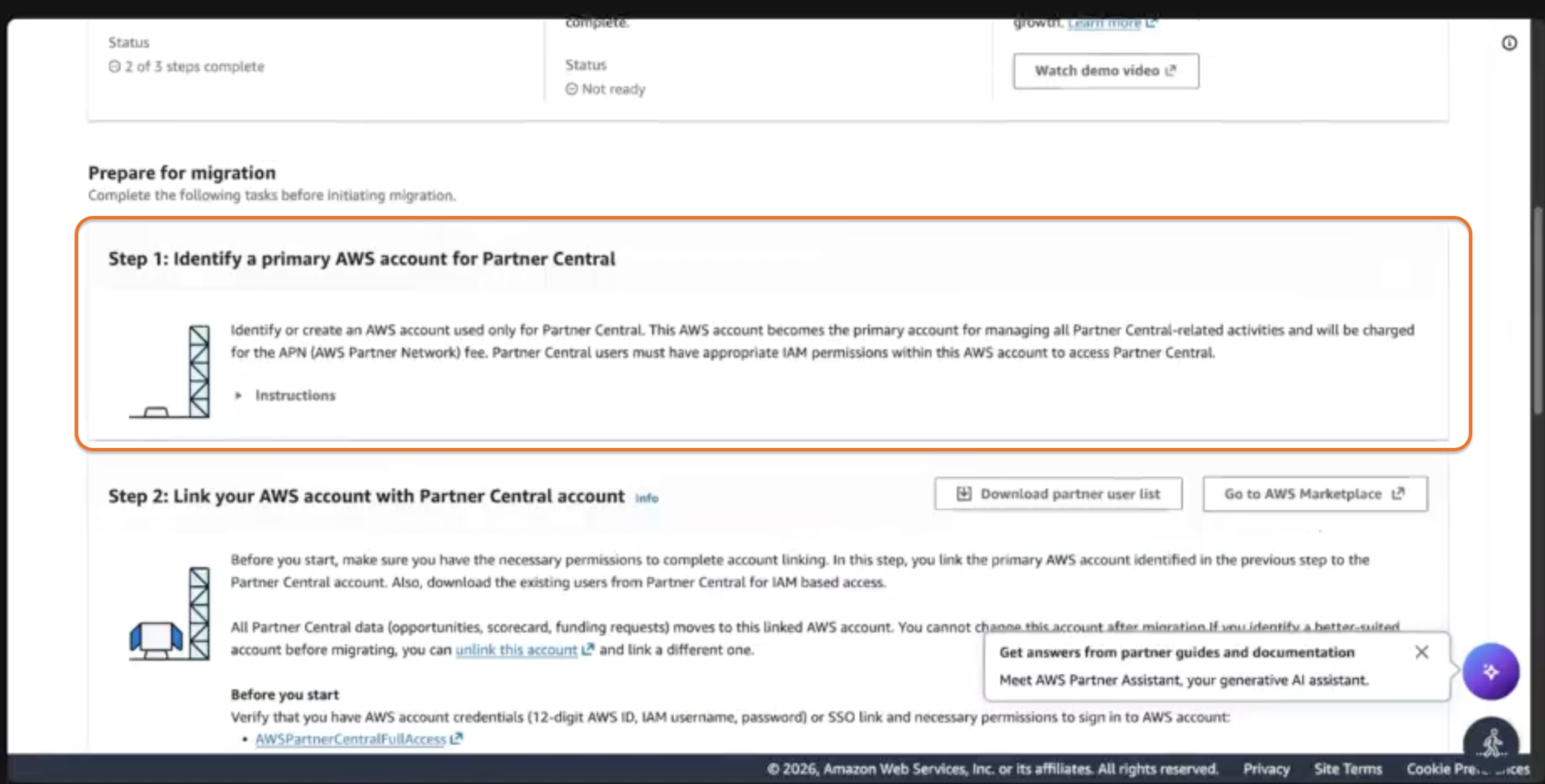
Task 1: Identify a primary AWS account for Partner Central
This step confirms which AWS account is linked to AWS Partner Central.
If an AWS account is already linked:
- Review the account details shown on the page.
- Make sure the displayed account is the one you want to use with AWS Partner Central.
If no AWS account is linked:
Select the AWS account you want to use with AWS Partner Central. Choose carefully, as this account can’t be changed after migration. For help choosing the right account for your setup, see Select an AWS account for AWS Partner Central.
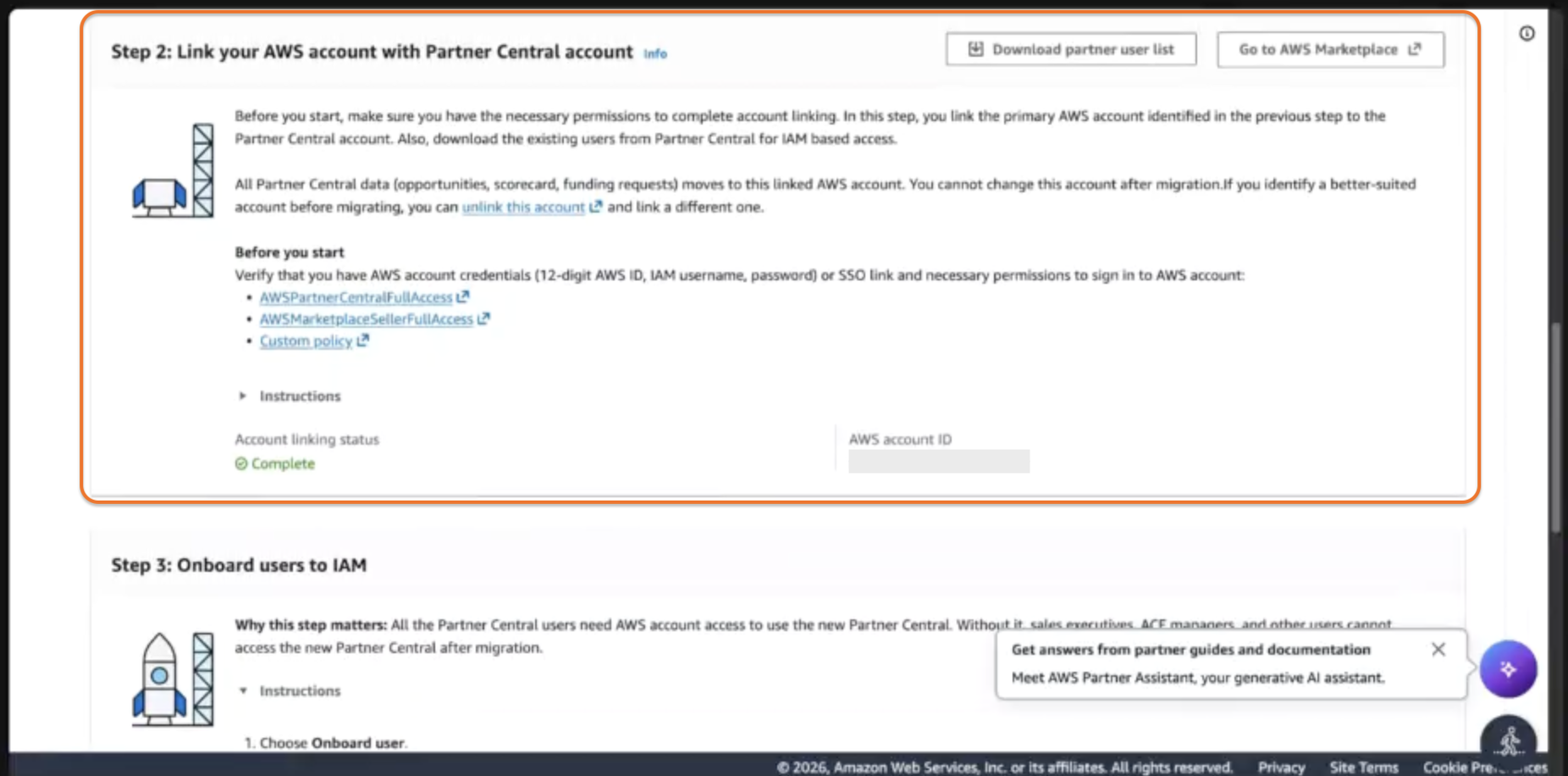
Task 2: Link your AWS account with your Partner Central account
Once you’ve identified your primary account, link it to your APN account. Your Alliance Lead or Cloud Admin must complete this step. For step-by-step instructions, see Linking AWS Partner Central and AWS accounts.
Task 3: Onboard users to IAM
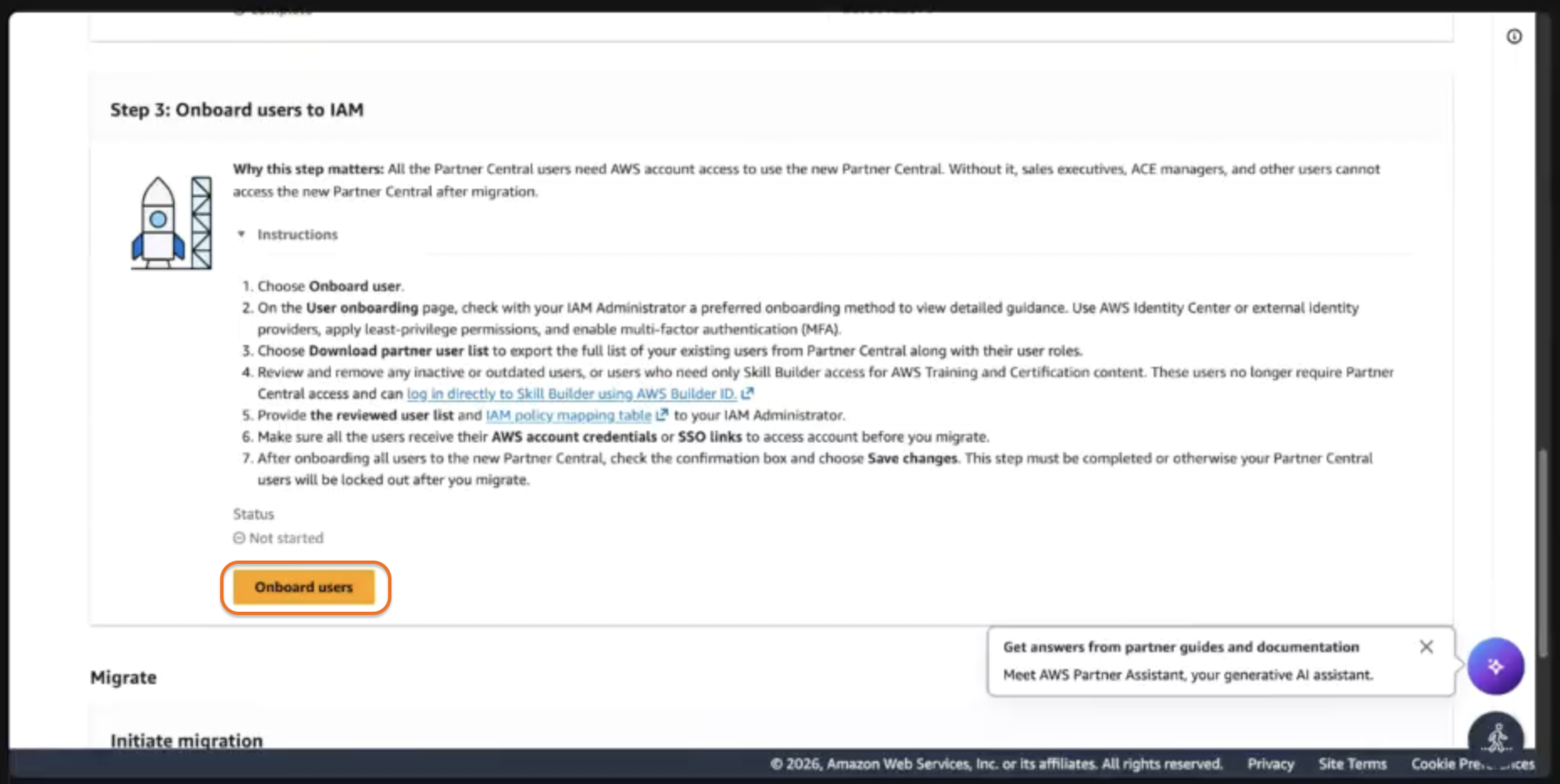
All Partner Central users need AWS account access to use the new Partner Central. Without this step, sales executives, ACE managers, and other users will be locked out after migration.
Your Alliance Lead initiates this step. Your IAM Administrator handles the actual permission assignments.
-
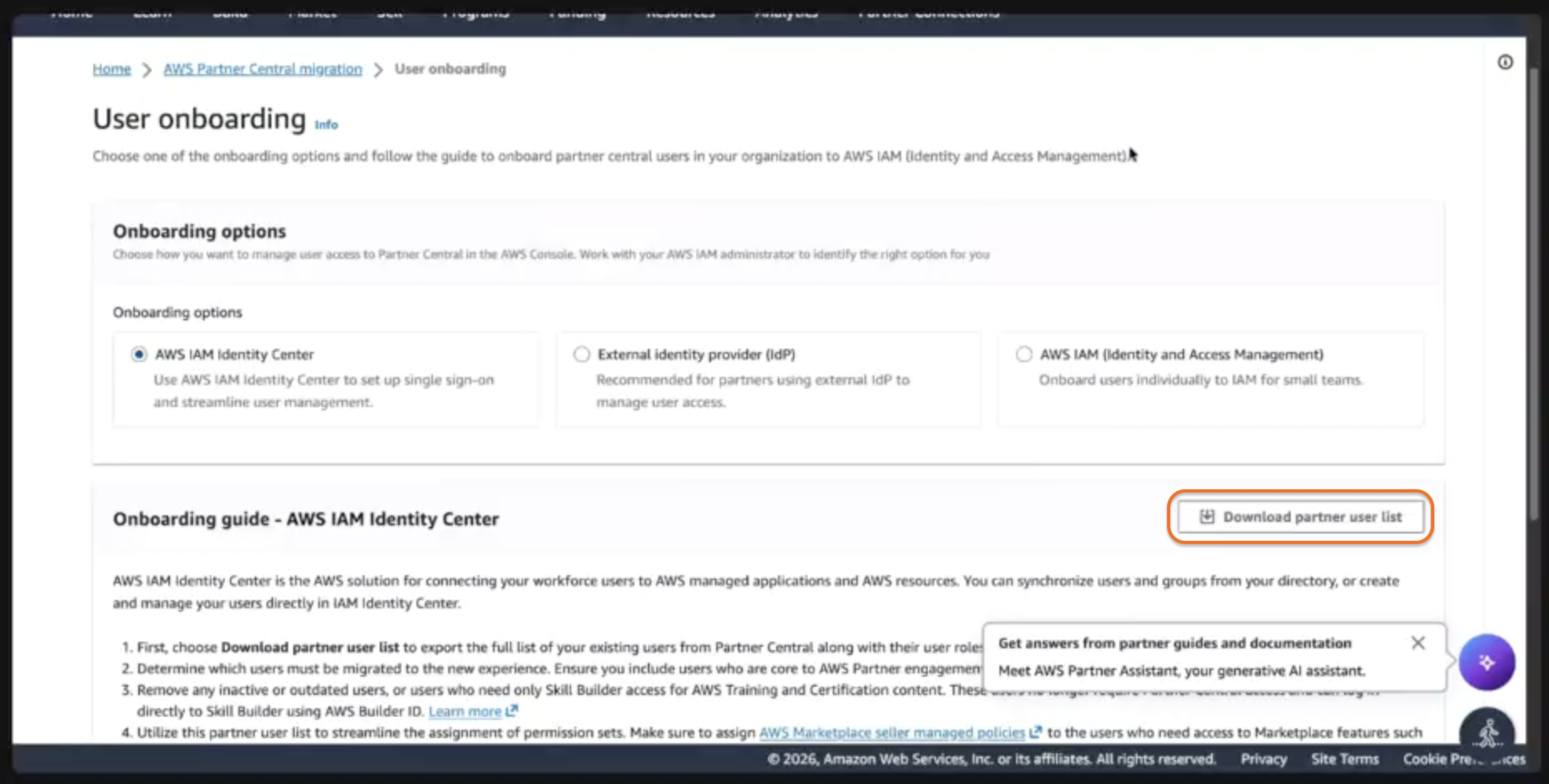
Click Onboard users. This opens the User onboarding page.
-
Work with your IAM Administrator to select the onboarding option that matches how your organization manages user access:
- AWS IAM Identity Center (recommended): Use this if you want to set up single sign-on and centralize user management across AWS accounts.
- External identity provider (IdP): Use this if your organization already uses an external IdP such as Okta, Azure AD, or Ping Identity to manage user access.
- AWS IAM: Use this for smaller teams who prefer to onboard users individually without SSO.
If your IAM Administrator needs help setting up any of these options, see Controlling access in AWS Partner Central for step-by-step guidance on all three.
-
In the Onboarding guide – AWS IAM Identity Center section, click Download partner user list. This exports a CSV file of all your existing Partner Central users along with their current roles.
-
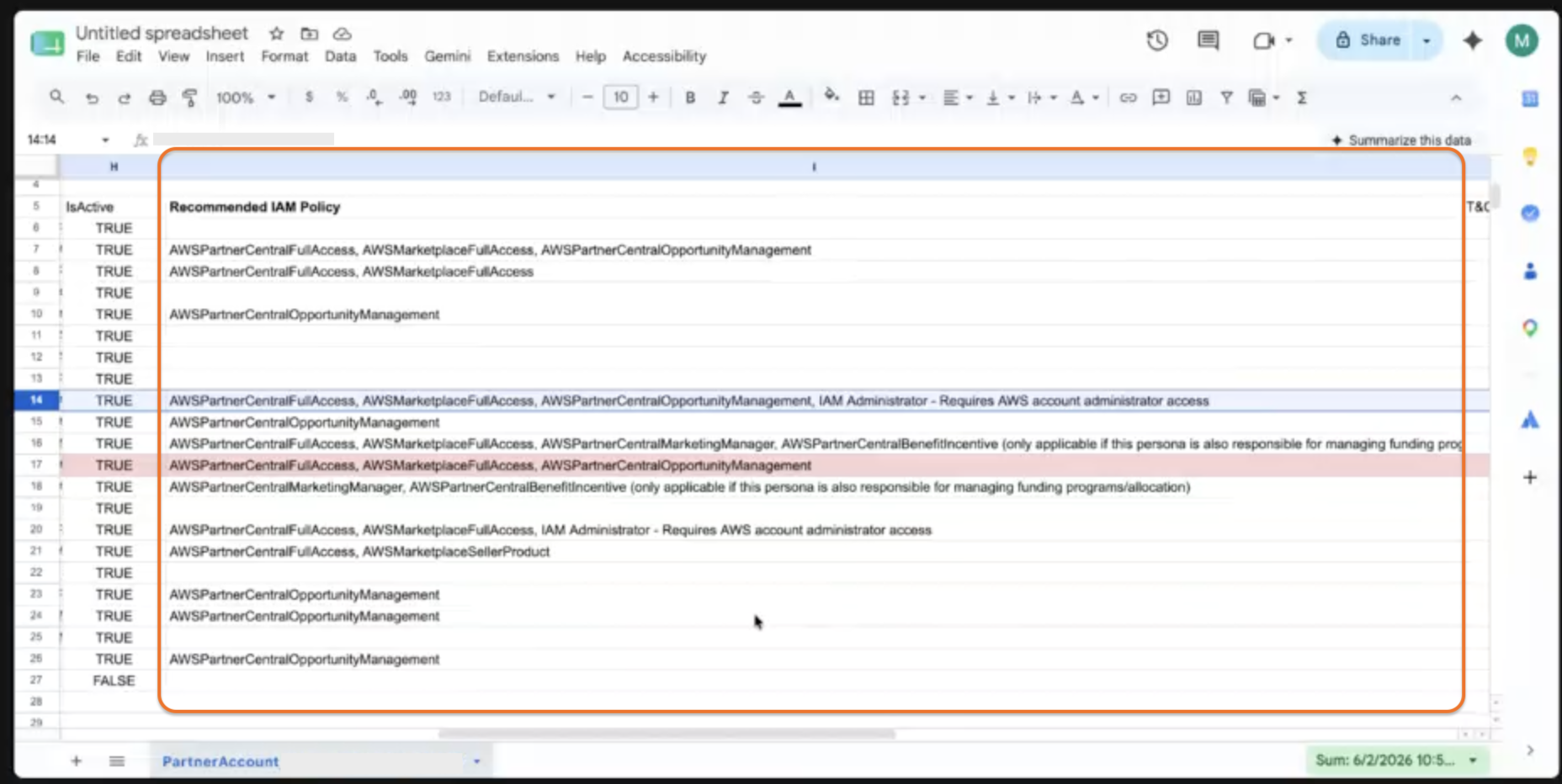
Open the CSV file and review each user’s current role assignment and last login date. Decide which users still need access in the new experience.
-
Work with your IAM Administrator to assign each user the correct managed policy based on their role. For the full policy reference, see AWS managed policies for AWS Partner Central users.
-
Once your IAM Administrator has finished setting up permissions, make sure every user knows how to sign in. How they access Partner Central depends on the onboarding option you chose above.
-
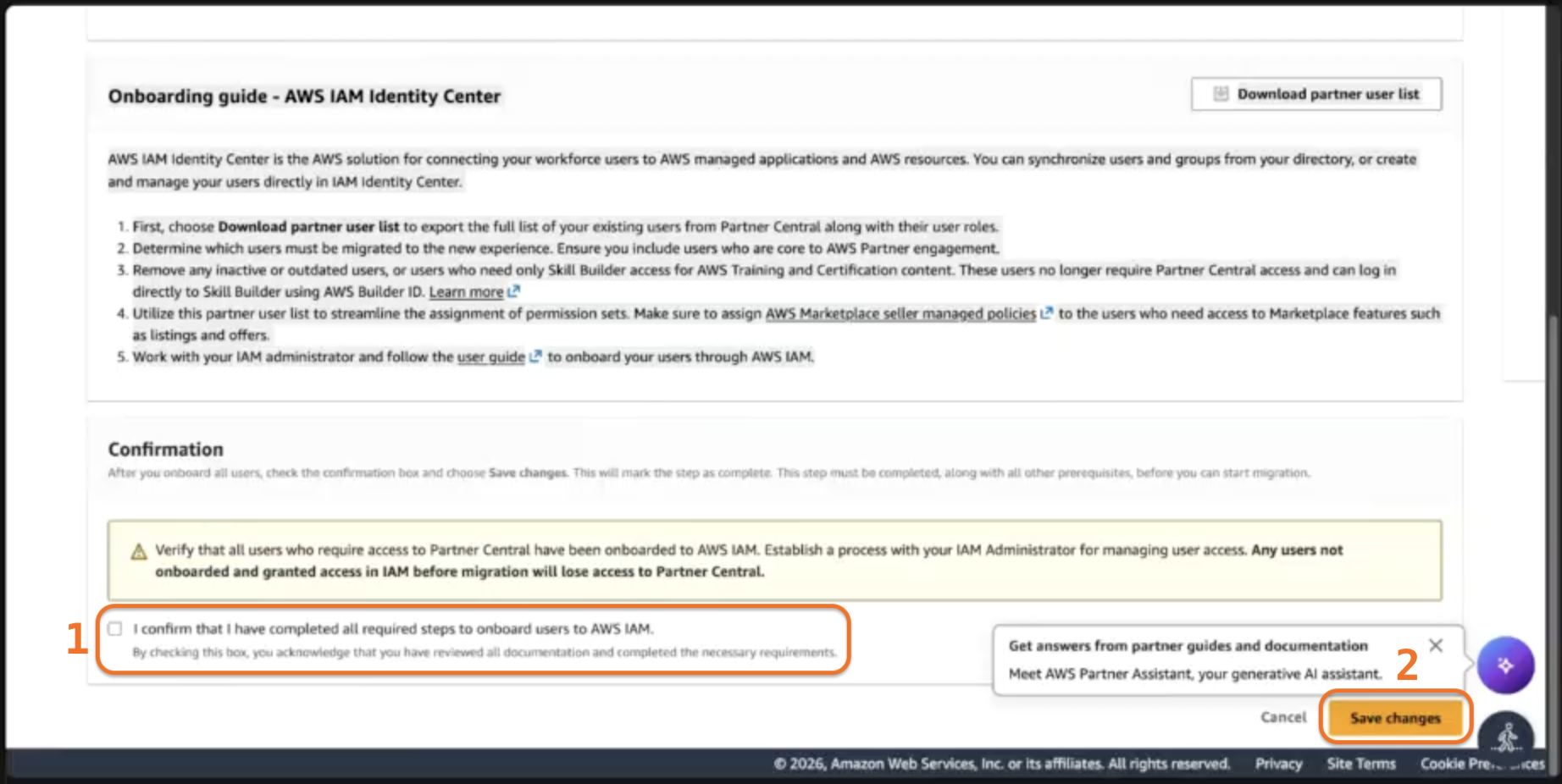
After all users have been onboarded, return to the User onboarding page, check the confirmation box, and click Save changes.
Step 3: Start and complete the migration
-
Go back to the Migration Instructions page.
-
Scroll all the way to the bottom of the page.
-
Select Choose migration options. A confirmation box appears.

-
Choose one of:
- Migrate now: Starts the migration immediately after you confirm. Use this if your team is ready and you’ve already alerted all users.
- Schedule for later: Lets you select a future date and time for the migration to run. Use this if you want to plan the migration window in advance.
-
Type the required confirmation text, then click Migrate now.
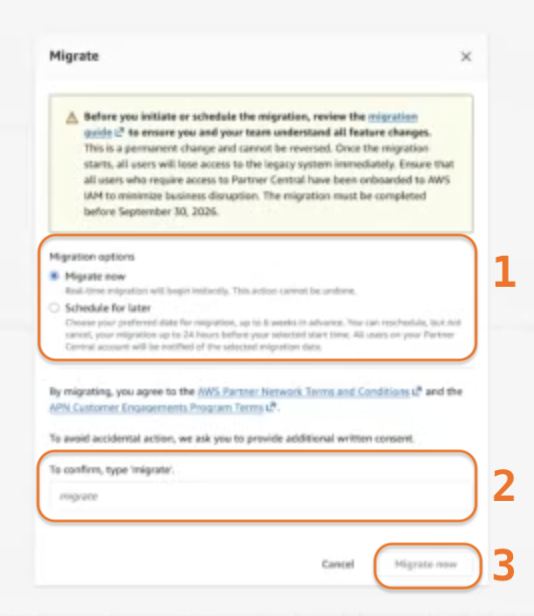
AWS shows a processing screen, and the migration may take several hours to fully complete. During this time, users can’t access the existing Partner Central portal.
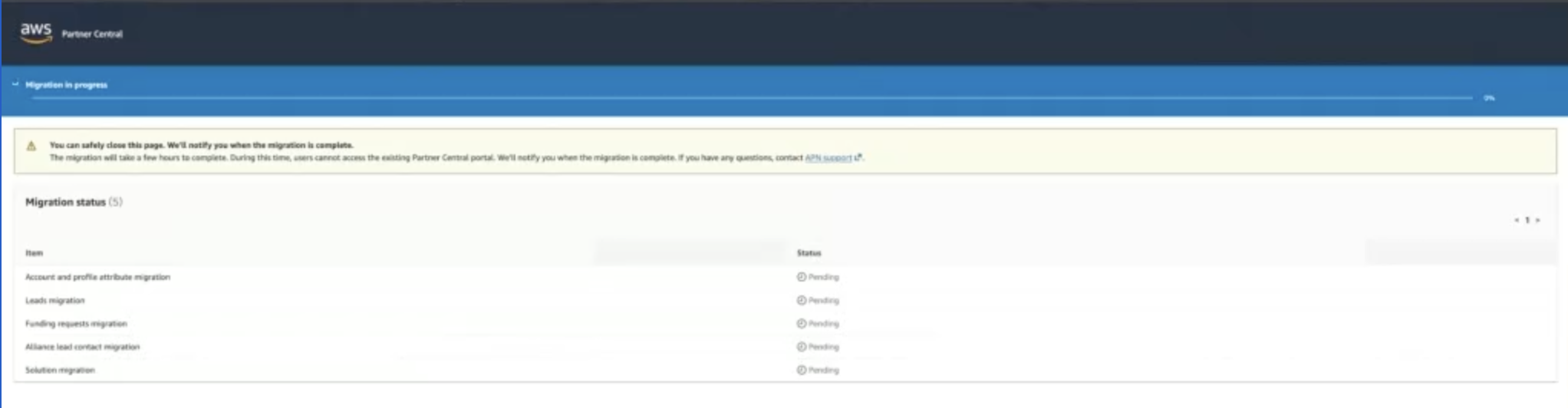
Step 4: Confirm migration is complete
-
Sign in to the AWS Management Console.
-
In the search bar at the top of the page, type Partner Central, then click AWS Partner Central.
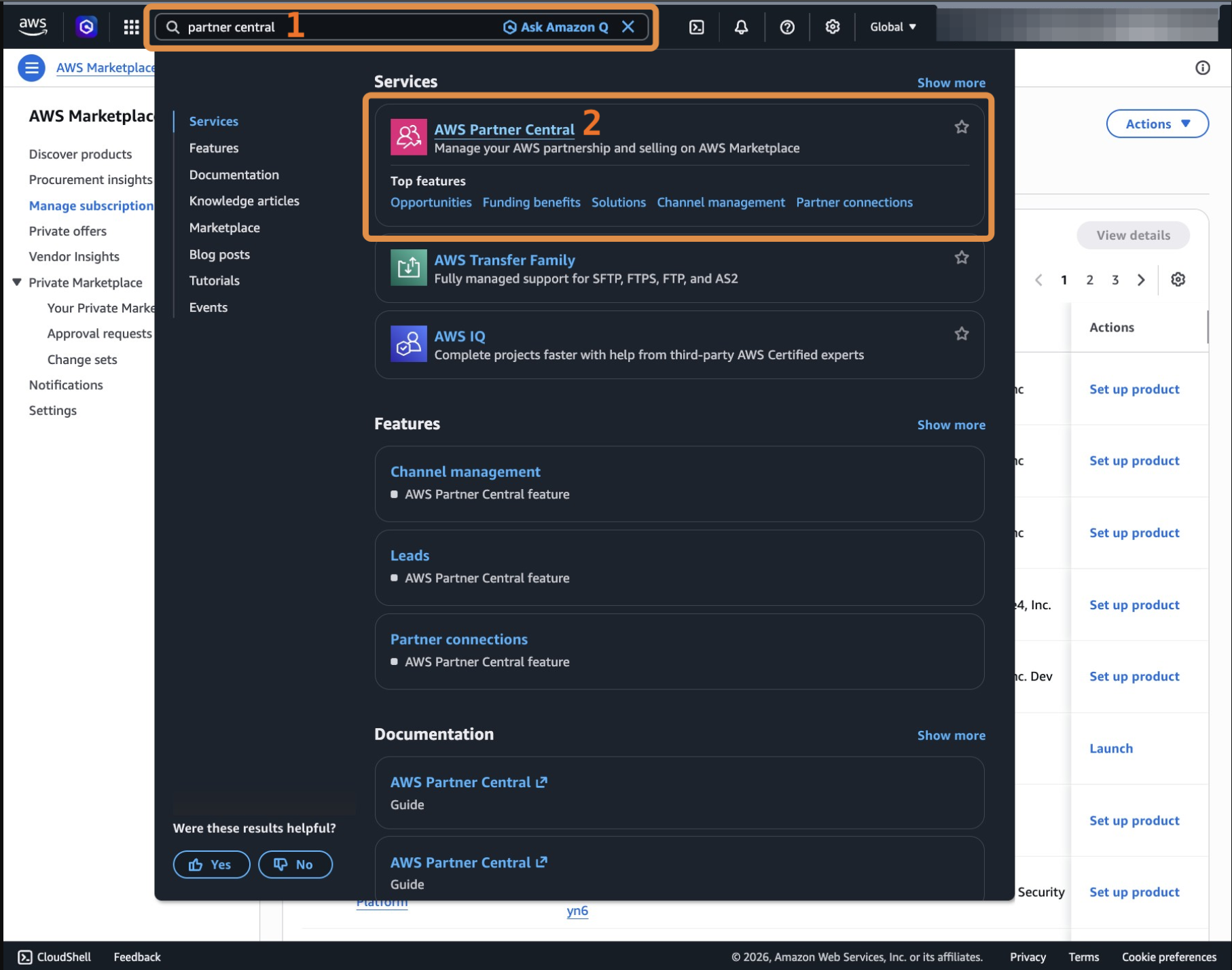
-
Look for a green checkmark next to Partner Account Status: Active.

Step 5: Validate user access
This step is done by two people working together: the IAM Administrator checks that permissions are correctly set up on the AWS side, and the Alliance Lead coordinates with a small group of test users to confirm they can actually sign in and use Partner Central.
Part A: IAM Administrator checks permissions
- Sign in to the IAM Identity Center console.
- In the left navigation pane, under Multi-account permissions, select AWS accounts.
- Select the AWS account linked to Partner Central.
- Confirm that each required user or group has the correct permission set attached. Cross-reference against the reviewed user list from Task 3.
- If any user is missing a permission set, assign it now before asking them to test sign-in. See Assign user or group access to AWS accounts for instructions.
Part B: Test user sign-in
Ask 2 to 3 users representing different role types — for example, one Cloud Admin and one ACE team member — to sign in and verify access. How they sign in depends on the onboarding option set up in Task 3:
- AWS IAM Identity Center: Sign in through the AWS access portal using the SSO link provided by the IAM Administrator.
- External identity provider (IdP): Sign in through your organization’s IdP console, then select the linked AWS account.
- AWS IAM: Sign in to the AWS Management Console using the IAM credentials provided by the IAM Administrator.
Each test user should confirm:
- The Partner Central dashboard loads successfully.
- Their ACE opportunities and historical data are visible.
- They can access the features their role is supposed to allow.
Part C: Troubleshoot access issues
If a user can’t sign in or sees missing features after migration, the most common cause is an incorrect or missing IAM policy assignment. The IAM Administrator should:
- Return to the IAM Identity Center console and confirm the user’s permission set is attached and provisioned to the correct AWS account.
- Check that the managed policies assigned match the user’s intended role. See AWS managed policies for AWS Partner Central users for the full role-to-policy mapping.
- If the user’s role assignment looks correct but access still isn’t working, refer to Controlling access in AWS Partner Central for further troubleshooting guidance.
Frequently asked questions
Will migration impact AWS Marketplace activity?
No. Marketplace accounts remain linked. The migration consolidates access into the new Partner Central experience.
Will this affect Suger or other integrations?
No. IAM permission updates don’t impact Suger functionality.
Why can’t some users access Partner Central after migration?
See Part C: Troubleshoot access issues for detailed guidance on what to do.