
AWS Funding
Activate, submit, and track AWS POC and MDF funding requests directly in Suger.
Overview
Suger connects directly to the AWS Partner Central Funding Benefits API, so you can submit, track, and manage funding requests without leaving your workflow. Once funding is activated, you can create POC and MDF requests from either the Suger Console or your CRM, monitor them as they move through AWS review in real time, respond to rejections, file cash claims, and reconcile against your funding wallets.
Before funding can be activated, two prerequisites must be in place. Once those are confirmed, a Suger admin enables funding on your ACE integration and (for Salesforce users) assigns the funding permission set.
Prerequisites
Make sure the following are in place before creating a funding request:
1. AWS ACE connected to Suger
- Your AWS ACE integration must already be set up and active in the Suger Console (go to Settings > Integrations to verify).
- This connects Suger to your AWS Partner Central account via the Partner Central API.
- If you have not yet set up this integration, complete it first before proceeding.
See AWS Partner Network API Integration.
2. ACE portal migrated to Partner Central 3.0 (PC 3.0)
- Your ACE portal must be fully migrated to Partner Central 3.0.
- This migration is a mandatory AWS requirement before funding benefits can be enabled.
- The Funding Benefits API is only available on the PC 3.0 platform.
- Contact your AWS Partner Manager if you are unsure of your migration status.
Activate funding
Before your team can submit requests, a Suger admin needs to enable the funding feature and (for Salesforce users) set up CRM permissions.
Enable funding in the Suger Console
Once both prerequisites are satisfied:
- Log in to the Suger Console.
- Go to Settings and click the Integrations tab.
- Find your AWS ACE integration and click Edit to open the configuration panel for AWS - ACE (Partner Central API).
- Turn on the Enable Funding Application toggle (“Enable funding application for AWS”), then click Save.
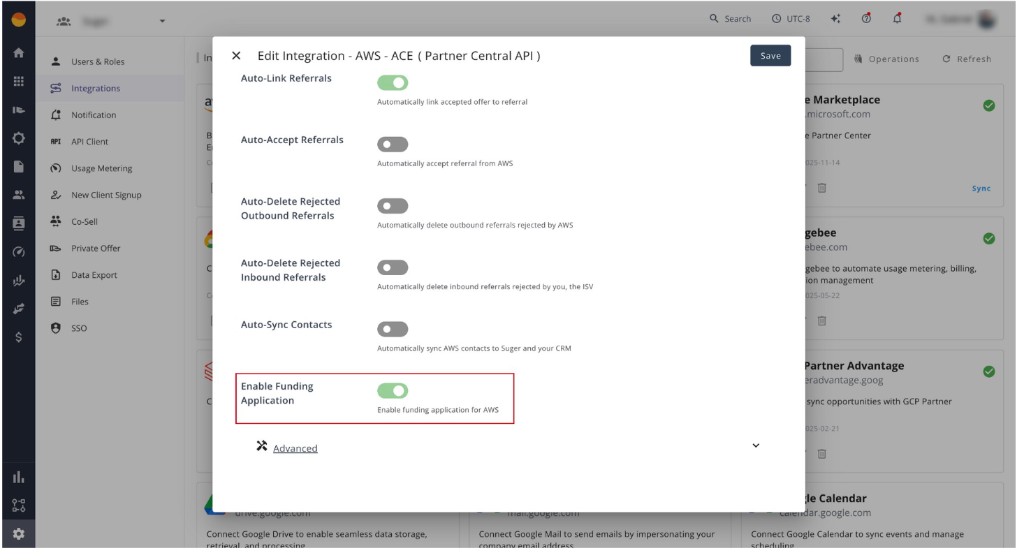
This step uses the Partner Central Funding Benefits API and only works after AWS has confirmed your Partner Central 3.0 migration. If migration is not complete, enabling funding will fail with an error.
Set up Salesforce permissions (Salesforce users only)
Without this permission set, team members will not be able to see the funding interface inside Salesforce.
- Go to User settings in Salesforce.
- Assign the Suger Funding permission set to each team member who will draft or submit funding requests.
Submit a funding request
Once funding is activated, you can create a new POC or MDF request from either the Suger Console or your CRM.
- Open the Funding tab in the Suger Console, or go to the relevant opportunity in Salesforce and open the Suger component.
- Click Create Fund Request and select the funding program (POC or MDF).
- Fill in all required project details. Use the built-in validation tool to check for missing or incorrect fields before submitting. This catches errors before they reach AWS, which helps avoid delays.
- If your POC request is over $10,000, AWS requires an AWS Pricing Calculator link plus a project plan. The MRR you enter in ACE must exactly match the calculator’s output — even a small mismatch gets the request rejected. Double-check this before submitting; it’s the single most common reason POC requests get sent back.
- Click Submit. Suger sends the request directly to the AWS Partner Central API.
Track the funding lifecycle
After submission, Suger keeps your request synchronized with AWS in real time. To stay on top of where a request stands, track two separate data points:
- Status — the overall state of the request (for example,
PENDING_SUBMISSION,IN_REVIEW,APPROVED, orREJECTED). - Stage — the specific team currently reviewing it (for example,
BUSINESS APPROVAL,TECH APPROVAL, orFINANCE APPROVAL).
To filter and prioritize your requests, use the Advanced Filters in the Suger Console or your CRM. You can filter by program type (POC or MDF), fulfillment type (Credits or Cash), or stage.
Respond to action required and rejections
If a request is paused or rejected, Suger gives you what you need to fix and resubmit without starting over.
If a request is flagged as ACTION_REQUIRED
- Open the request and check the Status Reason Codes. These indicate exactly what is missing, such as a project plan or design win document.
- Update the request in Suger based on the reason codes.
- Resubmit to restart the review process.
If a request is rejected
- Review the rejection reason. You can find it in the automatic rejection email, in the Approval History in the action bar, or under the Actuals section of the request.
- Select Resume fund request from the action bar to reopen and update the request.
- Submit once your changes are complete.
Submit and track cash claims
Once a project is complete and your request has been approved, you can file a claim to receive your reimbursement.
- Navigate to the Cash Claim stage for the approved request.
- Submit your actual project expenses (actuals).
- The status updates to Awaiting Approval while AWS reviews your submission.
- Once AWS approves, Suger provides a direct link to Payee Central where you can submit your invoice.
- Track the claim until the invoice is approved and the reimbursement is finalized.
Monitor wallets and purchase orders
Use the Funding Wallets view in the Suger Funding tab to see your available budgets, remaining balances, and historical spend across all AWS programs.
To support internal reconciliation, open the funding details for any request to find the PO numbers associated with your approvals.
Frequently asked questions
Can I edit a request after submitting it?
Once submitted, a request enters the IN_REVIEW stage and can no longer be edited through standard means. For minor corrections requested by AWS reviewers, use the Amend fund request option in the action bar.
Can I update a draft before submitting?
Yes. You can edit a draft at any time while it is in PENDING_SUBMISSION status.
Can I link a request to a specific opportunity?
Yes. Before submitting, you can associate the request with a related customer opportunity or an existing benefit allocation from within the request builder.
What happens if my request fails validation on submission?
Suger will show you the specific fields that need to be corrected. Update those fields and resubmit.
Why doesn’t my ACE opportunity show up when I submit an MPOP (Marketplace Private Offer Promotion) request?
This is a known AWS Partner Central 3.0 bug tied to CPPO-to-ACE association. Before resubmitting, confirm the Marketplace Offer ID is linked to the opportunity — this is the root cause in most cases.
For assistance with any step in this guide, contact your Suger Customer Success Manager.