Brand Settings
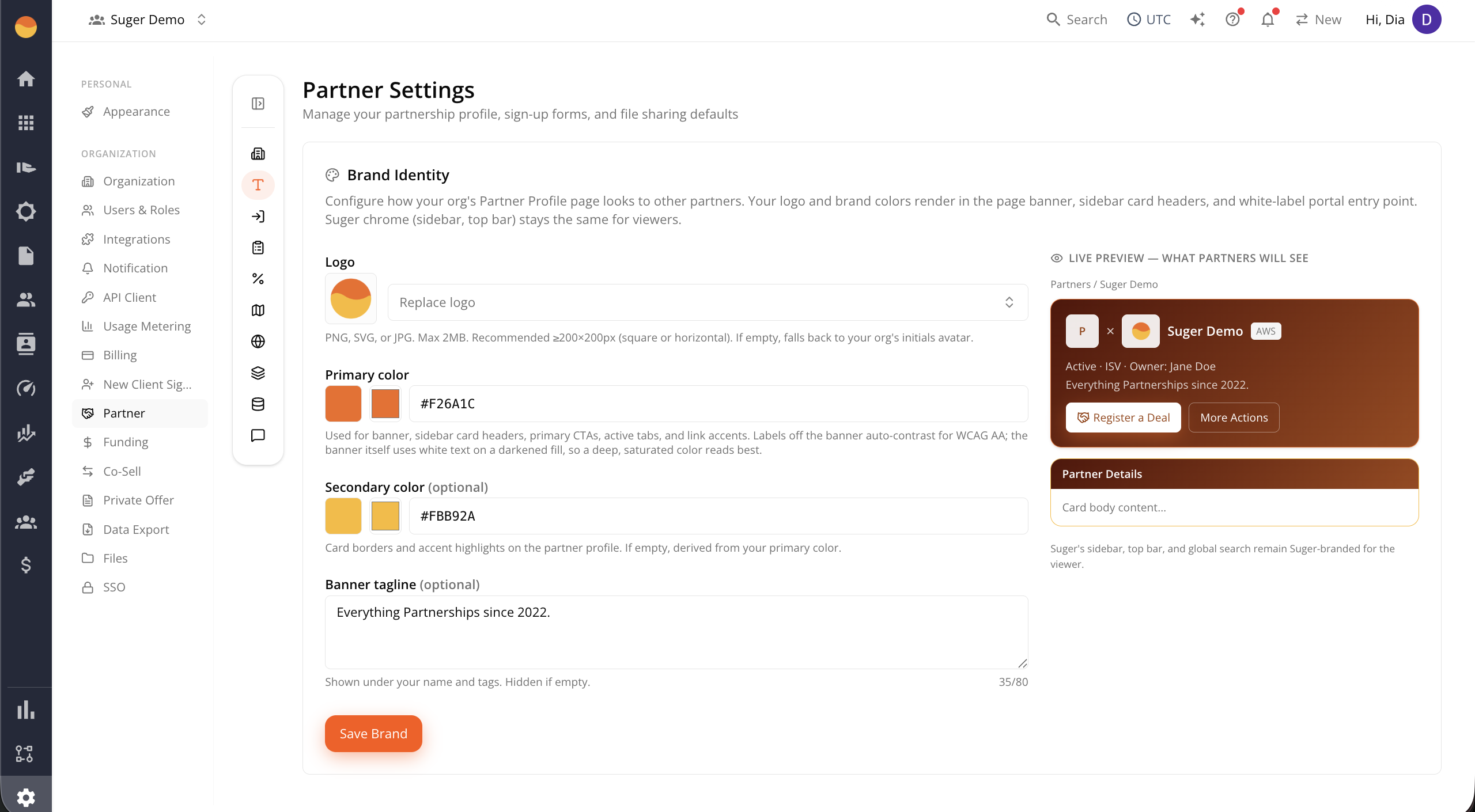
Brand settings control how your company appears to partners — your logo, brand colors, and an optional tagline.
Overview
The Brand settings control how your company appears to partners. This is where you upload your logo, choose your brand colors, and add an optional tagline.
These settings apply only to the parts of Suger that represent your company, such as your Partner Profile, banner, sidebar cards, and white-label portal. The rest of the Suger interface keeps its standard branding.
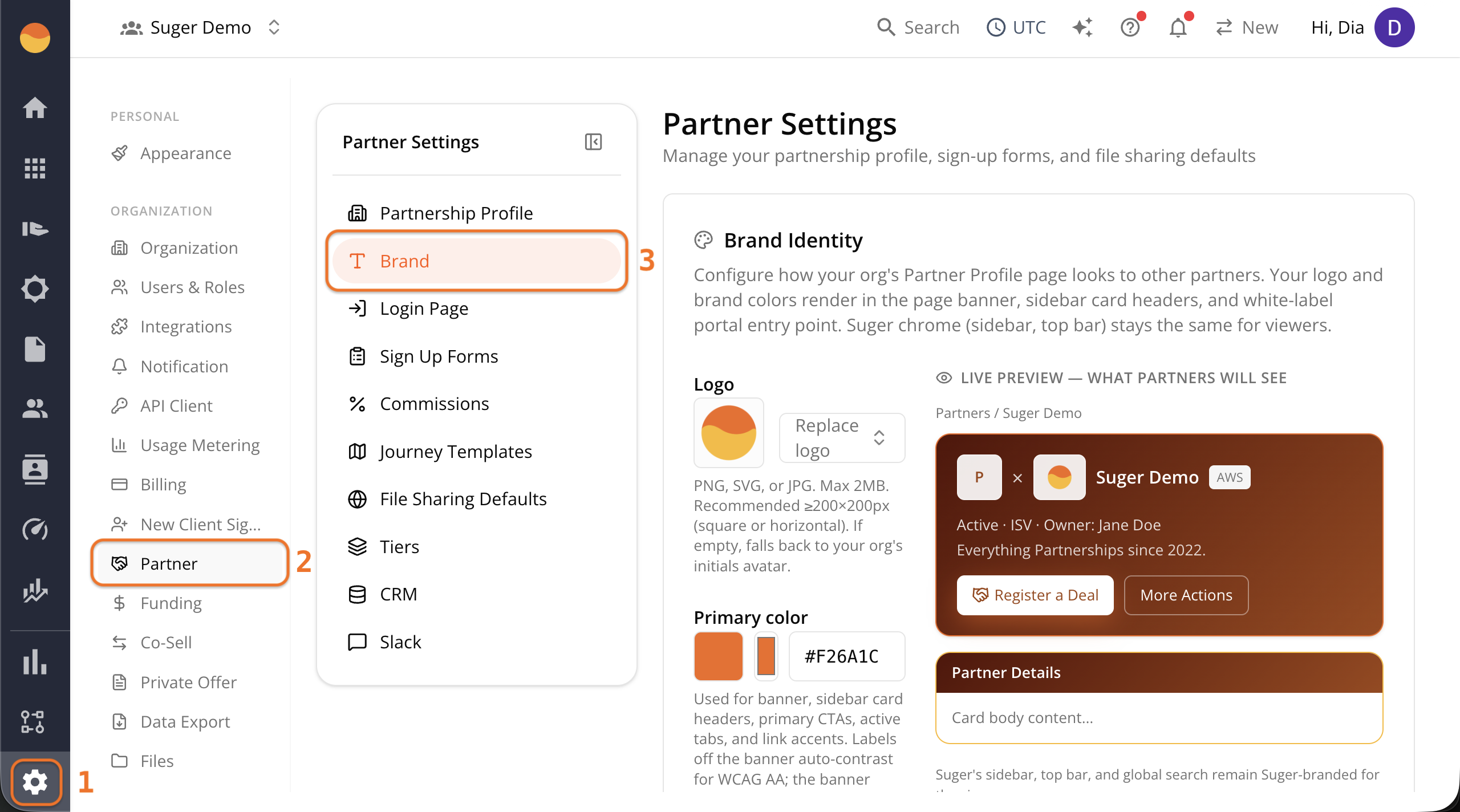
Access your Brand settings
- Go to Suger Console, then Settings.
- Click Partner, then Brand.
Update your brand identity
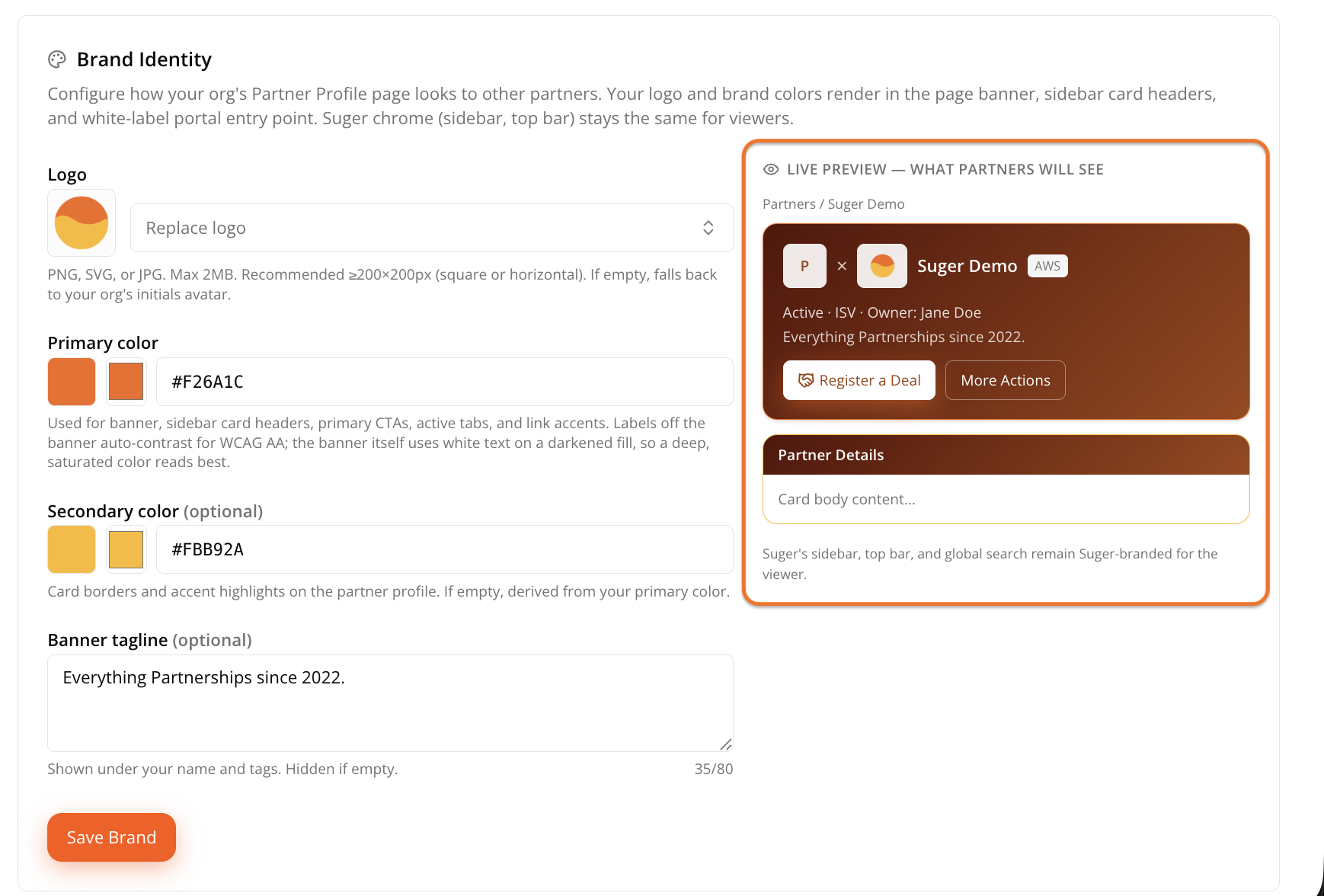
As you update each field, the Live Preview panel refreshes automatically to show how your Partner Profile will appear to partners. Use the preview to make sure your logo, colors, and tagline look the way you expect before saving.
Upload your logo
Click Upload Logo or Choose file and upload your company’s logo.
Supported formats are PNG, SVG, and JPG (up to 2 MB). Suger recommends using an image that’s at least 200 × 200 px and either square or horizontal.
If you don’t upload a logo, your organization’s initials are shown instead.
Set your primary color
Enter your brand’s primary color as a hex code (for example, #F26A1C).
This color is used for your banner, sidebar card headers, action buttons, active tabs, and link accents.
For the best appearance, choose a darker, saturated color if possible. The banner automatically adjusts the background to keep white text readable, so very light or pastel colors generally produce less contrast.
Set your secondary color (optional)
Enter a hex code for card borders and accent highlights (for example, #FBB92A).
If you leave this blank, Suger automatically generates a secondary color from your primary color. Only set this field if you want more control over your accent color.
Add a banner tagline (optional)
Enter a short line that appears beneath your company name and tags on your Partner Profile.
The tagline can be up to 80 characters long, and a live character counter shows how many characters you’ve used.
If you leave this blank, no tagline is shown.
Save your changes
Click Save Brand. Changes appear the next time a partner views your profile.