
Track Partner Collaborations
Track every partner invitation you send and manage pending invites from one place.
Overview
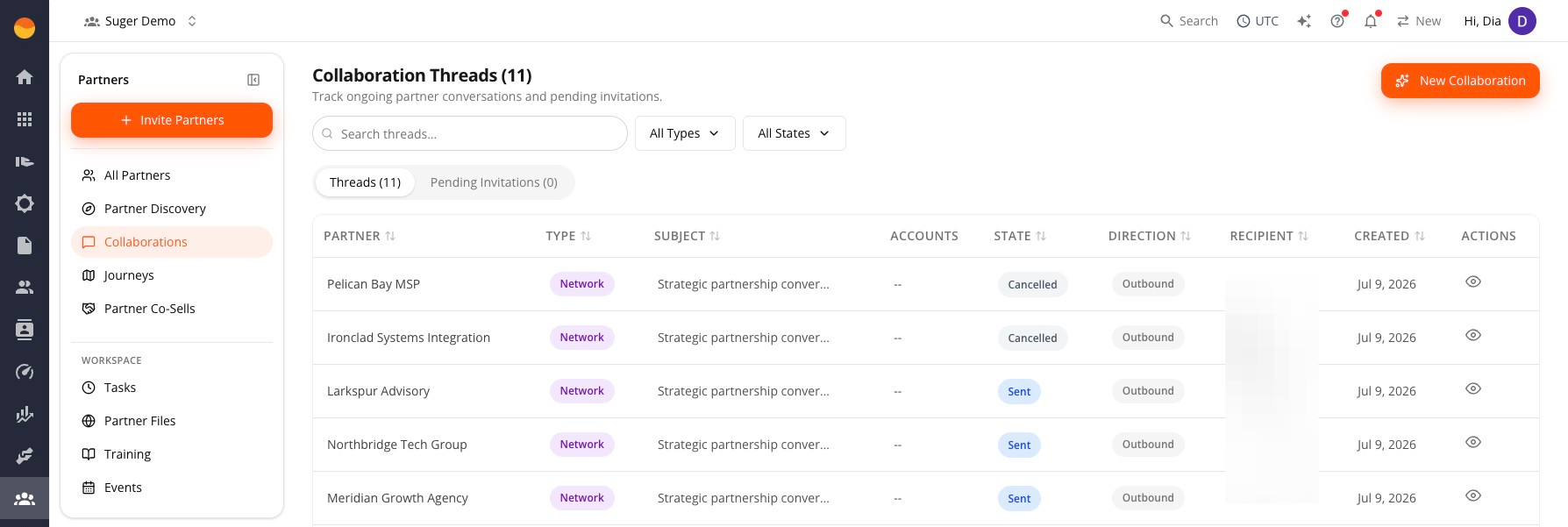
Every invitation you send creates a collaboration thread. The Collaborations page is where you track and manage all of them. You can also reach individual invitations from your All Partners page.
Track Invitation Status
- Go to Suger Console, then Partners.
- Click Collaborations.
- Switch between the Threads and Pending Invitations tabs to filter what you’re looking at.
- Narrow the list using All Types (Network, Account Overlap, Deal Collaboration) or All States (Sent, Accepted, Declined).
- Click the eye icon next to any thread to view its details.
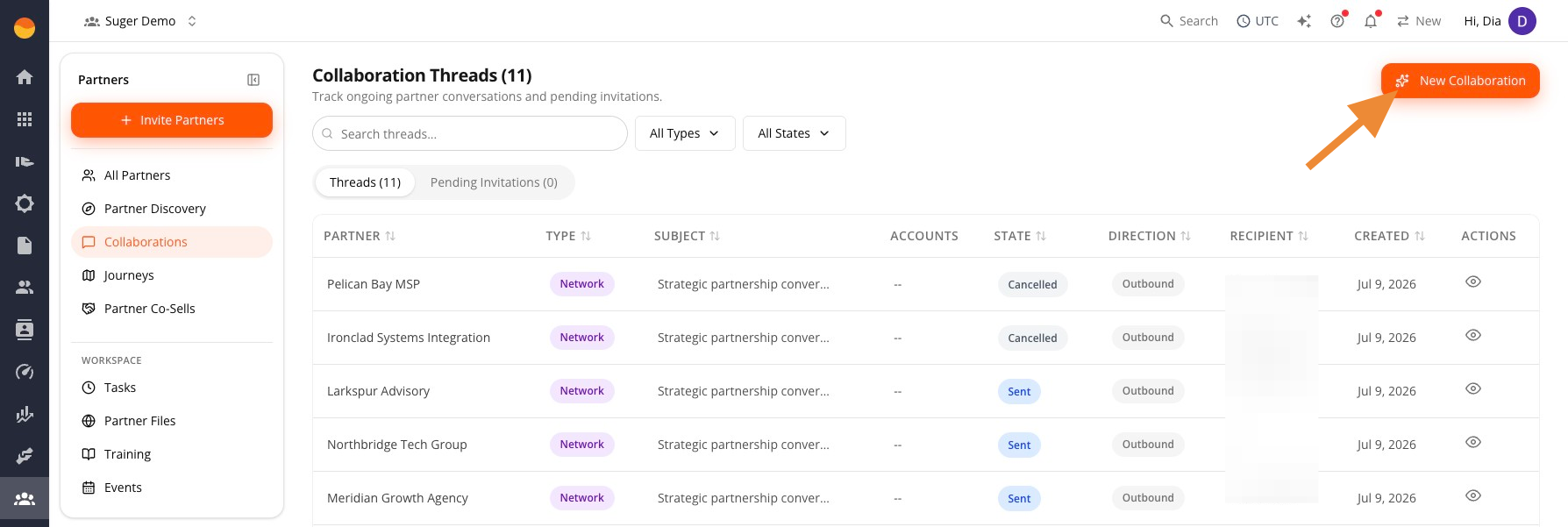
Start a New Collaboration
Click New Collaboration from the Collaborations page to send a new invitation. This opens the same flow covered in Navigate the Partner Console.
View or Cancel a Pending Invitation
-
Go to Suger Console, then click Partners.
-
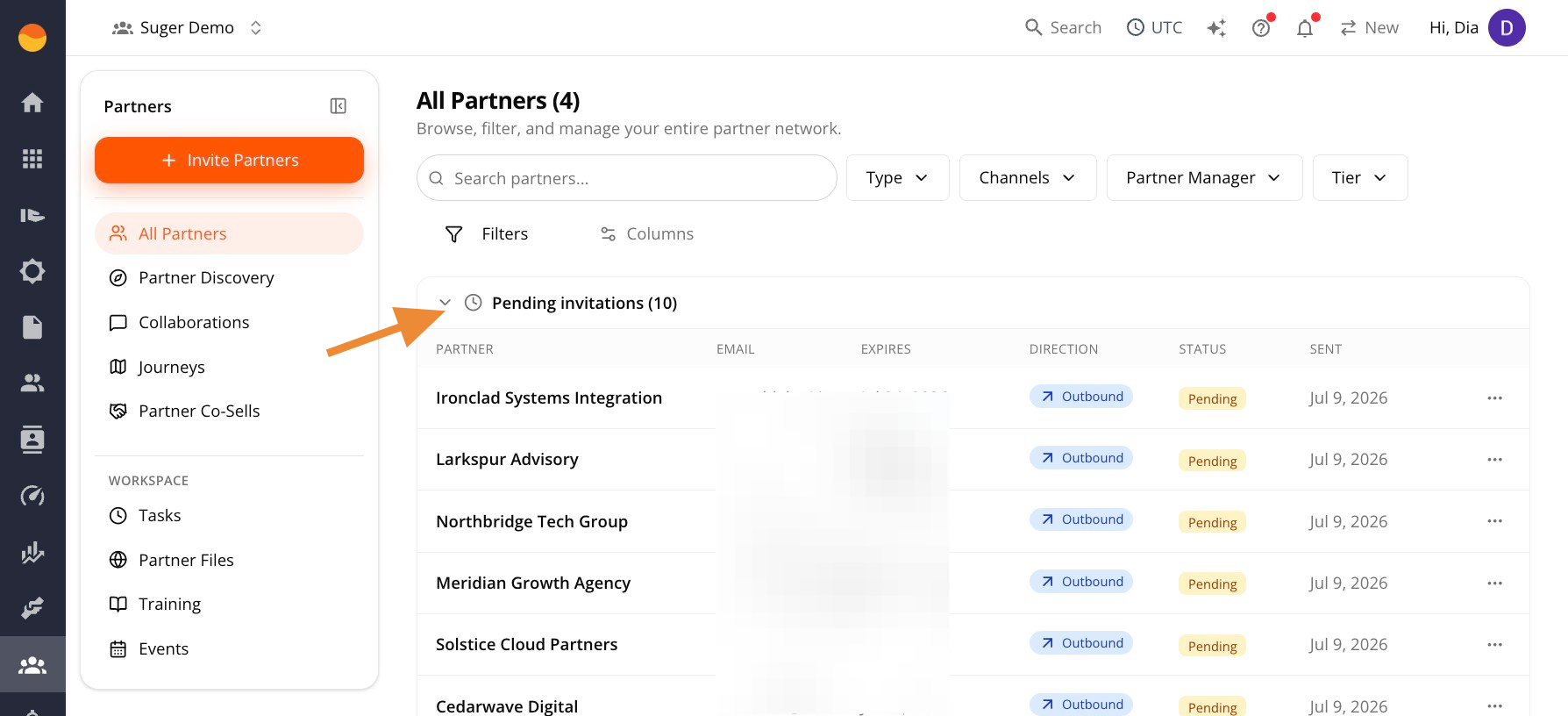
Click Pending Invitations to expand the list.
-
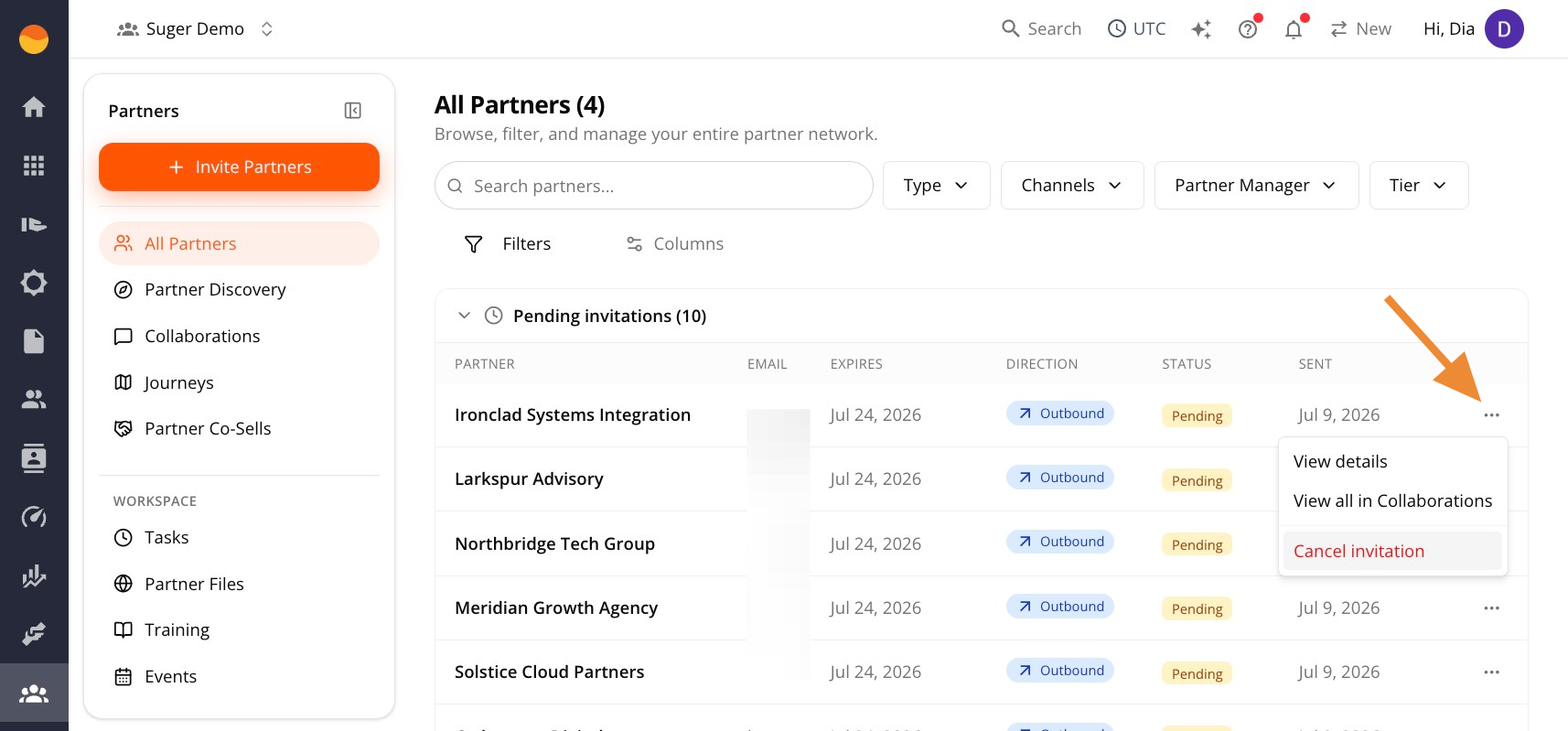
Click the … menu next to any pending invitation.
-
From here, you can:
- Click View details to see the invitation’s details.
- Click View all in Collaborations to go to the Collaborations page.
- Click Cancel invitation to cancel the pending invite. This can’t be undone.