Share and Monitor Partner Training Courses
Publishing a course doesn’t automatically make it visible to partners. Before anyone can enroll, choose which partner organizations can access it, then track their progress as they complete the training.
Overview
Sharing and monitoring a course happens in two stages:
- Share the course with the right partner organizations so learners can discover and enroll.
- Monitor progress as learners work through the course and see who has earned a certificate.
Share a Course with Partners
- Open the course:
- Go to Suger Console, then Partners.
- Click Training, then My Courses.
- Open the course you want to share.
- Set sharing:
-
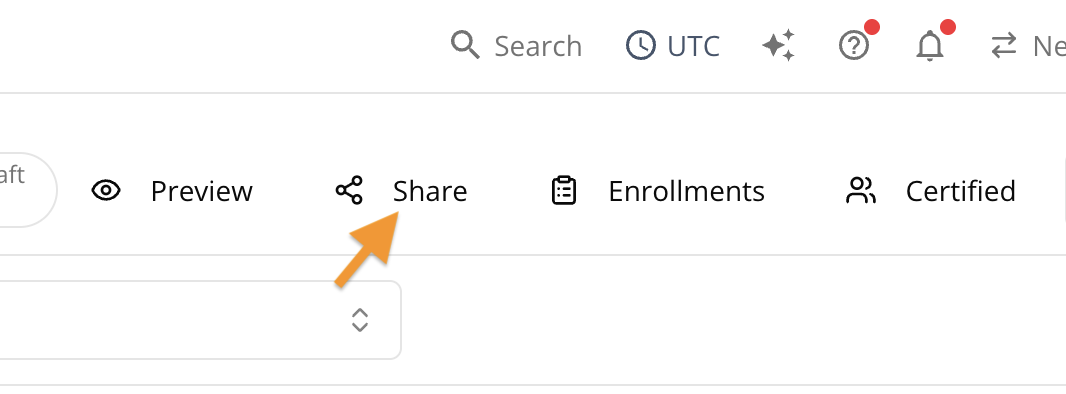
Click Share in the top toolbar.
-
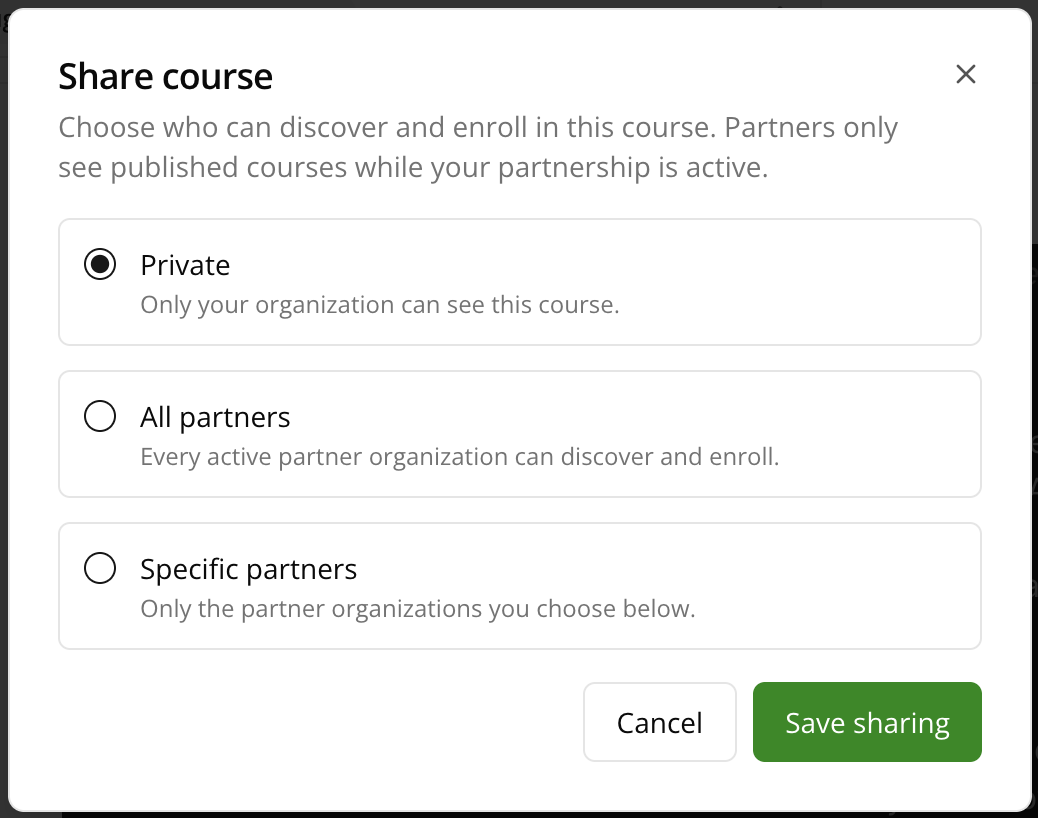
Choose how you want to share it:
- Private: Only your organization can see this course.
- All partners: Every active partner organization can discover and enroll.
- Specific partners: Only the partner organizations you select. Use Search partners to find and add them.
-
Click Save sharing.
-
Monitor Course Progress
Get a Quick Overview Across All Courses
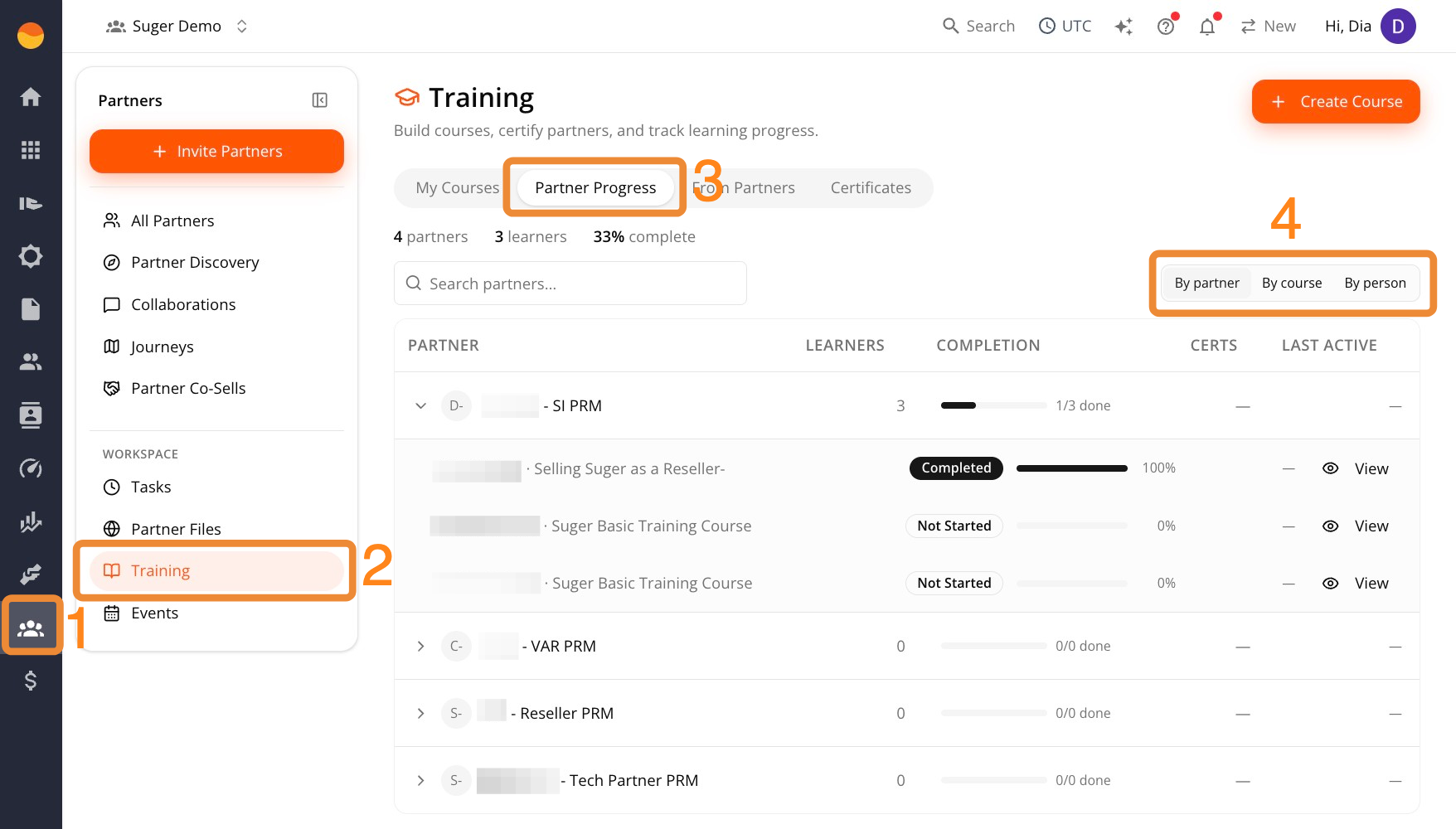
- Go to Suger Console, then Partners.
- Click Training, then go to the Partner Progress tab.
- Switch between By partner, By course, or By person.
Each learner shows a progress bar and status (Completed, In progress, or Not started).
Check Detail for One Course
- Go to Suger Console, then Partners.
- Click Training.
- Open the course from the My Courses tab.
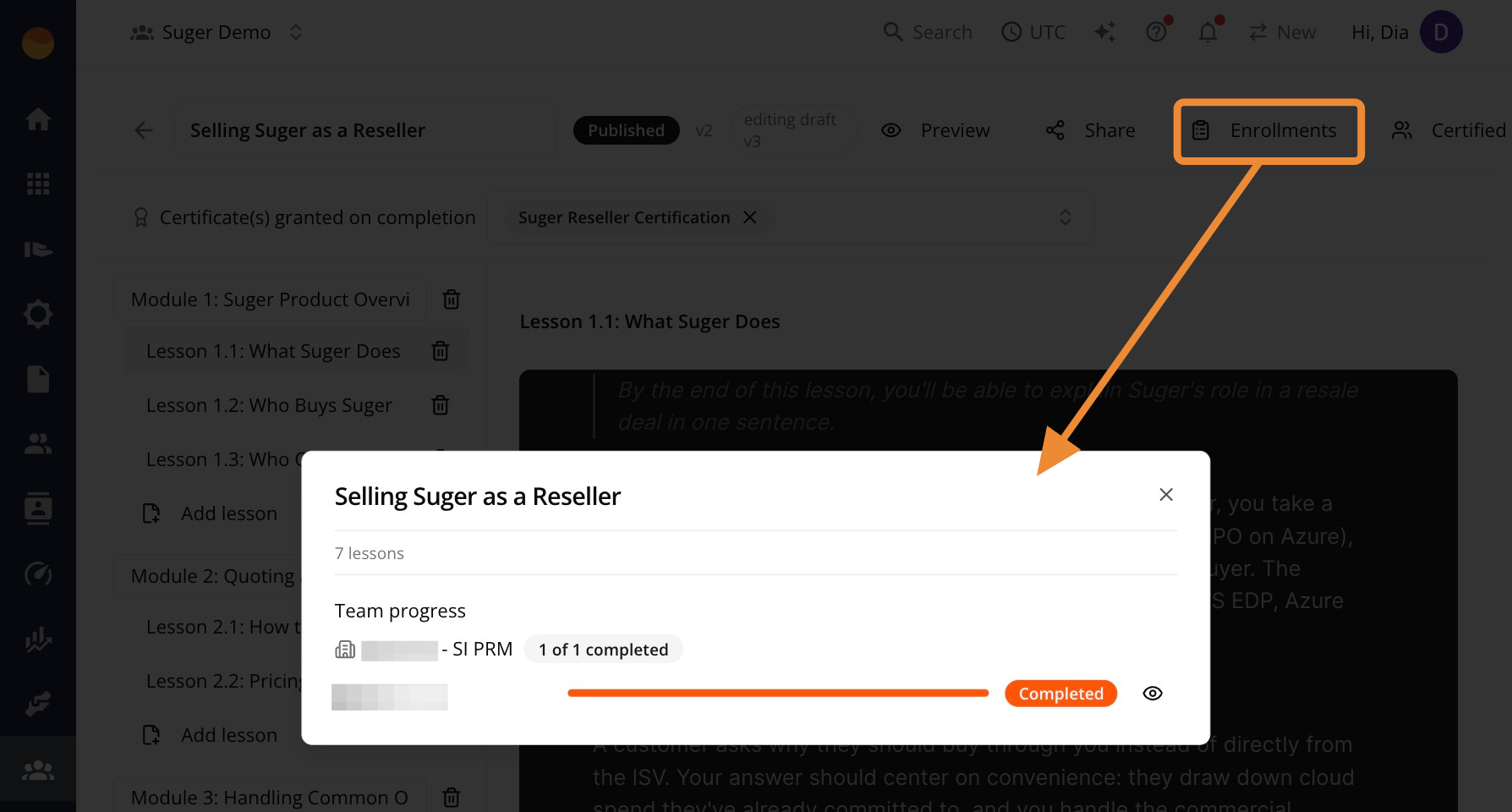
- Click Enrollments in the top toolbar.
- Review Team progress, grouped by partner organization.
Each learner shows a progress bar and status (Completed, In progress, or Not started).