
Add Portal Users
Give your teammates access to the Partner Portal, either automatically through single sign-on or with a manual invite.
Overview
Your teammates can get into the Partner Portal one of two ways: automatically through single sign-on (SSO), or through a manual invite you send yourself. Which one applies depends on whether your company’s email domain is already connected to Suger.
Sign in with single sign-on (SSO)
If your teammate’s email matches your company’s domain, they can sign in to the Partner Portal directly using your company’s single sign-on (SSO). Suger recognizes the domain automatically, so no invite is required.
Invite a teammate manually
-
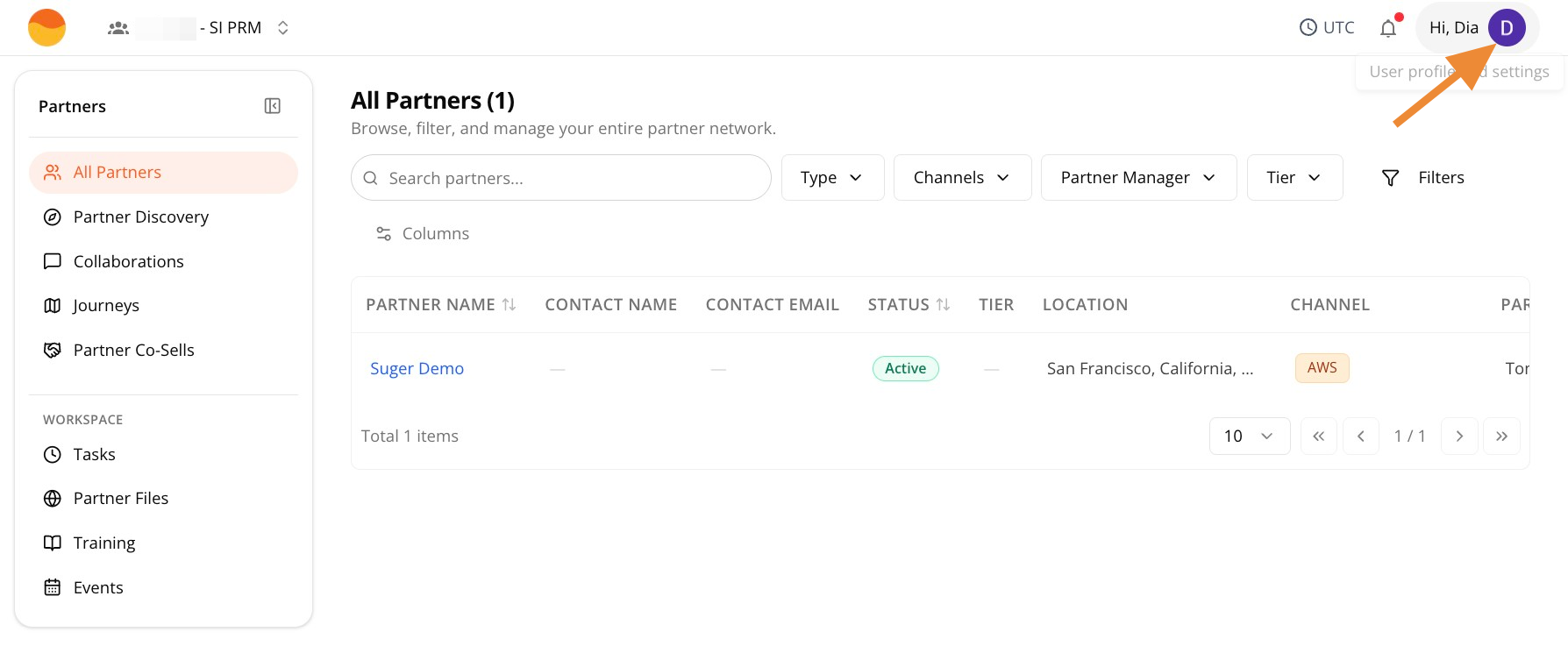
Go to Partner Portal, then click your profile icon in the top-right corner.
-
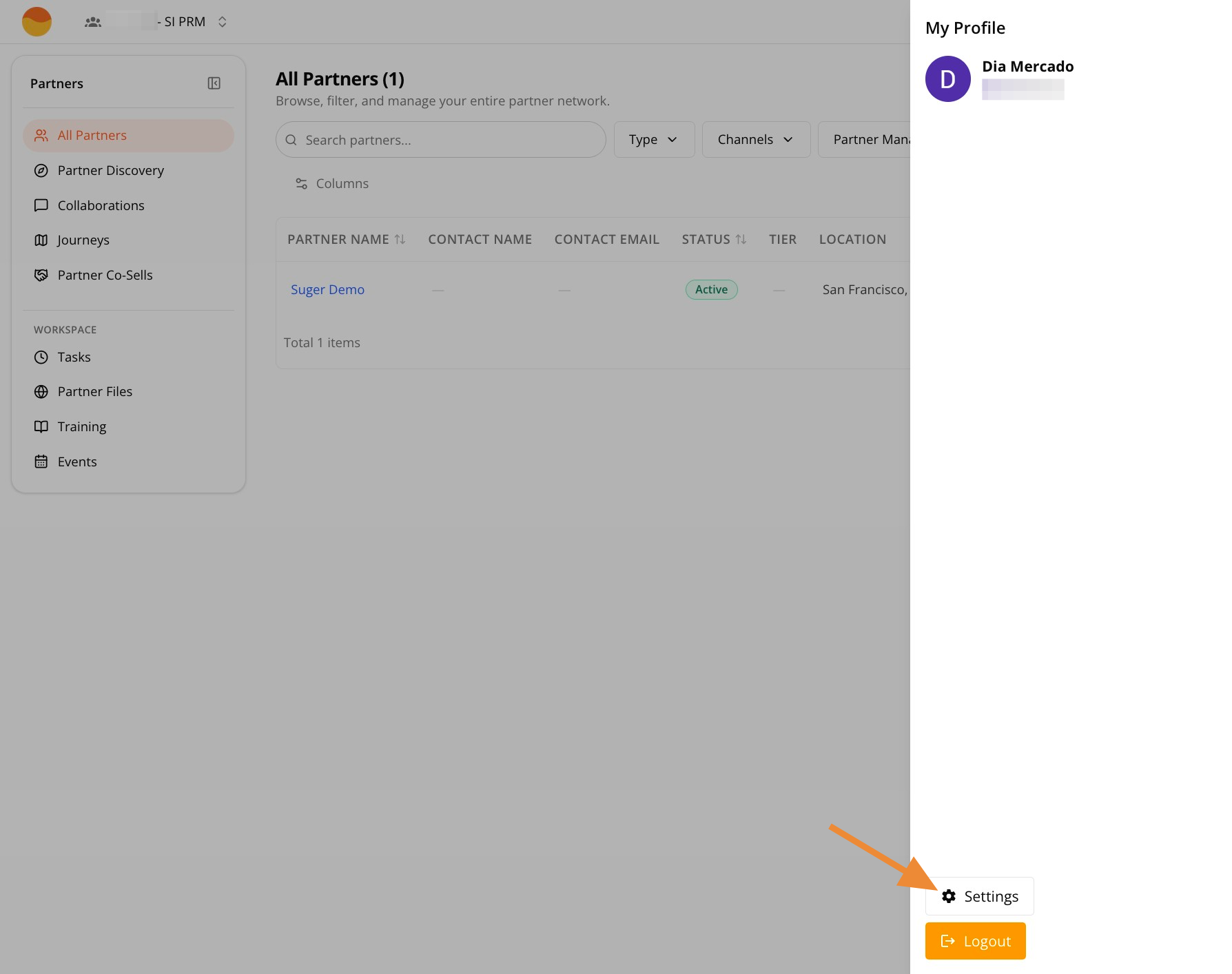
Click Settings.
-
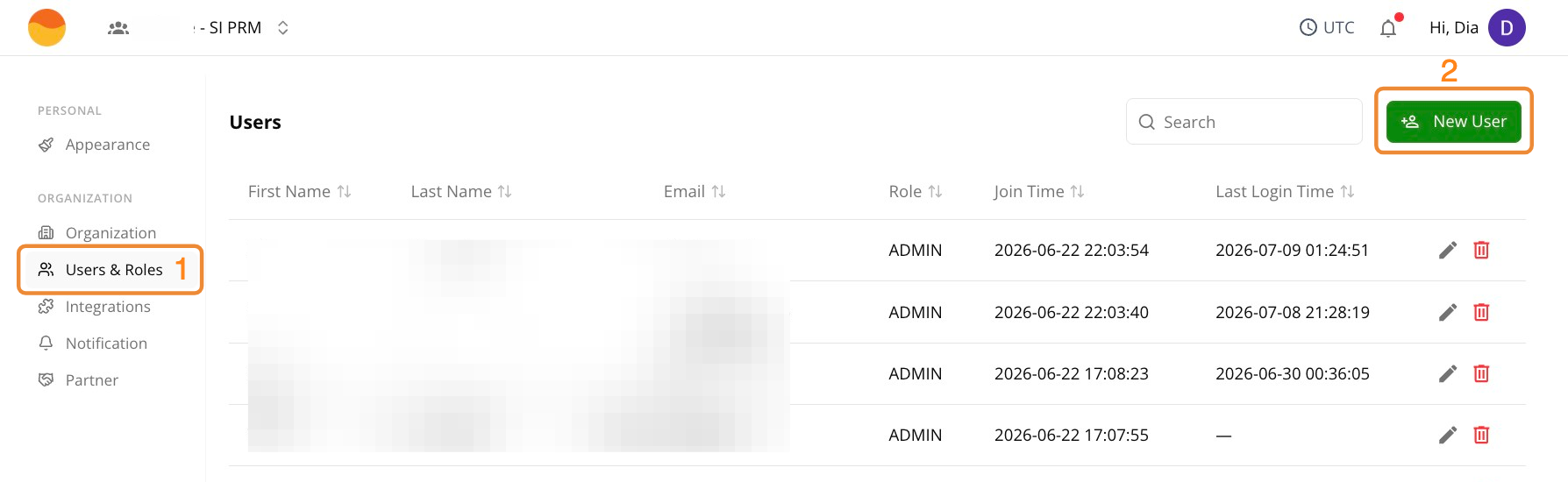
Go to Users & Roles, then click + New User.
-
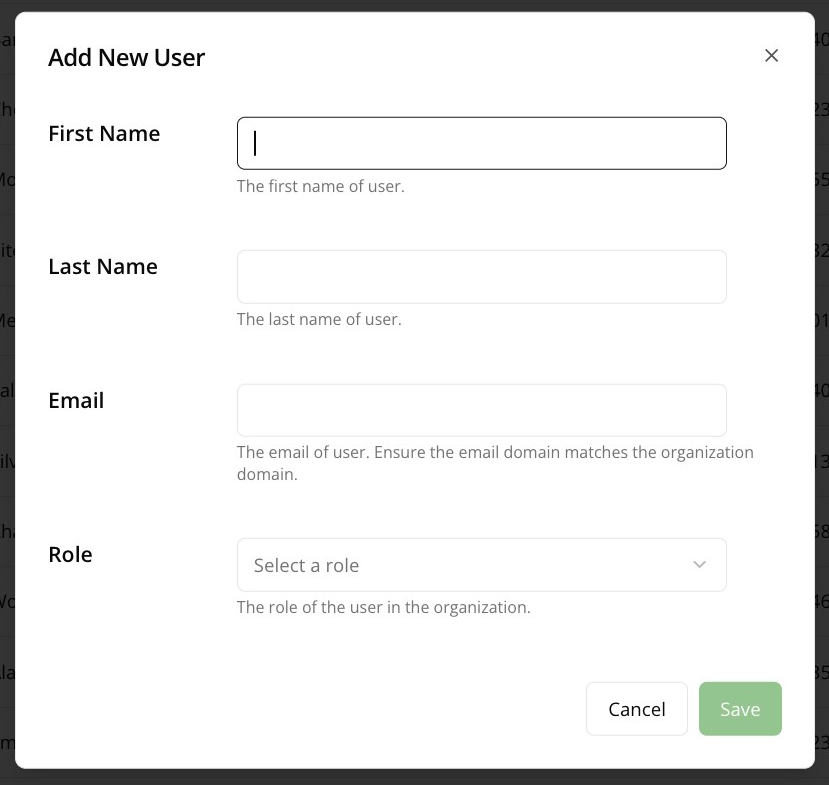
Enter your teammate’s name and email, then select their role.
-
Click Send Invite.
For more details on user role types, see Manage Users and Roles.