
Integration
Set up Suger to manage your Google Cloud Marketplace and Producer Portal on your behalf — listings, private offers, entitlements, and metering, all from one place.
Overview
To sell on Google Cloud Marketplace, your organization must join Google Cloud Partner Advantage and be approved as a Google Cloud Marketplace vendor. See Google’s requirements for your organization for the full list.
Once you’re an approved vendor and the integration is in place, Suger can manage product listings, private offers, entitlements, and usage metering on your behalf.
Suger authenticates to your GCP project using Workload Identity Federation. The Suger AWS account is configured as an external identity provider in a Workload Identity Pool inside your project, which is authorized to impersonate a service account you create for Suger. No long-lived keys are exchanged.
Onboarding journey
| # | Step | Who does it |
|---|---|---|
| 1 | Become a Google Cloud Marketplace Vendor | You + Google |
| 2 | Prepare your GCP project for Suger | You |
| 3 | Link the service account inside your Producer Portal | You |
| 4 | Set up the reports storage bucket | You |
| 5 | Create the integration in the Suger Console | You |
After onboarding you can edit, delete, or run multiple integrations. See Manage your integration below.
Step 1: Become a Google Cloud Marketplace vendor
Before Suger can manage your marketplace, your business must be an approved Google Cloud Marketplace vendor with access to the Producer Portal.
Prerequisites
- A registered legal business entity
- A Google Workspace or Cloud Identity account
- Your product passes Google’s Solution Architecture Validation
- Agreement to Google’s Marketplace Vendor Agreement (MVA)
-
Set up a GCP Organization. If you don’t have one, create it in the Google Cloud Console. This requires a Google Workspace or Cloud Identity account. (On a free trial you can create a project without an Organization.)
-
Register on Partner Hub. Go to Partner Hub, enroll under the Build engagement model, then under View tasks → Partner tasks click Initiate onboarding your product to Marketplace. Confirm your organization meets Google’s vendor requirements and is registered in Partner Advantage.
-
Accept the Marketplace Vendor Agreement (MVA). Review the MVA, then accept it in Partner Hub. You must be a Partner Admin to accept it.
-
Complete Solution Validation. Google reviews your architecture to confirm your product is deployable on GCP. Submit Google’s Solution Validation Form with:
- Architecture diagram — legible, with GCP icons; shows where resources run (GCP, on-prem, or other clouds), customer vs. partner tenancy, and all GCP services used.
- Infrastructure estimate — from the GCP Pricing Calculator, matching your diagram (Single-Tenant and Multi-Tenant models if applicable).
- Sales projections — estimated Gross Transaction Value (GTV) for Year 1 and Year 3.
-
Enable the Producer Portal. Create a GCP project named
companyname-public, then submit the Marketplace Producer Portal Enablement Form. Once approved, you get access to the Google Cloud Producer Portal in your project, where you create your listing and manage versions, billing, and pricing.
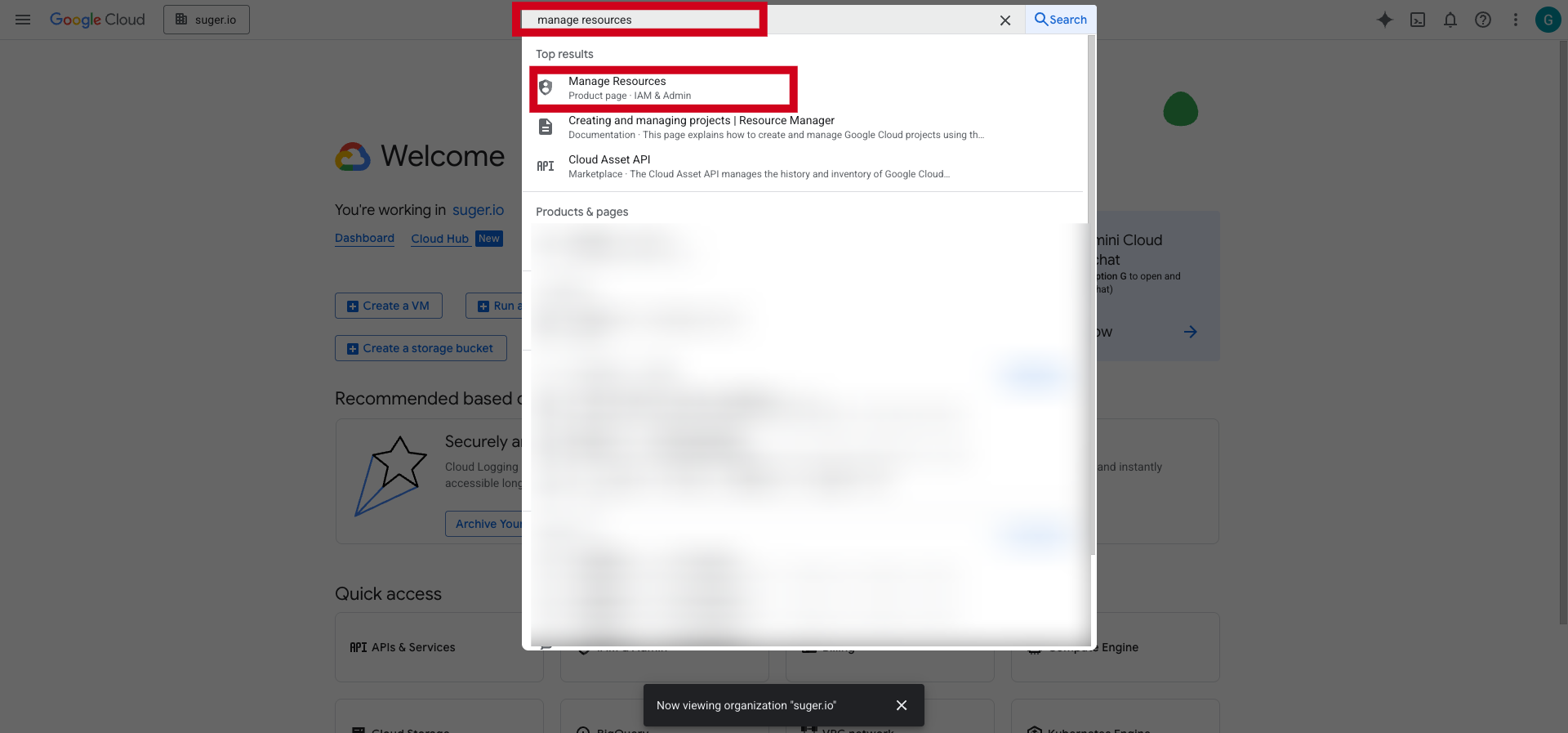
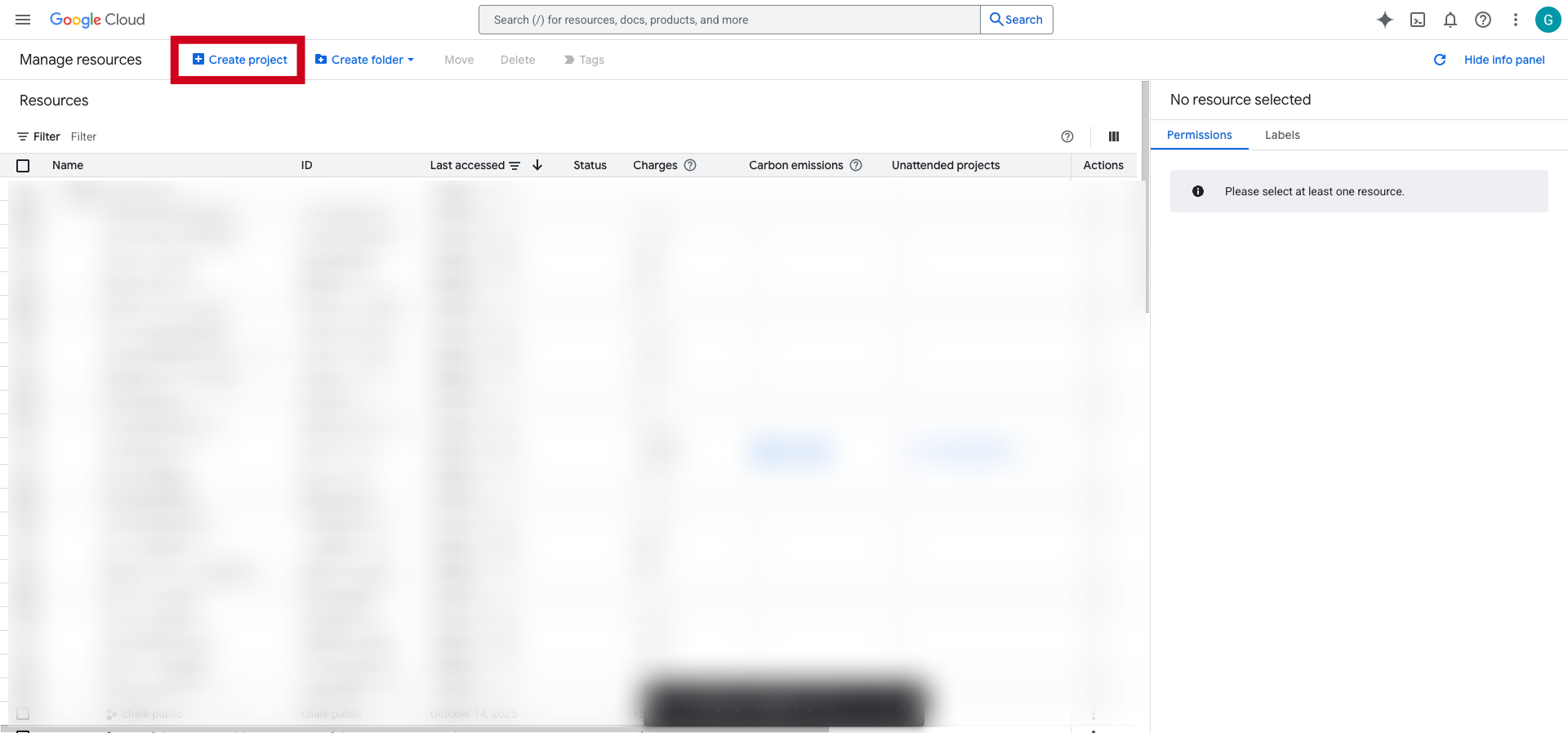
To create the companyname-public project you need the resourcemanager.projects.create permission (in the Project Creator role). In the console, open Manage Resources, select your organization, and click Create Project. See Creating and managing projects.
Enter a project name, choose a billing account, and select a parent organization or folder — or choose “No organization” to create it at the top level — then click Create.
Step 2: Prepare your GCP project for Suger
You have two options to provision the service account, IAM roles, and Workload Identity Pool that Suger needs:
- Option A — Run the setup script (recommended). One script in Cloud Shell does everything.
- Option B — Set up manually through the GCP console.
Pick one. Both produce the same result.
Option A: Run the setup script (recommended)
Open Cloud Shell in the GCP project you want to integrate, then paste and run the script below.
#!/bin/bash
# Set up the GCP resources required for the Suger integration.
# Safe to re-run: idempotent guards skip resources that already exist.
set -euo pipefail

SERVICE_ACCOUNT_NAME="suger-integration"

PROJECT_ID=$(gcloud config get-value project 2>/dev/null || true)
if [[ -z "$PROJECT_ID" ]]; then
  echo "ERROR: No active GCP project. Run: gcloud config set project YOUR_PROJECT_ID" >&2
  exit 1
fi

PROJECT_NUMBER=$(gcloud projects describe "$PROJECT_ID" --format="value(projectNumber)")
SERVICE_ACCOUNT_EMAIL="${SERVICE_ACCOUNT_NAME}@${PROJECT_ID}.iam.gserviceaccount.com"

# 1. Enable required APIs (idempotent).
gcloud services enable \
  iam.googleapis.com \
  cloudresourcemanager.googleapis.com \
  iamcredentials.googleapis.com \
  sts.googleapis.com \
  servicecontrol.googleapis.com \
  cloudcommerceconsumerprocurement.googleapis.com \
  servicemanagement.googleapis.com \
  serviceusage.googleapis.com

# 2. Create the Suger service account (skip if it already exists).
gcloud iam service-accounts describe "$SERVICE_ACCOUNT_EMAIL" >/dev/null 2>&1 \
  || gcloud iam service-accounts create "$SERVICE_ACCOUNT_NAME" \
       --display-name="Suger Integration Service Account"

# 3. Grant the service account the IAM roles it needs (idempotent).
for ROLE in \
  roles/editor \
  roles/servicemanagement.admin \
  roles/servicemanagement.serviceController \
  roles/commerceproducer.admin \
  roles/consumerprocurement.entitlementManager \
  roles/consumerprocurement.orderAdmin \
  roles/commercepricemanagement.privateOffersAdmin \
  roles/pubsub.editor \
  roles/iam.serviceAccountTokenCreator
do
  gcloud projects add-iam-policy-binding "$PROJECT_ID" \
    --member="serviceAccount:$SERVICE_ACCOUNT_EMAIL" \
    --role="$ROLE" \
    --condition=None >/dev/null
done

# 4. Create the Workload Identity Pool and add the Suger AWS account as a provider
#    (skip each if it already exists).
gcloud iam workload-identity-pools describe suger-wip \
    --location=global >/dev/null 2>&1 \
  || gcloud iam workload-identity-pools create suger-wip \
       --location=global \
       --description="Suger Workload Identity Pool"

gcloud iam workload-identity-pools providers describe suger \
    --location=global \
    --workload-identity-pool=suger-wip >/dev/null 2>&1 \
  || gcloud iam workload-identity-pools providers create-aws suger \
       --location=global \
       --workload-identity-pool=suger-wip \
       --account-id=SUGER_AWS_ACCOUNT_ID

# 5. Allow the Workload Identity Pool to impersonate the service account (idempotent).
gcloud iam service-accounts add-iam-policy-binding "$SERVICE_ACCOUNT_EMAIL" \
  --member="principalSet://iam.googleapis.com/projects/$PROJECT_NUMBER/locations/global/workloadIdentityPools/suger-wip/*" \
  --role="roles/iam.workloadIdentityUser" >/dev/null

# 6. Grant the Suger support user the roles needed to assist with marketplace operations
#    (idempotent).
for ROLE in \
  roles/viewer \
  roles/commerceproducer.admin \
  roles/commercepricemanagement.privateOffersAdmin \
  roles/servicemanagement.admin
do
  gcloud projects add-iam-policy-binding "$PROJECT_ID" \
    --member="user:gcpdev@suger.io" \
    --role="$ROLE" \
    --condition=None >/dev/null
done

# 7. Grant Google's marketplace service accounts the roles required by GCP Marketplace
#    (idempotent).
for BINDING in \
  "group:cloud-commerce-marketplace-onboarding@twosync-src.google.com|roles/editor" \
  "group:cloud-commerce-marketplace-onboarding@twosync-src.google.com|roles/servicemanagement.admin" \
  "serviceAccount:cloud-commerce-producer@system.gserviceaccount.com|roles/servicemanagement.configEditor" \
  "serviceAccount:cloud-commerce-saastester@system.gserviceaccount.com|roles/commerceproducer.viewer" \
  "serviceAccount:cloud-commerce-procurement@system.gserviceaccount.com|roles/serviceusage.serviceUsageAdmin" \
  "serviceAccount:cloud-commerce-procurement@system.gserviceaccount.com|roles/servicemanagement.serviceController" \
  "serviceAccount:cloud-commerce-procurement@system.gserviceaccount.com|roles/servicemanagement.admin"
do
  MEMBER="${BINDING%|*}"
  ROLE="${BINDING#*|}"
  gcloud projects add-iam-policy-binding "$PROJECT_ID" \
    --member="$MEMBER" \
    --role="$ROLE" \
    --condition=None >/dev/null
done

# Print the values you'll need when you create the integration in Suger Console.
echo "PROJECT_ID:            $PROJECT_ID"
echo "PROJECT_NUMBER:        $PROJECT_NUMBER"
echo "Workload Identity Pool: suger-wip"
echo "AWS Provider ID:       suger"
echo "Service Account Email: $SERVICE_ACCOUNT_EMAIL"Save the five values printed at the end — you’ll paste them into the Suger Console in Step 5.
Also required: Billing Account Viewer at the organization level
So Suger can auto-validate billing account IDs when creating private offers and resale (CPPO) offers, also grant the service account Billing Account Viewer at the GCP organization level (the script only operates at the project level):
gcloud organizations add-iam-policy-binding ORG_ID \
  --member="serviceAccount:suger-integration@PROJECT_ID.iam.gserviceaccount.com" \
  --role="roles/billing.viewer"
This requires a user with Organization Administrator access. Find your ORG_ID with gcloud organizations list.
Option B: Set up manually
If you prefer to click through the console, here are the same steps in detail.
-
Create a service account. Follow Google’s guide and name it
suger-integration. Grant it these roles in the GCP project:- Project Editor (or Viewer)
- Commerce Producer Admin
- Commerce Price Management Private Offers Admin
- Consumer Procurement Entitlement Manager
- Consumer Procurement Order Administrator
- Pub/Sub Editor
- Service Account Token Creator
- Service Controller
- Service Management Administrator
And at the GCP organization level:
- Billing Account Viewer
-
Enable the required APIs. Use this quick link to enable all eight at once:
- Identity and Access Management (IAM) API
- Cloud Resource Manager API
- IAM Service Account Credentials API
- Security Token Service API
- Service Control API
- Cloud Commerce Consumer Procurement API
- Service Management API
- Service Usage API
-
Create a Workload Identity Pool named
suger-wip. See Google’s guide. -
Add the Suger AWS account as an Identity Provider in the pool. Contact support@suger.io for the Suger AWS Account ID. Name the provider
suger.
-
Authorize the pool to impersonate the service account. Open the Workload Identity Pool, click GRANT ACCESS, select the
suger-integrationservice account, and save.
When the dialog appears, select the
sugerIdentity Provider.
-
Grant Google’s marketplace service accounts the roles below on your GCP project:
cloud-commerce-marketplace-onboarding@twosync-src.google.com— Project Editor + Service Management Administratorcloud-commerce-producer@system.gserviceaccount.com— Service Config Editorcloud-commerce-saastester@system.gserviceaccount.com— Commerce Producer Viewercloud-commerce-procurement@system.gserviceaccount.com— Service Controller + Service Usage Admin + Service Management Administrator
cloud-commerce-procurement@system.gserviceaccount.comalso needs Service Consumer at the service level for each of your product services. Run this once per product service after publishing:gcloud endpoints services add-iam-policy-binding \ "{your-product-service-id}.endpoints.{your-gcp-project-id}.cloud.goog" \ --member='serviceAccount:cloud-commerce-procurement@system.gserviceaccount.com' \ --role='roles/servicemanagement.serviceConsumer' -
Grant the Suger support user (
gcpdev@suger.io) the roles below on your GCP project. These let Suger support inspect Producer Portal, reports, and settings when helping you troubleshoot — Option A’s setup script grants them automatically, so Option B must do the same:- Viewer
- Commerce Producer Admin
- Commerce Price Management Private Offers Admin
- Service Management Administrator
Or run these commands:
for ROLE in \
  roles/viewer \
  roles/commerceproducer.admin \
  roles/commercepricemanagement.privateOffersAdmin \
  roles/servicemanagement.admin
do
  gcloud projects add-iam-policy-binding "$PROJECT_ID" \
    --member="user:gcpdev@suger.io" \
    --role="$ROLE"
done
Step 3: Link the service account in Producer Portal
The IAM roles from Step 2 cover Google Cloud, but Producer Portal also needs the service account linked inside its own UI. Open Producer Portal and follow Google’s backend integration guide to authorize suger-integration@{PROJECT_ID}.iam.gserviceaccount.com for:
- Partner Procurement API integration
- Cloud Pub/Sub integration
- Service Control API integration (only required if your product reports usage)
Step 4: Set up the reports storage bucket
Suger reads your GCP Marketplace revenue and usage reports from a Cloud Storage bucket. Follow Google’s reports setup guide to create and configure the bucket. Keep the bucket name handy — you’ll enter it in the next step.
Step 5: Create the integration in Suger Console
Open the integrations page in Suger Console, click CONNECT next to Google Cloud, and fill in the form using the values from the earlier steps:
| Field | Value |
|---|---|
| GCP Project ID | PROJECT_ID from the script output |
| GCP Project Number | PROJECT_NUMBER from the script output |
| Workload Identity Pool ID | suger-wip |
| Identity Provider ID | suger |
| Service Account Email | suger-integration@{PROJECT_ID}.iam.gserviceaccount.com |
| Marketplace Partner/Provider ID | The Partner/Provider ID assigned when your business is approved for Producer Portal. Often the same as your Project ID. |
| Report Bucket Name | The Cloud Storage bucket from Step 4 |
Save the integration. Suger immediately starts syncing products and offers from your Producer Portal.
Listing stages and approval timelines
Once you’re integrated, Suger handles most of the technical and administrative work of listing your SaaS product on GCP Marketplace. Listing moves through four stages, each with its own Google approval time.
Estimated total time to go live: ~3–4 weeks
1. Product listing details
Submit your product name, logo, description, support and sales contacts, URLs, and keywords in the GCP Producer Portal.
Approval time: 3–4 business days
2. Pricing model
Choose your pricing model (flat-rate, usage-based, and so on) and define metrics. To offer a free trial, follow Google’s trial software guidance, which links to the current intake form.
Approval time: 3–4 business days
3. Technical integration
Link service accounts and enable the Partner Procurement API, Cloud Pub/Sub, and (optionally) the Service Control API; set up SSO or login URLs using Suger’s endpoints; and grant the required IAM roles. Steps 2–3 above cover the Suger side of this work.
Approval time: ~1 week
4. Billing integration
Google reviews your service account setup, entitlement flow, and metering requirements.
Approval time: 1–2 weeks
When all four stages are approved, Suger syncs the listing and its status becomes Public.
| Stage | Estimated approval time |
|---|---|
| Listing details | 3–4 business days |
| Pricing review | 3–4 business days |
| Technical integration | ~1 week |
| Billing integration | 1–2 weeks |
Manage your integration
Edit integration
You can update an existing integration at any time:
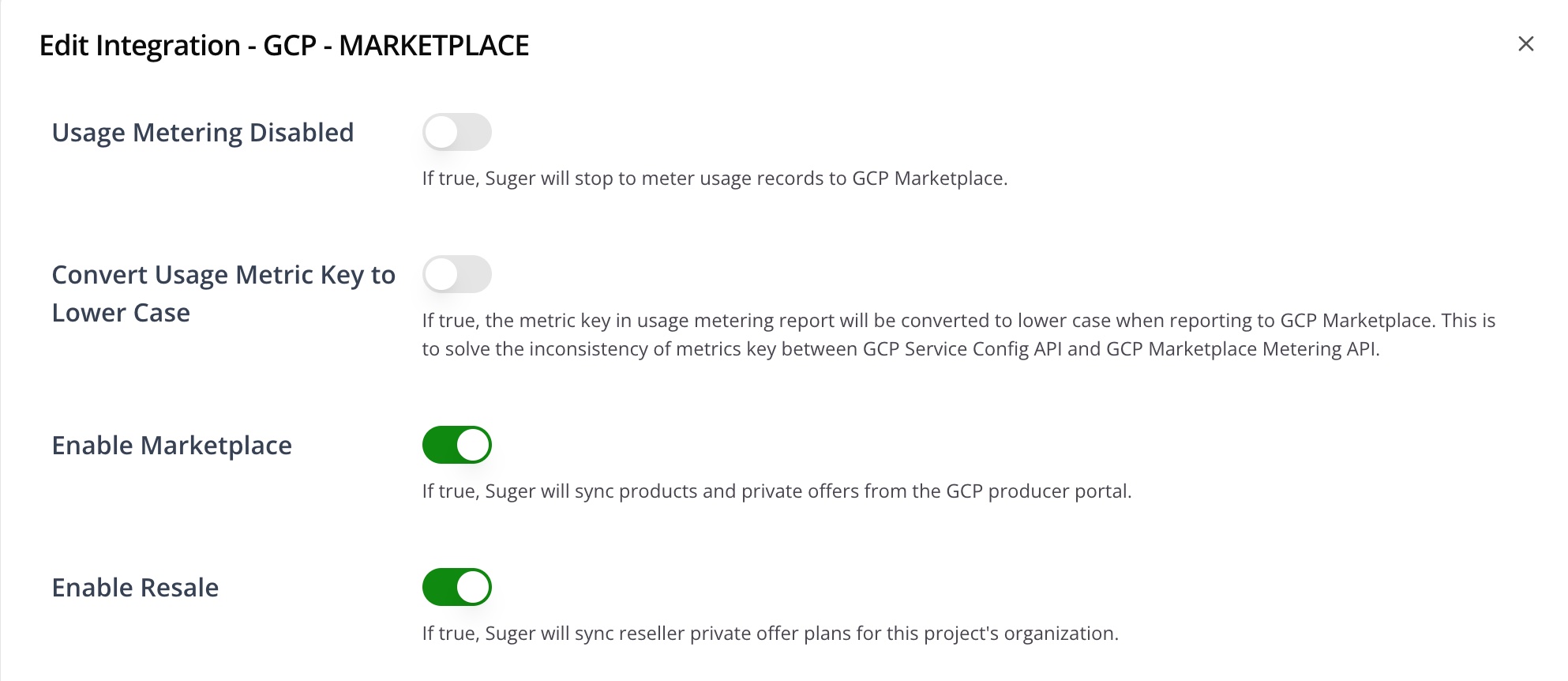
- Enable Entitlement End Soon Notification — when on, choose a window of 10–60 days. Suger will send an initial notification when an entitlement is approaching its end, followed by reminders every 5 days. Configure recipients via the email notification guide using the scope
END_SOON.ENTITLEMENT. - Enable Marketplace — when on, Suger syncs products and private offers from Producer Portal.
- Enable PrivateOffer API — when on, Suger syncs your catalog and your plain private offers through Google’s Commerce Producer API instead of the browser-driven path.
- Enable Resale — when on, Suger syncs reseller private offer plans for this project’s organization.
About Enable PrivateOffer API
The API path is the more direct integration with Google, but it does not yet cover every offer type. With the toggle on:
| Offer type | Path used |
|---|---|
| Products and plain private offers | Commerce Producer API |
| Replacement (amendment) offers | Commerce Producer API |
Reseller authorizations (CPPO_OUT) | Browser-driven path (unchanged) |
Reseller authorizations are the one exclusion — Google’s SDK does not support them yet, so they keep working exactly as before and you don’t need to change how you create them.
Two things change once replacement offers run through the API. Google checks before creating anything whether the replacement is allowed and which offer it must replace, so a replacement that would have failed later is now refused up front with a specific explanation and nothing is created — see Why a replacement offer was refused. And a coterm-aligned replacement on a standard billing interval must carry a duration rather than an end date — see Coterm and standard billing intervals.
Cancelling and extending an offer never consults this toggle. Each offer follows the path it was created on, so an offer created through the API completes its lifecycle there even after the toggle is switched off, and one created on the browser-driven path stays there even while the toggle is on.
Each offer records which path produced it, and the offer detail page shows it as a GCP Data Source row. Use it when you are checking whether a particular offer went through the API or the older path.
Delete integration
You can delete a GCP integration like any other. Deletion is immediate and permanent — there is no recovery window. Re-creating the integration later starts fresh.
Run multiple integrations
You can connect multiple GCP Marketplace integrations under a single Suger organization. Each one operates independently.
- Create a new Suger organization in the Suger Console and wait for it to be approved.
- Set up the second GCP Marketplace integration inside the new organization.
- Email support@suger.io with both the new and the old Suger organization IDs. Support will merge them — keeping the original organization and removing the new one — while preserving both GCP integrations under the original.
Grant additional access to the Suger support team
The GCP Marketplace API doesn’t yet cover every operation. To let the Suger support team help with operations the API can’t perform, grant the Suger support user account these IAM roles on your GCP project (the setup script already grants the first four):
- Viewer
- Commerce Producer Admin
- Commerce Price Management Private Offers Admin
- Service Management Administrator
- Consumer Procurement Entitlement Manager
- Consumer Procurement Order Administrator
If you also want Suger to support resale offer discounts (CPPO), grant the support user these roles at the GCP organization level:
- Commerce Business Enablement Configuration Admin
- Commerce Business Enablement Reseller Discount Admin
- Commerce Producer Admin
Troubleshooting
gcloud auth activate-service-account fails with “domain not allowed”.
Your GCP organization restricts which identities can be added via the iam.allowedPolicyMemberDomains org policy. Ask your Org Admin to allow the suger.io domain, or run the setup from a project that isn’t subject to that policy.
Permission 'iam.serviceAccounts.getAccessToken' denied on resource.
The Workload Identity Pool hasn’t been granted permission to impersonate the service account. Re-run step 5 of the setup script (or the equivalent manual step) to bind roles/iam.workloadIdentityUser to the principal set for the pool.
Error 403: The caller does not have permission, forbidden.
The Marketplace Partner/Provider ID configured on the Suger integration doesn’t match the one assigned in Producer Portal. Open the integration’s edit dialog and correct the Partner ID.
Suger fails to sync entitlements from GCP Marketplace.
The Suger service account is missing from one of the technical integration sections of your product listing. Open Producer Portal → your product → Technical Integration and confirm suger-integration@{PROJECT_ID}.iam.gserviceaccount.com is linked under Partner Procurement API, Cloud Pub/Sub, and (for usage-based products) Service Control API.
Key resources
Spotted something wrong or out of date on this page? Tell us and we'll correct it.