
Custom Apps
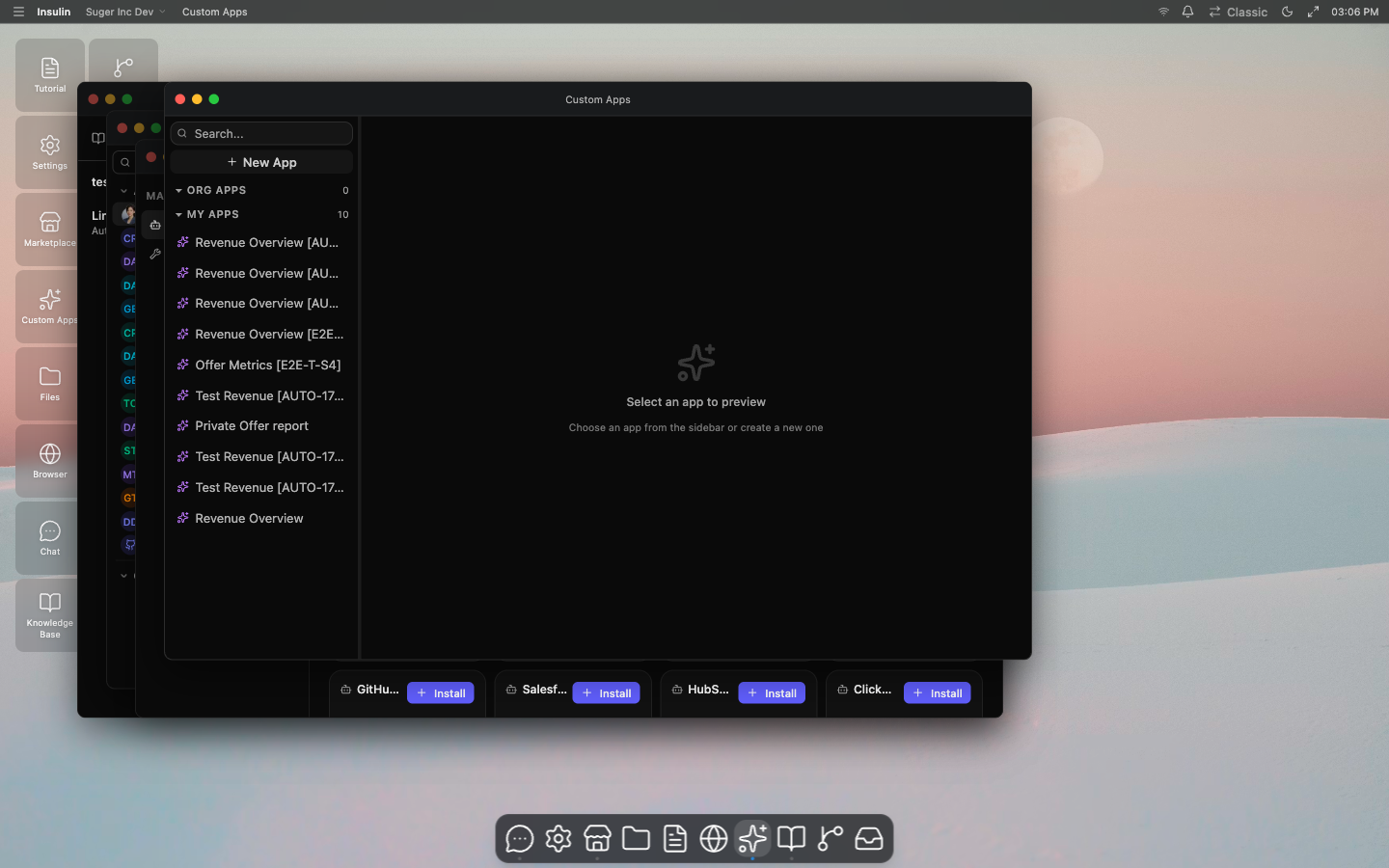
Custom Apps are interactive tools you build with AI inside Insulin.
What Are Custom Apps?
A Custom App is a reusable interface, dashboard, form, or workflow tool generated and edited with the Insulin app builder. Use a Custom App when a workflow needs more structure than a chat answer, such as a revenue dashboard, a deal review tool, a co-sell tracker, or an internal operations screen.
Custom Apps are different from built-in Insulin apps like Chat, Jobs, Marketplace, Settings, File Explorer, Browser, or Git. Built-in apps are part of the Insulin workspace. Custom Apps are apps your team creates, runs, edits, and shares.
When to Use a Custom App
Use a Custom App when you want to:
- Turn a repeated marketplace workflow into a reusable interface
- Build a dashboard or report from connected systems
- Create a form-like tool for sales, operations, or partner workflows
- Combine AI-generated UI with approved integration actions
- Share an internal app with teammates without building a separate product
For one-off questions, use Chat. For repeatable background work, use Jobs. For packaged expertise, use Agents and Marketplace.
Build Flow
Custom Apps use an AI builder loop:
- Open Custom Apps
- Create a new app or open an existing app in the builder
- Describe what you want the app to do
- Choose a template or start from a prompt
- Select the app scope and allowed integrations
- Review the generated app in the live preview
- Continue chatting to edit the app
- Save the app when the preview works as expected
The builder keeps a chat history for the app-editing session. You can ask for changes, inspect the preview, and save when the generated app is ready.
Templates
Custom Apps can start from first-party templates. Templates provide vetted multi-file source for common analytics and marketplace workflows, then you can customize them in the builder.
Templates are useful when you want a working starting point before asking AI to tailor the app to your organization.
Multi-File Source
Custom Apps are stored as a source-file map rather than a single text blob. The entry file is App.tsx, and supporting files can hold components, helpers, and data-shaping code.
This lets the builder create more maintainable apps:
- UI code can be split into focused files
- Imported Custom Apps can be tracked as dependencies
- The saved app can be recompiled when dependencies change
- Compile conflicts can be handled before the app is saved
Preview, Compile, and Safety Checks
The live preview is a working app preview, not a static mock. Before code is rendered or saved, Insulin compiles it and runs safety checks.
The compile and safety process can report:
| Result | Meaning |
|---|---|
| Compiled code | The app built successfully and can be previewed or saved. |
| Safety errors | The app contains blocked patterns and must be revised. |
| Mock data warnings | The app appears to rely on hardcoded or placeholder data. |
| Compile error | The generated source did not compile and needs another edit. |
The builder can also run a visual review. Visual review uses the rendered app preview, screenshots, runtime logs, network activity, and user prompt to decide whether the output matches the request or needs another edit.
Integrations and Sensitivity Tiers
Custom Apps can be allowed to use connected systems. Each configured integration includes sensitivity tiers:
| Tier | Use |
|---|---|
| read | Read data from the connected system. |
| write | Create or update data in the connected system. |
| outbound | Send data or trigger outbound actions. |
Only selected integrations and selected sensitivity tiers are available to the app. This keeps an app’s runtime access narrower than the full set of tools your user or organization has connected.
Ownership and Sharing
Custom Apps can be user-level or organization-level.
| Ownership | Behavior |
|---|---|
| User | Private to the creator. Use this for personal tools or drafts. |
| Organization | Shareable with teammates. Use this for team workflows and shared dashboards. |
Organization-level apps can be shared with individual users or org-wide. Available resource roles follow the Insulin role model: OWNER, ADMIN, EDITOR, USER, and VIEWER. Higher roles can manage more of the app; lower roles are intended for running or viewing the app.
Only organization-level apps can be transferred to another owner. Ownership transfer is restricted to another organization admin.
Running a Saved App
When a Custom App is saved, Insulin stores the compiled bundle and the normalized integration configuration. Running the app uses the saved compiled code and enforces the configured integration access at runtime.
If an app has no compiled code yet, open it in the builder, generate or fix the app, and save it before using it as a working tool.
How Custom Apps Fit With Insulin
Custom Apps work best alongside the rest of Insulin:
- Use Agents to define the expertise behind a workflow
- Use Marketplace to install reusable agents or skills before building
- Use Jobs for scheduled or event-triggered runs
- Use Channels when teammates need to discuss app output with agents
- Use knowledge bases and connected systems to ground the app in your organization’s data