
Jobs
Jobs are automated agent runs that execute on demand, on a schedule, or in response to external events.
What Are Jobs?
A job connects an agent to a trigger and runs the agent when that trigger fires. Jobs let you automate work like monitoring marketplace metrics, generating reports, or alerting on changes without manually starting a conversation every time.
Each job execution creates a run record you can inspect, so you always have visibility into what ran, when, and whether it succeeded.
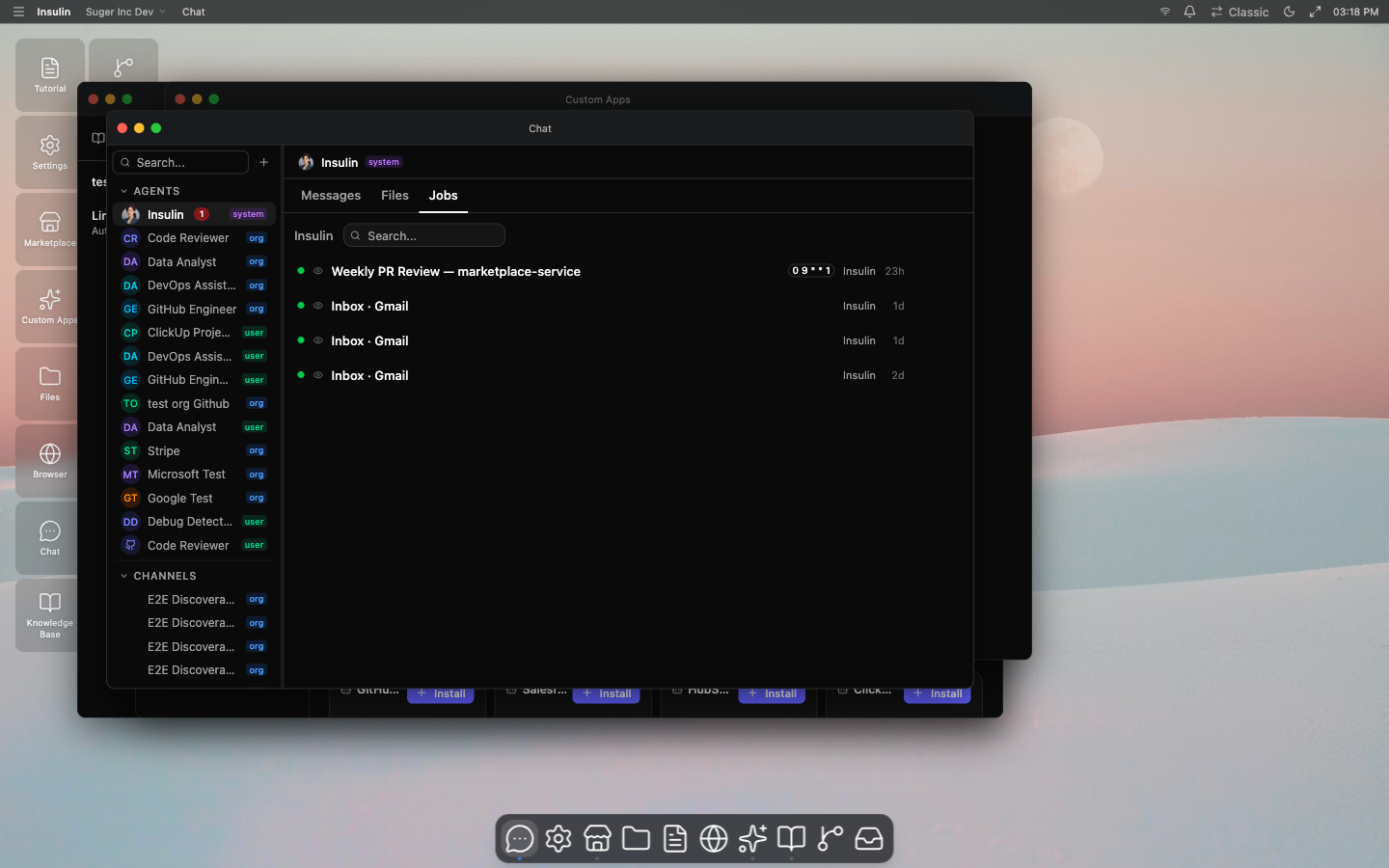
Creating a Job
- Navigate to Jobs in the Insulin sidebar
- Click Create Job
- Configure the job:
- Name — A descriptive name (e.g., “Daily Revenue Summary”)
- Description — What this job does
- Agent — The agent to run when the job triggers
- Mode — How the job is triggered (see Execution Modes)
- Schedule — A cron expression for cron-mode jobs
- Filter — An optional filter expression to skip irrelevant events
- Click Save
The job starts running on its next scheduled time, begins listening for events in push mode, or waits for manual execution. If no agent is specified, the job defaults to the built-in Insulin agent.
Execution Modes
Jobs support three trigger modes:
| Mode | How It Works |
|---|---|
| Manual | Runs the agent when you explicitly start the job. |
| Cron | Runs the agent on a recurring schedule defined by a cron expression. The job triggers automatically at each scheduled time. |
| Push | Listens for external events. When an event arrives, the job evaluates the filter and runs the agent if the event passes. |
Most recurring automations use cron mode for time-based work or push mode for event-driven work.
Cron Scheduling
Cron expressions define when a scheduled job runs. Standard cron syntax is supported:
| Expression | Schedule |
|---|---|
0 9 * * 1-5 | Every weekday at 9 AM |
0 */6 * * * | Every 6 hours |
0 0 1 * * | First day of every month at midnight |
*/30 * * * * | Every 30 minutes |
The next scheduled run time is displayed on the job detail page.
Filter Expressions
Filters let you control which events actually trigger an agent run. When an event arrives in push mode, or when a cron tick fires with a payload, the filter expression is evaluated against the event payload. If the filter returns false, the execution is skipped and recorded as filtered.
Filters use filtrex syntax — a safe, sandboxed expression language. The event payload is available under the event namespace.
Examples:
event.source == "aws-marketplace"event.amount > 1000event.action == "entitlement_created" and event.partner == "AWS"lower(event.status) == "active"Available functions: lower(), upper(), includes() (checks if an array contains a value).
Dot notation is supported for nested fields: event.buyer.name, event.offer.info.commits.
Execution History
Every time a job runs, an execution record is created. Each execution has one of these statuses:
| Status | Meaning |
|---|---|
| Pending | The execution is queued and waiting to start |
| Running | The agent is currently running |
| Completed | The agent finished successfully |
| Failed | The agent encountered an error |
| Rate Limited | The execution was skipped because the job hit its rate limit |
| Filtered | The event did not pass the filter expression and was skipped |
| Cancelled | An in-flight run was cancelled |
To view execution history:
- Open a job from the Jobs list
- Scroll to the Executions section
- Each execution shows its status, timestamp, and (for failed runs) the error message
Managing Jobs
From the job detail page you can:
- Enable / Disable — Pause a job without deleting it. Disabled jobs do not trigger.
- Run or trigger — Run a manual job immediately, or fire a cron/push job with an optional payload.
- Cancel — Stop a pending or running job.
- Edit — Update the name, description, schedule, filter, or assigned agent.
- Delete — Permanently remove the job and its execution history.
Use Cases
- Marketplace monitoring — Schedule an agent to check for new entitlements or expiring offers daily and summarize changes.
- Automated alerts — Push events from your cloud marketplace into a job that runs an agent to evaluate severity and notify your team.
- Recurring reports — Run a data analyst agent weekly to generate revenue or usage reports.
- Co-sell pipeline tracking — Monitor partner referrals on a schedule and flag stale opportunities.