
Zuora
Connect to Zuora to manage billing, subscriptions, and revenue data.
Overview
Zuora is a subscription management and recurring billing platform that helps businesses automate the entire quote-to-revenue lifecycle. It provides comprehensive solutions for subscription billing, revenue recognition, and customer lifecycle management.
Connecting Suger to your Zuora account establishes a verified, encrypted link between the two systems so that Suger can authenticate against the Zuora API on your behalf. Data syncing and field mapping will be available in a follow-up release.
Integration Scopes
Zuora can be connected at two scopes, which can be used independently or together:
| Zuora (org-level) | Zuora (User) (user-level) | |
|---|---|---|
| Who creates the OAuth client | A Zuora administrator, typically with broad permissions | Each individual Suger user, scoped to their own Zuora user account and permissions |
| Stored at | The Suger organization | Each Suger user separately |
| Zuora audit log identity | A single shared identity for the org | The actual user who triggered the action |
| When to use | Default for most organizations — one credential for everyone | When customers need per-user audit trails inside Zuora, or when individual users hold different Zuora permission scopes |
If both scopes are configured for the same user, the user-level credential takes precedence in the AI chatbot — your own credential is preferred over the org-shared one.
Both scopes use the same connection details: Base URL, Client ID, and Client Secret. The credentials are stored in Suger’s unified secret store (encrypted at rest with an organization-scoped AWS KMS key) and never returned in API responses.
Create Integration (Org-Level)
- Set up a Zuora account.
- Create an OAuth client in your Zuora tenant — typically under an admin user with the permissions you want Suger to operate with. Capture the Client ID and Client Secret. For detailed instructions, refer to the Zuora OAuth Authentication Documentation.
- In your Suger Console Integration page, click the Zuora Connect button (the entry without the
(User)suffix). - Enter the connection information:
-
Base URL: Your Zuora REST API base URL. Must be an HTTPS URL with no path or query string. The OAuth token endpoint is derived as
{baseURL}/oauth/token. Common values:Environment Base URL US Production https://rest.zuora.comUS Cloud 1 Production (NA) https://rest.na.zuora.comUS API Sandbox https://rest.apisandbox.zuora.comUS Performance Test (PT1) https://rest.pt1.zuora.comEU Production https://rest.eu.zuora.comEU API Sandbox https://rest.sandbox.eu.zuora.comIf your tenant uses a non-standard or dedicated hostname, paste it directly — Suger doesn’t enforce a fixed list of Zuora environments.
-
Client ID: The OAuth client ID created in step 2.
-
Client Secret: The OAuth client secret created in step 2.
-
Example: creating a Zuora integration in the Suger Console:
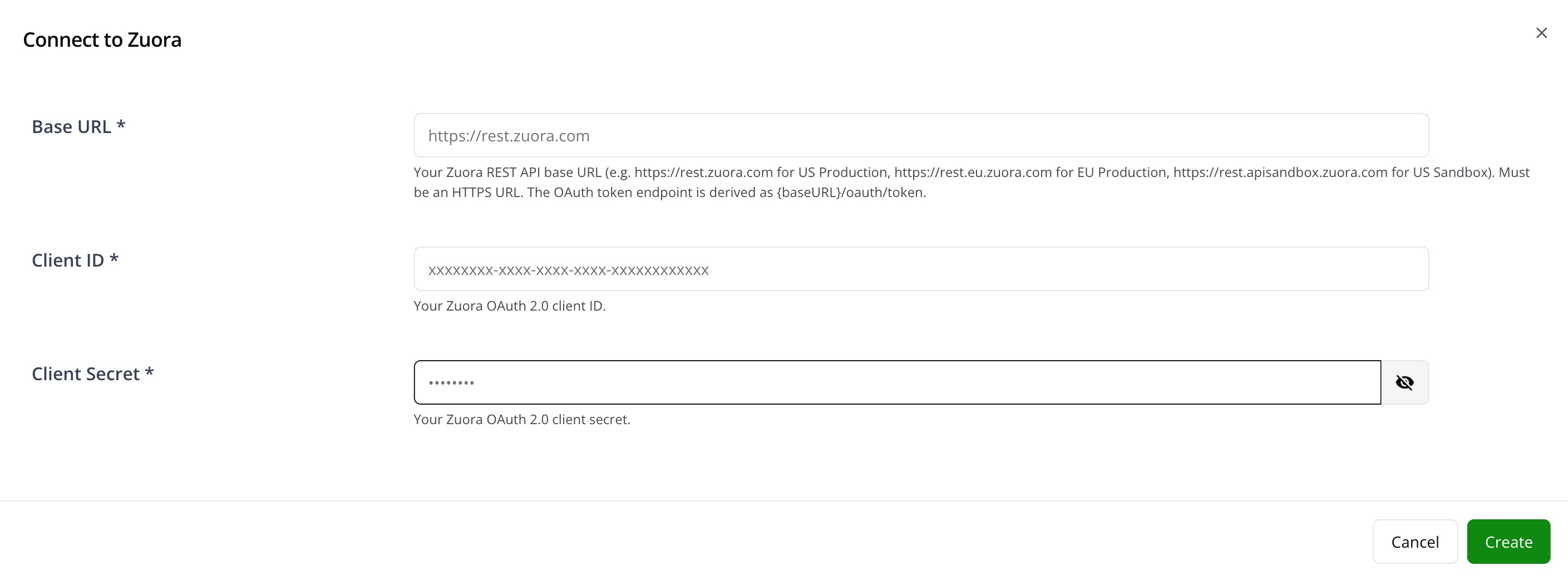
Once the integration is created, click the VERIFY button to confirm the connection. Suger requests an OAuth access token from Zuora using the saved credentials; on success the integration status is updated to VERIFIED.
Create Integration (User-Level)
User-level integrations attach a personal OAuth client to your Suger user. Use this when your team needs Zuora’s audit log to identify the actual user who made each change, or when different users should operate under different Zuora permission scopes.
The setup is the same as the org-level flow, with one structural difference: each user generates their own OAuth client inside Zuora.
- Sign in to Zuora as yourself (not the shared admin account used for the org-level integration).
- In Zuora, navigate to Settings → Administration → Manage Users, open your own user, and create a new OAuth client. Capture the Client ID and Client Secret. Zuora scopes the client’s permissions to your user’s role.
- In your Suger Console Integration page, click the Zuora (User) Connect button — this is a separate tile from the org-level one.
- Enter the same three fields — Base URL, Client ID, Client Secret — using the credentials you generated in step 2. The base URL list is the same as the org-level table above.
- Click VERIFY to confirm the connection.
Each user can independently connect, verify, and remove their own user-level Zuora integration without affecting the org-level integration or any other user’s connection.
Edit Integration
Edit is not supported for the Zuora integration. For security, if you need to rotate credentials or switch tenants, delete the integration and recreate it.
Delete Integration
To delete an integration, click the 🗑️ button next to its entry in the Integrations list. The encrypted credential is removed from the secret store together with the integration record.
Org-level and user-level integrations are deleted independently — removing the org-level integration does not affect any user-level integrations on the same Zuora tenant, and vice versa.