
Knowledge Bases
Knowledge bases are searchable collections of your own documents that agents can retrieve for grounded, trusted context.
What Are Knowledge Bases?
A knowledge base is a named collection of documents that agents can search when answering. Instead of relying only on the model’s general knowledge, an agent can pull in your product docs, runbooks, tickets, contracts, or notes and ground its response in your organization’s actual content.
Each knowledge base:
- Belongs to one organization and is owned by a user or the organization.
- Holds documents from three source types — uploaded or pasted files, crawled websites, and synced connectors (GitHub, ClickUp, Google Drive).
- Indexes every document so it can be searched with hybrid vector + keyword search.
Prefer video? Watch a quick overview:
Opening the Knowledge Base App
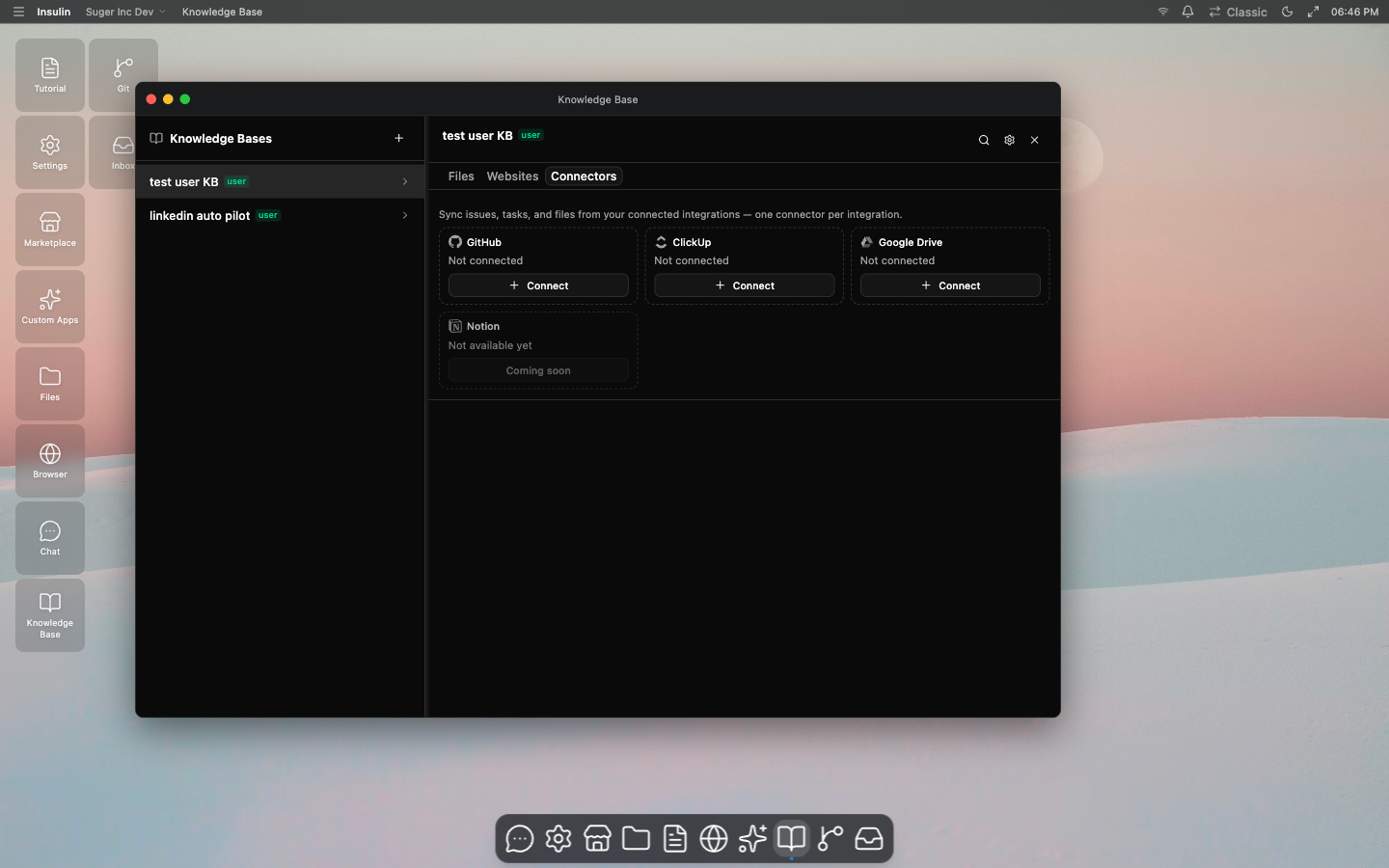
Knowledge Base is a built-in Insulin app. Open it from the Knowledge Base tile pinned to the desktop dock, or navigate directly to its window. Like other workspace apps, it opens as a resizable window with the knowledge base list on the left and a detail panel on the right.
Creating a Knowledge Base
- Click the + button in the Knowledge Bases list (or Create one on the empty state)
- Configure the following:
| Field | Description |
|---|---|
| Name | A descriptive name for the knowledge base |
| Description | Optional summary of what it contains |
| Visibility | User (only visible to you) or Organization (shareable with your team). Creating an organization knowledge base requires org admin access. |
| Embedding model | The model used to index and search documents. Options include Suger-hosted models and your connected providers. |
| Search mode | Hybrid (recommended), Vector only, or Keyword only |
- Click Create
Adding Content
Open a knowledge base to reach its detail panel, which has three tabs: Files, Websites, and Connectors.
Files
Upload documents directly or paste text.
- Upload file — Select files, or drag and drop them onto the panel. Supported formats: PDF, DOCX, and text formats including
.txt,.md,.csv,.tsv,.log,.json,.html,.xml, and.yaml. Maximum 25 MB per file. - Paste text — Paste raw content and give it a name. Maximum 2 MB of text.
Uploading a file with the same name replaces the existing document in place. The file list shows each document’s Name, Pages, Chunks, Size, and Status.
Websites
Add a public URL to crawl its pages into the knowledge base.
- Enter a URL (for example,
https://docs.example.com) - Set the Depth — how many link levels to follow (1–10, default 3). Depth 1 is the start page only; depth 3 follows links three levels deep.
- Click Add
The crawler imports up to 100 pages of main content as documents. Websites re-crawl only when you trigger a Re-sync manually — they do not sync automatically. The list shows URL, Docs, Depth, Last Sync, and Status, with per-row sync and remove actions.
Connectors
Connectors keep a knowledge base in sync with issues, tasks, and files from your connected integrations. You can add one connector per integration per knowledge base.
| Connector | What it syncs | What you configure |
|---|---|---|
| GitHub | Issues and pull requests as Markdown (no source code) | Repositories (up to 100); toggle Issues and Pull requests; optional max items per repo |
| ClickUp | Tasks and Doc pages | Spaces (up to 50); toggle Tasks and Docs; optional max tasks per list |
| Google Drive | Documents and files (Google-native docs exported to text) | Folders (synced recursively) and individual files, via search-as-you-type |
Notion is shown as “Coming soon.”
To add a connector:
- Open the Connectors tab and pick a provider card
- If the underlying integration is not connected yet, the card shows Set up the integration first — connect it in Settings, then return
- Click Connect, select the scope (repositories, spaces, or folders/files)
- Choose whether to Auto-sync the connector
- Click Connect to start the first sync
A connected card shows a scope summary (for example, “3 repos”), an indexed count (Indexed items: X/Y), and the last sync time. You can Re-sync, Stop sync, Edit scope, or Remove the connector.
Syncing and Indexing
Manual sync — Trigger a sync, stop an in-progress sync, or re-index a single document at any time from the tab actions.
Automatic sync — Only connectors with Auto-sync enabled are kept current automatically. Insulin sweeps due connectors about once an hour: it runs a full reconcile when the last full sync was more than 24 hours ago, and an incremental sync when the last sync was more than an hour ago. Websites and individual files do not auto-sync.
As documents are added, Insulin splits each one into chunks, generates embeddings, and stores them for search. Only documents that finish indexing become searchable. Each document and connector shows a status:
| Status | Meaning |
|---|---|
| Pending | Queued, not yet processed |
| Indexing | Being parsed and embedded (a progress bar shows percent complete) |
| Indexed | Successfully indexed and searchable |
| Failed | Indexing or sync failed — hover the alert icon for the error |
Lists refresh automatically while anything is pending, indexing, or syncing.
Testing Search
Use Test search in the detail panel to preview what an agent would retrieve before attaching the knowledge base. Enter a query, set the number of results (Top K, up to 20), pick a search mode, and adjust the vector weight. Results show the matching content, its source document, and a relevance score.
Connecting a Knowledge Base to an Agent
Agents retrieve context by searching the knowledge bases available to them:
- Custom agents search the knowledge bases explicitly attached to them. In the agent’s create or edit form, the Knowledge Bases section lists eligible knowledge bases as checkboxes — select one or more. A user-level agent can attach your user-level knowledge bases; an org-level agent can attach organization knowledge bases.
- The built-in Insulin assistant automatically searches your own user-level knowledge bases. To ground an agent in an organization knowledge base, attach it to a custom agent.
At query time an agent can search up to three knowledge bases and cites the source document for each result. See Agents for how to create and configure custom agents.
Sharing and Roles
Knowledge bases follow Insulin’s role-based access control. Two layers apply.
Organization role — Your org role governs what you can do across knowledge bases: admins and editors can create and manage them; viewers can search and read but not create or sync. Creating an organization knowledge base additionally requires org admin access.
Knowledge base role — Each knowledge base grants members one of four roles:
| Role | Search & read | Add / sync content | Delete & manage sharing | Transfer ownership |
|---|---|---|---|---|
| Owner | Yes | Yes | Yes | Yes |
| Admin | Yes | Yes | Yes | No |
| Editor | Yes | Yes | No | No |
| User | Yes | No | No | No |
- User knowledge bases are private to their creator — even organization admins cannot access them unless the knowledge base is shared with them.
- Organization knowledge bases can be shared with individual members (as Admin, Editor, or User) or shared org-wide (as Editor or User). The creator is the owner.
- Ownership of an organization knowledge base can be transferred by its owner to another active member of the organization.
See Getting Started for the overall Insulin roles and permissions model.
Limits
| Limit | Value |
|---|---|
| File upload size | 25 MB per file |
| Pasted text size | 2 MB |
| Website crawl depth | 1–10 (default 3) |
| Website pages per crawl | Up to 100 |
| Connectors per knowledge base | One per integration type |
| GitHub repositories per connector | Up to 100 |
| ClickUp spaces per connector | Up to 50 |
| Google Drive folders / files per connector | Up to 100 folders / 500 files |
| Search results per query | Up to 20 |
| Knowledge bases searched per agent turn | Up to 3 |
Use Cases
- Product support — Crawl your public docs site and let a support agent answer with grounded, cited responses.
- Engineering context — Connect GitHub repositories so a code or triage agent can reference open issues and pull request discussions.
- Project knowledge — Sync ClickUp spaces so a project agent can answer from current tasks and Docs.
- Team drive — Connect a Google Drive folder of playbooks, contracts, or reports so agents work from the same source of truth your team uses.