
Agents
Agents are AI assistants specialized for specific tasks and domains.
What Are Agents?
An agent is an AI assistant with defined instructions, model configuration, optional integration access, optional skills, and optional knowledge bases. Each agent is tuned for a particular domain — from writing code to managing CRM data to analyzing revenue.
The default Insulin agent acts as your chief of staff: a general-purpose assistant that can help with a wide range of marketplace operations.
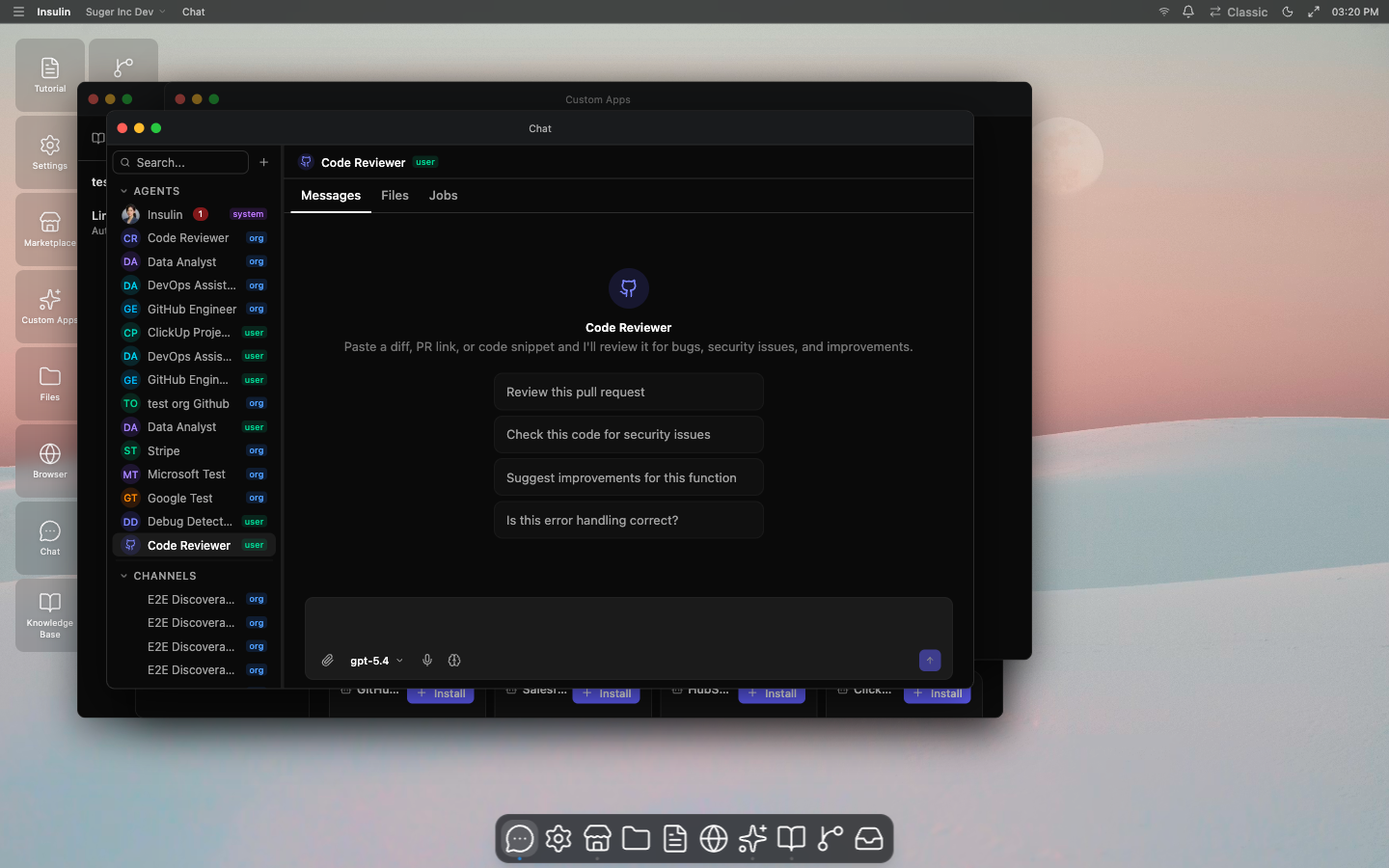
Agent Catalog
Insulin includes a catalog of pre-built agents organized by category. Install a catalog agent from Marketplace to add it to your workspace.
Development
| Agent | Description |
|---|---|
| GitHub Engineer | Work with GitHub repositories, pull requests, issues, and code reviews |
| Code Reviewer | Review code for quality, security, and best practices |
| Debug Detective | Diagnose and troubleshoot bugs and errors |
| DevOps Assistant | Help with CI/CD pipelines, infrastructure, and deployments |
| Security Auditor | Identify security vulnerabilities and recommend fixes |
| Technical Writer | Draft and improve technical documentation |
| API Designer | Design and review API schemas and contracts |
Email and Calendar
| Agent | Description |
|---|---|
| Gmail Assistant | Read, draft, and manage Gmail messages |
| Calendar Assistant | Manage Google Calendar events and scheduling |
| Outlook Assistant | Read, draft, and manage Outlook email and calendar |
Project Management
| Agent | Description |
|---|---|
| ClickUp PM | Manage ClickUp tasks, projects, and workflows |
| Teams Coordinator | Coordinate across Microsoft Teams channels and conversations |
Data and BI
| Agent | Description |
|---|---|
| BigQuery Analyst | Query and analyze data in Google BigQuery |
| Data Analyst | Analyze datasets, generate insights, and create visualizations |
| GCS Curator | Manage files and data in Google Cloud Storage |
| Google Drive | Search, organize, and manage Google Drive files |
CRM and Sales
| Agent | Description |
|---|---|
| HubSpot CRM | Manage contacts, deals, and pipelines in HubSpot |
| Salesforce CRM | Manage leads, opportunities, and accounts in Salesforce |
| Gong Sales Coach | Review sales calls and get coaching recommendations |
Product
| Agent | Description |
|---|---|
| Product Strategist | Help with product planning, prioritization, and roadmap decisions |
Selecting an Agent
To start a conversation with a specific agent:
- Click New Conversation or click the agent name at the top of the current chat
- Browse or search your installed and shared agent list
- Select the agent to start the conversation
You can switch agents mid-conversation if needed.
Creating a Custom Agent
Build your own agent tailored to your team’s needs:
- Navigate to the Agents section in the sidebar
- Click Create Agent
- Configure the following:
| Field | Description |
|---|---|
| Name | A descriptive name for the agent |
| System prompt | Instructions that define the agent’s behavior, personality, and constraints |
| Model | The AI model to use (Claude, GPT, or Gemini) |
| Integrations | Optional allowlist of connected systems the agent can use |
| Knowledge bases | Optional knowledge bases the agent can search for grounded context |
| Conversation starters | Suggested first messages shown to users when they start a conversation |
| Welcome message | An introductory message the agent sends at the start of each conversation |
User-Level vs Org-Level Agents
When creating an agent, you choose the ownership level:
- User-level — Private to you. Any user can create user-level agents.
- Org-level — Belongs to the organization. Only org admins can create org-level agents.
Integrations and Knowledge Bases
Agents do not automatically receive every connection your organization has configured. Their runtime access depends on the agent’s ownership level:
| Agent type | Integration access |
|---|---|
| User-level | Uses user-level integrations selected for that agent. |
| Org-level | Uses organization-level integrations selected for that agent. |
| System | Uses allowed user-scope integrations for the current user. |
Custom agents can also attach knowledge bases. The built-in Insulin assistant can discover knowledge bases available to the current user, while custom agents use the knowledge base IDs explicitly configured on the agent. See Knowledge Bases to create one and fill it with files, websites, or synced connectors.
Sharing Agents
Share custom agents with your team using role-based access control. Each shared user is assigned one of the following roles:
| Role | Permissions |
|---|---|
| ADMIN | Edit agent configuration and manage sharing (invite/revoke members, assign roles) |
| EDITOR | Edit the agent’s configuration (system prompt, model, MCP servers) |
| USER | Use the agent in conversations |
| VIEWER | View the agent’s details where supported, but cannot start conversations with it |
To share an agent:
- Open the agent’s settings
- Click Share
- Add team members and assign roles
Transferring Ownership
If you need to hand off an agent to another team member, you can transfer ownership from the agent’s settings. The new owner receives ADMIN permissions and full control of the agent.
Agents in Channels and Jobs
Agents can be reused across Insulin:
- Add agents to Channels when multiple people and agents need to collaborate in a shared thread.
- Assign agents to Jobs when work should run manually, on a schedule, or from an event.
- Use agents with Custom Apps when a workflow needs both an AI builder and an interactive UI.