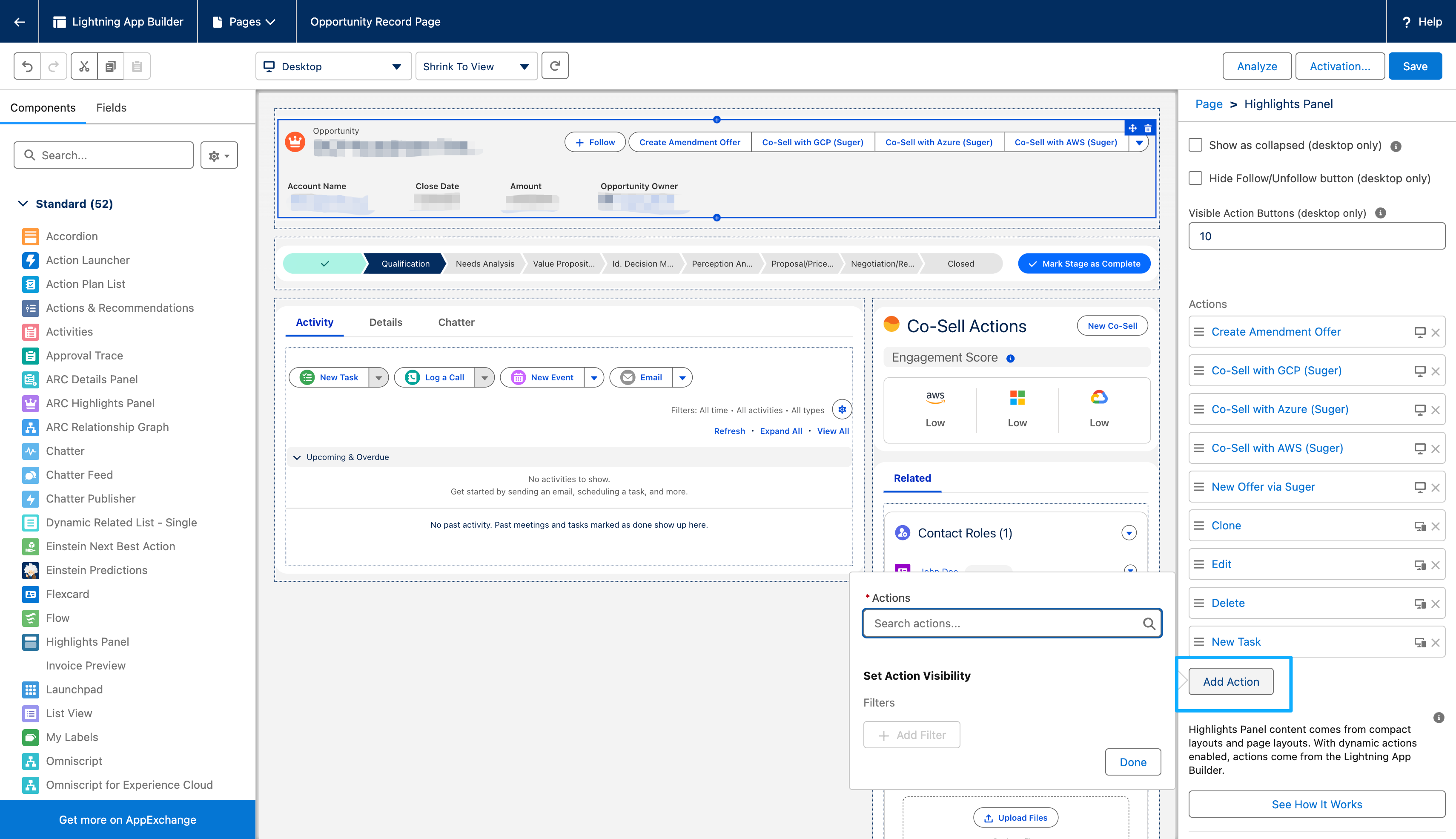
Quick Actions
To streamline sales workflows, you can add Suger Quick Actions directly to Salesforce record pages. These buttons allow users to create offers or initiate co-sell referrals immediately without navigating away from the record.
Available Quick Actions
Suger provides the following standard quick actions:
| Action Label | Description |
|---|---|
| New Offer via Suger | Create a new marketplace offer |
| Create Amendment Offer | Create an amendment to an existing offer |
| Co-Sell via Suger | Initiate a co-sell referral (select partner) |
| Co-Sell with AWS (Suger) | Initiate an AWS co-sell referral |
| Co-Sell with Azure (Suger) | Initiate an Azure co-sell referral |
| Co-Sell with GCP (Suger) | Initiate a GCP co-sell referral |
Adding Quick Actions to Record Pages
Adding Suger Quick Actions to Salesforce record pages (e.g., Opportunity) is a two-step process: first add the actions to the Page Layout, then arrange them on the record page.
Step 1: Add Quick Actions to Page Layout
-
Click the Gear Icon (⚙️) > Setup.
-
In the Quick Find box, type
Object Managerand select it. -
Select the object you want to add quick actions to (e.g., Opportunity).
-
Click Page Layouts in the left sidebar.
-
Select the page layout you want to modify.
-
Scroll down to the Mobile & Lightning Actions section.
-
From the palette at the top, select Mobile & Lightning Actions.
-
Drag the desired Suger quick actions (e.g., “New Offer via Suger”, “Co-Sell with AWS (Suger)”) into the Mobile & Lightning Actions section.
-
Click Save.
Step 2: Arrange Actions on the Record Page
-
Navigate to a record page (e.g., an Opportunity record).
-
Click the Gear Icon (⚙️) > Edit Page.
-
Click on the Highlights Panel component at the top of the canvas to select it.
-
In the right-hand properties panel, locate the Actions section.
-
From the palette, drag the Suger quick actions to arrange them in your preferred order.
-
Click Save and Activate to apply changes to your users.