
CRM Enrichment
CRM Enrichment automatically populates Salesforce records with intelligence signals from Suger — engagement scores and marketplace metrics across AWS, Azure, and GCP — so your sales team gets actionable insights inside Salesforce without leaving the CRM.
Overview
With CRM Enrichment, you can:
- Automatically populate CRM fields with intelligence signals (engagement scores, marketplace metrics)
- Configure multiple record types (e.g., Opportunities, Accounts) with different enrichment rules
- Use SOQL queries to target specific records for enrichment
- Map intelligence fields to custom Salesforce fields
Prerequisites
Before configuring enrichment, ensure you have:
- Custom fields created in Salesforce to store the intelligence data.
- Integration User permissions on the permission set used by Suger:
- Field-level read and edit access on every custom field you add for enrichment.
- Write access to the records you plan to enrich. The simplest way to grant this is the Modify All Records permission on each object (e.g., Account, Opportunity) — but this is not strictly required. If the Integration User already has edit access to the relevant records through ownership or sharing rules, that is sufficient. Records the Integration User cannot write to are skipped with a per-record error; the rest of the batch still succeeds.
Creating Custom Fields in Salesforce
You need to create custom fields in Salesforce to store the intelligence signals. For each signal you want to sync:
-
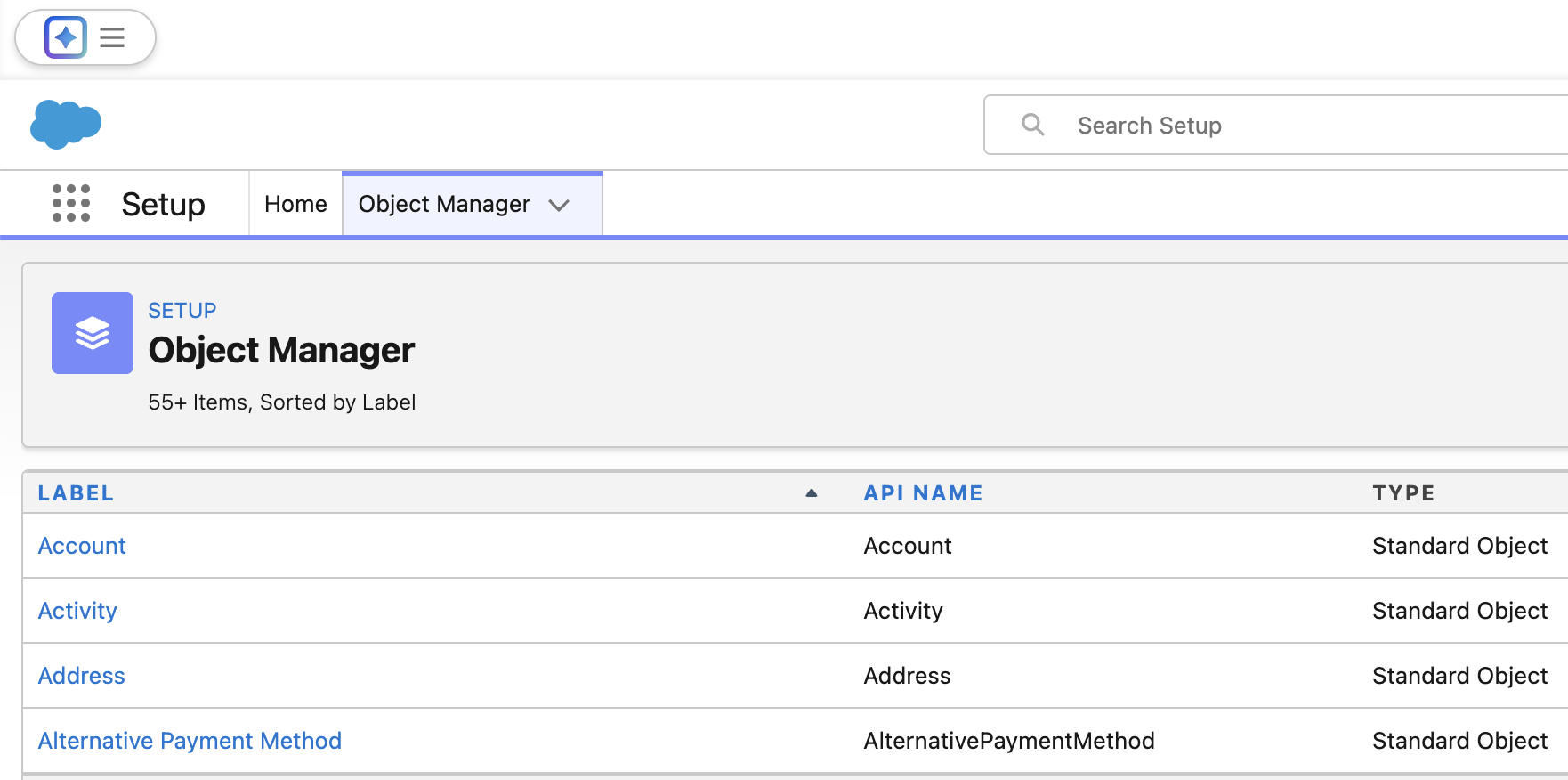
Go to Setup → Object Manager → Select your object (e.g., Account, Opportunity)
-
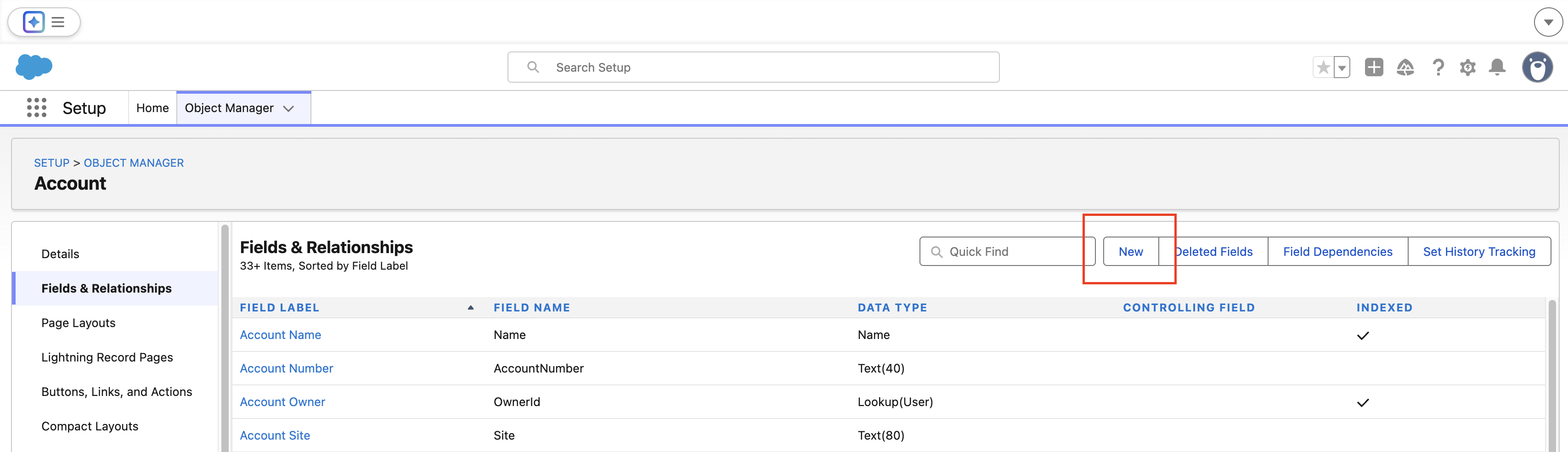
Click Fields & Relationships → New
-
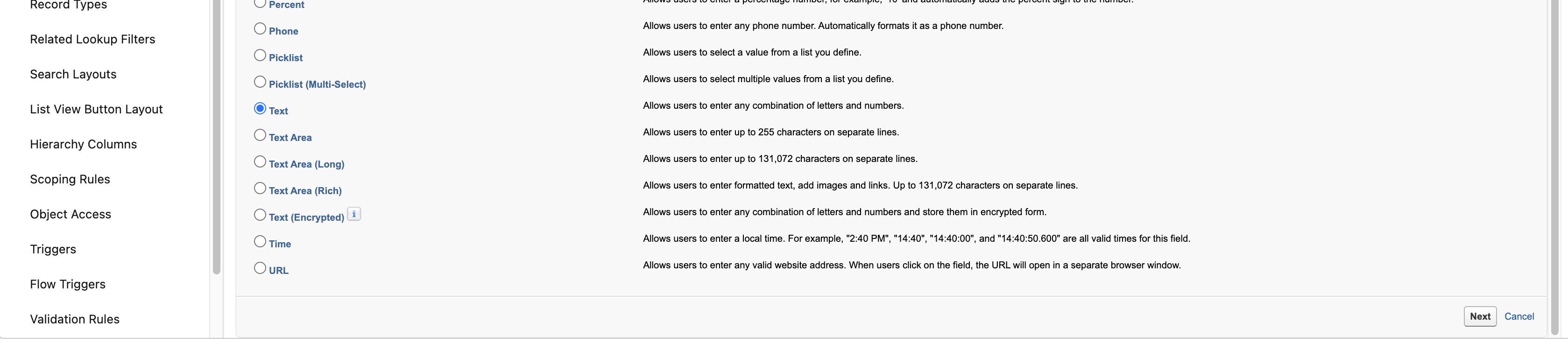
Choose the appropriate field type. Suger supports the following Salesforce field types as enrichment destinations:
- Text or Text Area — works for any signal (recommended default)
- Picklist — works for categorical signals only (the engagement scores). The picklist values you define must exactly match the values Suger writes (case-sensitive). For the AWS/Azure/GCP Engagement Score signals, define the picklist with exactly these active values:
Low,Medium,High. Any other casing or wording (e.g.low,LOW,Tier 1) will cause writes to fail. If Suger cannot determine an engagement score for a record (no data available), the field is written with an empty value — if your picklist has “Restrict picklist to the values defined in the value set” enabled (Salesforce’s default), those writes will be rejected. To accept blanks, either disable the restriction or use a Text field instead.
-
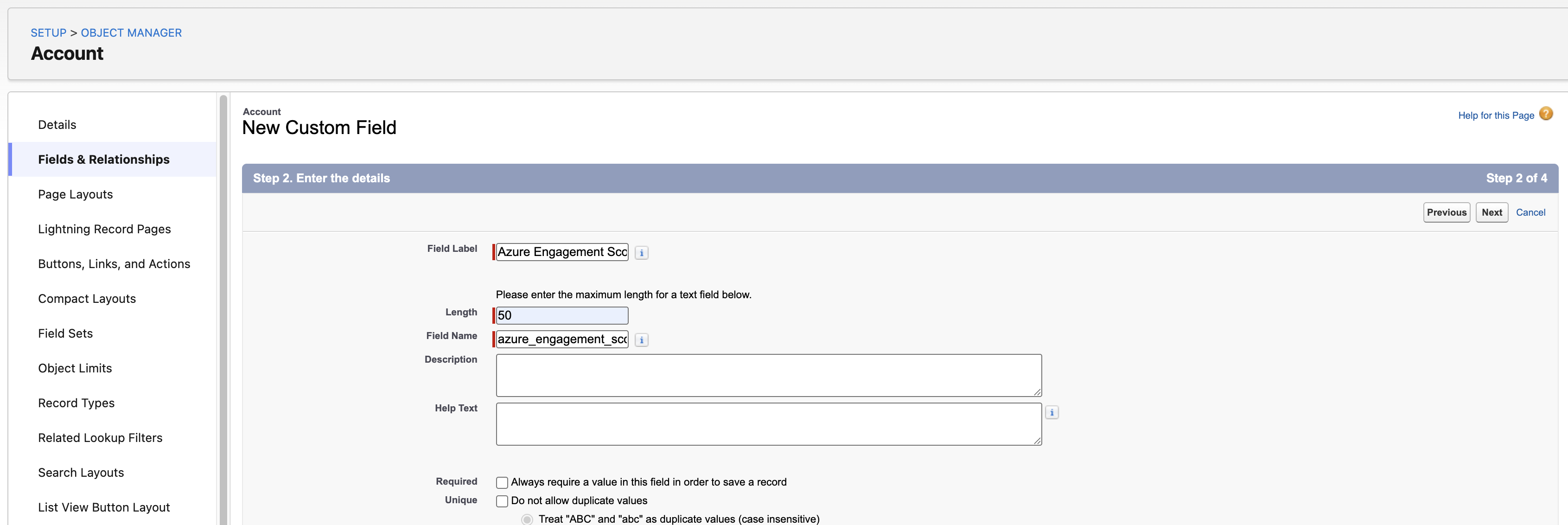
Enter a Field Label (e.g., “Azure Engagement Score”)
-
Configure field-level security to allow the Integration User to read and write
-
Add the field to your page layouts as needed
Note on multi-picklist fields: Multi-picklist destinations are not supported. Suger signals produce single values, so map them to single picklist or text fields instead.
Configuring Enrichment
- Navigate to Suger Console → Settings → Integrations → Salesforce
- Click Edit to open the integration settings
- Go to the Enrichment tab
- Click Add CRM Record to create a new enrichment rule
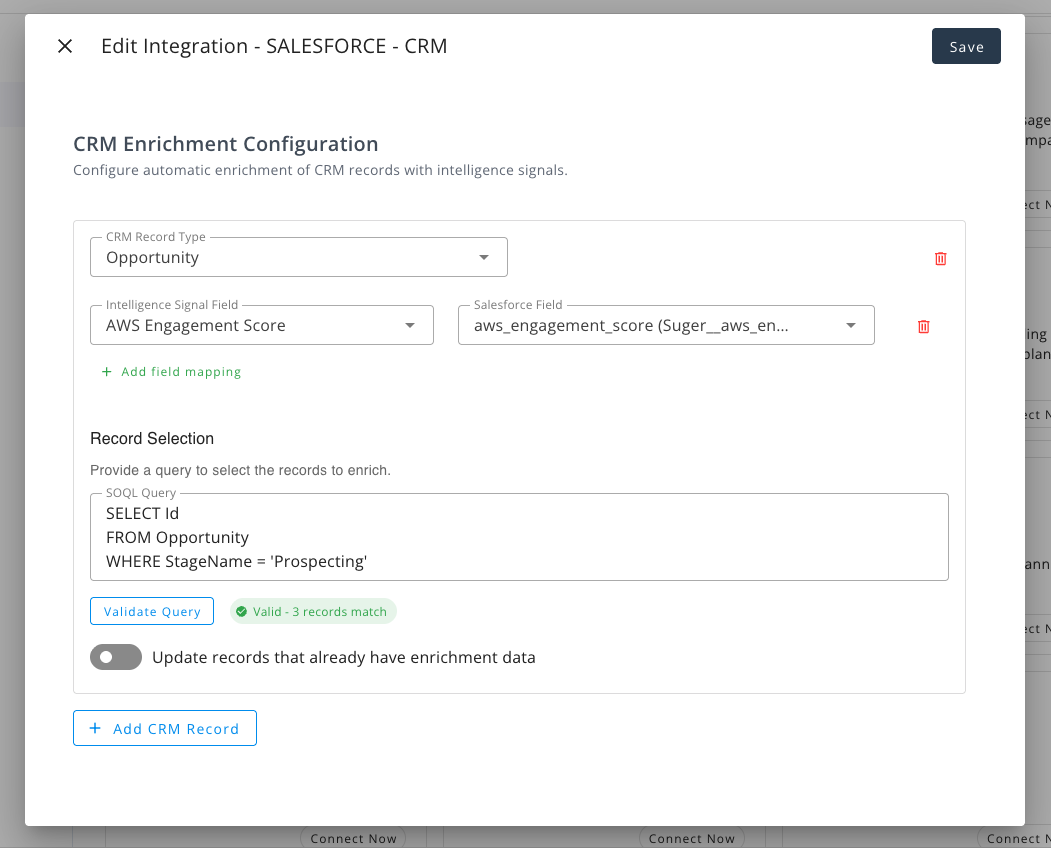
For each configuration, specify:
| Setting | Description |
|---|---|
| Record Type | The Salesforce object to enrich (e.g., Opportunity, Account) |
| Query | SOQL query to filter which records to enrich |
| Field Mappings | Map intelligence fields to your custom Salesforce fields |
| Refresh Existing | Controls when previously enriched records are refreshed: Never, Immediately, or Every N days (default: 30 days) |
| Max Records Per Sync | Maximum number of records to process per sync run (default: 10,000, maximum: 50,000, minimum: 1,000) |
After entering your query, click Validate Query to verify it is valid and see how many records match. This helps ensure your enrichment rule targets the right set of records before saving.
Available Intelligence Fields
Intelligence signals are derived from multiple data sources:
- Cloud partner data — Engagement scores sourced directly from cloud partner programs (e.g., AWS Partner Network, Azure Partner Center, GCP Partner Advantage).
- Marketplace activity — Public marketplace metrics such as listing counts, review counts, and purchase history across AWS, Azure, and GCP marketplaces.
The following intelligence signals can be mapped to your CRM fields:
AWS Signals
- AWS Engagement Score
- AWS Marketplace Count
- AWS Marketplace Review Count
- AWS Marketplace Purchase Count
Azure Signals
- Azure Engagement Score
- Azure Event Score
- Azure Usage Score
- Azure Marketplace Count
- Azure Marketplace Review Count
- Azure Marketplace Purchase Count
GCP Signals
- GCP Engagement Score
- GCP Marketplace Count
- GCP Marketplace Review Count
- GCP Marketplace Purchase Count
Example Configuration
To enrich Opportunities in the Prospecting stage with AWS engagement data:
- CRM Record Type: Opportunity
- Field Mappings:
AWS Engagement Score→aws_engagement_score
- SOQL Query:
SELECT Id FROM Opportunity WHERE StageName = 'Prospecting'
How Enrichment Works
Sync Schedule
Suger runs a scheduled enrichment sync every 12 hours (at midnight and noon UTC). During each sync, Suger automatically processes all configured enrichment rules for your organization.
Enrichment Process
Each sync goes through the following steps:
- Query your Salesforce org using the configured SOQL query to identify records that need enrichment.
- Look up intelligence data for each matching record based on the company’s website domain.
- Update the mapped fields in Salesforce with the latest intelligence values.
Update Mechanism
Suger uses a smart two-step approach to ensure efficient and complete data coverage:
- Step 1 — Enrich new records: Every sync prioritizes records that have not been enriched yet (where the mapped fields are still empty). This ensures newly added or previously missed records receive intelligence data first.
- Step 2 — Refresh existing records: Once all new records have been enriched, Suger begins a refresh cycle — rotating through previously enriched records in batches to keep data up to date. This rotation continues across multiple syncs until all records have been refreshed, then a new cycle begins.
The Refresh Existing setting controls how the refresh cycle behaves:
| Setting | Behavior |
|---|---|
| Never | Only enrich records that have not been enriched before. Previously enriched records are never updated. |
| Immediately | Continuously rotate through all records, refreshing data without delay between cycles. |
| Every N days | Wait N days after completing a full refresh cycle before starting the next one (default: 30 days). |
Records Per Sync
Each sync processes up to a configurable maximum number of records. For Salesforce, the default is 10,000 and can be increased up to 50,000. The minimum configurable value is 1,000.
If your query matches more records than the configured limit, the remaining records are handled automatically:
- New records (Step 1): Unenriched records will be picked up in the next sync since they still have empty fields — no progress tracking is needed.
- Refresh cycle (Step 2): Suger tracks its cursor position across syncs to rotate through all records. For example, with 100,000 records and a limit of 50,000 per sync, the refresh cycle completes in 2 runs. Once a full cycle finishes, the next one starts based on your Refresh Existing setting.
Tracking Enrichment Progress
To monitor the status of your enrichment sync:
- Go to the enrichment configuration for your record type
- Expand Advanced Configuration
- Click Check Progress
The progress panel shows:
| Field | Description |
|---|---|
| Status | Current state — Active (only enriching new records, refresh disabled), Not Started, In Progress, or Waiting (cycle completed, waiting for next refresh interval) |
| Cycle Progress | Percentage of records processed in the current refresh cycle |
| Records Processed | Number of records processed out of total matching records |
| Last Run | When the last sync ran and how many records it processed |
| Estimated Runs Remaining | Approximate number of syncs needed to complete the current cycle |
Disabling Enrichment
To stop enrichment for a specific record type, toggle it off in the enrichment configuration. This removes the enrichment rule, and no further syncs will process that record type.
To temporarily pause enrichment without removing the configuration, set Refresh Existing to Never — this will only enrich new records with empty fields and skip all previously enriched records.