
Marketplace
Marketplace is where you discover and install reusable Insulin capabilities. It has two catalog areas: Agents and Skills.
Marketplace
What Is the Marketplace?
Marketplace is a curated catalog of agents and skills built for common workflows. Instead of creating everything from scratch, you can browse the catalog, inspect an item, and install it into your workspace.
Installed items become part of your personal workspace. You can use installed agents in conversations, assign agents to jobs, add agents to channels, or edit installed skills for your team’s needs.
Browsing the Catalog
Open Marketplace in the Insulin workspace. The Marketplace app has two tabs:
| Tab | What You Install |
|---|---|
| Agents | Specialized assistants for domains such as development, CRM, data, project management, sales, and documentation. |
| Skills | Markdown-based instruction packages that agents can load when relevant. |
Each catalog card shows the item name, description, category, tags, and install state. Installed items are marked so you do not create duplicates.
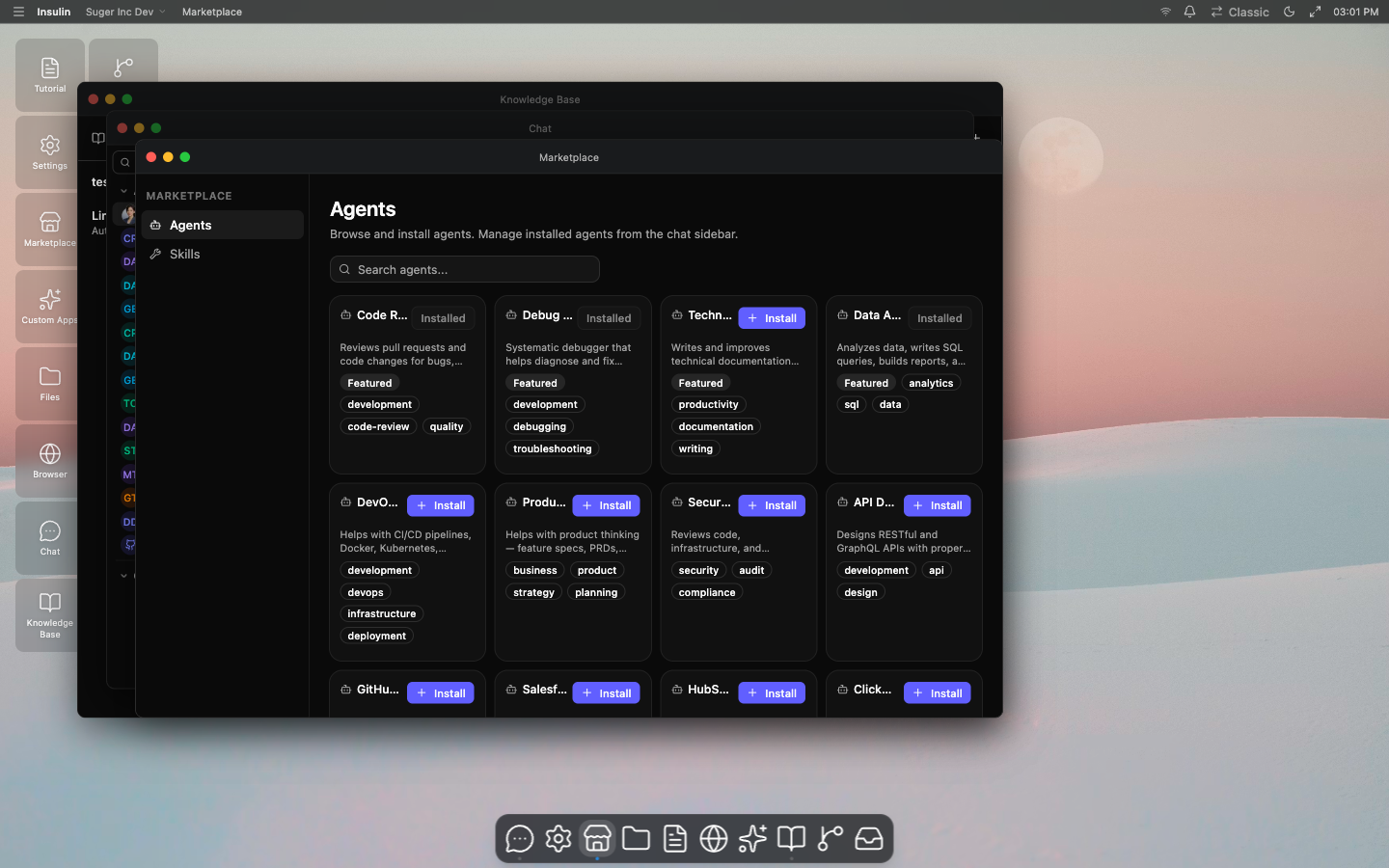
Installing an Item
- Open Marketplace
- Choose Agents or Skills
- Search or browse the catalog
- Open an item to review its details
- Click Install
If the item is already installed, the install action is disabled or returns the existing installed state.
Skills
What Are Skills?
A skill is a markdown file containing instructions, procedures, or domain knowledge. When an agent needs information covered by a skill, it loads the skill’s content into its context and follows the instructions within.
Skills let you codify team knowledge — standard operating procedures, style guides, troubleshooting runbooks, product specs — and make it available to any agent during a conversation.
How Agents Use Skills
During a conversation, an agent can load relevant skills on demand. The agent reads the skill’s markdown content and incorporates it into its response. This means:
- The agent follows procedures documented in the skill
- The agent applies domain-specific rules and constraints from the skill
- The agent references terminology and definitions from the skill
You do not need to manually tell the agent to use a skill. Agents discover and load skills automatically based on relevance to the current conversation.
Adding a Skill
There are several ways to add a skill to your workspace:
| Method | How |
|---|---|
| Create from input | Describe what you need; Insulin normalizes the input into a skill draft for review. |
| Upload | Upload a markdown skill or packaged skill archive. |
| Import from GitHub | Import a packaged skill from a GitHub source. |
| Import from SkillsMP | Search SkillsMP and import a public skill package from its source. |
| Install from Marketplace | Browse and install pre-built skills from the Marketplace catalog. |
To upload a skill manually:
- Navigate to the Skills section in the sidebar
- Click Add Skill and select Upload
- Select a markdown file (
.md) from your computer - Give the skill a name and description
- Click Save
The skill is now available to agents in your workspace.
Skill Format
Skills are markdown-based packages. A simple skill can be a single markdown file; a packaged skill can include supporting files such as references, scripts, or assets. A well-structured skill includes:
- A clear title describing the skill’s purpose
- Step-by-step instructions or reference material
- Examples where helpful
- Constraints or rules the agent should follow
# Creating AWS Private Offers

## Steps

1. Verify the buyer's AWS account ID
2. Confirm pricing terms with the sales team
3. Set the offer expiration date (default: 14 days)
4. Include a custom EULA if required by the buyer

## Rules

- Never create offers with more than 30% discount without VP approval
- Always include the standard support terms
- Expiration date must be at least 7 days from creationManaging Skills
From the Skills section, you can:
- Edit — Update the skill’s name, description, or markdown content
- Delete — Remove a skill from your workspace
- Review — View the skill’s full content before making changes
What Gets Installed
When you install a catalog item, the following is copied into your workspace:
- System prompt — The instructions that define the agent’s behavior or the skill’s knowledge
- Configuration — Any pre-configured settings, such as which tools the agent can use
- Conversation starters — Suggested prompts to help you start using the agent or skill right away
- Icon — The visual identity of the item
Installed agents appear in your agent list. Installed skills appear in your skills list. You can customize them after installation — they are fully yours to edit.
Managing Installed Items
After installation, agents and skills from the marketplace behave identically to ones you create yourself. You can:
- Edit the system prompt or configuration
- Assign agents to jobs or channels
- Attach skills to agents
- Delete items you no longer need
Discovering New Capabilities
The marketplace catalog is updated as new agents and skills are added. Check back periodically for new items, or filter by Featured to see the latest recommendations.