
Create CPPO
Create a reseller authorization (CPPO) directly from a HubSpot deal using the Suger App.
Overview
A reseller authorization — also called a Channel Partner Private Offer (CPPO) — is how you give a reseller or channel partner permission to sell your product on a cloud marketplace on your behalf. In plain terms:
- You (the ISV) create a reseller authorization that sets the price you’re willing to give the reseller.
- The reseller then creates their own private offer to the end customer, using your authorization as the basis — at whatever markup they choose.
- The end customer buys from the reseller through the marketplace, and billing flows through accordingly.
For more details, see Resale with Suger.
Prerequisites
- The Suger App must be set up in HubSpot and the Suger app card must be visible on your deal pages. If you haven’t done that yet, see Set up the Suger App in HubSpot.
- The product you want to authorize must already exist in Suger. If it doesn’t, create it in the Suger Console first before continuing.
Create a reseller authorization
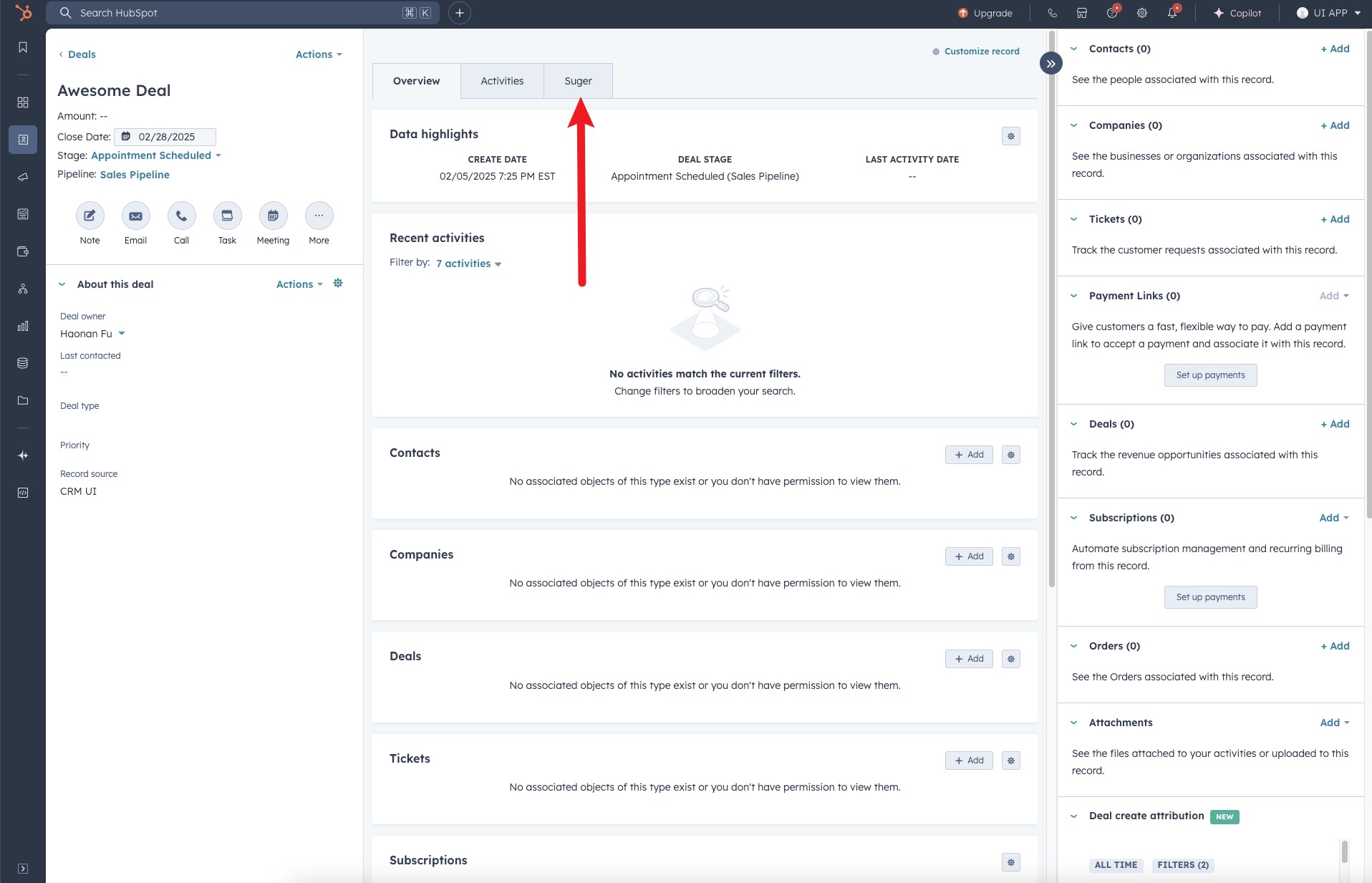
- Open the HubSpot Deal record associated with your reseller, then click the “Suger” tab at the top of the deal page.
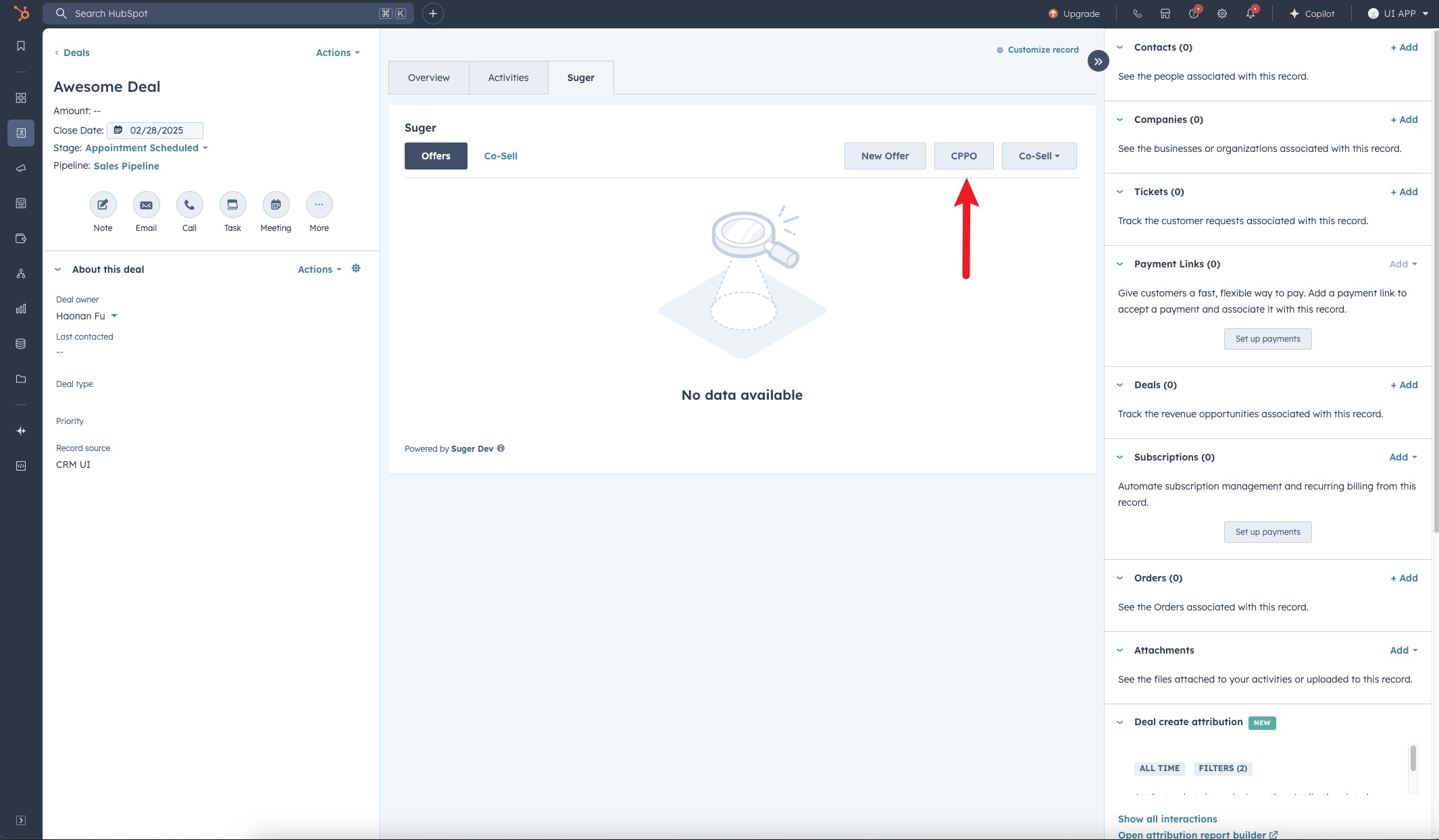
- Locate and click the “CPPO” button inside the Suger panel.
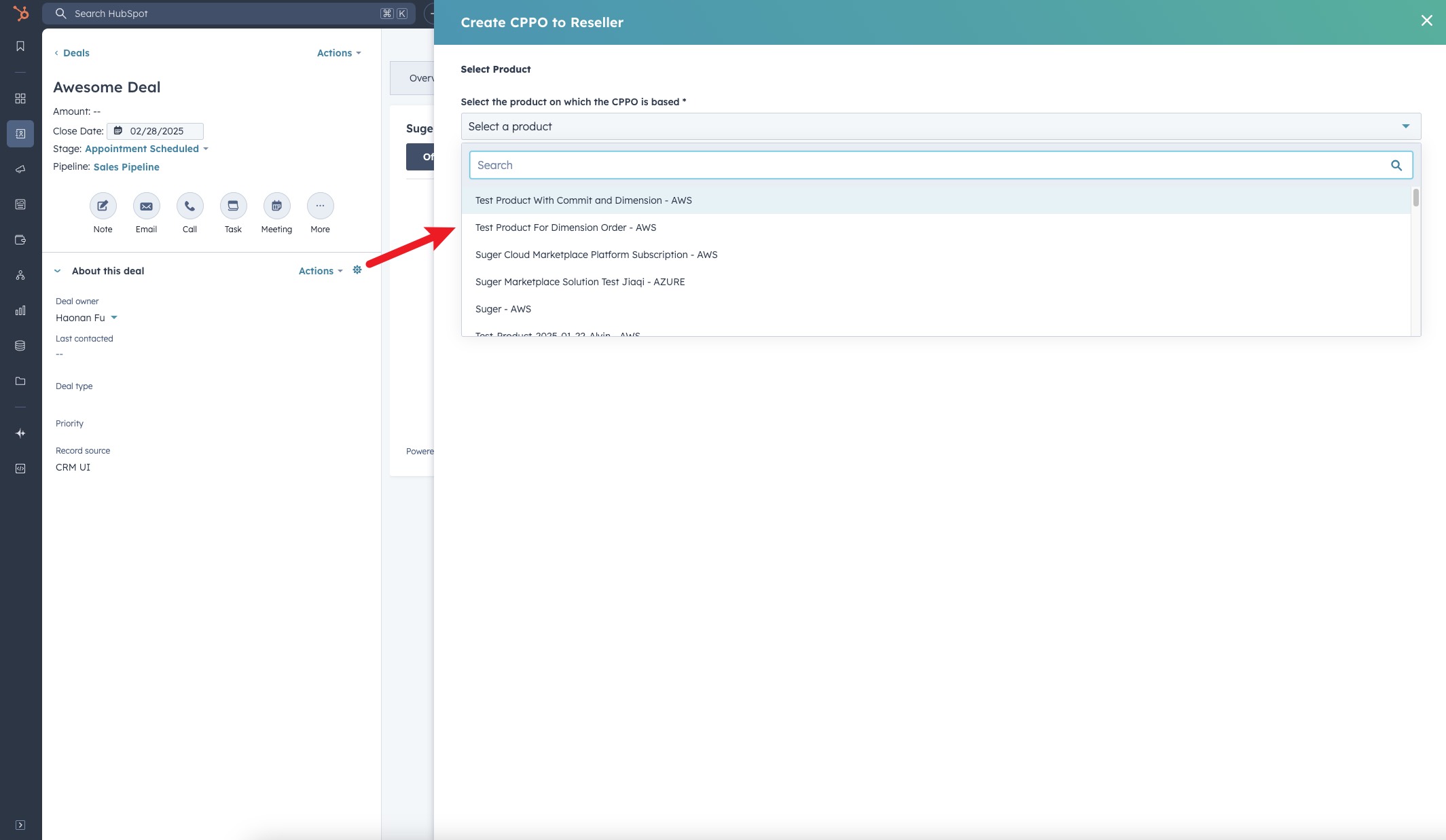
- Choose the product on which the reseller authorization will be based. The list shows only products available in your Suger account.
- Complete the required fields in the form. Note that the required fields may vary depending on the cloud marketplace and product type.
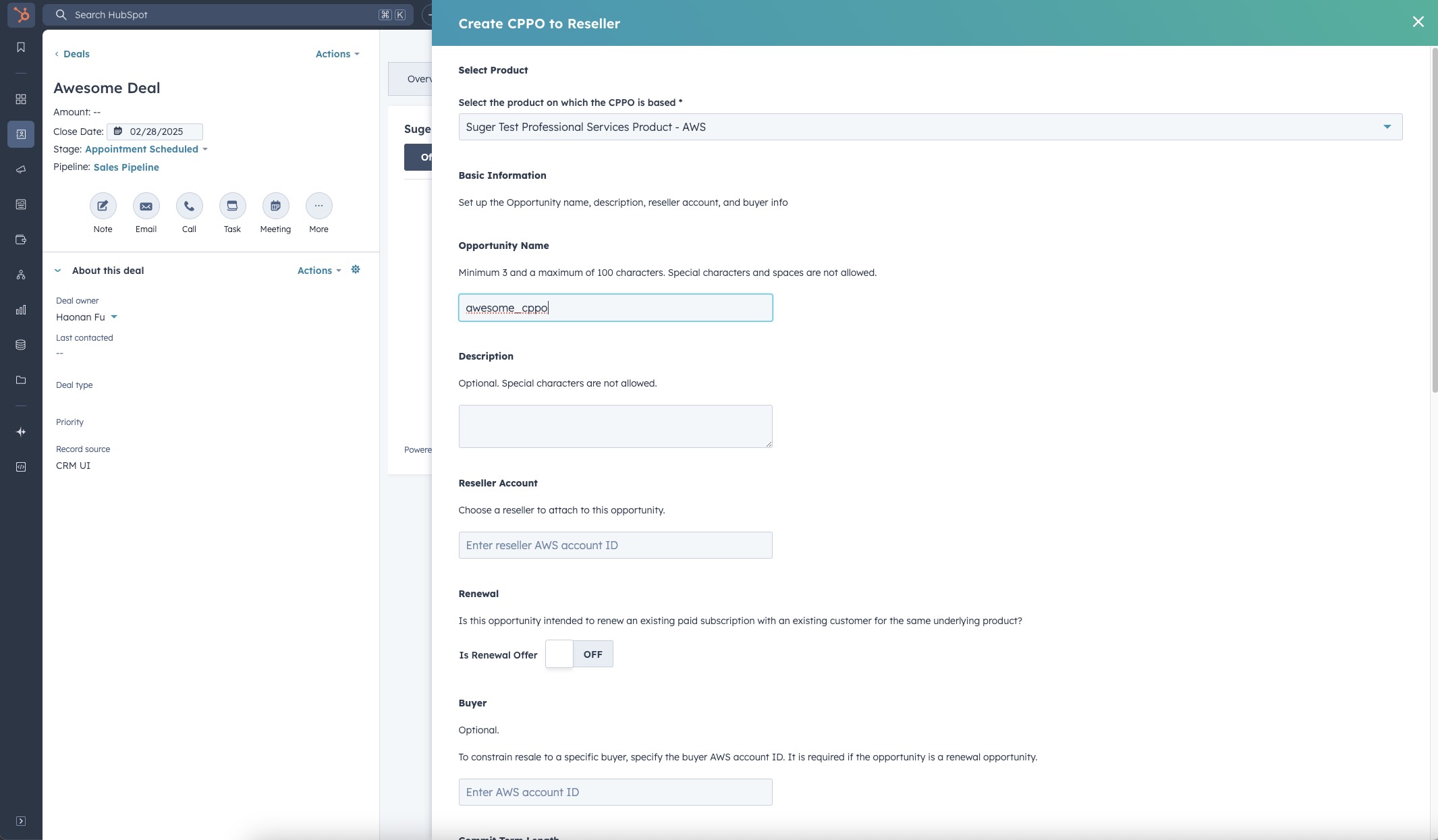
- Once all necessary information is filled in, submit the form to create the reseller authorization.
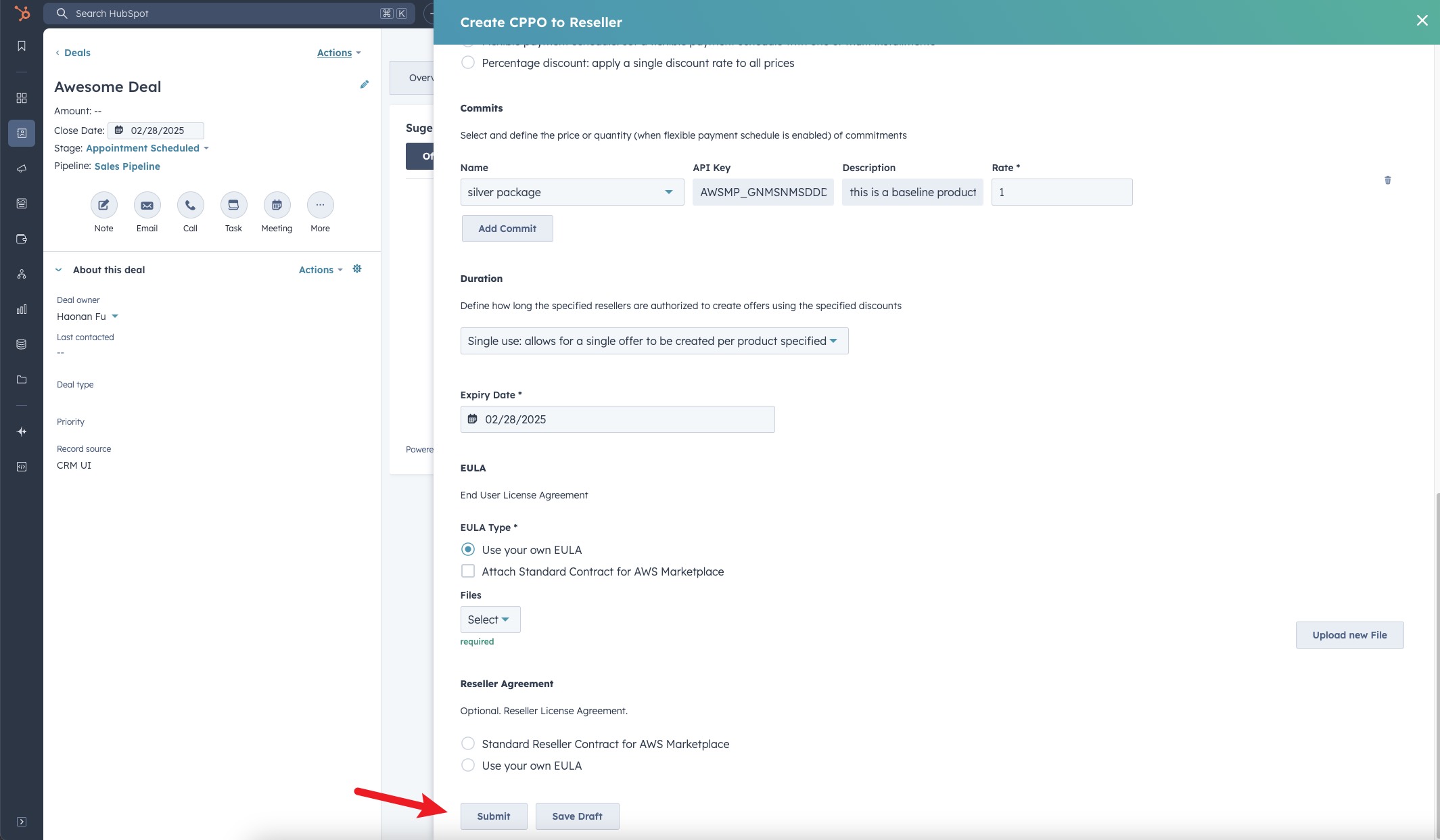
- You are all set!
What happens next
After you submit the reseller authorization:
- Suger creates the authorization and links it to the HubSpot deal.
- The authorization is sent to the cloud marketplace for processing.
- Once confirmed by the marketplace, the reseller receives access to the authorization and can create their own private offer to the end customer.
- You can track the status of the authorization from the deal record in HubSpot or in the Suger Console under your offers list.
Troubleshooting common issues
| Issue | Possible cause | Resolution |
|---|---|---|
| No Suger tab visible on the deal page | The Suger app card has not been added to the deal layout | Set up the Suger App in HubSpot to add the app card |
| No CPPO button visible inside the Suger panel | The HubSpot integration connection has been disrupted | Go to Suger Console → Settings → Integrations → HubSpot and click Verify to re-verify the connection |
| Product list is empty | No products have been set up in Suger | Confirm products exist in the Suger Console before creating a reseller authorization |
| Form fields are blank — not pre-filled from the deal | Field mapping has not been configured | Field mapping is an optional admin setup. Contact your admin to configure it |
| Reseller authorization was created but is not visible on the deal | Sync between Suger and HubSpot is delayed | Refresh the page after a few minutes. If it still doesn’t appear, confirm the authorization was created in the Suger Console |
Frequently Asked Questions (FAQs)
Q: What’s the difference between a reseller authorization and a private offer?
A private offer goes directly to an end customer. A reseller authorization goes to a channel partner (reseller), who then creates their own private offer to the end customer. Use a reseller authorization when you’re selling through a partner, not directly to the buyer.
Q: Does the reseller see my cost price when I create a reseller authorization?
Yes — the reseller sees the price you set in the authorization. They can then mark it up when creating their own offer to the end customer, but they cannot go below the price you’ve authorized.
Q: Can I track whether the reseller has acted on the authorization?
Yes. You can check the status of the reseller authorization from the deal record in HubSpot or in the Suger Console.
Q: Will the reseller authorization show up in the Suger Console too?
Yes. Any reseller authorization created from HubSpot is also visible in the Suger Console under your offers list.