
Create and Assign Partner Journeys
Build reusable, step-by-step playbooks that guide partners through onboarding and other key milestones, then assign them to partners and track progress from one place.
Overview
Journey Templates are reusable, step-by-step playbooks for onboarding and other key milestones in your partner program. You create the template once, assign it to partners as needed, and track progress centrally instead of managing each task by hand.
Create a Template
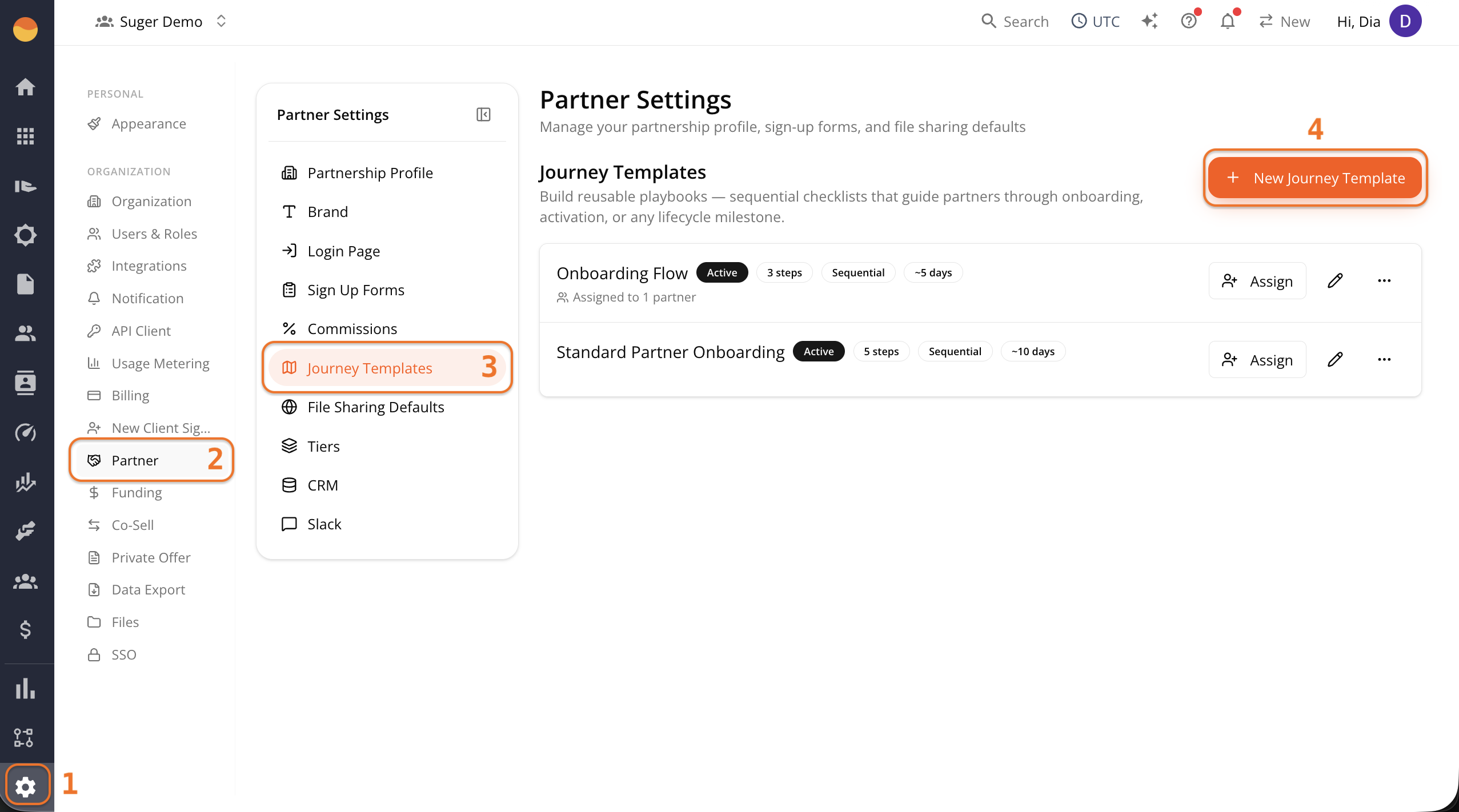
- Go to Suger Console, then Settings.
- Click Partner, then Journey Templates.
- Click + New Journey Templates.
-
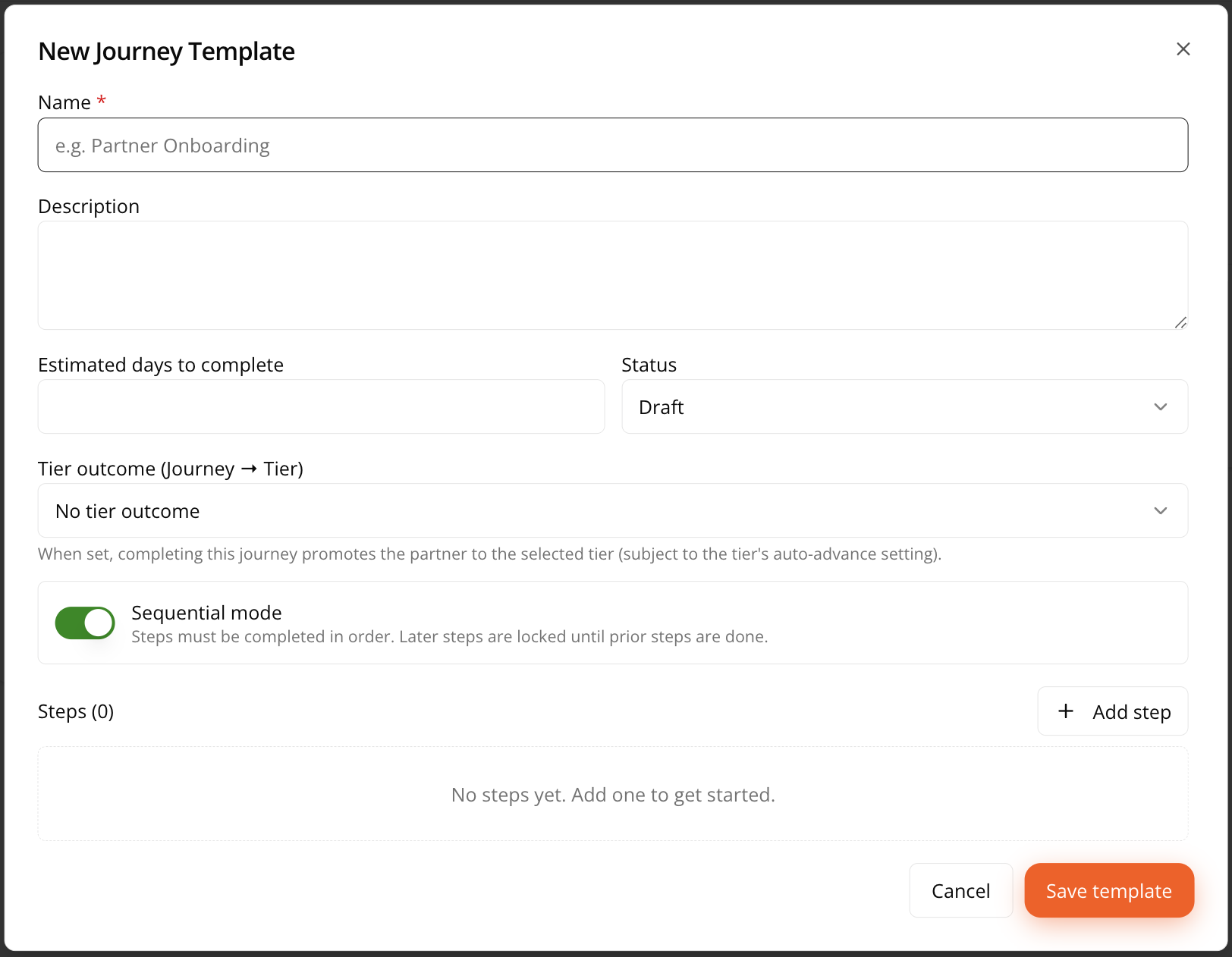
Fill in the journey template details:
- Name — What the template is called, for example “Partner Onboarding.”
- Description — A short description of what this journey is for.
- Estimated days to complete — A rough duration estimate, shown later as a reference (for example “~5 days”) wherever this template appears.
- Status — Draft while you’re still building it, or Active once it’s ready to be assigned. Only Active templates make sense to assign to real partners.
- Tier outcome (Journey → Tier) — Optional. If set to something like “Promote to Gold,” completing this journey automatically promotes the partner to that tier, subject to that tier’s own auto-advance setting. Leave this as “No tier outcome” if this journey isn’t meant to affect tier standing.
- Sequential mode — Toggle on if steps must be completed in order, with later steps locked until earlier ones are done. Toggle off if partners can complete steps in any order.
-
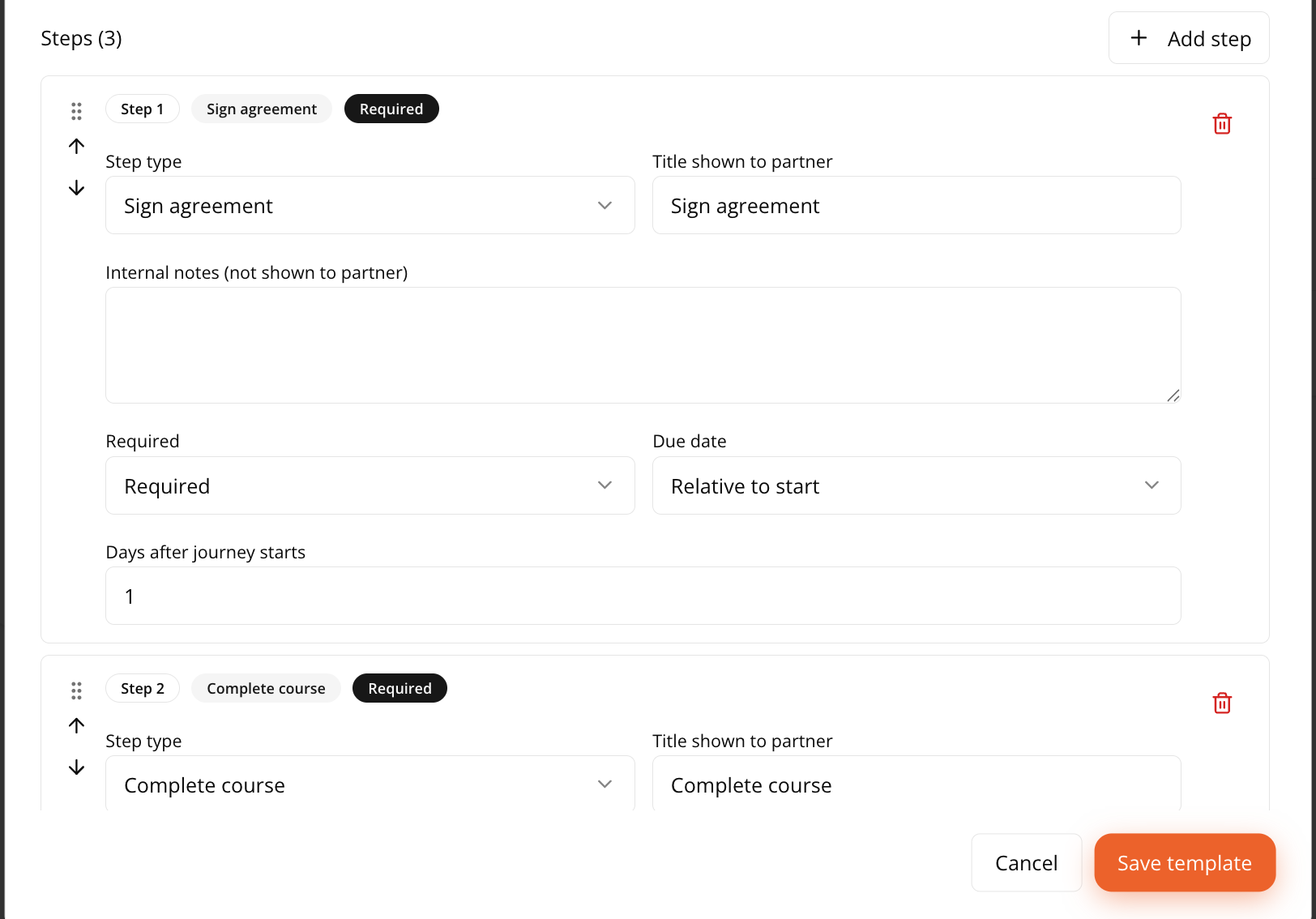
Click + Add step to add each milestone to the journey. For every step, you’ll set:
- Step type — What kind of action this is:
- Sign agreement — A step where the partner needs to sign a contract or NDA, like “Sign NDA & Partner Agreement.”
- Upload document — A step where the partner submits a file, like partner documentation you need on record.
- Complete course — A step tied to training content, like an onboarding course.
- Earn certification — A step tied to a certification requirement.
- Register a deal — A step where the partner’s first deal registration counts as completion.
- Custom task — The catch-all. You can optionally link this step to a Task.
- Title shown to partner — The label the partner actually sees for this step.
- Internal notes — Notes for your own team, not visible to the partner.
- Task template — Optionally link this step to an existing task template, if one applies.
- Required or Optional — Whether this step must be completed to finish the journey, or whether it’s a nice-to-have.
- Due date — Either “No due date” or “Relative to start” (due some number of days after the journey is assigned).
- Step type — What kind of action this is:
-
Use the up/down arrows or drag handle to reorder steps, and the trash icon to remove one. Add as many steps as the journey needs, then click Save template.
Assign a Journey to a Partner
Once your template is Active, you can assign it to partners from several places in Suger.
From the Journey Template
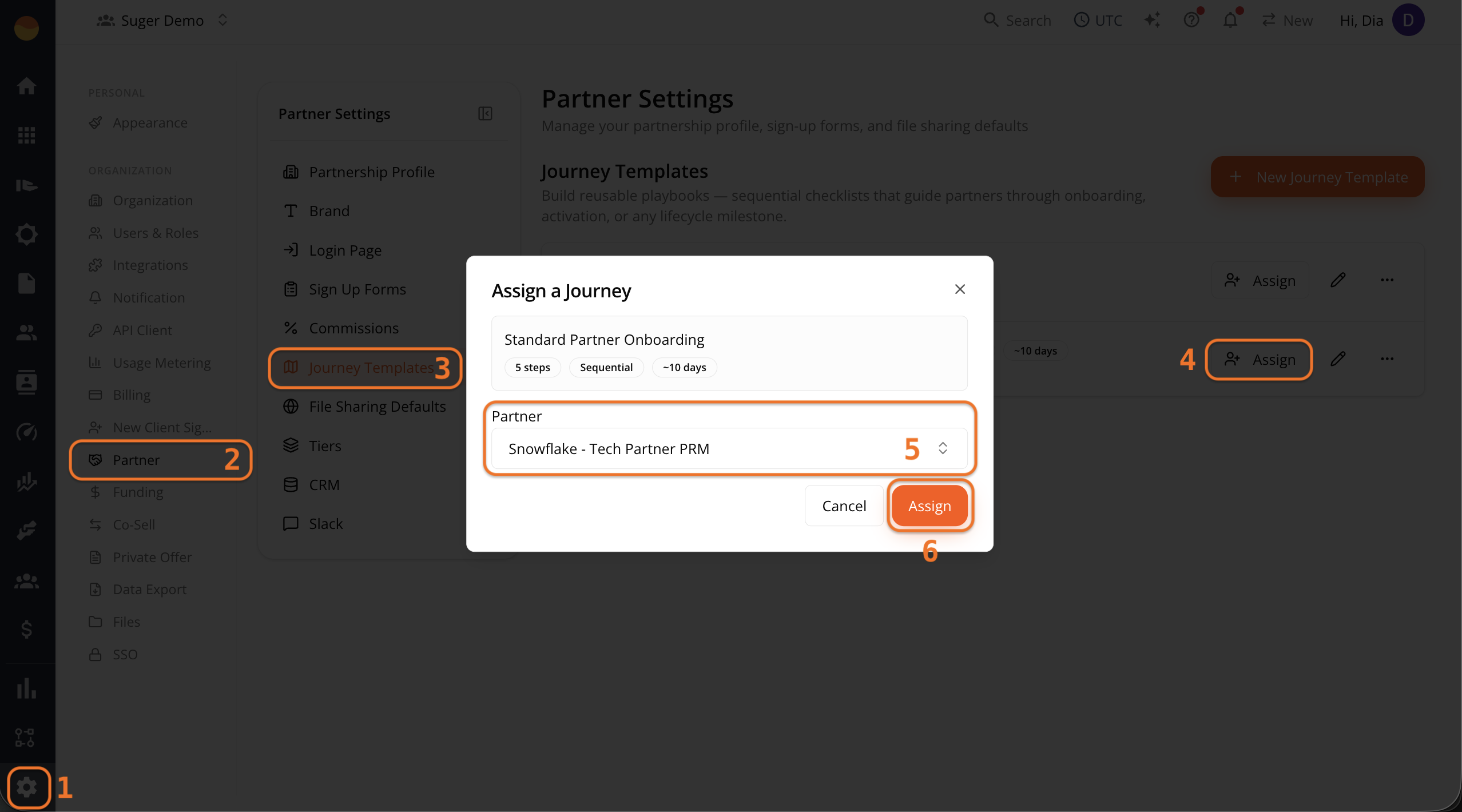
- Go to Suger Console, then Settings.
- Click Partner, then Journey Templates.
- Find the template, and click Assign.
- In the Assign a Journey dialog, select the partner from the dropdown.
- Click Assign.
From the Journeys Page
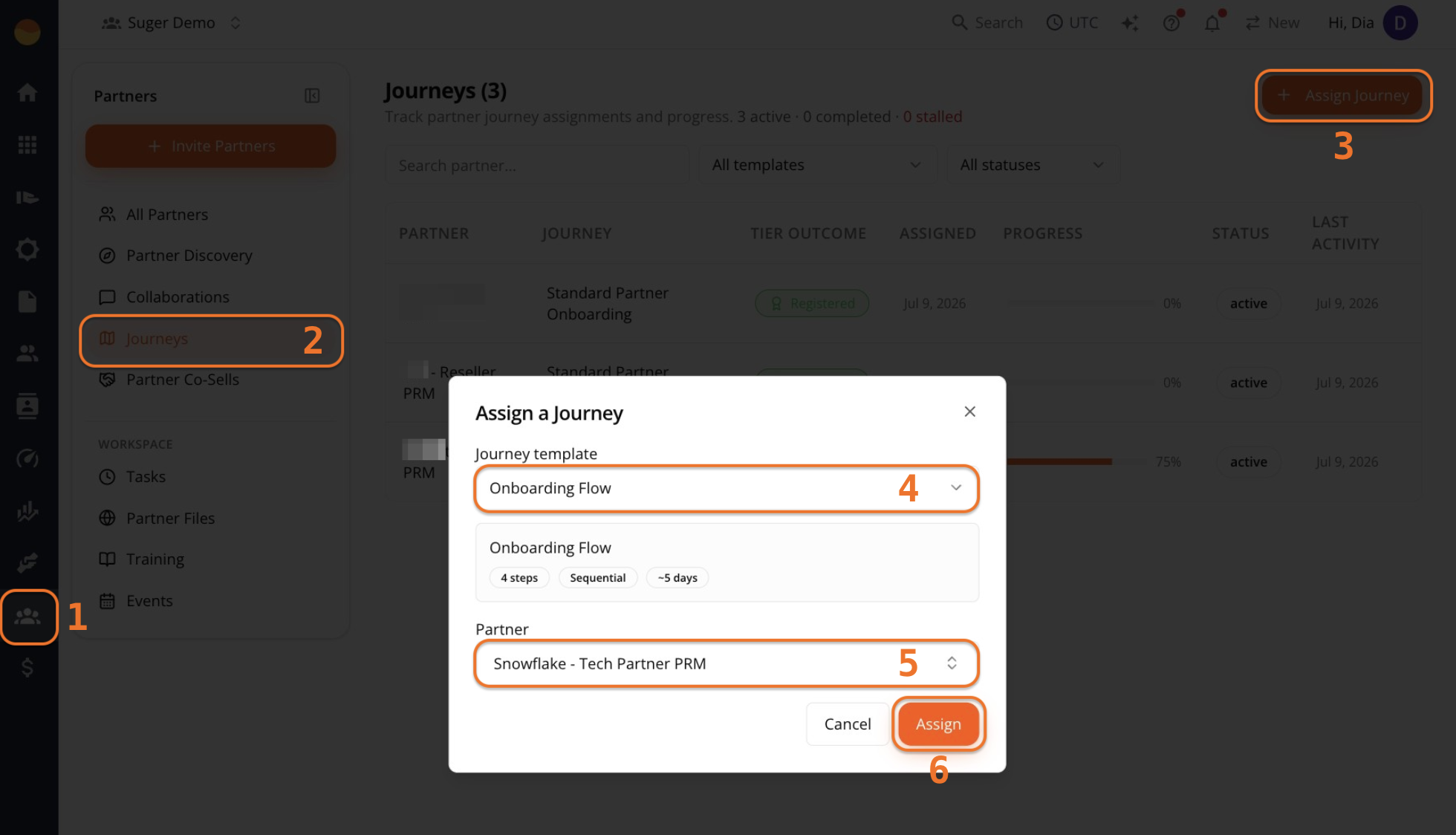
- Go to Suger Console, then Partners.
- Go to the Journeys menu, and click + Assign Journey.
- In the Assign a Journey dialog, select the Journey template and Partner from the dropdowns.
- Click Assign.
From a Partner’s Profile
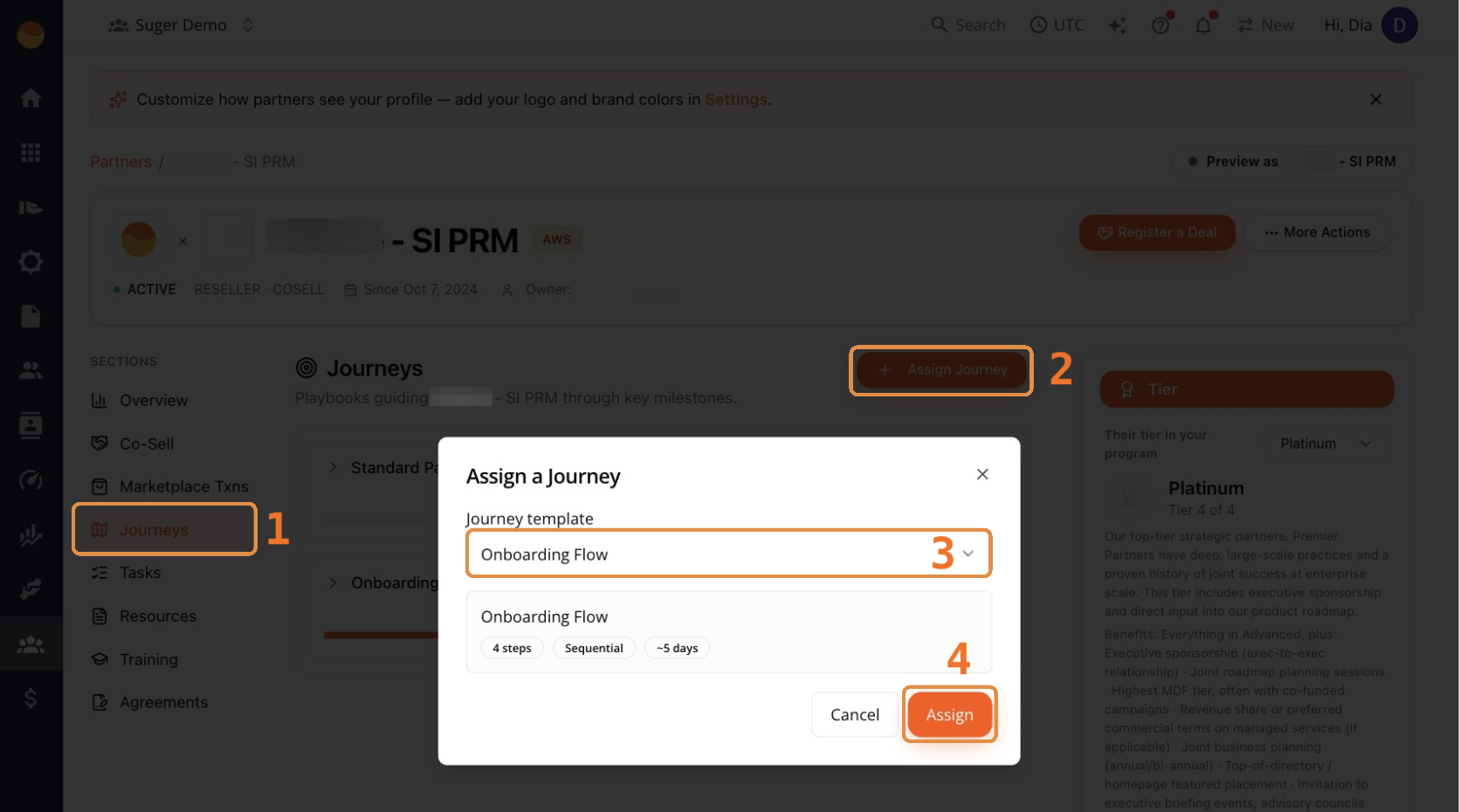
- Go to Suger Console, then Partners.
- Click the partner’s name to open their profile.
- Click Journeys, then + Assign Journey.
- In the Assign a Journey dialog, select the Journey template, then click Assign.
Next Steps
Once assigned, see Complete and track partner journey progress to check on progress and understand what the partner sees on their end.