Navigate the Partner Console
Find your way around the Partner Console so you know where to go at each stage of a partner relationship.
Overview
The Partner Console has two main areas:
- Settings, where you configure your partner program.
- Partners, where you recruit, onboard, and collaborate with partners every day.
This guide gives you a tour of both. For detailed instructions, follow the how-to guides linked from each section.
Set Up Your Partner Program
Before inviting partners, spend a few minutes configuring the core settings under Settings → Partner. These define how your partner program works.
How Partners Move Through the Console
Once your program is set up, a partner relationship generally moves through the console in this order:
- Find or invite a partner in Partner Discovery, or let one apply through a sign-up form.
- Track the conversation in Collaborations while the invitation is pending.
- Once they accept, their record appears in All Partners. Assign them a Journey to guide them through onboarding.
- As they become active, co-sell opportunities with them surface in Partner Co-Sells.
- Throughout the relationship, use Tasks to keep action items on track, Partner Files to share documents, and Training to certify them on your product.
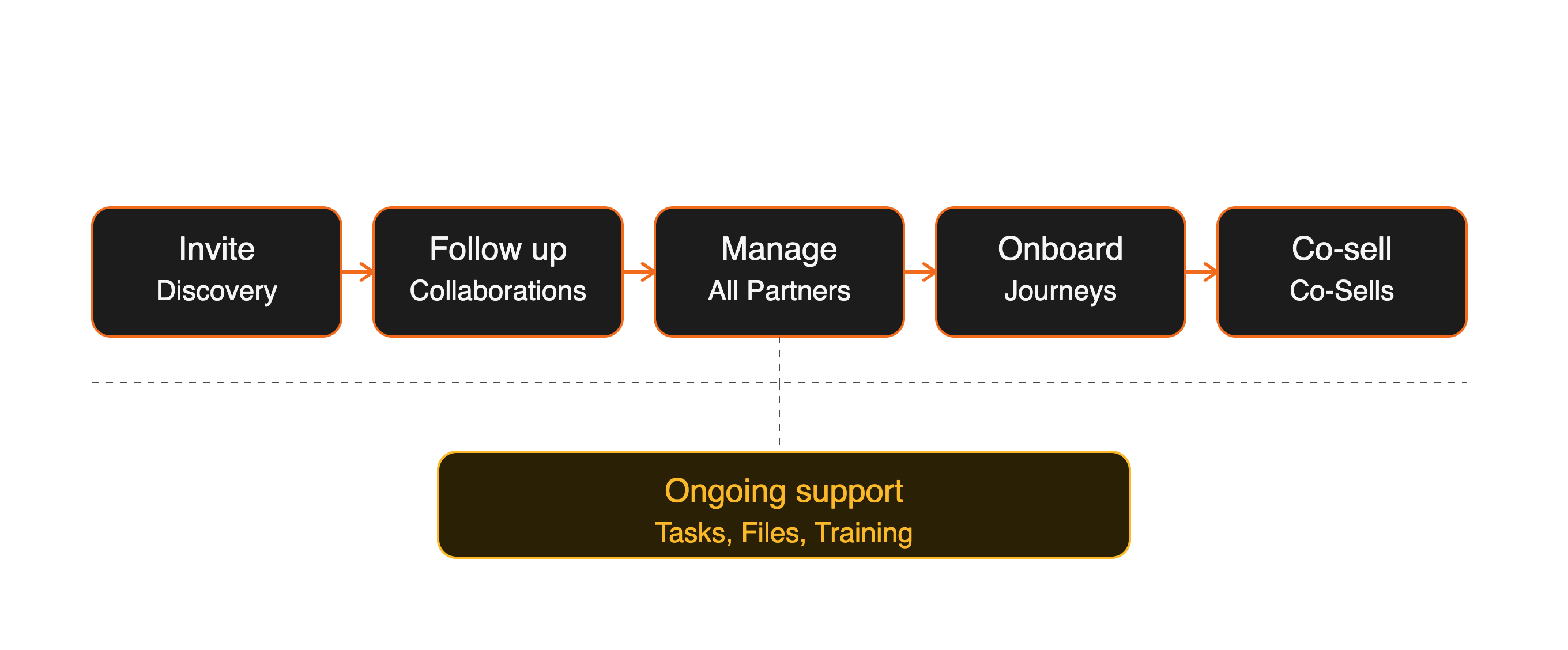
The sections below walk through each stop along that path.
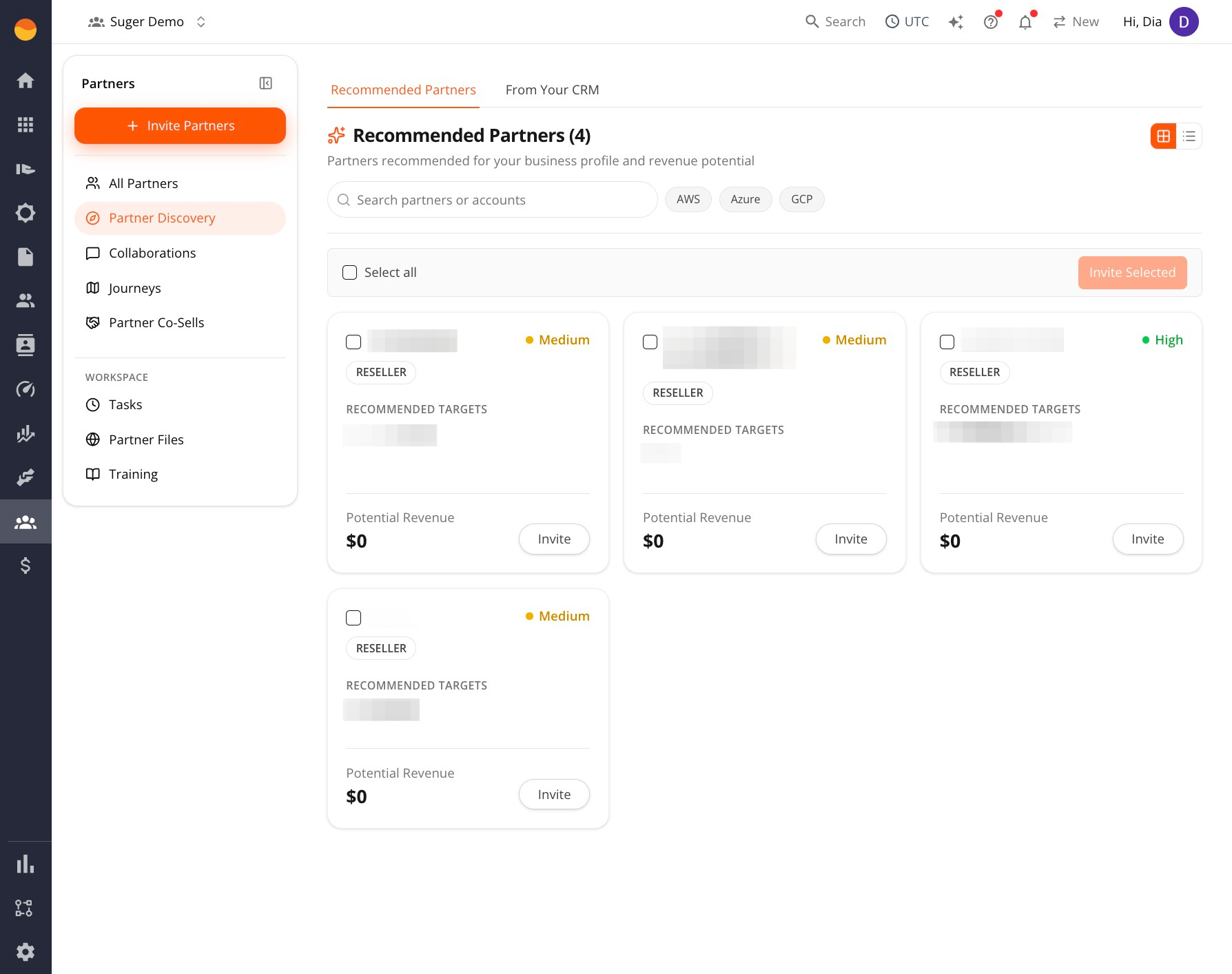
Partner Discovery
The Recommended Partners tab surfaces potential partners based on your business profile, ranked by likely revenue impact.
The From Your CRM tab pulls in Salesforce accounts that match your saved discovery filter, once your CRM connection is set up.
From here, you can review the recommended partners and click Invite on the ones worth pursuing, or select several and click Invite Selected.
Collaborations
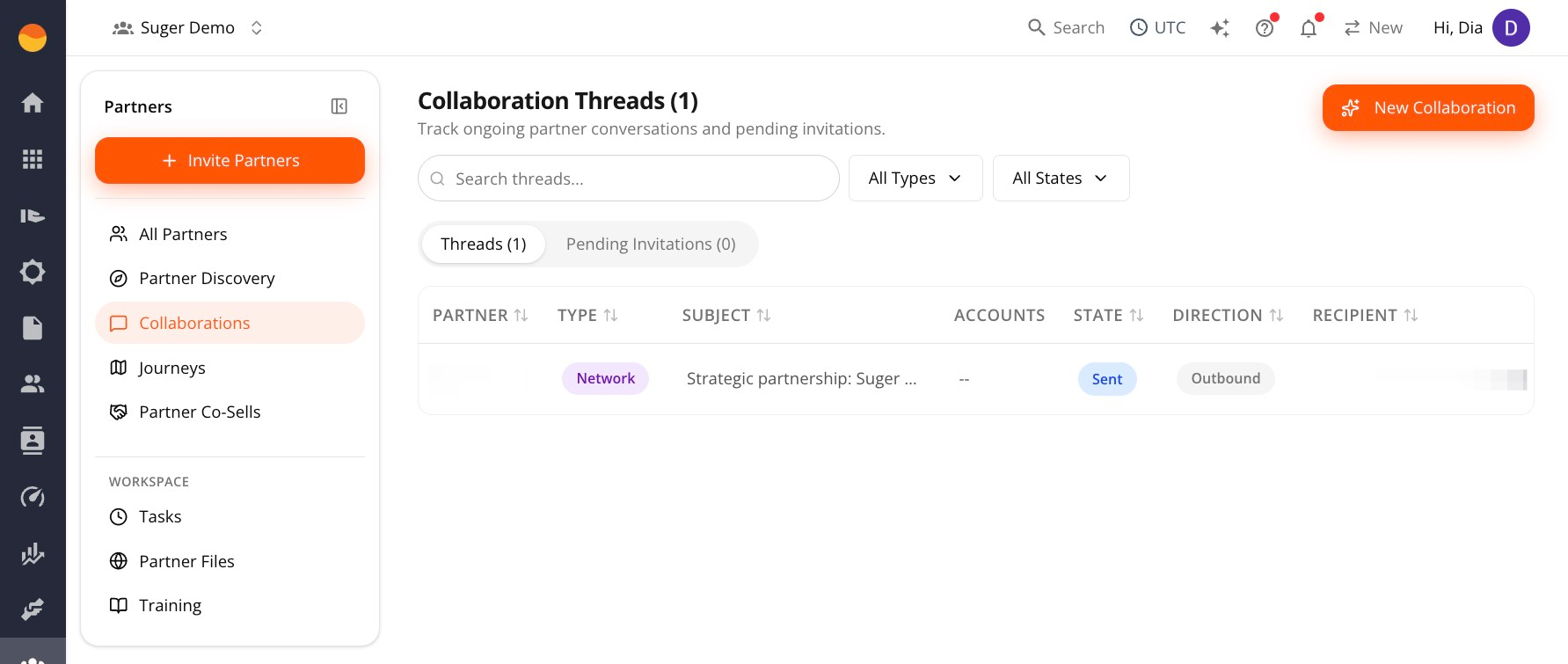
This is where you track the conversations you’re having with partners, whether you initiated them (Outbound) or they came to you (Inbound). Each thread shows its state, such as Sent or Active.
From here, you can check Pending Invitations regularly and follow up on threads that have gone quiet.
All Partners
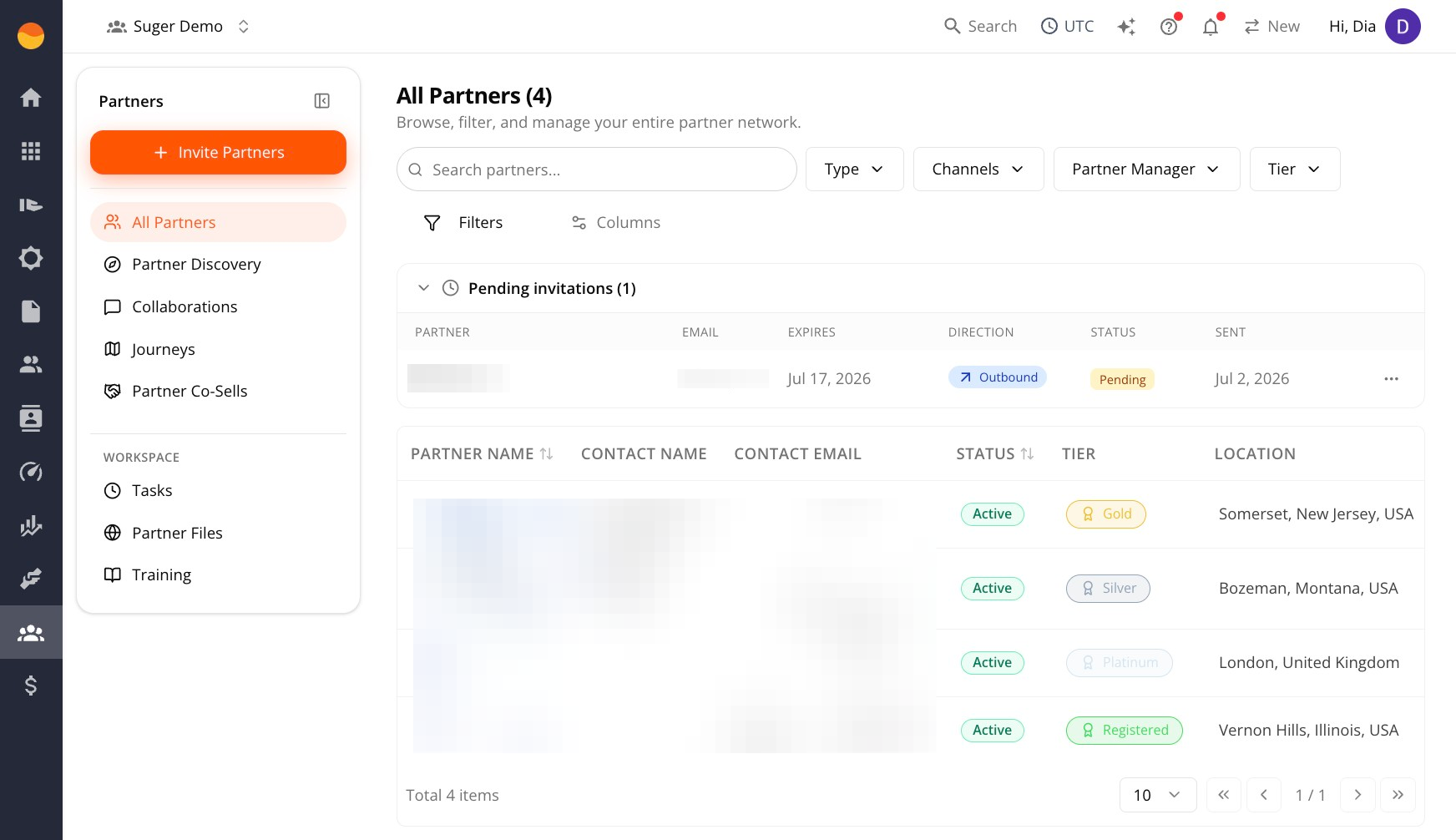
Once a partner accepts your invitation, they appear in All Partners. This is your main directory for managing active partner relationships. Use filters to quickly find partners by type, channel, partner manager, or tier.
From here, you can open partner profiles, review their details, update information, and access their related activity.
Journeys
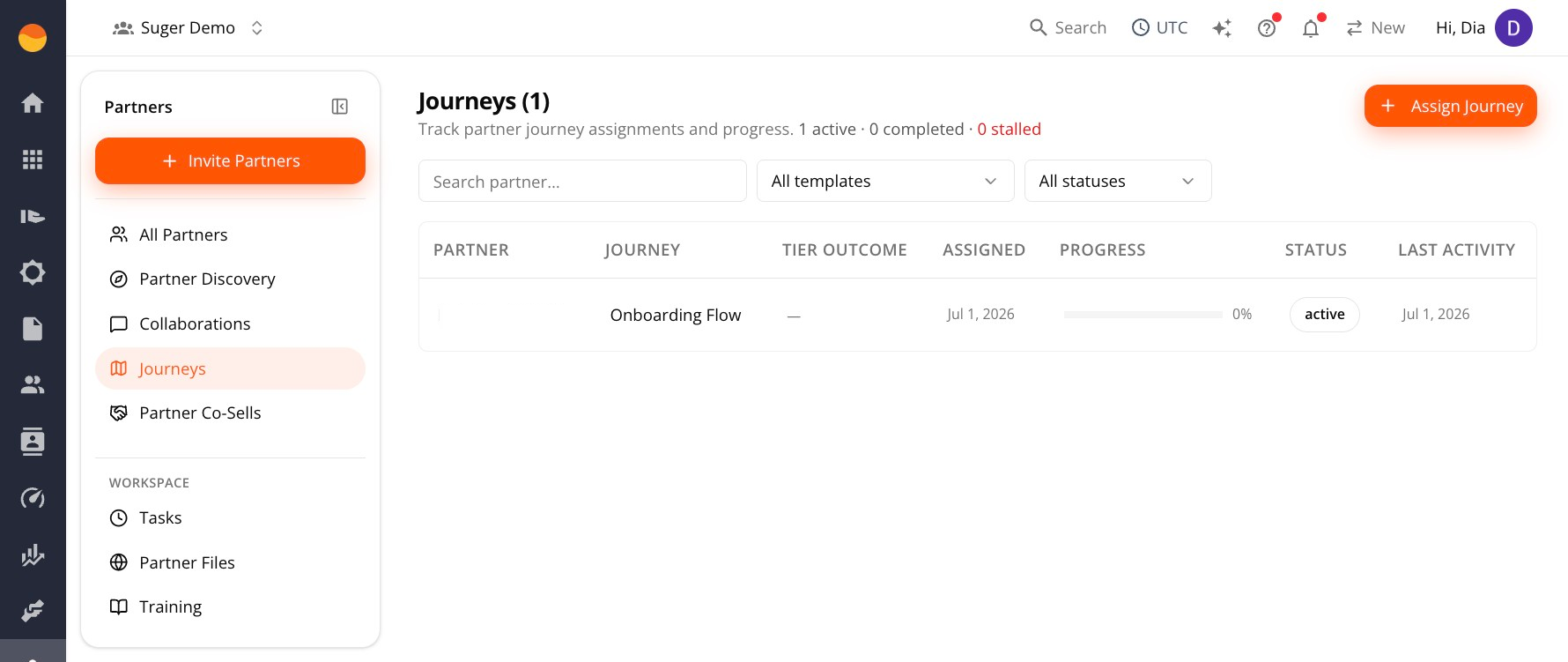
Journeys are onboarding plans built from reusable templates. Each assigned Journey tracks a partner’s progress through onboarding so you can quickly see who’s active, completed, or stalled.
From here, you can assign onboarding plans to new partners and monitor their progress over time.
Partner Co-Sells
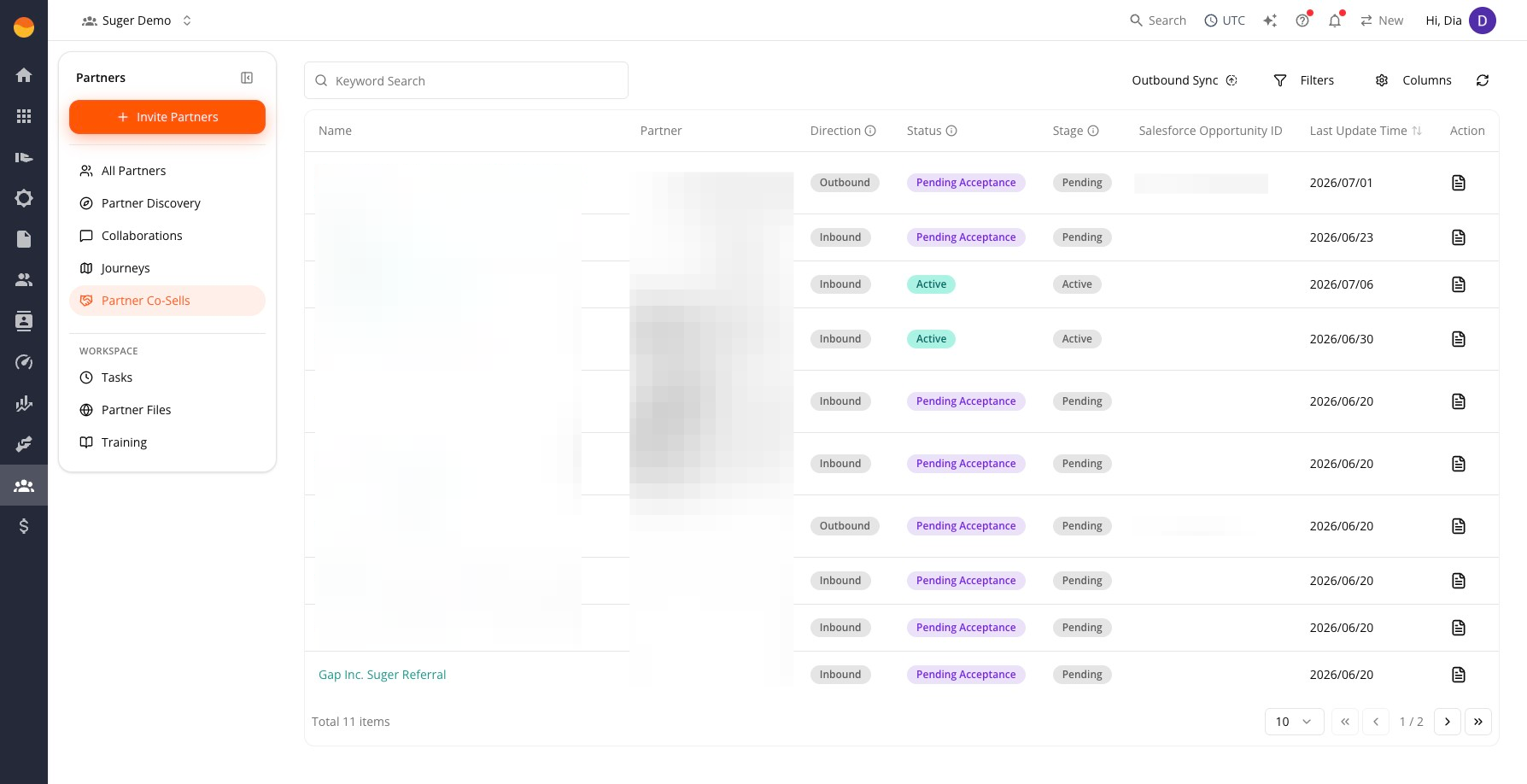
Partner Co-Sells brings together shared sales opportunities between you and your partners. Each opportunity shows its direction, current status, and linked Salesforce Opportunity ID when Salesforce is connected.
From here, you can accept new co-sell opportunities, monitor active deals, and collaborate with partners throughout the sales cycle.
Tasks
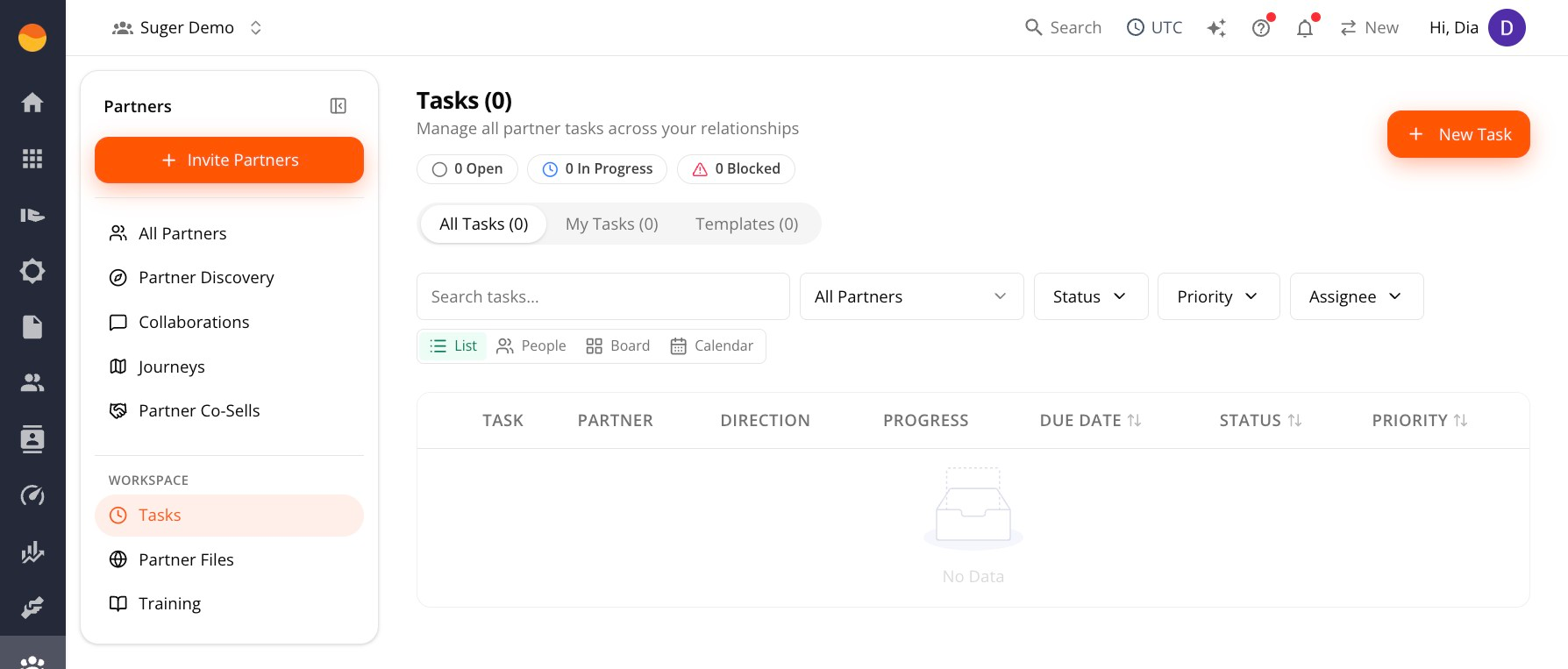
Tasks help you track follow-ups, document requests, approvals, and other action items for individual partner relationships.
Each task has a Direction that shows who needs to act next. Outbound means your team has work to do, while Inbound means you’re waiting on the partner. If you regularly create the same set of tasks, use a Template to create them all at once instead of adding them individually.
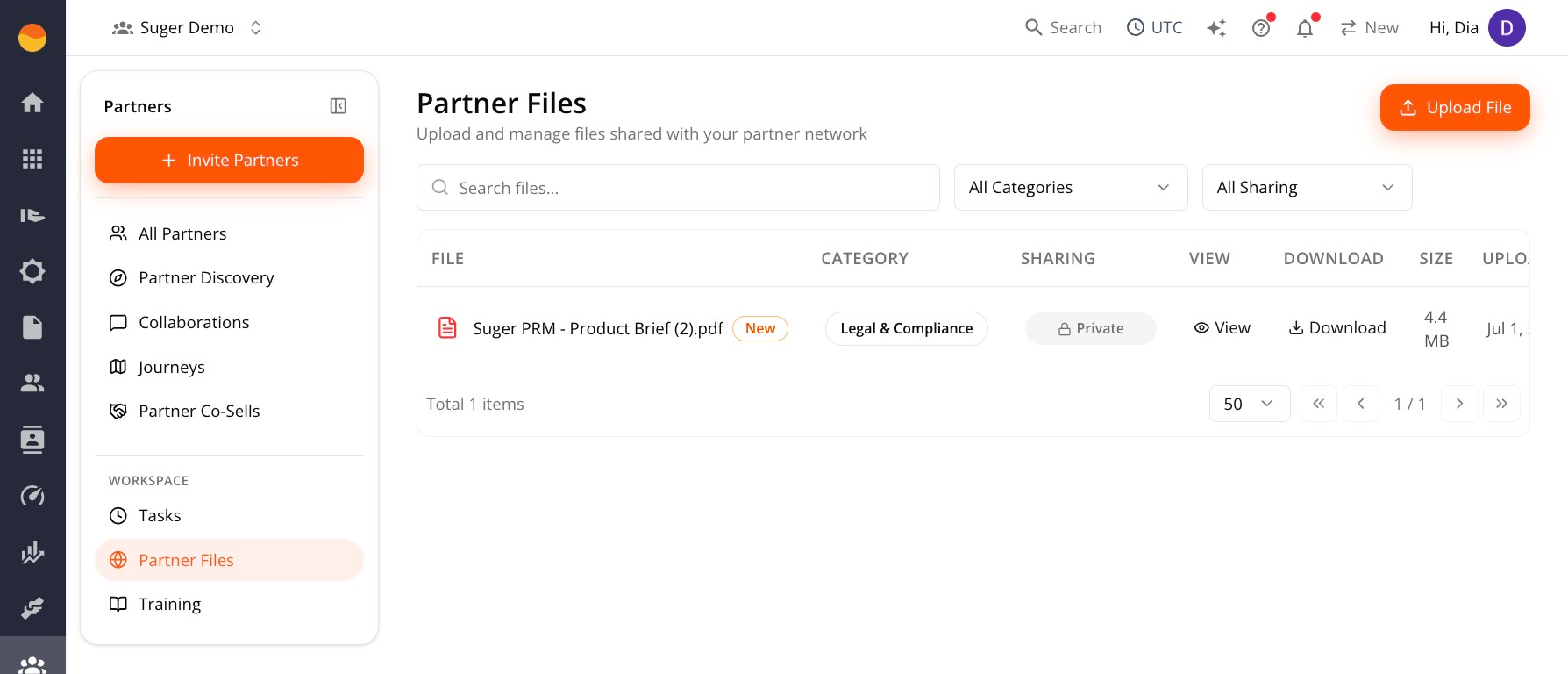
Partner Files
Partner Files is a shared library for resources you want partners to access, such as sales collateral, onboarding guides, product documentation, marketing assets, and legal documents.
Files are organized into categories, and each category can have default sharing permissions configured in Settings → File Sharing Defaults.
From here, you can upload resources, choose who can access them, and organize them into categories so partners can easily find what they need.
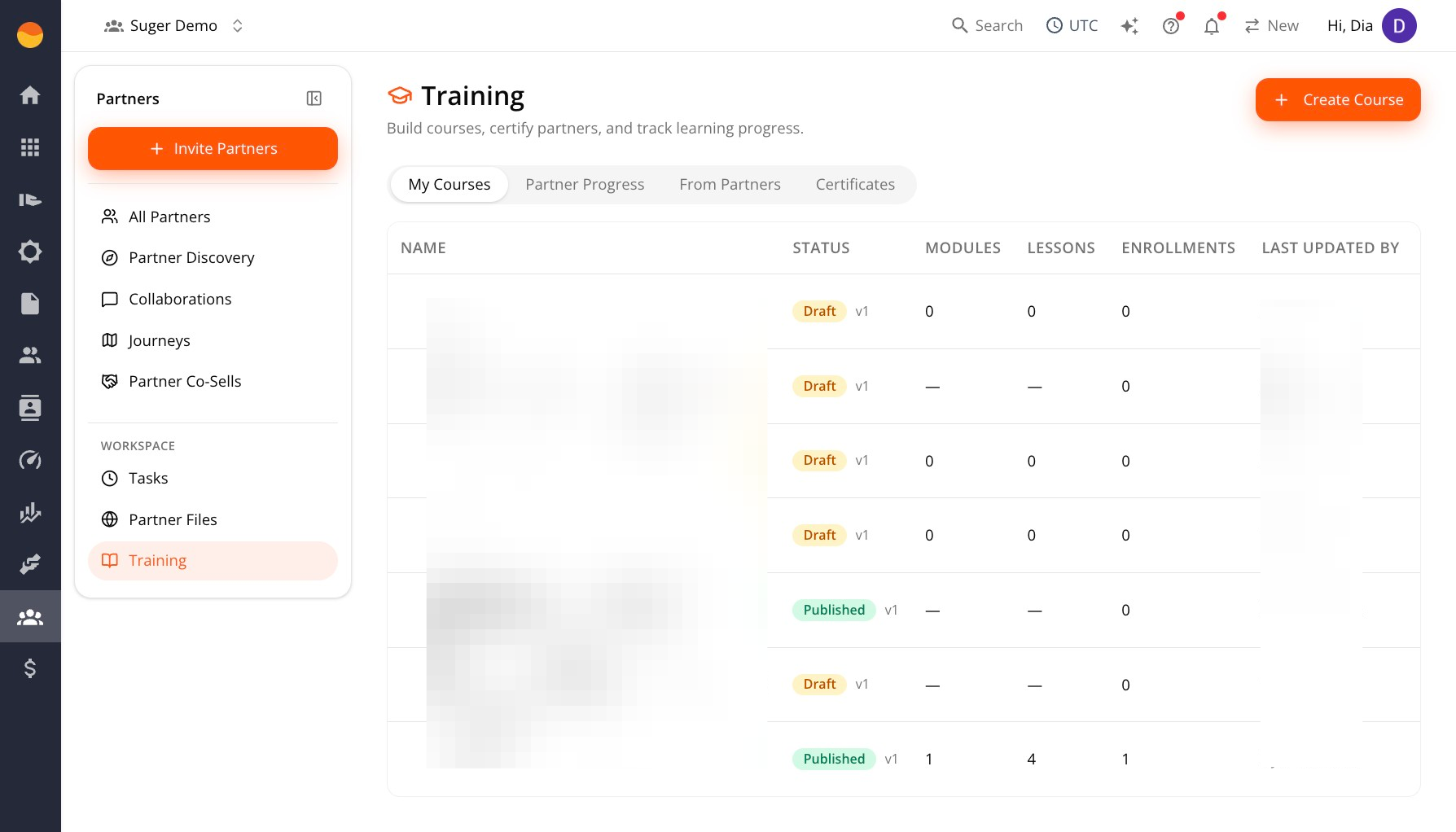
Training
Training lets you create learning content for your partners and track their progress. Partners can also share their own training with your team, making it a central place to manage enablement in both directions.
Alongside courses, the Training area includes Certificates for recognizing course completion and Partner Progress for monitoring how partners and individual learners are progressing.
From here, you can create onboarding or certification courses, review completion progress, and manage certificates for partners who complete your training. Check From Partners when partners have shared training with your team.