
Companies
View and manage all of your marketplace customer accounts in one place.
Overview
A company represents the business entity purchasing your product. It acts as the anchor for all related activity — contacts, offers, metering, and invoices. The Companies page brings together every customer account across your cloud marketplaces, where you can track key metrics at a glance, filter and search for a specific account, and drill into any company to see its entitlements, offers, and activity — and take action directly.
Permissions required
- You need Admin access to the Suger Console. If you don’t have access yet, ask your organization admin to invite you. See Account Management for details on users and roles.
- If your organization uses custom roles, you must have explicit edit permissions under:
- BUYER scope (for Companies)
- CONTACT scope (for Contacts)
How companies are created
In Suger, company records are created automatically, so you don’t need to add them manually. A company is created when:
- A deal is synced from a connected CRM (like Salesforce or HubSpot).
- A cloud marketplace offer is accepted.
- A buyer is created through an integrated sales or billing workflow.
This ensures all customer accounts are tracked without manual setup.
Act on your key metrics
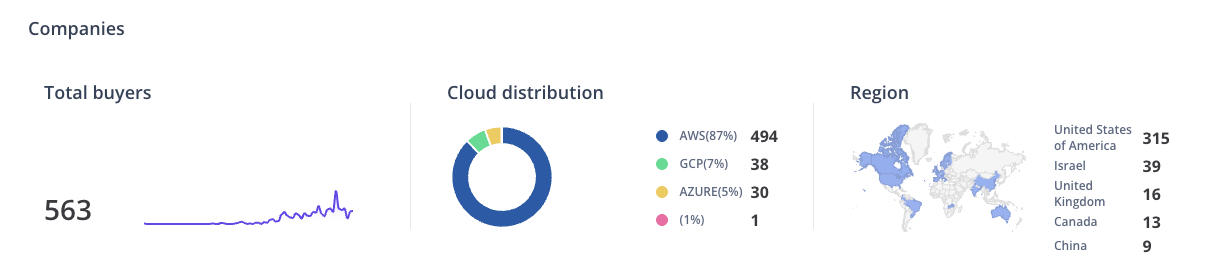
At the top of the page, three metrics help you quickly understand performance and focus areas:
- Total Buyers — number of customers who made a purchase
- Cloud Distribution — breakdown of activity across cloud segments
- Region — performance split by geographic area
Search and filter
Use the filters to narrow the list by cloud provider, status, or other attributes, or search directly for a specific account.
Explore individual companies
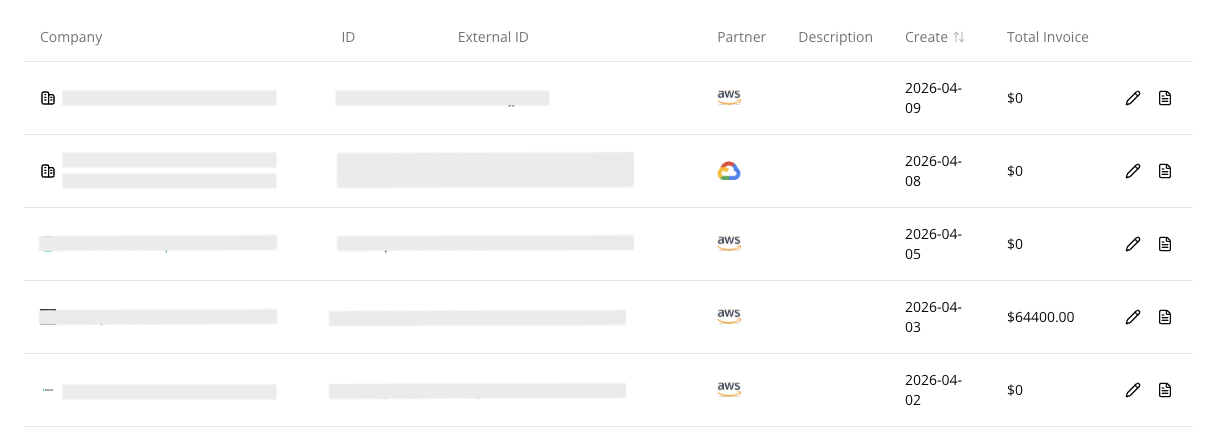
The Companies table gives you a simple way to view and manage customer accounts. Each row shows key details like company name, cloud partner, account IDs, and financial activity.
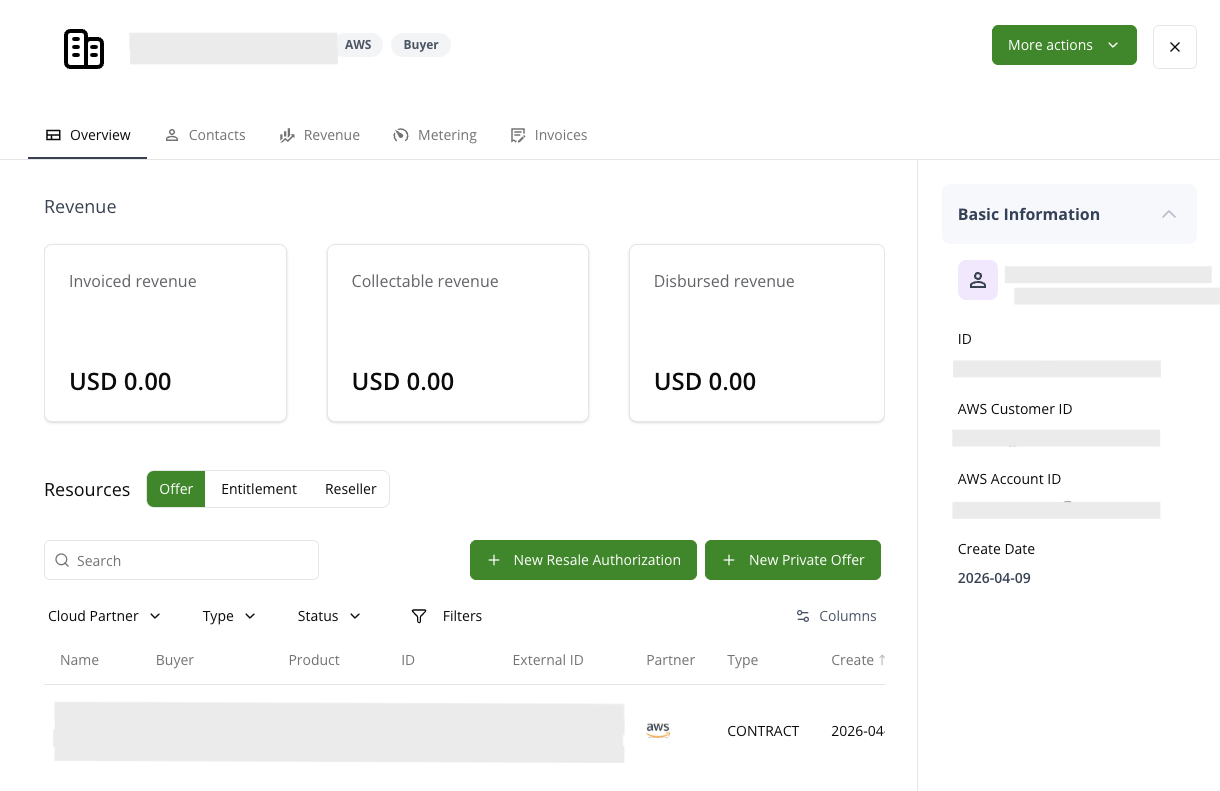
When you open a company, you can:
- Automatically see extra details like LinkedIn, website, and location
- View all active entitlements, private offers, and CPPO activity in one place
- Take actions directly, such as starting a renewal or upsell, editing customer info, and downloading invoices or agreements
The company workspace is organized into tabs:
- Overview — a high-level summary of the company, including key account information and related activity.
- Contacts — all individuals associated with the company, including stakeholders, buyers, and technical contacts.
- Metering — usage data and consumption metrics tied to the company, typically used for usage-based billing and tracking.
- Invoices — billing records and invoices associated with the company.
Edit a company
Edit a company when you need to update its details, correct metadata, or configure billing and usage integrations.
- Go to the Company tab in the Suger Console.
- Find the company you want to update, then click the Edit (pencil icon) next to it.
- Update Basic Information:
- Name — the internal buyer identifier or company name.
- Description — optional notes about the account.
- Update Company Information (optional). This information is typically used for enrichment, reporting, or downstream CRM alignment.
- Update Integration Information. This connects the company to external billing, CRM, or usage metering systems.
- Click Save to apply your changes.
Once saved, updates are reflected across reporting, billing, and integrations.