Submit a Deal Registration (Partner)
Register a new deal in a partner’s branded Suger PRM portal, add the collaboration details you need, and track the co-sell opportunity after you submit it.
Overview
When a partner or ISV invites you into their program, they give you access to a branded Suger PRM portal. From there you can register deals, request the support you need, and follow each opportunity as the partner reviews and accepts it in the Co-Sell area.
Before you begin, have the following ready:
- Access to your partner PRM portal.
- Basic customer and opportunity information.
- The expected close date and estimated deal value.
- Contact details for anyone who should be associated with the deal.
Open the Partner PRM Portal
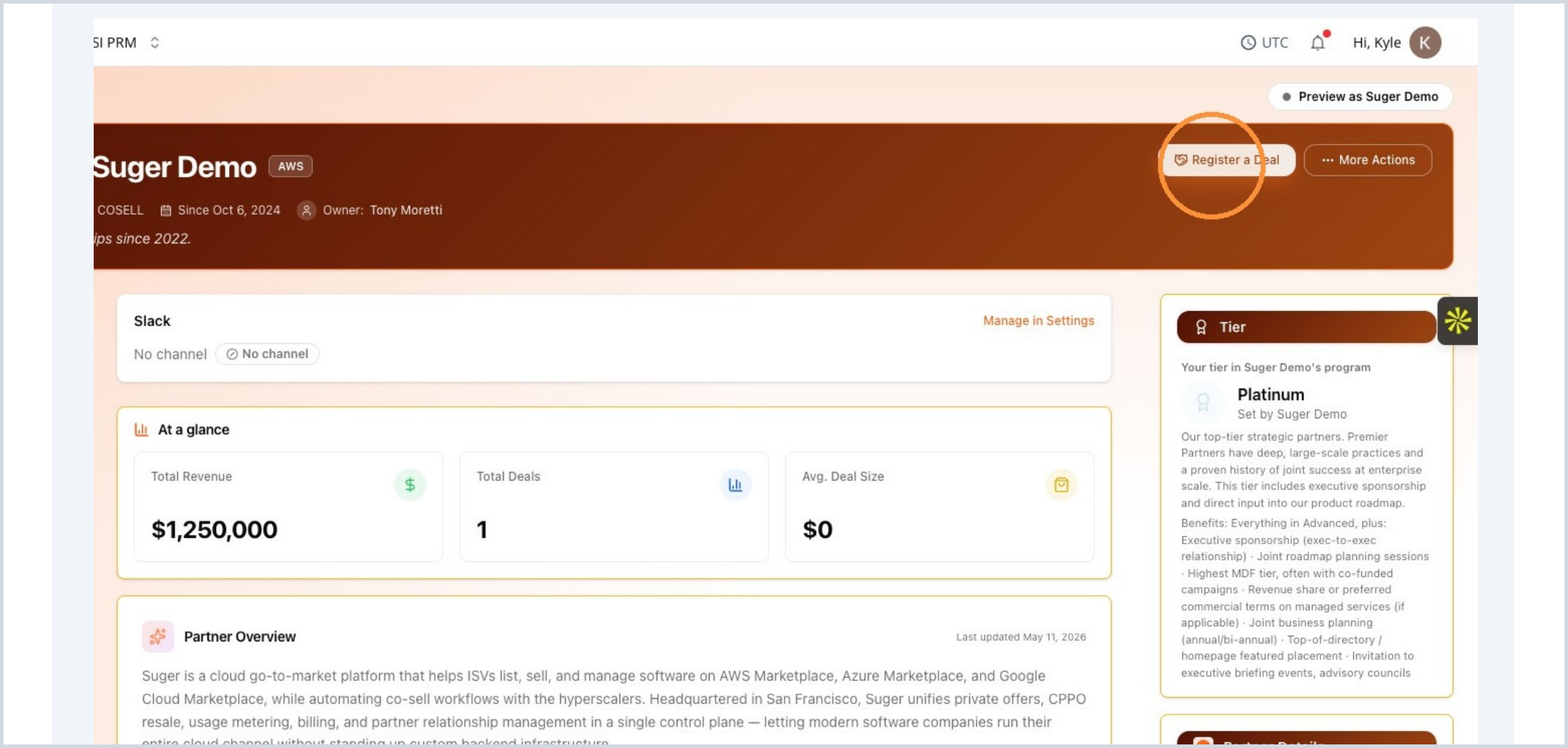
Sign in to the branded Suger PRM portal provided by your partner or ISV. From the overview page, select Register a Deal to begin a new submission.
- Confirm you’re in the correct partner workspace.
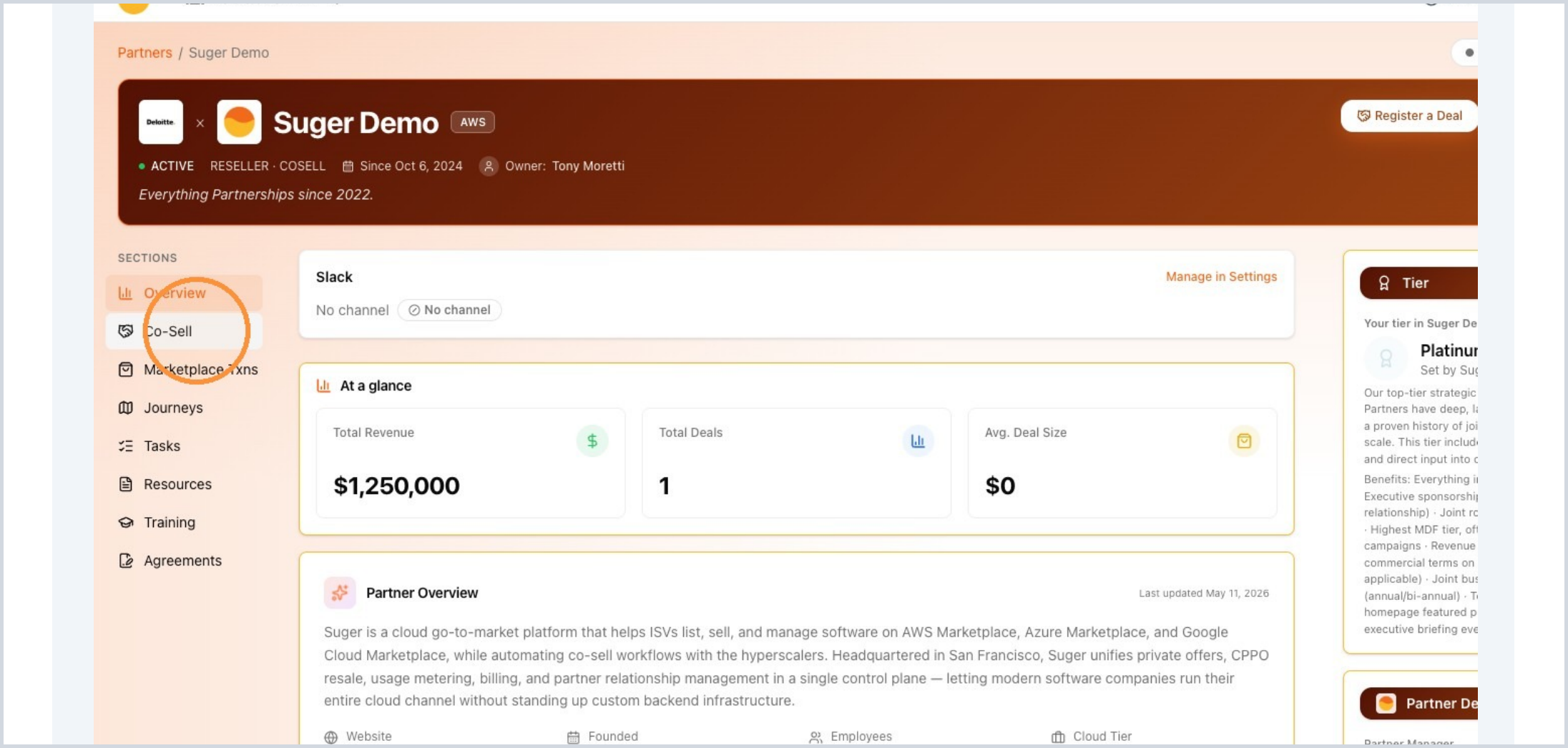
- Use the left navigation to reach Co-Sell later for tracking.
Complete the Registration Form
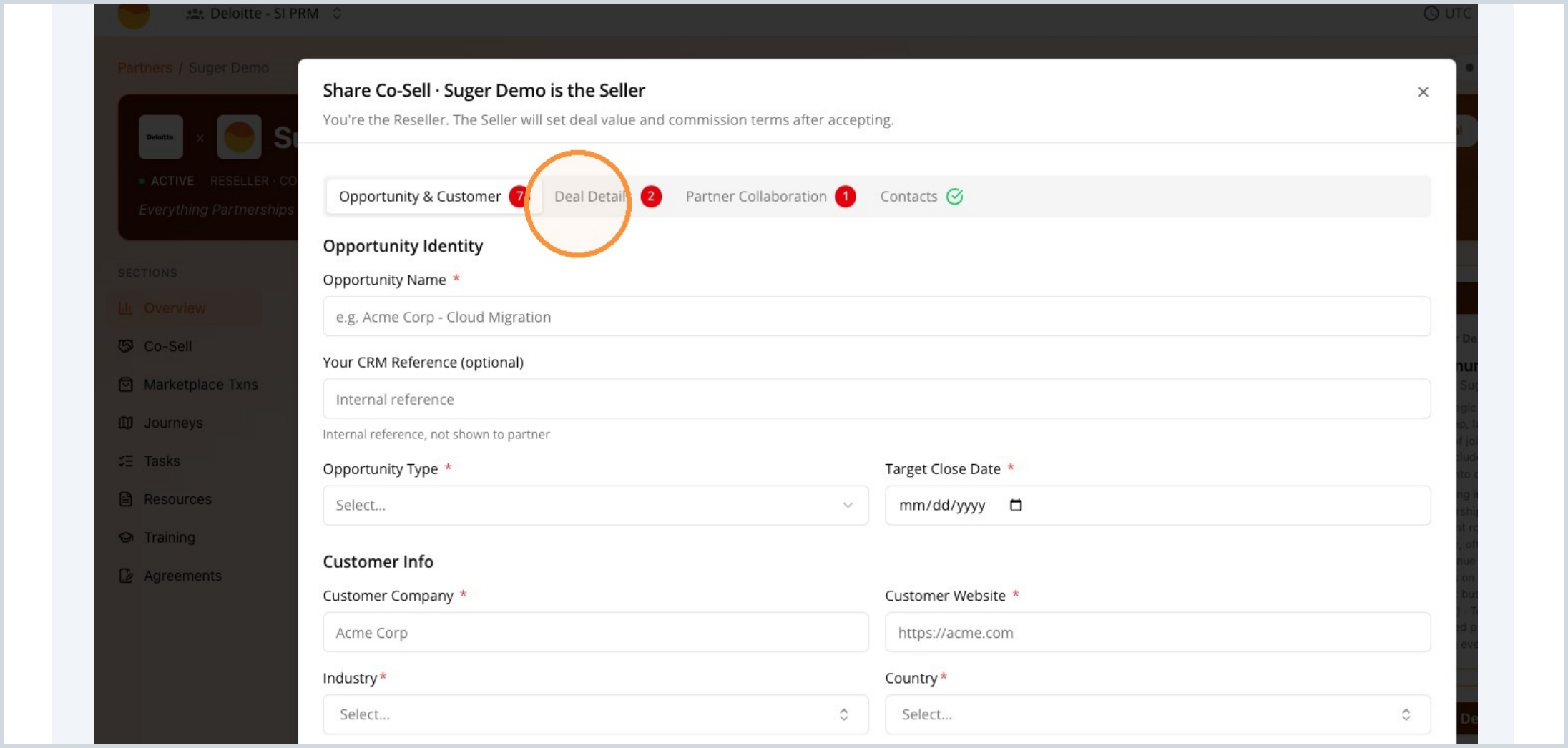
The registration form opens as a guided workflow. Complete each section in order so the partner has enough information to review the opportunity.
The form is organized into these sections:
- Opportunity & Customer
- Deal Details
- Partner Collaboration
- Contacts
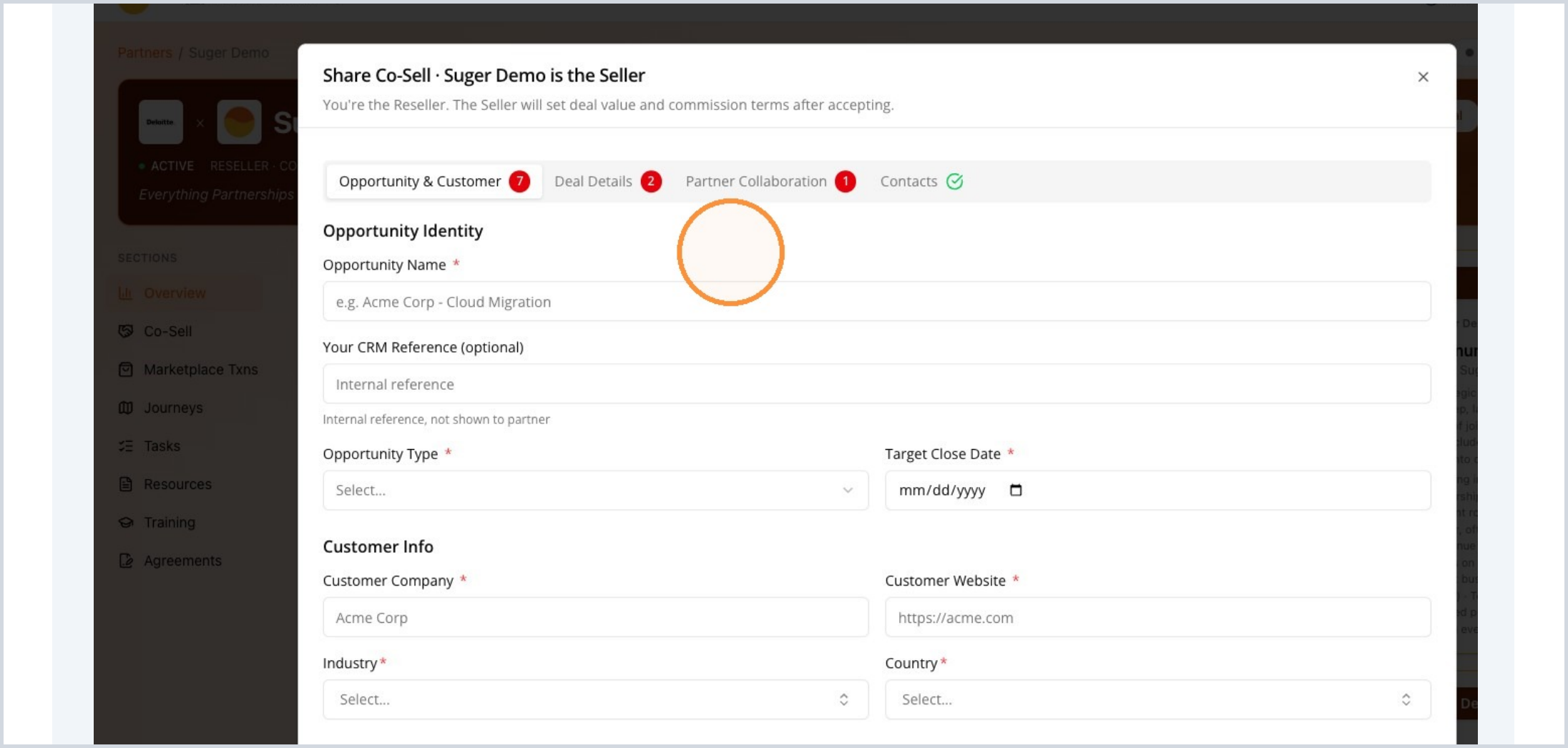
Opportunity & Customer
Enter the core customer and opportunity details. Required fields may vary by partner configuration, but this section usually captures who the customer is and what opportunity you’re submitting.
- Opportunity name and type
- Target close date
- Customer company and website
- Industry and country
- Optional CRM or internal reference
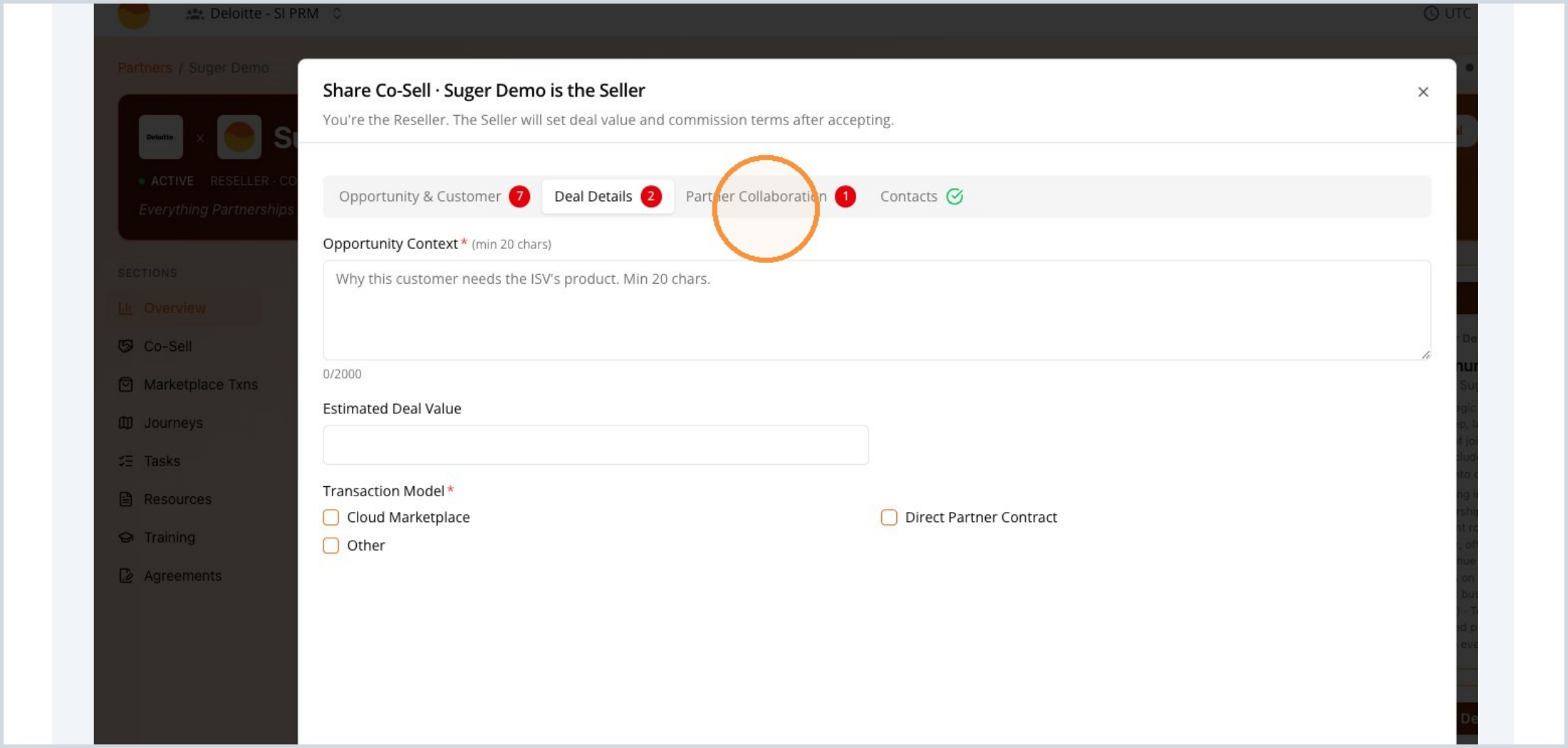
Deal Details
Add enough context for the partner to understand the opportunity and how the customer is expected to transact.
- Explain why the customer needs the solution.
- Add the estimated deal value.
- Select the transaction model, such as Cloud Marketplace, Direct Partner Contract, or Other.
Partner Collaboration
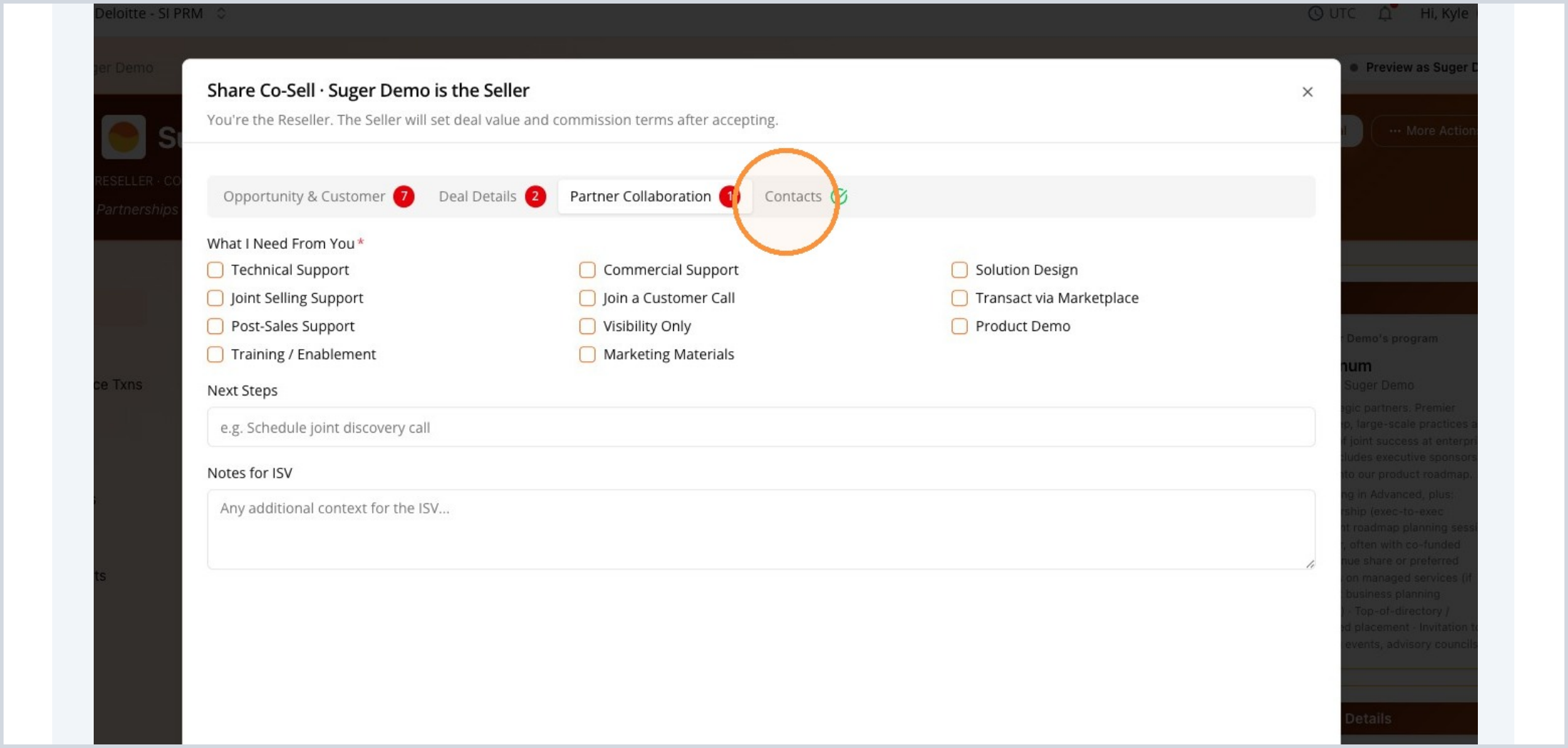
Choose the support you need from the partner. This helps them understand how to engage and what next action to take.
- Technical support, joint selling, commercial support, or solution design
- Marketplace transaction support or product demo
- Next steps and notes for the partner
Contacts and Submit
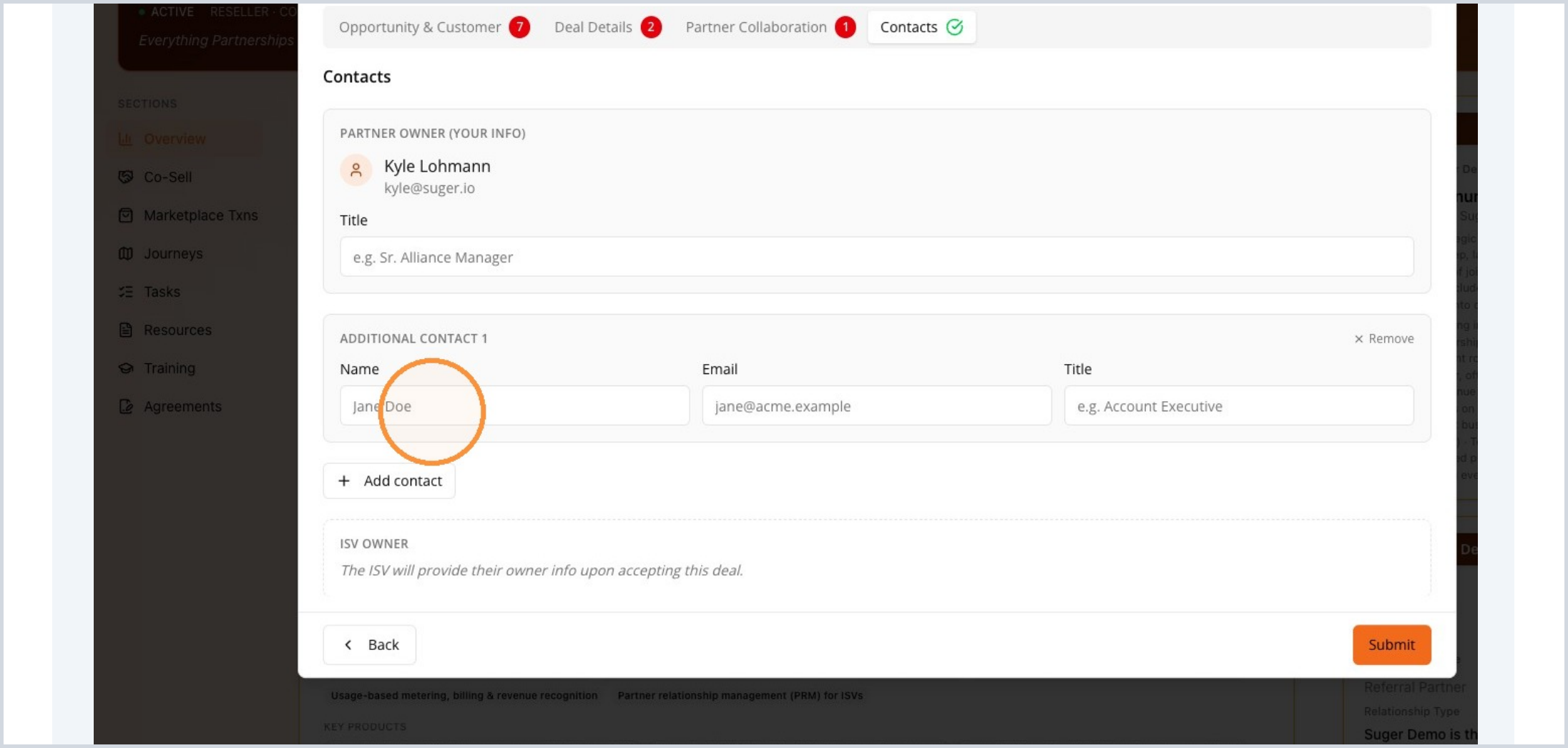
Review the partner owner and add anyone else who should be connected to the deal. When the form is complete, select Submit.
- Add a name, email, and title for each additional contact.
- Include contacts who may need updates or follow-up.
- Submitting notifies the partner or ISV for review.
Track the Submitted Deal in Co-Sell
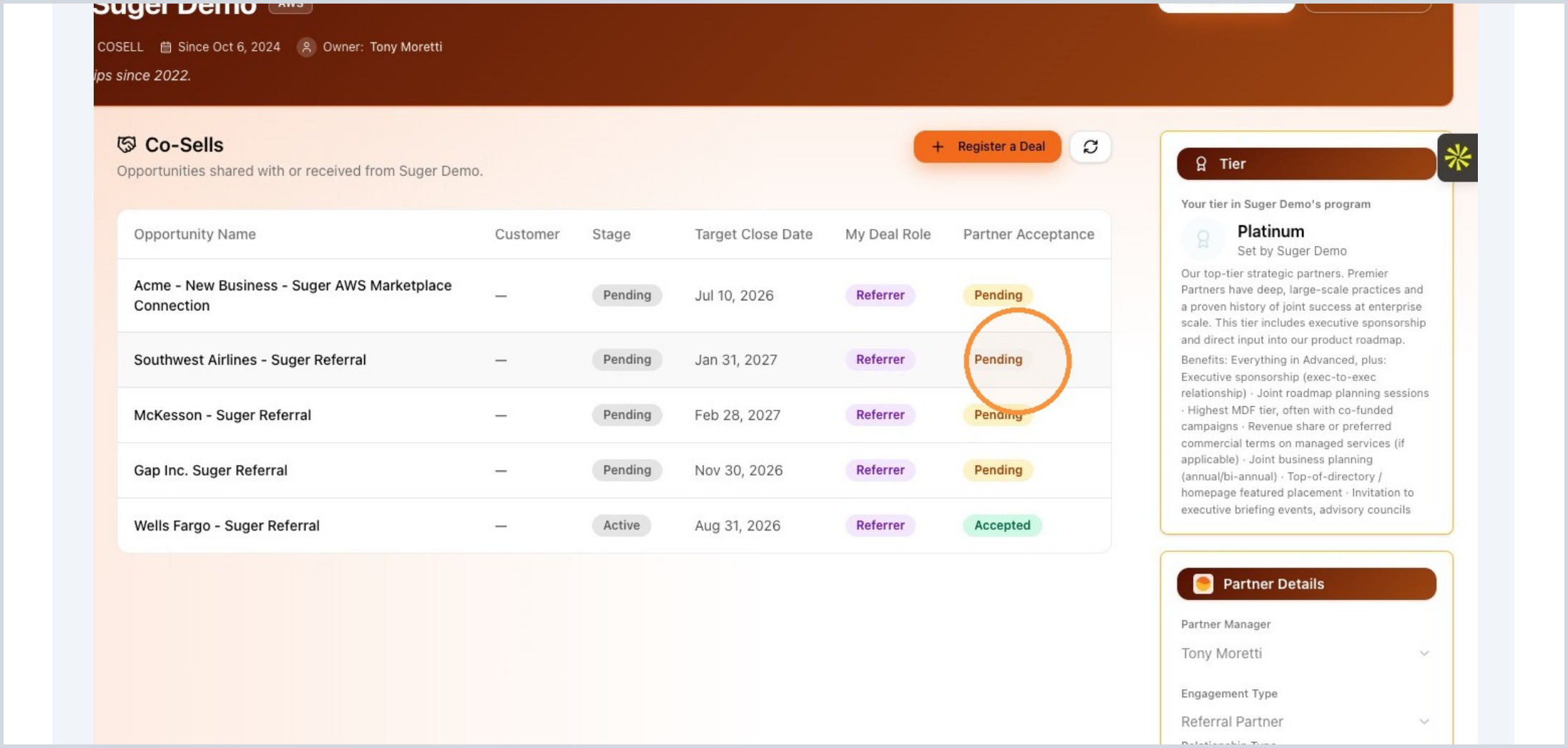
After submission, return to the partner portal and open the Co-Sell tab. This is where submitted and shared opportunities are tracked.
- Use Co-Sell to find submitted opportunities.
- Monitor partner review and acceptance from the deal list.
Review the Deal List
The Co-Sell list shows a summary of each opportunity. Use it to quickly confirm status and spot deals that need attention.
- Opportunity name, customer, stage, and target close date
- Your deal role
- Partner acceptance status, such as
PendingorAccepted
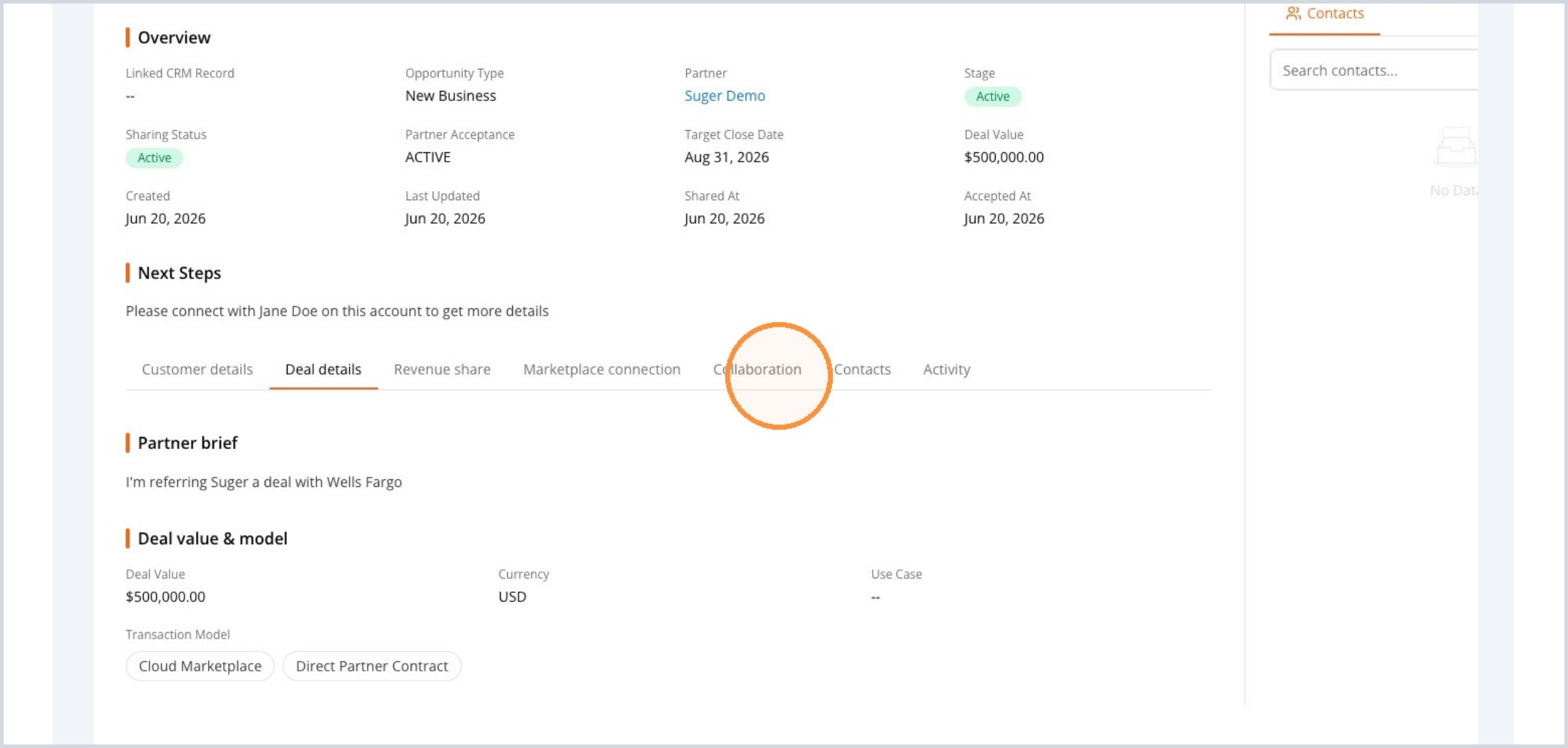
Open the Deal Details
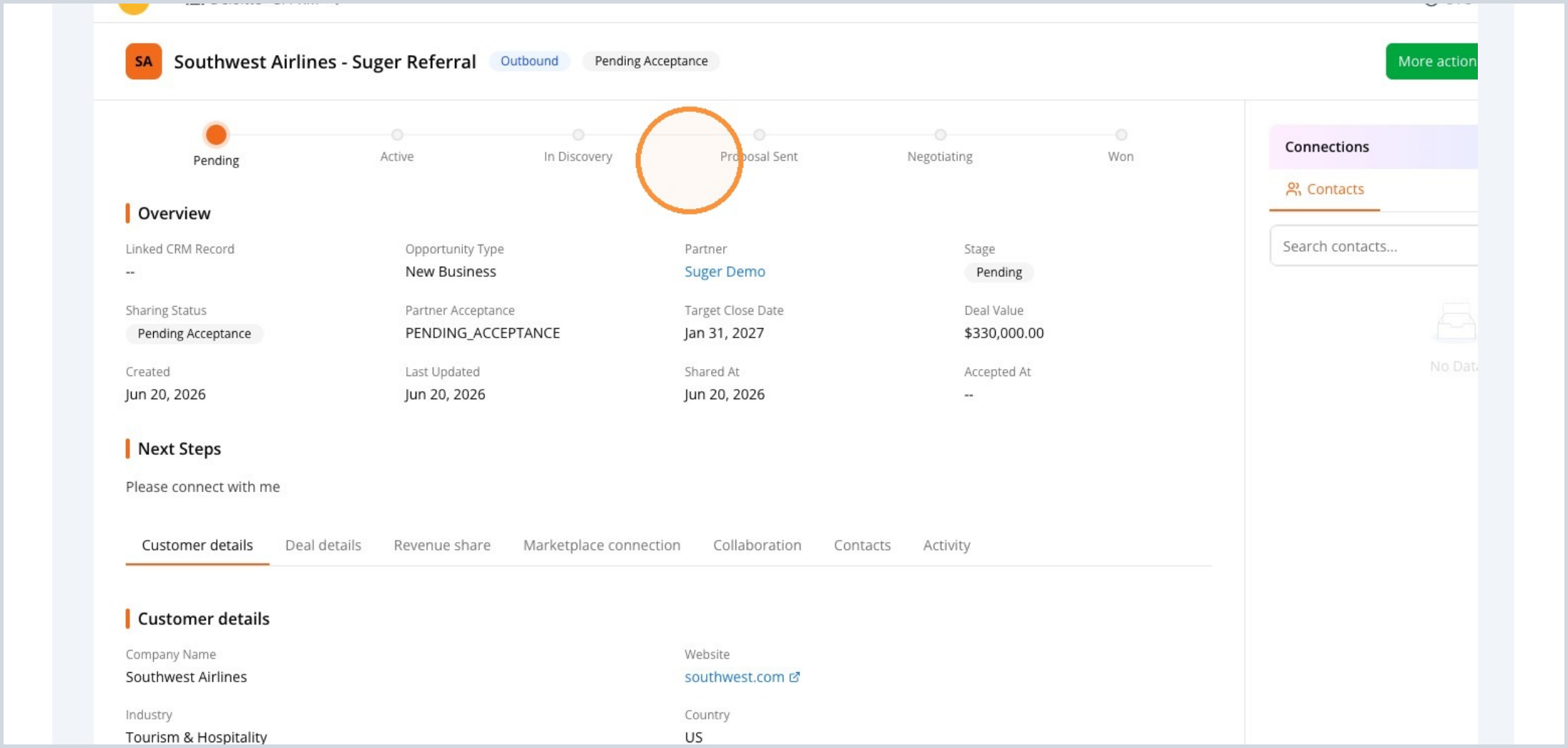
Select an opportunity to open the full deal record. The detail view shows the current stage, status, important dates, next steps, and customer information.
- Review the current sharing status and partner acceptance.
- Check the stage, target close date, deal value, and next steps.
Monitor Activity
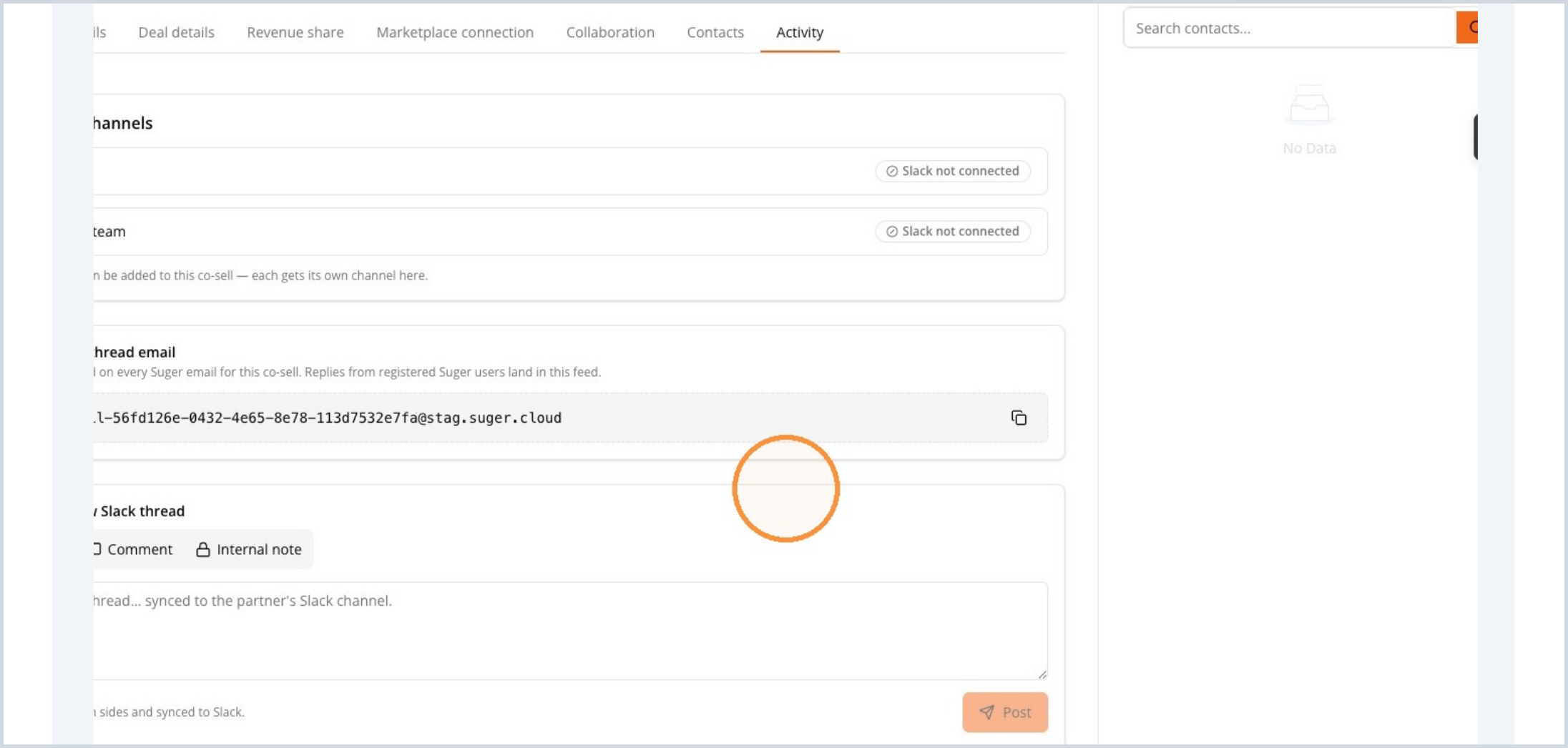
Use the Activity tab to keep track of collaboration history and communications related to the deal.
- Review synced channels, email thread details, comments, and internal notes.
- Use the activity history to understand what has happened since submission.
Revisit Collaboration and Deal Details
The detail tabs make it easy to revisit information you submitted during registration, including collaboration needs and deal value.
- Use the Collaboration tab to confirm the support you requested.
- Use Deal details to review the value, model, and related fields.