
Build a Partner Training Course
Use the course builder to create partner training on positioning, pricing, or product knowledge — either by building lessons directly in Suger or by uploading an existing SCORM package.
Overview
You can build a training course two ways: create lessons directly in Suger with the editor, or upload a course you already built in another authoring tool as a SCORM package. Once the course is published, you can optionally award a certificate on completion and track learner progress from the Training dashboard.
Step 1: Choose How to Create a Course
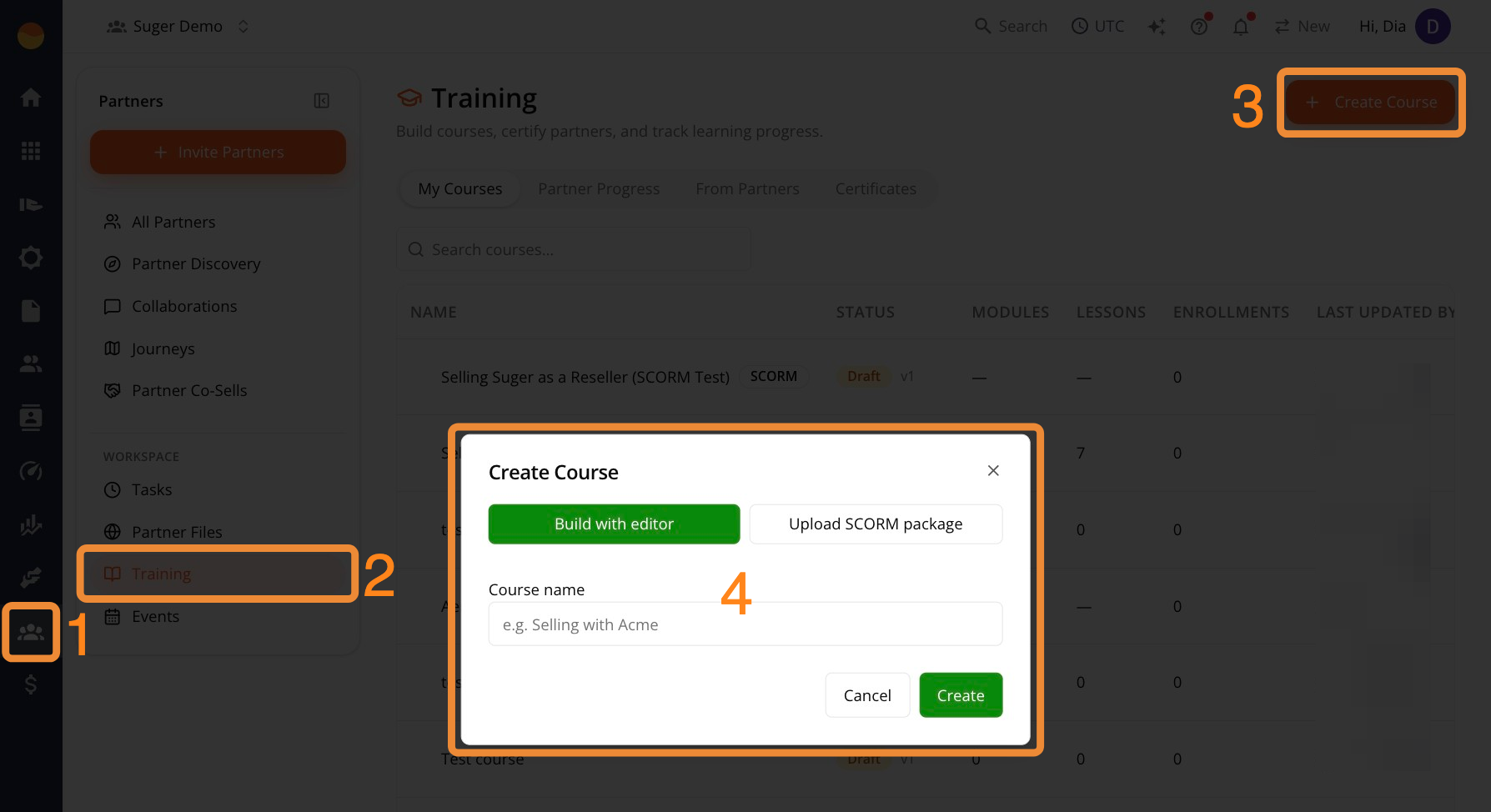
- Go to Suger Console, then Partners.
- Click Training, then + Create Course.
- Choose one of two paths:
- Build with editor — create lessons directly in Suger.
- Upload SCORM package — import an existing SCORM 1.2 or SCORM 2004 course created in another authoring tool.
Step 2: Create the Course
Follow Option 1 to build content in Suger, or Option 2 to upload a SCORM file.
Option 1: Build a Course with the Editor
Use this method if you want to create and manage course content directly in Suger using modules, lessons, and quizzes.
Start the course
-
Enter the Course name, then click Create.
-
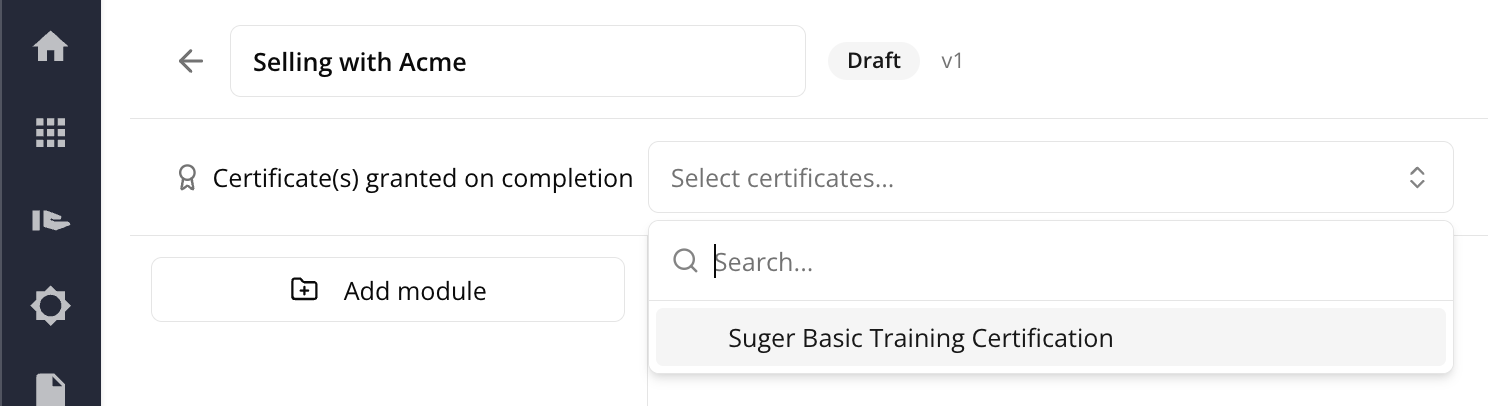
Under Certificate(s) granted on completion, select a certificate to award when learners complete the course. Leave this field blank if the course doesn’t grant a certificate.
-
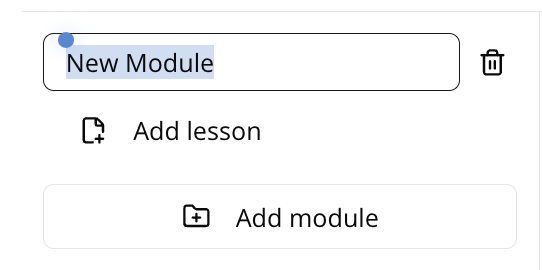
Click Add module to create a section, then rename it.
-
Inside the module, click Add lesson and rename it.

-
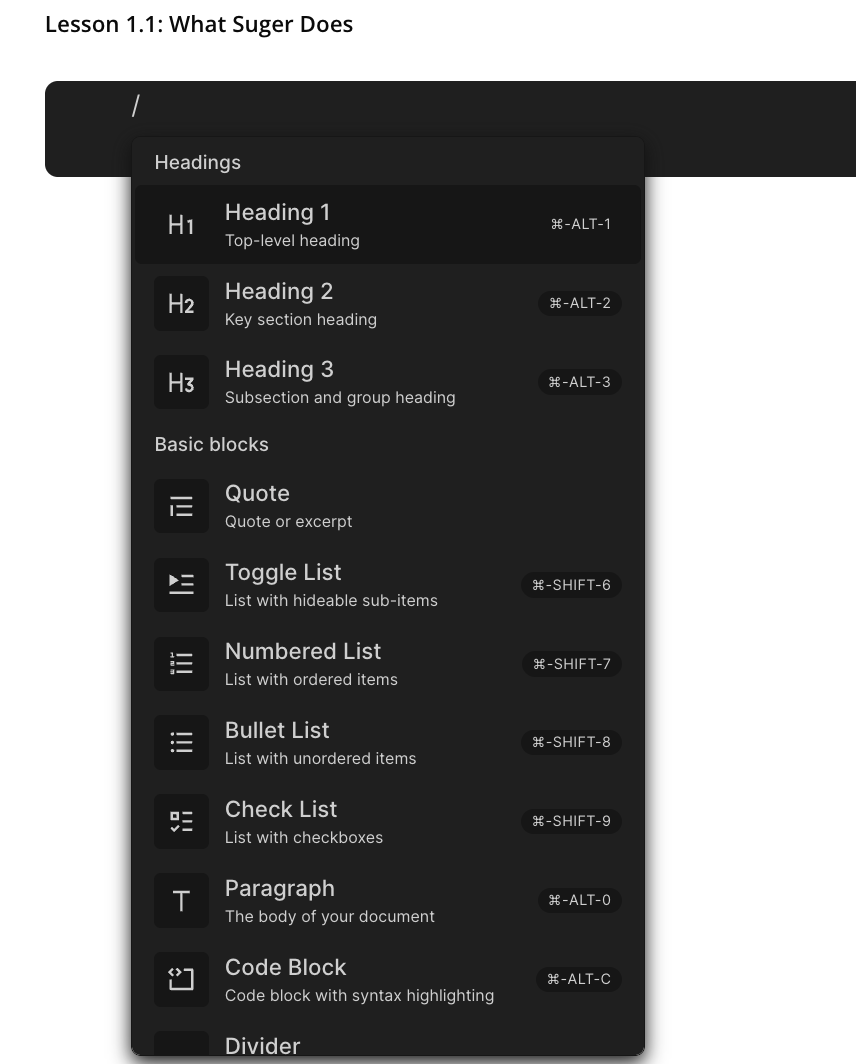
Click inside the lesson body and type / to insert content blocks.
-
Repeat for each module and lesson the course needs.
(Optional) Add a graded quiz
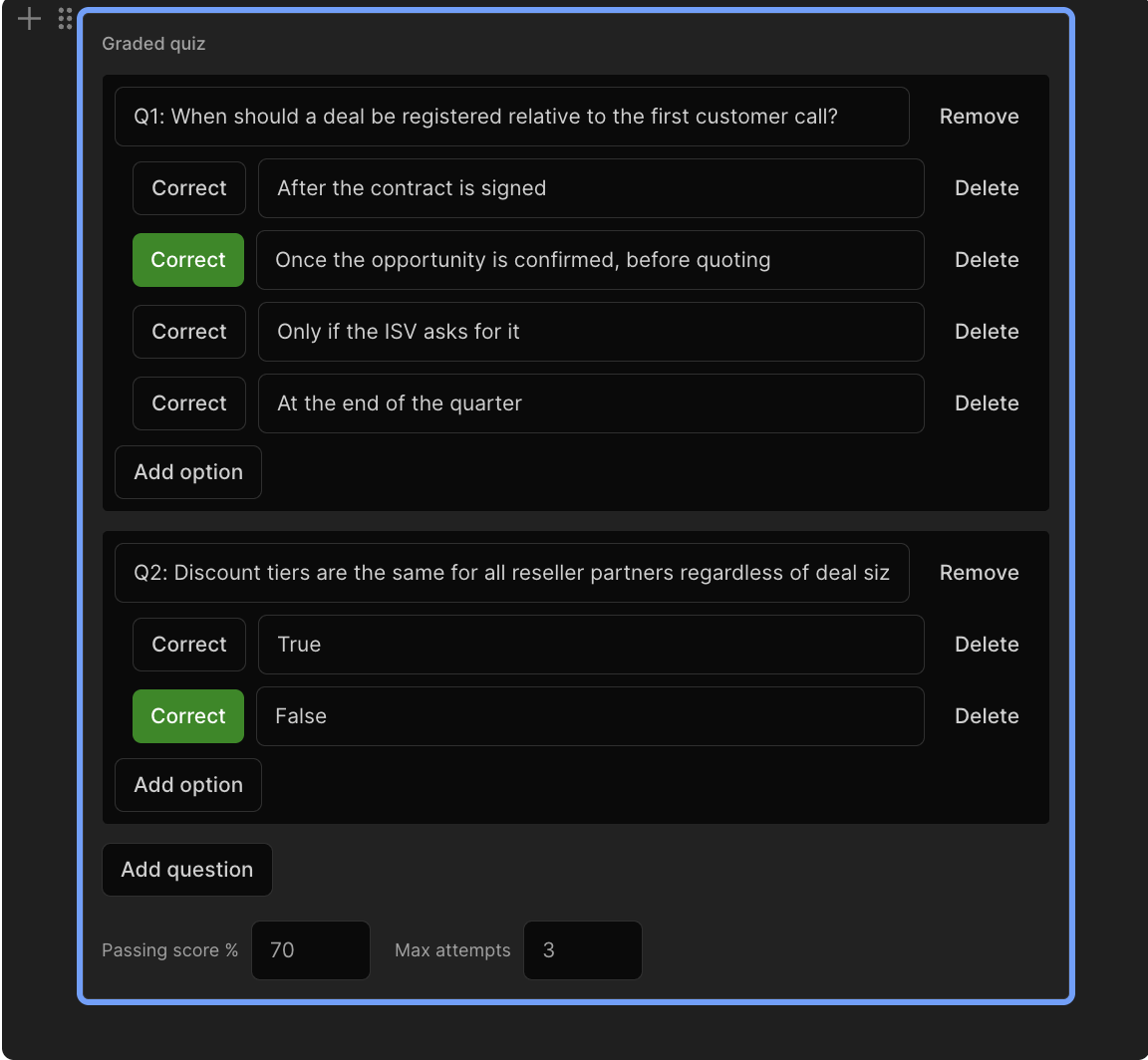
Insert a Quiz block inside a lesson to test what the partner just learned.
- Enter the question text.
- Click Add option to add an answer choice.
- Click Correct next to the right answer.
- Click Add question to add more questions.
- Set the Passing score % and Max attempts at the bottom of the quiz block.
Preview the course
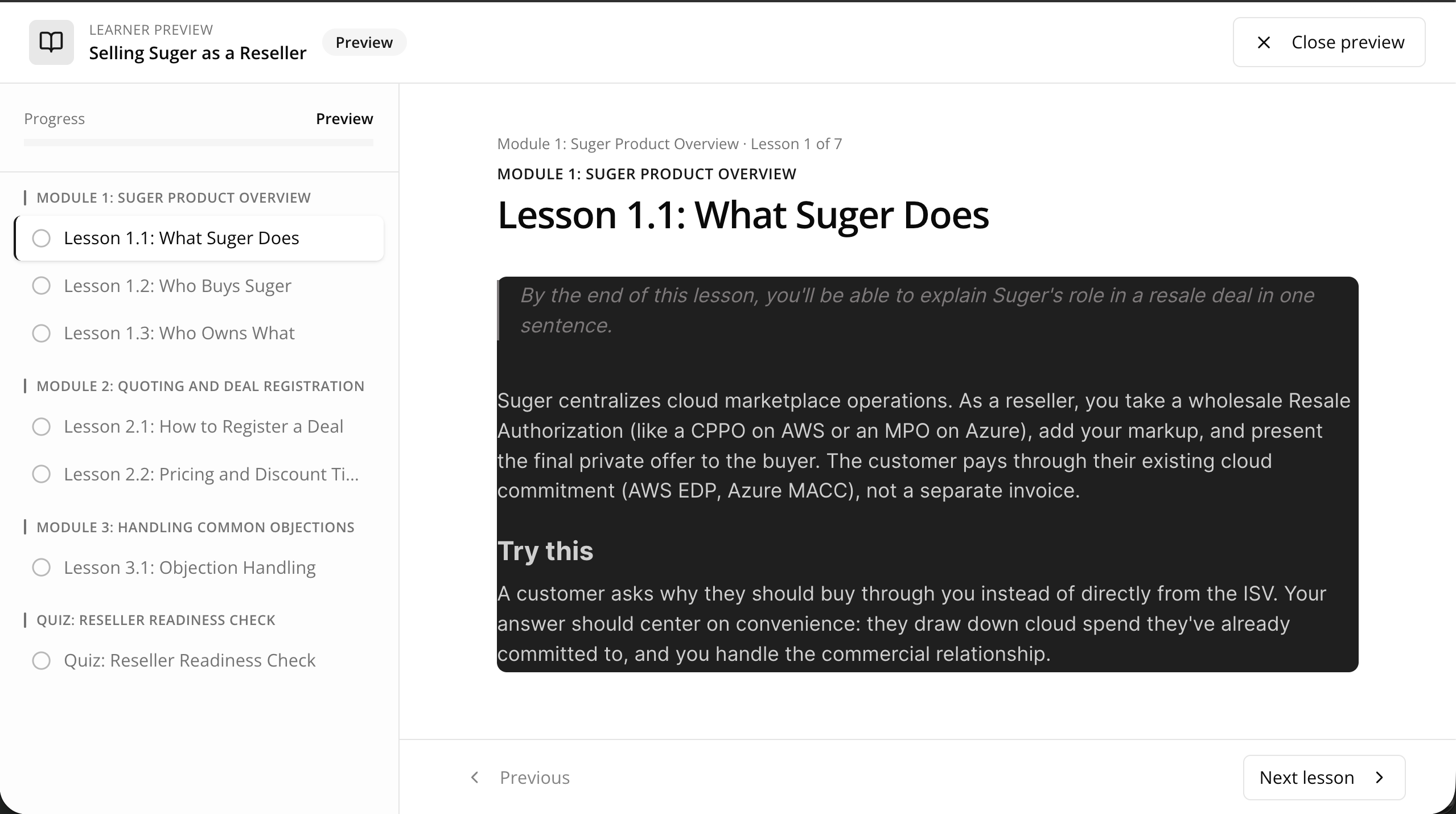
Click Preview in the top-right toolbar to open Learner Preview mode. Use this to catch formatting issues, confirm quiz answer options display correctly, and confirm modules appear in the right order before you publish.
Save or publish the course
- Click Save draft to keep your changes private while you’re still building the course.
- Click Publish to make the course available for partners to enroll in.
Option 2: Upload a SCORM Package
Use this method if your course is already built in an external authoring tool (like Articulate or iSpring) and exported as a SCORM file. If you’re writing the course content directly in Suger, use Build with editor instead.
-
Click Choose .zip to upload your SCORM file. Suger imports the course and creates it as a draft using the name and structure defined in the SCORM package.
-
Under Certificate(s) granted on completion, select a certificate to award when learners complete the course. Leave this field blank if the course doesn’t grant a certificate.
-
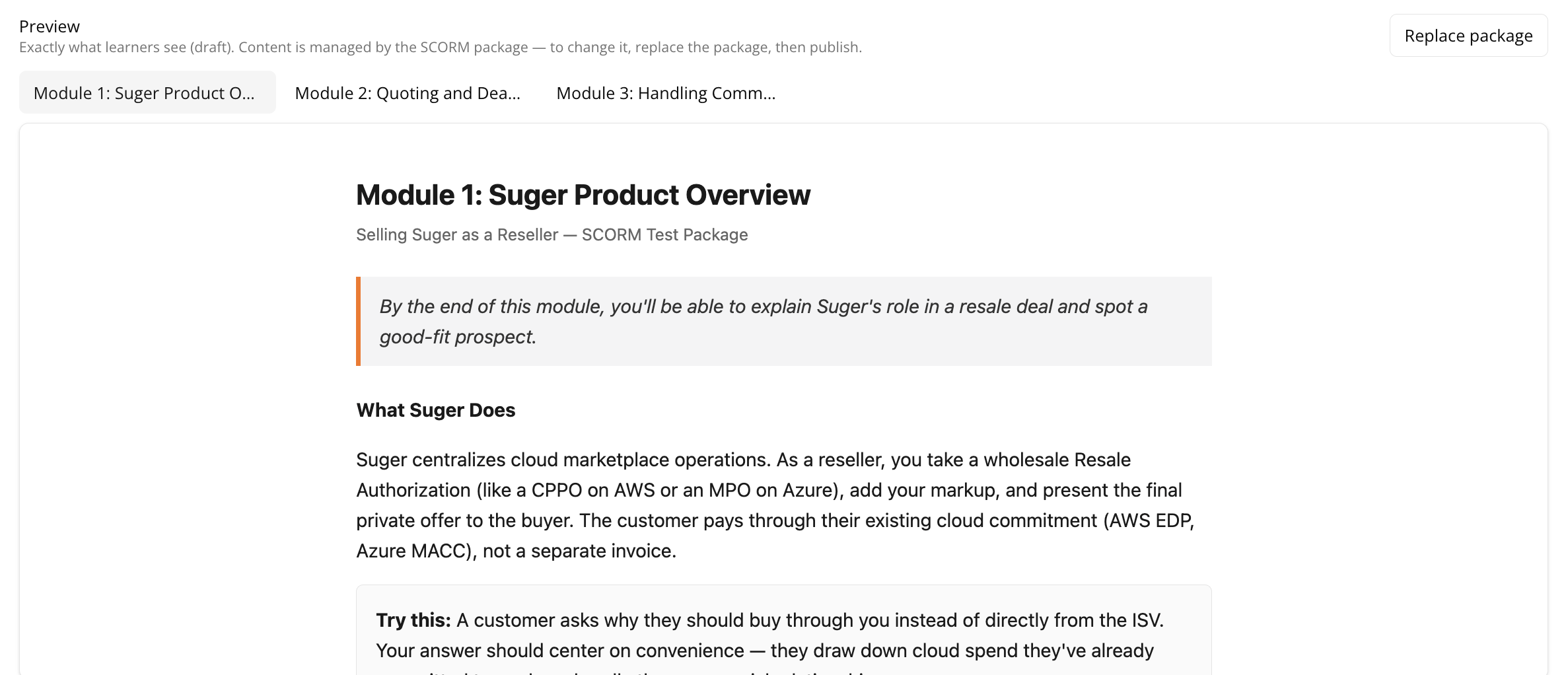
Check the Preview tab to confirm it matches what learners will see.
-
To update the content, click Replace package and upload the new zip. This replaces the entire course, so make sure the new file already includes all your changes.
-
Save or publish the course:
- Click Save draft to keep your changes private while you’re still building the course.
- Click Publish to make the course available for partners to enroll in.

Next Steps
Publishing a course doesn’t automatically make it visible to partners. See Share and monitor partner training courses to choose who can access your course and track learner progress and completion.