
Take a Partner Training Course
When a partner shares training with your organization, it shows up in your Training tab. Use it to get your team up to speed on positioning, pricing, or product knowledge, without waiting on a live session.
Overview
Partners can publish training courses to the organizations they work with. Those shared courses appear in your Partners Console under Training → From Partners, where you can start a course yourself, assign it to specific teammates, and work through the lessons at your own pace. If a course awards a certificate, your team earns it by completing every lesson.
Enroll in a Course
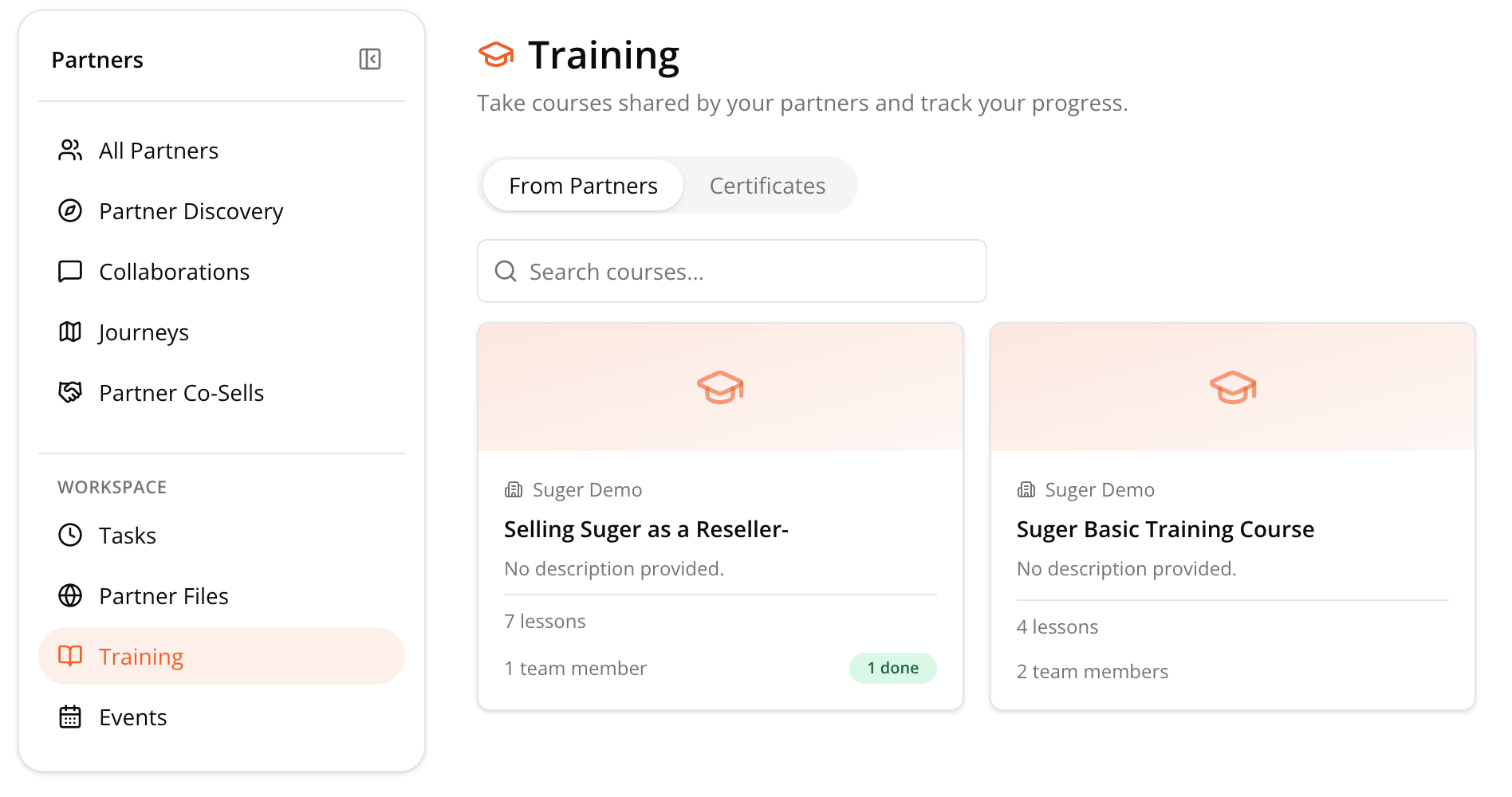
Step 1: Find the shared course
- Go to Partners Console → Training → From Partners.
- Use Search courses or browse the cards to find the one you need.
- Check the completion badge on a card before opening it. If it’s already marked done, your team may not need to retake it.
Step 2: Take or assign the course
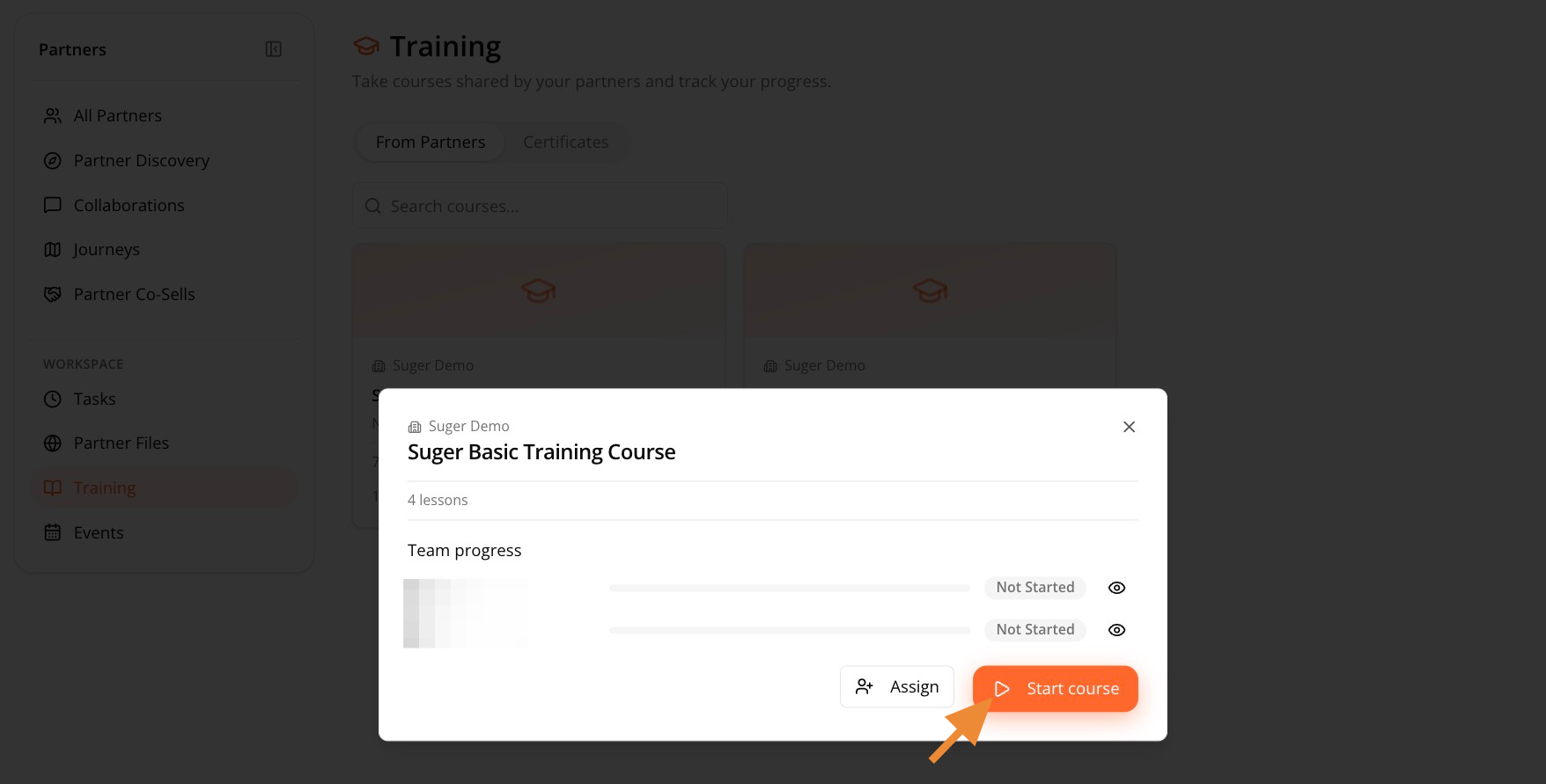
Open the course card, then choose one of the following.
Option 1: Start it yourself
Click Start course. If you’ve already completed it, this button reads View my results instead. Click it to jump back into your progress rather than restarting.
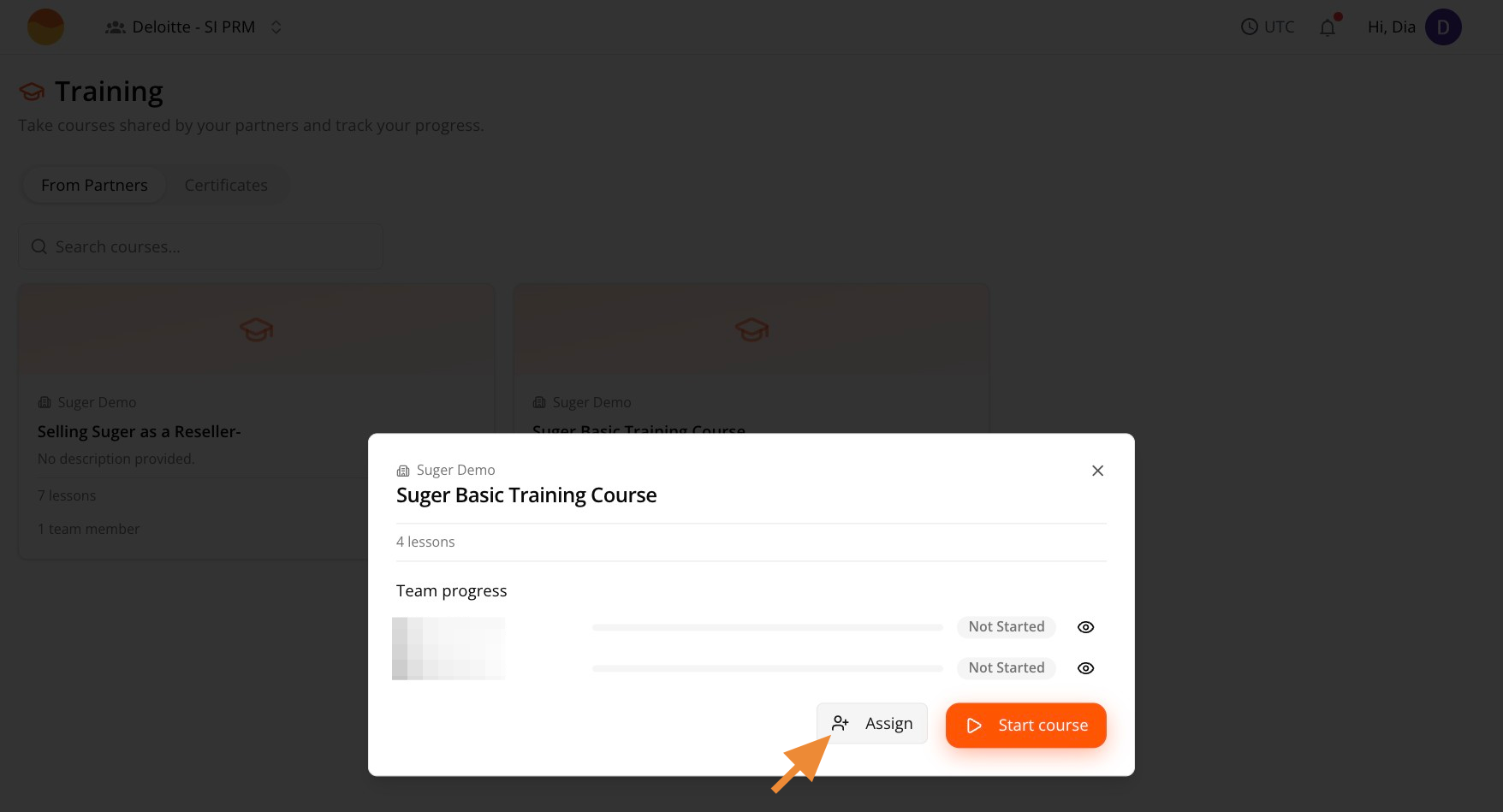
Option 2: Assign it to your team
Use this if you want specific teammates trained rather than doing it yourself.
-
Click Assign.
-
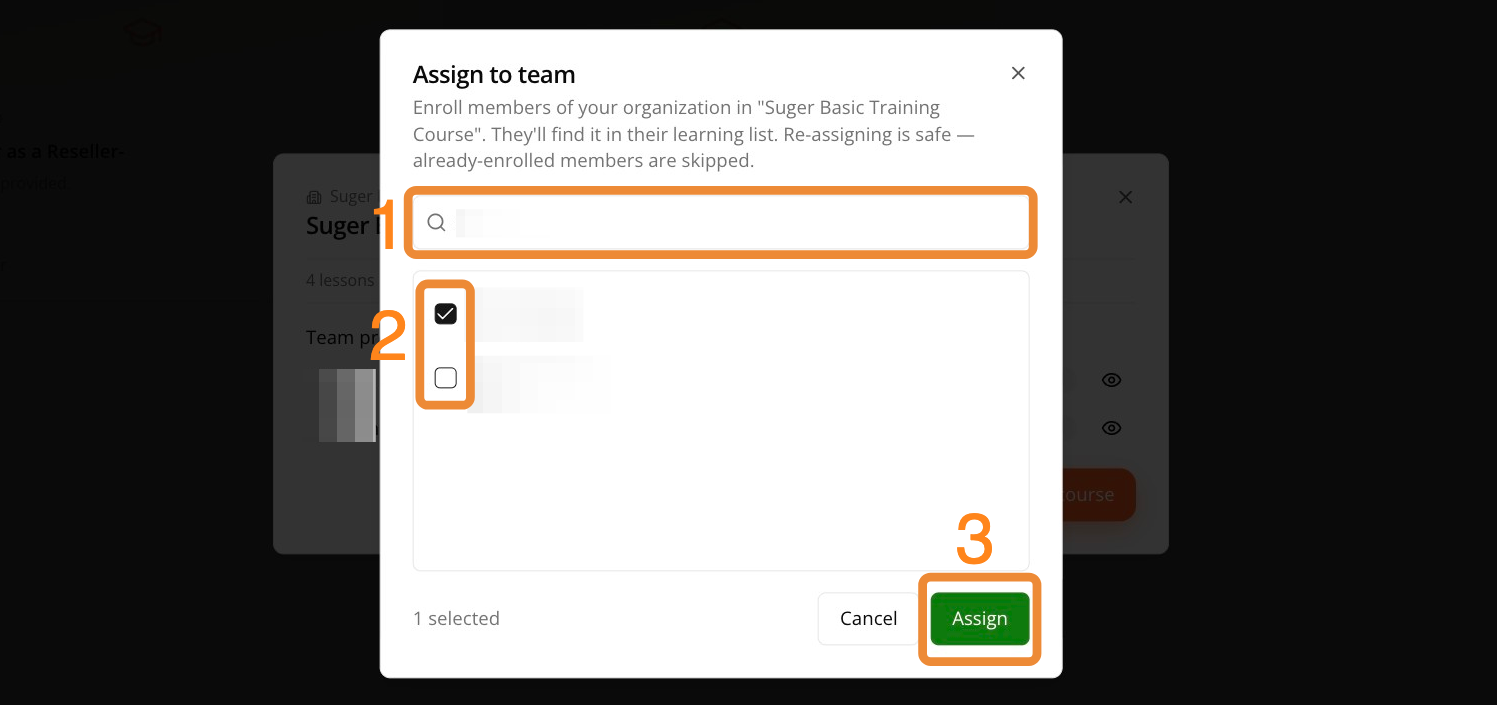
Search for teammates by name or email.
-
Select everyone who needs the course.
-
Click Assign.
Complete a Course
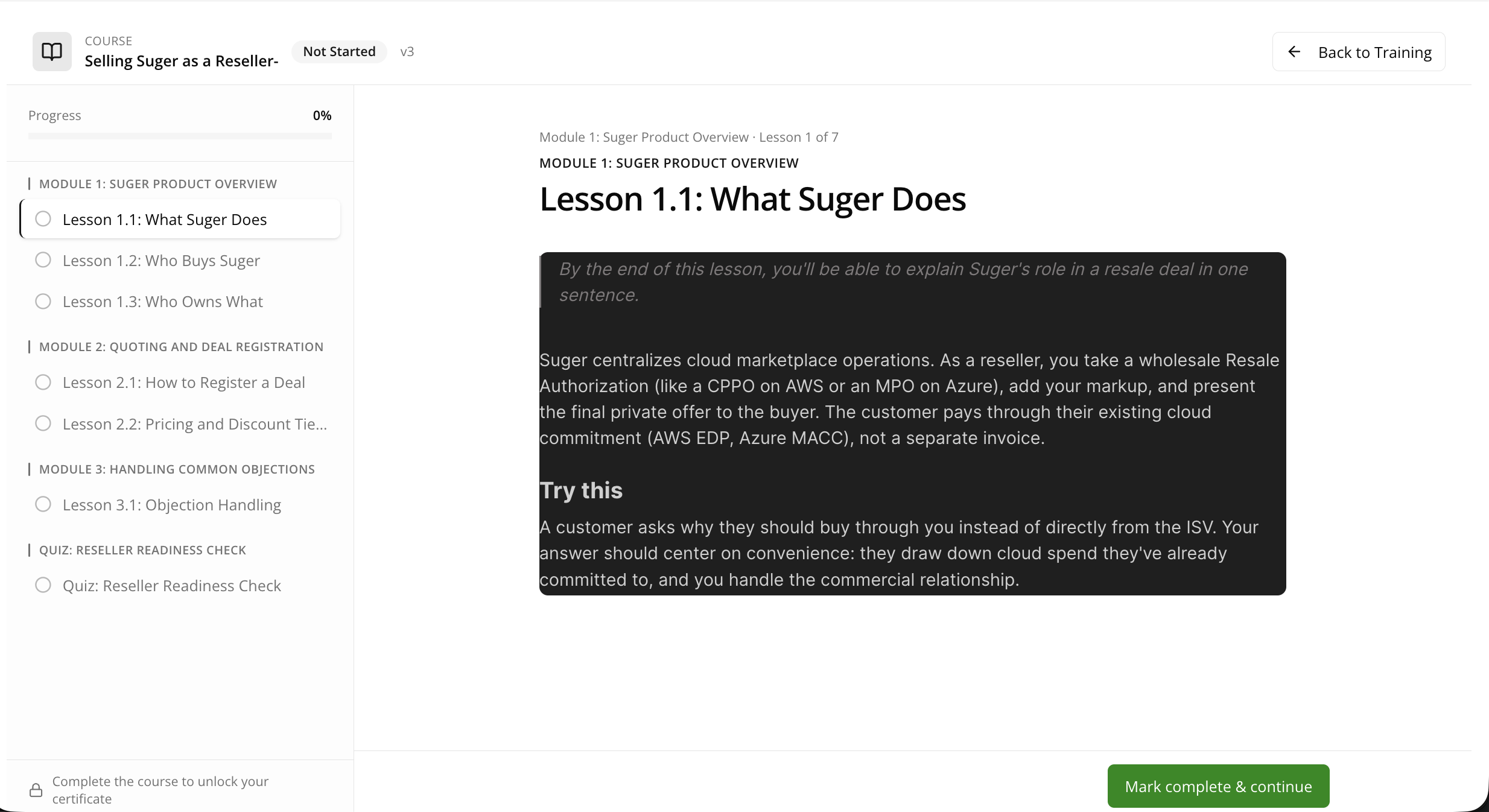
- Work through lessons in order using the left sidebar.
- Click Mark complete & continue after each lesson to save your progress and move forward.
- Check the progress bar at the top of the sidebar any time you want to see how much is left.
Next Steps
Once your team starts earning certificates, learn how to check status in View your team’s earned certificates.