
Register a Deal with a Partner
Register a deal when a customer needs to buy through a partner instead of directly from you — for example, when a prospect requires purchasing through a specific reseller.
Overview
Registering a deal creates a Co-Sell record that both you and the partner can track, including customer details, collaboration requests, and revenue share terms.
Step 1: Start a Deal Registration
-
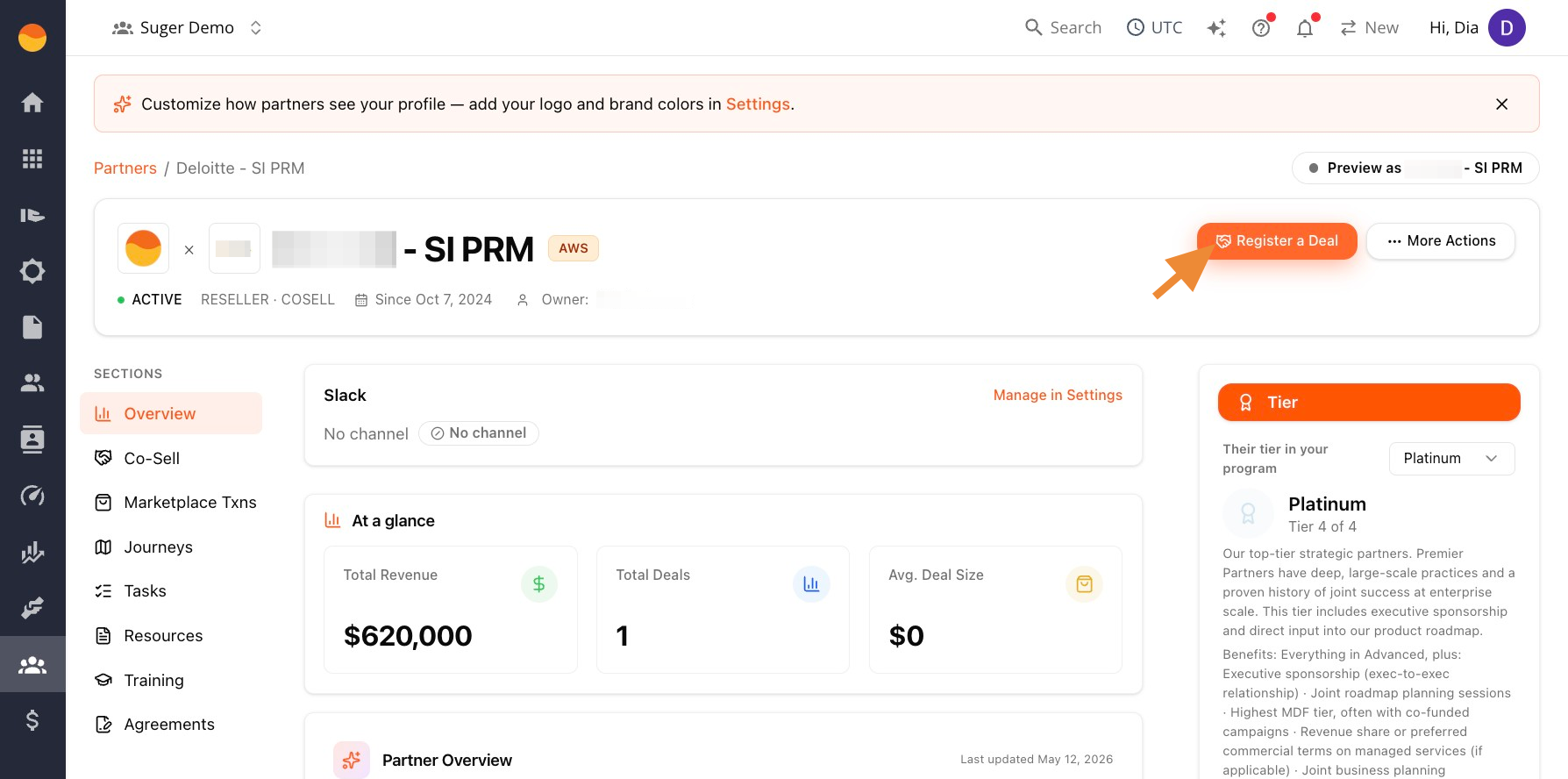
Go to Suger Console, then Partners.
-
In All Partners, click the name of the partner you want to register the deal with.
-
Click Register a Deal in the top right corner of the partner’s profile.
Step 2: Choose or Skip a CRM Opportunity
The Select an Opportunity window lets you link the deal to an existing CRM opportunity before completing the registration form.
-
Choose Salesforce or HubSpot, depending on where the opportunity lives.
-
Search by opportunity name, ID, or account, or browse the list. Each result shows the current opportunity stage and deal value, when available.
-
Select an opportunity, then click Continue.
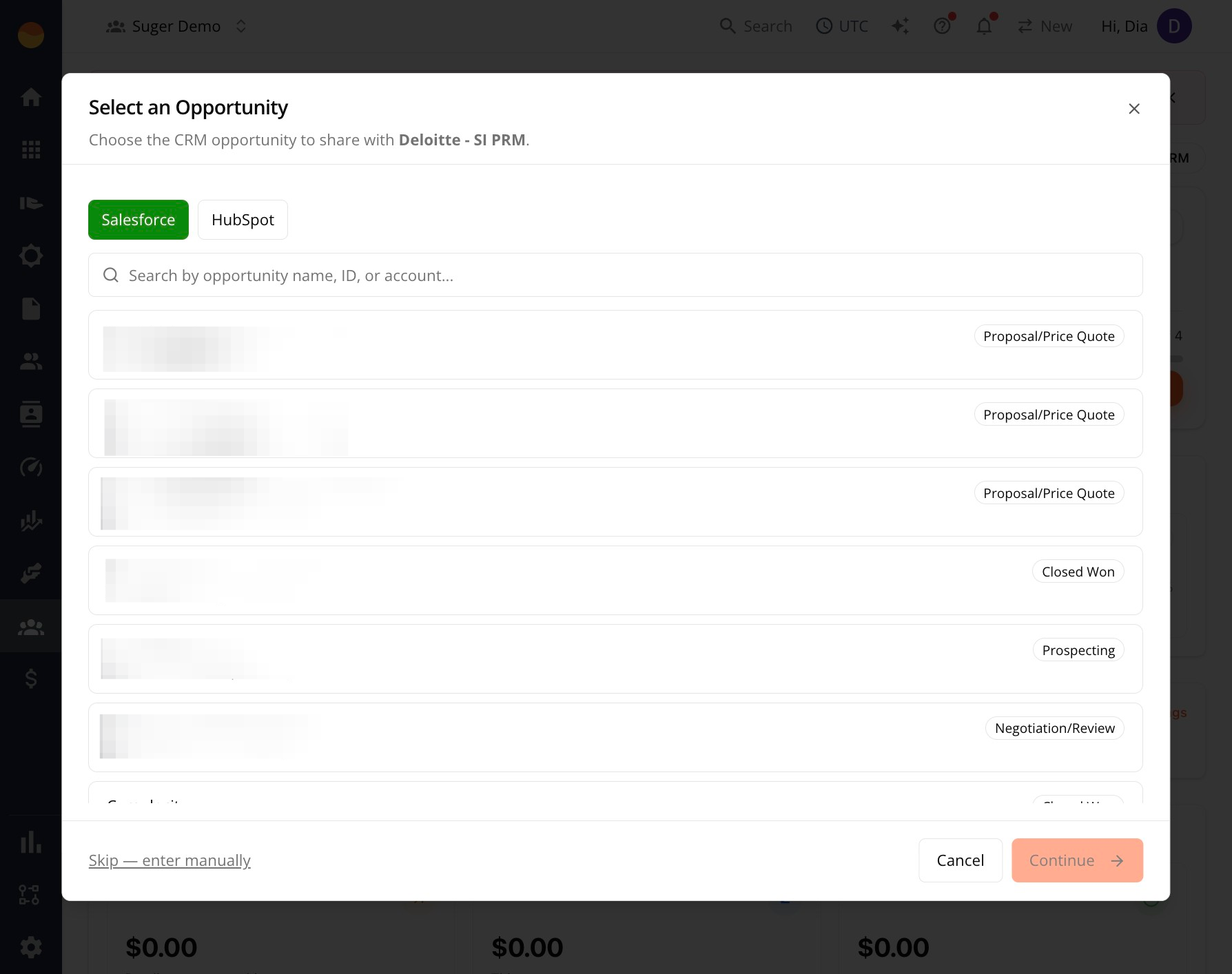
When you select a CRM opportunity, Suger pre-fills parts of the registration form using information from that record, so you don’t have to enter the same details twice.
Skip and Enter Details Manually
If the deal isn’t in your CRM, or you don’t use Salesforce or HubSpot, click Skip - Enter Manually. This opens the registration form with blank fields you’ll need to complete.

Step 3: Complete the Share Co-Sell Form
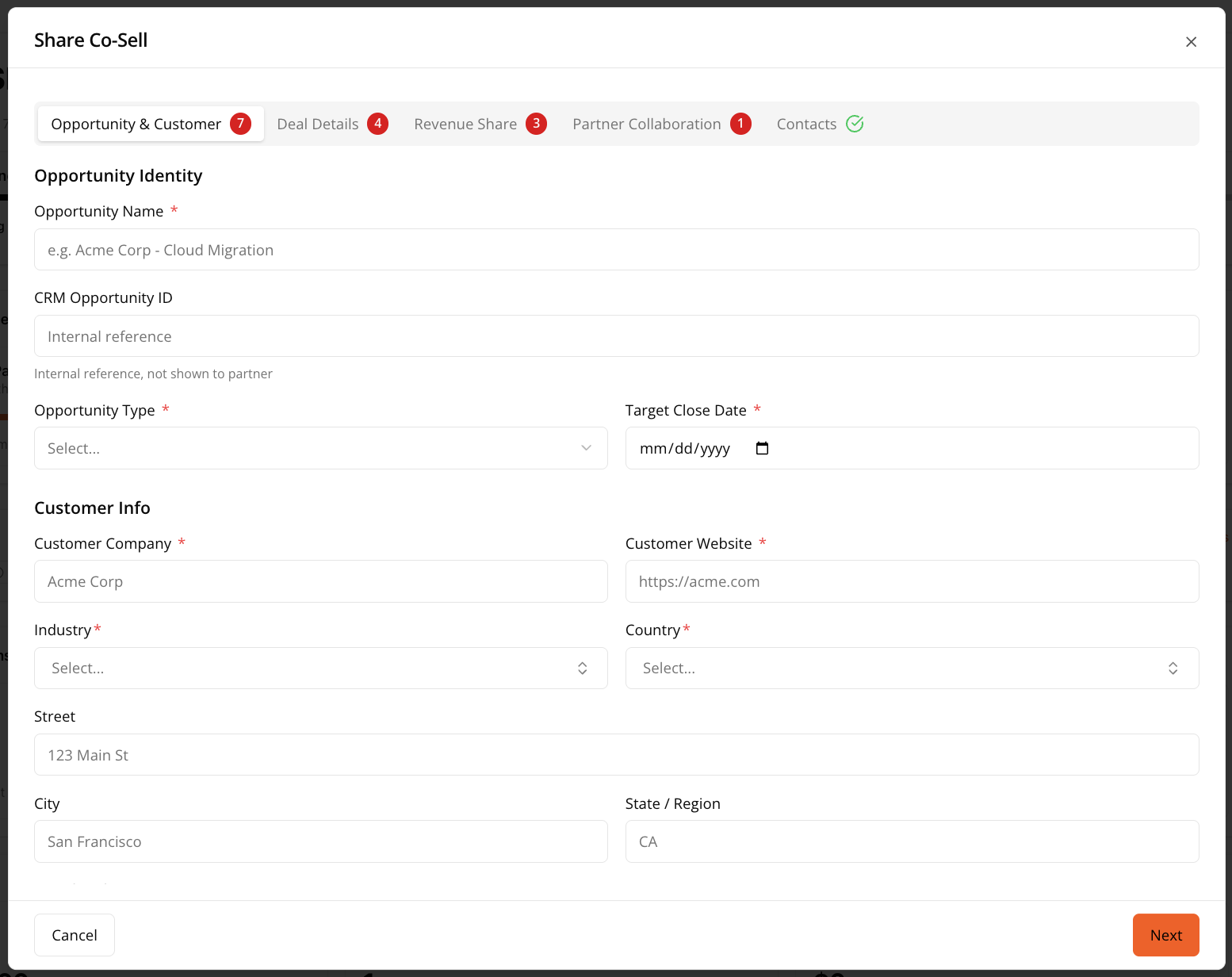
The form is split into five tabs: Opportunity & Customer, Deal Details, Revenue Share, Partner Collaboration, and Contacts.
The number on each tab shows how many required fields still need to be completed. When a tab is complete, the number changes to a checkmark. You can move between tabs at any time using Back and Next.
Opportunity & Customer
- Enter an Opportunity Name. This identifies the deal internally and to your partner.
- Add a CRM Opportunity ID if you have one. This is an internal reference only; the partner never sees it.
- Confirm the Opportunity Type and Target Close Date, especially if this data came from a linked CRM record.
- Confirm or enter the Customer Company, Customer Website, Industry, and Country. This is the customer information your partner sees when deciding whether to accept.
- Optionally, add the customer’s Street, City, State/Region, and Postal Code if you want a fuller address on record.
Deal Details
- Write a Partner Brief (minimum 20 characters) describing the customer’s core need and why this partner is the right fit. This is the main pitch your partner reads before accepting, so make it specific.
- Optionally, add a Use Case — a short label for the customer’s primary use case (for example, “Workload migration and expansion”).
- Confirm the Deal Value and Currency.
- Check off the Transaction Model: Cloud Marketplace, Reseller Agreement, Direct Partner Contract, or Other. You can select more than one.
Revenue Share
This tab never pre-fills from your CRM, because commission settings are managed in Suger and in partner commission plans — not in Salesforce or HubSpot.
-
Set Deal Value Visibility. By default, Show deal value is selected, which lets partners see both the deal amount and their commission. This option is typically recommended for resellers and co-sell partners.
-
Choose a Commission Type first. This selection determines the commission settings available for the deal. Available options include:
- Referral Fee
- Reseller Margin
- Co-Sell Revenue Split
- Finder’s Fee
After you select a commission type, the Commission Rules panel appears. It shows the Rate, Maximum Cap, Minimum Deal Value, and Renewal Commission that apply to the partner. These values come from the partner’s Custom Plan if one exists, otherwise from your organization’s Standard Defaults. To learn more, see Set Up and Manage Commission Plans.
-
Confirm the Revenue Share Model and Payment Trigger. If a plan resolved automatically, these should already reflect it, but you can adjust them for this specific deal if it needs different terms than the plan default.
-
Optionally, set a Clawback Window in days. If the deal churns within this window after payment, the commission can be reversed. Leave it blank if you don’t need a clawback.
-
Add any Revenue Share Notes for context.
Partner Collaboration
- Check off What I Need From You. At least one is required.
- Optionally, add Next Steps (for example, “Schedule joint discovery call”) and any Notes for Partner.
Contacts
- Your name and email are automatically filled in under ISV Owner (Partner Manager) based on your Suger account. You can optionally add a Title if you’d like the partner to see your role.
- Click Add contact to include additional team members, such as another sales contact or account manager.
- The Partner Owner section is blank when you create the deal. The partner provides their contact information after they accept the deal registration.
Step 4: Submit and Track Your Deal Registration
Once every tab shows a checkmark, click Submit on the Contacts tab.
After you submit, the deal appears on the partner’s profile under the Co-Sell tab, with a status of Pending Acceptance until the partner responds.