

Submit a Deal Registration (Partner)
Register a new deal in a partner’s branded Fours PRM portal, add the collaboration details you need, and track the co-sell opportunity after you submit it.
Overview
When a partner or ISV invites you into their program, they give you access to a branded Fours PRM portal. From there you can register deals, request the support you need, and follow each opportunity as the partner reviews and accepts it in the Co-Sell area.
If a seller has shared a public deal registration link with you instead, you can register a deal without a portal account. See Register a Deal Through a Public Link.
Before you begin, have the following ready:
- Access to your partner PRM portal.
- Basic customer and opportunity information.
- The expected close date and estimated deal value.
- Contact details for anyone who should be associated with the deal.
Accept Your Partner Invitation
Your invitation arrives as an email with a link. Opening it takes you to a public page — you don’t need a Fours account yet, and there is no code to copy out of the email.
The email may also link documents the sender wants you to read first, such as an NDA or a partner agreement. You can open them straight from the email, without a Fours account. The links work while the invitation is waiting for your answer and after you accept it. They stop working once you decline, or the invitation expires or is cancelled.
Accept
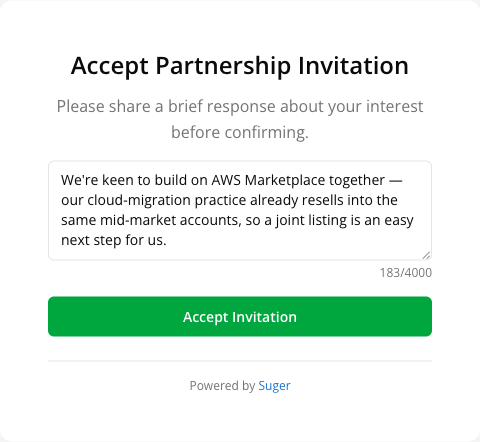
- Open the invitation link. The page is headed Accept Partnership Invitation, above the prompt “Please share a brief response about your interest before confirming.” It does not name the inviting company — the link itself is the context, so keep the email that carried it if you need to check who it came from.
- In the response box, write a short note about your interest. This is required to accept — the button won’t submit without it. You have up to 4,000 characters, and a counter tracks what you’ve used.
- Click Accept Invitation.
- Fours records your response and asks you to confirm who you are: “Please sign in to confirm your acceptance.” You’re sent to the sign-in screen.
- Sign in — or create your account — using the same email address the invitation was sent to. Matching that email is what proves the invitation is yours.
Once you’re signed in, Fours finishes the acceptance on its own and drops you into your new partner workspace. You don’t click Accept Invitation a second time.
Decline
Declining never asks you to sign in.
- Open the decline link from the same email.
- Optionally add a note. Unlike accepting, this one is not required.
- Click Decline Invitation. It submits immediately — there is no second confirmation — and Fours confirms with “Thank you for letting us know.”
Open the Partner PRM Portal
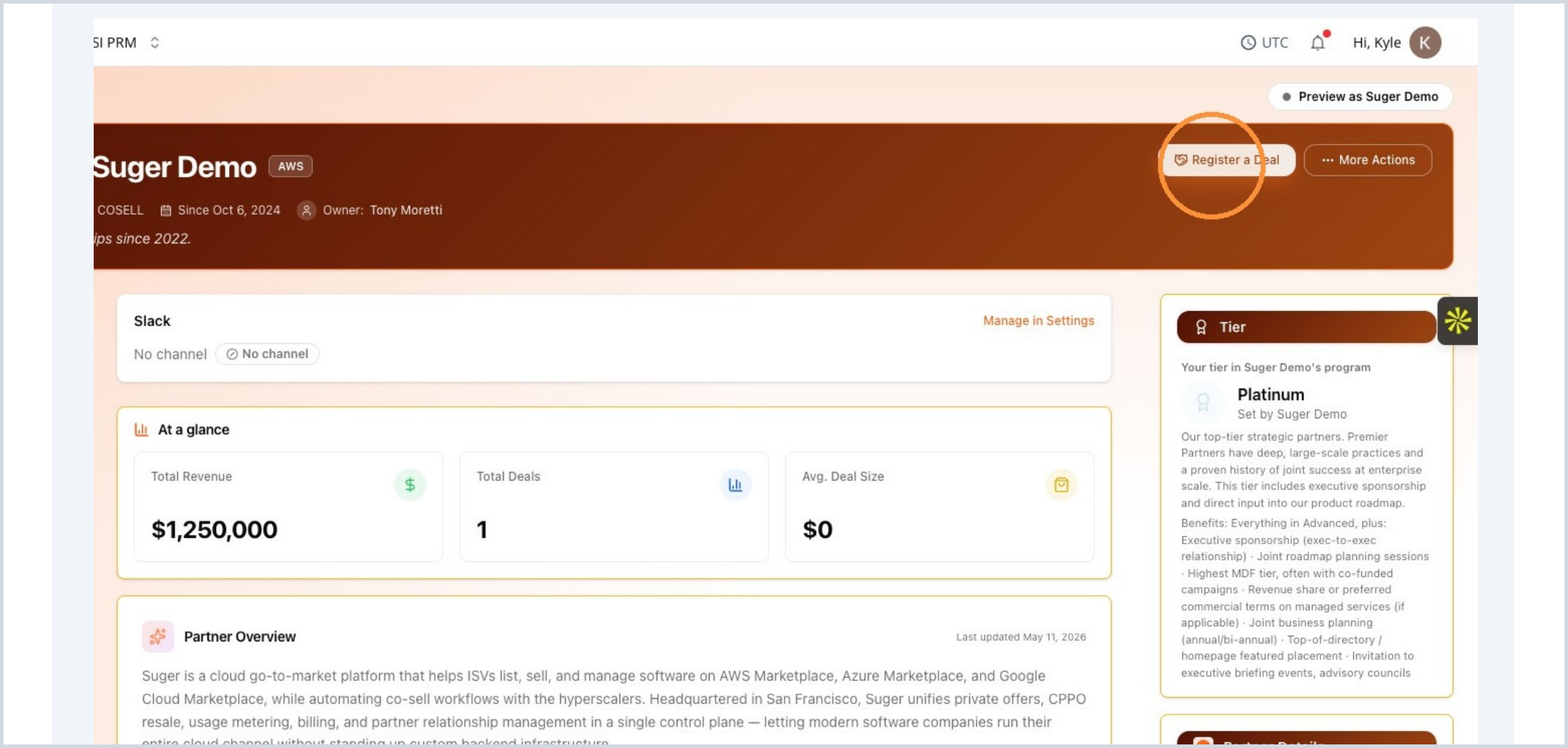
Sign in to the branded Fours PRM portal provided by your partner or ISV. From the overview page, select Register a Deal to begin a new submission.
- Confirm you’re in the correct partner workspace.
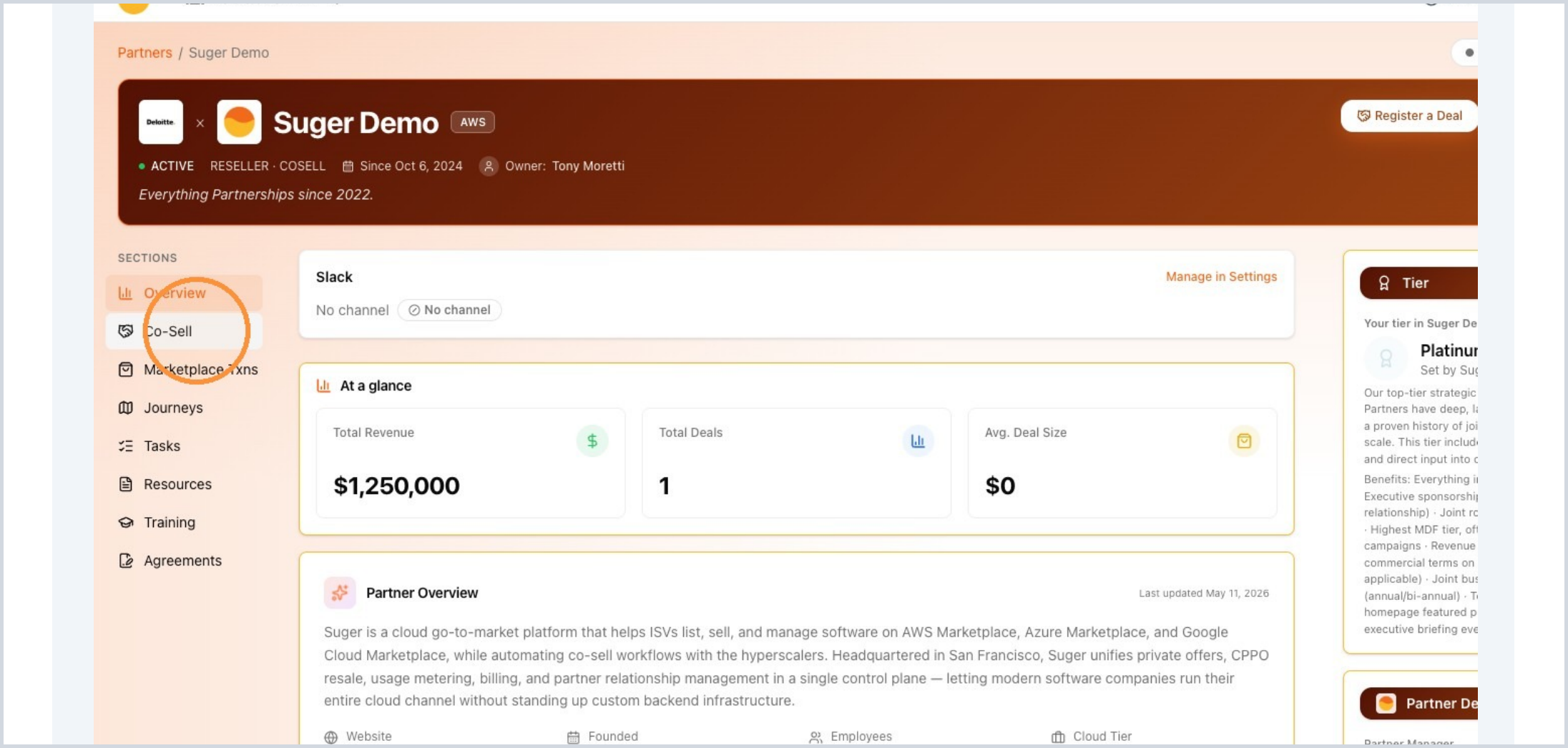
- Use the left navigation to reach Co-Sell later for tracking.
Complete the Registration Form
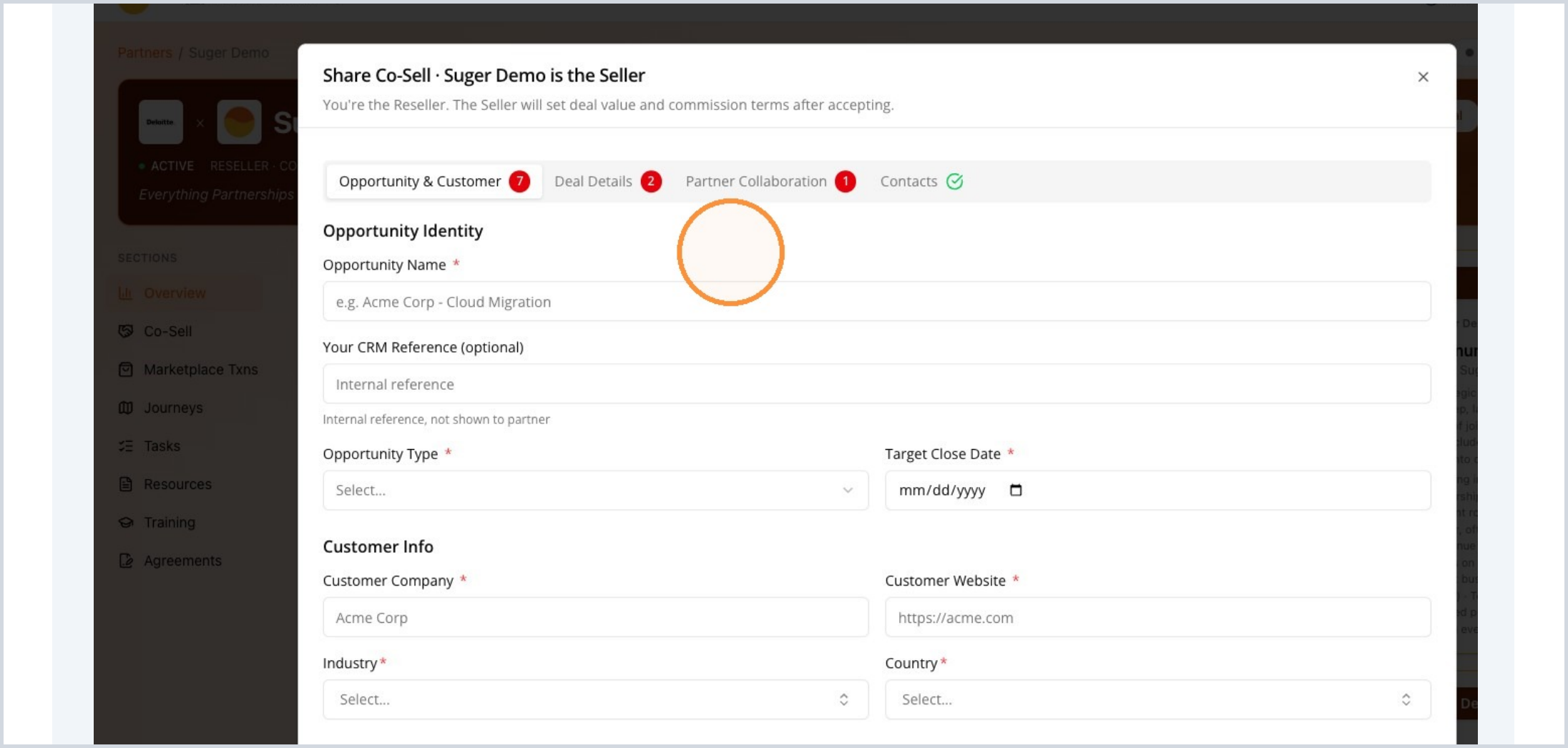
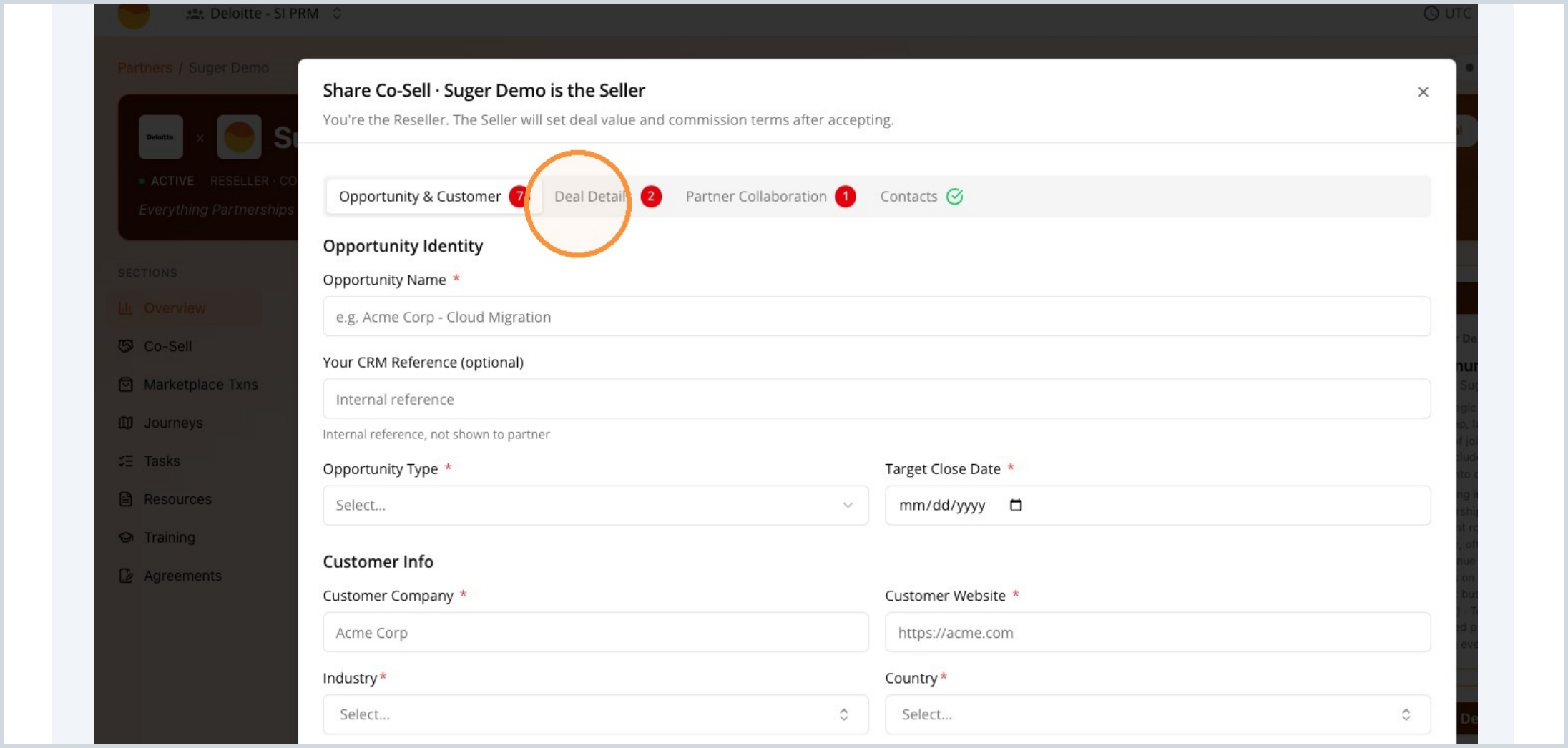
The registration form opens as a guided workflow. Complete each section in order so the partner has enough information to review the opportunity.
The form is organized into these sections:
- Opportunity & Customer
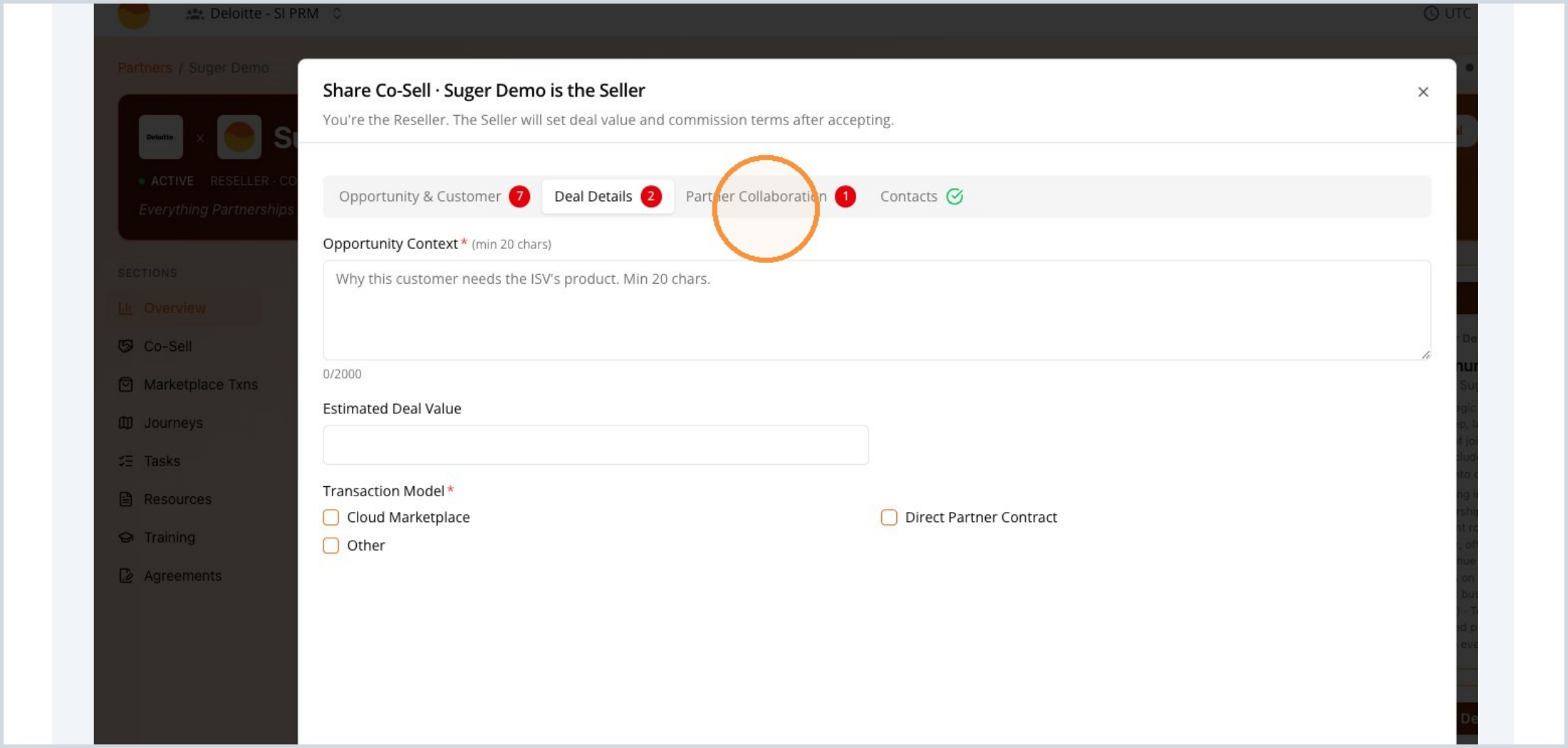
- Deal Details
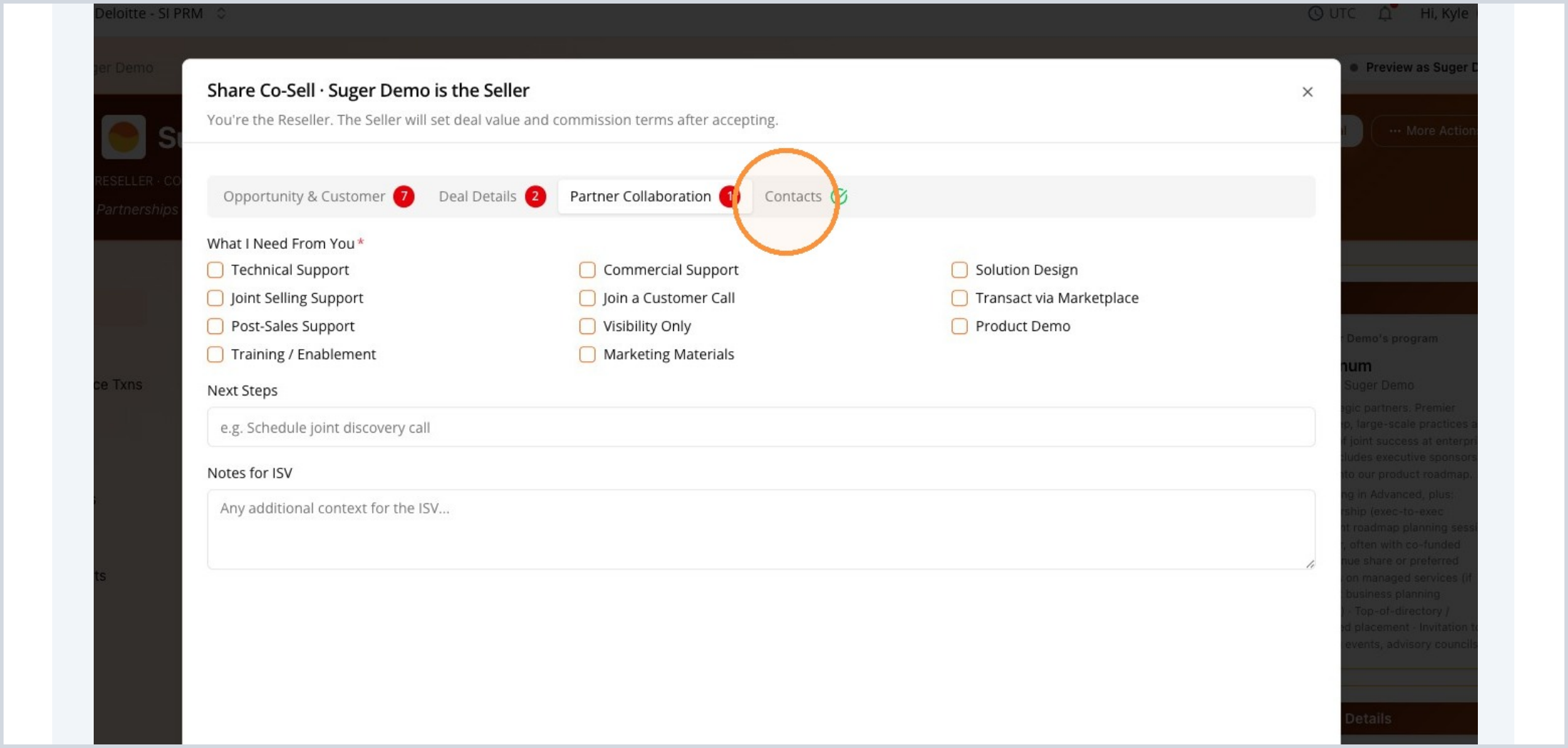
- Partner Collaboration
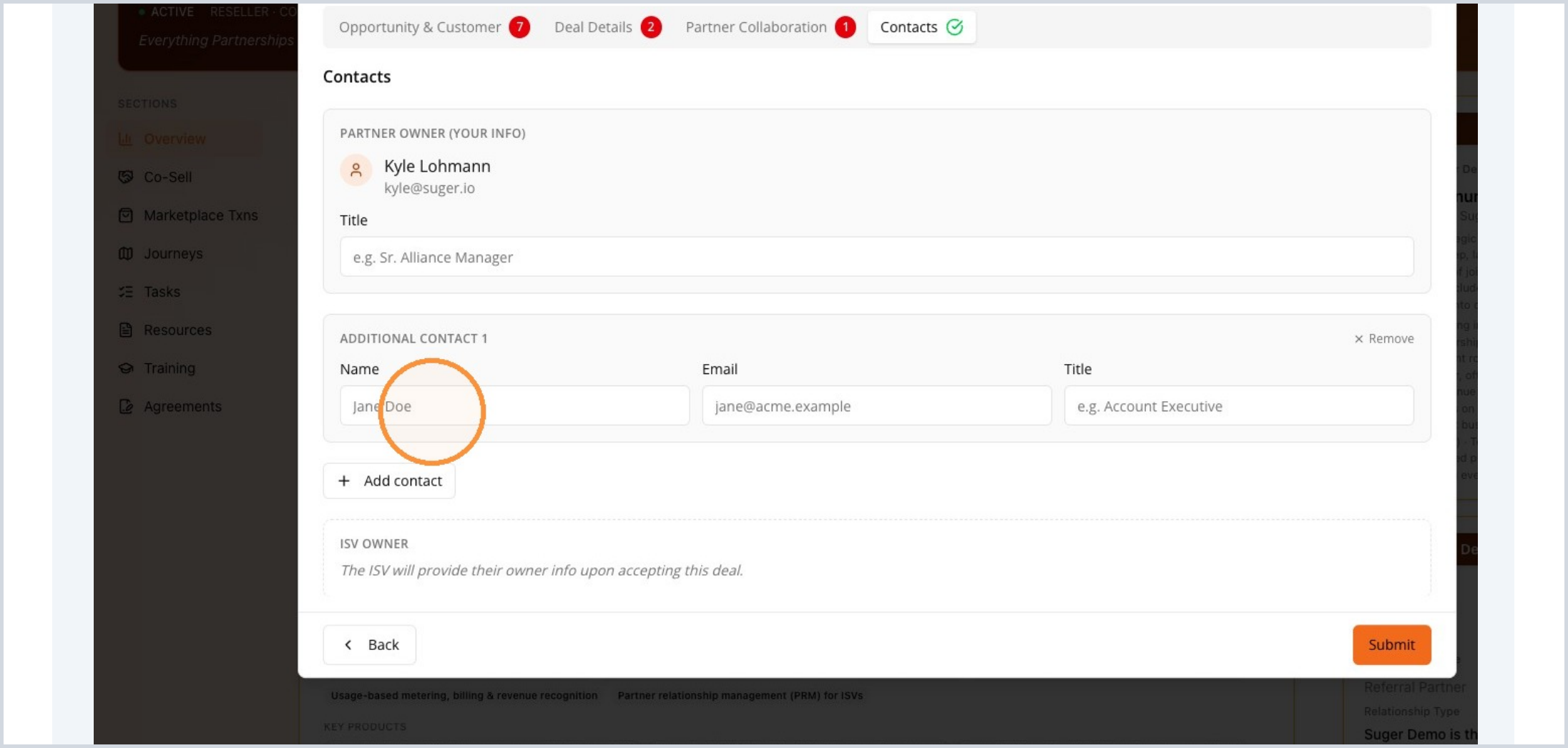
- Contacts
Opportunity & Customer
Enter the core customer and opportunity details. Required fields may vary by partner configuration, but this section usually captures who the customer is and what opportunity you’re submitting.
- Opportunity name and type
- Target close date
- Customer company and website
- Industry and country
- Optional CRM or internal reference
Customer website is checked for shape before the form will submit. It needs at least two parts separated by a dot, ending in an alphabetic top-level domain:
| Entry | Accepted? |
|---|---|
acme.com | Yes |
www.acme.co.uk | Yes |
https://acme.com/about | Yes — the path is ignored |
n/a | No — no dot, no top-level domain |
192.0.2.10 | No — an IP address is not a website |
pat@acme.com | No — that’s an email address |
Anything rejected shows “Enter a valid website, e.g. acme.com”. Fours checks the shape only; it does not visit the site, so a typo in a well-formed domain still gets through.
Deal Details
Add enough context for the partner to understand the opportunity and how the customer is expected to transact.
- Explain why the customer needs the solution.
- Add the estimated deal value.
- Select the transaction model, such as Cloud Marketplace, Direct Partner Contract, or Other.
Whether the deal value is mandatory depends on the deal role you picked:
| Your deal role | Deal value |
|---|---|
| Referrer | Optional. Leave it blank when you don’t know the number yet — a referral shouldn’t be blocked on a figure you’re guessing at. |
| Seller | Required, and must be greater than 0. It’s what the commission is calculated against. |
Either way, a negative value is rejected, and any amount you do enter needs a currency alongside it.
Partner Collaboration
Choose the support you need from the partner. This helps them understand how to engage and what next action to take.
- Technical support, joint selling, commercial support, or solution design
- Marketplace transaction support or product demo
- Next steps and notes for the partner
Contacts and Submit
Review the partner owner and add anyone else who should be connected to the deal. When the form is complete, select Submit.
- Add a name, email, and title for each additional contact.
- Include contacts who may need updates or follow-up.
- Submitting notifies the partner or ISV for review.
Track the Submitted Deal in Co-Sell
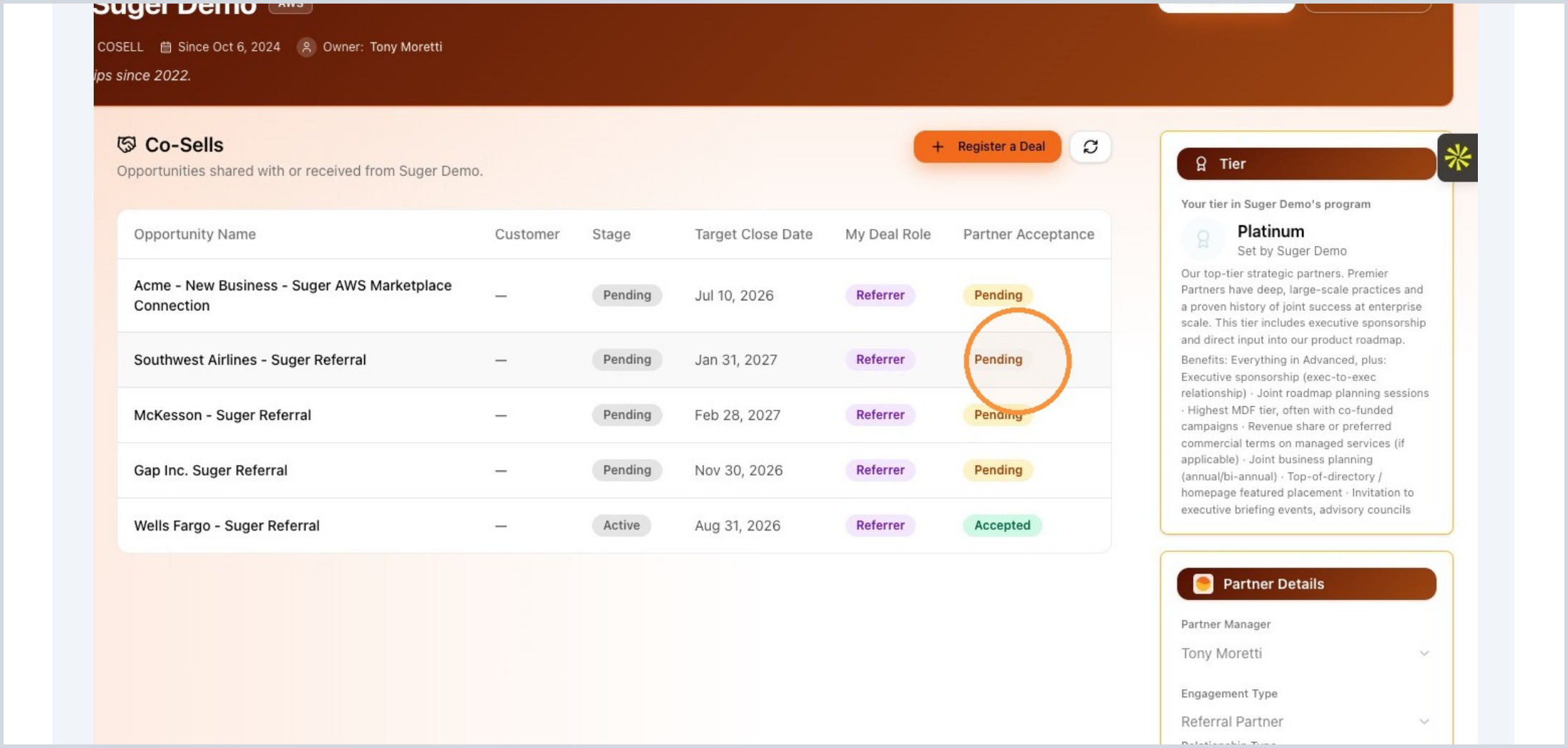
After submission, return to the partner portal and open the Co-Sell tab. This is where submitted and shared opportunities are tracked.
- Use Co-Sell to find submitted opportunities.
- Monitor partner review and acceptance from the deal list.
Review the Deal List
The Co-Sell list shows a summary of each opportunity. Use it to quickly confirm status and spot deals that need attention.
- Opportunity name, customer, stage, and target close date
- Your deal role
- Partner acceptance status, such as
PendingorAccepted
Open the Deal Details
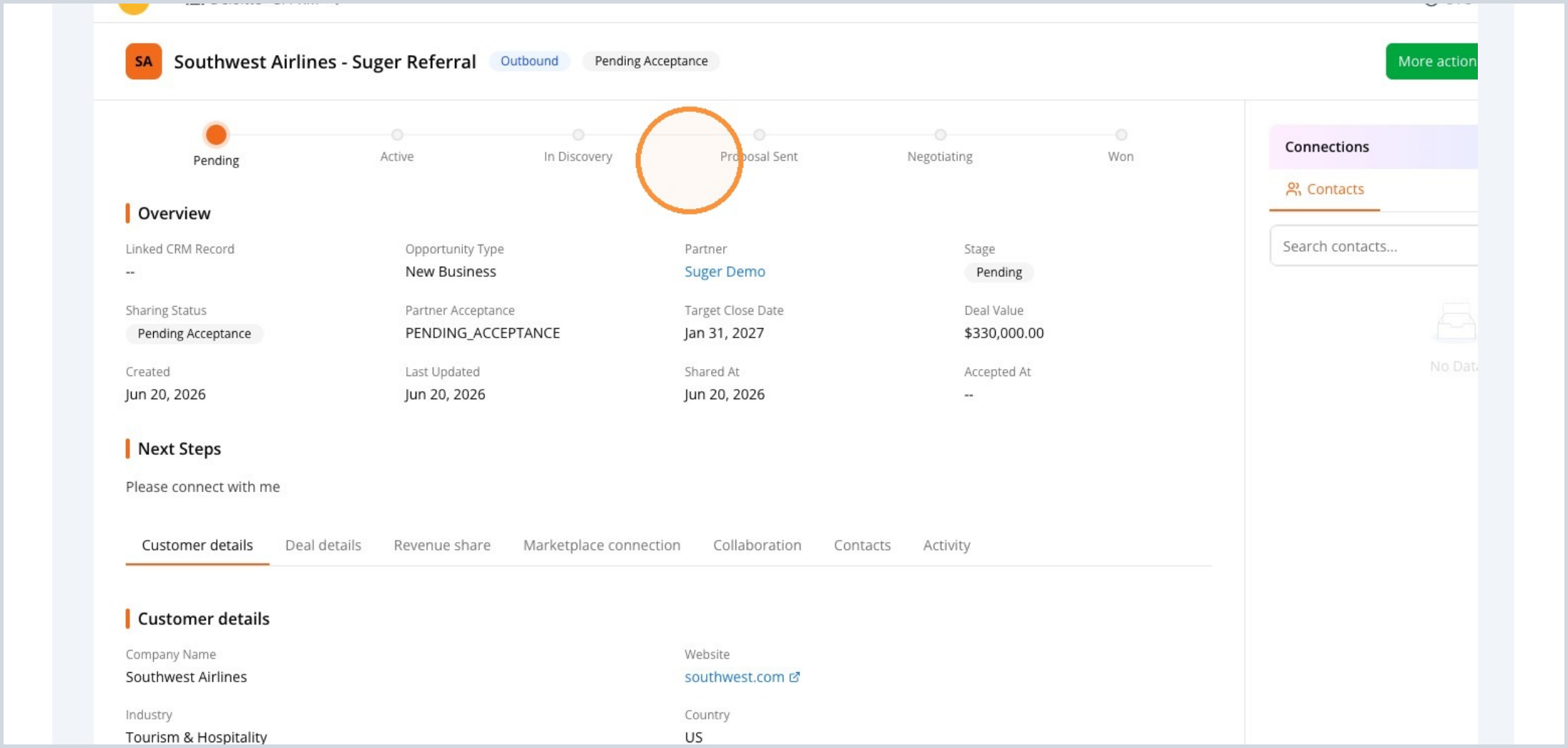
Select an opportunity to open the full deal record. The detail view shows the current stage, status, important dates, next steps, and customer information.
- Review the current sharing status and partner acceptance.
- Check the stage, target close date, deal value, and next steps.
- In Partners & Status, see where each organization stands: the seller first (role Seller, with the seller’s own status), then your organization (You), then any other partners on the deal. Each organization closes its own copy of the deal, so the seller’s status can differ from yours.
Monitor Activity
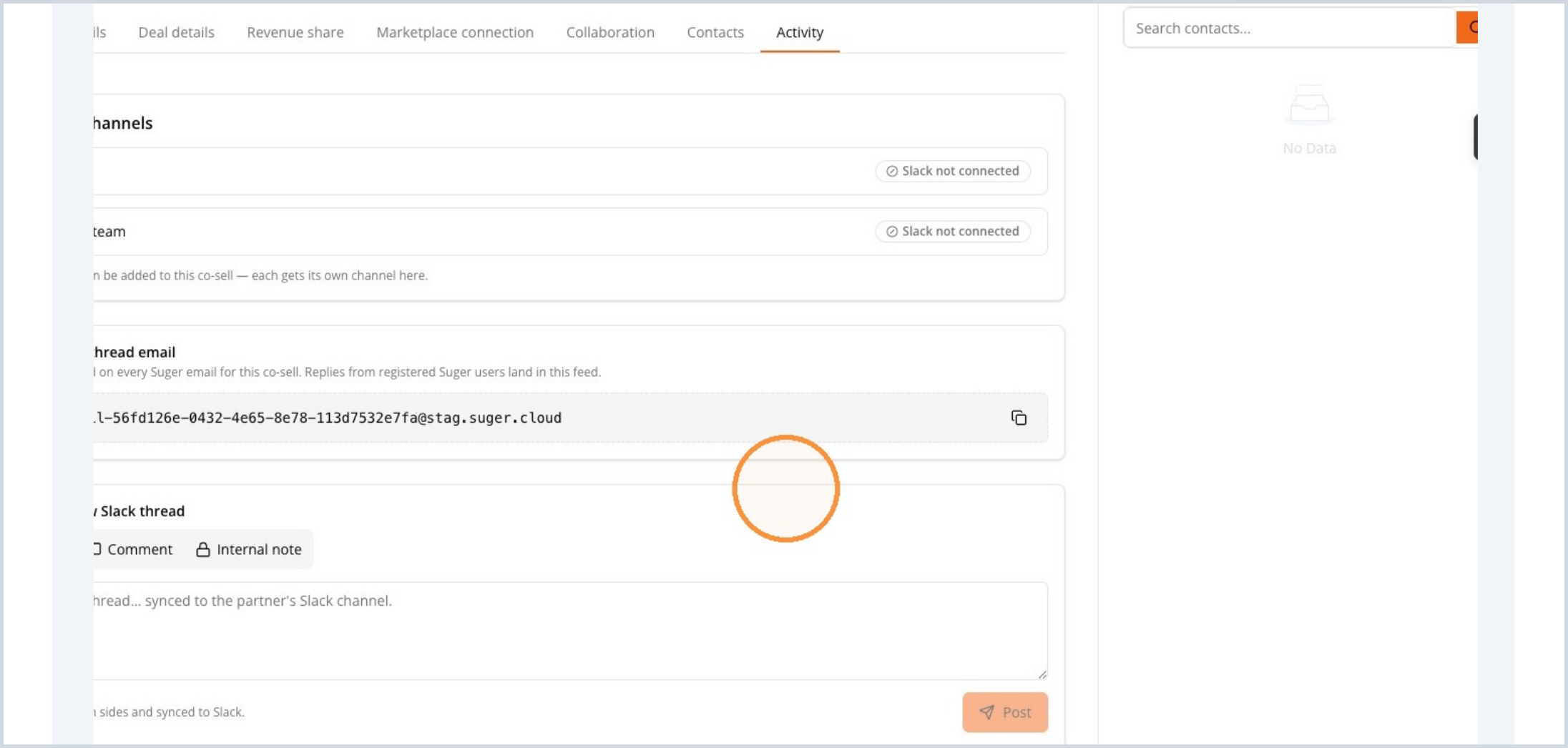
Use the Activity tab to keep track of collaboration history and communications related to the deal.
- Review synced channels, email thread details, comments, and internal notes.
- Use the activity history to understand what has happened since submission.
Revisit Collaboration and Deal Details
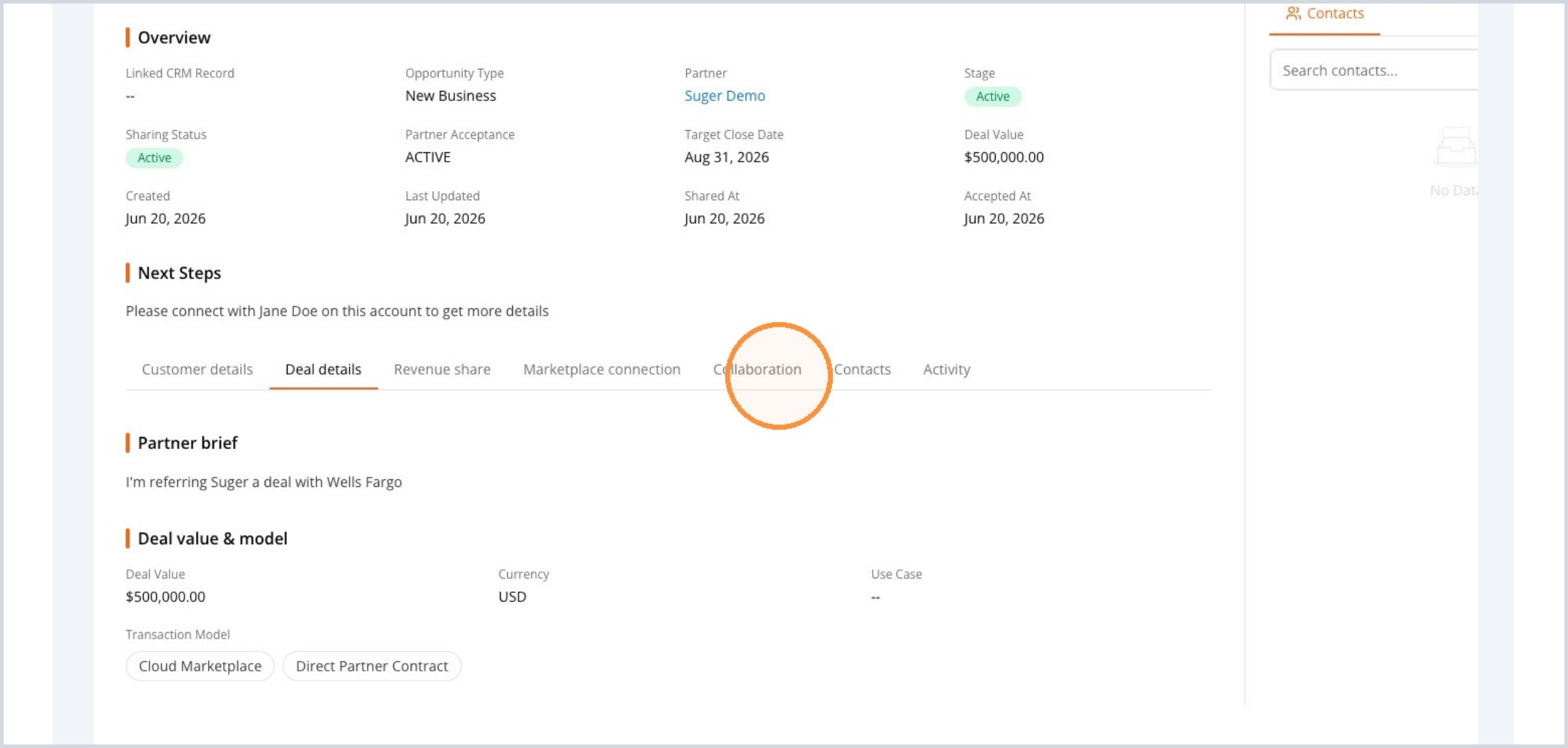
The detail tabs make it easy to revisit information you submitted during registration, including collaboration needs and deal value.
- Use the Collaboration tab to confirm the support you requested.
- Use Deal details to review the value, model, and related fields.
Register a Deal Through a Public Link
Some sellers publish a public link for registering deals, on their website or in an email to you. It works without a Fours account and without signing in, whether or not your company is already their partner.
-
Open the link. The page is headed Register a deal with {seller}.
-
Enter your Work email, then move to the next field. From the part after the
@, Fours checks whether your company is already connected to the seller as a partner, and tells you what will happen to your deal:You see What it means Active partnership found with {seller} Your company is a connected partner. Your co-sell goes straight to the seller for review. No active partnership with {seller} yet, with “We’ll automatically send a collaboration request…” You can still register the deal. The seller receives a request to partner with your company alongside it, and reviews the two together. No active partnership with {seller} yet, with “…accepts deal registrations from partners only” This link only takes deals from connected partners. There is no deal form and Register deal stays disabled. Use Apply to be a partner to apply to the seller’s partner program, then register the deal once you’re connected. Couldn’t check your partnership Check your work email and try again. -
Fill in the form. Fields marked with * are required.
- About you — your name and Work email*.
- The customer — Company name*, Website*, Industry* (from a list), and Country*.
- The deal — Deal name*; Opportunity type*:
New Business,Renewal,Expansion, orAdd-on; Target close date*, which must be in the future; What problem is the customer solving?, at least 20 characters; Transaction model:Cloud Marketplace,Direct Partner Contract, orOther, at least one; and an optional Estimated deal value with its Currency. You’re registering as the Referrer, so leave the value blank if you don’t know it yet. - What do you need? — Partner needs*, at least one of Technical Support, Commercial Support, Solution Design, Joint Selling Support, Join a Customer Call, Transact via Marketplace, Post-Sales Support, Visibility Only, Product Demo, Training / Enablement, and Marketing Materials; plus Anything else you want the seller to know.
-
Click Register deal.
The confirmation tells you where the deal went:
- “Thanks — your deal is registered and is awaiting the team’s acceptance.” Your company is a connected partner, and the seller now reviews the deal like any other.
- “Thanks — your submission has gone to the team for review. They’ll be in touch once they have looked at it.” The seller reviews your company and the deal together. If they accept the deal, your company becomes one of their partners.
Other messages you may see:
- Deal registration is closed — the seller isn’t taking registrations through this link right now. Reach out to your contact there; the link may reopen later.
- Page Not Available — the link isn’t valid, often because the seller changed it. Ask your contact for a new one.
- A message that the form registers deals with partners — the email you entered is on the seller’s own domain. Use your own company’s work email.
Act on a Co-Sell from Email
Some co-sell emails carry a button that lets you act on the deal straight from your inbox:
| Button | When the email arrives | What the page asks for |
|---|---|---|
| Accept co-sell → | Your partner or ISV shares a co-sell with you. | Nothing, unless you’re the seller on the deal. Then it asks for the deal value and currency, plus the commission terms when commissions apply. |
| Mark Closed Won → | The other side marks the deal Closed Won. | Nothing, unless you’re the seller and the deal has no value yet. Then it asks for one. |
| Mark Closed Lost → | The other side marks the deal Closed Lost. | A reason, which the other side reads. |
| Approve commission change → | The seller proposes new commission terms on a won deal. | Nothing. |
How the buttons work:
- Each button is personal. It was issued to your email address, works once, and expires after 24 hours.
- You need an editing role. Your Fours user must have the Admin or Editor role in your organization. Otherwise the page shows Sign In To Continue, and you take the action in Fours instead.
- The page shows who you’re acting as. When it needs nothing more from you, it records the action as soon as it opens. The action is recorded under your name, as if you had taken it in the portal. Accepting this way makes you your side’s deal owner.
- Declining isn’t offered from email. To decline a co-sell, open it in the portal.
- A link that no longer applies says so. If it has expired, was already used, or the deal has moved on, the page tells you and points you to Fours.
When a Seller Registers a Deal from Email
A seller’s team can turn an email thread about a deal into a deal registration by forwarding it to Fours. If you’re on that thread, you may get a copy of Fours’ reply, with a Review & confirm in Fours → button. That button is for the seller. If you click it, Fours opens your record of that seller in your partner workspace, with the notice “{seller} is reviewing this deal registration. It will appear in your co-sells once they confirm it.” The deal appears in your Co-Sell list once they confirm it. If anything Fours captured in the reply is wrong, reply to the email.
Spotted something wrong or out of date on this page? Tell us and we'll correct it.