
Create Private Offer
Create a custom offer for a specific customer in GCP Marketplace, allowing flexible pricing and contract terms tailored to your buyer’s needs.
Overview
With Cloud Marketplace Private Offers, you can create a custom offer for a Kubernetes app, SaaS product, or virtual machine (VM) image for a specific customer. The offer enables your customer to purchase your Cloud Marketplace product at a negotiated price or discount.
A private offer consists of:
- Product Plan: The base plan for the offer. Each plan uses a single Product Pricing Model.
- Private Offer Pricing Model: Customizes the Product Pricing Model for the selected plan. (Note: One Product Pricing Model can have multiple Private Offer Pricing Models.)
- Payment Schedule: Defines how and when the customer pays (Prepay or Postpay).
- Contract Duration: The length of time the offer is valid.
Prerequisites
Before you proceed, make sure both your GCP and Suger environments are ready. This prevents errors during offer creation and approval.
Google Cloud Marketplace — collect the following buyer information:
- Exact GCP Billing Account ID
- Organization Name
- Contact Name and Contact Email
Suger — you need Admin access to the Suger Console. If you don’t have access yet, ask your company admin to invite you to the organization. See Manage Users and Roles.
Create the Offer in Suger Console
Step 1: Open the private offer flow
- Go to the Offer page in the Suger Console.
- Click + New Private Offer in the upper-right corner.
- Select the GCP Product you want to base the offer on. This defines what is being sold.
Step 2: Add basic information
- Offer Name — A descriptive title for your offer. Use a clear, consistent format, such as
CustomerName - ProductName - MM/YYYY. - Salesforce Opportunity / HubSpot Deal — Optional dropdowns that link this offer to an active deal in your CRM. This automatically syncs the offer’s status back to your sales pipeline so your team can track it without leaving Salesforce or HubSpot.
- GCP Billing Account ID — The exact, unique identifier for the customer’s Google Cloud billing account. This must be completely accurate — ask your buyer to provide it directly from their GCP console.
- Organization Name — The name of the buyer’s company or organization (for example,
Acme Corp). - Contact Name & Contact Email — The name and email of the primary buyer contact who will review and accept the offer.
- Notes for Customer — Any additional instructions, context, or welcome messages you want the buyer to see when they open the offer.
- (Sales info) Contact Name & Email — The internal sales representative managing this offer. This usually auto-fills with your own Suger login details.
- Notes for Your Team — Internal notes visible only to your team. The buyer never sees this, so it’s the place to track internal approvals, deal context, or special instructions.
Step 3: Set pricing information
The fields in this section change depending on the plan type you select. Start with your plan, then work through the fields that appear.
- Plan — The specific service tier the buyer is purchasing.
- Payment Recurrence — Choose how often the buyer is billed:
- Monthly, Quarterly, or Yearly — Standard recurring (Postpay) billing. The buyer is charged at the end of each period after the service is delivered. Auto-Renew is supported with these options.
- Custom — Build a custom installment schedule with specific dates and amounts (GCP’s Prepay model). The first installment is charged when the buyer accepts, so it shows Acceptance Date instead of a date. Auto-Renew is not available with this option.
- Expiry Date — The deadline for the buyer to sign the offer. If this date passes without acceptance, the offer becomes void.
- Enable future start date (optional) — Toggle on if you want the contract to begin on a specific future date rather than immediately upon acceptance. Useful for aligning with a buyer’s budget cycle.
- Offer Duration — The length of the contract in months (for example, enter
12for a one-year deal). Monthly (Postpay) contracts can run between 1 and 60 months. - Proration — Appears only with Monthly recurrence, and not for the Usage Discount Only pricing model. Off (the default) keeps every installment on the offer’s anniversary date; On prorates the first installment against the start date so billing lines up with calendar months. Suger always sends your choice to Google, so Google’s own plan default never decides it. A cloned offer keeps the setting, and the offer detail page shows it as On, Off or Not set (GCP default).
The remaining pricing fields depend on the plan type. For the full breakdown of pricing models and how discounts apply, see Subscription-Based Offers, Usage-Based Offers, and Subscription + Usage Combined below.
- Subscription plans — Enter the Monthly Flat Fee, the fixed monthly amount the buyer pays. No usage fields apply.
- Usage plans — Select the Usage Plan Pricing Model (required), then set the Monthly Commitment and Discount on Commitment as applicable to the chosen model.
- Subscription + usage plans — Enter the Monthly Flat Fee (base fee), Discount on Usage (percentage discount on metered consumption beyond the base fee; leave blank if none), and any Additional Usage Fee. The Metric discounts table updates automatically to show the tier breakdown, list price, and discounted price per unit.
- Free plans — Enter
$0or leave the Monthly Flat Fee blank, and0%for Discount on Usage. Free plans do not generate software charges.
Step 4: Define other information
- Select an EULA to define the end customer license agreement.
- Select a Deal Type to define the commercial structure of the offer.
Then click Create Offer to publish the private offer.
Check the offer before you send it
Every GCP offer form — new offers, replacement offers, and reseller plans — has a Validate button next to Create. It runs the same checks the create path itself runs, and answers one question: would this offer be accepted?
- Checks passed — a green banner. Nothing further to read; the offer is ready to create.
- This offer would be rejected — a red banner listing the specific reasons, in the same words the create path would have used.
When the reason is that an active offer already exists, it is not printed as a raw message: the panel renders Active offer already exists as its own entry, with an Open existing offer → link straight to the offer that is blocking you. Every other finding renders as plain text, with any machine-readable tail stripped — so no seller has to read a raw API error to learn what to change.
Validating is free and changes nothing. It is worth doing on any offer that took effort to build — a replacement offer, a long installment schedule, a reseller plan — because a rejection caught here is a field you fix in the form you are already looking at, rather than a failed offer you go back to later.
If the buyer already has an active offer
Google does not allow two active offers on the same product for the same billing account, and allows only one active non-subscription offer per billing account overall. If you submit an offer that would break either rule, Suger shows a toast naming the conflict rather than a raw error:
| Conflict | What the toast says |
|---|---|
| The buyer already has an active offer on this product for this billing account | Google doesn’t allow two active offers on the same product + billing account. To renew or change pricing, amend the existing offer — GCP calls this a Native Renewal. |
| The buyer already has an active non-subscription offer on this billing account | GCP allows only one active non-subscription offer per billing account. Amend the existing offer or wait for it to end. |
Both toasts name the conflicting offer by the ID you can find in the GCP Producer Portal, and carry an Open existing offer → button that takes you straight to it in Suger — usually so you can start a replacement offer from it instead.
Coterm and standard billing intervals
An offer billed at a standard interval — monthly, quarterly, or yearly — cannot also carry a scheduled end date. Google refuses the combination, so Suger reports it as a validation error on submit rather than accepting the offer and turning it invalid moments later.
This matters most for coterm-aligned replacement offers, where you want the new offer to end when the offer it replaces ends. On a standard interval, express that as an offer duration instead of an end date. Offers on a custom billing period are unaffected and may carry an end date as before.
If the offer does not get created
Two statuses mean nothing was created in Google Cloud Marketplace, and both are recoverable in place:
Create Failed— the request reached Google and Google refused it.Invalid— the offer was refused before it left Suger, because its shape or target could not be accepted.
Either way the reason is recorded on the offer’s detail page, and the offer keeps its Edit and Submit actions: fix what the message names and resubmit the same offer, without rebuilding it. Both statuses can also be archived if you would rather abandon the offer.
Share the Offer
Once you click Create, the offer is securely sent to Google for a brief review before it can be shared with your customer. Here’s how to track, share, and finalize the deal:
-
Check the status. Your offer initially shows as
Pending Google Approval. Wait a few minutes and refresh until the status updates toCreated— this means the offer URL is officially ready. -
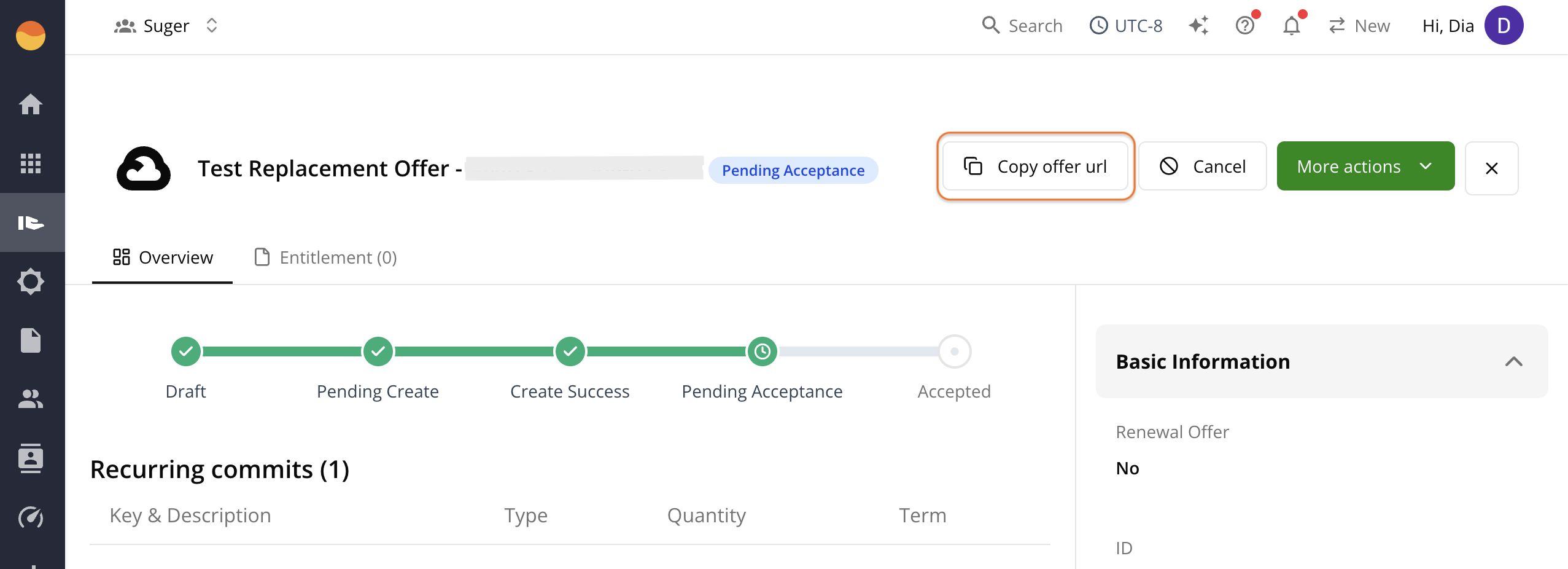
Copy the offer link. Open the created offer, then click Copy offer URL.
-
Send to the buyer. Share the link with your buyer so they can log into their GCP account, review the custom terms, and confirm the purchase. See Accept Private Offer for the buyer’s steps.
-
Provide final approval. For SaaS products, once the buyer accepts the offer, the status changes to
Needs Your Approval. You must confirm the offer to activate it, unless you have Automatic Offer Approval enabled.
The offer detail page also shows an Offer Duration row alongside the dates, so you can confirm the contract length that was sent to Google without reopening the form.
Those dates — Expire Date, Accept Date, Start Date and End Date — are shown in Pacific time with a PST or PDT label, for every viewer, and so are a GCP entitlement’s start and end dates on its page and in the Entitlements table. That matches Producer Portal, because Google anchors a private offer’s term on the Pacific calendar day. An active entitlement’s end date follows its offer’s term: if the two have drifted apart — usually by a day — Suger moves the entitlement’s end date to match on its next sync.
Enable Automatic Offer Approval
By enabling automatic offer approval, you can use scheduled or customer-acceptance start dates for SaaS product first offers. You can create or edit an offer’s start date under Start date. Kubernetes and VM offers already have flexible start dates.
Multiple Flat Fee Offers
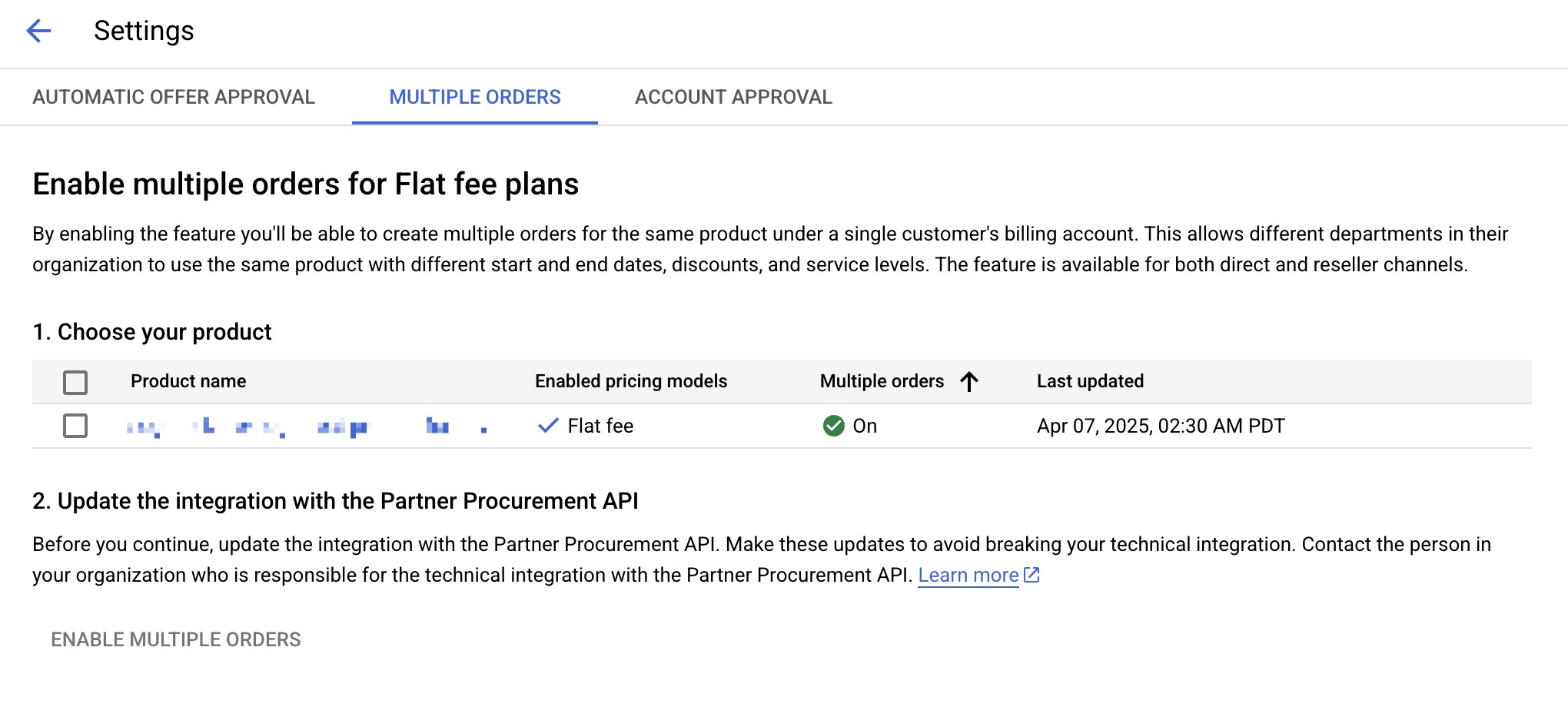
To enable Multiple Flat Fee Offers:
- Go to the GCP Producer Portal
- Select the Multiple Orders tab
- Choose your product
- Click Enable Multiple Orders
Payment Schedules: Prepay vs Postpay
| Prepay | Postpay | |
|---|---|---|
| Contract Term | 2–36 months | 1–60 months |
| Auto Renew | Not supported | Supported |
| Notes | Not available in Brazil |
Subscription-Based Offers
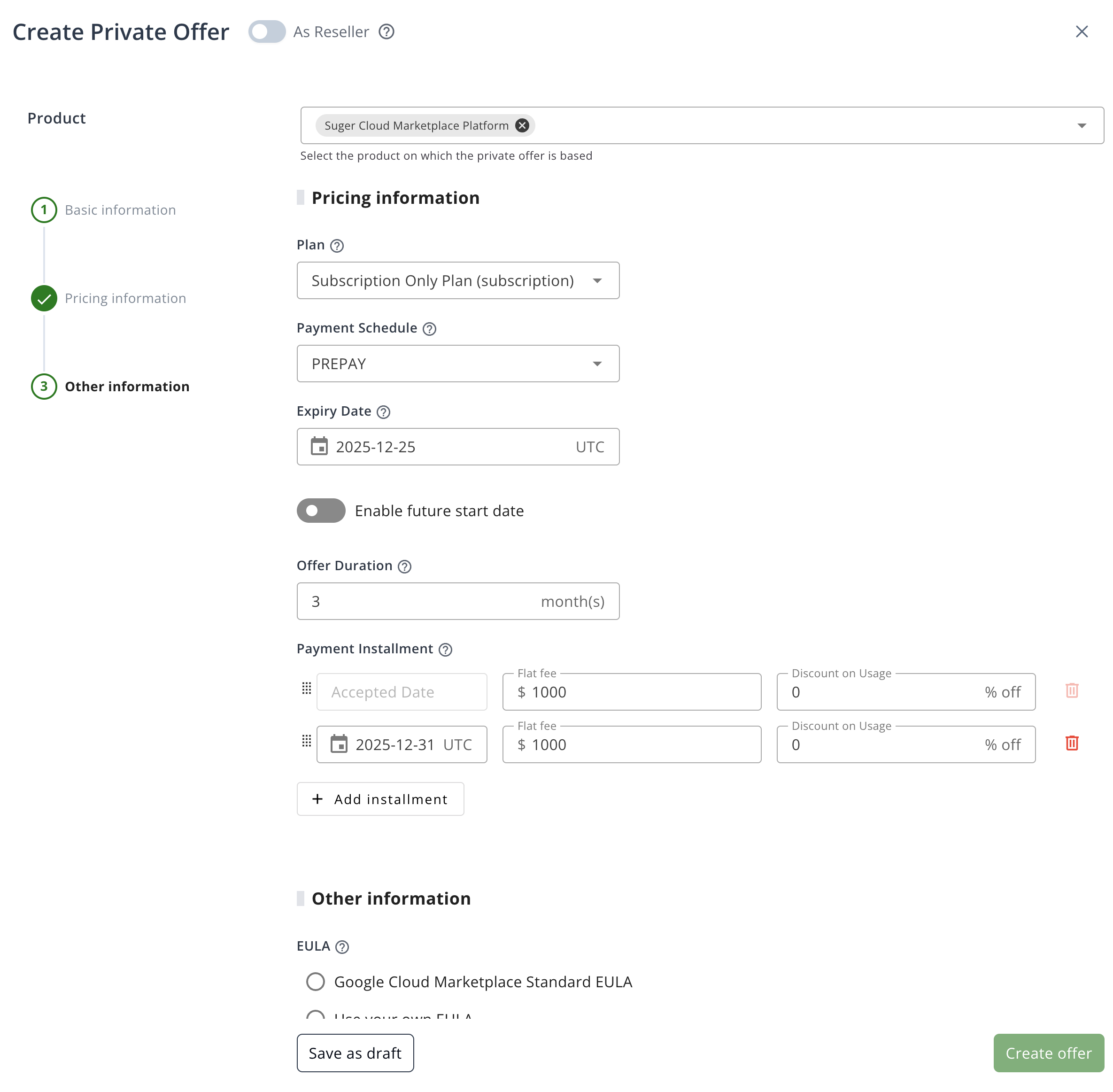
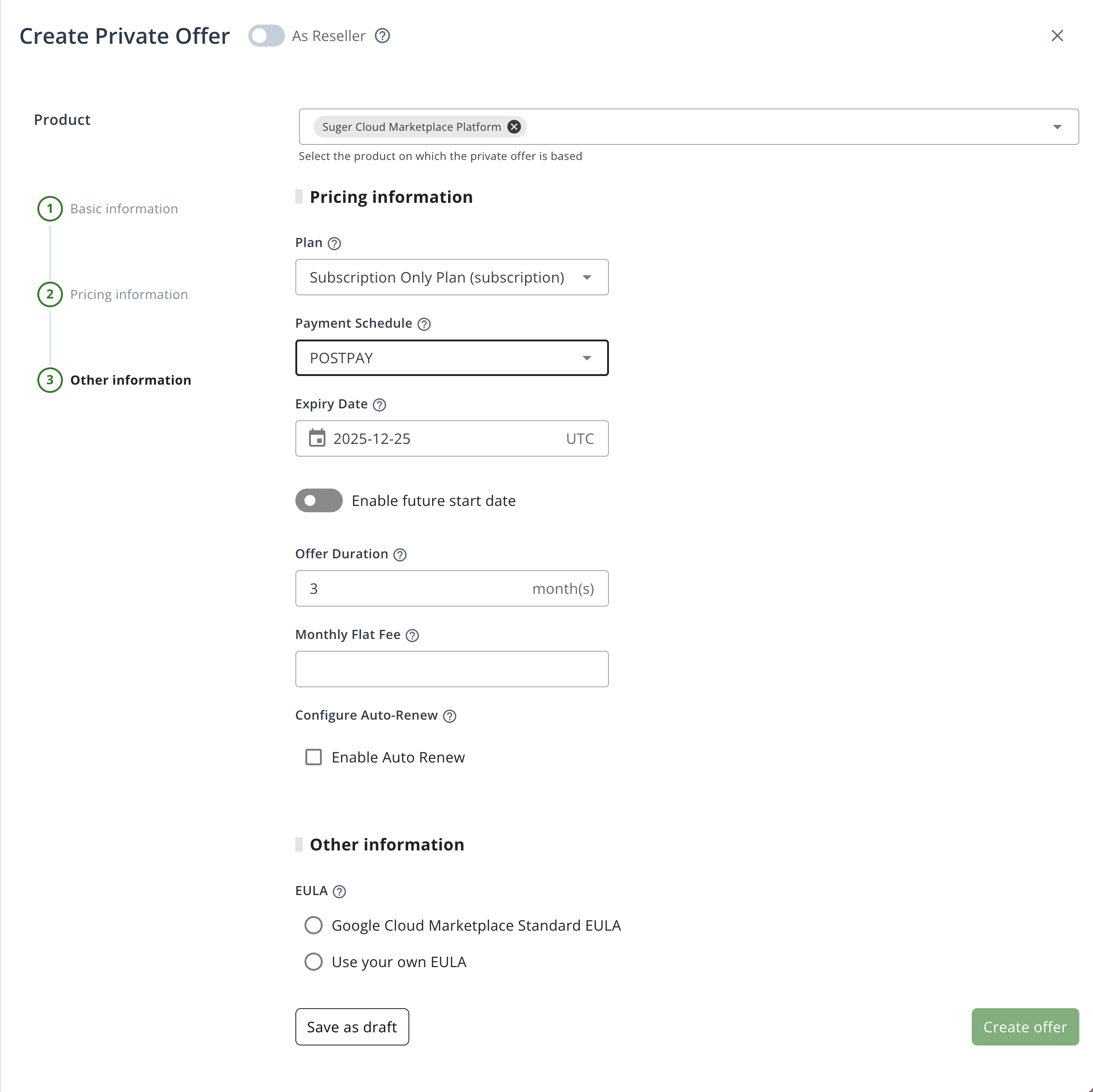
For subscription-based product plans, only the Flat fee pricing model is available, with Prepay or Postpay options.
| 💰 Flat fee | |
|---|---|
| Prepay | Customize:
 |
| Postpay | Customize:
 |
Usage-Based Offers
For usage-based product plans, three private offer pricing models are available. The first two are types of Committed Use Discount (CUD):
- Commit discount with additional usage at list price
- Commit with all usage discounted
- Usage discount only
Each model supports Prepay or Postpay (except Usage discount only, which is Postpay only).
Commit Discount with Additional Usage at List Price
The customer commits to a minimum spend and receives a discount on this commitment. Overage is charged at list price.
| 💰 Commit discount with additional usage at list price | |
|---|---|
| Prepay | Customize:
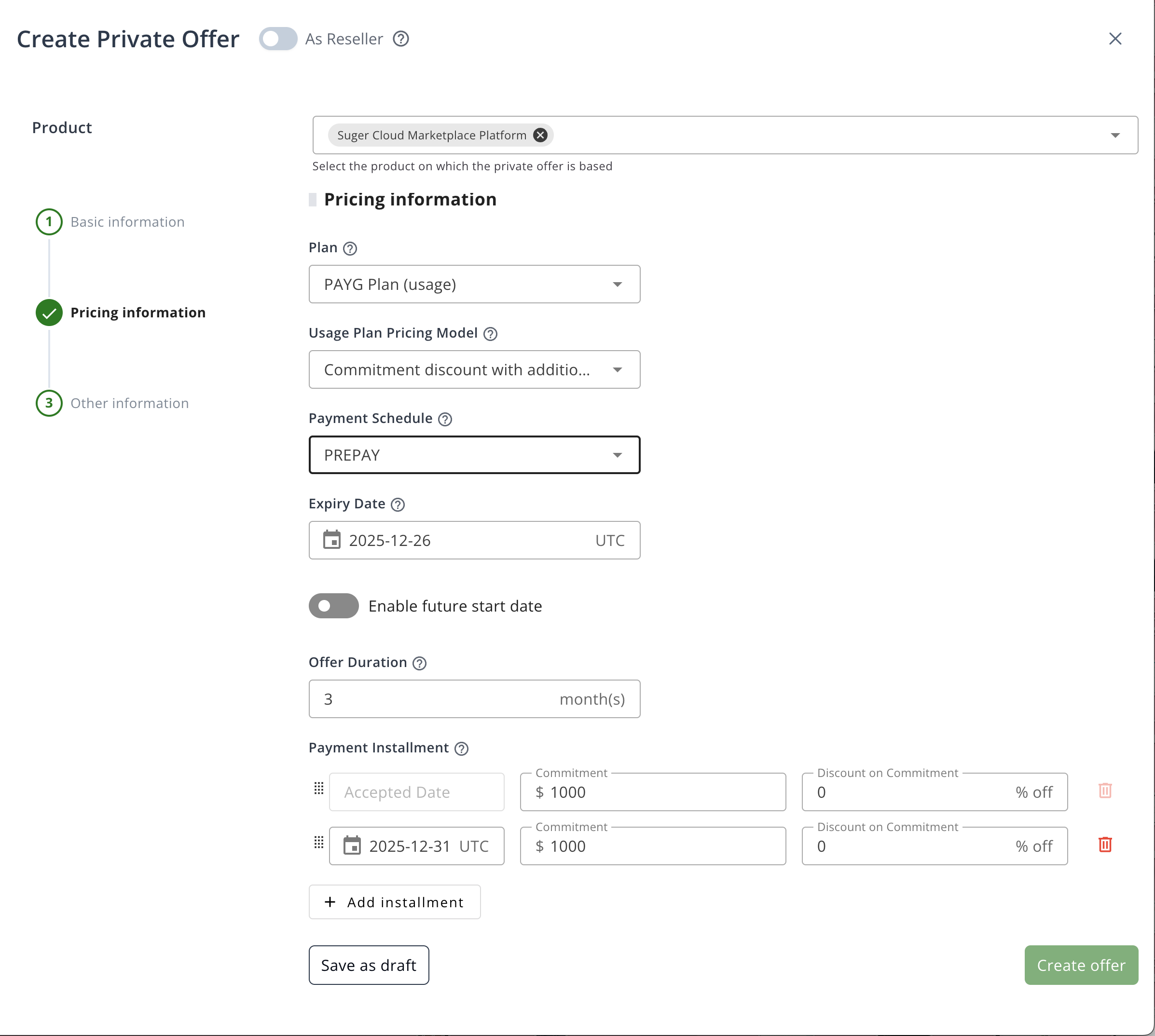 |
| Postpay | Customize:
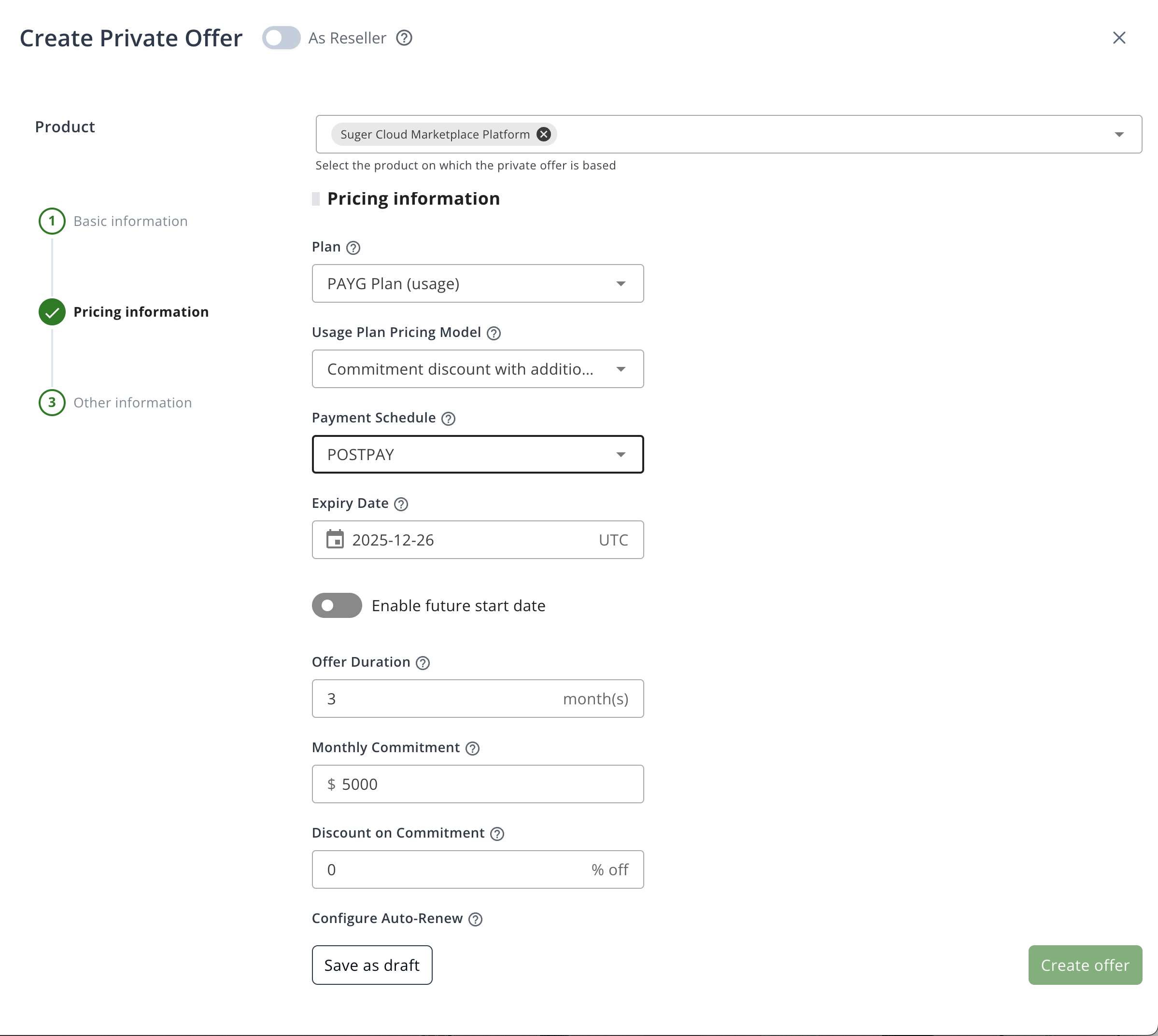 |
Commit with All Usage Discounted
The customer commits to a minimum spend and receives a discount on all usage, with optional granular discounts per usage metric.
| 💰 Commit with all usage discounted | |
|---|---|
| Prepay | Customize:
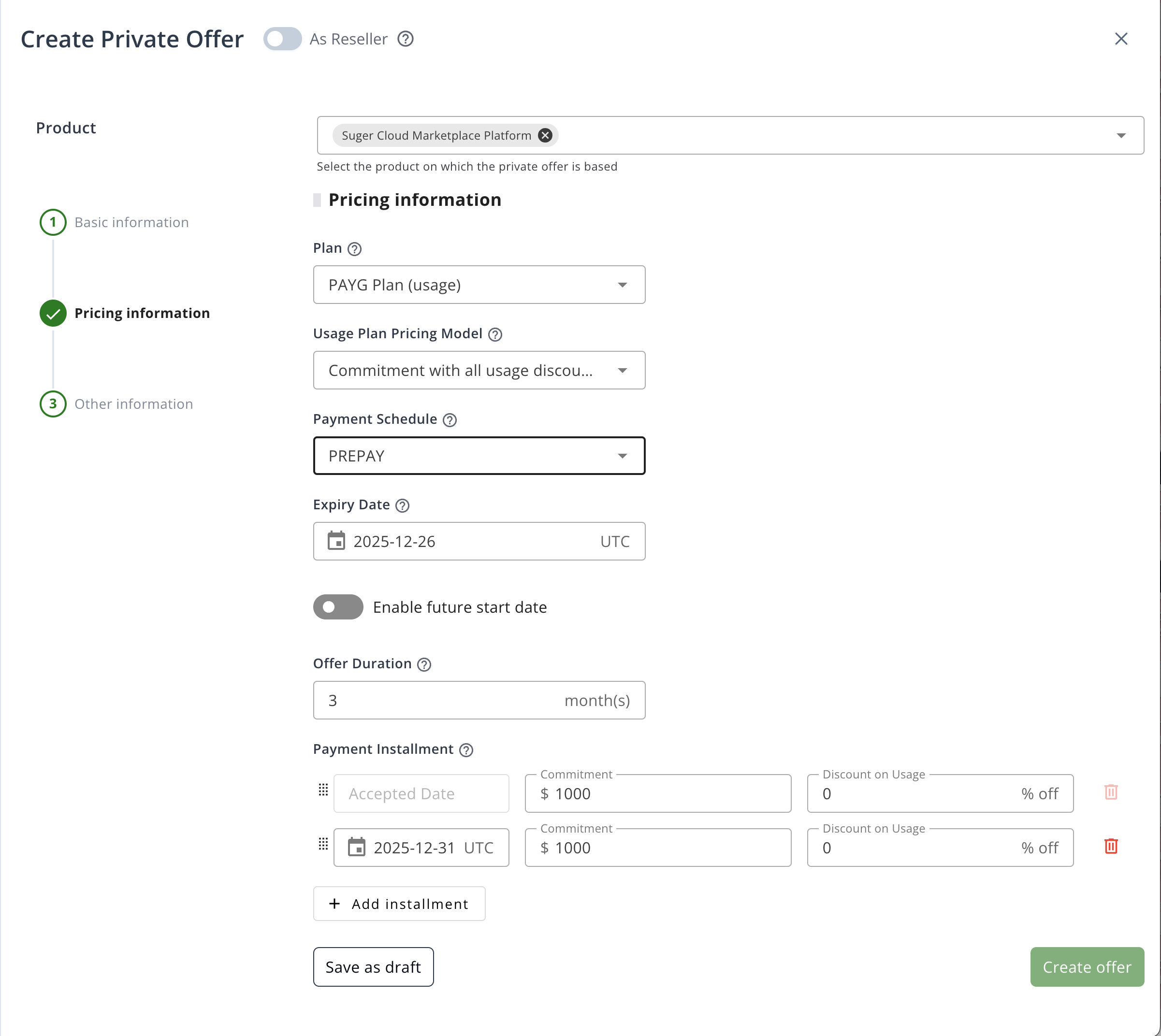 |
| Postpay | Customize:
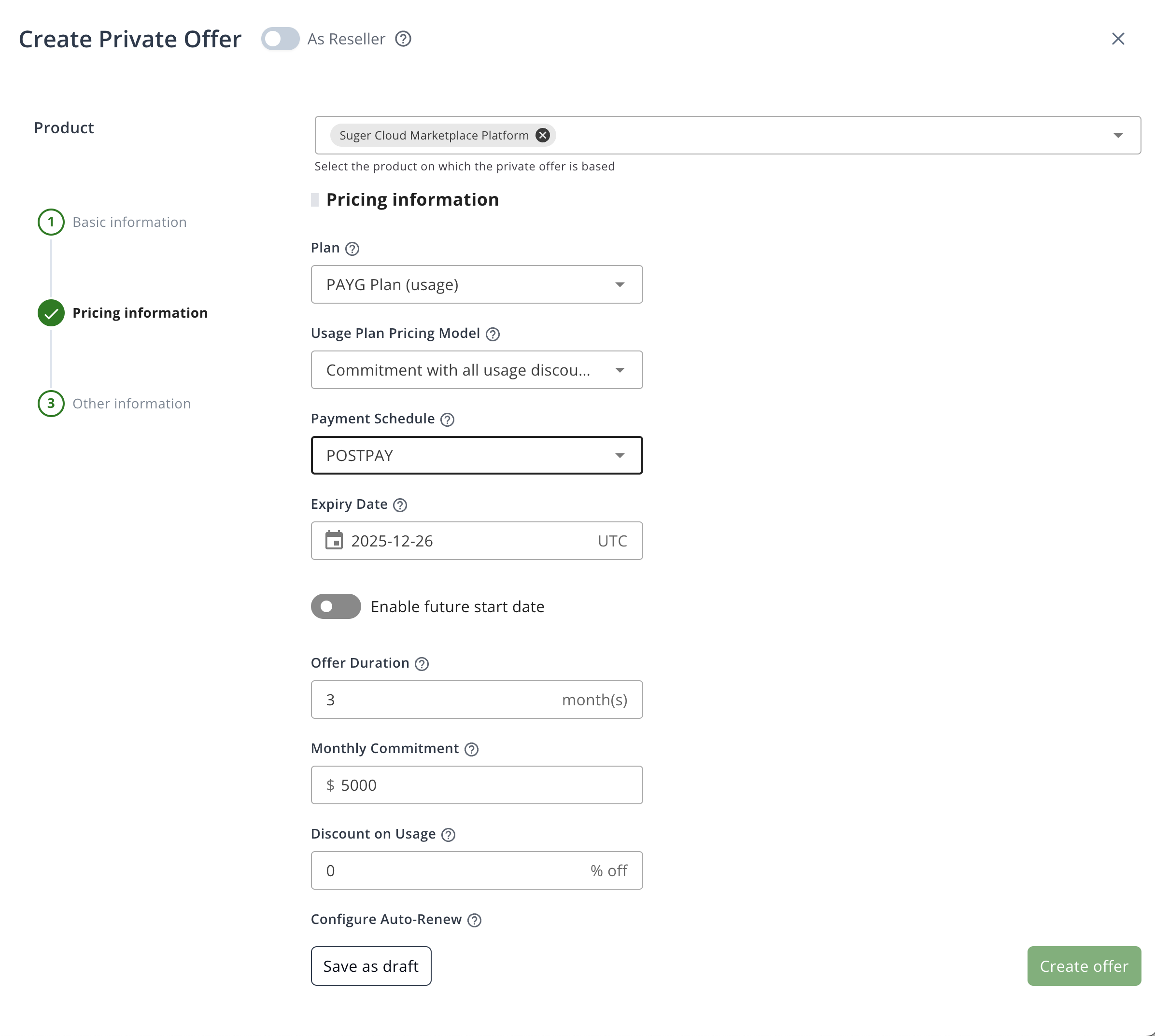 |
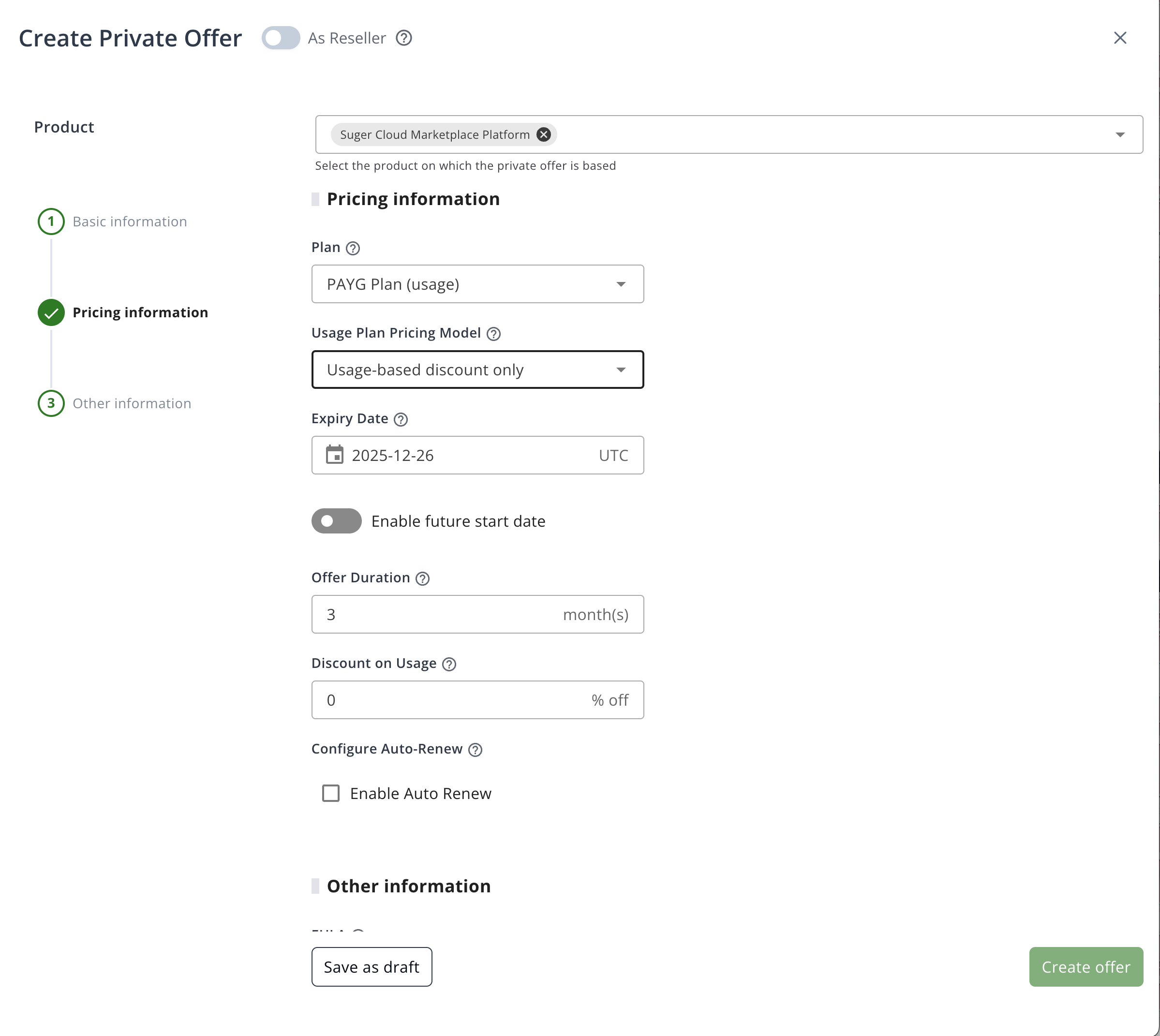
Usage Discount Only
The customer pays a discounted rate for usage, with no commitment. Only Postpay is supported.
| 💰 Usage discount only | |
|---|---|
| Prepay | Not applicable |
| Postpay | Customize:
 |
Committed Use Discount (CUD)
With a CUD, the customer receives a discount in exchange for a minimum spend commitment. The customer pays the commitment regardless of usage. The difference between the two CUD models is whether the discount applies to overage.

Free credit and unused commitment (Prepay CUD only)
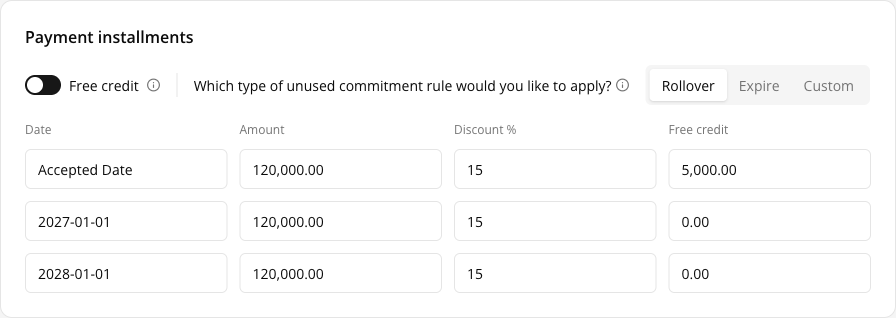
On a Prepay CUD offer — either Commit discount with additional usage at list price or Commit with all usage discounted — two extra controls appear above the payment-installment rows. They are schedule-wide choices that change the columns on the rows below, and they exist only on these plans because GCP models both on the commitment itself.
Free credit
Turn the Free credit switch on to grant a one-time credit on top of each installment’s commitment balance, then enter the amount per installment. Turning the switch back off clears any credit already entered. On a replacement offer, installments that are already locked stay read-only here, the same as their amount and discount.
Which type of unused commitment rule would you like to apply?
This decides what happens to an installment’s unused commitment — and to any partner-sponsored free credit — when the next installment starts:
| Rule | Effect |
|---|---|
| Rollover | The unused balance carries into the next installment. This is GCP’s default. |
| Expire | The unused balance is discarded at the start of each following installment. |
| Custom | Decide per installment. Each row gains an Expire checkbox that governs the transition into the next row. |
The first installment never discards anything, since nothing precedes it.
The offer’s detail page carries read-only Free Credit and Unused Commitment columns on its payment-installments table, so you can confirm what was actually sent to GCP. They appear on different conditions: Free Credit only once an installment actually carries a credit, while Unused Commitment appears on every committed-use offer — both CUD models, whichever rule you chose, Rollover included. It shows up whether the offer was created through the Commerce Producer API or the browser-driven path, because a commitment on the installments answers the same question as the stored pricing model.
Each row of that column reports what happens to the balance leaving it, matching both the GCP producer portal and the Expire checkbox on that row. The last row therefore always reads “Expire all at offer end date”: the term ends there, so nothing can roll further.
Subscription + Usage Combined
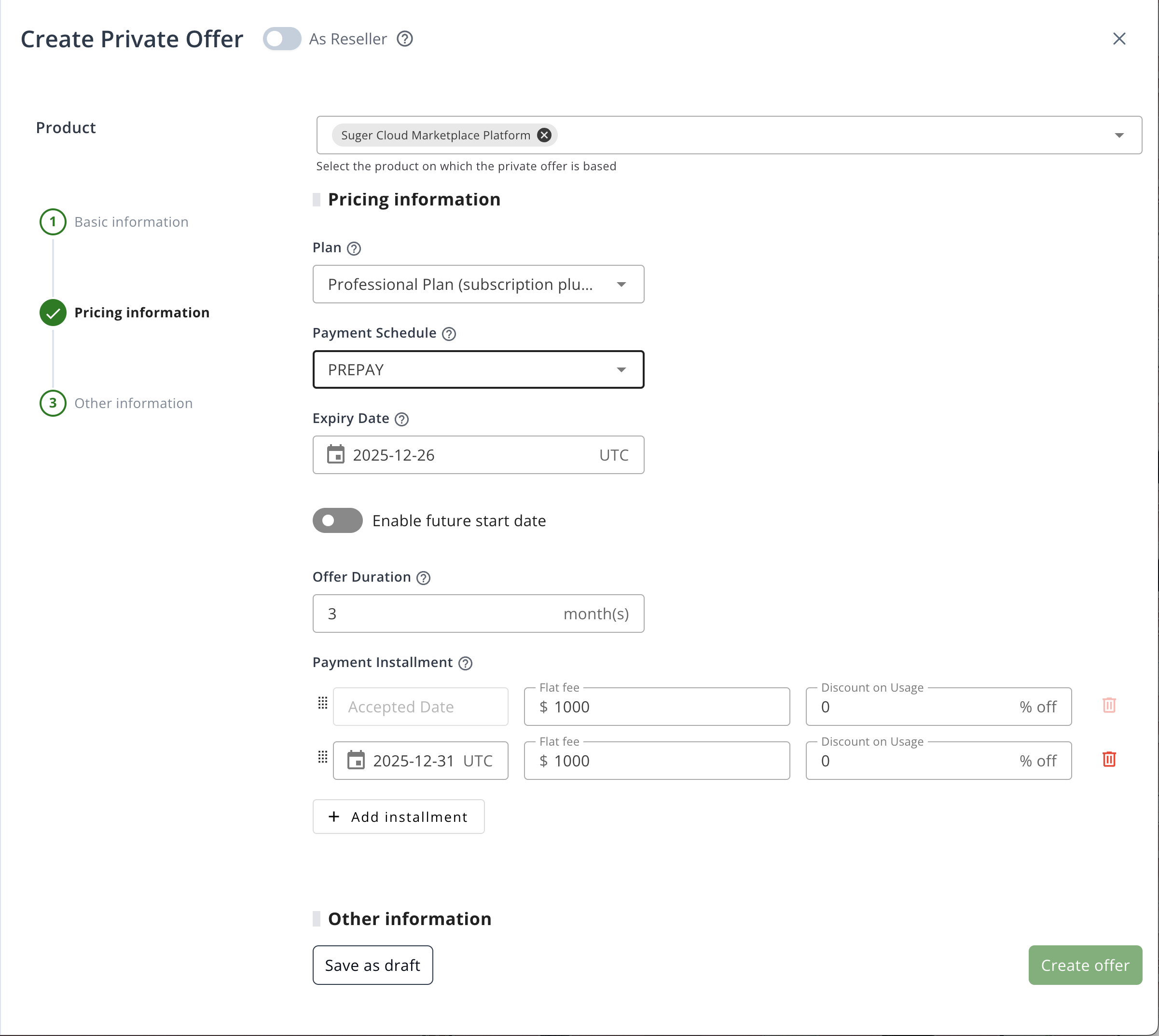
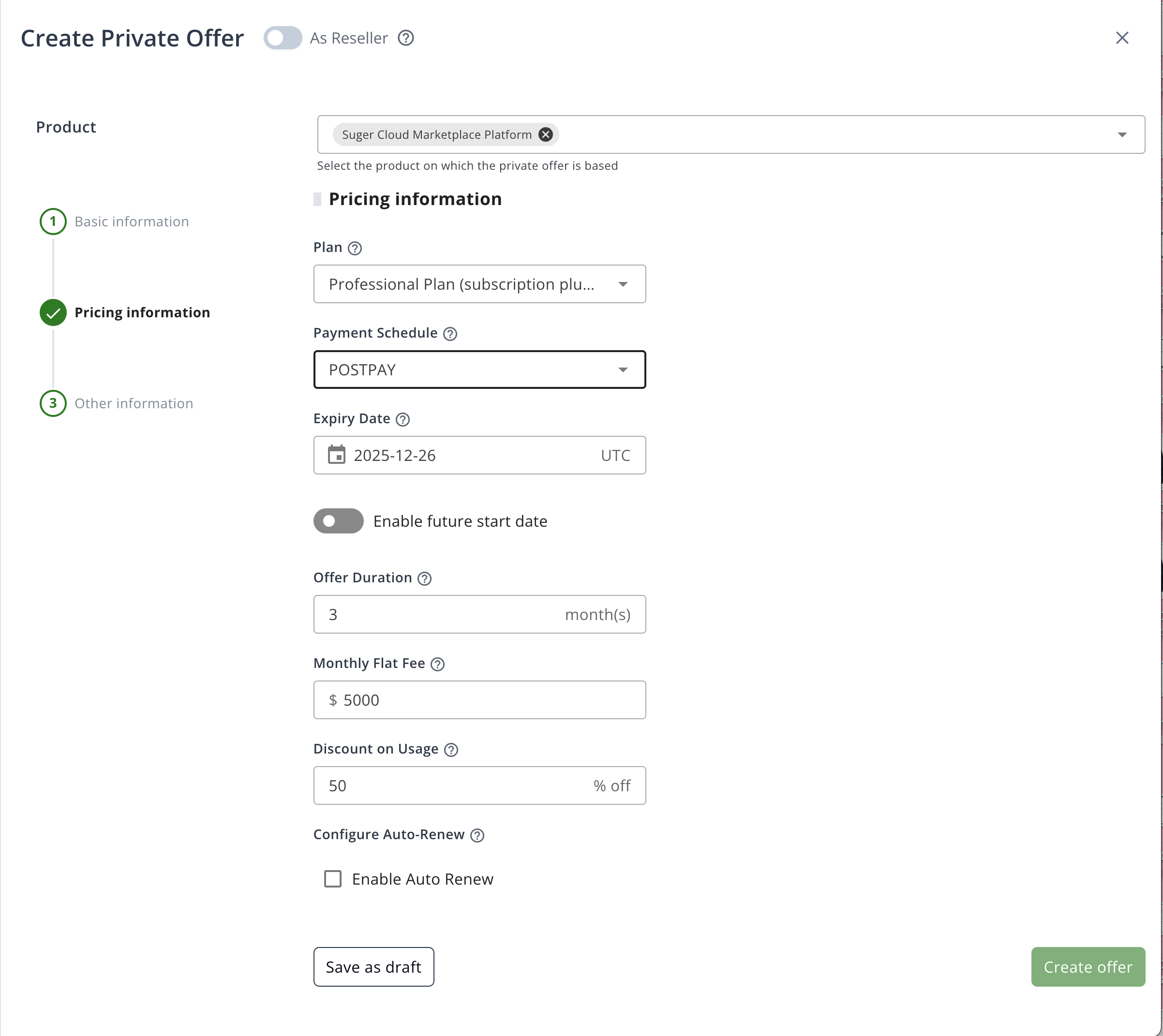
If your customers pay both a flat fee and additional usage charges, use the Flat fee with usage discount model. The flat fee includes a usage allowance; overage can be discounted.
| 💰 Flat fee with usage discount | |
|---|---|
| Prepay | Customize:
 |
| Postpay | Customize:
 |
Metric Discounts Display
When creating a private offer for a plan that includes usage fees, you can view a detailed breakdown of how discounts apply to each usage metric and pricing tier.
How It Works
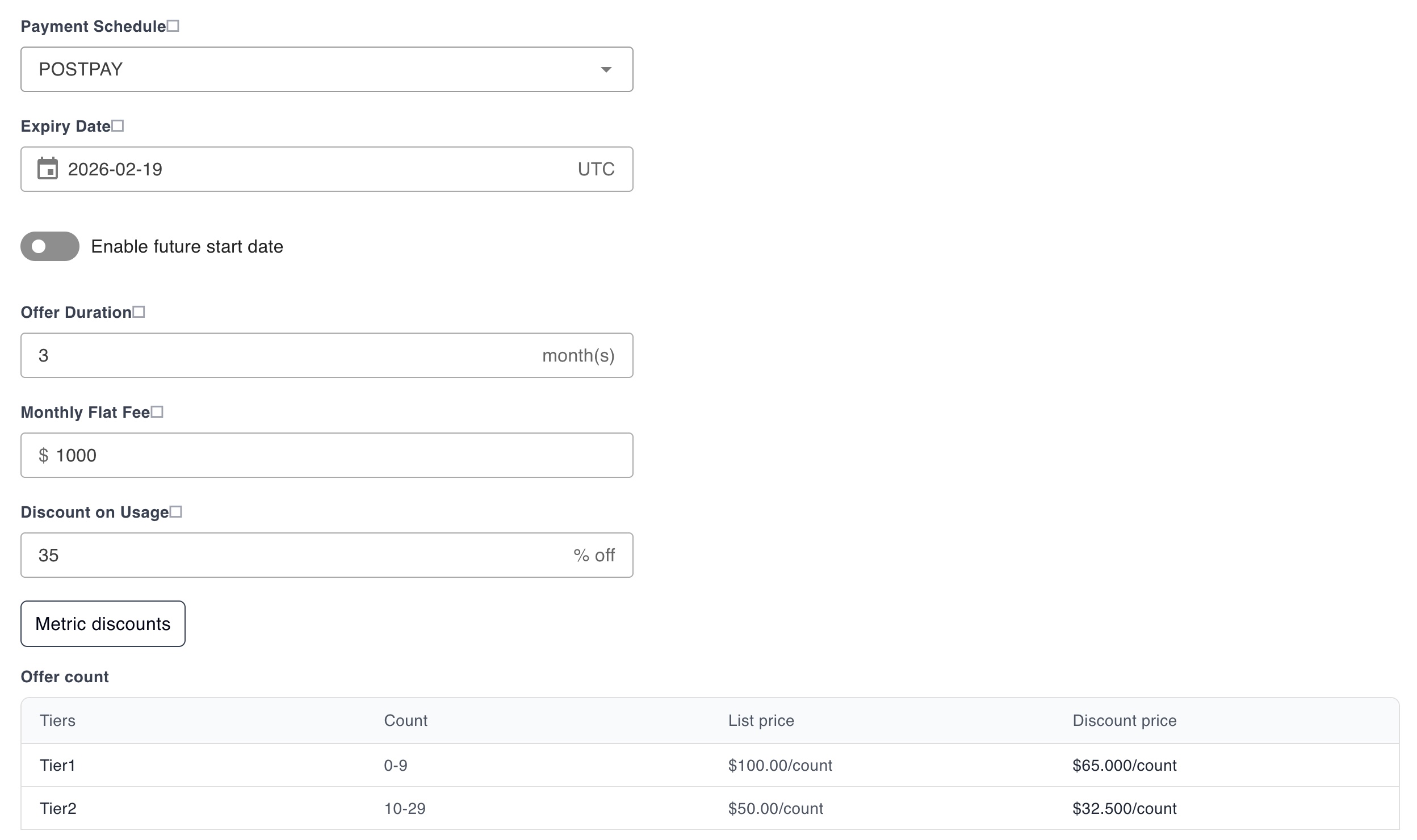
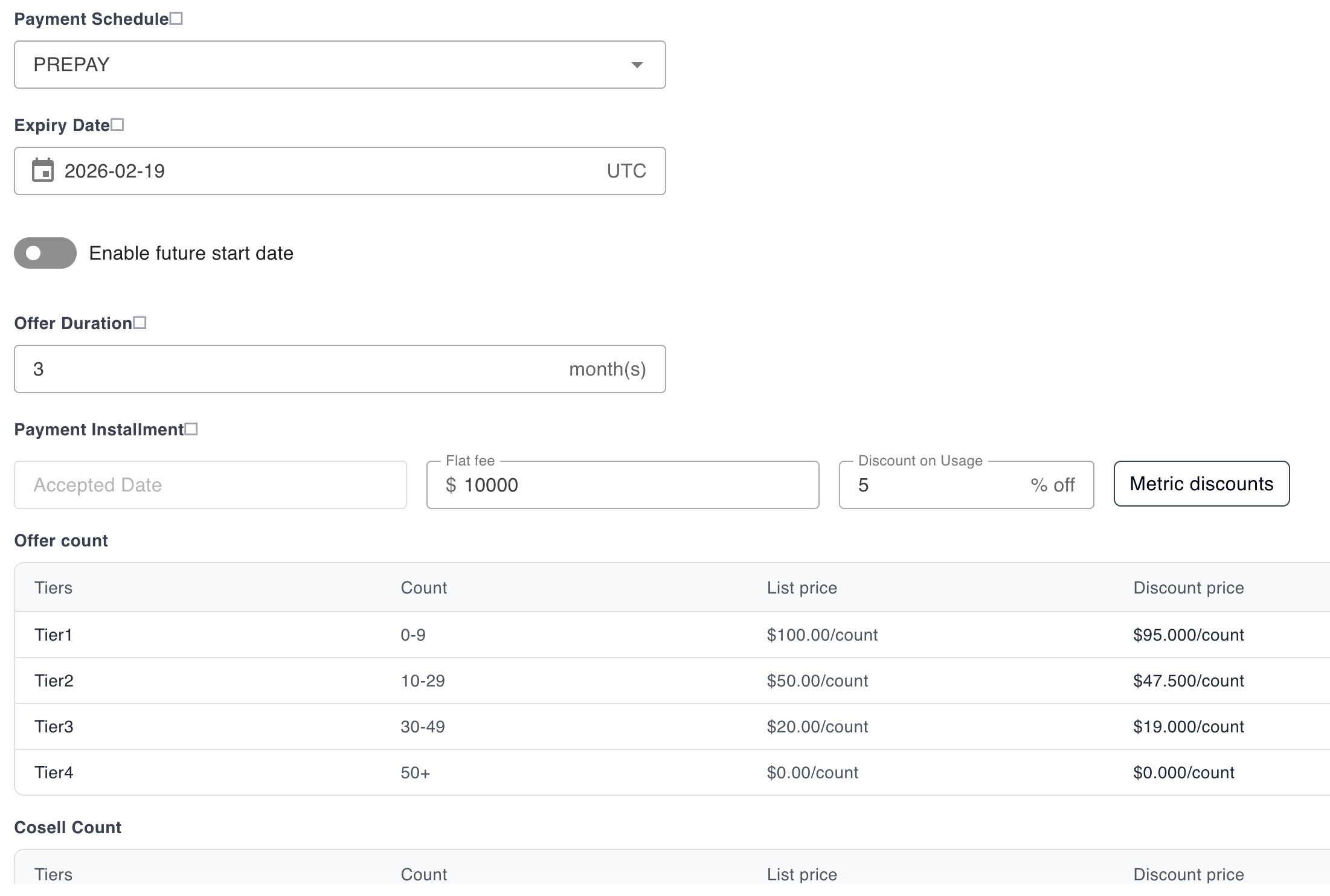
After entering a discount percentage, click the Metric discounts button to expand a detailed pricing table. The table shows, for each usage metric:
- Metric name (e.g., “API Calls”, “Storage GB”)
- Tier information — tier label, count range, list price per unit, and discounted price per unit
Discounted prices are calculated in real time as you adjust the discount percentage.
Postpay: The metric discounts section appears below the discount percentage input.
Prepay: The metric discounts appear per payment installment, since each installment can have a different discount percentage.
Custom Feature List
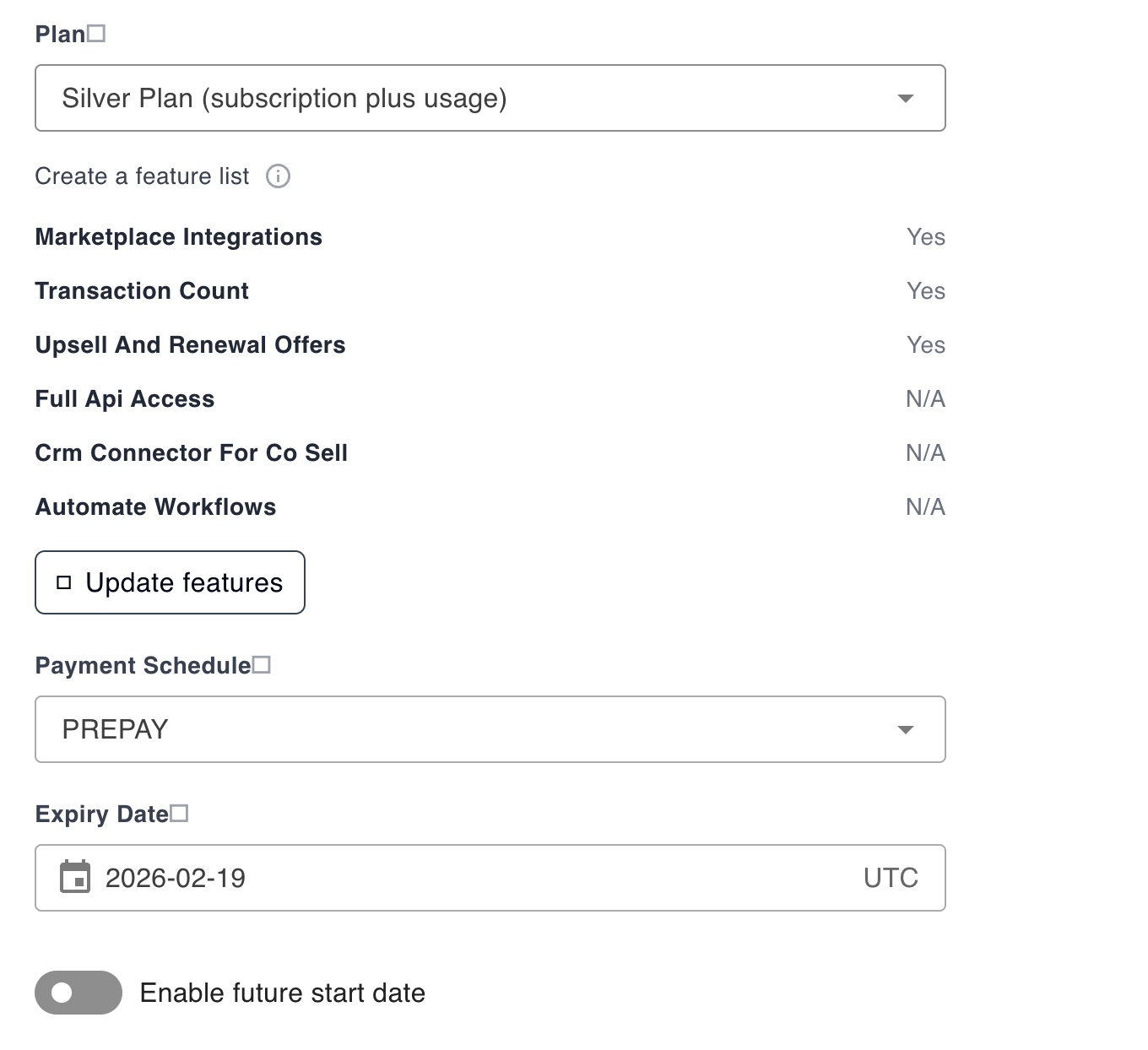
When creating a private offer for a subscription-based plan (Subscription or Subscription + Usage), you can customize the feature list to tailor it for a specific deal — without changing the underlying product plan.
How It Works
- Select a subscription-based pricing plan. The feature list automatically populates with the plan’s default features.
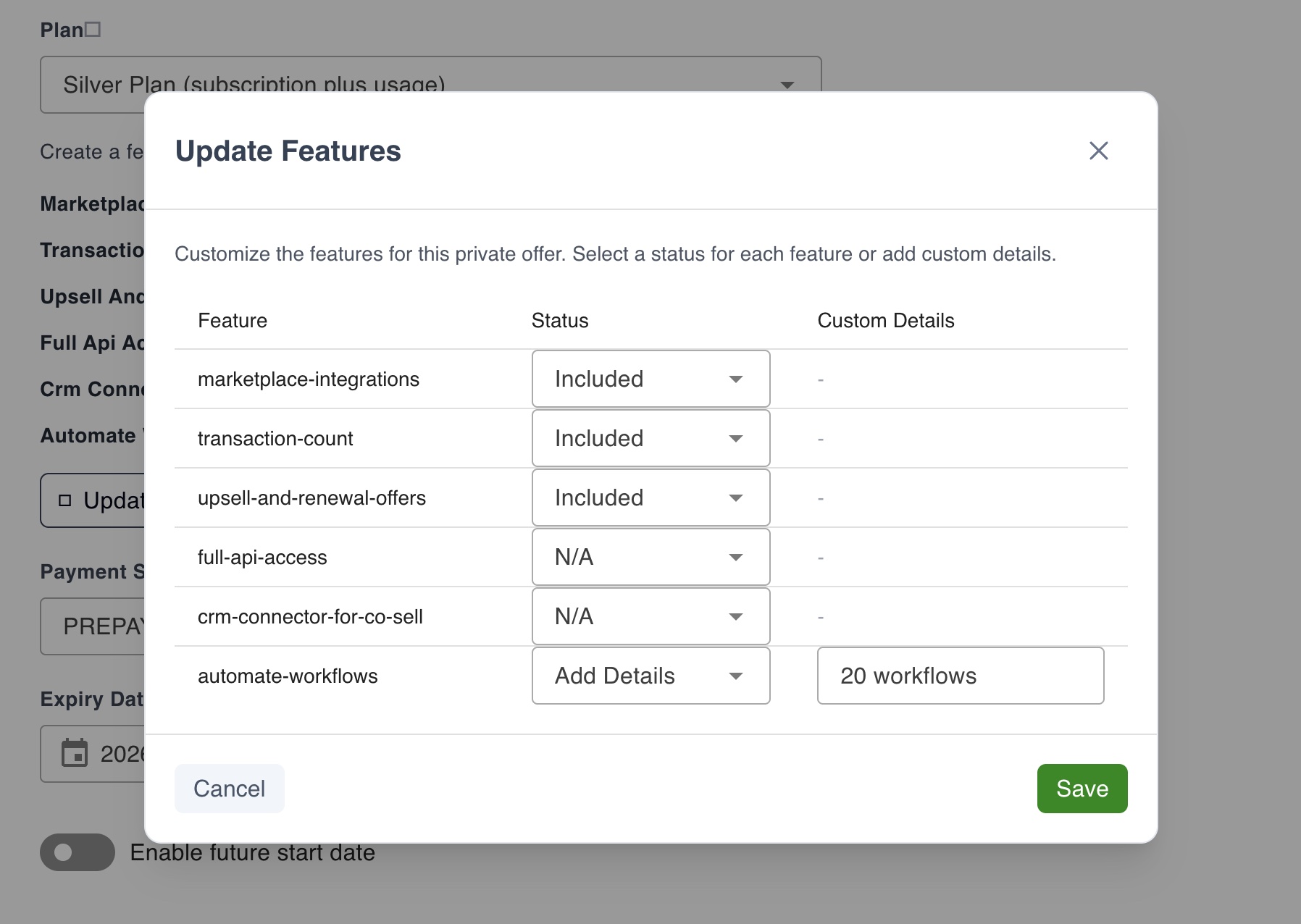
- Click the Update features button to open the edit dialog.
- For each feature, choose a status:
- Included — feature is included in the offer
- Not Included — feature is excluded
- N/A — not applicable
- Add Details — enter custom text (up to 100 characters)
- Click Save to apply your changes. Modified features are marked with a checkmark icon.
Replacement Offer
A replacement offer lets you renew or upsell an active entitlement. Once accepted, the buyer’s entitlement is updated immediately.
Required info:
- Expiry Date: When the new offer ends.
- Start Date: When the new offer begins (can be a future date; defaults to immediate after acceptance).
- Payment Schedule: Prepay or Postpay (can differ from the original offer).
- End User License Agreement (EULA): Select or upload your custom contract.
A co-terming replacement cannot start after the term it co-terms to has ended. When the replacement is set to co-term to the replaced offer, its start date must fall on or before the last live day of that term — Suger rejects a later date and names the latest start date you can use. The check is skipped when the replaced entitlement is already pending cancellation: in that case the replaced term’s dates are all in the past and no start date could satisfy the bound.
When to replace instead of creating a new offer
If you start a new offer for a buyer who already has an active entitlement, Suger no longer blocks you — it asks first. An Active Entitlement Detected dialog names the billing account and suggests that an amendment may be more appropriate:
- Proceed — create the new offer anyway.
- Go back — return to the form so you can build a replacement offer instead.
A replacement offer is usually the right choice when you are renewing or upselling the same buyer, because it updates the existing entitlement rather than leaving two offers side by side.
You can also amend an accepted offer that has no entitlement yet — Suger links the new offer to the live base offer directly, so you don’t have to wait for the entitlement to appear.
Why a replacement offer was refused
Before creating anything, Suger asks Google whether this replacement is allowed and which offer it must replace. If the answer disagrees with what you selected, the offer is refused up front and nothing is created — no half-made offer to clean up.
Each refusal names the specific problem and what to do next:
| What Google said | What to do |
|---|---|
| The marketplace requires this offer to replace a different offer than the one you selected. The message shows both. | Sync GCP offers for this integration, then start the replacement from the customer’s current offer. |
| The offer you selected to be replaced isn’t eligible for this customer. The message lists the offers that are. | Start the replacement from one of the listed offers, or create a new offer alongside the existing ones. |
| The customer’s active order is on public list pricing, so the marketplace requires the public offer to be replaced rather than a private one. | Suger cannot create that offer type yet. Create it in the Google Cloud Marketplace console, or contact Suger support. |
| The customer has no active order for this product, and the marketplace only accepts a replacement when they do. | Create a standard private offer instead. |
| The customer already has an active order, and the marketplace requires a replacement rather than a new offer. The message names their current offer. | Start a replacement offer from this customer’s entitlement. |
| The offer is set to end when the offer it replaces ends, but that offer’s end date isn’t known. | Sync GCP offers for this integration, or set an explicit end date on this offer. |
| Suger couldn’t confirm with the marketplace which offer this one should replace. | Usually temporary — try again shortly. If it persists, contact Suger support. |
| The marketplace did not allow Suger to look up which offer this one should replace. | A configuration problem, not an offer problem; retrying will not help. Ask an administrator to check the GCP integration’s permissions, then submit again. |
| The marketplace could not accept the lookup for this customer. | Usually a missing customer billing account on the offer. Check it, then submit again. |
Suger also refuses a replacement it cannot tie to the offer being replaced, before asking Google anything. The form stops with “Could not determine the offer being replaced. Reload the entitlement and try again.” — reload the entitlement and start the replacement from it again. The create API refuses the same request, so nothing is created.
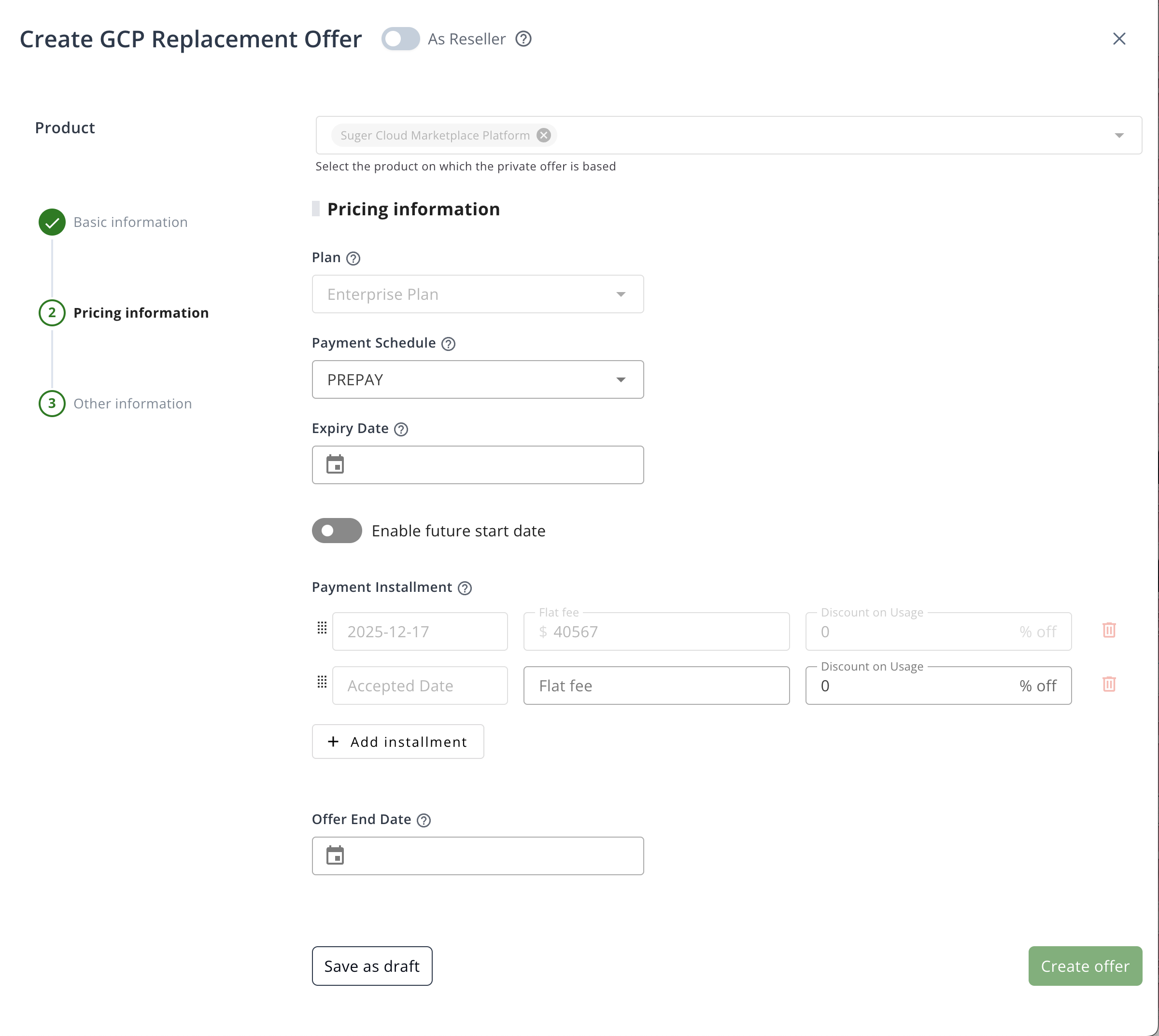
Replacement Offer: Prepay
- Payment Installment: Specify amount, discount, and date for each installment (past installments cannot be changed).
- Offer End Date: Must be set.
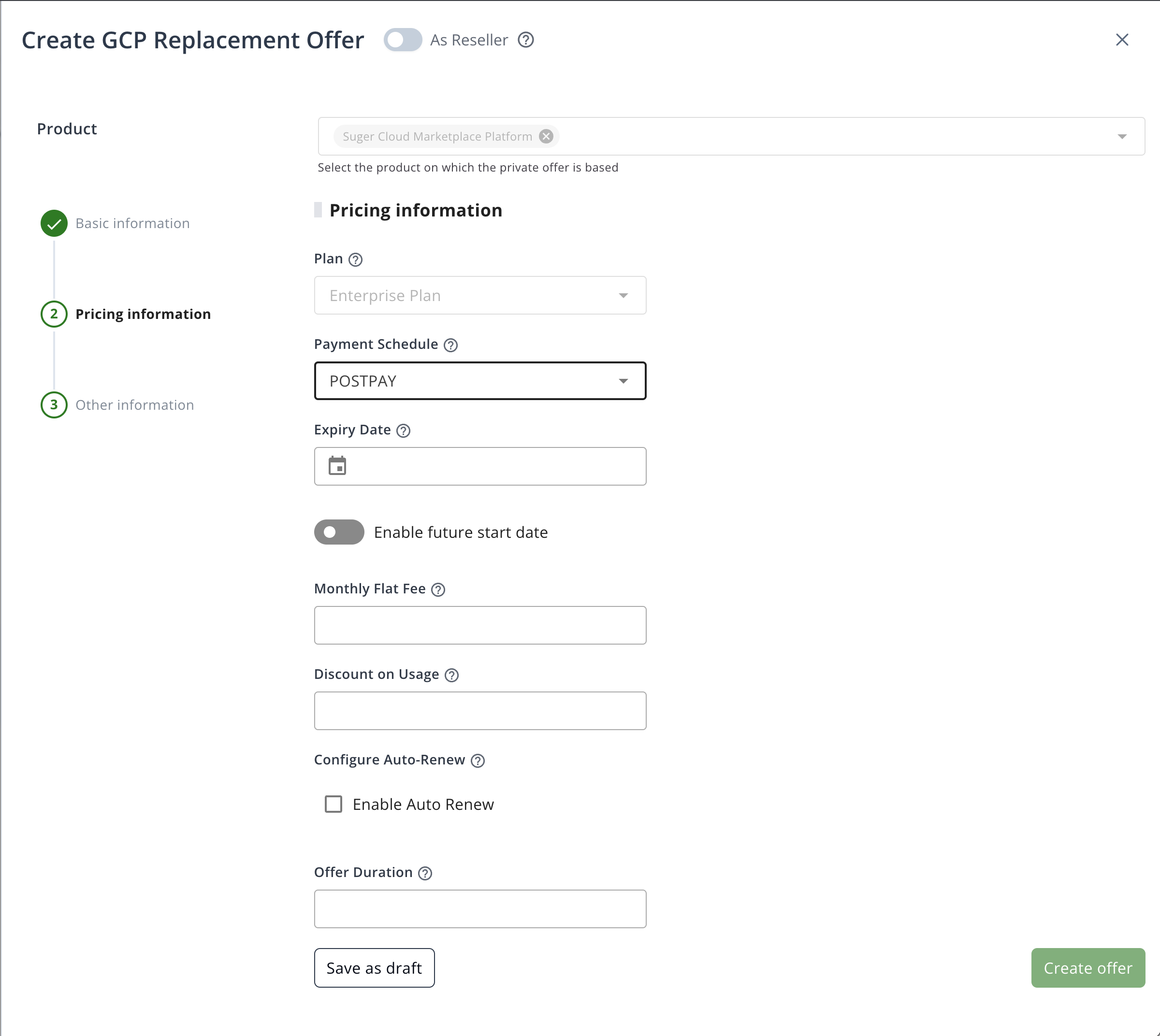
Replacement Offer: Postpay
- Monthly Flat Fee: Set the monthly fee.
- Discount on Usage: Set the usage discount.
- Enable Auto Renew: Optionally enable auto-renewal.
- Offer Duration: Set duration in months.
- Proration: Inherited from the offer being replaced and read-only, because Google does not allow changing it on an amendment. It reads Not set (GCP default) when the original offer has no recorded setting.
Professional Service Offer
Create a private offer for a professional service product, allowing you to tailor pricing, payment schedules, and contract terms for your customer. This section outlines the required information and available payment options.
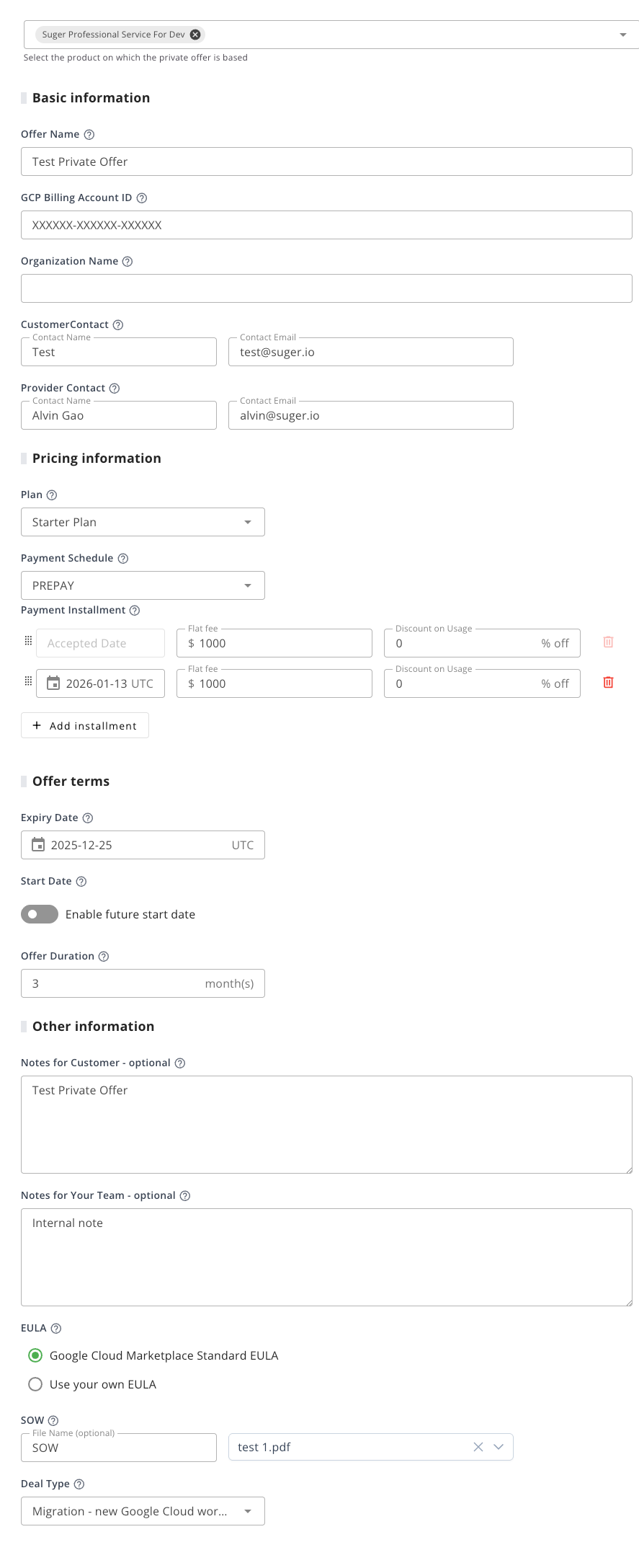
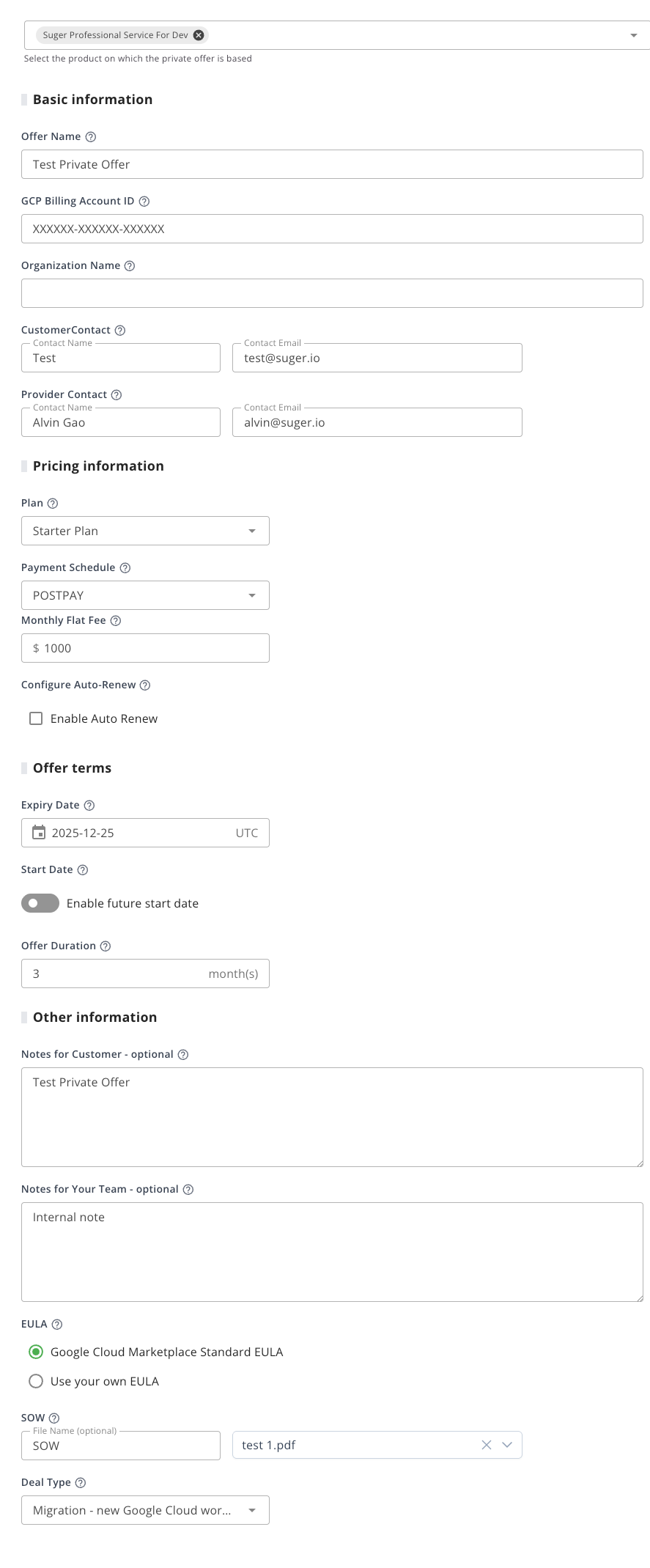
Required information:
- Billing Account ID: Buyer’s billing account
- Organization Name: Buyer’s organization
- Contact: Buyer’s name and email
- Plan: Select the price plan
- Start Date: Specify when the offer begins
- Offer Duration: Specify how long the offer is valid
- SOW (Statement of Work): Attach or reference the SOW agreement
- SOW Name: (Optional) Name for the SOW
- EULA: Select or upload your custom contract
- Deal Type: Specify the deal type
Payment schedule options:
- Prepay: Buyer pays on a custom installment schedule
- Installment schedule: Define payment dates and amounts
- Commit Price: Set the total committed price
- Discount on Usage: Specify any usage-based discounts
- Postpay: Buyer pays monthly after service delivery
- Monthly flat fee: Set the recurring monthly fee
- Discount on Usage: Specify any usage-based discounts
- Enable Auto Renew: Optionally allow the contract to auto-renew
Virtual Machine Offer
Creating a private offer for a VM product enables customized pricing and terms for GCP virtual machines, including Committed Use Discounts.
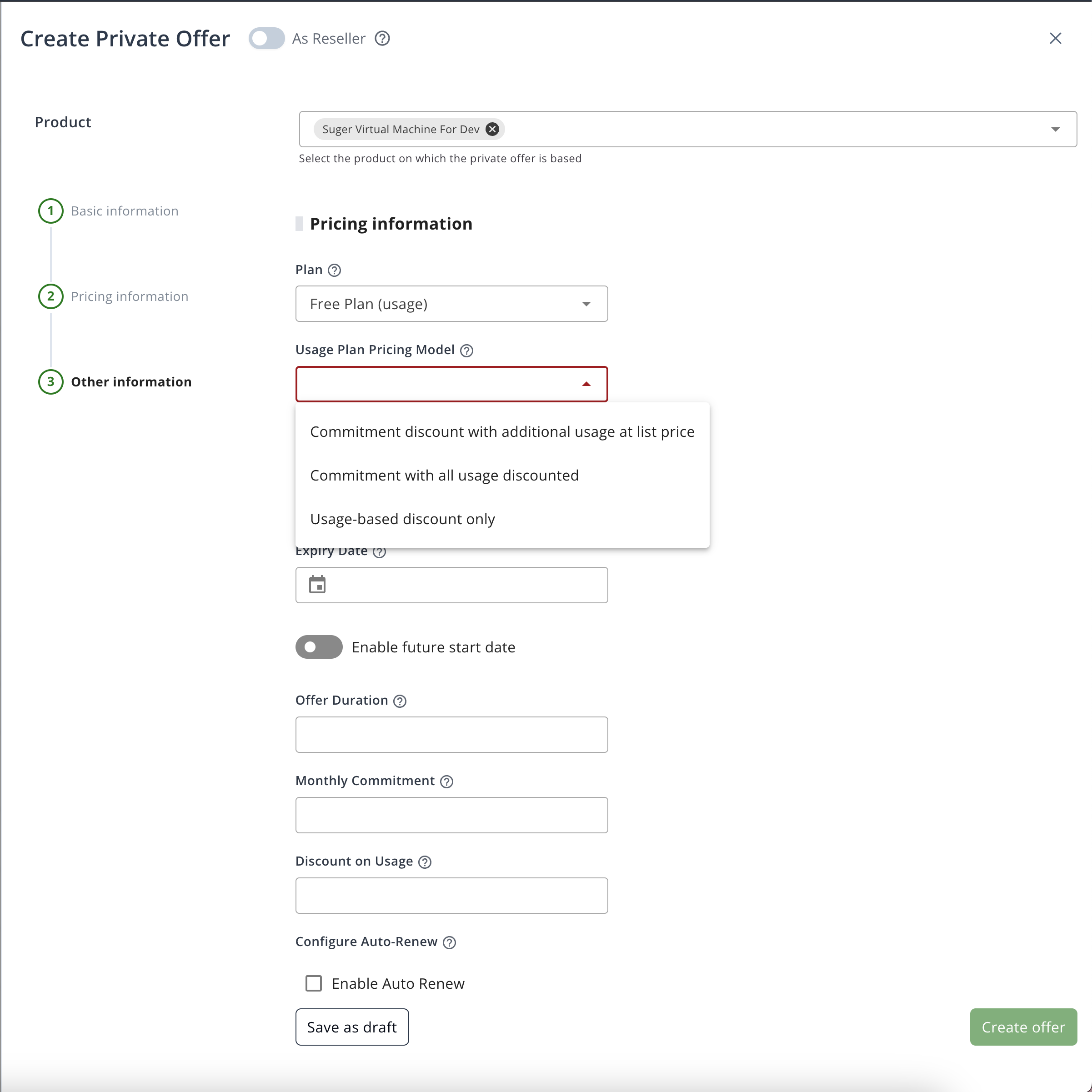
Step 1: Select Plan
- Select the plan for the private offer.
Step 2: Select Pricing Model
- Once the plan is selected, the Pricing Model options will be displayed. These options mirror the standard usage-based models; select the one that aligns with your deal structure.
- Commit discount with additional usage at list price
- Commit with all usage discounted
- Usage discount only
Spotted something wrong or out of date on this page? Tell us and we'll correct it.