
Offer and Entitlement
The Offer & Entitlement module allows buyers to review contractual offers from vendors and manage the entitlements granted after an offer is accepted. Together, these two concepts represent the contractual and usage lifecycle of a purchase within Buyer Service.
Offers
An Offer represents the commercial terms proposed by a vendor for a specific product. Offers are typically sent by vendors after internal approvals are completed or a purchase request has been approved.
Buyers can view all received offers in the Offer list, which includes both pending and accepted offers.

For each offer, buyers can:
- Review offer details, including pricing and contract terms
- View the associated vendor and product information
- Accept the offer directly within Buyer Service
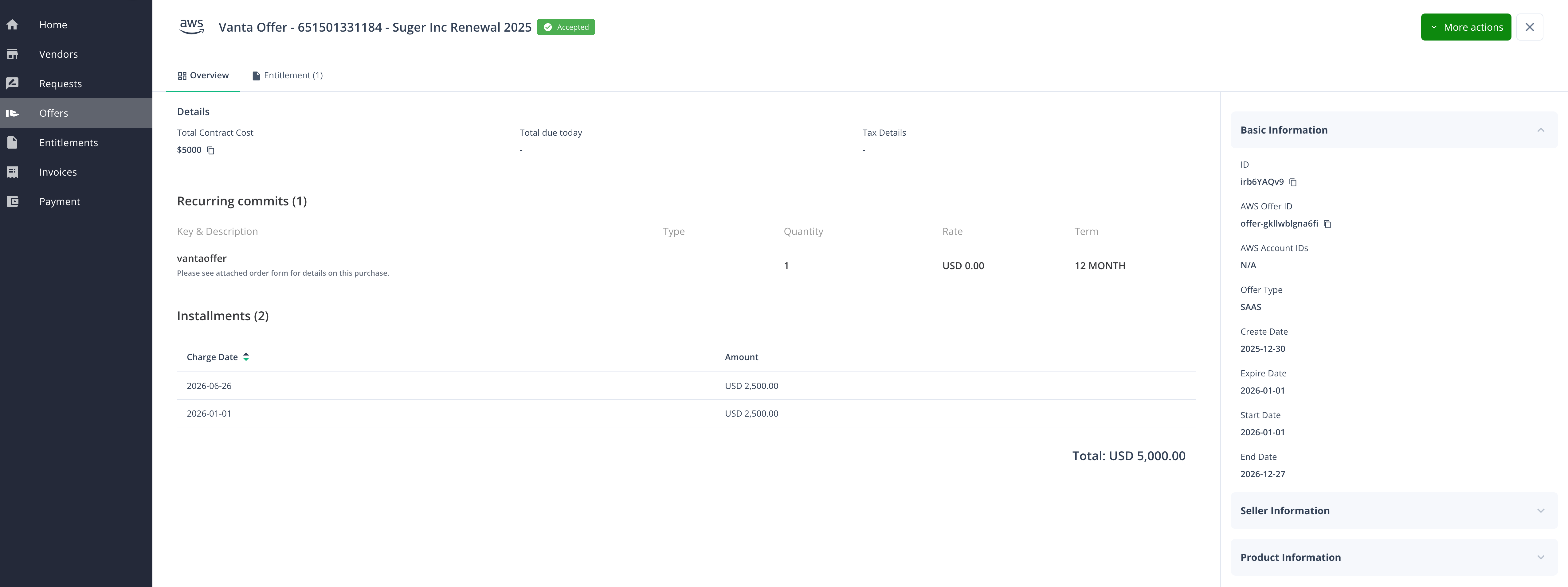
Accepting an offer confirms the agreement between the buyer and the vendor and marks the transition from negotiation to fulfillment.
Only offers in Pending Acceptance or Accept Failed can be accepted. If acceptance fails, the offer detail page shows an Offer Acceptance Failed alert with the reason returned by the marketplace, and the same reason appears as a message when you accept — so you can correct the problem and accept again.
See who accepted an offer
Every offer keeps a history you can open from the offer detail: More actions → History, which opens the Offer History drawer.
A successful acceptance records who requested it — the person who clicked Accept Offer — and the drawer shows them on a By line beside the event. The actor is captured at the moment the offer is claimed, so it stays the person who accepted: a later edit to the offer does not overwrite it, and a retry does not re-credit the acceptance to whoever edited last.
The acceptance actor is shown to your own organization. Vendors viewing the same offer do not see who on the buyer side accepted it.
Accept an offer that needs commit quantities
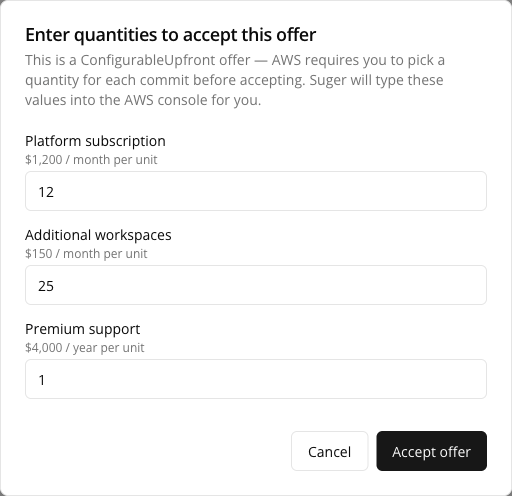
Most offers accept in a single click. One AWS case asks for input first: an AWS SaaS or Contract offer that has commits but no payment installments is a ConfigurableUpfront offer, and AWS requires a quantity for each commit before it can be accepted.
- Open the offer and click Accept Offer. A dialog titled “Enter quantities to accept this offer” opens, explaining: “This is a ConfigurableUpfront offer — AWS requires you to pick a quantity for each commit before accepting. Suger will type these values into the AWS console for you.”
- Enter a quantity in each field. There is one numeric input per commit, labelled with the commit name and — where the offer defines one — a per-unit rate hint.
- Click Accept offer to confirm, or Cancel to close the dialog without accepting.
Entitlements
An Entitlement represents the usage rights granted to the buyer after an offer has been accepted. Entitlements define what products or services the buyer is authorized to use and under what conditions.
Buyers can view all entitlements in the Entitlement list.
- Entitlement details and status
- Associated product and vendor information
- The originating offer that created the entitlement

From the Entitlement detail view, buyers can access:
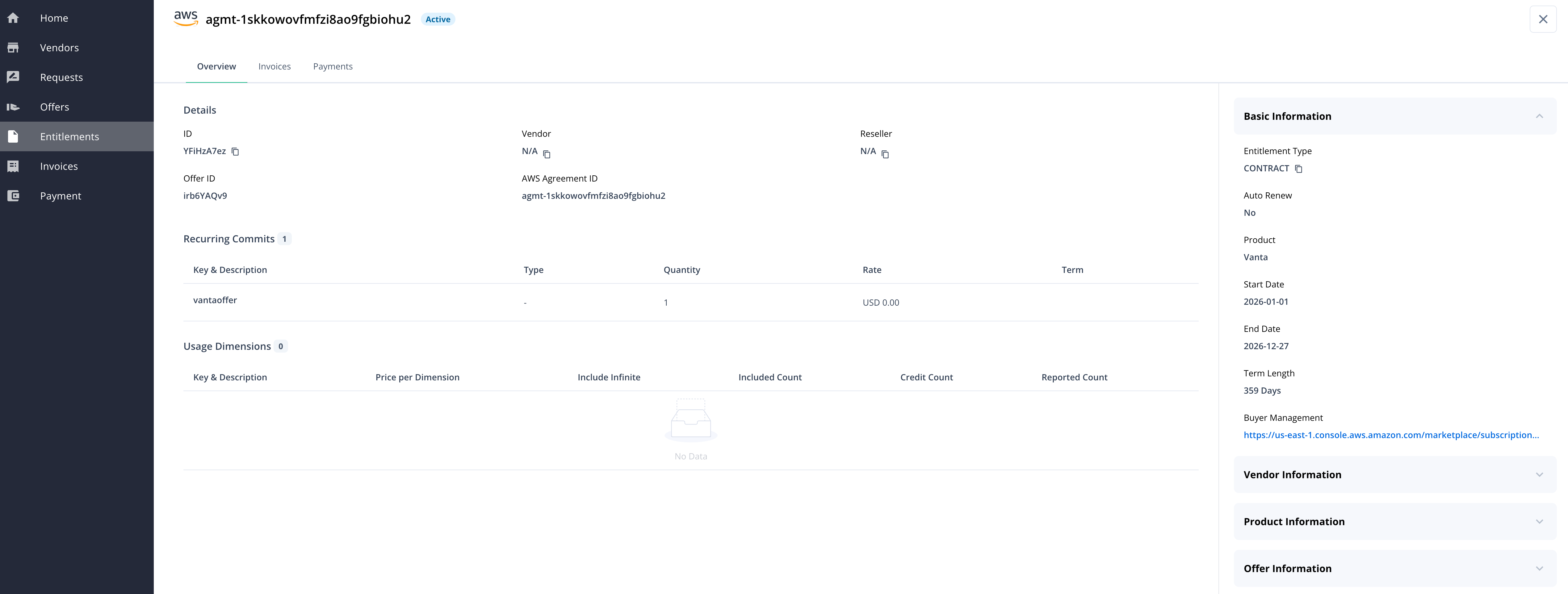
Reading the Recurring Commits table
An entitlement created from an offer with commits shows them under Recurring Commits, one row per commit dimension:
| Column | What it shows |
|---|---|
| Key & Description | The commit dimension’s key, and its description where the offer defines one |
| Type | The commit dimension’s type. Applicable to Microsoft Marketplace only — on an AWS entitlement this reads - |
| Quantity | The quantity granted for that dimension |
| Rate | The price associated with the commit, in the entitlement’s currency |
| Term | The commit’s own term. Blank on an AWS fixed-upfront agreement, which states one term for the agreement rather than per commit — use Term Length on the entitlement instead |
On an AWS fixed-upfront agreement, read the Rate as the charge for the whole term, not a per-unit price. AWS states a single price for a fixed-upfront term and Suger shows that figure as the Rate. Two things follow, both worth knowing before you reconcile a row against an invoice:
- The same figure appears on every row when the term grants more than one dimension. It is the term’s single price shown against each, not a separate charge per dimension — adding the rates together would overstate the term.
- A blank Quantity means an unlimited grant, not missing data. Quantity is the capacity AWS granted. AWS omits it entirely for an unlimited grant, and the cell is then empty rather than showing a number.
Entitlements are created as a result of offer acceptance and serve as the authoritative record of usage rights within Buyer Service.
Spotted something wrong or out of date on this page? Tell us and we'll correct it.