
Sync Dimensions to Private Offers
Add newly-listed usage dimensions to your already-released AWS private offers in bulk, by uploading a reviewed worklist.
Overview
When you add a new usage metering dimension to a product’s public listing, the private offers that were already released keep the dimension set they had when they were created. Buyers on those offers cannot be metered on the new dimension until it is added to their offer.
This tool lets you add one or more missing dimensions to a batch of released private offers at a price you specify — in a single upload — without changing any existing dimension or price on those offers.
Before you start
- Your organization is an AWS Marketplace seller (has a connected AWS integration). If you don’t see the card described below, contact Suger to enable this feature for your account.
- You are signed in to the Suger Console as an admin of the organization.
- You know the target private offer IDs and the dimension keys you want to add.
Where to find it
In the Suger Console, go to Settings → Private Offer tab → the Dimension Sync to Private Offers card.
Step 1 — Download the worklist template
On the card, click Upload worklist, then Download template. The template is a spreadsheet/CSV with the columns below.
| Column | Required | What to put |
|---|---|---|
OfferId | ✅ | The target private offer, e.g. offer-abc123. |
OfferName | Human-readable name. Echoed to the report only. | |
ProductId | ✅ | The product the offer belongs to. It groups the offers for processing and locates the product’s default offer for the list-price fallback. |
ProductName | Human-readable name. Echoed to the report only. | |
MissingDimension | ✅ | The dimension key to add (must be a dimension already registered on the product). |
Price | ✅ | The rate to apply for the dimension. 0 is valid (free dimension). |
% | An audit ratio. Echoed to the report only; it never affects the applied price. |
Step 2 — Fill the worklist
- One header row, values only (no formulas). For
.xlsx, only the first sheet is read; extra columns are ignored. - One row per
(offer, dimension)you want to add. An offer that needs several dimensions gets one row per dimension — they are added together in a single update to that offer. - Get the
Pricefrom the dimension’s list price on the product’s public listing (see Pricing Model).
Example worklist — offer-abc123 gets two dimensions in one update; offer-def456 gets one:
| OfferId | OfferName | ProductId | ProductName | MissingDimension | Price | % |
|---|---|---|---|---|---|---|
| offer-abc123 | Acme Annual | prod-xyz789 | Acme Platform | gpu_hours | 2.50 | 100 |
| offer-abc123 | Acme Annual | prod-xyz789 | Acme Platform | storage_gb | 0.10 | 100 |
| offer-def456 | Beta Co 2-yr | prod-xyz789 | Acme Platform | gpu_hours | 2.50 | 80 |
Step 3 — Upload
Click Upload worklist, drag in (or browse to) your .xlsx or .csv, then Upload.
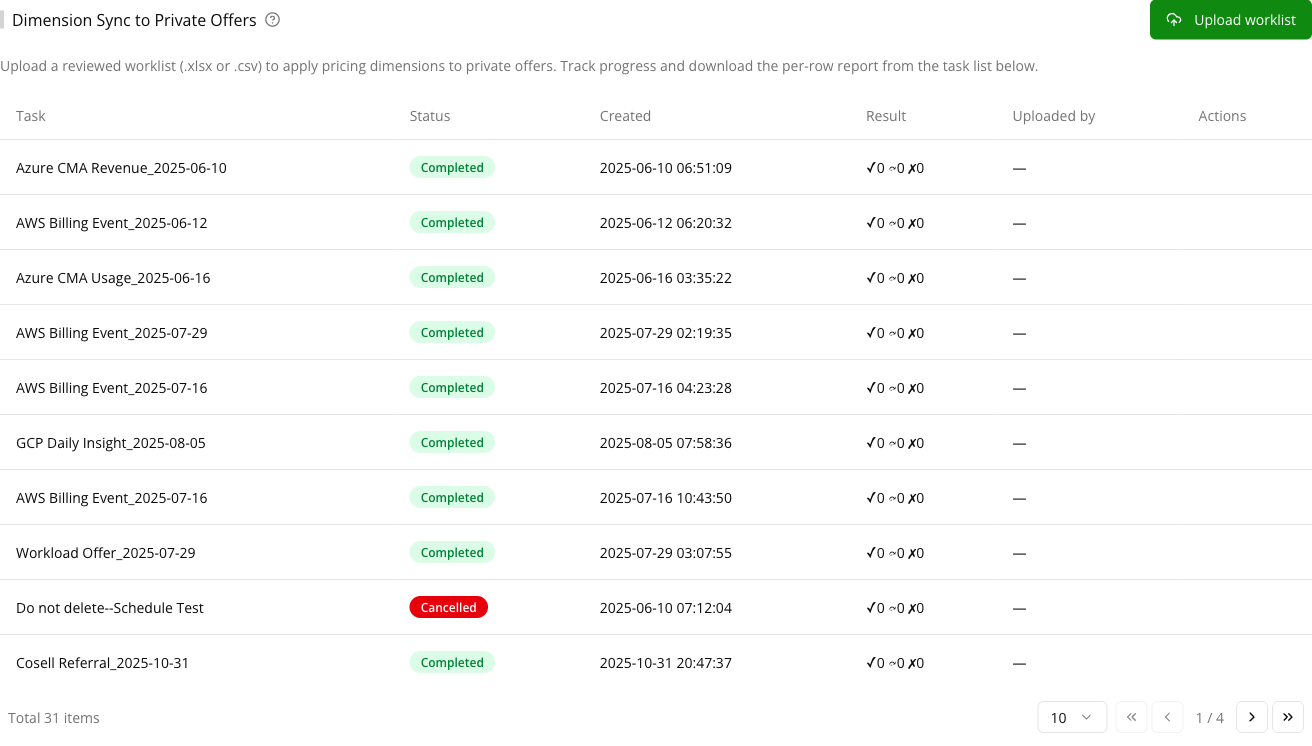
On success you see “Accepted — applying in the background”, and a new row appears in the task table on the card.
Step 4 — Track progress
The task table lists every upload, newest first, and refreshes on its own while a task runs.
| Status | Meaning |
|---|---|
| Running | The worklist is being applied. The result shows processed / total offers. |
| Completed | All offers processed. The result shows ✓ applied ⤼ skipped ✗ failed (counted by offer). |
| Cancelled | You cancelled the task. Offers processed before cancellation keep their outcomes. |
| Failed | The task could not complete. Any offers processed are still reported. |
You can Cancel a running task. After you cancel, no new offers are submitted; offers already submitted finish and are recorded.
Step 5 — Download the report
For any finished task, click Report. The report echoes every input row plus a Status and a Reason, so every row is accounted for:
Row Status | When | Typical Reason |
|---|---|---|
applied | The dimension was added to the offer. | (empty) |
skipped | Nothing to do for this row. | dimension already present, offer expired / not updatable, duplicate row |
failed | The row could not be applied. | invalid or missing price, dimension not registered on product, offer listed under a different product, AWS: <error> |
For the sample worklist above, the report might read:
| OfferId | MissingDimension | Price | Status | Reason |
|---|---|---|---|---|
| offer-abc123 | gpu_hours | 2.50 | applied | |
| offer-abc123 | storage_gb | 0.10 | skipped | dimension already present |
| offer-def456 | gpu_hours | 2.50 | failed | offer expired / not updatable |
How it behaves
- Existing dimensions and prices are never changed. Only the missing dimensions you list are added.
- Per offer, one update. All of an offer’s requested dimensions are added together, so an offer is updated at most once per upload.
- Expired or non-updatable offers are skipped, not failed. An offer whose acceptance window has passed with no active agreement cannot be updated by AWS; it is reported as
skipped. - Safe to re-run. If you upload the same worklist again, dimensions already on an offer are
skipped— re-uploading applies no duplicate changes. - Unregistered dimensions fail that row only. A dimension that is not registered on the product is reported
failedfor that row; the offer’s other valid rows still apply.
FAQ
Does this change the prices of dimensions already on the offer?
No. Existing dimensions and their prices are left exactly as they are. Only the missing dimensions you list are added, at the price you set.
I re-uploaded the same file — will it double-apply?
No. Dimensions already present on an offer are reported as skipped, so a re-run makes no additional changes.
Why was my offer reported as “expired / not updatable”?
AWS does not allow updating a private offer whose acceptance window has passed when there is no active agreement behind it. Those offers are skipped rather than failed.
What is the % column for?
It is carried through to the report for your own audit only. It has no effect on the price that is applied.
Spotted something wrong or out of date on this page? Tell us and we'll correct it.