

Add Portal Users
Give your teammates access to the Partner Portal: automatically through single sign-on, by letting them join on their own, or by adding them yourself.
Overview
Your teammates can get into the Partner Portal three ways: automatically through single sign-on (SSO), by asking to join your partner organization, or by being added by you. Which one applies depends on whether your company’s email domain is already connected to Fours.
Sign in with single sign-on (SSO)
If your teammate’s email matches your company’s domain, they can sign in to the Partner Portal directly using your company’s single sign-on (SSO). Fours recognizes the domain automatically, so no invite is required.
Let teammates join on their own
A teammate who signs up to Fours with an address on your company’s email domain, and isn’t in any organization yet, is taken to Join an Organization. It lists the Fours organizations on their email domain, including yours.
- Next to your organization, the teammate clicks Join.
- They choose a Requested Role — Viewer, Editor, or Admin — and write a short Message, between 10 and 1,000 characters.
- They click Submit Request.
Because yours is a partner organization, nobody normally has to approve the request. Fours adds the teammate straight away, tells them “You have joined the organization.”, and Go to Home takes them in. Fours also emails them that the request was approved.
If Fours can’t add them automatically, the request stays Pending instead and waits like any other join request: the teammate is told their request was submitted, and your organization’s Admins are emailed to approve it under Users & Roles.
- A request for Admin is approved automatically as Editor. Nobody reviews an automatic approval, so an address on your domain can’t be used to give someone user management. A request that stays Pending is reviewed by an Admin, who chooses the role to grant.
- Nobody on your side is notified when a request is approved automatically. Check Users & Roles to see who has joined.
- Only partner organizations work this way. A request to join a seller organization, including one that is also someone’s partner, waits for an admin there to approve it — see Review Join Requests.
Add a teammate yourself
-
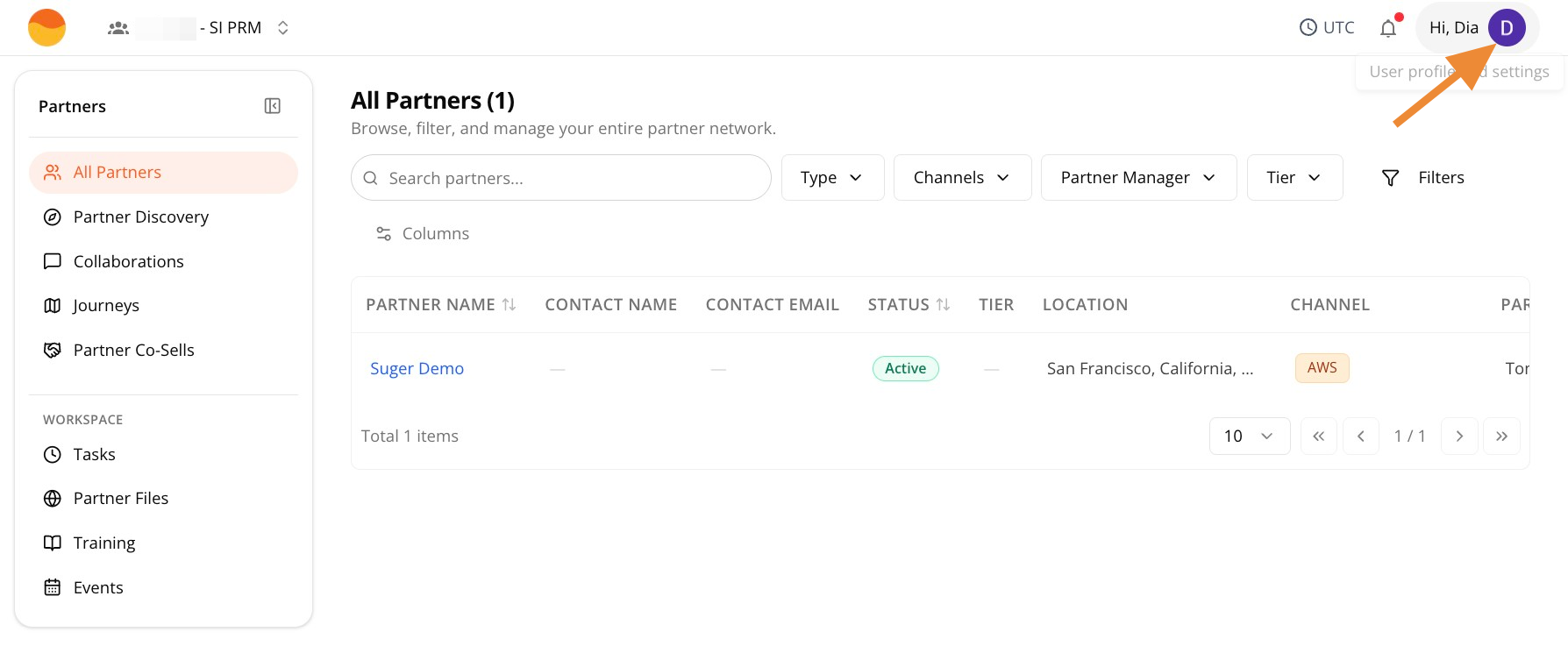
Go to Partner Portal, then click your profile icon in the top-right corner.
-
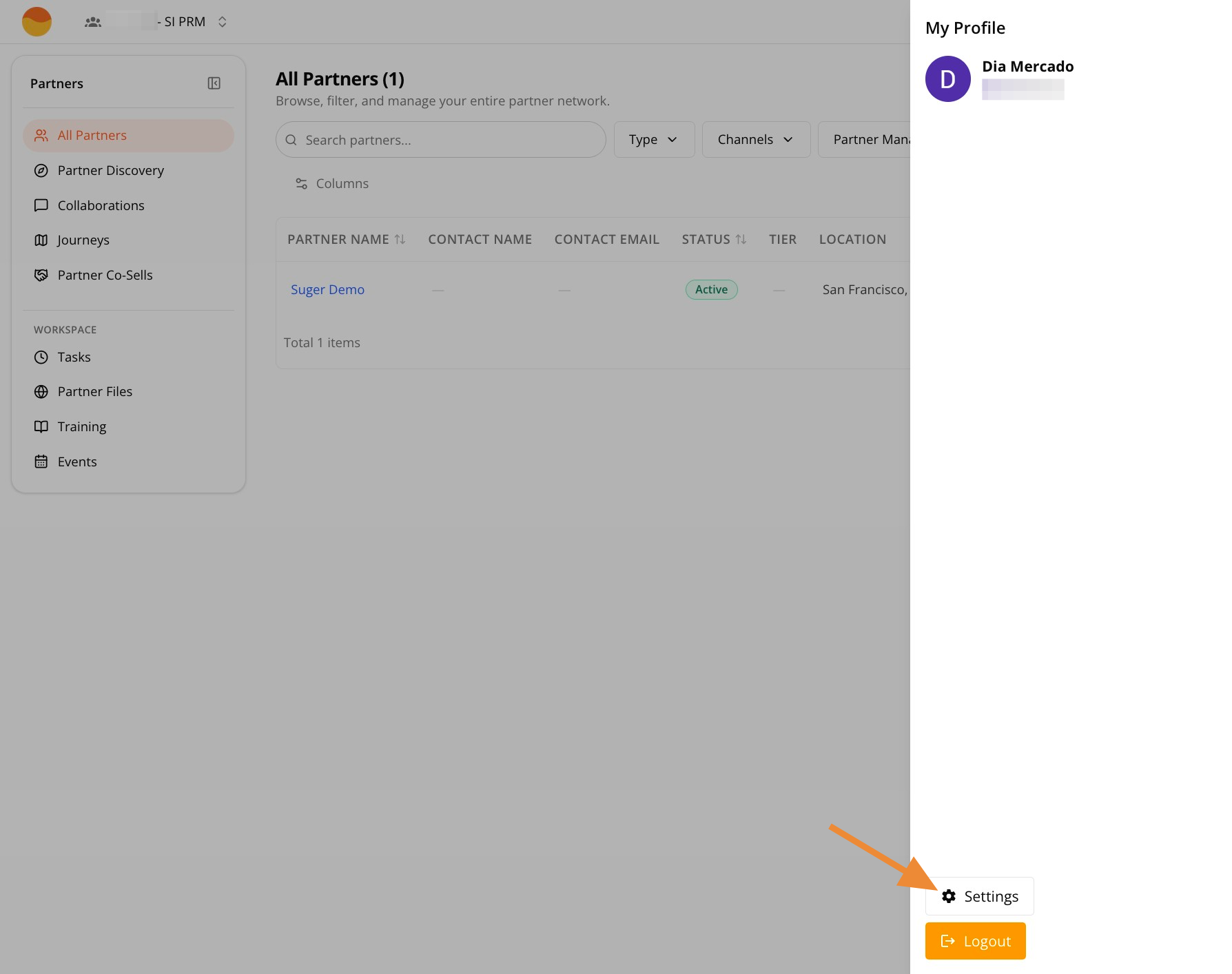
Click Settings.
-
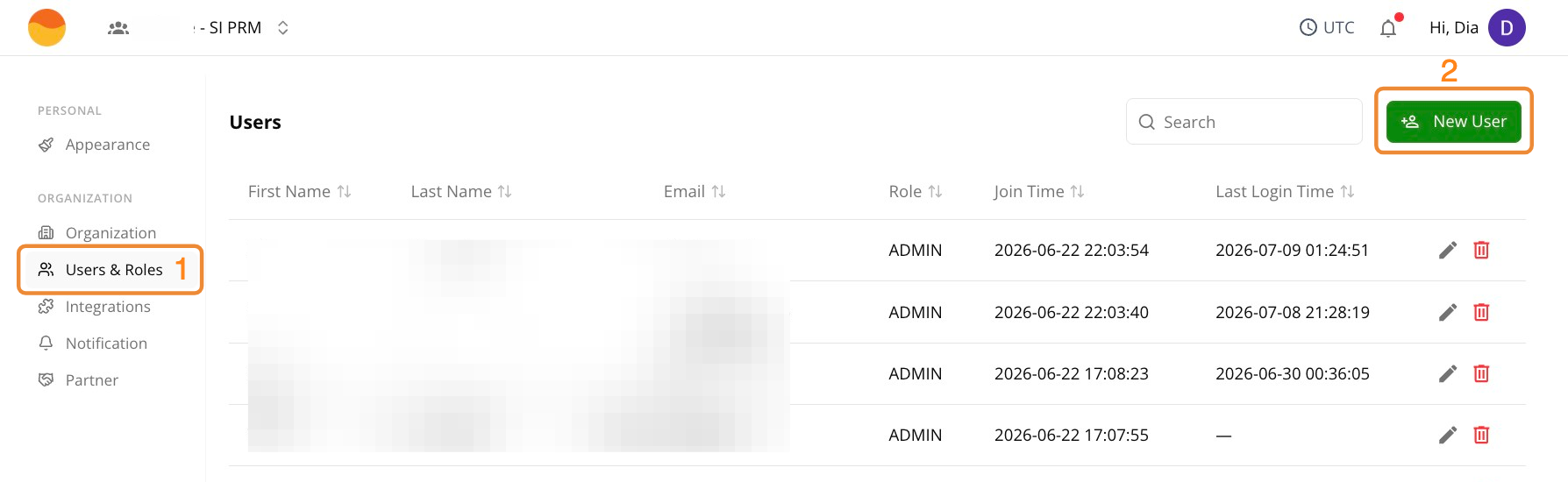
Go to Users & Roles, then click + New User.
-
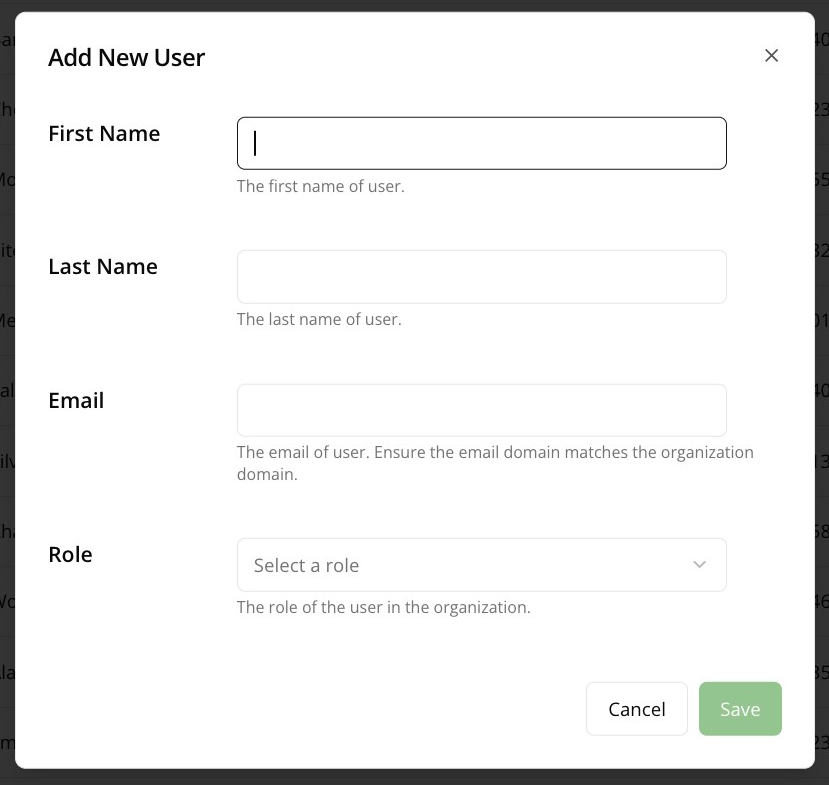
Enter your teammate’s First Name, Last Name, and Email — an address on your company’s email domain — then pick their Role.
-
Click Save.
For more details on user role types, see Manage Users and Roles.
Spotted something wrong or out of date on this page? Tell us and we'll correct it.