
Status & Stage
Co-Sell Referral Status & Stage Guide
Managing referrals across different cloud marketplaces can be complex because AWS, Azure, and GCP all use different terminology for their statuses and stages.
Suger unifies these into a single, standardized Suger Status to help you track your deals easily without needing to memorize specific definitions for every cloud provider.
This guide explains what each Suger status means and how it maps to the specific status or stage in AWS, Azure, and Google Cloud.
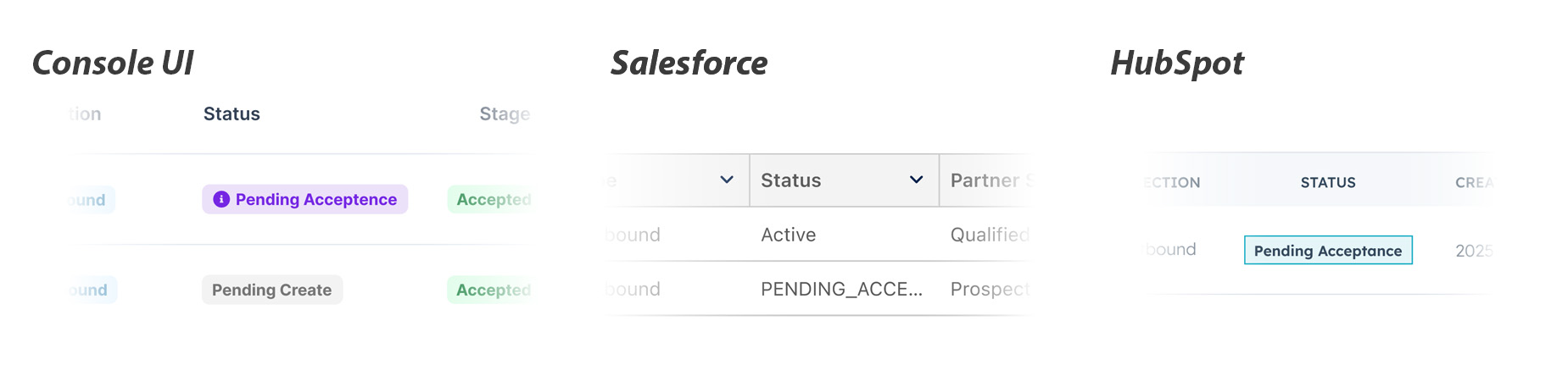
Status Overview & Mappings
The table below shows the correspondence between the unified Suger Status and the native Partner Status/Stage.
| Suger Status | Explanation | AWS Mapping | Azure Mapping | GCP Mapping |
|---|---|---|---|---|
| Draft | The referral is saved as a draft in Suger and has not been submitted to the cloud partner yet. | (Not yet synced) | (Not yet synced) | (Not yet synced) |
| Pending Create | The referral is currently being processed by Suger and will be created on the partner portal shortly. | Pending Create | (N/A) | (N/A) |
| Create Failed | The submission failed. You can hover over the status icon to see the specific error message. | (Error) | (Error) | (Error) |
| Update Failed | A later update to an existing referral failed to reach the cloud partner. The referral still exists — hover over the status icon to see the specific error message. | (Error) | (Error) | (Error) |
| In Review | Successfully submitted. Waiting for the cloud partner to review. | Status: Submitted, In Review | SubStatus: Pending (Outbound) | State: SUBMITTED |
| Pending Acceptance | Action Required: You received an inbound referral. Please accept or decline it to proceed. | Status: Received (Engagement Invitation) | SubStatus: Received (Inbound) | (N/A) |
| Action Required | Action Required: The cloud partner requires updates. Please modify the referral based on feedback and submit again. | Status: Action Required | (N/A) | (N/A) |
| Rejected | The referral was rejected by the cloud partner. | Status: Rejected | SubStatus: Declined | State: NOT_ACCEPTED |
| Expired | The referral expired because it was not approved or rejected within the time limit. | Status: Expired | Status: Expired | (N/A) |
| Active | The referral is active. It has been accepted by the cloud partner or created as a self-led referral. | Status: Approved | Status: Active & SubStatus: Accepted | State: ACCEPTED |
| Closed Won | The referral has been successfully closed as Won. | Stage: Launched | SubStatus: Won | Stage: MIGRATION_IMPL |
| Closed Lost | The referral has been closed as Lost. | Stage: Closed Lost | SubStatus: Lost | Stage: CLOSED_LOST |
| Closed Error | The referral was closed by the cloud partner due to a validation or system error. | (N/A) | SubStatus: Error | Stage: CLOSED_ADMIN |
Azure-only Columns
Two extra columns appear on the Azure tab of the referral list. They are shown by default, and they are removed automatically when you switch to a non-Azure tab — AWS and GCP have no equivalent, so there is nothing to show.
Microsoft Status
Microsoft Status is Microsoft’s own copy of the referral state, shown next to the unified Suger Status. Use it when you need to reconcile against what Partner Center displays rather than what Suger has normalized.
Microsoft expresses the state as a Status plus a Substatus:
| Part | Values |
|---|---|
| Status | New · Active · Closed · None |
| Substatus | None · Pending · Received · Accepted · Won · Lost · Declined · Expired · Error |
The pair is what carries the meaning — for example, Active + Accepted is a referral
Microsoft has taken on, while Closed + Won is a referral Microsoft considers won. The
Suger Status column above collapses these pairs into a single value.
Co-sell Type
Co-sell Type records how the deal is being run with Microsoft:
| Value | Meaning |
|---|---|
| Co-sell | Both you and Microsoft are actively working the deal together. |
| Partner-led | You lead the deal; Microsoft has visibility but is not selling alongside you. |
| Private | The referral is kept private to your organization. |
Understanding Key Features
1. Unified View
Instead of juggling AWS “Stages,” Azure “Sub-statuses,” and GCP “States,” you can rely on the Suger Status column to know exactly where a deal stands in the lifecycle.
Each status carries an in-product tooltip. Hover the status on any referral to read the same explanation the table above gives, without leaving the list.
2. Error Troubleshooting
If a referral enters the Create Failed or Update Failed state:
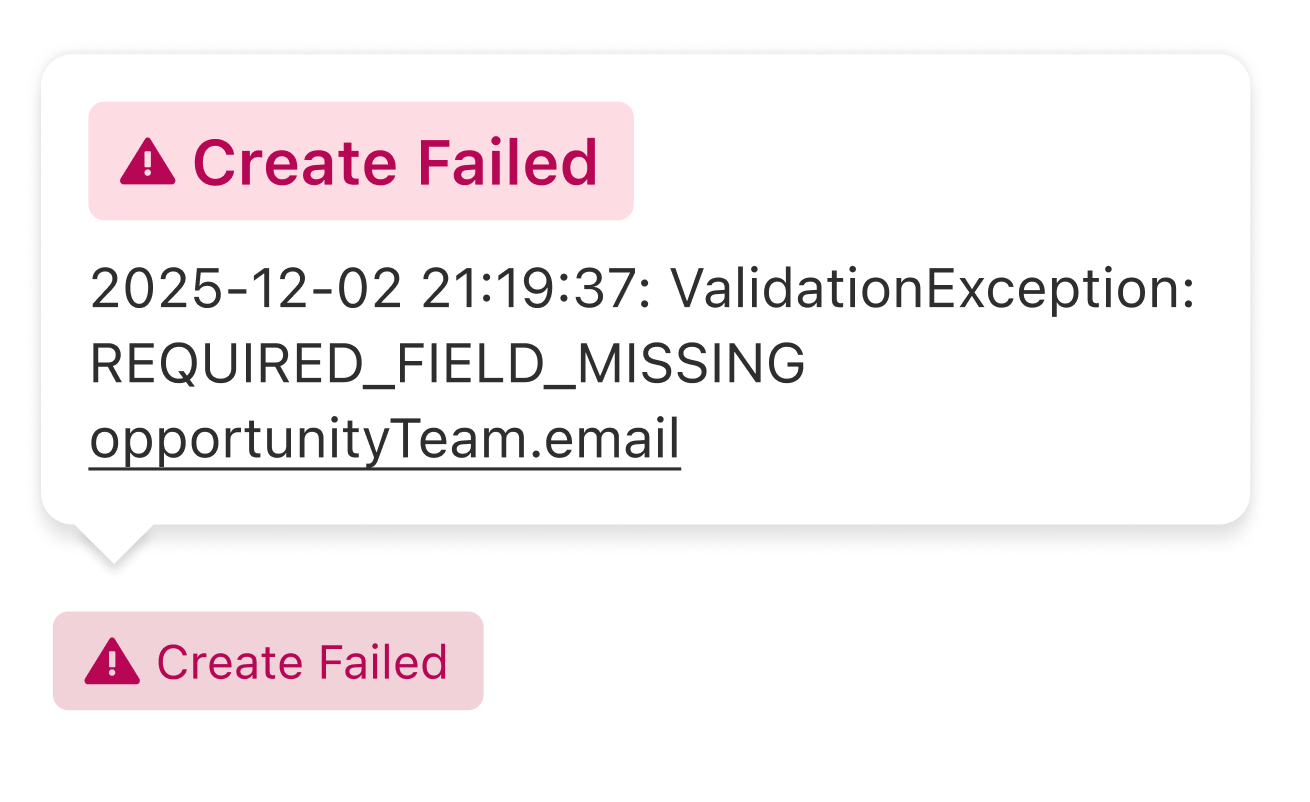
Hover: You can hover your mouse over the status in the list view to see a card containing the specific error message explaining why it failed.
Detail Page: The error message is also visible directly on the referral detail page.
Failures that don’t change the status
Not every failure shows up as Create Failed or Update Failed. Some leave the referral’s status exactly as it was (Active, for example) and put a red ! on the status tag instead:
- Hover the tag. Instead of the usual status explanation, the hover card shows the reason, under an Update Failed label.
- Open the referral. On an AWS, Azure, or GCP referral, a banner at the top of the detail
page reads
Update Failed: <reason>. - Find every affected referral. With AWS, Azure, or GCP selected in the referral list, add
the filter Update Status =
FAILED.
The mark clears on its own the next time the same action succeeds, so there is nothing to dismiss.
Situations that produce the mark include:
| What failed | The reason shown | What to do |
|---|---|---|
| A CRM change failed Suger’s AWS update check, so it never reached AWS | Starts with CRM sync rejected: | See Referral Syncing → Troubleshooting |
| Accepting or declining an AWS engagement invitation | The error AWS returned | See Inbound Referral |
| A CRM stage mapped to Won could not close a Suger co-sell | What blocked the close | See CRM Closed Won didn’t close the co-sell below |
Cross Cloud Conflict
Not every blocked change shows up as a failure. If you enabled the Prevent duplicate Closed Won validation rule, Suger checks — before moving a referral into the guarded stage — whether the same CRM opportunity has already transacted in a different cloud. When it has, the stage change is skipped rather than rejected: nothing is saved, nothing is pushed to the partner, and no error is returned.
Because that skip is silent, the referral detail page raises a dismissible yellow Cross Cloud Conflict alert instead. It tells you:
- which automatic action was skipped, and the stage it would have moved to;
- which cloud the deal appears to have already transacted in;
- the CRM record value that matched, and a link to the conflicting offer.
What to do: open the linked offer and confirm which cloud the deal genuinely closed in. If this referral should close too, move the stage in the partner portal directly, or turn the validation rule off for that stage mapping. Dismissing the alert only hides it — it does not apply the skipped change.
CRM Closed Won didn’t close the co-sell
This applies to Suger partner-to-partner co-sells. When the CRM opportunity linked to your copy of the co-sell moves to a stage mapped to Won in your stage mapping, Suger closes the co-sell as Won for you. Only the seller’s copy (the one linked to your CRM) is closed this way.
The automatic close runs the same checks as the Close Won gate. If one of them fails, the co-sell stays open, and the right-hand panel of its detail page shows an amber Action Required card headed CRM opportunity closed won, with the reason. The most common reasons:
| Reason on the card | What to do |
|---|---|
| The co-sell hasn’t been accepted yet | Only an Active co-sell can close as Won, so the co-sell has to be accepted first. |
| The final deal value is missing | Add a deal value greater than 0. |
| The deal value currency is not set | Set the currency. |
| A partner’s commission terms are still incomplete | Finish that partner’s commission terms. |
If you are the seller and the co-sell is Active, the card also offers Complete & Close Won. It opens the Close Won gate, where you supply what is missing and close the deal. The card disappears once the co-sell is closed as Won.
For the rest of the deal page, see Track and Respond to Deals.
3. Inbound vs. Outbound Logic
In Review: Generally applies to Outbound referrals (deals you sent to the cloud partner) that are waiting for their approval.
Pending Acceptance: Applies to Inbound referrals (opportunities the cloud partner sent to you) that require your acceptance.
Spotted something wrong or out of date on this page? Tell us and we'll correct it.