
Email Notification
Enable and set up the email recipients to receive notification events from Suger service
Overview
Email notifications let you configure per-scope routing rules so that each notification event type has its own enable/disable toggle, recipient lists (TO, CC, BCC), and optional custom template. When an event from Suger matches an enabled scope, an email is automatically sent to the designated recipients.
Configuration
Enable Email Notification
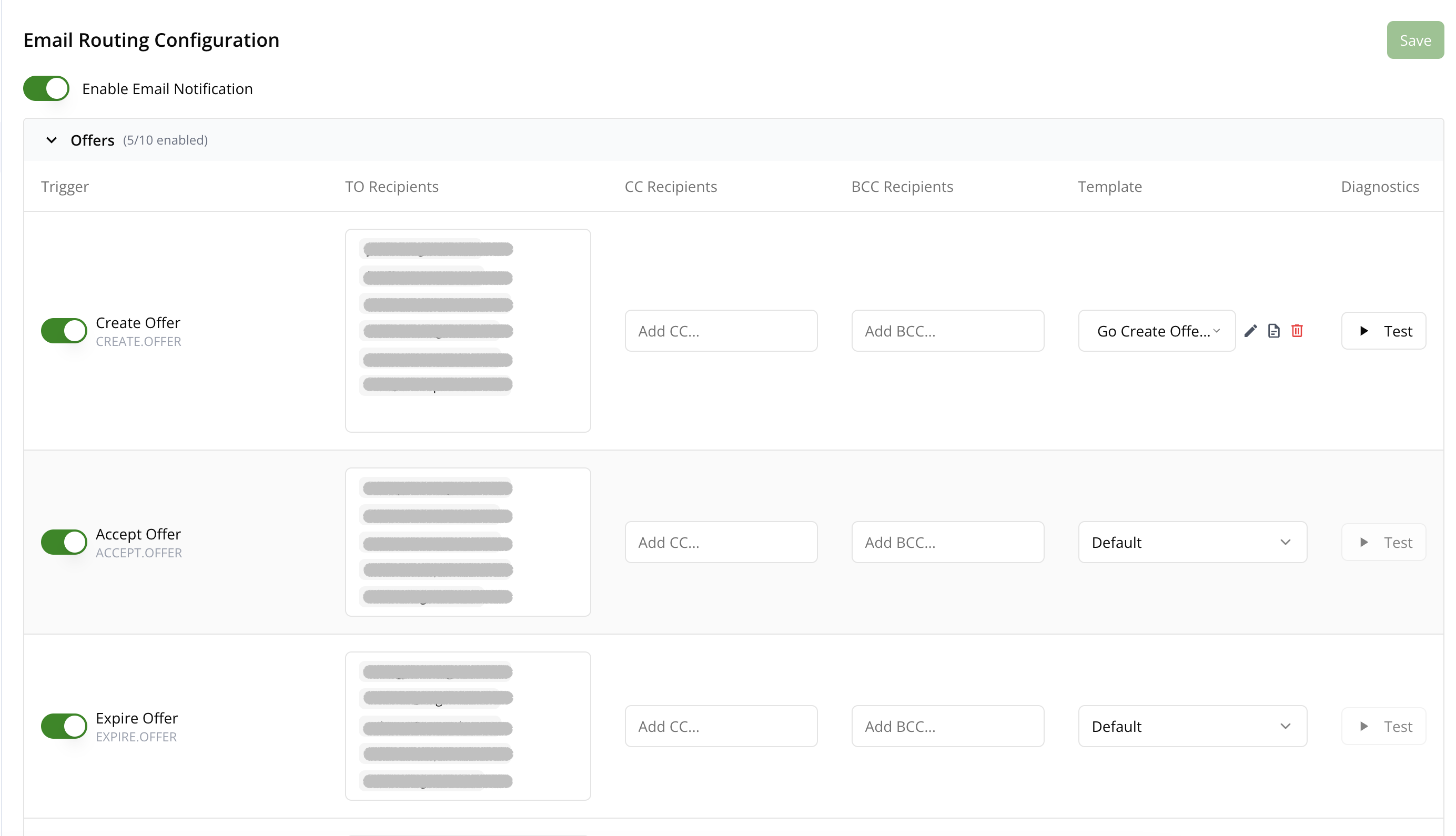
Go to the settings page and open the Notification tab. Toggle the Enable Email Notification switch to activate email routing.
Email Routing Catalog
Once email notification is enabled, the Email Routing Configuration table displays all available notification scopes organized by category (Offers, Entitlements, Co-Sell, Workflows, etc.). Each category can be expanded or collapsed.
Every scope row provides the following columns:
| Column | Description |
|---|---|
| Trigger | Toggle to enable or disable the notification scope. The scope name and its raw identifier are displayed. |
| TO Recipients | Email addresses that receive the notification. Type an address and press Enter or comma to add. |
| CC Recipients | Email addresses to CC on the notification. |
| BCC Recipients | Email addresses to BCC on the notification. |
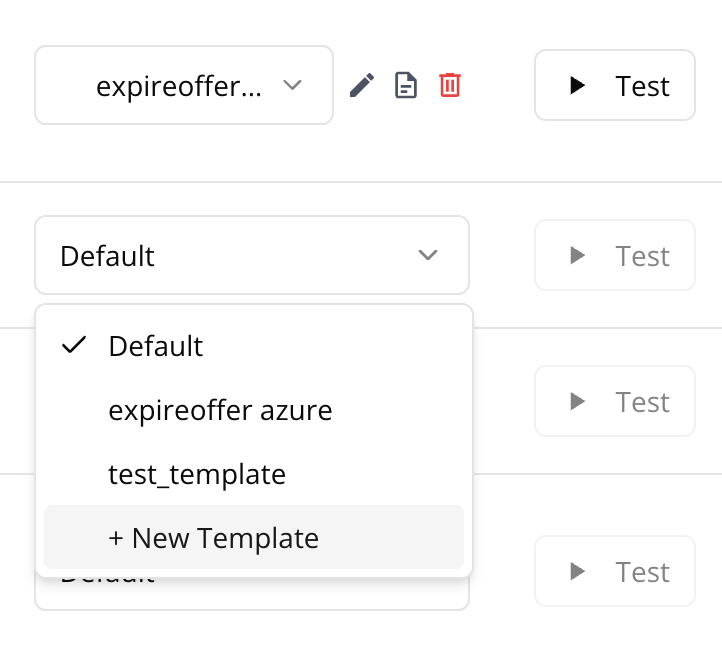
| Template | Select a custom email template from the dropdown, or choose + New Template to create one inline. When a template is assigned, icons appear to edit, view details, or delete it. |
| Diagnostics | Click Test to send a test email. With a custom template assigned, the test uses that template; with none assigned, it uses the scope’s default template. |
Click Save after making changes to persist your configuration.
Additional Settings
Below the routing catalog, two additional toggles are available:
- Disable Email Notification on Offer Ready — Prevents sending email notifications when an offer is ready to accept.
- Enable Expire Soon Offer Workflow Notification — Enables workflow notifications for offers that are about to expire. When enabled, you can configure the number of days before expiration to trigger the notification (default: 7 days).
Update History
The Update History table at the bottom of the Notification tab shows an audit log of configuration changes. You can search across all fields and click a row’s detail icon to inspect the full JSON payload of the change.
Custom Templates
Custom email templates allow you to personalize your notification emails with dynamic content and professional layouts. You can create templates that automatically incorporate data from your notification events, making your emails more informative and engaging.
Any scope can have a custom email template assigned to it, replacing the default content. Templates support dynamic variables (for example, buyer name, deal name, and product).
Create New Template
In the routing catalog, find the Template column for any scope row and select + New Template from the dropdown. The template creation dialog opens, and once saved the new template is automatically assigned to that scope.
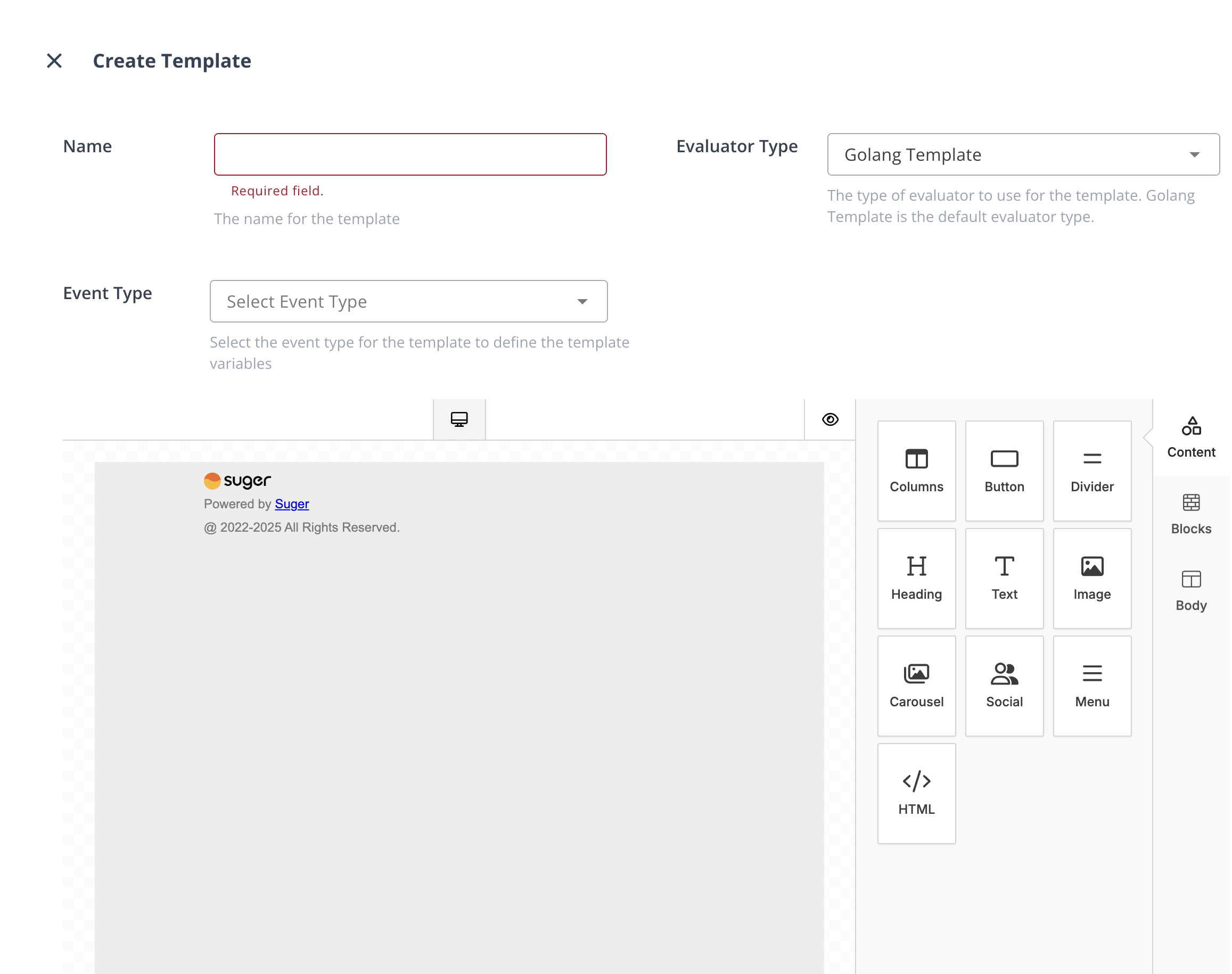
In the template creation dialog:
- Enter a descriptive name for your template
- Select the evaluator type (currently, only Golang Template is supported)
- Use the email builder to design your template
- Click Create to save your template
Use Email Builder
The email builder provides a comprehensive set of tools to create professional-looking emails:
- Columns: It allows your users to add columns to your design in order to have a better design arrangement.
- Button: Add any type of button in your email. You can change colors and styles.
- Divider: It gives your users appropriate spacing at any point they want in their design.
- Heading: Add headings (from level 1-6) to the design.
- Text: Text is a built-in tool so users can add text to their designs.
- Image: To make your emails attractive, you can add images using this tool.
- Social: It is a built-in tool that lets users add their social media icons to your design.
- Menu: Menu is a built-in tool used to create navigation menus.
- HTML: This tool will give your users room to add custom HTML to the design.
Working with Dynamic Data
Using Single Variables
-
Select a notification event type to make its variables available in the builder. By default, use the
BaseNotificationEvent. -
In the text or heading tool, click the
Merge Tagsbutton and select the variable you want to insert
Looping Over Lists
To display multiple items from a list:
- Add a Columns tool to your template
- Click the tag symbol on the Columns tool
- Select the list you want to iterate over
- For complex objects in the list:
- All variables from the list items become available within the Columns block
- Use them in text tools just like single variables
- For simple values (strings or numbers):
- Use the
thismerge tag to access the current item within the Columns block
- Use the
Assign Templates to Notification Scopes
Templates are assigned directly in the Email Routing Catalog:
- Go to the settings page and open the Notification tab
- Find the scope you want to customize in the routing catalog
- In the Template column, select an existing template from the dropdown or choose + New Template to create one
- When a template is assigned, use the inline icons to:
- Edit the template in the email builder
- View details as a JSON payload
- Delete the template (removes it from all scopes that reference it)
- Click Save to persist your changes
Test Custom Templates
Before using a template in production, you can test it to ensure it works as expected:
- In the routing catalog, find the scope row with the template you want to test
- Click the Test button in the Diagnostics column
- In the test dialog, provide the following information:
- To Email: The recipient email address for the test
- CC Emails: Optional comma-separated list of email addresses to CC
- One event json data: Choose (and modify as you want) between:
- Mock JSON data files
- Last recorded events for your organization
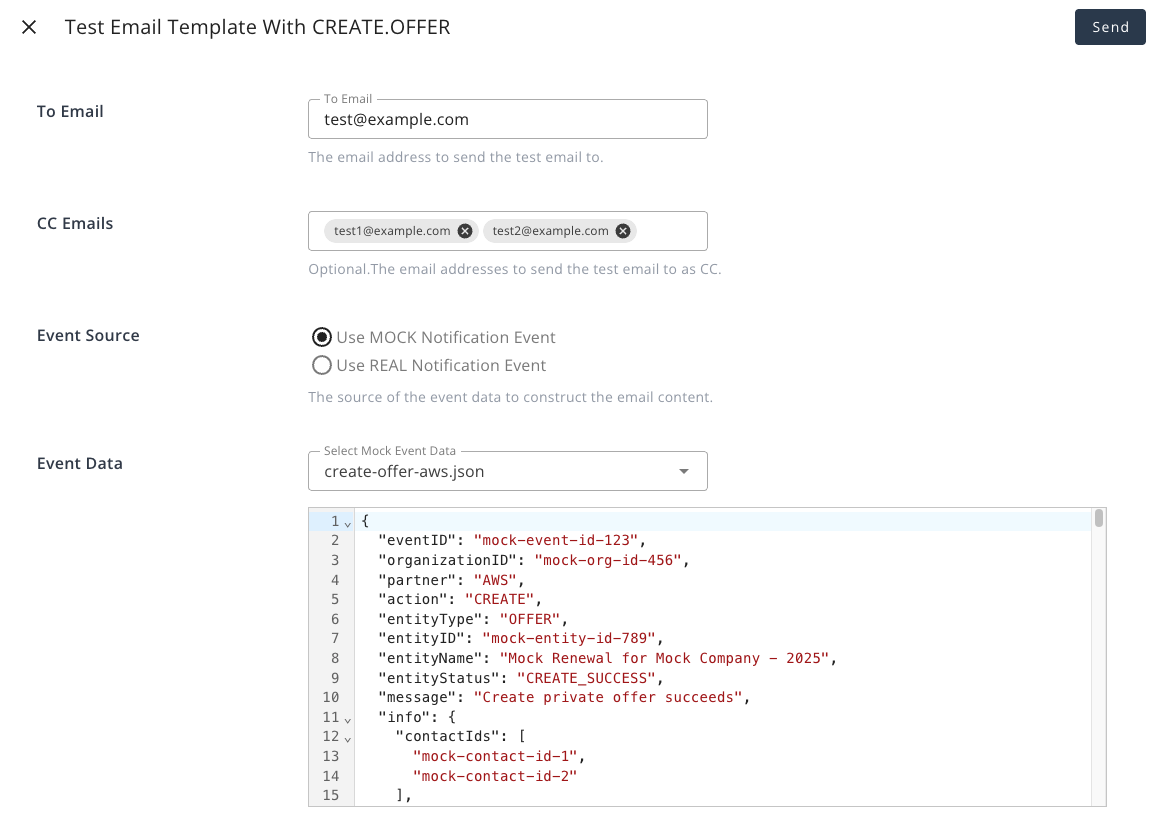
You can also edit the template directly from the test dialog by clicking the Edit Template button, which will open the email builder.
Test a scope’s default template
You no longer need a custom template to use Test. If a scope has no template assigned, the test sends that scope’s default template — the same content Suger would send in production — so you can check the wording and the event data a scope produces before deciding whether it needs customizing at all.
The partner-facing scopes (Partnership, Co-Sell, Commission, Certificate and Journey) render the production partners template, so what you receive is what your partners receive.
One exception: Product scope notifications are plain-text emails with no default template behind them. Test is disabled on that row, with the tooltip “This scope’s notifications are plain-text emails — assign a custom template to test.” Assign a custom template to that scope and the button becomes available.
Notification Scope Reference
Each notification scope has its own trigger, its own TO/CC/BCC recipient lists, and an optional custom template that replaces the default content. Use the tables below to understand when each scope fires and what its default email contains.
Keep in mind:
- Always-on scopes — Create Co-Sell, New Contact Added to Co-Sell, and Commission Terms Updated are always sent and cannot be disabled, so critical collaboration events always reach the right people.
- Commission scopes — All commission scopes are enabled by default. You can configure custom recipients and templates for them, but they cannot be turned off.
Offers
| Scope | When it fires | Default email content |
|---|---|---|
Create OfferCREATE.OFFER | A new private offer is created in your organization | Offer name, buyer, product, pricing, expiry date, link to the offer |
Offer Creation FailedCREATE_FAILED.OFFER | A private offer fails to be created on the cloud marketplace | Failure reason (the offer’s error details) and a link to the offer in the Suger console so your team can fix and resubmit |
Accept OfferACCEPT.OFFER | A buyer accepts a private offer | Offer name, buyer details, acceptance timestamp |
Expire OfferEXPIRE.OFFER | A private offer has passed its expiration date without being accepted | Offer name, buyer, expiry date |
Update OfferUPDATE.OFFER | An existing offer is modified (e.g. pricing, expiry, terms) | Offer name, summary of what changed |
Delete OfferDELETE.OFFER | A private offer is deleted | Offer name, deletion timestamp |
Cancel OfferCANCEL.OFFER | A private offer is cancelled | Offer name, cancellation details |
Submit Approval RequestSUBMIT_APPROVAL_REQUEST.OFFER | A team member submits an offer for internal approval review | Offer details, submitter name, link for the approver to act |
Review Approval RequestREVIEW_APPROVAL_REQUEST.OFFER | An offer approval request is ready for a reviewer to act on | Offer details, approve/reject CTA |
Pending AcceptancePENDING_ACCEPTANCE.OFFER | An offer has been sent to the buyer and is awaiting their acceptance | Marketplace-specific template (AWS/Azure/GCP/Snowflake) with offer details and a direct acceptance link |
Pending Partner ActionPENDING_PARTNER_ACTION.OFFER | An offer requires action from a channel partner (e.g. a CPPO step) | Offer name, required action, link |
Entitlements
| Scope | When it fires | Default email content |
|---|---|---|
Create EntitlementCREATE.ENTITLEMENT | A buyer subscribes and a new entitlement is created | Buyer, product, subscription start date, pricing |
Reinstate EntitlementREINSTATE.ENTITLEMENT | A previously suspended or cancelled entitlement is reinstated | Entitlement name, buyer, reinstatement date |
Suspend EntitlementSUSPEND.ENTITLEMENT | An entitlement is suspended (typically due to a payment failure) | Entitlement name, buyer, suspension reason, recommended next step |
Pending Cancel EntitlementPENDING_CANCEL.ENTITLEMENT | An entitlement has been scheduled for cancellation | Entitlement name, buyer, scheduled cancellation date |
Cancel EntitlementCANCEL.ENTITLEMENT | An entitlement is fully cancelled | Entitlement name, buyer, cancellation timestamp |
Update EntitlementUPDATE.ENTITLEMENT | An entitlement’s attributes are updated (e.g. seat count, pricing tier) | Entitlement name, buyer, summary of changes |
Meter EntitlementMETER.ENTITLEMENT | A usage metering record is submitted against an entitlement | Entitlement name, buyer, metered dimension, reported usage amount |
End Soon EntitlementEND_SOON.ENTITLEMENT | An entitlement is approaching its end date | Entitlement name, buyer, days until end date |
Terminate EntitlementTERMINATE.ENTITLEMENT | An entitlement is terminated (hard stop, distinct from cancellation) | Entitlement name, buyer, termination date |
Renew EntitlementRENEW.ENTITLEMENT | AWS Marketplace creates the next agreement in a pre-authorized auto-renewal chain | Entitlement name and confirmation that the agreement renewed |
Auto Renew OffAUTO_RENEW_OFF.ENTITLEMENT | AWS Marketplace reports that auto-renewal was turned off for an agreement | Entitlement name and the renewal opt-out lifecycle update |
Renewal UpcomingRENEW_SOON.ENTITLEMENT | AWS Marketplace reports an upcoming pre-authorized renewal | Entitlement name and the upcoming-renewal lifecycle update |
All three renewal scopes are disabled unless you enable the scope and configure recipients. Repeated delivery of the same lifecycle event is deduplicated for one day. The Auto Renew value shown in the Console, Salesforce, and HubSpot is the buyer’s live accepted-agreement setting; it is not the separate “Renewal Offer” marker used when an offer replaces an existing agreement.
Co-Sell
These scopes cover activity on co-sell referrals shared via cloud marketplace co-sell programs (AWS ACE, GCP, etc.).
| Scope | When it fires | Default email content |
|---|---|---|
Archive ReferralARCHIVE.REFERRAL | A co-sell referral is archived | Referral name, cloud partner, archival timestamp |
Reject ReferralREJECT.REFERRAL | A co-sell referral is rejected by the cloud partner | Referral name, cloud partner, rejection reason |
Accept ReferralACCEPT.REFERRAL | A co-sell referral is accepted by the cloud partner | Referral name, cloud partner, acceptance timestamp |
Create ReferralCREATE.REFERRAL | A new co-sell referral is created | Referral name, cloud partner, deal details |
Approve ReferralAPPROVE.REFERRAL | A co-sell referral is approved internally before submission to the cloud partner | Referral name, approver, timestamp |
Update ReferralUPDATE.REFERRAL | A co-sell referral is updated (e.g. deal value, stage, customer info) | Referral name, summary of what changed |
Pending Acceptance ReferralPENDING_ACCEPTANCE.REFERRAL | A co-sell referral has been submitted and is awaiting cloud partner acceptance | Referral name, cloud partner, submission timestamp |
Inbound ReferralINBOUND.REFERRAL | A new inbound co-sell referral is received from the cloud partner | Referral name, cloud partner, customer details |
Product
| Scope | When it fires | Default email content |
|---|---|---|
Create ProductCREATE.PRODUCT | A new product is created in your organization | Product name, marketplace, creator |
Update ProductUPDATE.PRODUCT | An existing product is updated | Product name, summary of changes |
Delete ProductDELETE.PRODUCT | A product is deleted | Product name, deletion timestamp |
Partners
These scopes cover activity in Suger’s Partner Relationship Management (PRM) module, including partnership invitations, Suger co-sells, and commission lifecycle events.
Co-sell and commission emails thread into a single per-deal conversation, so on the default Suger sender they
share one stable subject (Re: Co-sell: [Deal Name]) and the event is named in the email body. A custom sender — connected Gmail/Outlook, or a verified custom domain — cannot carry the threading headers, so those messages use an event-specific subject
instead. Both are listed below — use the one matching your configured sender when writing inbox rules.
| Scope | When it fires | Default email subject |
|---|---|---|
Accept PartnershipACCEPT.PARTNERSHIP | A partner accepts your partnership invitation | [Partner Company] accepted your partnership invitation |
Decline PartnershipDECLINE.PARTNERSHIP | A partner declines your partnership invitation | [Partner Company] declined your partnership invitation |
Accept SugercosellACCEPT.SUGERCOSELL | A partner accepts a seller-initiated Suger co-sell | Re: Co-sell: [Deal Name] on the default Suger sender; on a custom sender (Gmail/Outlook or verified custom domain): [Partner Company] accepted your co-sell: [Deal Name] |
Decline SugercosellDECLINE.SUGERCOSELL | A partner declines a seller-initiated Suger co-sell | Re: Co-sell: [Deal Name] on the default Suger sender; on a custom sender (Gmail/Outlook or verified custom domain): [Partner Company] declined your co-sell: [Deal Name] |
Partners — Deal update emailsDEAL_UPDATED.SUGERCOSELL | The seller saves a change to a partner-visible co-sell deal field (target close date, deal value, customer info, contacts, partner needs, notes, next steps, deal-value visibility). Each email shows a previous → new diff of exactly what changed. Intermediate pipeline stage moves never fire this — only Closed Won/Lost email, via their own scopes. Commission-terms changes keep their own notification. Off by default; enable it to start sending. The toggle governs what you send as the seller — recipients cannot switch these off, since the setting belongs to the org whose edits generate the emails | Re: Co-sell: [Deal Name] on the default Suger sender (these emails thread into the deal’s co-sell conversation). On a custom sender (connected Gmail/Outlook, or your verified custom domain), which does not carry threading headers: [Seller Company] updated co-sell: [Deal Name] |
Close Won Reminder SugercosellCLOSE_WON_REMINDER.SUGERCOSELL | A party marks its co-sell copy Closed Won. A seller close-won notifies every partner; a referrer close-won notifies only the seller. Always sent; cannot be disabled | Re: Co-sell: [Deal Name] on the default Suger sender; on a custom sender (Gmail/Outlook or verified custom domain): Co-sell closed won: [Deal Name] |
Pending CommissionPENDING.COMMISSION | A commission is created and awaiting seller approval Enabled by default; cannot be disabled | Re: Co-sell: [Deal Name] on the default Suger sender; on a custom sender (Gmail/Outlook or verified custom domain): Commission pending approval: [Deal Name] |
Approve CommissionAPPROVE.COMMISSION | A seller approves a commission payout Enabled by default; cannot be disabled | Re: Co-sell: [Deal Name] on the default Suger sender; on a custom sender (Gmail/Outlook or verified custom domain): Your commission for [Deal Name] has been approved |
Payment Sent CommissionPAYMENT_SENT.COMMISSION | A seller marks a commission payment as sent to the partner Enabled by default; cannot be disabled | Re: Co-sell: [Deal Name] on the default Suger sender; on a custom sender (Gmail/Outlook or verified custom domain): Payment sent for [Deal Name] |
Payment Confirmed CommissionPAYMENT_CONFIRMED.COMMISSION | A partner confirms receipt of a commission payment Enabled by default; cannot be disabled | Re: Co-sell: [Deal Name] on the default Suger sender; on a custom sender (Gmail/Outlook or verified custom domain): [Partner Company] confirmed receipt of payment — [Deal Name] |
Auto Confirmed CommissionAUTO_CONFIRMED.COMMISSION | A commission is auto-confirmed after the confirmation window passes without action Enabled by default; cannot be disabled | Re: Co-sell: [Deal Name] on the default Suger sender; on a custom sender (Gmail/Outlook or verified custom domain): Commission auto-confirmed for [Deal Name] |
Clawback CommissionCLAWBACK.COMMISSION | A commission is reversed Enabled by default; cannot be disabled | Re: Co-sell: [Deal Name] on the default Suger sender; on a custom sender (Gmail/Outlook or verified custom domain): Commission reversed for [Deal Name] |
Auto-Share Report
| Scope | When it fires | Default email content |
|---|---|---|
Complete Auto Share TaskCOMPLETE.AUTO_SHARE_TASK | An automated data-sharing task completes successfully | Task name, completion time, report summary and link |
Fail Auto Share TaskFAIL.AUTO_SHARE_TASK | An automated data-sharing task fails | Task name, failure reason, recommended remediation steps |
Headless Entitlements
| Scope | When it fires | Default email content |
|---|---|---|
Notify Headless EntitlementsNOTIFY.HEADLESS_ENTITLEMENTS | A headless entitlement (one without a buyer-facing signup flow) is created or requires attention | Entitlement name, marketplace, buyer info, link to the entitlement detail |
Revenue
| Scope | When it fires | Default email content |
|---|---|---|
Disburse Revenue RecordDISBURSE.REVENUE_RECORD | A revenue record disbursement is processed by Suger | Disbursement amount, billing period, product, buyer |
Suger Co-Sell
| Scope | When it fires | Default email subject | Notes |
|---|---|---|---|
New Contact Added SugercosellNEW_CONTACT_ADDED.SUGERCOSELL | A new contact is added to an existing Suger co-sell | You’ve been added to a co-sell: [Deal Name] | Always sent to the newly added contact — cannot be disabled |
Usage Metering Alerts
| Scope | When it fires | Default email content |
|---|---|---|
Abnormal Alert Usage Record GroupABNORMAL_ALERT.USAGE_RECORD_GROUP | An abnormal usage pattern is detected in a usage record group | Subject: [Suger Alert] Abnormal Usage Record Groups Detected — includes the affected entitlement, metric name, anomalous values, and a link to your usage metering dashboard |
Spotted something wrong or out of date on this page? Tell us and we'll correct it.