
Configuration
Add the Suger App to your HubSpot Console.
Overview
After completing the integration with HubSpot, you need to add the Suger App card to your HubSpot console before you can start creating offers. The Suger app card is a panel that appears on your HubSpot deal records, letting your team create offers, resale authorizations, co-sell referrals, and AWS funding applications directly from a deal — without switching to the Suger Console or a cloud marketplace portal. The app also ships a second card, Co-sell Insights, which goes on company records instead of deals.
Prerequisites
- You must complete the HubSpot integration in Suger Console before adding the app card. If you haven’t done that yet, see Integration with HubSpot.
- You need HubSpot Admin access to customize deal record layouts.
Add Suger App to your HubSpot console
- Open a deal’s detail page, click on “Customize record” link on top of this page
- Go to “Record Customization” tab and click on “Default view”
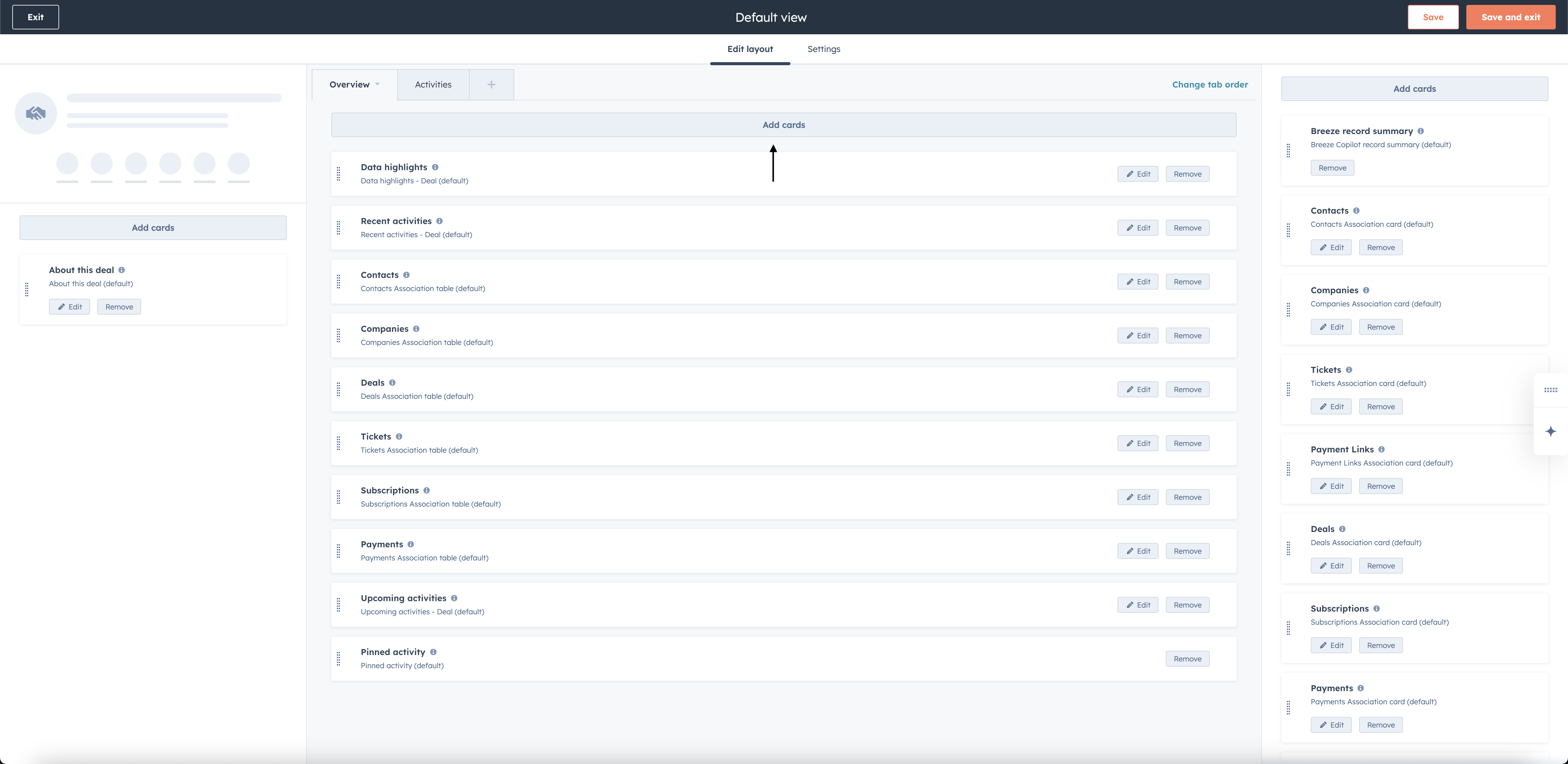
- Click on “Add cards” button on the view you want to add Suger to (taking Overview as an example)
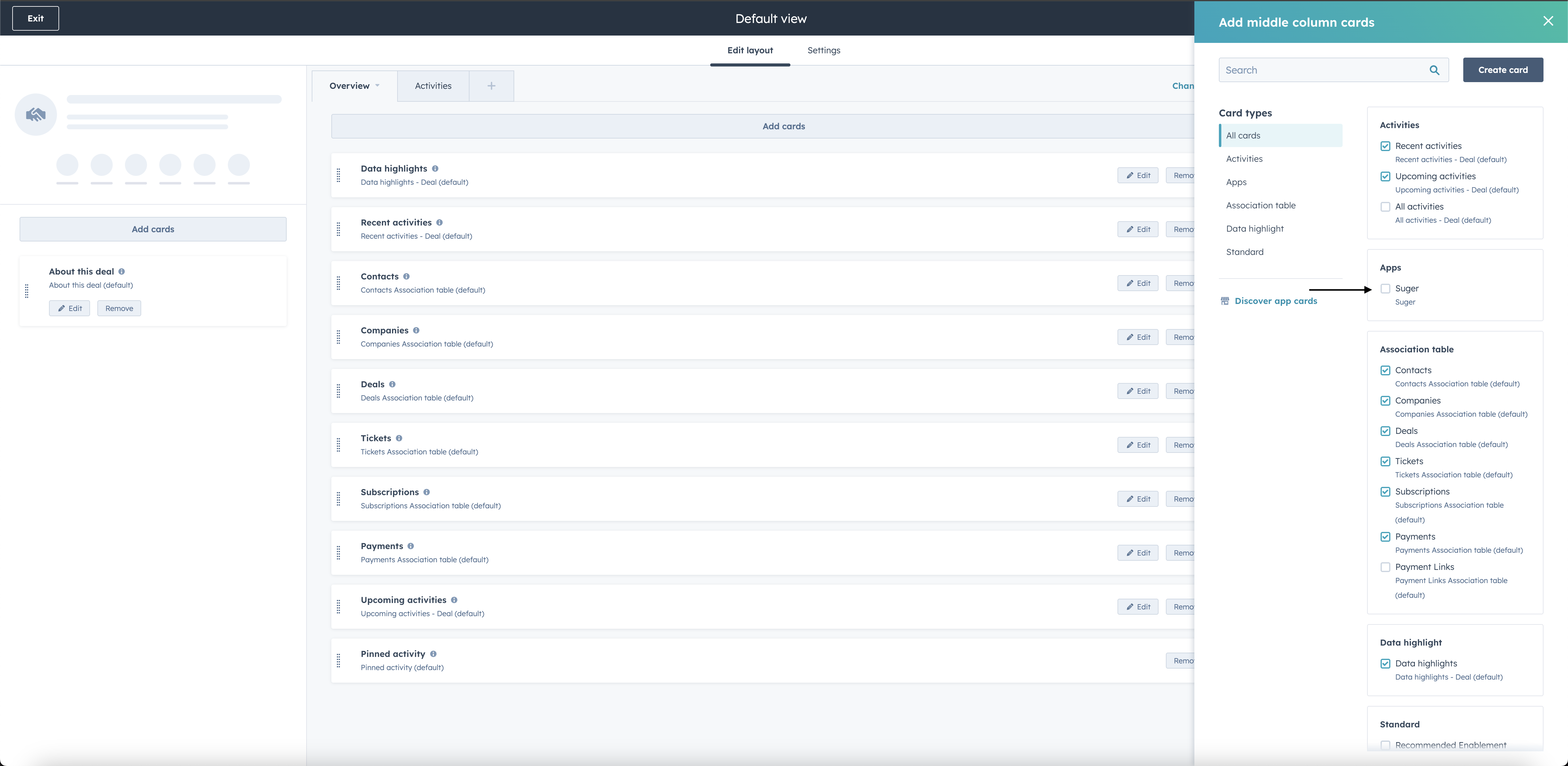
- In the panel that opens, click Apps to filter the available cards, then find the Suger App and select it.
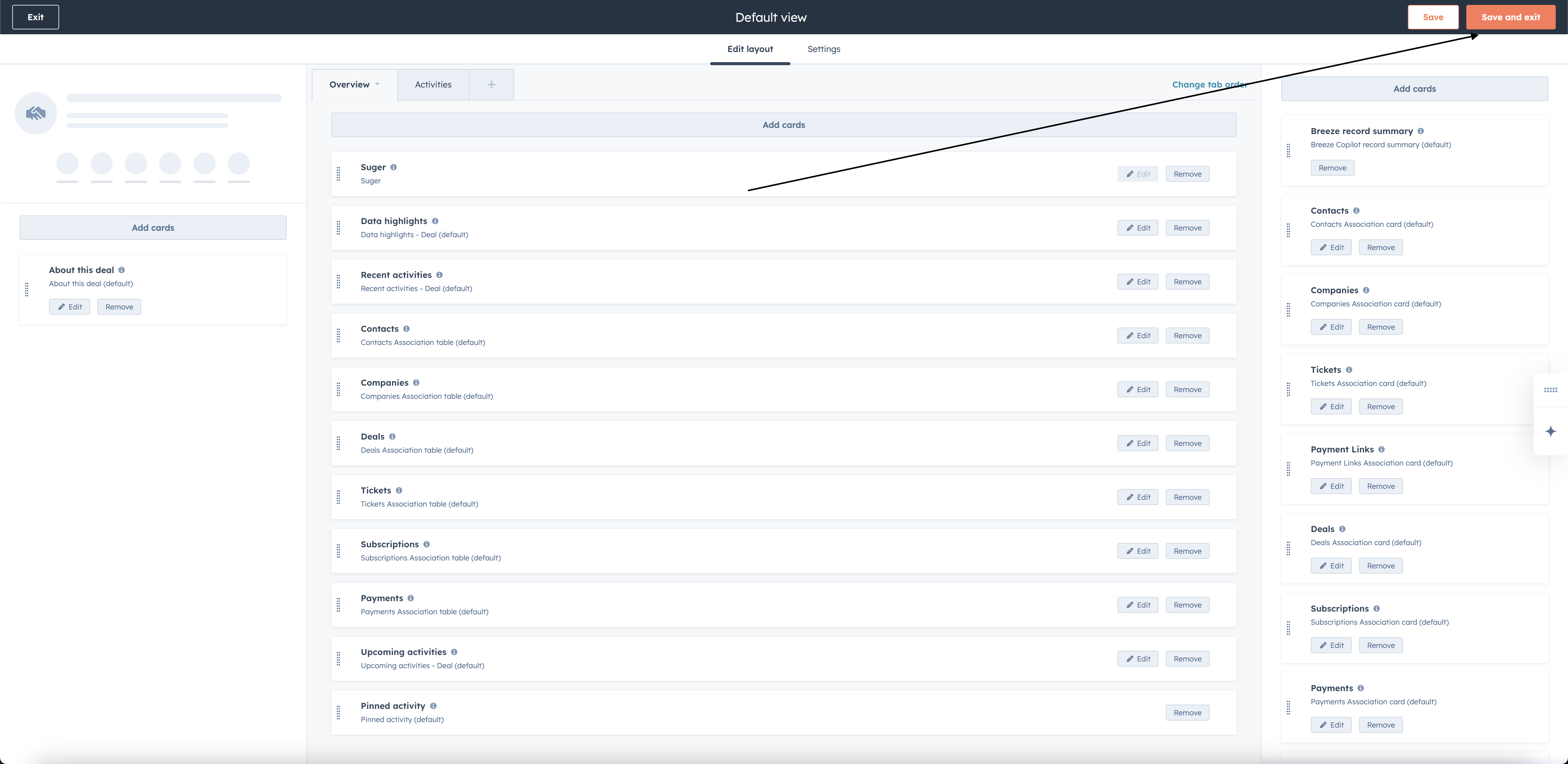
- You can drag the Suger App to the top for better visibility — your team will use it frequently.

- Click on “Save and exit” button, and you can start using the Suger App. The card will now appear on all deal records that use this view.
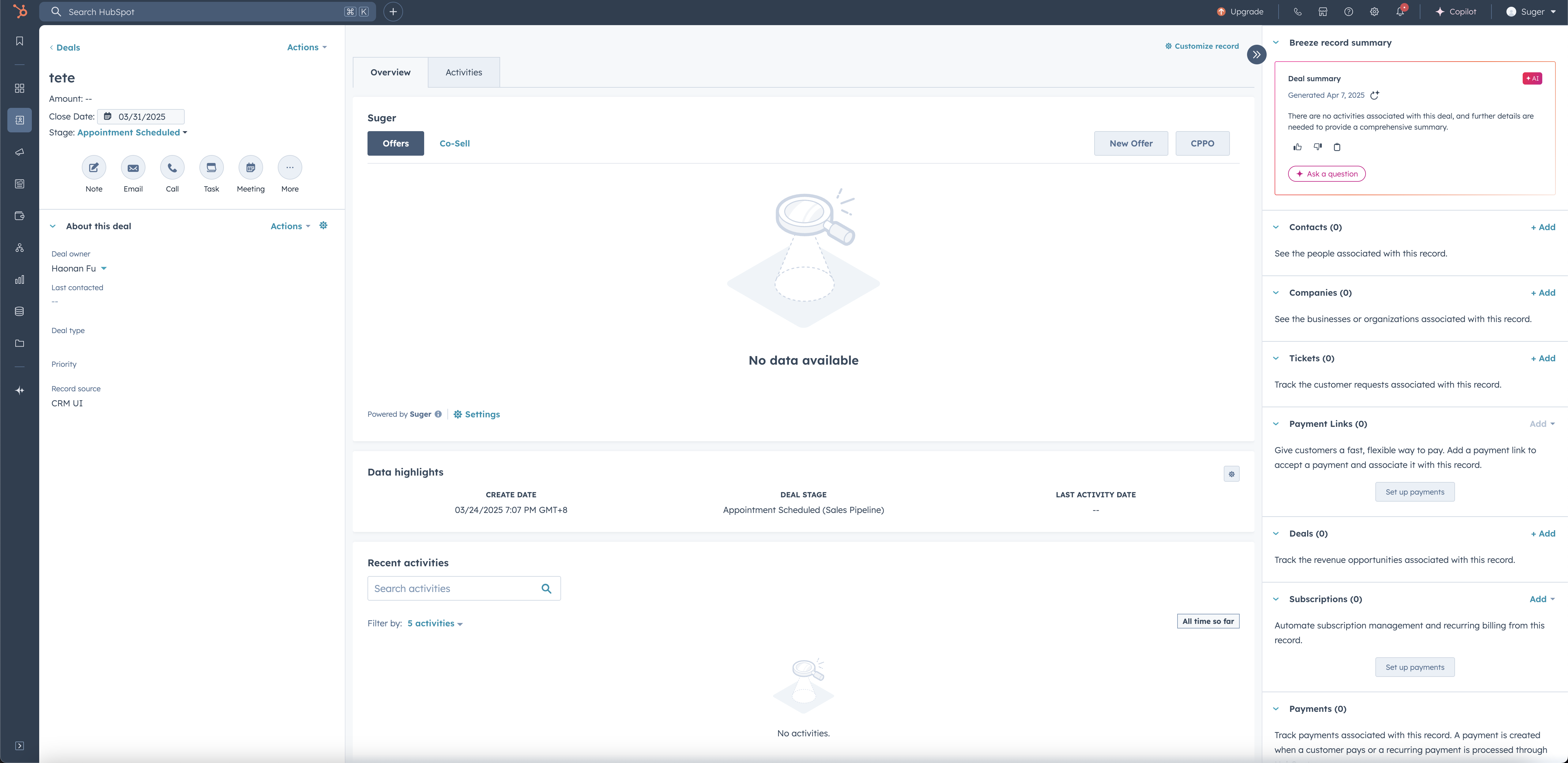
- You are all set!
Add the Co-sell Insights card to your company records
The Suger app ships a second card, Co-sell Insights, and it is registered on the companies object rather than on deals. Adding the Suger deal card does not add it — you have to add it to a company record layout separately.
- Open a company record, click Customize record, and pick the view you want to change.
- Click Add cards on that view, click Apps to filter, and select Co-sell Insights.
- Click Save and exit.
Verify the app card is working
Open any HubSpot deal record and confirm the Suger app card appears on the page. The Suger panel shows five tabs — Offers, Entitlements, Co-Sell, Funding, and Insights — and up to four action buttons across the top: New Offer, New Resale, New Funding, and Co-Sell.
Not every button appears for every organization. New Funding is AWS-only and requires an AWS ACE (Partner Central) integration, and the Co-Sell button only lists the destinations your organization has connected — so a card with fewer buttons is not necessarily broken.
If the card is not visible after saving:
- Confirm the HubSpot integration is verified in Suger Console → Settings → Integrations → HubSpot. The status should show Verified, not Created.
- Check that you saved and exited the record customization — the card will not appear until you click Save and exit.
- Try a hard refresh — Cmd+R on Mac or Ctrl+Shift+R on Windows.
Troubleshooting
| Issue | Possible cause | Resolution |
|---|---|---|
| Suger does not appear in the Apps list | The HubSpot integration has not been completed or verified | Complete the HubSpot integration first. The status in Suger Console must be Verified before the app appears |
| App card was added but is not visible on deal records | The page was not saved after customization | Go back to Customize record and confirm the Suger card is in the layout, then click Save and exit |
| App card appears but shows an error or blank state | The integration connection has been disrupted | Go to Suger Console → Settings → Integrations → HubSpot and click Verify to re-verify the connection |
| App card is only visible to some users | The customization was applied to a view not all users see | Check which view each user’s profile defaults to and apply the customization to that view as well |
Frequently Asked Questions
Do I need to add the Suger app card to every deal individually?
No. Adding the card to a view applies it to all deal records that use that view — you only need to do it once per view.
Can I add the Suger app card to views other than the default Overview?
Yes. Repeat the steps above for any other views your team uses. Each view is customized independently.
What’s the difference between the HubSpot integration and the Suger app card?
The integration connects Suger to your HubSpot account at the system level — it gives Suger permission to read and write deal data. The app card is the UI element that lets your team interact with Suger from inside a deal record. Both are required. The integration comes first; the app card comes second.
Spotted something wrong or out of date on this page? Tell us and we'll correct it.