
Buy with AWS
Put an AWS Marketplace purchase flow directly on your own website.
Overview
Buy with AWS lets you place an AWS Marketplace purchase flow on your own website. Instead of sending buyers to AWS Marketplace to find your listing, you add a Buy with AWS button to your product or pricing page. When a buyer clicks it, they go straight into AWS’s procurement flow for your product.
Two related buyer-facing elements share the same setup:
- Try with AWS — surfaces a free trial offer in the same flow, if you have one configured.
- Available in AWS Marketplace — a badge and source code snippet you add to your site so the Buy with AWS and Try with AWS buttons render for visitors.
Prerequisites
- An AWS Marketplace SaaS listing with subscription pricing, already created in Suger. See Create and publish an AWS Marketplace listing.
- Admin or Editor access in Suger.
Set up the Buy with AWS button
Open the Buy with AWS settings
- Go to the Product menu in the Suger Console.
- Open the AWS listing you want to configure.
- Click More actions in the top-right corner, then select Buy with AWS.
This opens the Buy With AWS dialog, where you get your embed code and configure how the button behaves.
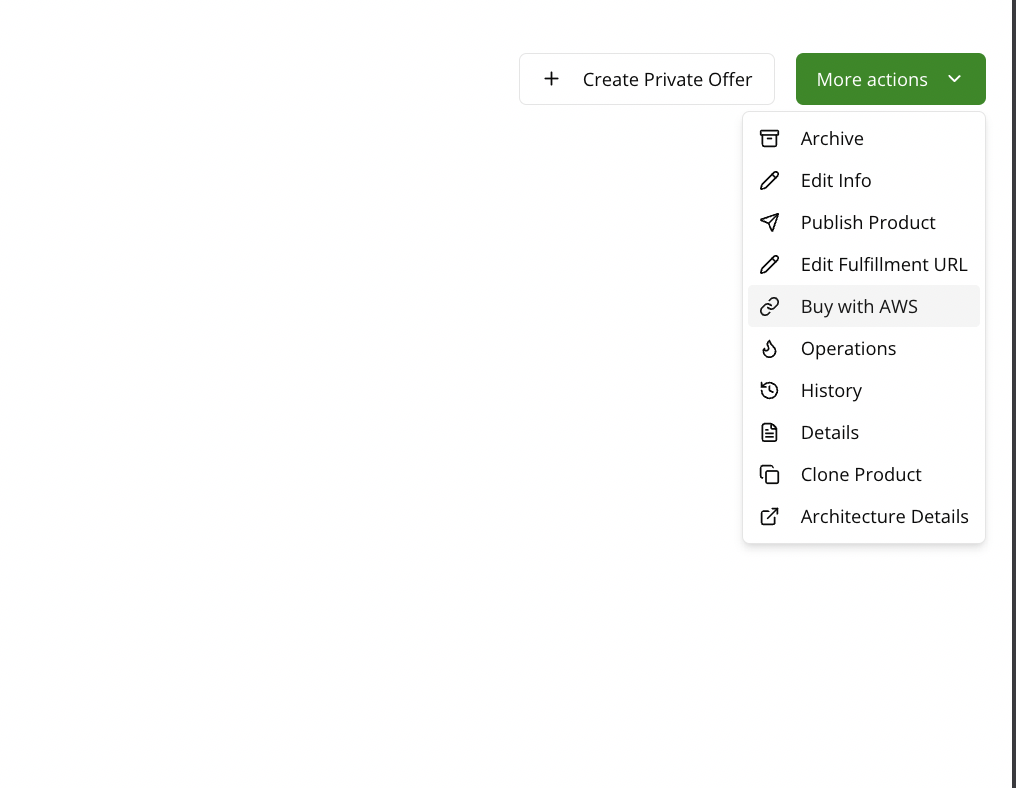
Get your embed code
At the top of the dialog, under Demo, you see a live preview of the Buy with AWS button along with the Available in AWS Marketplace badge.
- Click Source code to expand the code snippet.
- Copy the snippet into your website.
Once added, the Buy with AWS and Try with AWS buttons render on your product page, along with the Available in AWS Marketplace badge.
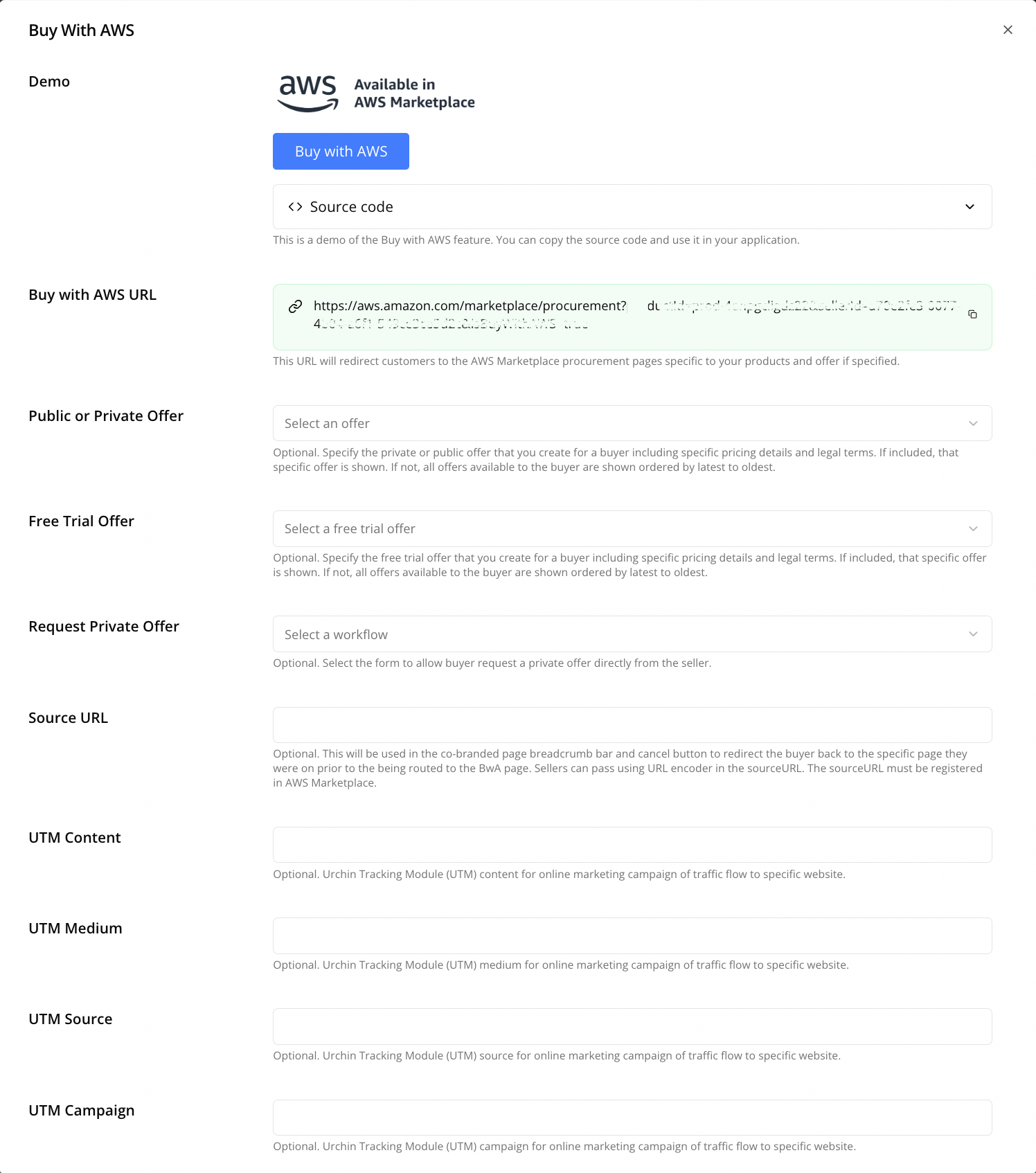
Configure the button behavior
Below the demo, fill in the following fields to control what happens when a buyer clicks the button:
| Field | What it does |
|---|---|
| Buy with AWS URL | Redirects buyers to the AWS Marketplace procurement page for your product, and for a specific offer if one is selected below. |
| Public or Private Offer | Optional. Choose a specific private or public offer to show the buyer, including its pricing and legal terms. If left blank, all offers available to the buyer are shown, newest to oldest. |
| Free Trial Offer | Optional. Choose a free trial offer to show the buyer. If left blank, all available offers are shown, newest to oldest. This is what powers the Try with AWS experience. |
| Request Private Offer | Optional. Select a workflow to let the buyer request a private offer directly from you. |
| Source URL | Optional. Used in the co-branded page’s breadcrumb bar and cancel button to send the buyer back to the page they came from. Must be registered in AWS Marketplace, and passed using URL encoding. |
Add UTM tracking (optional)
To track traffic from the Buy with AWS button in your marketing analytics, fill in any of the following:
| Field | What it does |
|---|---|
| UTM Content | Urchin Tracking Module (UTM) content parameter for tracking traffic to a specific website. |
| UTM Medium | UTM medium parameter for tracking traffic to a specific website. |
| UTM Source | UTM source parameter for tracking traffic to a specific website. |
| UTM Campaign | UTM campaign parameter for tracking traffic to a specific website. |
Try with AWS
Try with AWS shares the same dialog and button placement as Buy with AWS, but surfaces a free trial offer instead of a paid one. It activates when you select a Free Trial Offer in the settings — once selected, a Try with AWS URL becomes available.
Available in AWS Marketplace
To showcase your products as Available in AWS Marketplace:
- Copy the source code: Insert the Suger-provided source code snippet into your website.
- Display the buttons: The Buy with AWS and Try with AWS buttons appear on your product pages, along with the Available in AWS Marketplace badge.
Frequently Asked Questions
Can I use Buy with AWS for any product type?
No. It is currently limited to SaaS listings with subscription pricing. AWS may expand support to other types in the future.
What is the difference between Buy with AWS and Try with AWS?
They share the same dialog and button placement. Try with AWS surfaces a free trial offer instead of a paid one — it activates when you select a Free Trial Offer in the settings.
Do I need to fill in every field?
No. Only Buy with AWS URL is required to get a working button. Offer selection, private offer requests, source URL, and UTM fields are all optional.
Spotted something wrong or out of date on this page? Tell us and we'll correct it.