
Create and Share Partner Events
Run webinars, training sessions, and field events for your partner network, share them with the right partners, and see who’s coming.
Overview
Events is where you publish anything your partners should show up to — a quarterly roadmap webinar, a certification session, a regional field event, or a plain calendar entry. You create the event, choose who it goes to, and partners RSVP from their own portal.
Find Events
Go to Suger Console, then Partners. In the sidebar, under Workspace, click Events.
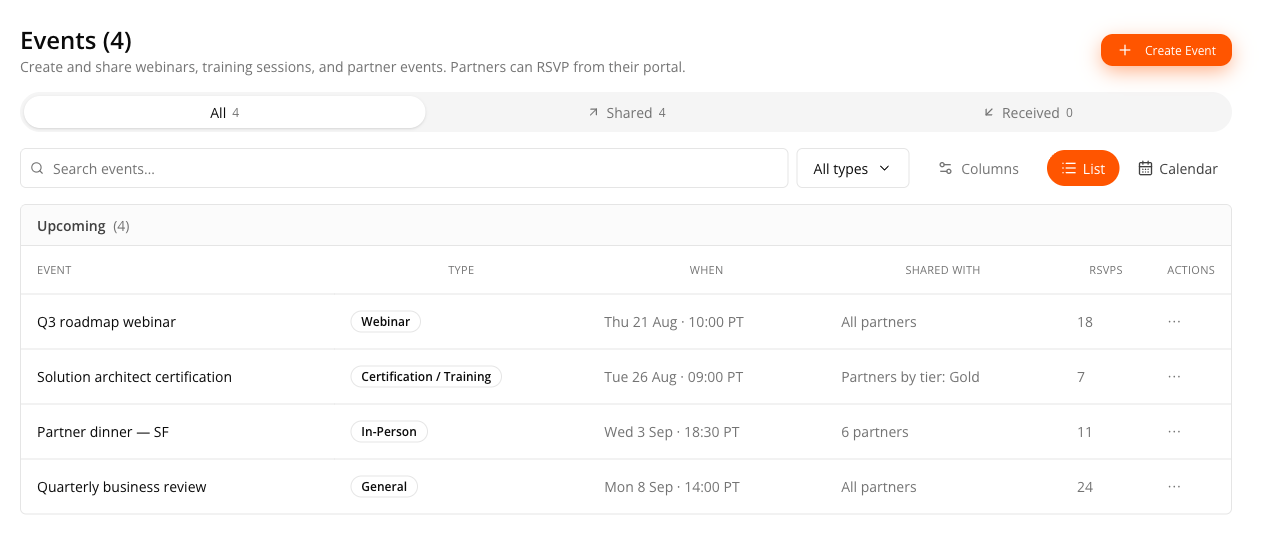
The feed splits into three tabs so you can tell your own events from your partners’:
| Tab | What it shows |
|---|---|
| All | Every event you can see, yours and your partners’. |
| Shared | Events your organization created and shared out. |
| Received | Events a partner shared with you. |
Switch between a List and a Calendar view with the toggle — both show the same filtered set, so the tab you’re on still applies.
Create an Event
Click Create Event.
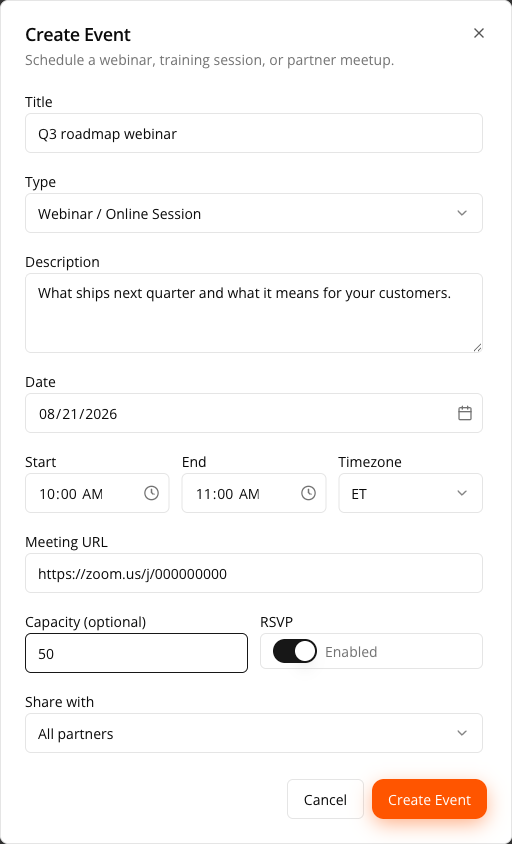
- Title — what partners will see, for example “Q3 Partner Roadmap Webinar”.
- Type — one of four:
- Webinar / Online Session
- Certification / Training Session
- In-Person / Field Event
- General Calendar Event
- Description — what the event is about.
- Date, then Start and End times, and a Timezone.
- Meeting URL or Address — the field changes to match: online events ask for a link, in-person events ask for a location.
- RSVP — whether partners can respond.
- Capacity — optional, and only available when RSVP is enabled. Leave it blank for unlimited.
- Share with — see below.
Choose Who Sees It
Share with offers three options:
| Option | Who receives it |
|---|---|
| All partners | Everyone in your partner network. |
| Specific partners | Only the partners you pick. You must select at least one. |
| Partners by tier | Every partner in the tiers you pick. You must select at least one. See Partner Tiers. |
An event can’t be saved until it has a title, a date, and a valid audience.
Track RSVPs
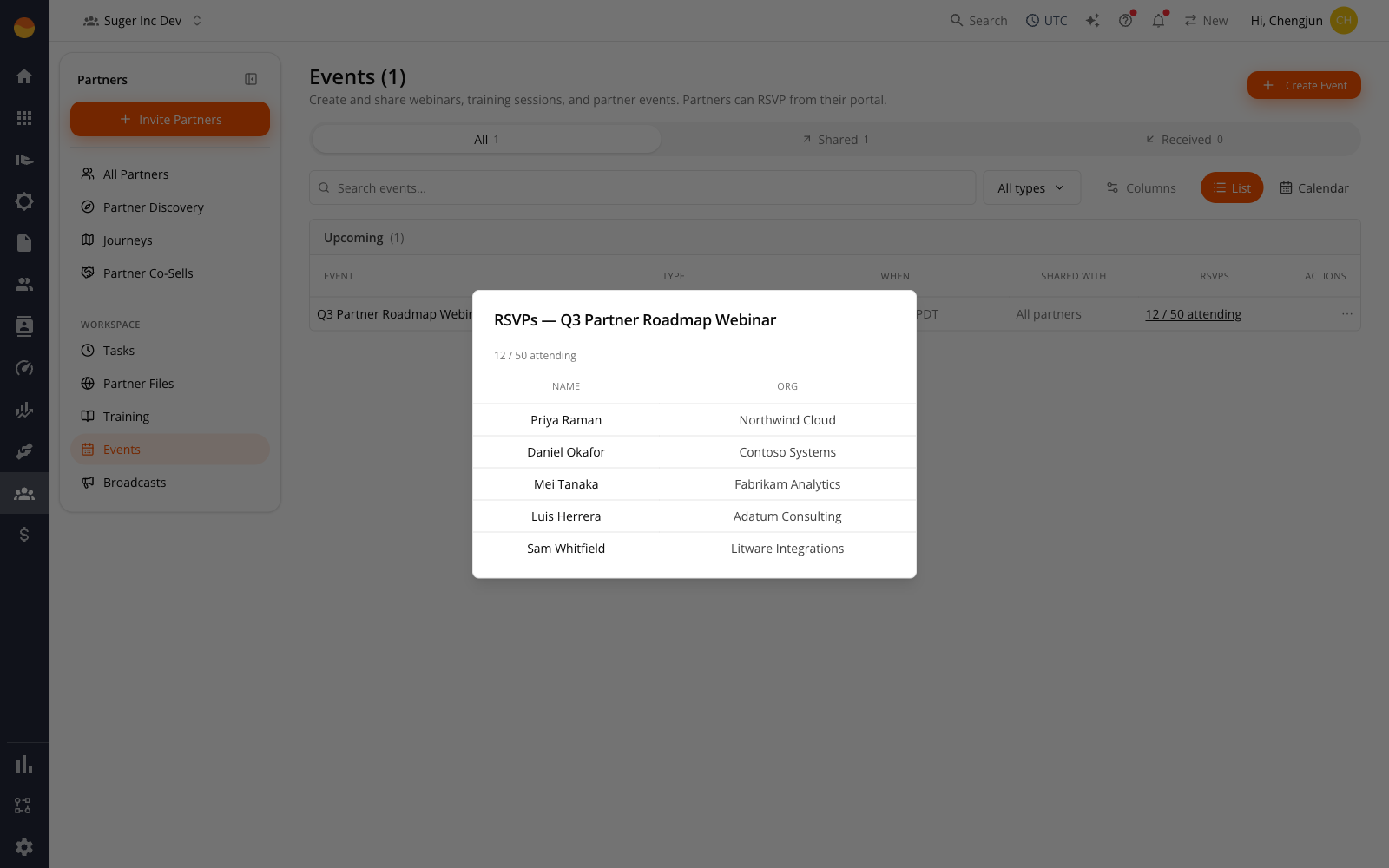
On an event you own, the RSVPs column shows the attending count — 12 / 50 attending when you set a capacity, or just 12 attending when you didn’t. Click it to open the roster.
Partners answer Attending or Decline. Only Attending responses count toward capacity — if someone declines after accepting, their seat is released.
If you set a Capacity:
- A partner whose RSVP would push the event past capacity is refused.
- You can’t later lower capacity below the number already attending — Suger blocks it with “Capacity can’t be below the number of people already attending.” Raise the capacity instead, or wait for someone to decline.
Removing an Event
The only way to take an event down is to delete it.
What Your Partners See
Partners get a receive-only view of Events:
- They see only the events shared with them — the All / Shared / Received tab row is hidden, because there is nothing to split.
- There is no Create Event button; partners cannot publish events to you.
- They respond with Attending or Decline from their portal.
Scope and Limits
- No draft or cancelled state. An event is live from the moment you save it, and delete is the only way to remove it.
- RSVP is a simple yes/no. There are no waitlists.
- Events are not calendar invitations. Suger does not send an
.icsfile or write to a partner’s calendar — the event lives in the portal. - A partner record also carries its own Events section; see Work a Partner Record.
Spotted something wrong or out of date on this page? Tell us and we'll correct it.