
Work a Partner Record
Everything you know about one partner lives on a single page: the deals in flight, what each side owes the other, the contracts, the shared events, and the onboarding still to finish.
Overview
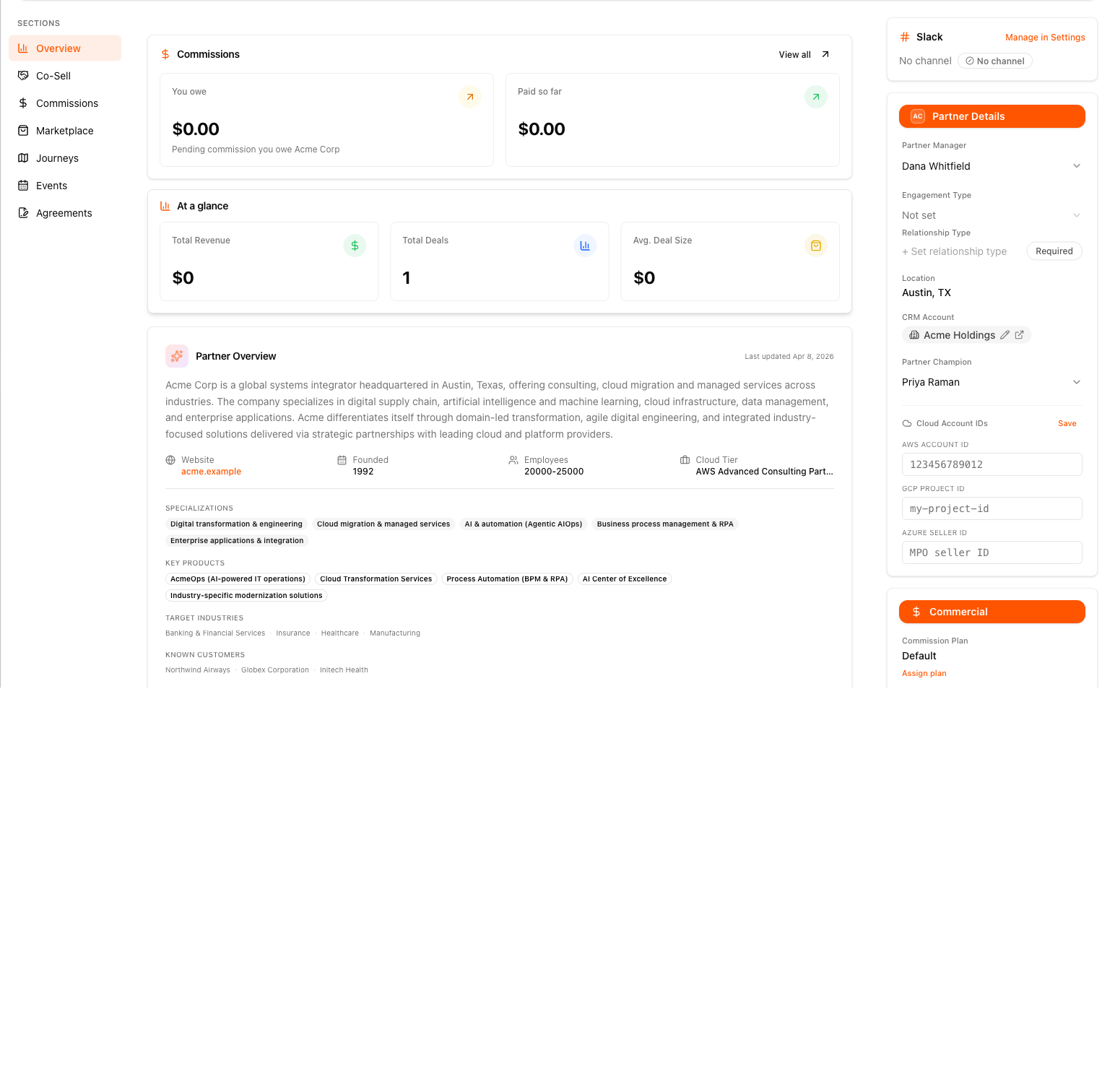
The partner record is the page you open when you click a partner’s name. It has three parts that stay put no matter which partner you’re looking at:
- a banner across the top with the partner’s identity, status, and the quick actions you’d take on them,
- a Sections rail down the left that swaps the main column between ten sections — it needs a wide window, and is hidden below roughly 1280px,
- a sidebar on the right holding the fields you edit and the relationship context you read.
Open a Partner Record
- Go to Suger Console, then Partners.
- On the All Partners tab, click the partner’s name.
- The record opens on Overview. Selecting a section in the rail swaps the main column — it does not scroll the page.
Links from elsewhere in Suger (a journey row, a task, a Slack notice) can open the record straight onto a specific section rather than Overview.
The Banner and Quick Actions
The banner shows your logo, the partner’s logo, their name, marketplace channel badges, and a meta row with status, partner type, Since date, and the Owner.
Three controls sit on it:
| Control | What it does |
|---|---|
| Register a Deal | Opens the co-sell registration flow for this partner. Appears once the partner is a linked Suger organization and partner co-sell is enabled for your org. |
| Invite to Collaborate | Only on a partner still at status SUGGESTED — a company Suger found for you that you haven’t contacted. |
| More Actions | Create CPPO, Register a Deal on Partner’s Behalf, Bulk Upload Deal Registrations, and Timeline. |
Register a Deal on Partner’s Behalf records a deal the partner sourced and asks them to confirm it. It needs a Partner Champion on the record with an email address — Suger addresses the confirmation request to that person, so the action stops and tells you to nominate one if the field is empty.
Above the banner, Preview as {partner} switches the page into the partner’s outbound view: the Overview renders the template they see in their portal, and every edit control on the page goes read-only until you click Exit preview. See Customize the Partner Portal Overview.

The Sections Rail
The rail lists the sections in this order:
| Section | What it holds |
|---|---|
| Overview | Active journeys, then the cards from the Overview template — commissions, at-a-glance metrics, an AI partner summary, revenue by channel, deals over time, and activity. |
| Co-Sell | The Co-Sells list: opportunity name, customer, stage, target close date, My Deal Role, additional partners, and partner acceptance. |
| Commissions | The commission ledger for this partnership. See below. |
| Marketplace | CPPO Activity — private offers matched to this partner by buyer ID or marketplace seller ID. |
| Journeys | Journeys assigned to this partner and their step progress. |
| Tasks | Action items on this relationship, in both directions. |
| Resources | Files shared with the partner and received from them, split All / Shared / Received, each with a count. Shared lists your files shared with all partners or with this partner. Received lists the partner’s files shared with you, plus files they share with all partners while your partnership is ACTIVE. All combines the two. |
| Events | Webinars, training sessions, and meetups shared between you. See below. |
| Training | Courses you’ve shared with this partner and courses they’ve shared with you. |
| Agreements | NDAs, MSAs, referral agreements, and SOWs. See below. |
Not every partner shows all ten:
- A partner who hasn’t accepted your invitation yet (status
PENDING) shows only Overview, Co-Sell, Commissions, and Marketplace, under a banner explaining why. Those four are your own records about the company and are real before anyone replies; the rest depend on a partnership being in force. - Tasks and Resources need the partner to be a linked Suger organization — both address the partner’s own org directly.
- Training needs a linked organization and status
ACTIVE, because that is the only state in which courses are shared across a partnership. - Commissions appears when commission tracking is enabled for your organization.
The Sidebar
| Card | What’s in it |
|---|---|
| Slack | The Slack channel mapped to this partner, with its connection status. Read-only — mapping happens in Settings → Partner → Slack. |
| Tier | Their tier in your program (editable via the dropdown), and, when the partner runs their own program, your tier in theirs (read-only — they own it). The card only appears when the partnership’s Relationship Type puts a tier program in play and that program has a tier to show — so it’s absent while Relationship Type is unset, and while you’re the seller but haven’t defined any tiers yet. See Partner Tiers. |
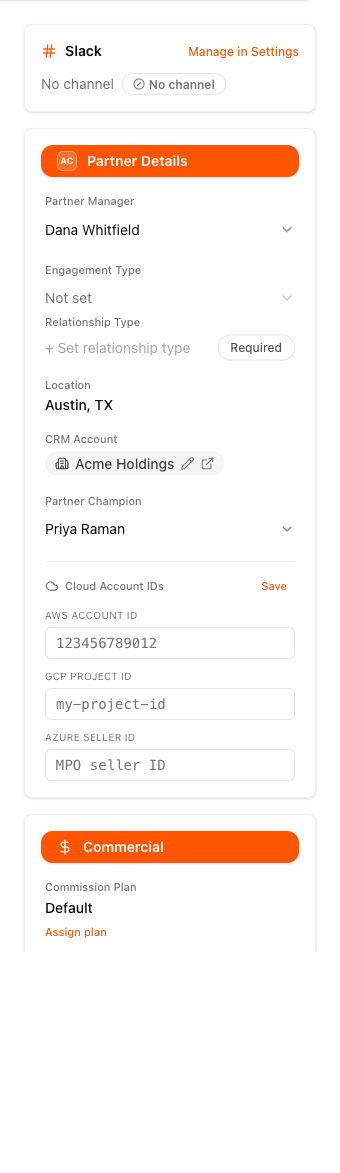
| Partner Details | Partner Manager, Engagement Type, Relationship Type, Location, CRM Account, Partner Champion, and Cloud Account IDs. Engagement Type and CRM Account are seller-side fields: a partner organization on the free partner-limited plan doesn’t see them at all. |
| Commercial | The Commission Plan applied to this partner. See Set Up and Manage Commission Plans. |
| Relationship Hub | Three tabs: Contacts (pulled from the linked CRM account), Inbox (recent email with this partner’s domain), and Gong. |
Cloud Account IDs — the AWS, GCP, and Azure account IDs used to auto-match CPPO transactions to this partnership — is a sub-section inside Partner Details rather than a card of its own. There is no separate Partner Type field; Engagement Type is the one that classifies the partner.
Engagement Type
Engagement Type names the motion this partner runs. Pick from:
| Option | Use it for |
|---|---|
| Reseller | Moves your licence transactionally under their own agreement. |
| Value Added Reseller | Resells, and bundles their own integration or services with it. |
| Referral Partner | Passes you leads for a fee rather than transacting. |
| Systems Integrator | Builds and delivers the implementation around your product. |
| MSP (Managed Service Provider) | Runs your product on an end customer’s behalf as a managed service. |
| Technology Partner | Integrates with you at the product level. |
| Agency | Sells or services on your behalf as a marketing or services agency. |
| Distributor | Sells through a downstream network rather than direct. |
| Affiliate | Drives referrals at arm’s length, usually at volume. |
Reseller and Value Added Reseller sit next to each other deliberately: they are two distinct resale motions, and the difference is worth deciding at the moment you choose. Resellers Suger discovers from your marketplace transactions are created as Reseller — change it if the relationship is really value-added.
The same nine options appear as the Partner Type column of a bulk CSV invitation, so a partner’s type can be set before they ever accept. See Invite Partners.
Commissions
The tiles read by direction
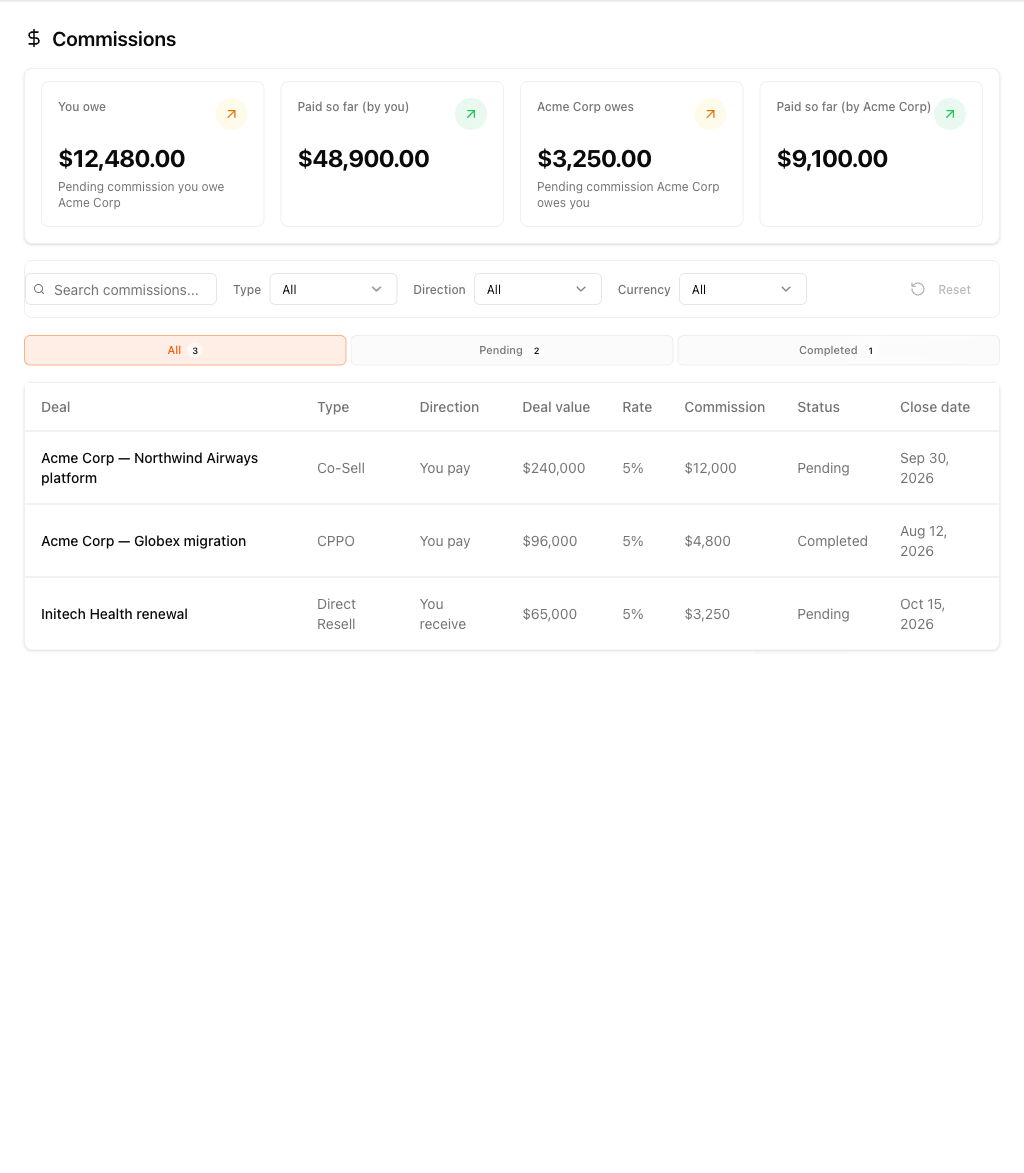
The tiles at the top of the section name who owes whom, because “payable” and “receivable” only mean something if you already know which side of the deal you’re on. Suger works the direction out from the commission activity on the record, not from a setting:
| Commission moves… | Tiles shown |
|---|---|
| From you to the partner | You owe · Paid so far |
| From the partner to you | {Partner} owes · Paid so far |
| Both ways | You owe · {Partner} owes · Paid so far (by you) · Paid so far (by {Partner}) |
A one-way relationship shows two tiles; a two-way one shows four, and the settled tiles are qualified by payer so the pairs can’t be confused.
When a partnership carries commissions in more than one currency, the tiles show the leading currency only — the one with the largest total — and a +N other currencies note sits beside them. Hover it to see the same tiles broken out per currency.
Narrowing the ledger
A filter bar sits above the records table:
| Control | Values |
|---|---|
| Search | Matches the deal name, type, and status. |
| Type | All, plus Co-Sell, CPPO, and Direct Resell — only the types actually present in this partner’s ledger are offered. |
| Direction | All · You pay · You receive |
| Currency | All, plus each currency in the summary. |
| Reset | Clears all three dropdowns. Disabled when none are set. |
Under the bar, three tabs split the rows: All, Pending, and Completed, each with a count that follows the active filters.
The table itself shows Deal, Type, Direction, Deal value, Rate, Commission, Status, and Close date. Status is one of Calculated, Paid, Realized, Reversed, or Clawback pending.
The three dropdown filters are per-partner and clear when you open a different partner, so one partner’s selection can never silently hide another partner’s rows.
Agreements
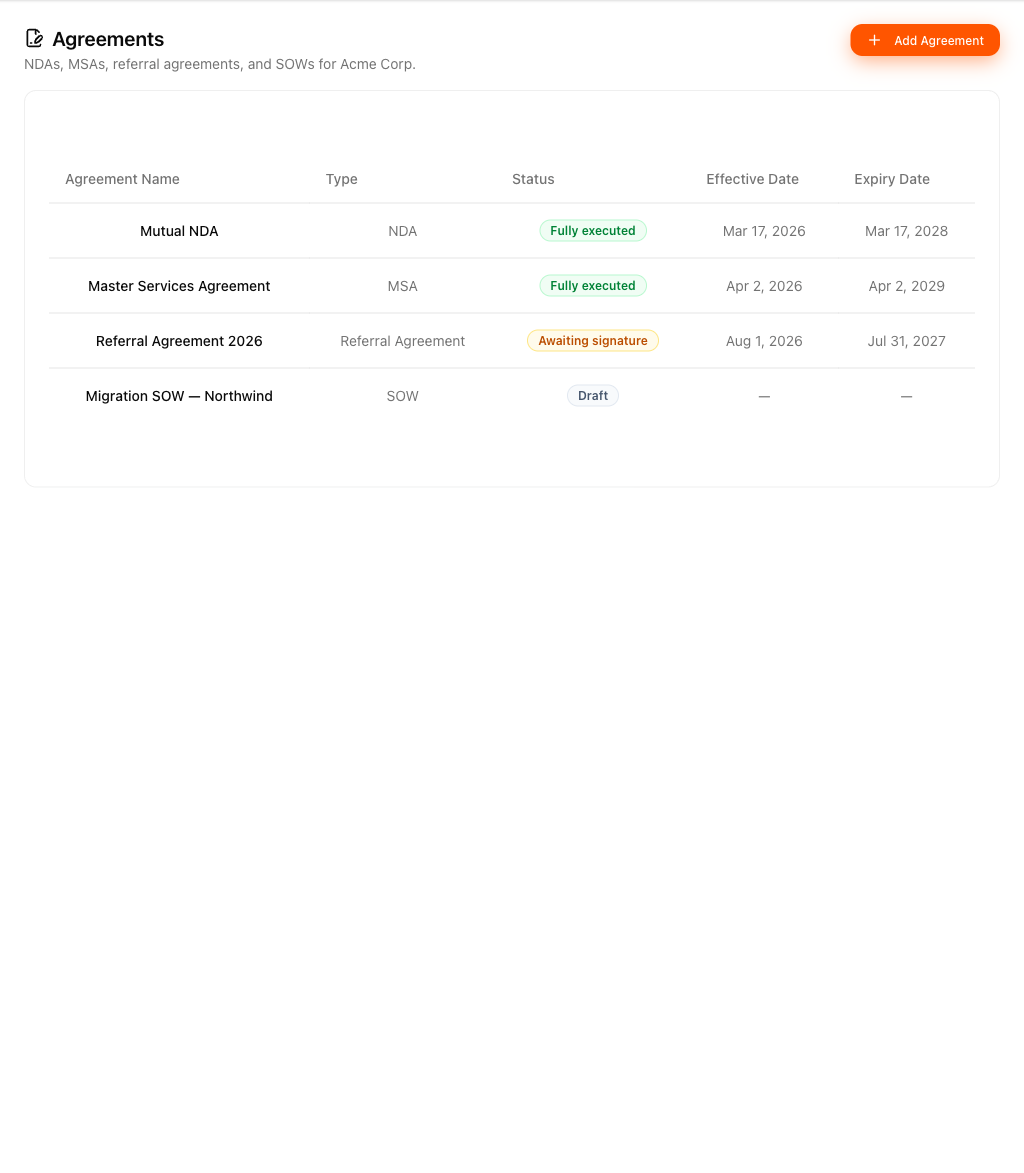
Agreements are contract records attached to the partnership. Click Add Agreement, then give it a Name, a Type, an optional Status, and optional Effective Date and Expiry Date. Clicking the name opens the agreement to edit the metadata and attach files.
| Type | Shown as |
|---|---|
NDA | NDA |
MSA | MSA |
REFERRAL_AGREEMENT | Referral Agreement |
SOW | SOW |
OTHER | Other |
| Status | Shown as |
|---|---|
DRAFT | Draft |
AWAITING_SIGNATURE | Awaiting Signature |
PARTIALLY_SIGNED | Partially Signed |
FULLY_EXECUTED | Fully Executed |
EXPIRED | Expired |
Each file you attach carries a role: Template, Signed by Party A, Countersigned, Final Executed, or Amendment. Agreement attachments live with the agreement and never appear in the general partner file library.
Events
The Events section shows only what’s shared between you and this partner: events you shared with them, and events they shared with you.
Three tabs split them: All, Shared (created by you), and Received (created by the partner). Alongside the tabs are a search box, an All types filter, and a switcher between list and calendar view.
Click New Event to create one. It opens pre-scoped to this partner.
| Field | Notes |
|---|---|
| Title | Required. |
| Type | Webinar / Online Session, Certification / Training Session, In-Person / Field Event, or General Calendar Event. |
| Description | Optional. |
| Date | Required. |
| Start / End / Timezone | Timezone is one of ET, CT, MT, PT, or UTC. Times are authored in that zone, so the event reads the same for every viewer. |
| Meeting URL or Address | The label follows the type — webinars and training take a URL, in-person and general events take an address. |
| Capacity | Optional. Blank means unlimited. |
| RSVP | On by default. |
| Share with | All partners, Specific partners, or Partners by tier. |
Only ACTIVE partners appear in the Specific partners picker, and Partners by tier draws on the tiers you configured in Partner Tiers.
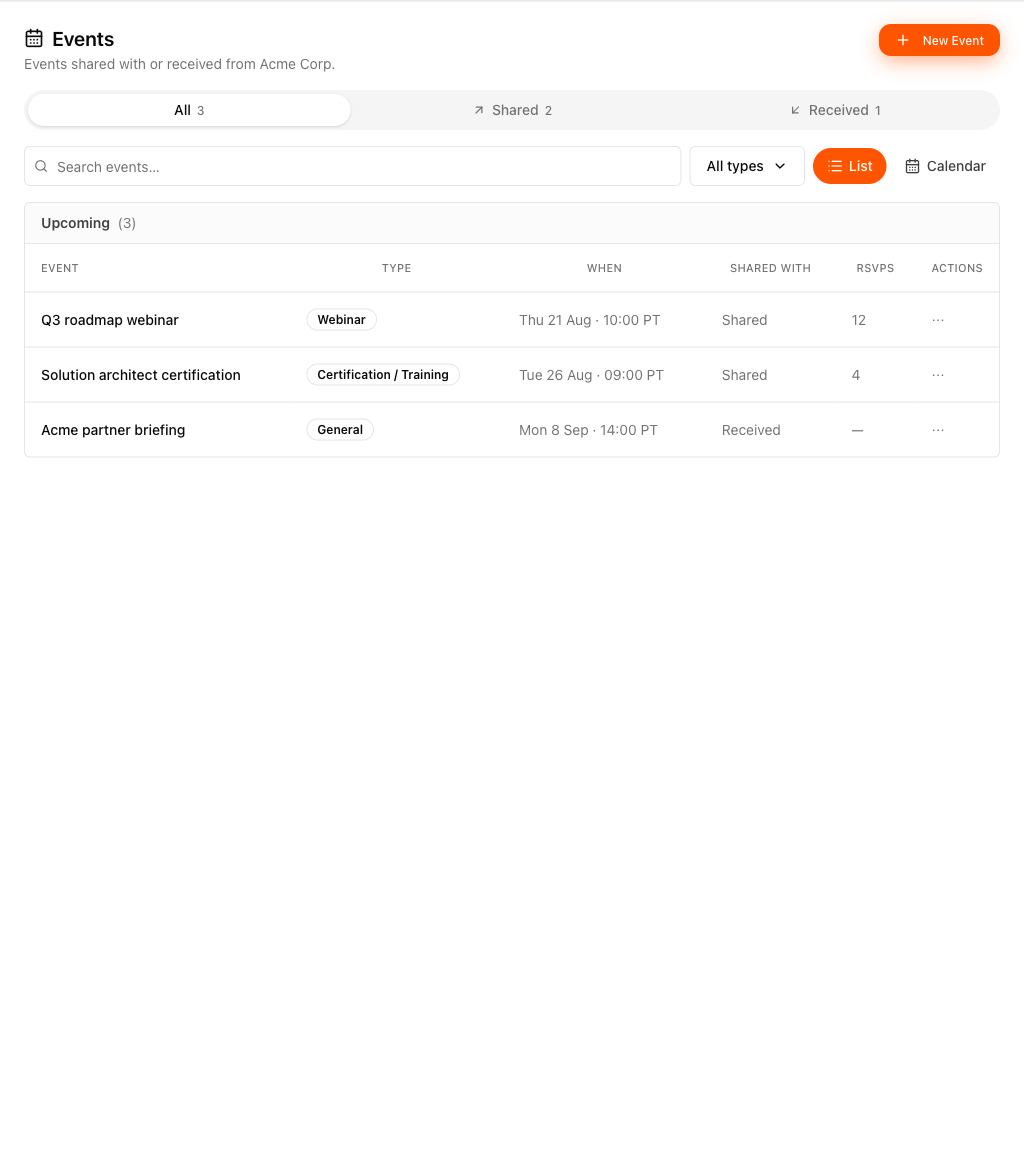
Table Conventions
The tables across Partner Management share three habits:
- An Actions column. Per-row actions live behind a kebab menu in a trailing Actions column rather than as inline buttons. Destructive items are red, and an unavailable one explains why underneath its label.
- A Columns chooser on the list pages. The standalone list tables — All Partners, Journeys, Tasks, Training, Certificates, and the Events page — have a Columns control for picking which columns to show, and your choice is remembered in your browser. It’s a list-page convention, not a partner-record one: the sections on this page, the Events section included, have no Columns control.
- Filters and sorting that stick. Sorting and page size persist per table between visits. The exception is the Commissions filter bar on this page, which is deliberately per-partner and resets when you open a different partner.
How a Partner Record Fills In
Where Each Section Is Documented
This page maps the screen. The work inside each section has its own guide:
- Create and Assign Partner Journeys and Track Journey Progress — building and running the journeys shown in the Journeys section.
- Set Up and Manage Commission Plans — the plans that produce the numbers in Commissions.
- Partner Tiers — the tiers on the sidebar Tier card and behind by-tier event sharing.
- Set Your File Sharing Defaults — the defaults that decide what lands in Resources.
- Build a Partner Training Course — authoring the courses that appear under Training.
- Customize the Partner Portal Overview — designing what the partner sees on their own Overview.
Spotted something wrong or out of date on this page? Tell us and we'll correct it.