
Create Offer
Easily create private offers directly from a HubSpot deal using the Suger App.
Overview
A private offer is a custom deal you send to a specific buyer through a cloud marketplace — AWS, Azure, or GCP. It includes your negotiated pricing, contract terms, and expiration date. The buyer receives a link to review and accept the offer directly in their cloud marketplace account. Once the buyer accepts it, the contract is live and billing starts automatically through the marketplace.
After adding the Suger App to your HubSpot Console, you can create these offers straight from a deal, without leaving HubSpot. For more details on offers, see Understand Marketplace Offers.
Prerequisites
- The Suger App must be set up in HubSpot and the Suger app card must be visible on your deal pages. If you haven’t done that yet, see Configuration.
- The product you want to create an offer for must already exist in Suger. If it doesn’t, create it in the Suger Console first before continuing.
Create an offer
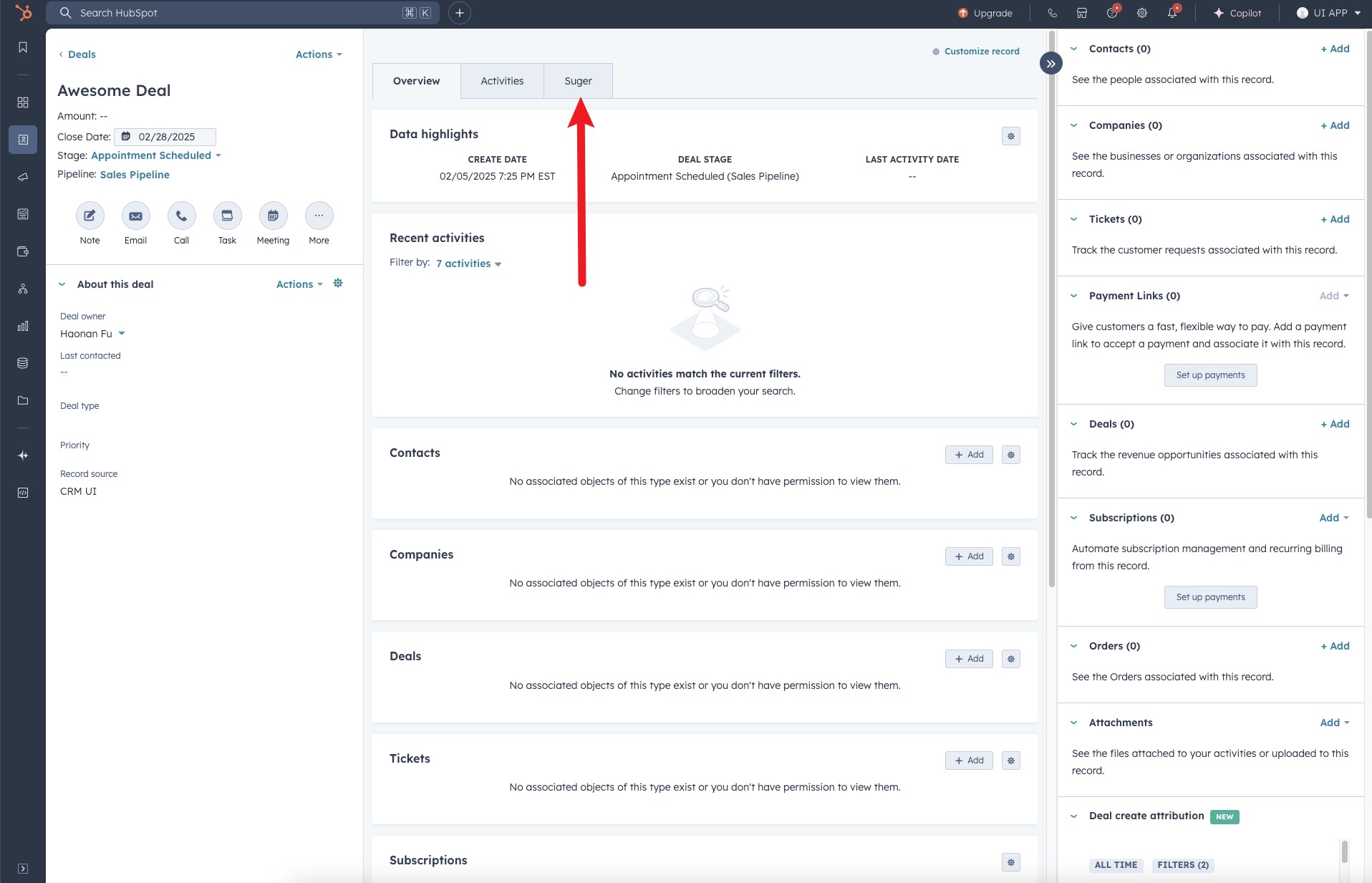
- Navigate to the deal’s detail page and click the “Suger” tab at the top of the page.
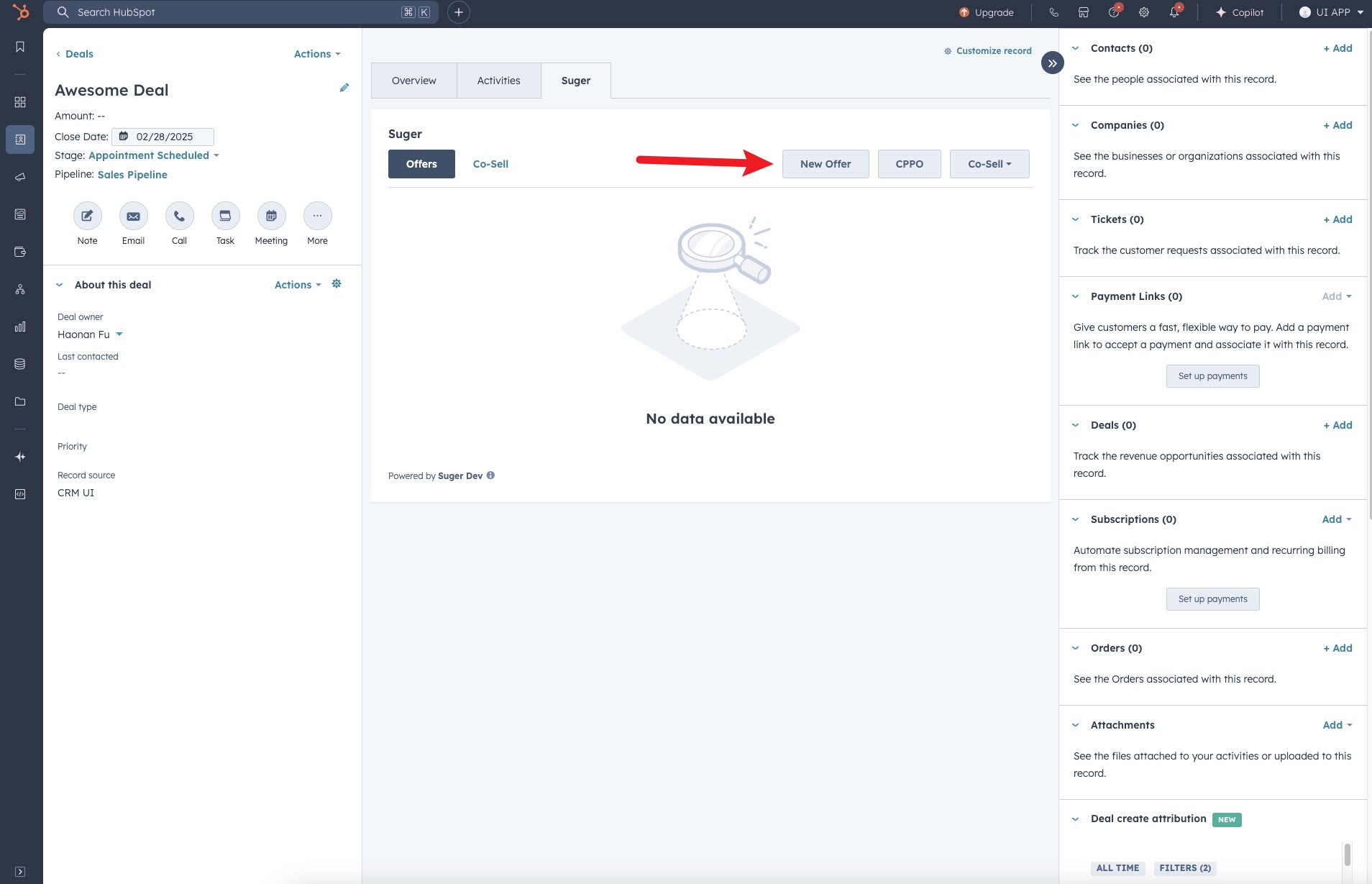
- Locate and click the “New Offer” button.
-
The Create Private Offer panel opens with “Choose the type of offer you wish to create.” Pick one of the three types:
Option Use it when Private Offer You are sending a new negotiated offer directly to an end customer Amendment Offer You are changing an offer or agreement that already exists Reseller Offer You are creating the offer as a reseller, based on an authorization an ISV granted you
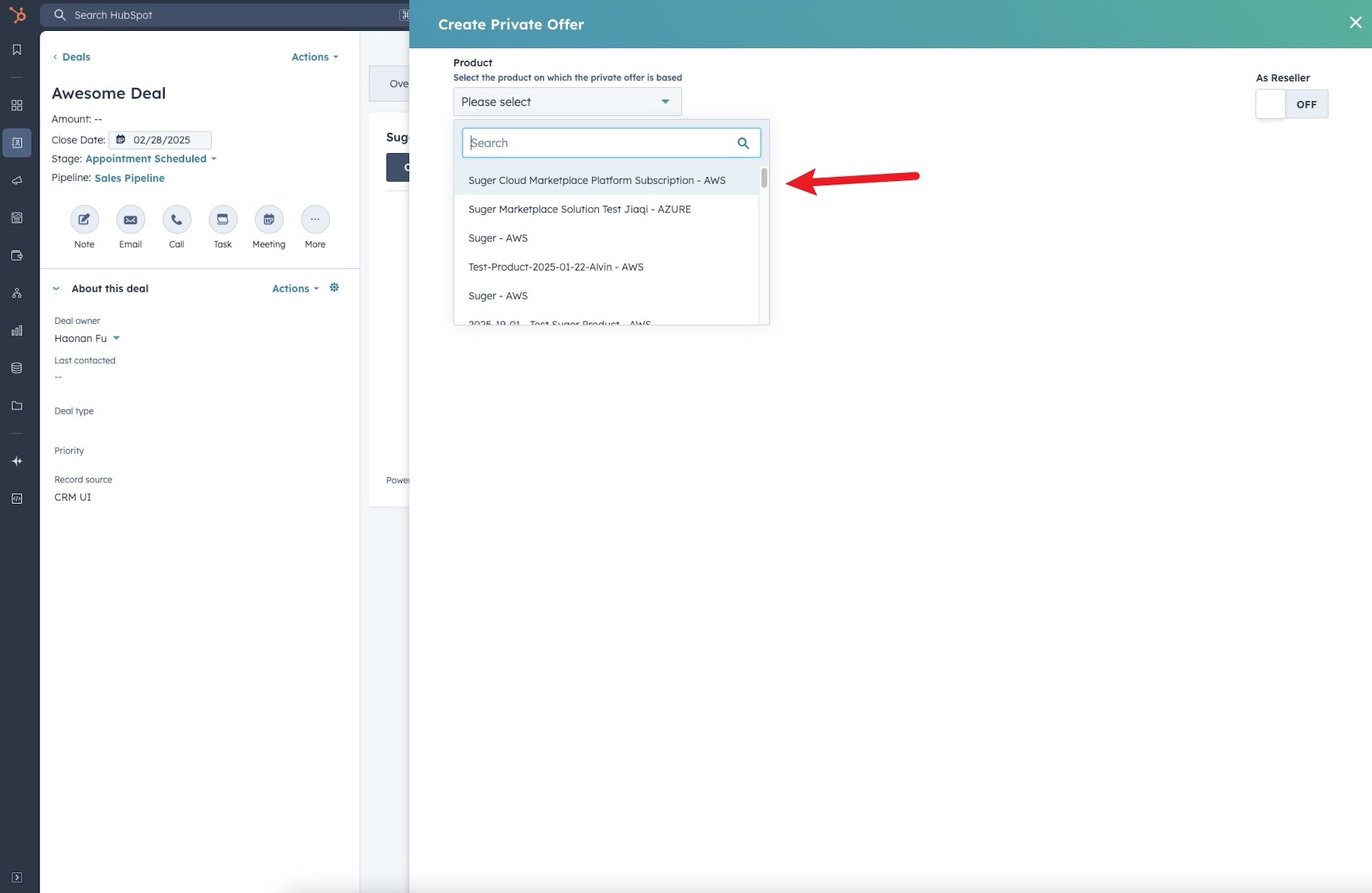
- Choose the product on which the private offer will be based. The product list shows only products available in your Suger account.
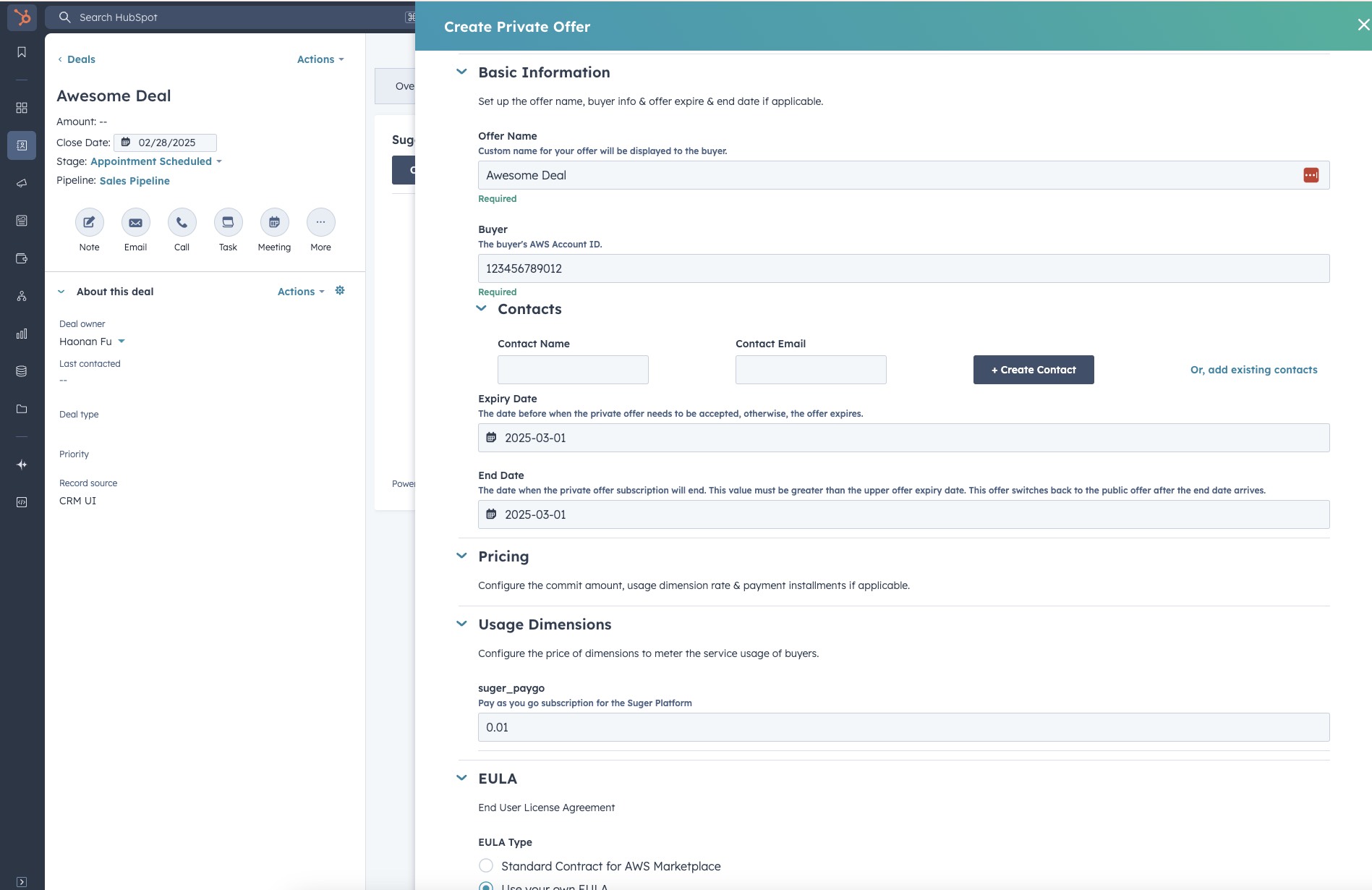
- Complete the required fields in the form. Note that the required fields may vary depending on the cloud marketplace and the type of offer.
- Once all necessary information is filled in, submit the form to create the offer.
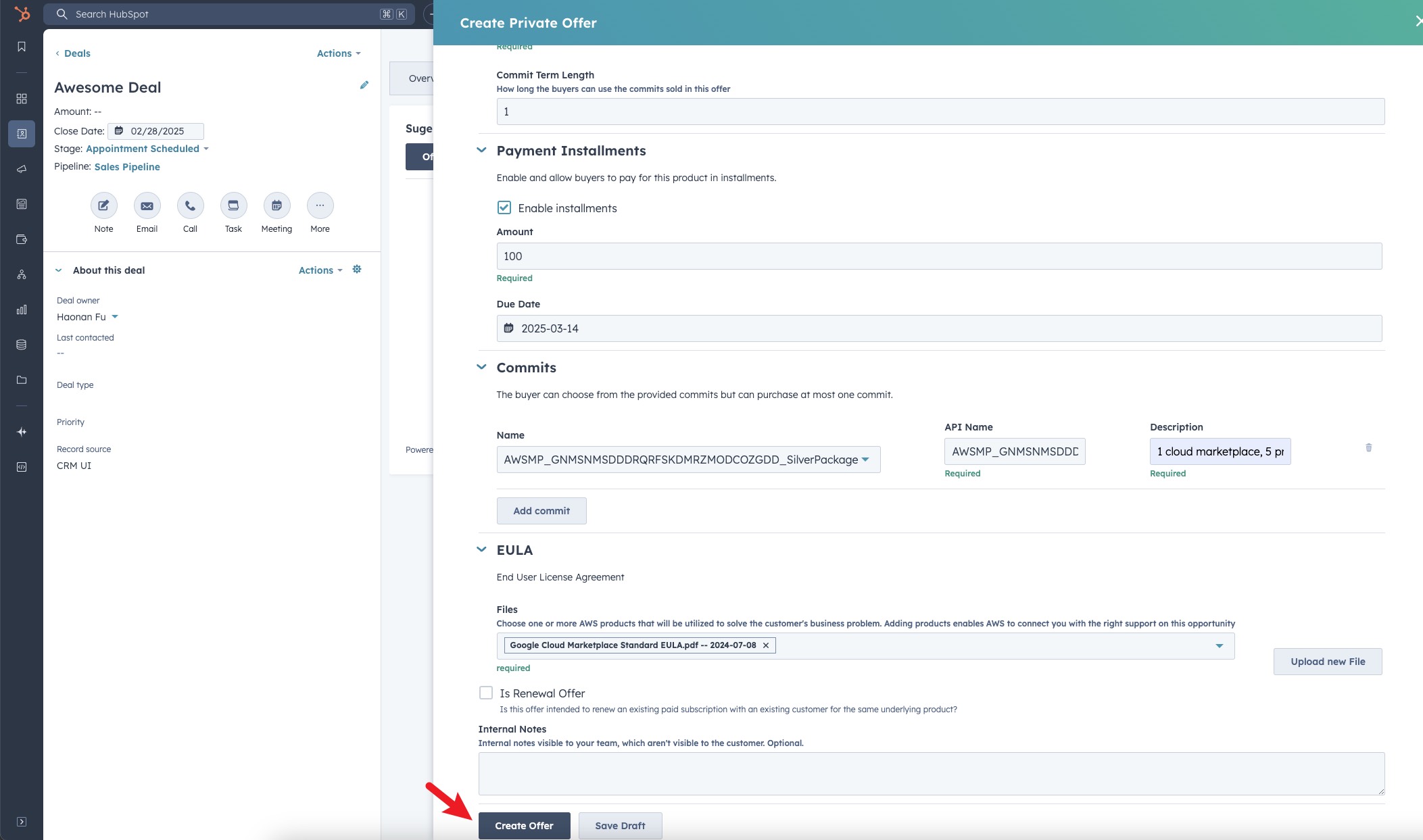
- You are all set!
AWS: buyer net payment term
Every AWS offer form — SaaS, agreement-based, container, machine learning, professional services, and reseller — carries a Buyer net payment term field. It sets how long the buyer has to pay after being invoiced.
Leave it on Customer’s net terms with AWS and nothing changes: the buyer keeps whatever terms they already have with AWS. Choose a custom term and you pick one of six:
| Option | |
|---|---|
| Net 15 days | Net 60 days |
| Net 30 days | Net 90 days |
| Net 45 days | Net 120 days |
Once the offer exists, the term is shown on the offer detail as Buyer payment term.
AWS: pre-authorized renewal terms
The AWS SaaS, container and professional-services offer forms carry a Configure renewal terms section for pre-authorized auto-renewal. It appears whenever the selected product has at least one commit (contract) dimension. A product that also meters usage qualifies too — only the commits matter.
- Container offers also need a committed pricing model. On a usage-based or free pricing model, or for a product that is free only, the section stays hidden.
- No commits, no renewal term. If you switch to a product without commits, any renewal term the form was carrying — for example from a draft — is dropped, so it is never submitted.
What each renewal option means is covered in Pre-Authorized Auto-Renewal. Once the buyer accepts, you manage the renewal from the deal’s Entitlements tab — see Adjust the renewal uplift.
Azure: automatic subscription activation
An Azure SaaS offer form carries Automatically activate the subscription on purchase.
- Checked — Azure activates the SaaS subscription automatically once the customer purchases the offer.
- Unchecked — your team activates it.
The checkbox appears only when your Azure integration is set to self-managed subscription activation and the offer uses V2 pricing. On any other combination it is hidden, because the setting cannot be carried on the offer at all. See Azure Marketplace integration settings.
Azure: custom contract terms and renewal
On an Azure offer, the Contract Duration toggle includes a Custom option. Choosing it reveals two more fields:
- Custom Duration Unit — months or years.
- Custom Duration Value — the length. The helper text is “1–120 months or 1–10 years; month values divisible by 12 must use years”, so a 24-month term has to be entered as 2 years.
A custom term also makes Renewal Behavior required, and its “no renewal” option is hidden — Azure will not accept a custom-term offer without a renewal decision. The options are:
| Renewal Behavior | What happens at the end of the term |
|---|---|
| No renewal configured | The subscription does not renew. Not available when the term is custom |
| Renew into private offer | The customer rolls into the private offer pricing again |
| Renew into public offer | The customer rolls onto your public marketplace listing pricing |
When you pick a renewal that continues the subscription, set Renewal Contract Duration and Renewal Billing Frequency underneath it.
Two defaults are worth knowing, because they changed:
- Choosing Custom now pre-selects Renew into public offer. If you want the customer to roll into the private pricing again, change it yourself — the form no longer assumes it.
- Renewal Contract Duration is seeded with the shortest published term on your base plan, and the dropdown is ordered shortest first.
Manage an offer after it is created
Each row in the Offers tab has an actions menu:
| Action | What it does |
|---|---|
| Cancel Offer | Cancels the offer so the buyer can no longer accept it |
| Extend Expiry Date | Pushes the offer’s expiry date out |
| Edit Offer Info | Edits the offer’s descriptive information |
| Clone Offer | Starts a new offer pre-populated from this one. Not available on resale authorizations (CPPO) or on an incoming reseller offer (CPPO_IN) |
| Edit draft | Reopens an offer that never reached the marketplace so you can correct and resubmit it. Shown on DRAFT, CREATE_FAILED, and INVALID offers |
When Extend Expiry Date is available
Extend Expiry Date is offered when the offer’s status is one of:
| Status | Why it is extendable |
|---|---|
| PENDING_ACCEPTANCE | The buyer has not accepted yet and needs more time |
| EXPIRED | The offer lapsed and you want to revive it |
| UPDATE_FAILED | A previous extend attempt failed — extend again to retry it |
It is never available in these cases:
- CPPO offers. A CPPO is created and owned by the reseller, so the ISV cannot extend it.
- AWS resale authorizations (CPPO_OUT). AWS does not support extending an authorization.
- Azure offers on v1 pricing. Only v2 and v3 Azure pricing can be extended.
- Azure resale authorizations. They have no expiry date to extend — see Azure: grant a resale authorization.
GCP: replaced offers
When a GCP offer replaces an earlier one, the offer detail shows Replaced Offer ID — the identifier of the offer it supersedes. Once Suger resolves that identifier, a Replaced Offer row appears with the replaced offer’s name, so you can see at a glance which offer this one took over from.
GCP: dates in Pacific time
On a GCP offer’s detail, Start Date, Expire Date, Accept Date and End Date show a date and time in Pacific time, with PST or PDT — for example 8/31/2026, 11:45:00 PM PDT — rather than a UTC date. Pacific time is the calendar GCP Marketplace keeps, so the dates line up with GCP’s Producer Portal.
Suger also counts a GCP term from the Pacific calendar day it starts on. An offer whose term starts when the buyer accepts, and that was accepted in the Pacific evening, no longer shows an end date one day later than the Producer Portal.
The Offers table still lists Create (UTC) and Expire (UTC) in UTC, so a GCP offer’s expiry can read one day later there than in the offer detail.
What happens next
After you submit the offer:
- Suger creates the offer and links it to the HubSpot deal.
- The offer is sent to the cloud marketplace for processing.
- Once the marketplace confirms the offer, the offer status updates and the offer URL becomes available.
- Copy the offer URL and send it to the buyer — they use it to review and accept the offer in their cloud marketplace account.
- The offer is also visible in the Suger Console under your offers list.
Troubleshooting common issues
| Issue | Possible cause | Resolution |
|---|---|---|
| No Suger tab visible on the deal page | The Suger app card has not been added to the deal layout | Follow Configuration to add the app card |
| No New Offer button visible inside the Suger panel | The HubSpot integration connection has been disrupted | Go to Suger Console → Settings → Integrations → HubSpot and click Verify to re-verify the connection |
| Product list is empty | No products have been set up in Suger | Confirm that products exist in the Suger Console before creating an offer |
| Form fields are blank — not pre-filled from the deal | Field mapping has not been configured | Field mapping is an optional admin setup. Contact your admin to configure it |
| Offer URL is not available after the offer is created | The marketplace has not finished processing the offer yet | Wait 3–5 minutes and refresh the page. The URL appears once the marketplace confirms the offer |
| Offer was created but is not visible on the deal | Sync between Suger and HubSpot is delayed | Refresh the page after a few minutes. If it still doesn’t appear, confirm the offer was created successfully in the Suger Console |
Frequently asked questions
Can I create offers for AWS, Azure, and GCP from HubSpot?
Yes — as long as products are set up for each cloud in Suger. The product selector in the offer form shows all available products across clouds.
What is field mapping and do I need it?
Field mapping is an optional configuration that automatically pre-fills offer form fields with data from the HubSpot deal — like company name, deal value, or close date. It saves time and reduces manual entry errors. You can still create offers without it, but you’ll need to fill in all fields manually.
Will the offer show up in the Suger Console too?
Yes. Any offer created from HubSpot is also visible in the Suger Console under your offers list.
The buyer can’t find the offer link. What do I do?
Open the offer in HubSpot or in the Suger Console and copy the offer URL directly. Make sure at least 3–5 minutes have passed since the offer was created — the URL is not available until the marketplace confirms it.
Spotted something wrong or out of date on this page? Tell us and we'll correct it.