
Connect Slack for Your Partners
Connect your Slack workspace and map a channel to each partner, so Suger knows where to post co-sell activity, internal notes, and broadcasts.
Overview
Most partner conversations already happen in Slack. Connecting Slack to Suger lets you keep them there: each partner gets a Slack channel, and Suger posts to that channel instead of asking your team to copy updates across by hand.
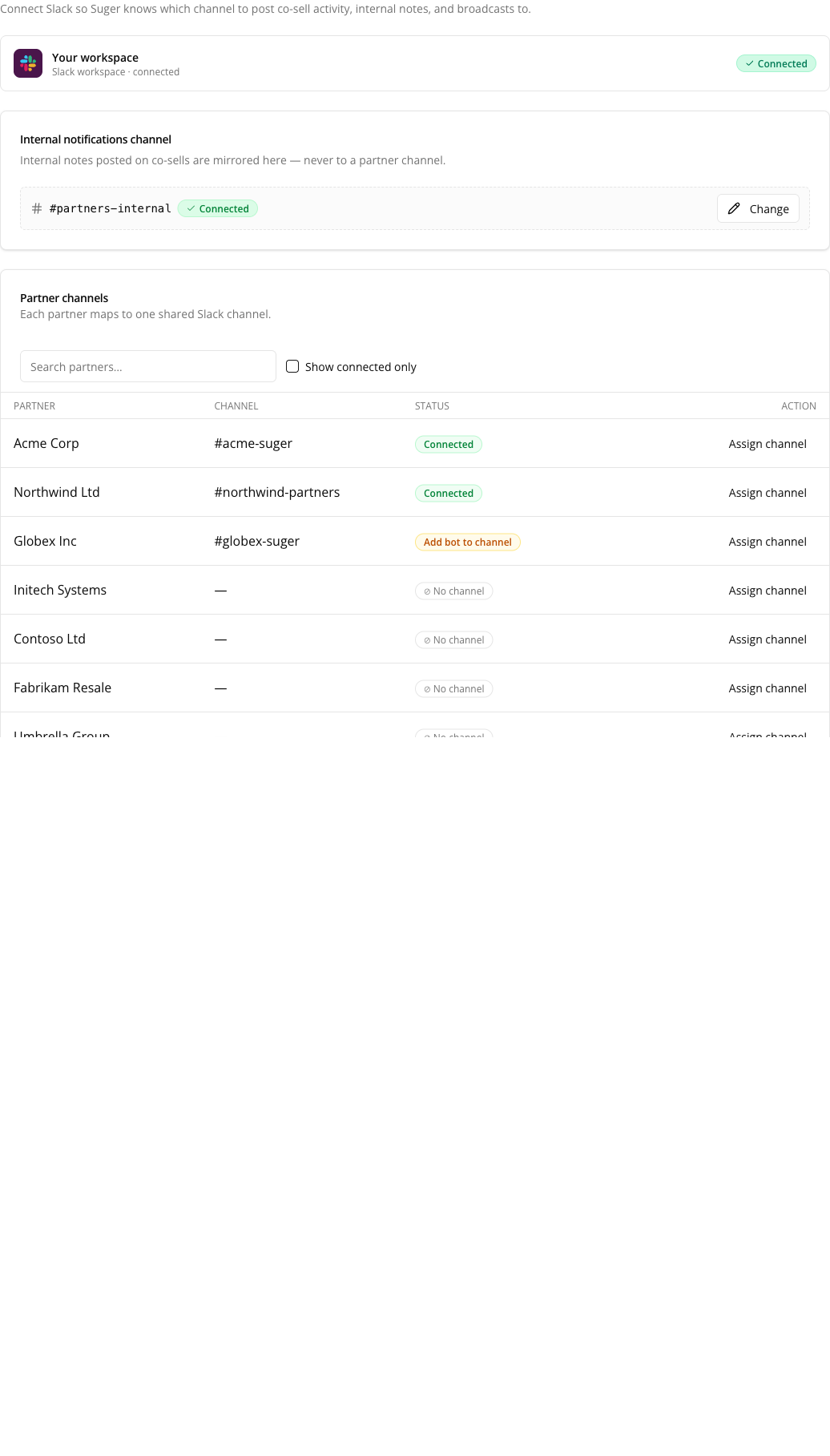
This page is the prerequisite for Broadcasts. A partner with no mapped channel is silently excluded from every broadcast audience — including All partners — so if a partner tells you they never received an announcement, check their channel mapping here first.
Connect Your Workspace
- Go to Suger Console, then Settings.
- Click Partner, then Slack.
- If no workspace is connected yet, the page reads Slack not connected. with a Connect Slack in Settings → Integrations link. Follow it to authorize the Suger app in your Slack workspace, then come back here.
Once connected, the page header shows the connected workspace name.
Set the Internal Notifications Channel
The internal notifications channel is your own team’s channel. Internal notes posted on co-sells are mirrored here — never to a partner channel — so your team can discuss a deal without the partner seeing it.
- Find the internal channel card near the top of the page.
- Click Change.
- Search for a channel by name, or paste a Slack channel ID directly (for example
C0123ABCD) if the channel doesn’t appear in search. - Confirm your choice.
Map a Channel to Each Partner
Below the internal channel card is a table of your partners and their Slack channels.
- Use Search partners by name… to find a partner, or tick the connected-only filter to see just the partners that already have a channel.
- On the partner’s row, assign or edit its channel. The channel picker works the same way as the internal channel picker — search by name, or paste a channel ID.
- To disconnect a partner, remove its channel mapping from the same dialog.
The table paginates with Previous / Next and shows the page you’re on.
Search runs on the server and matches the partner name, so it covers your whole partner program — not only the rows currently loaded. The connected-only filter and the pagination then apply to whatever the search returned.
Channel Status
Each row carries one of three statuses:
| Status | What it means | What to do |
|---|---|---|
| Connected | Suger can post to the channel. | Nothing. |
| Add bot to channel | The channel is mapped, but the Suger bot is not a member of it, so posts will not land. | Invite the Suger app to that channel in Slack. |
| No channel | No channel is mapped to this partner. | Assign one, or accept that this partner is excluded from broadcasts. |
What a Mapped Channel Unlocks
- Broadcasts — one message sent to every mapped partner channel at once.
- Co-sell activity — posted to the partner’s channel as it happens.
- Internal notes on co-sells — mirrored to your internal notifications channel only, never to the partner’s.
Co-Sell and Commission Alerts in Your Team’s Channels
You can also send co-sell and commission lifecycle alerts to your own team’s Slack channels, alongside the emails you already get. These alerts aren’t set up on this page. They are notification scopes on your Slack integration:
- Go to Settings → Integrations and open Slack.
- Under Notification Scope Configs, click Add notification scope.
- Choose the channels, then the scopes to send to them.
See Slack for how notification scopes work.
| Scope | The card announces |
|---|---|
CREATE.SUGERCOSELL | A new co-sell, registered by your team or shared with you. |
REGISTER_ON_BEHALF.SUGERCOSELL | A co-sell registered on a partner’s behalf. |
ACCEPT.SUGERCOSELL, DECLINE.SUGERCOSELL | The other side accepted or declined a co-sell. |
CLOSE_WON_REMINDER.SUGERCOSELL | A co-sell marked Closed Won. |
CLOSE_LOST.SUGERCOSELL | A co-sell marked Closed Lost. |
COMMISSION_TERMS_UPDATED.SUGERCOSELL | New commission terms on a co-sell. |
DEAL_UPDATED.SUGERCOSELL | A change to a deal field the partner can see. Posts only while Partners — Deal update emails is switched on under Settings → Notification. |
PENDING.COMMISSION, APPROVE.COMMISSION | A commission pending, or approved. |
PAYMENT_SENT.COMMISSION, PAYMENT_CONFIRMED.COMMISSION, PAYMENT_REJECTED.COMMISSION | A commission payment sent, confirmed, or rejected. |
CLAWBACK.COMMISSION | A commission reversed. |
UPDATE_PROPOSED.COMMISSION, UPDATE_APPROVED.COMMISSION, UPDATE_REJECTED.COMMISSION | A proposed change to commission terms, and its approval or rejection. |
How the cards behave:
- A link, never an action. A card can carry an Open in Suger link to the deal or commission, but never a one-click action. Anyone in a channel could click one, so an alert that comes with a one-click link, such as a partner’s link to approve new commission terms, is sent by email only.
- Deal values stay where they’re shared. A deal value appears only on the new co-sell, on-behalf registration, Closed Won, and Closed Lost cards, and only when it’s shared on that deal. Commission cards show the commission amount, even on a deal whose value is hidden from the partner.
Scope and Limits
- Slack only. There is no Microsoft Teams equivalent for partner channels today.
- One channel per partner. Suger posts to the partner’s mapped channel, not to individual partner contacts.
- The bot must be in the channel. Mapping a channel is not enough on its own — see the status table above.
- Seller-side only. Partner-side organizations see a Contact Sales panel here instead of the configuration.
- The table loads at most 2,000 partners at a time. The cap applies after the search filter, so searching by partner name reaches partners beyond it. Searching by channel name is not supported — search matches the partner name.
Spotted something wrong or out of date on this page? Tell us and we'll correct it.