
Partner Registration Form
Instead of inviting partners one by one, let prospective partners apply through a registration form on your website. Suger builds and hosts the form for you, then gives you a unique link and embeddable code so you can publish it wherever you’d like.
Overview
A partner registration form is a hosted signup form that prospective partners can fill out to apply to your partner program. Suger provides each form with its own URL and an embed snippet, so you can share it as a direct link or place it directly on a page of your website.
Create a Partner Signup Form
-
Access Sign Up Forms in Settings
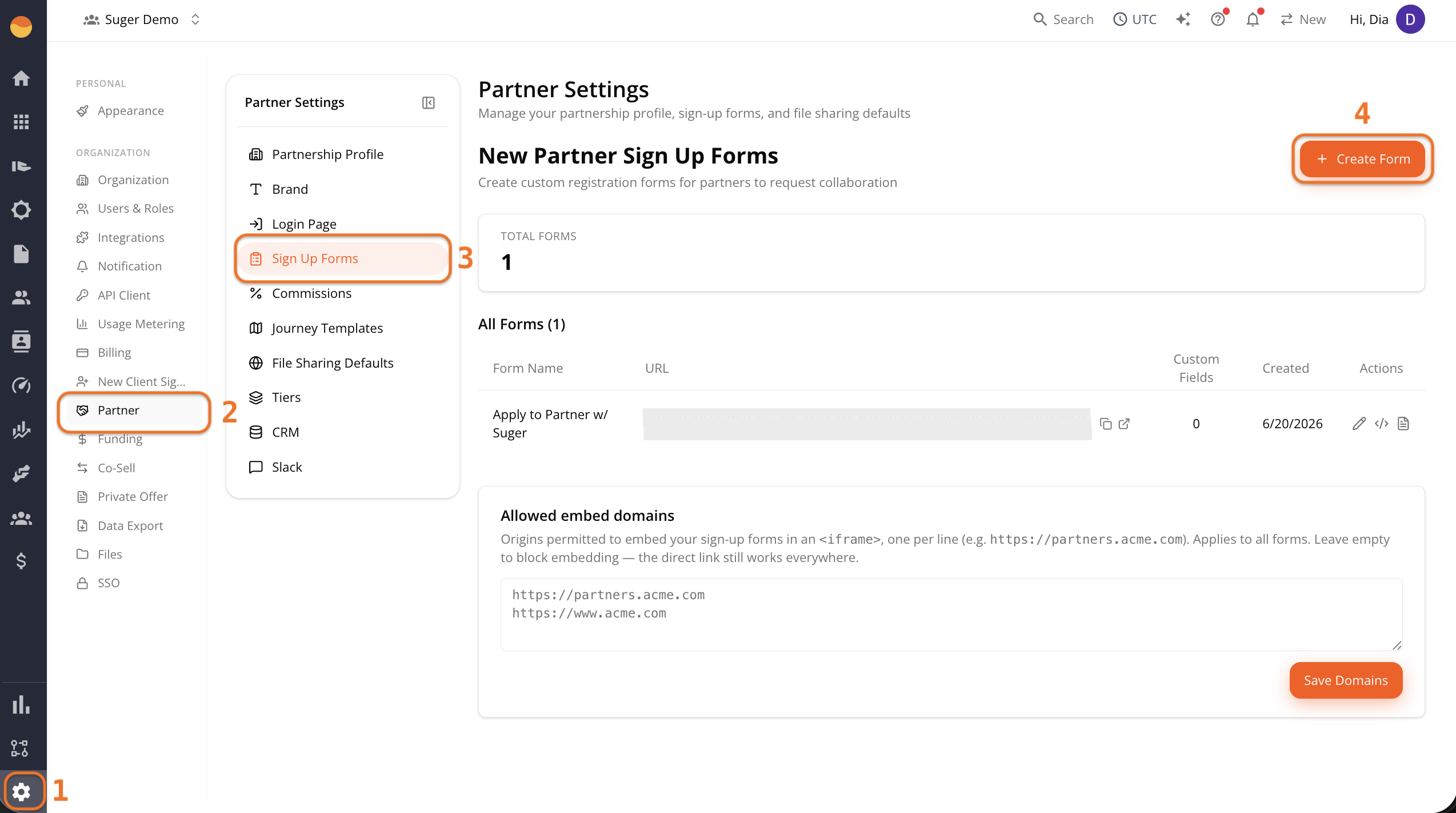
- Go to Suger Console, then Settings.
- Click Partner, then Sign Up Forms.
- Click + Create Form.
-
Create the form
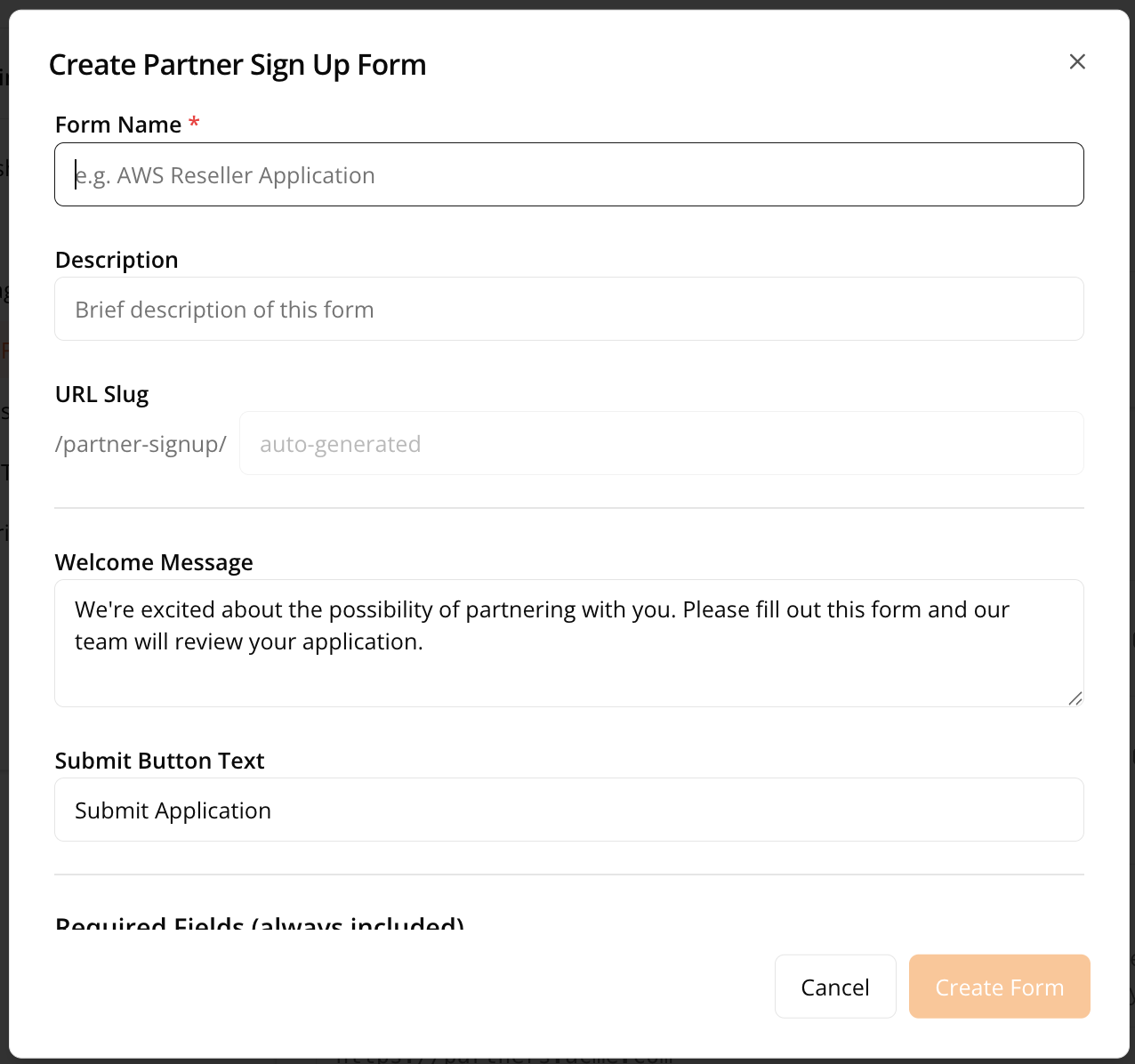
- Form Name: Appears as the heading partners see at the top of the form, so name it with them in mind (for example, “Apply to Partner w/ Suger”).
- Description: A short note about what the form is for.
- URL Slug: Automatically generated as part of the form URL and can’t be edited.
- Welcome Message: Message shown at the top of the form. Use it to explain what applicants can expect after submitting.
- Submit Button Text: Label displayed on the form’s submit button. The default is Submit Application, but you can customize it.
-
Review the required fields
Every registration form includes the following required fields, which can’t be removed or reordered:
- First Name
- Last Name
- Work Email
- Company Name
- Company Website
- Why do you want to partner with us?
-
Add custom fields (optional)
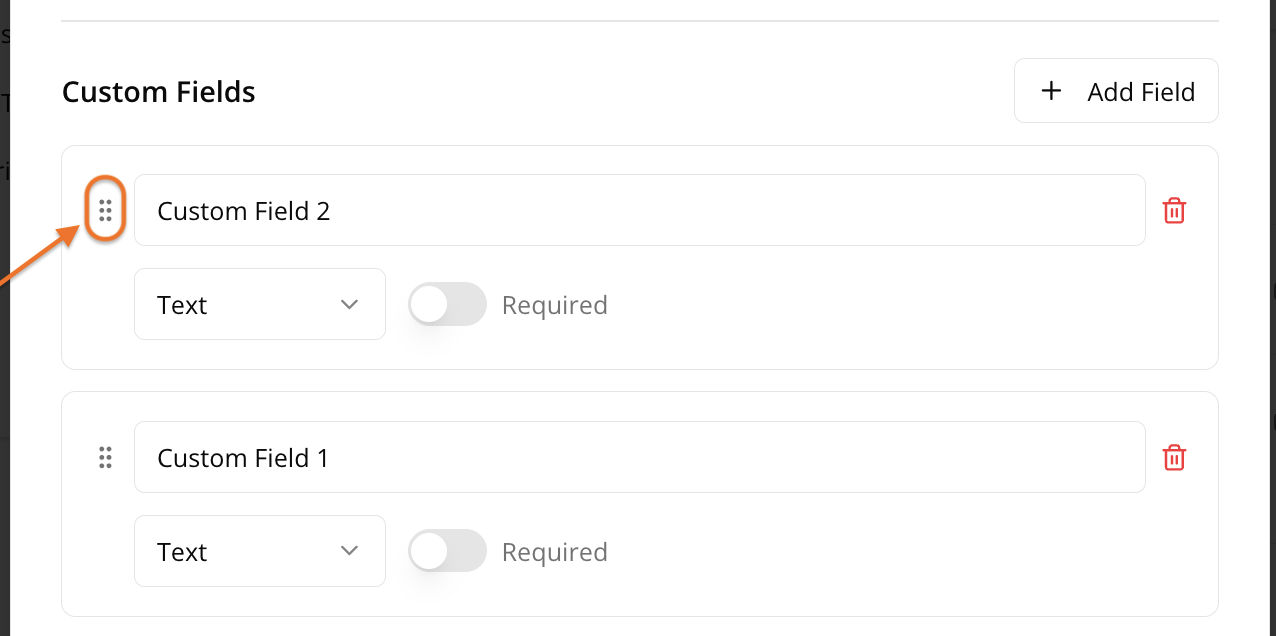
- To collect additional information, click + Add Field.
- Drag and drop fields to change the order in which partners see them.
-
Click Create Form to save.
Share and Manage Your Registration Forms
After you create a form, it appears under All Forms with its own unique URL. From the Actions column, you can:
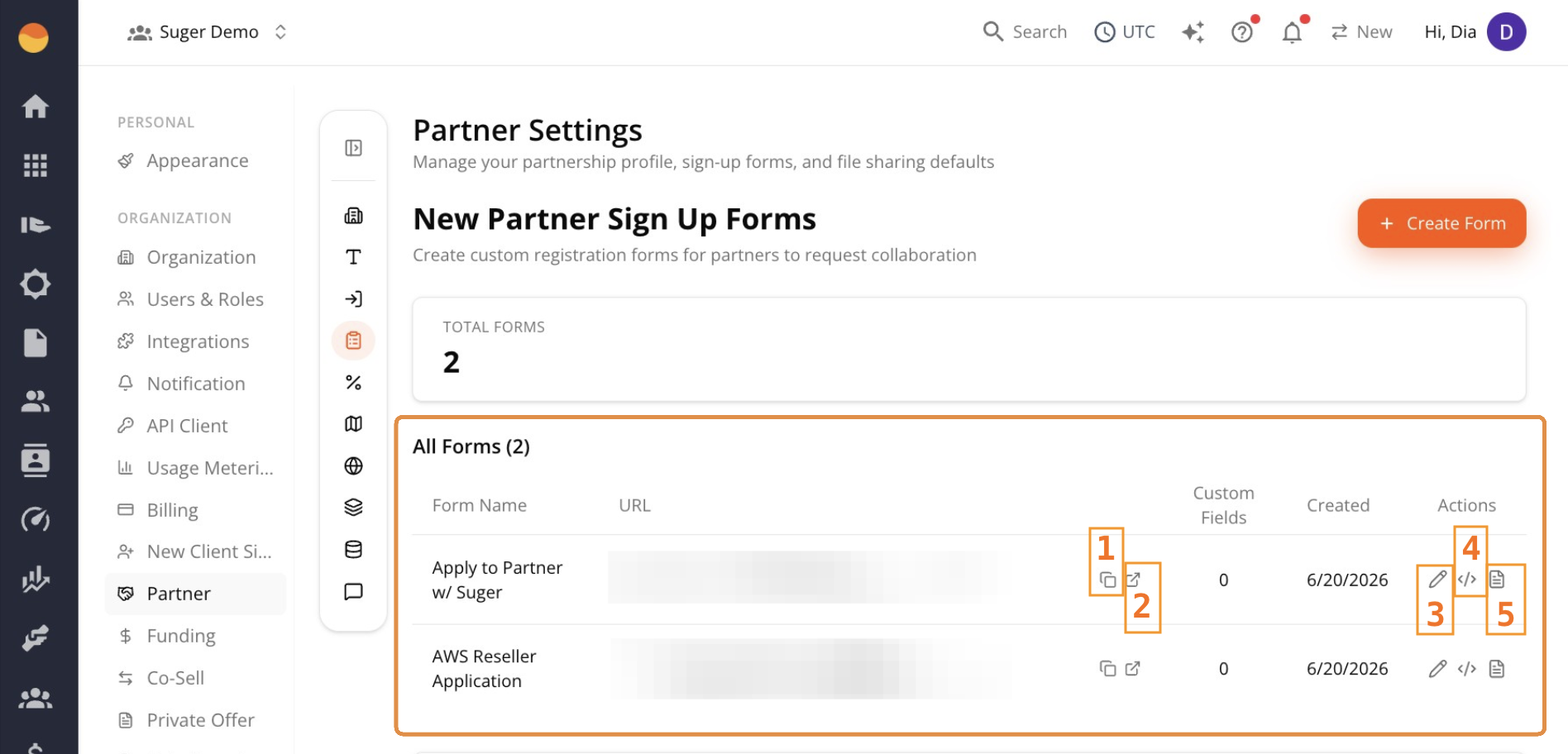
- Copy link — Copies the form’s direct URL to your clipboard, ready to share with a prospective partner.
- Open — Opens the live form in a new tab, useful for previewing exactly what a partner would see.
- Edit (pencil icon) — Go back and change the form’s fields, welcome message, or other settings.
- Copy embed code (
</>icon) — Copies a ready-to-use embed snippet to your clipboard, for placing the form directly on a page of your website. - View details (document icon) — Opens a technical details panel showing the form’s underlying field structure in raw format.
Choose Your Default Application Form
Every selling organization with Partner Management has a form called Partner Sign Up. Suger adds it alongside any forms you’ve built yourself, with just the six required fields listed above, and you can edit or rename it like any other form.
One of your forms is always the default application form. It starts as Partner Sign Up. To choose another:
- Go to Suger Console, then Settings.
- Click Partner, then Sign Up Forms.
- In the Default application form card at the top, pick a form from the list.
Suger saves the choice straight away and confirms with “Default application form updated”. The list has no empty option, because there is always a default.
The default is the form a company reaches from Apply to be a partner on your public deal registration link, when that link only takes deals from connected partners. It is also where Sign up to be a partner and Apply to be a partner lead on your branded partner login page.
Embed the Form on Your Website
If you’d like the registration form to appear directly on a page of your website instead of opening in a separate page, embed it using the code Suger generates.
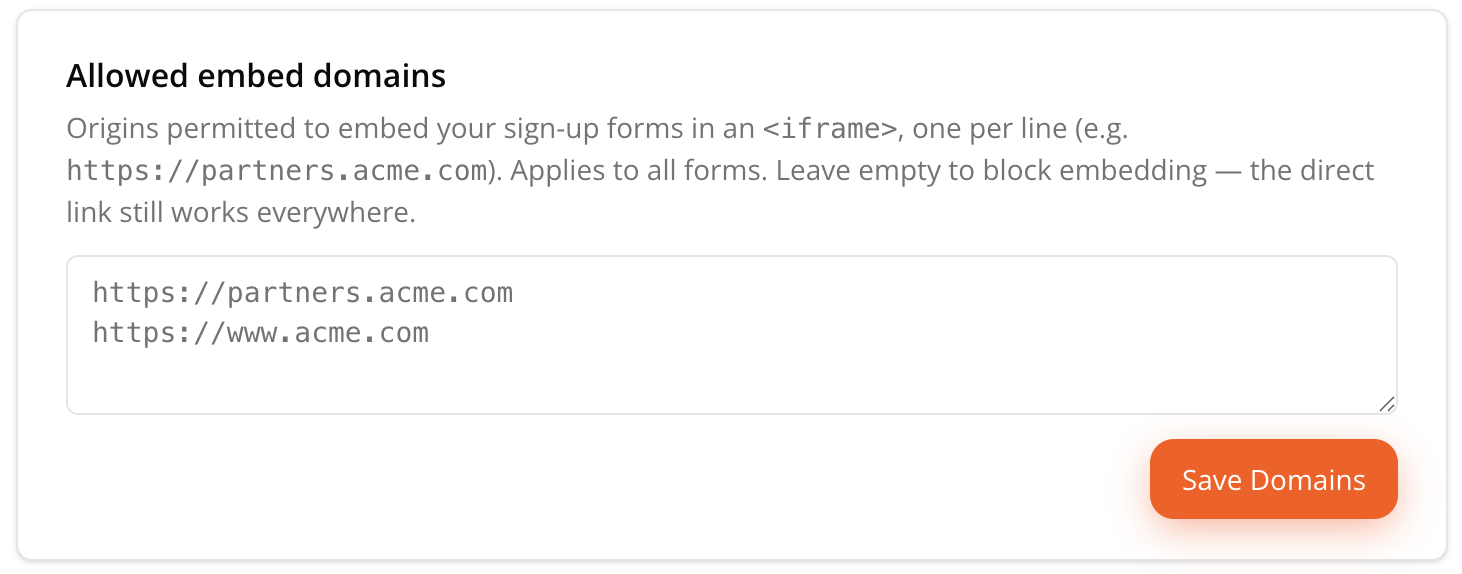
Before embedding works, you must allow the domains where the form will appear.
-
Under Allowed embed domains, enter each website domain that can embed your forms, one per line (for example,
https://partners.example.com). -
Click Save Domains.
-
Go back to the All Forms section, then click Copy embed code (
</>) for the form you want to embed. -
Paste the copied code into your website where you’d like the form to appear.
Review Applications
Each submission appears under Partners → Applications as Pending. It stays Pending until you approve or decline it, or until it expires 15 days after it was submitted. From then on it can’t be approved or declined, and a daily check marks it Expired.
Approved, declined, and expired applications stay in the list, so you can always see who you turned down. See Track Partner Collaborations for how to read what an applicant submitted, and how to approve or decline.
Two emails can go out when someone applies: Partner application received, to your team, and Partner application confirmation (to applicant), to the person who applied. Whether each one is sent is controlled under Settings → Notification. See Email Notification.
One Open Application per Company
A company can have only one open request with you at a time. When someone submits a form, Suger takes the domain of their Work Email and checks for an open application or invitation with that company. If there is one, the form doesn’t take the submission and nothing is added to Applications. The applicant sees a message in the form that names your company and when the earlier request was made:
| The company already has… | The applicant is told |
|---|---|
| An application waiting for your decision | They’ve already applied and it’s being reviewed, so there’s no need to apply again, and to contact you directly if they’ve heard nothing back. |
| An invitation from you that hasn’t been answered | You’ve already sent their company an invitation, so they should open that email to accept it — or check their spam folder, or ask their contact at your company to resend it. |
| A deal registration from your public deal registration link waiting for your review | They registered a deal that’s still being reviewed, and accepting it sets up the partnership, so there’s no need to apply separately. |
Only an open request counts: one you’ve declined, one that was cancelled, or one that has expired doesn’t stop the company applying again. The same rule stops you inviting a company that has an open application. See One Open Invitation per Company.
Spotted something wrong or out of date on this page? Tell us and we'll correct it.