
Track Your Assigned Partner Journey
Follow the onboarding and program journeys your seller assigns to you, read your progress at a glance, and know what’s expected at each step.
Overview
Your seller may assign one or more journeys to guide you through onboarding or other program milestones. Each journey is a sequence of steps your seller wants you to complete.
Because each seller designs their own journeys, the steps, names, and order may look different from the examples in this guide.
Most Steps Tick Themselves
You don’t have to tell your seller when you’ve finished something. For most step types, doing the work is how the step gets marked done — Suger notices the underlying action and completes the step for you, usually within moments.
| When you… | The step completes |
|---|---|
| Reach a fully executed agreement with your seller | Sign agreement |
| Finish the course the step names | Complete course |
| Earn the certificate the step names | Earn certification |
| Upload a file your seller can see | Upload document |
| Get a Suger co-sell with that seller to Active or beyond | Register a deal |
Two things follow from that:
- You don’t need to wait your turn. If your journey runs in sequential mode, later steps show as locked — but that lock only governs manual ticking. When you actually complete the underlying work, the step is marked done whatever order it happens in.
- Steps match exactly what they name. A step that names a specific course or certificate completes only for that one. A Sign agreement step attached to a particular agreement waits for that agreement.
Find Your Journey
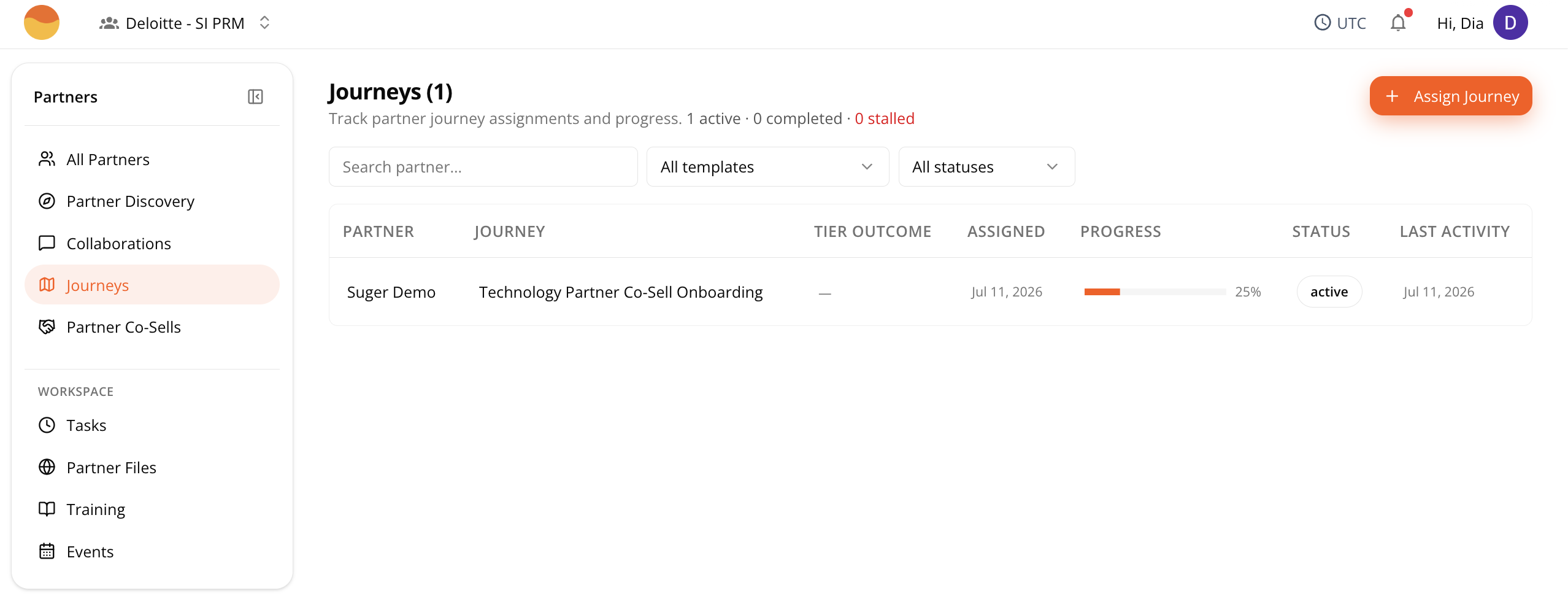
Go to Partner Console, then Journeys.
If your seller has assigned more than one journey, each appears as its own card.
Read Your Progress
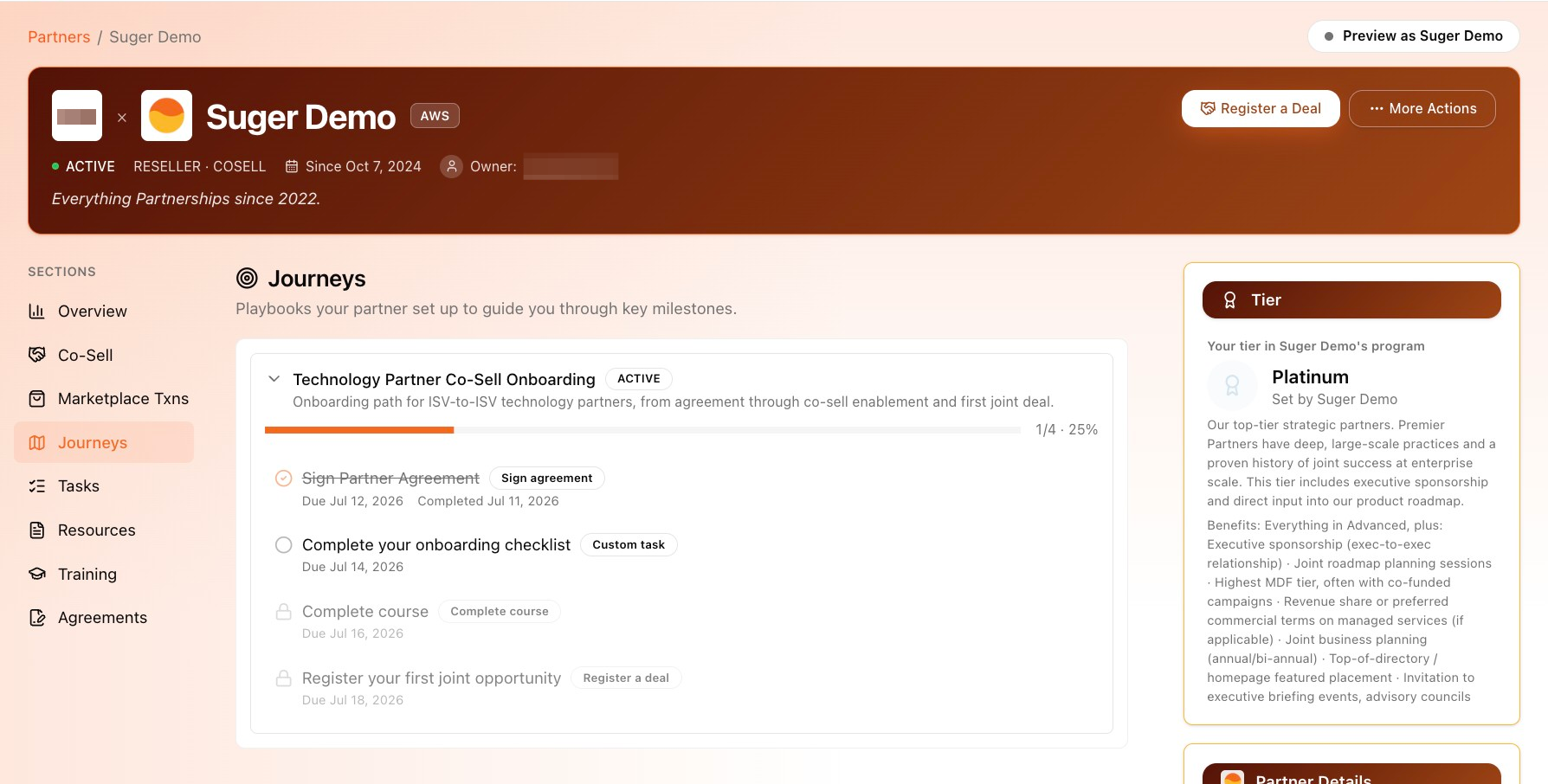
A progress bar at the top of each card (for example, “1/4 · 25%”) shows how far along the journey is overall.
Every step carries one of three statuses:
| Status | How it looks | What it means |
|---|---|---|
| Not started | An open circle | Nothing has happened on this step yet. |
| In progress | A spinner in place of the circle | Partial credit. A Register a deal step reaches this once your first qualifying co-sell lands but before you’ve hit the number the step asks for. |
| Done | A checkmark, with the title struck through and Completed [date] below it | Finished — either automatically, or ticked by your seller. |
Sequential mode adds one more thing to read: a step that isn’t yet eligible to be ticked is dimmed and shows a grey padlock in place of its status icon. That’s a lock on manual completion, not on your progress — finishing the underlying work still completes the step. See Most Steps Tick Themselves.
Act on a Step
Open a step’s title to see its full detail. Where the step points at something you can go do — a course to take, an agreement to sign, a task to work, a certificate you’ve earned — the step offers an Open action that takes you straight there.
If the thing a step points at is no longer available (a course withdrawn, an agreement or task removed), the step says so rather than sending you to a dead end. Contact the seller who assigned the journey.
Spotted something wrong or out of date on this page? Tell us and we'll correct it.