
Send a Broadcast to Your Partners
Compose one message and send it to every partner Slack channel at once — then see, partner by partner, who received it, who reacted, and who replied.
Messages post under your organization’s connected Slack bot.
Overview
Broadcasts let you announce something once instead of pasting it into every partner’s Slack channel by hand: a product release, a pricing change, a training deadline, a webinar invite. You write the message, pick who should get it, and Suger posts it to each partner’s mapped Slack channel using your organization’s connected Slack bot.
Broadcasts are Slack-only. A partner receives a broadcast only if that partner has a Slack channel mapped in Suger — partners without one are never included in an audience, and they are not shown as an option when you pick recipients.
Before You Start
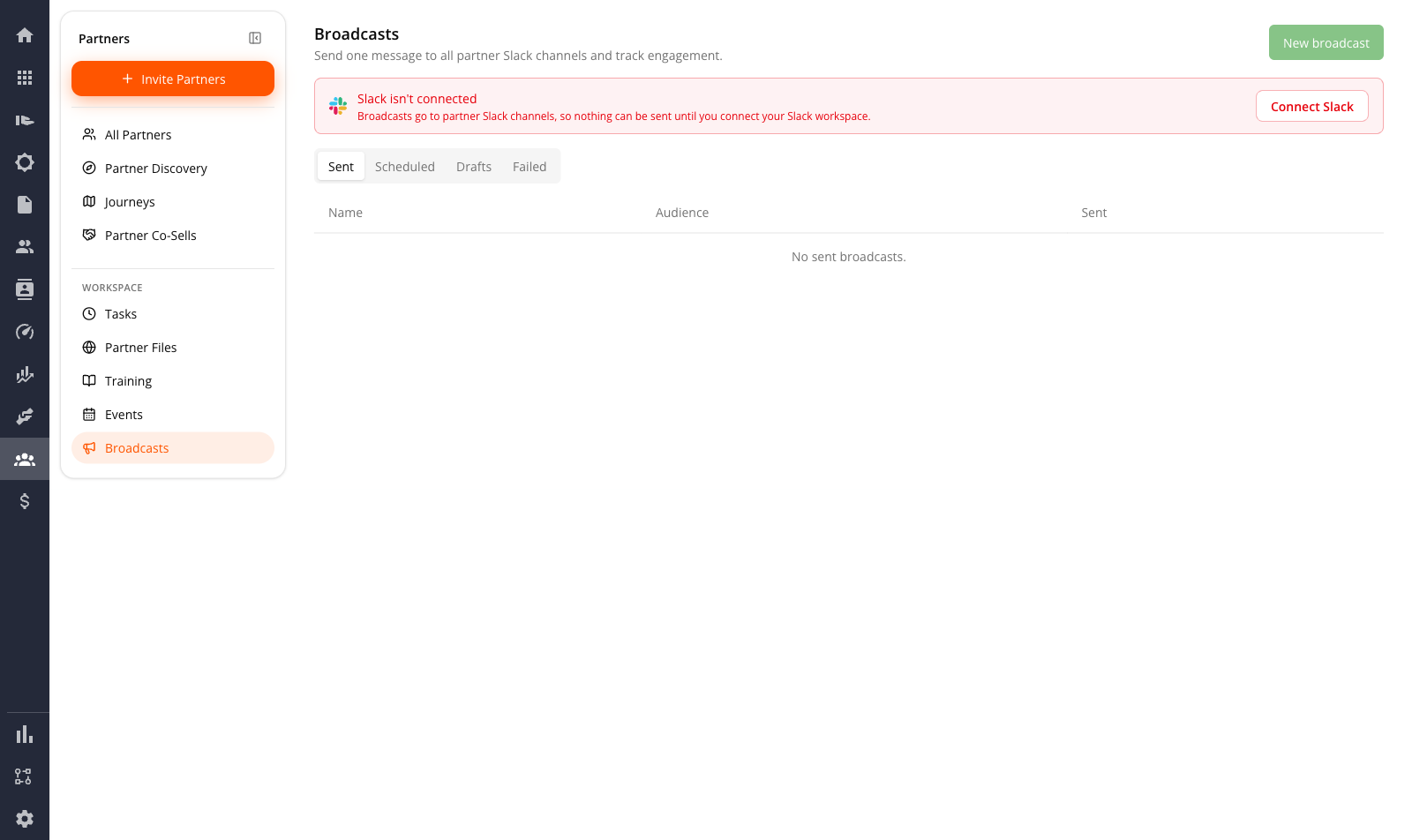
Connect your Slack workspace first. Until you do, the Broadcasts page shows a Slack isn’t connected banner and the Next, Send and Schedule buttons stay disabled — the message would have nowhere to go.
- Click Connect Slack on the banner, or go to Settings, then Partner, then Slack.
- Authorize the Suger app in your Slack workspace.
- Map a Slack channel to each partner you want to reach.
Find Broadcasts
Go to Suger Console, then Partners. In the sidebar, under Workspace, click Broadcasts.
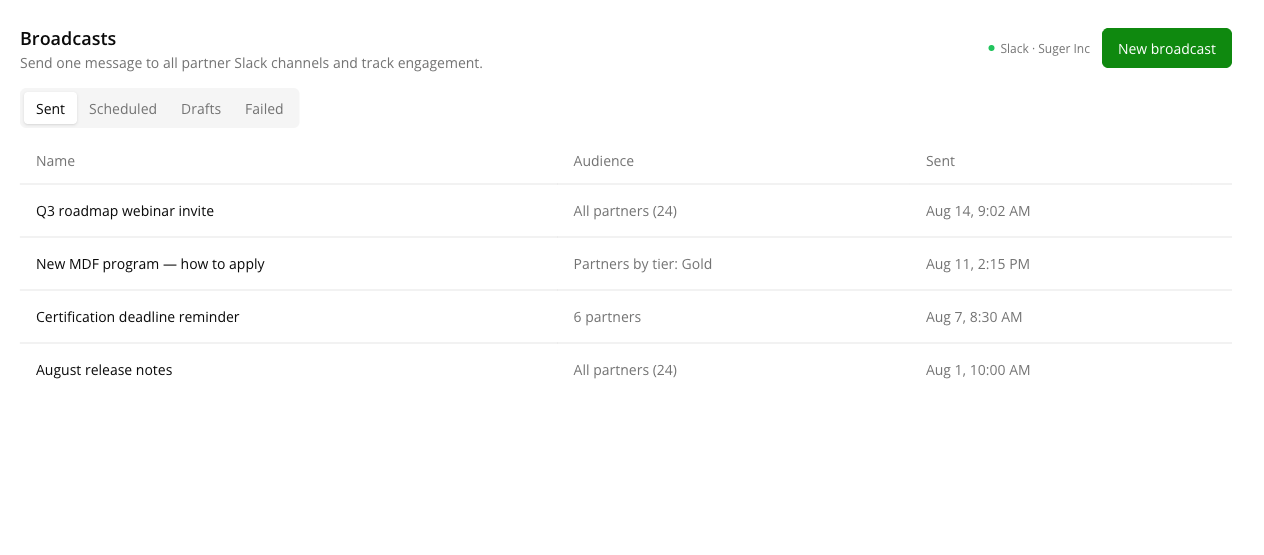
The list is grouped into four tabs:
| Tab | What it holds |
|---|---|
| Sent | Broadcasts already delivered. The time column shows when they went out. |
| Scheduled | Broadcasts waiting for their send time. |
| Drafts | Saved but not sent. Drafts are the only broadcasts you can delete. |
| Failed | Every target channel errored, or delivery retries ran out. |
Each row shows the broadcast’s Name, its Audience, and a time column that changes with the tab — Sent, Scheduled, or Updated.
Compose and Send a Broadcast
Click New broadcast. The composer is three steps: Message, Audience, Review.
Step 1 — Message
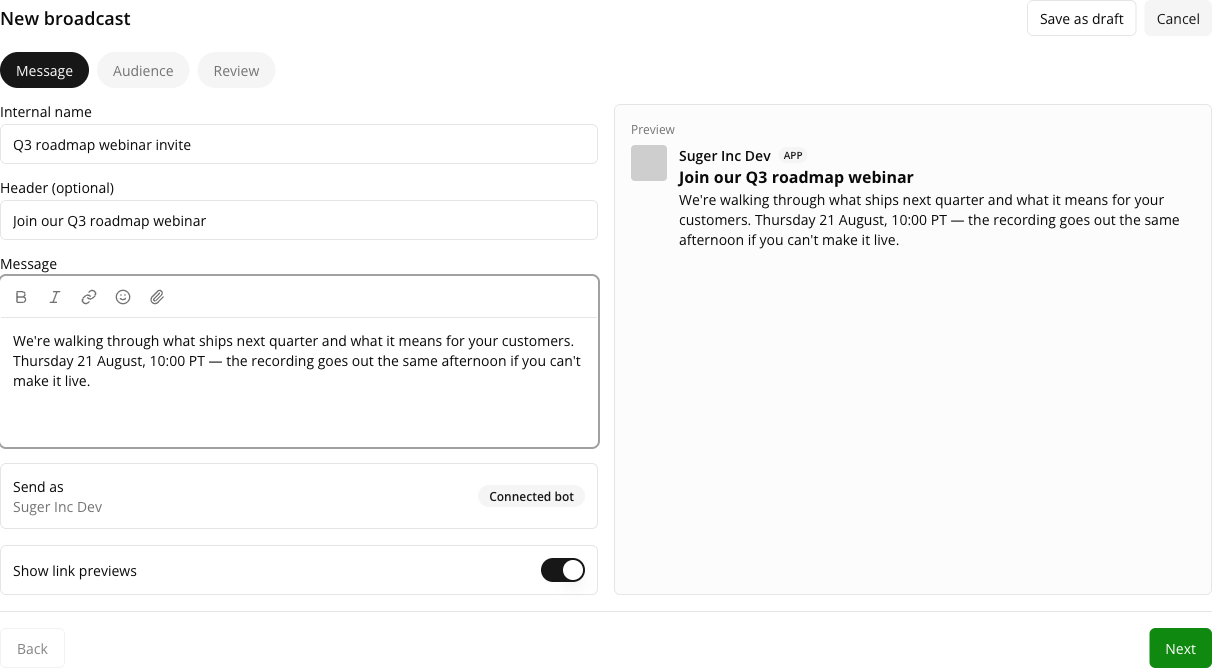
- Give the broadcast an internal name. This is how you’ll find it in the list; partners never see it.
- Add a Header if you want a bold first line. It’s optional.
- Write the Message. The editor supports bold, italic, links, emoji, and file attachments.
- Send as shows your Suger organization’s name. It is read-only, and it is a label for you rather than something Slack displays — the message posts under your connected Slack bot’s own identity.
- Leave Show link previews on if you want Slack to unfurl links in the message, or switch it off for a cleaner post. It’s on by default.
A live preview beside the editor shows the message the way Slack will render it, unfurled link cards included.
Attachments. Files are uploaded to each target channel along with the message. The limits are:
| Limit | Value |
|---|---|
| Attachments per broadcast | 10 |
| Size per file | 50 MB |
| Total size per broadcast | 100 MB |
Step 2 — Audience
Choose who receives the broadcast:
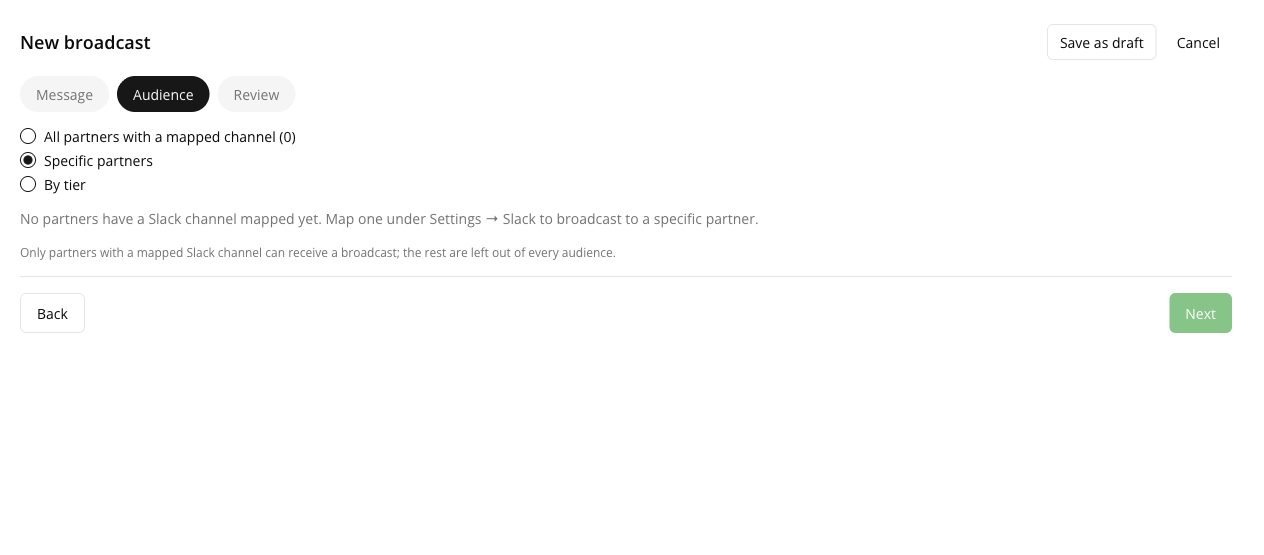
- All partners with a mapped channel — everyone reachable, with the count shown so you know the real reach.
- Specific partners — a searchable picklist. Only partners with a mapped Slack channel appear in it.
- By tier — a single tier, chosen from the tiers configured for your organization. See Partner Tiers.
If no partner has a channel mapped yet, this step opens with a notice — “None of your partners have a Slack channel configured.” — and a Go to Settings action that saves your work as a draft and takes you to Settings → Partner → Slack. The notice sits above the audience choice rather than inside one option, because every option is a dead end until at least one channel exists: All partners resolves to nobody, the Specific partners picker has no entries, and a tier matches only unmapped partners.
Step 3 — Review
Review the recap, then decide when it goes out:
- Leave the schedule time empty and the primary button reads Send now.
- Fill in a date and time and the same button becomes Schedule. Times in the past are rejected inline.
You can click Save as draft from any step and come back to it later.
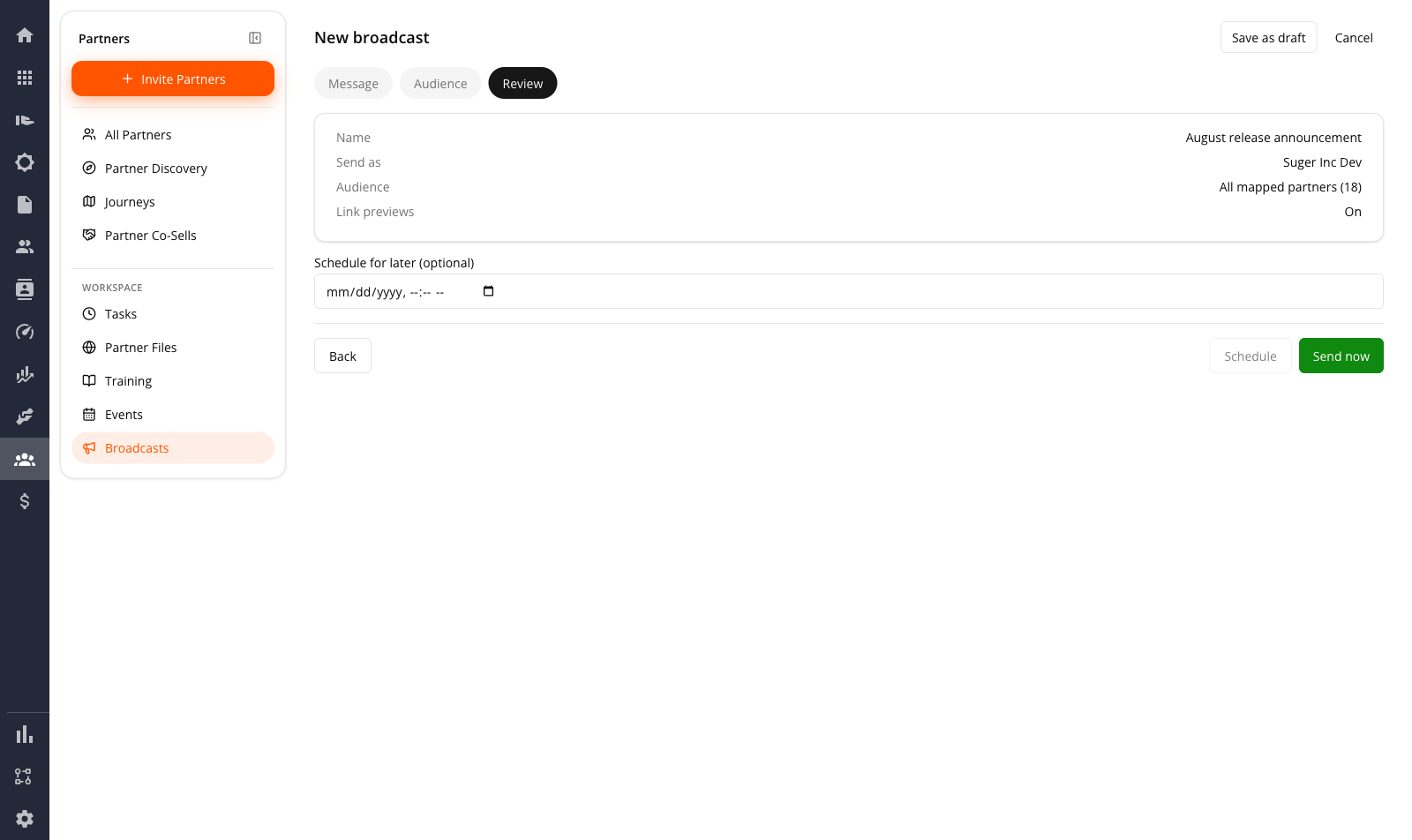
After an immediate send, the list refreshes on its own while delivery completes — you don’t need to reload the page.
Send a Test First
Before a message goes to your whole partner list, send it to one of your own Slack channels and look at it. The live preview beside the editor is close, but a test is the real Slack render — unfurled links, attachments, and all.
Test sits with the composer’s header actions, so you can fire one from any step. It is greyed out only when Slack is disconnected; every other reason a test can’t go through is explained inside the dialog rather than through a disabled button.
- Click Test. The Send a test dialog opens on your organization’s internal notifications channel — the same one co-sell internal notes go to, set under Settings → Partner → Slack.
- Click Change (or Pick a channel, when no default is set) to send it somewhere else this once.
- Click the send action in the dialog.
The test arrives carrying exactly the message body a partner would receive, untouched, plus one appended line: “Test broadcast sent by {your name} — partners did not receive this.” That line makes it impossible for a teammate reading the channel to mistake a test for the real thing, while leaving the render above it trustworthy as a proof.
A test writes no broadcast and no recipient rows. Nothing appears in Sent, Scheduled, Drafts, or Failed, and no per-account delivery is recorded.
| Test-send limit | Value |
|---|---|
| Total attachment size | 25 MB (a real broadcast allows 100 MB) |
| Concurrent tests carrying attachments | 4 at a time. A fifth waits up to 5 seconds for a slot, then asks you to retry. |
Text-only tests are never throttled.
Track a Broadcast
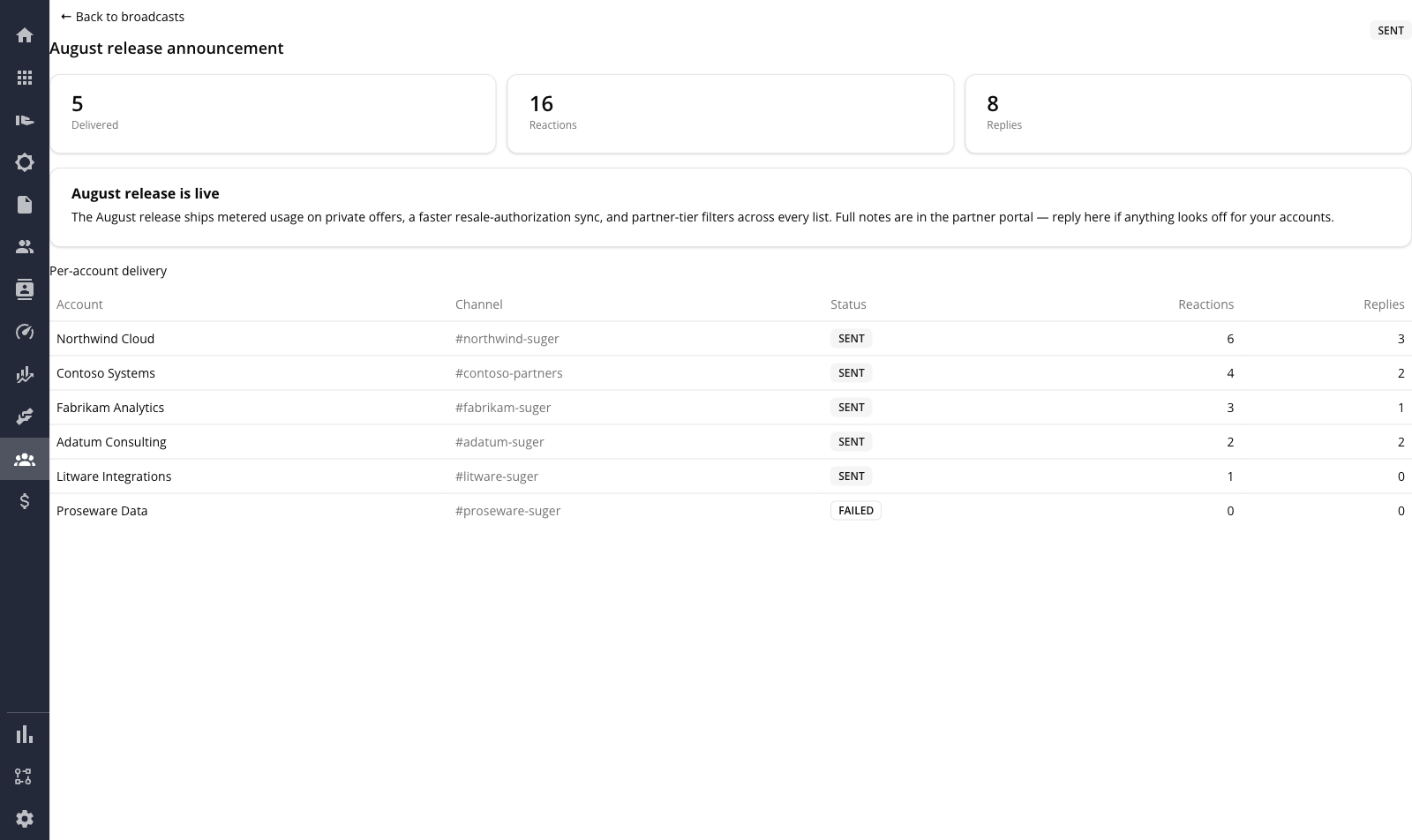
Open any sent broadcast to see how it landed. Three tiles summarize the whole send:
- Delivered — channels the message reached.
- Reactions — total emoji reactions across all channels.
- Replies — total replies in the message threads.
Below them, a Per-account delivery table breaks the same numbers down by Account, Channel, Status, Reactions, and Replies. Partners that were skipped for having no mapped channel are not listed. Once a broadcast has finished sending, the detail page keeps refreshing on its own, so reaction and reply counts fill in as partners engage — you don’t need to reload it.
How a Broadcast Reaches a Partner
Reference: Broadcast Statuses
Broadcast status — where the whole broadcast sits in its lifecycle:
| Status | Meaning |
|---|---|
DRAFT | Saved but not sent. The only state you can delete. |
SCHEDULED | Waiting for its send time. |
SENDING | Delivery in flight across the audience’s channels. |
SENT | Delivery finished. |
FAILED | Every target channel errored, or the delivery retries ran out. |
Audience type — how the recipient list was chosen:
| Type | Meaning |
|---|---|
ALL | Every partner with a mapped Slack channel. |
SPECIFIC | The partners you picked by hand. |
TIER | Every partner in one tier. |
Recipient status — the result recorded for one partner:
| Status | Meaning |
|---|---|
SENT | The message reached that partner’s channel. |
FAILED | Slack rejected the post to that channel. |
SKIPPED_NO_CHANNEL | There was nowhere to post. Left out of the Per-account delivery table entirely — every audience already excludes partners with no mapped channel, so this can only mean a channel was unmapped mid-delivery. Listing it as a delivery outcome would pad the report with a partner you never chose to target. |
Scope and Limits
- Slack only. There is no email or in-portal equivalent of a broadcast today.
- One channel per partner. A broadcast goes to the partner’s mapped channel, not to individual partner contacts.
- Drafts are the only deletable state. Sent and scheduled broadcasts stay in the list as a record.
- Partner-limited organizations don’t see Broadcasts. The item is hidden from the sidebar for partner-side orgs — it is a seller-side tool.
- Send as is a label, not an identity. Slack posts every broadcast under your connected bot’s own identity; the field never reaches Slack.
- A test is not a broadcast. Tests reach only internal channels, leave no record in any tab, and cap attachments at 25 MB rather than 100 MB.
Spotted something wrong or out of date on this page? Tell us and we'll correct it.