
Update Listing
Update your published Azure Marketplace listings from the Suger Console and Microsoft Partner Center.
Overview
What you can change on an Azure listing depends on where the listing is in its lifecycle. Some changes — like the fulfillment URL — can be made directly in the Suger Console. Others, such as descriptions, plans, and pricing, must be made in Microsoft Partner Center, which Suger keeps in sync once your changes are published.
Prerequisites
- Access to Microsoft Partner Center.
- Contributor or higher-level permissions on the Azure listing.
- An active and published Azure product listing.
- For fulfillment URL edits in Suger, Admin access to the Suger Console. If you don’t have access yet, ask your organization admin to invite you.
What You Can Edit by Listing Status
| Status | Visibility | What you can edit in Suger |
|---|---|---|
Draft | Private (Suger Console) | Full access — pricing, plans, draft, and preview before submitting to Azure |
Preview | Preview audience | Fulfillment URL only. All other changes must be made in Partner Center. |
Live | Public | Fulfillment URL, history, metadata, and private offers |
Update the Fulfillment URL
-
Go to the Product menu in the Suger Console.
-
Open the relevant Azure listing.
-
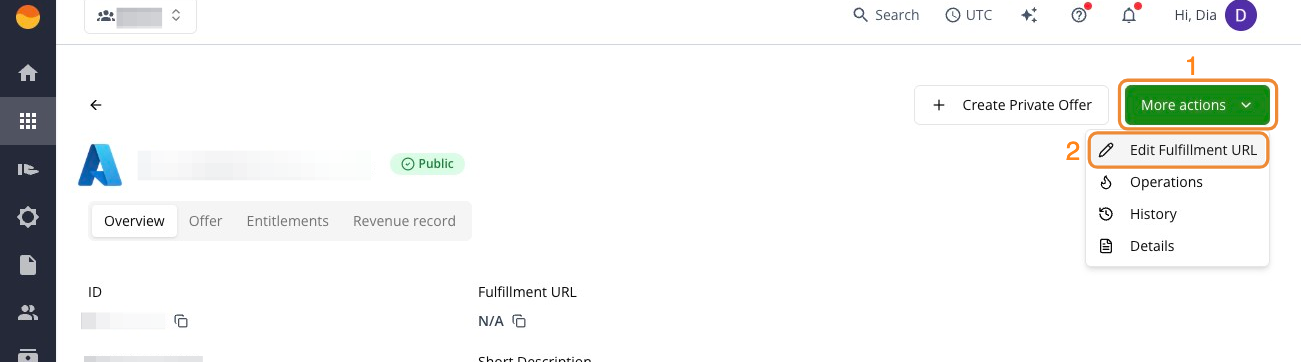
Click More actions in the top right corner, then Edit Fulfillment URL.
-
Make your changes and click Save to sync them to Azure.
Edit Core Listing Details in Partner Center
Azure product listings (descriptions, plans, marketing content, pricing, and other core details) cannot be edited through the Suger Console. All such modifications must be made directly in Microsoft Partner Center. Suger keeps your listings in sync once your changes are published. See Update an existing offer in the Microsoft documentation for full instructions.
- Log in to Microsoft Partner Center. Go to https://partner.microsoft.com/ and sign in with your credentials.
- Open the Commercial Marketplace dashboard. From the left-side menu, select Marketplace offers, then click the offer you want to edit.
- Choose the section to edit. You can update various parts of your listing, including:
- Offer setup — title, alias, categories.
- Properties — plan names, SKUs.
- Listings — marketing content, descriptions, icons, and documents.
- Technical configuration — fulfillment URL, test plans.
- Pricing and availability.
- Make changes and save. Update the fields within each tab, ensure required fields are correctly filled, and click Save draft as you go.
- Submit for publishing. Once all changes are made, go to the Review and publish tab, confirm all sections are complete, and click Publish to submit your updated listing for Microsoft’s review.
Change a Listing’s Visibility
To push your Azure listing to the public storefront or sunset an existing offer, work entirely within Microsoft Partner Center.
- Make a preview listing public — See Review and publish an offer.
- Stop distribution of a live listing — See Stop distribution of an offer or plan.