Track and Respond to Deals
Every deal registration, whether you submitted it to a partner or received it from one, appears in your Partner Co-Sells list, where you can track its progress, review its details, and respond to inbound registrations that need your approval.
Overview
The Partner Co-Sells list is where all of your deal registrations come together. From there you can:
- Find and filter deals by direction and status.
- Respond to inbound deals a partner has registered with you.
- Track and manage an accepted or outbound deal as it moves through the pipeline.
Find and Filter Your Deal Registrations
-
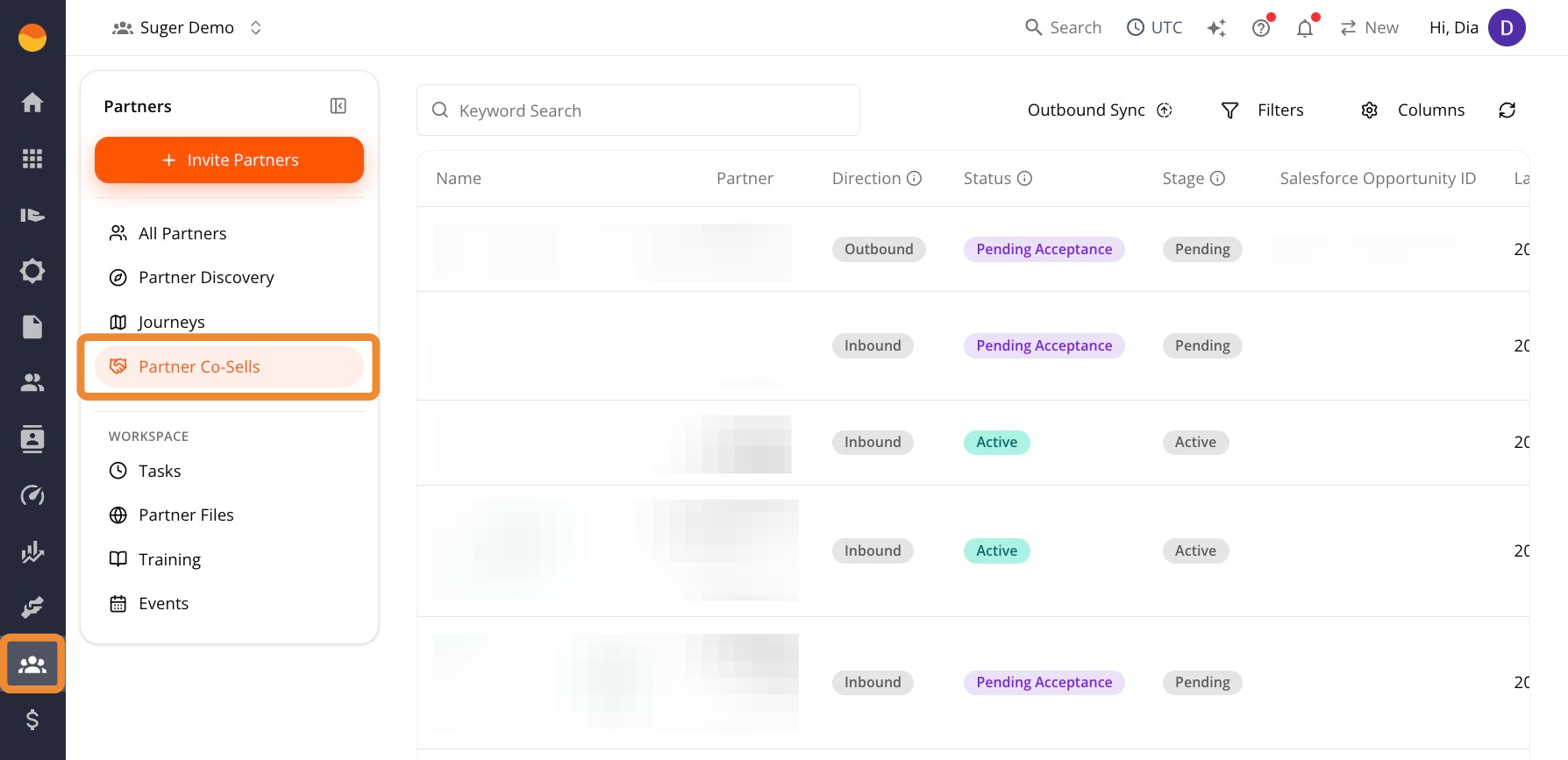
Go to Suger Console, then Partners.
-
Click Partner Co-Sells.
-
Use the Direction column to identify the type of deal:
- Outbound: You registered the deal with a partner.
- Inbound: A partner registered the deal with you.
-
Review the Status column to understand where the deal is in the process:
Pending Acceptance: An inbound deal waiting for you to accept or reject it.Active: A deal that has already been accepted and is moving through the pipeline.
Respond to an Inbound Deal
When a partner registers a deal with you as the seller, it appears as an Inbound co-sell with a status of Pending Acceptance.
Step 1: Review the Deal Before Responding
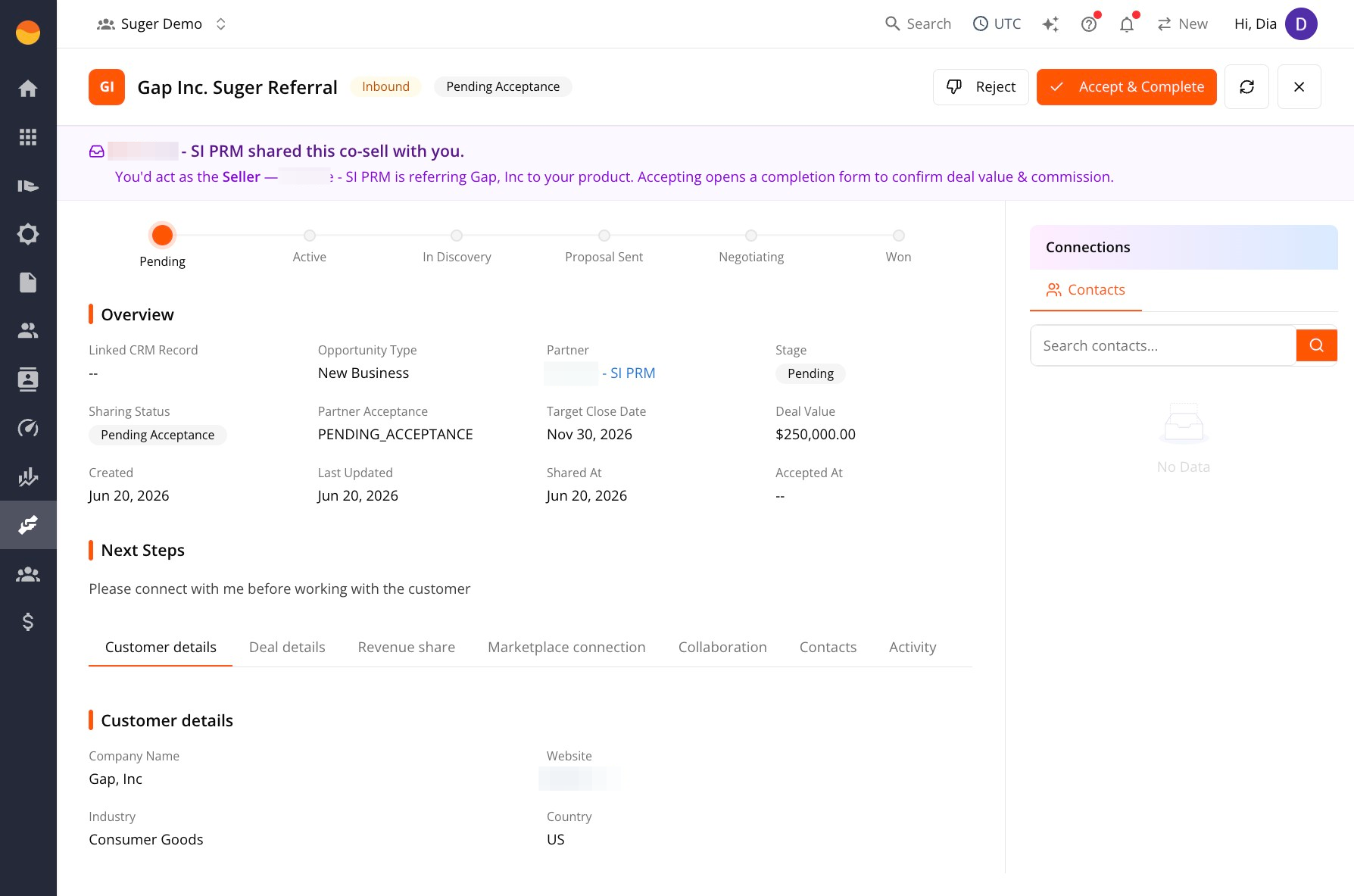
Open any pending deal to view its details.
- A banner at the top explains the relationship between the partner and the opportunity, such as a partner referring a customer to your product.
- The Overview section shows the opportunity type, target close date, the deal value estimated by the partner, and any notes they provided during registration.
Step 2: Accept or Reject the Deal
Accept and complete the deal
-
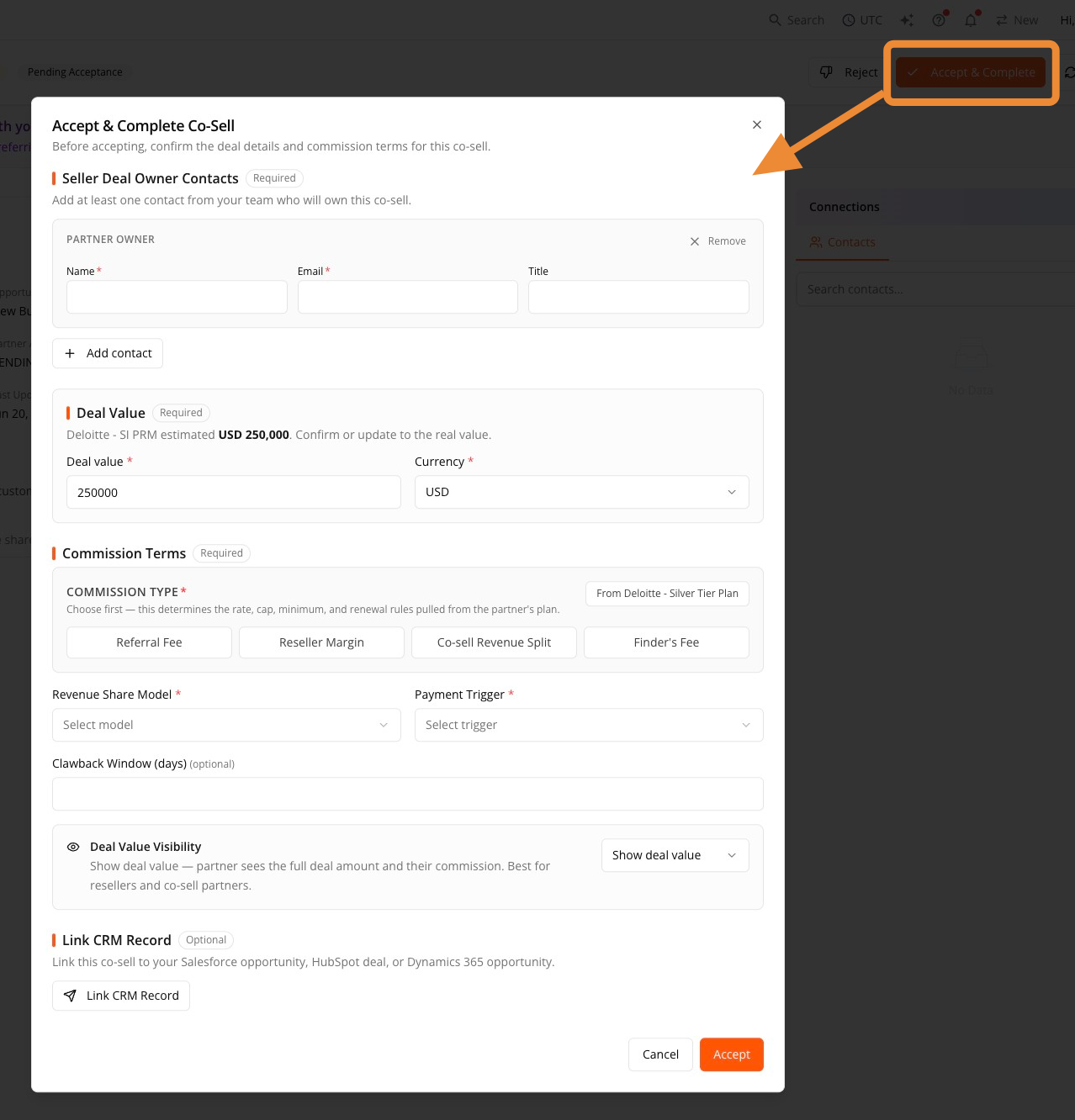
Click Accept & Complete in the top-right corner to open the Accept & Complete Co-Sell window.
-
Add at least one Seller Deal Owner Contact. Enter the contact’s name, email address, and optionally their title. At least one contact is required.
-
Confirm the Deal Value. The partner’s estimated amount carries over automatically, but you can update it and change the currency if needed.
-
Configure the Commission Terms:
- Choose a Commission Type. This pulls the rate, cap, minimum, and renewal rules from the partner’s Custom Plan if one exists, or your Standard Defaults if it doesn’t (shown as “From Default settings” when no custom plan applies).
- Confirm the Revenue Share Model and Payment Trigger.
- Optionally, set a Clawback Window in days.
- Set Deal Value Visibility — whether the partner sees the full deal amount and their commission.
-
Optionally, link the co-sell to a Salesforce opportunity, HubSpot deal, or Dynamics 365 opportunity.
-
Click Accept.
Reject the deal registration
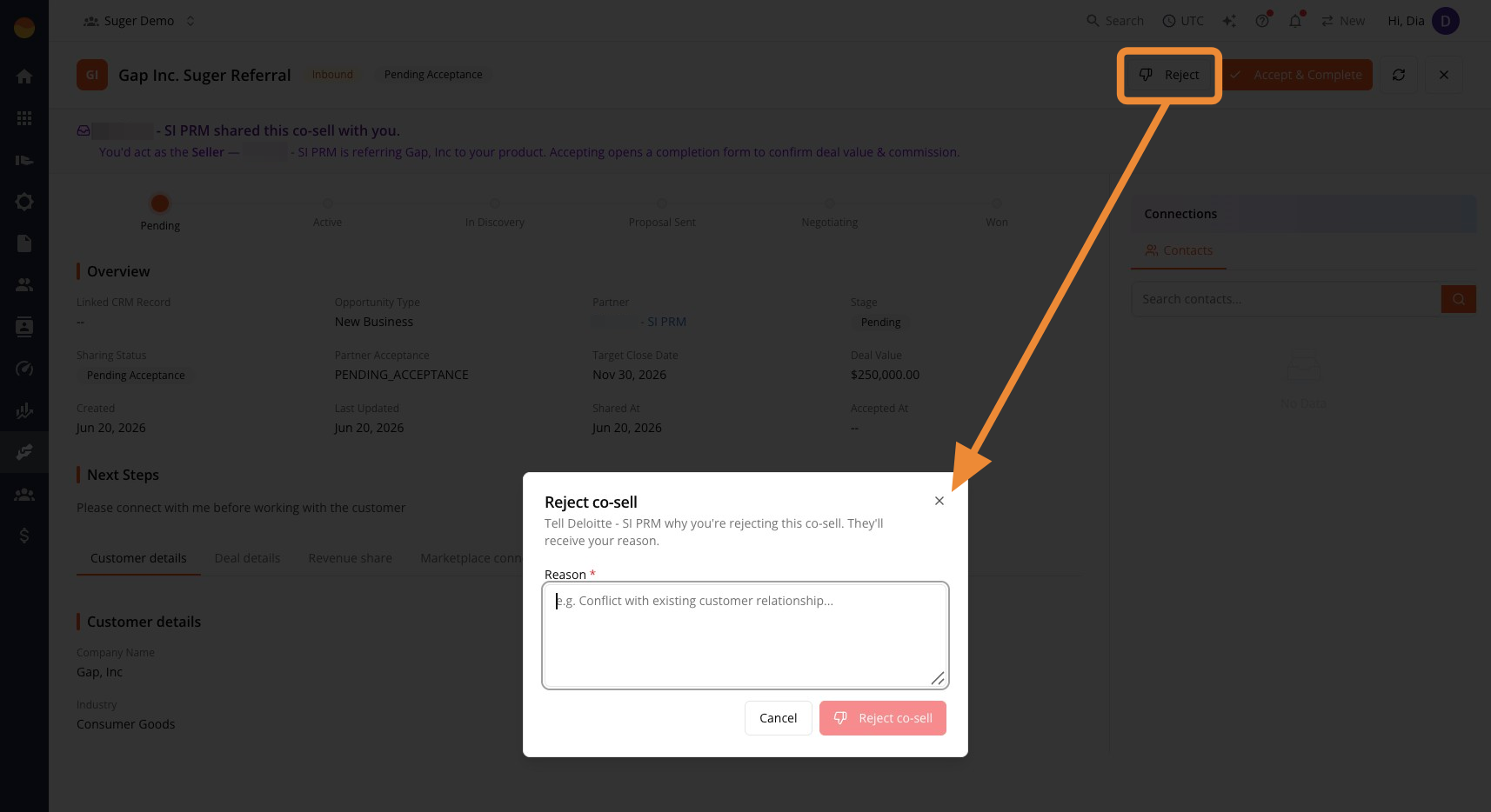
Click Reject instead if the deal isn’t a fit. This opens the Reject co-sell window.
- Enter a Reason (for example, “Conflict with existing customer relationship”). This is required, and it’s shown directly to the partner who registered the deal, so keep it factual and professional.
- Click Reject co-sell.
Track and Manage an Active Deal
Once a deal is accepted, or after you register an outbound deal, it moves through the same pipeline regardless of direction:
Pending → Active → In Discovery → Proposal Sent → Negotiating → Won
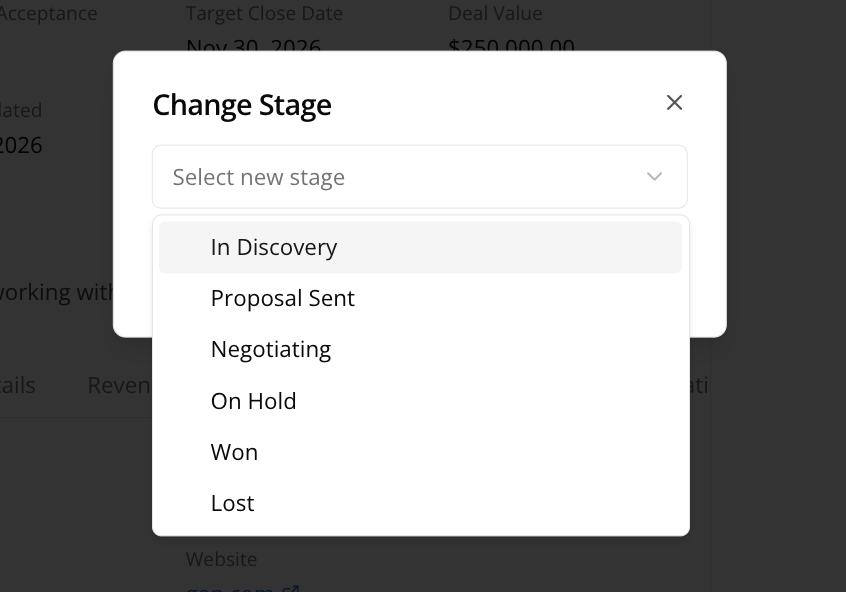
Two additional stages, On Hold and Lost, don’t appear in the visual pipeline but can still be assigned manually when you change stages.