
Set Your File Sharing Defaults
Define who can access each file category by default, so every new file you upload to Partner Files starts with the right sharing setting automatically.
Overview
File Sharing Defaults let you configure sharing once per file category instead of choosing a setting for every upload. When someone adds a new file to Partner Files, the file inherits the default sharing setting for its category.
Set a Default per Category
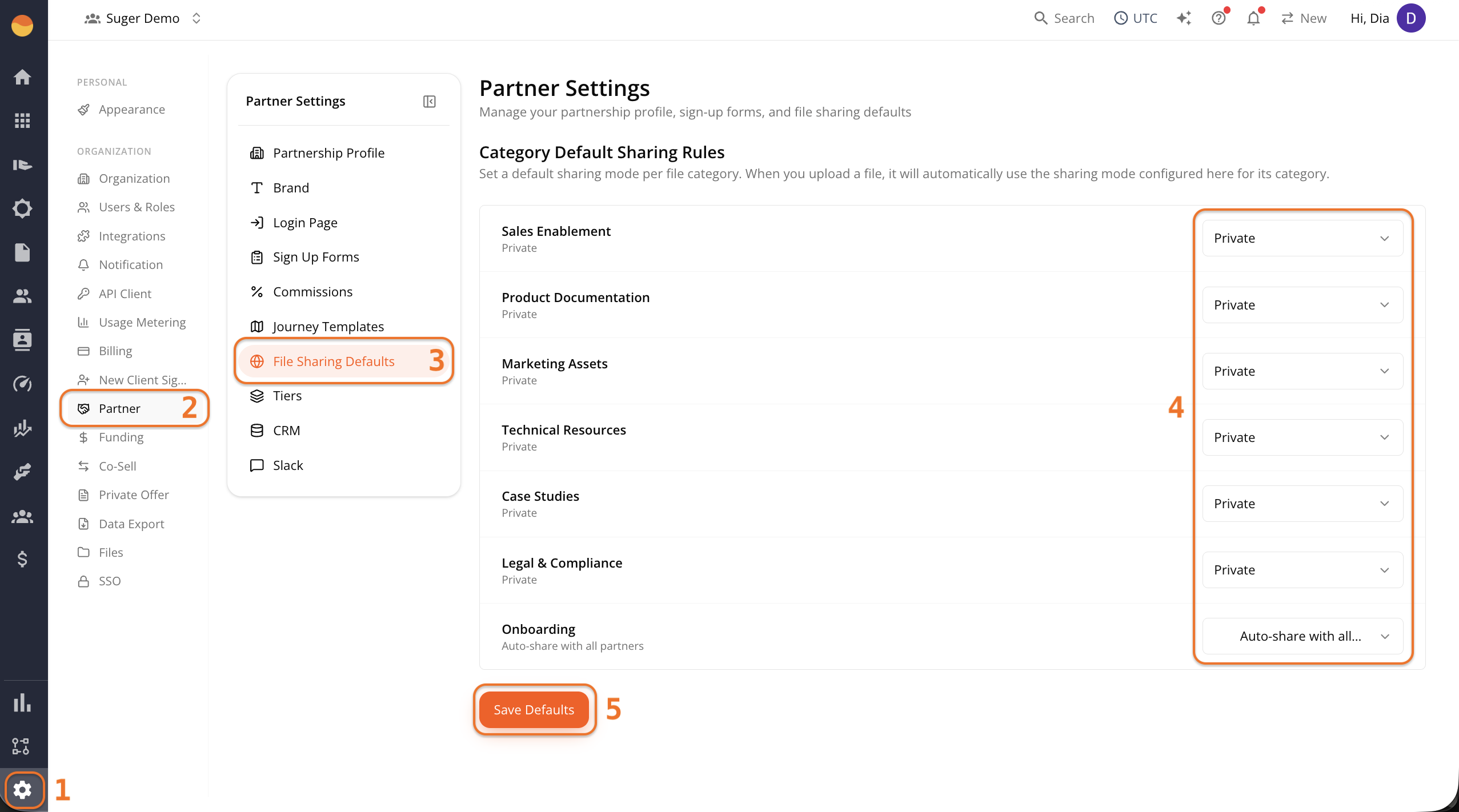
- Go to Suger Console, then Settings.
- Click Partner, then File Sharing Defaults.
- Click the dropdown next to the category name. It shows the current setting, for example “Private”.
- Choose one of the three options:
- Private — Only your team can see files in this category. Nothing is shared with partners by default.
- Auto-share with all partners — Files in this category are automatically visible to your entire partner network the moment they’re uploaded.
- Share with specific partners — Files aren’t shared broadly. You choose which individual partners get access.
- Repeat for each category you want to change.
- Once you’ve updated everything, click Save Defaults.
How Defaults Apply When You Upload a File
Once your defaults are configured, every new upload follows the same flow:
- Select a Category for the file.
- The Sharing field automatically pre-fills with that category’s default setting.
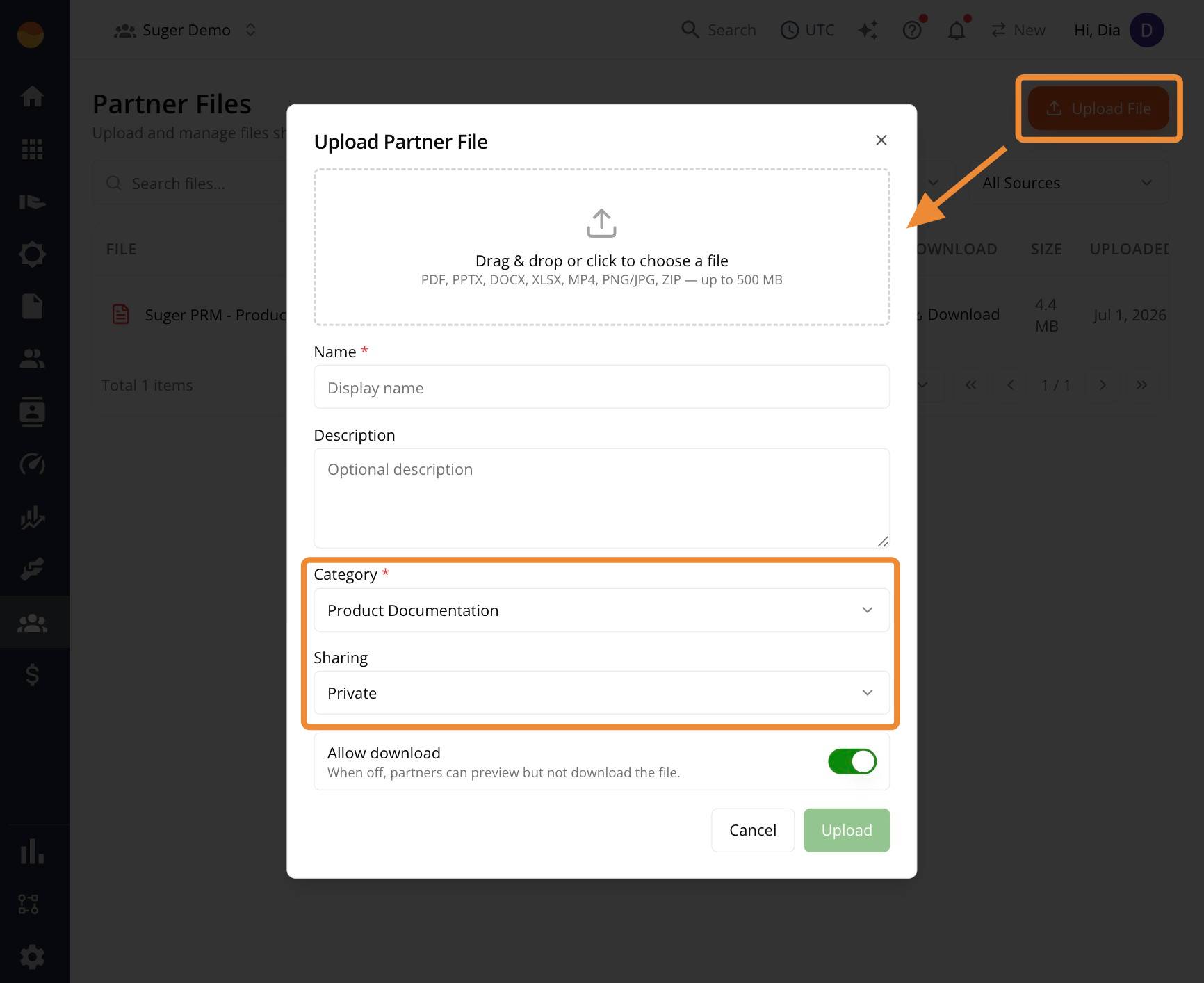
- If needed, change the sharing setting for that individual file before saving.