Track Journey Progress
Once a journey is assigned to a partner, use it to track where they stand, mark steps complete as they finish them, and manage the journey itself over time.
Overview
A Journey is a set of steps a partner works through, such as signing an agreement or completing training, built from a Journey Template. This page covers checking a partner’s progress, marking steps complete, and managing a journey once it’s assigned.
Mark a Step Complete
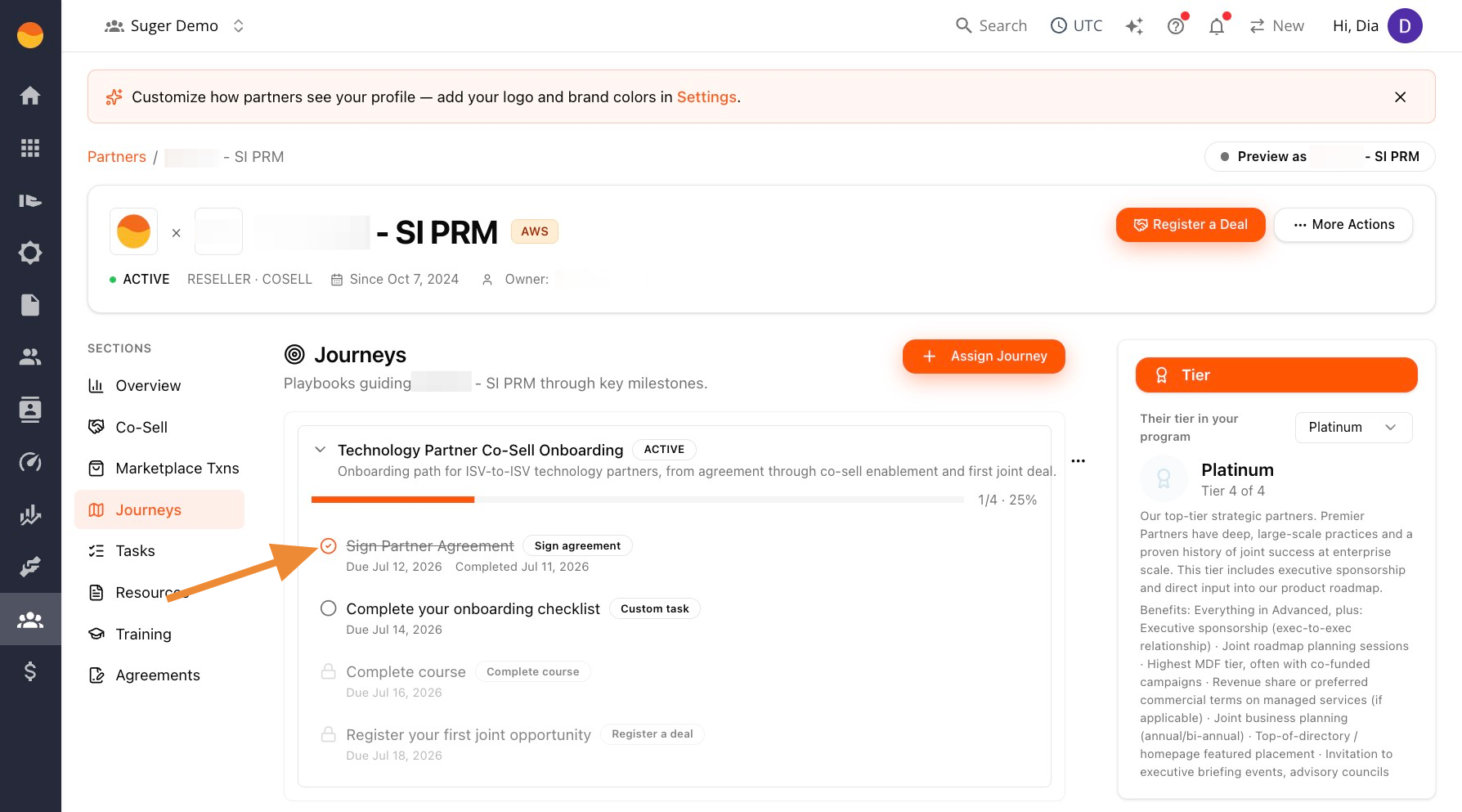
Every step, regardless of its type, is marked complete the same way: manually, by you. Checking a step is a separate action from the partner’s real-world progress. If a partner signs the agreement, finishes the course, or registers the deal elsewhere in the product, the step still won’t check itself off — you’ll need to confirm it happened and check it yourself.
- Go to Suger Console, then Partners.
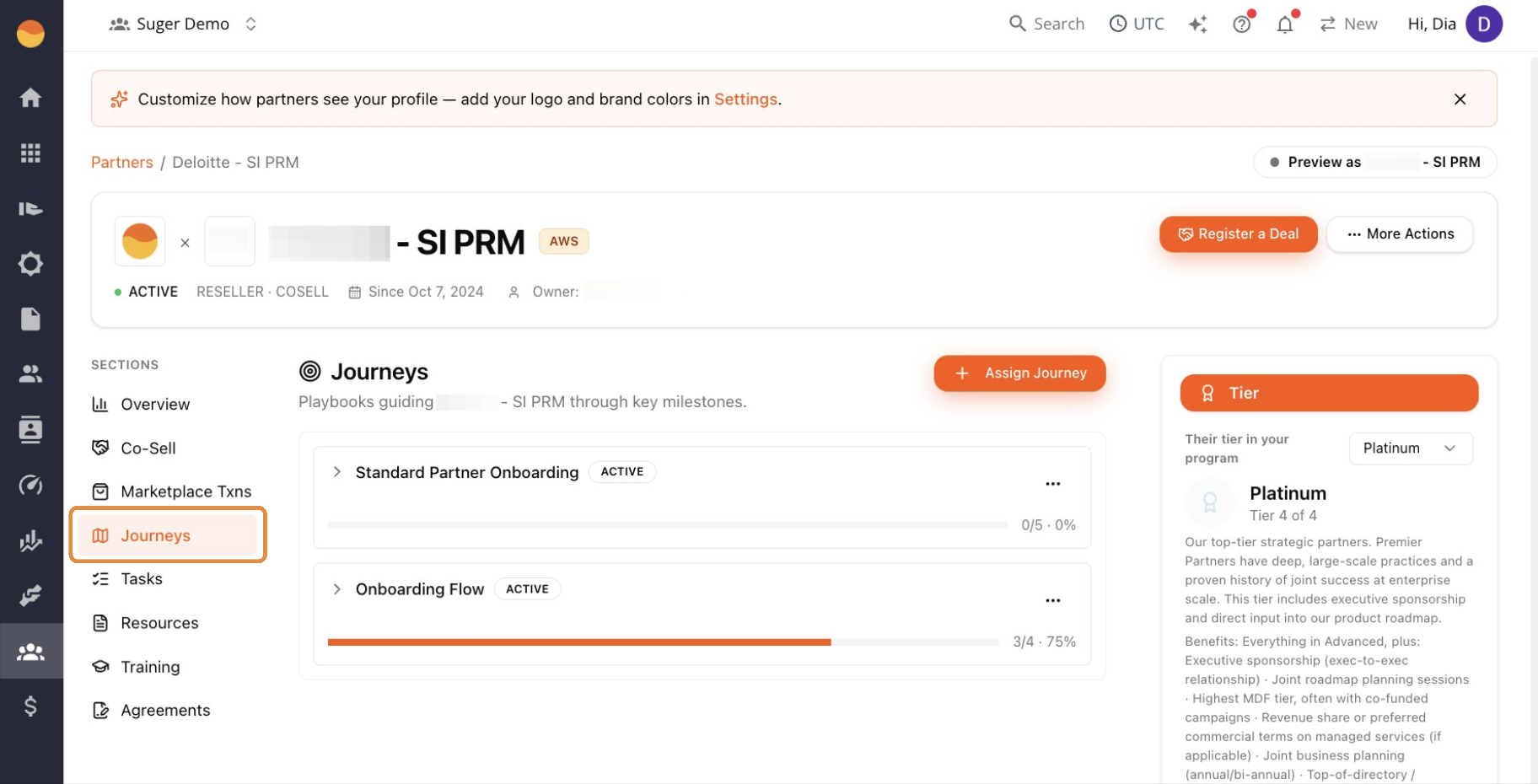
- Click Journeys, then the partner’s name to open their journey card.
- Click the checkbox next to a step to mark it done.
Complete Custom Task Steps Linked to a Task
Steps linked to a task stay locked until the linked task itself is marked Completed.
- Go to Partners, then Tasks.
- Complete the task assigned to you.
- Return to the partner’s Journey card. The step’s checkbox is now clickable.
- Click the checkbox to mark the step done.
Manage a Partner’s Journey
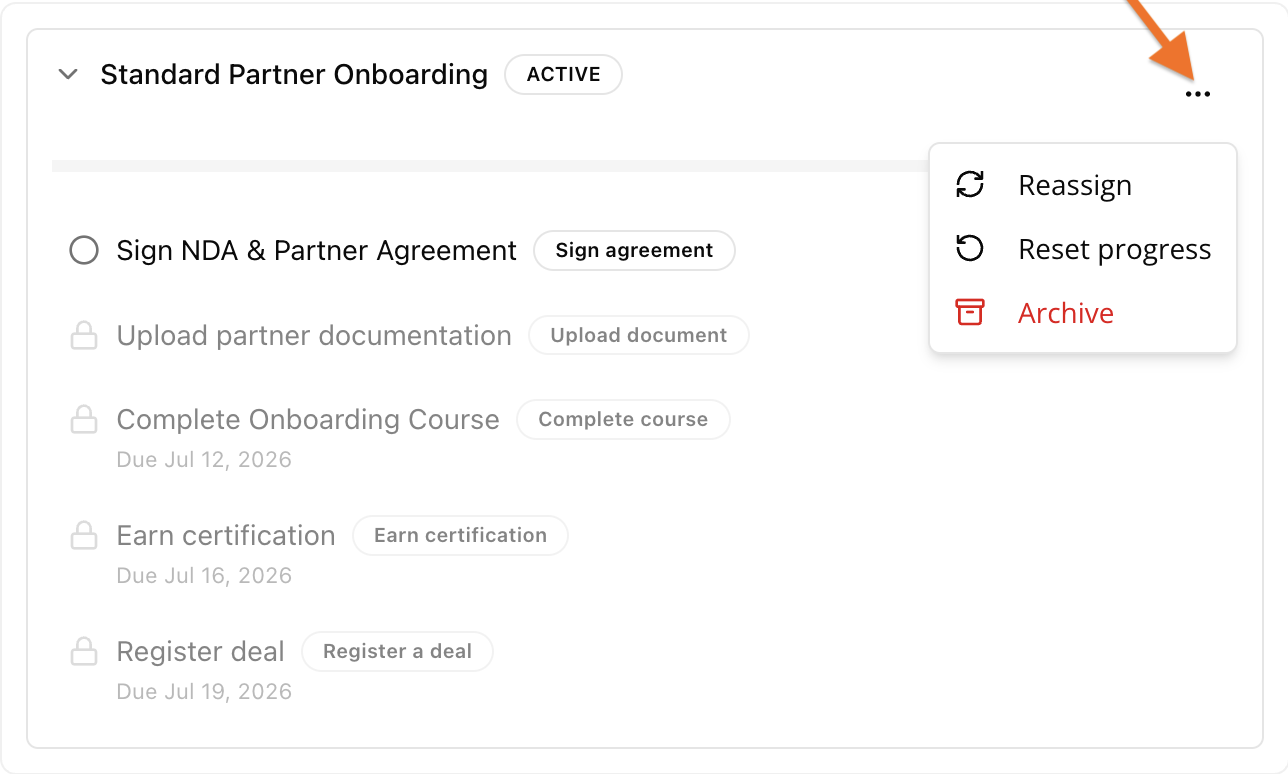
Go to Suger Console → Partners → Journeys → partner’s name, then click the … menu on the journey card. Use the option that matches what you need:
| If you need to… | Use | What it does |
|---|---|---|
| Start the journey over from the beginning | Reset progress | Clears all completed steps and returns the journey to its starting point. All steps become unchecked again. |
| Remove a completed journey from your active view | Archive | Permanently archives the journey. You can still view archived journeys later by filtering Status → Archived. |
| Apply changes you made to the journey template after it was assigned | Reassign | Updates the partner’s journey assignment to reflect the latest version of the template. |
Check Journey Progress
Check Progress Across All Partners
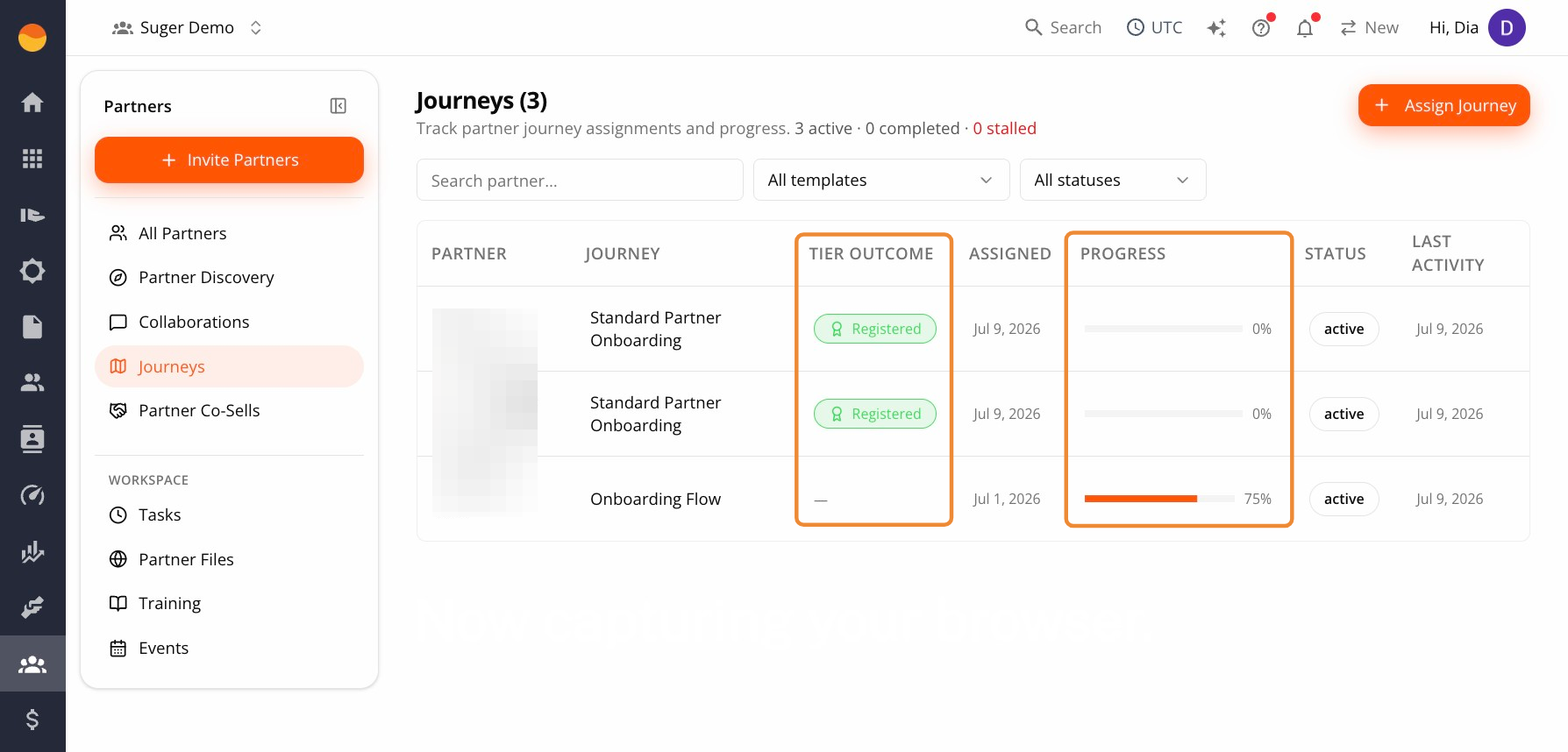
Go to Suger Console → Partners → Journeys for a single view of every partner’s journey assignments. What you check depends on what you’re trying to find out:
- Who needs my attention today? Start with the summary line above the table (for example “3 active · 0 completed · 0 stalled”), then filter All statuses down to
Stalled, since that’s who’s actually behind rather than just in progress. - How is one journey type performing across everyone? Use the All templates filter to isolate it, then scan the Progress column for that group.
- Where does one specific partner stand? Use the search bar rather than scrolling, especially once your partner list grows.
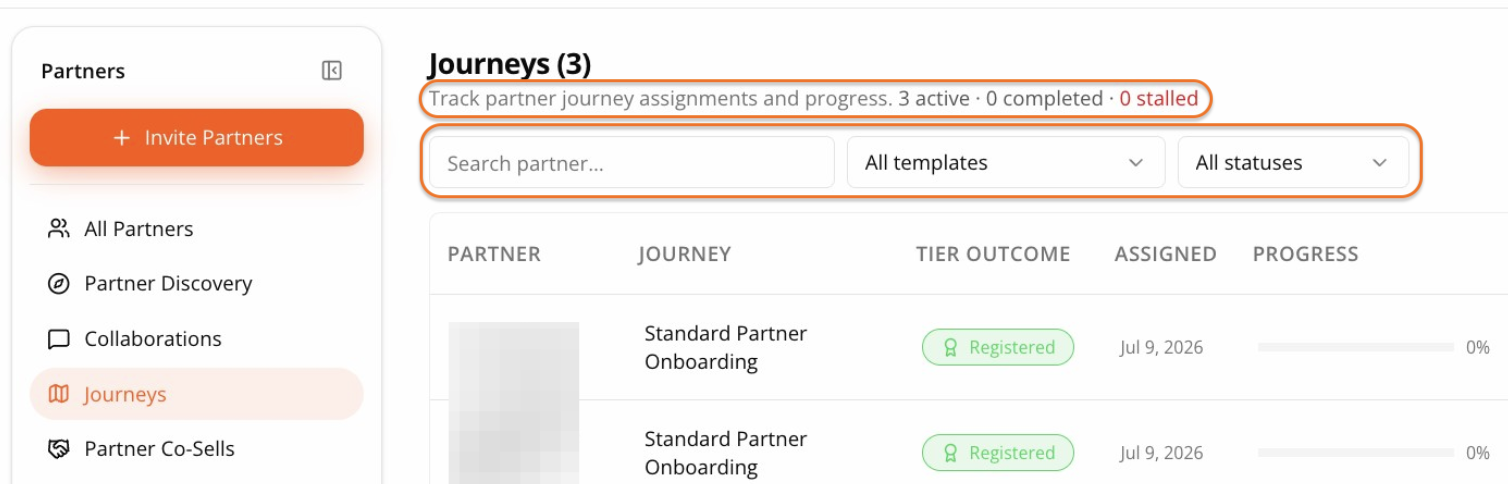
Two columns are worth knowing regardless of what you’re looking for:
- Progress shows a bar and percentage for that row’s journey.
- Tier Outcome shows which tier completing this journey will promote the partner into. A dash means this journey isn’t tied to a tier. See Partner Tiers for how tiers are set up.
Check a Partner’s Progress in Detail
Go to Suger Console → Partners → Journeys → partner’s name. If the partner has more than one journey assigned, each shows as its own card, stacked on the page.