Set Up and Manage Commission Plans
Commission settings control how much partners earn and under what terms — a referral fee, a reseller margin, a co-sell split, or a finder’s fee.
Overview
Suger gives you two layers to work with:
- Standard Defaults apply automatically to all partners.
- Custom Plans override those defaults for specific partners who need different terms.
How Commission Plans Are Applied
When a co-sell is created, its Revenue Share tab is populated using the following priority order:
Custom Plan → Standard Defaults → Manual
Suger first checks whether the partner has an assigned Custom Plan. If not, it uses your Standard Defaults. If no applicable defaults are available, the revenue share setup falls back to a manual configuration path rather than being automatically populated.
The Four Commission Types
Both Standard Defaults and Custom Plans are organized around the same four commission types:
| Type | Purpose |
|---|---|
| Referral Fee | Pays a partner for referring an opportunity to you. |
| Reseller Margin | Pays a partner that resells your product directly. |
| Co-Sell Revenue Split | Shares revenue on opportunities you and the partner close together. |
| Finder’s Fee | Pays a partner for introducing an opportunity with limited involvement beyond the introduction. |
You’ll set the same fields below for whichever commission types apply to your partner program.
Understand the Fields
Both Standard Defaults and Custom Plans use the same set of fields for every commission type.
| Field | Description |
|---|---|
| Revenue Share Model | Determines how the commission is calculated. % of Final Transaction: Pays the partner a percentage of the deal value. Use this when commission should scale with deal size. Fixed Amount: Pays the partner a flat amount regardless of deal value. Useful for programs that pay the same amount for every qualified lead or referral. |
| Default Rate (%) | Percentage used when the model is % of Final Transaction. For example, a 15% rate on a $100,000 deal results in a $15,000 commission. |
| Payment Trigger | Determines when the commission becomes payable. On Deal Close: Commission becomes payable as soon as the deal is marked Won. On Customer Invoice: Commission becomes payable after the customer has been invoiced. On Payment Received: Commission becomes payable only after customer payment has been received. |
| Clawback Window (days) | Optional number of days during which a paid commission can still be reversed if the deal is canceled or otherwise reversed. |
| Maximum Commission Cap | Optional maximum payout regardless of deal size. |
| Minimum Deal Value | Optional minimum deal amount required before any commission is paid. |
| Renewal Commission | Controls whether commission is paid only on the initial deal (One-time) or also on renewals (Recurring). |
Set Your Standard Commission Defaults
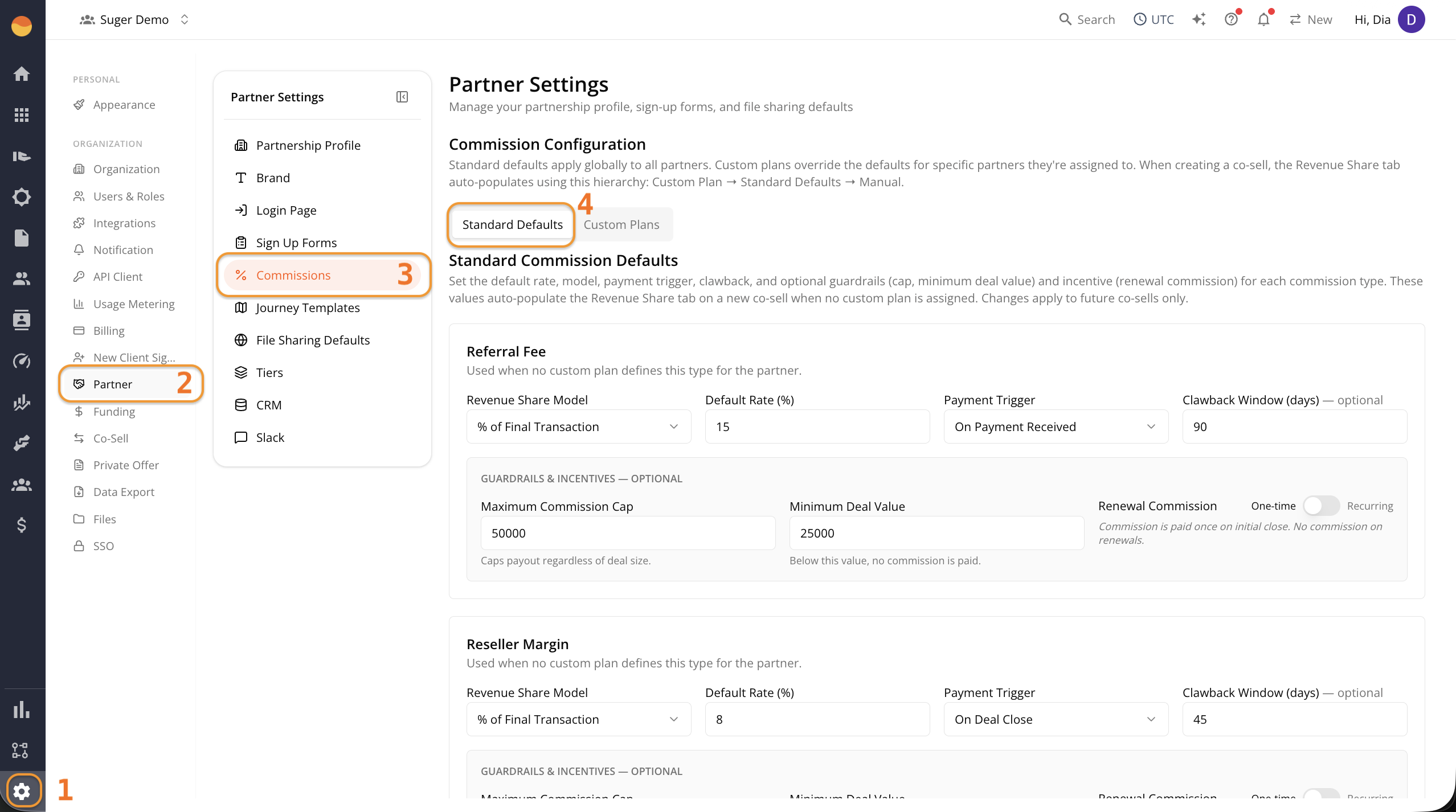
The Standard Defaults tab is selected by default when you open the Commissions page. These values become your global commission rules and apply to all partners unless a Custom Plan overrides them.
-
Go to Suger Console, then Settings.
-
Click Partner, then Commissions.
-
Open the Standard Defaults tab (selected by default).
-
For each commission type your program actually uses, fill in the fields as described above in the Understand the Fields section.
-
Click Save Defaults.
Create a Custom Commission Plan
Use this when a specific partner needs different terms than your defaults — for example, they negotiated a higher margin, or a strategic account gets better payment terms.
-
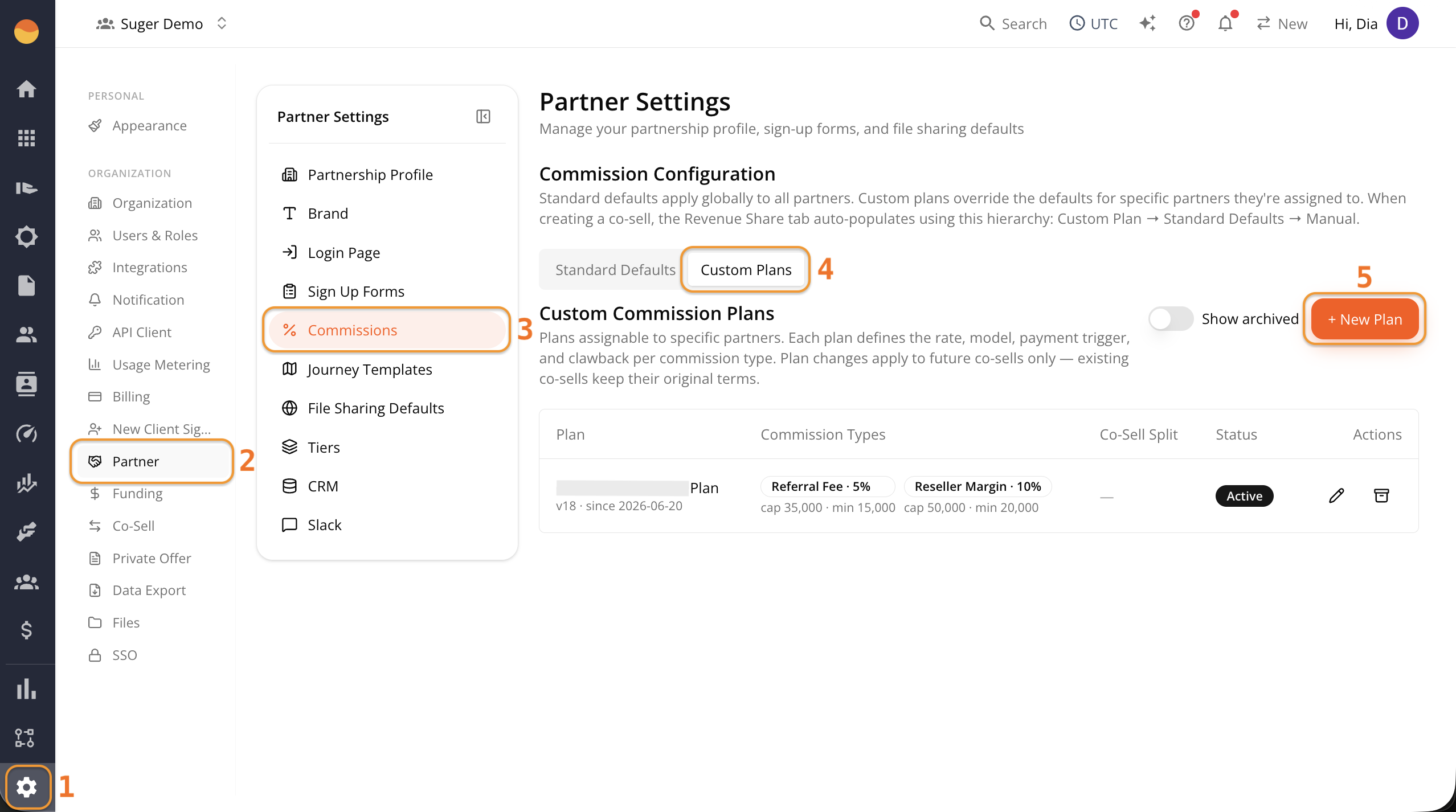
Go to Suger Console, then Settings.
-
Click Partner, then Commissions.
-
Click the Custom Plans tab, then + New Plan.
-
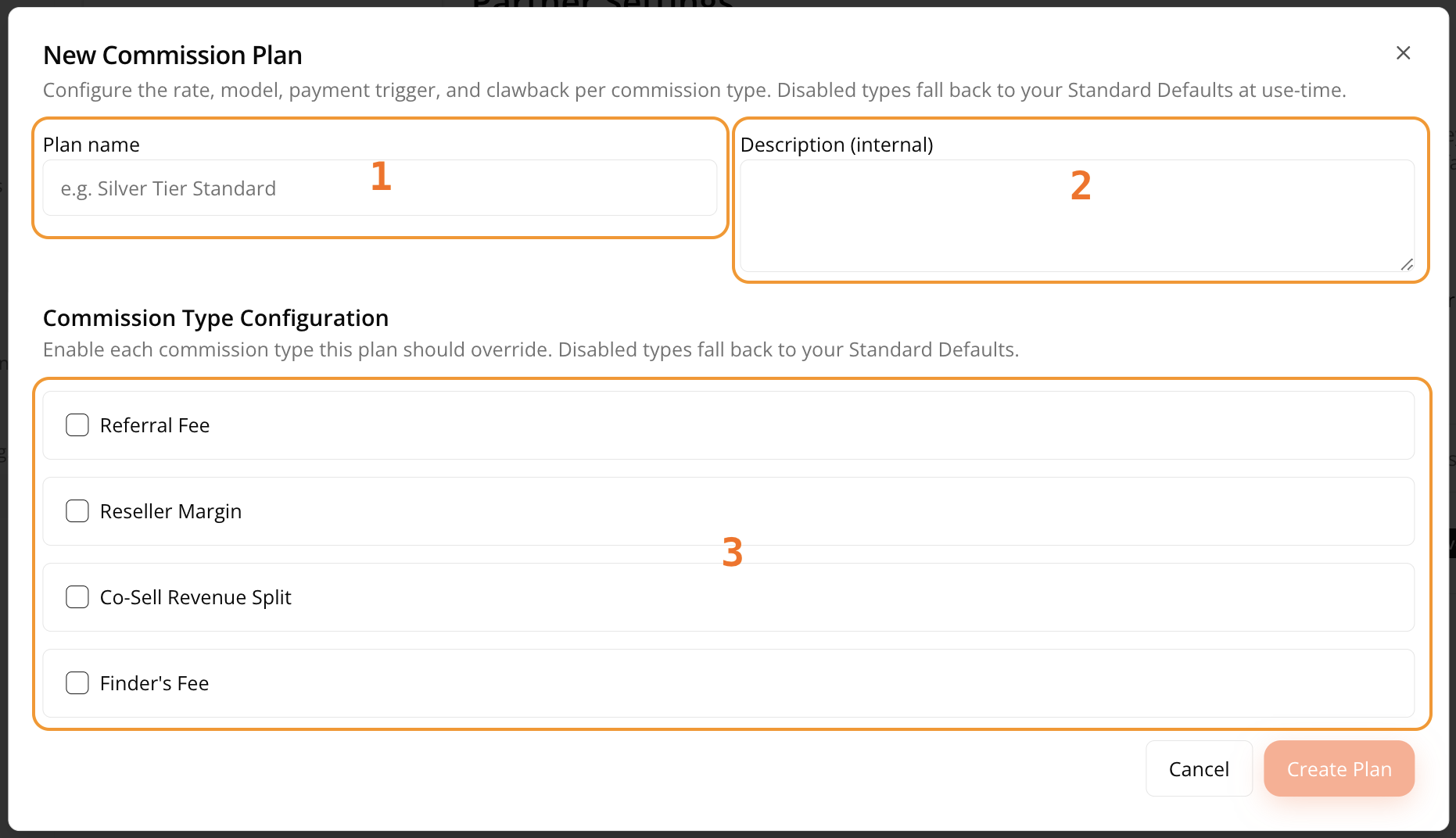
Give the plan a Plan name and an optional internal Description (not partner-facing).
-
For each commission type, check the box to enable it for this plan, then fill in its fields the same way as Standard Defaults.
-
Click Create Plan.
Where This Shows Up on a Deal
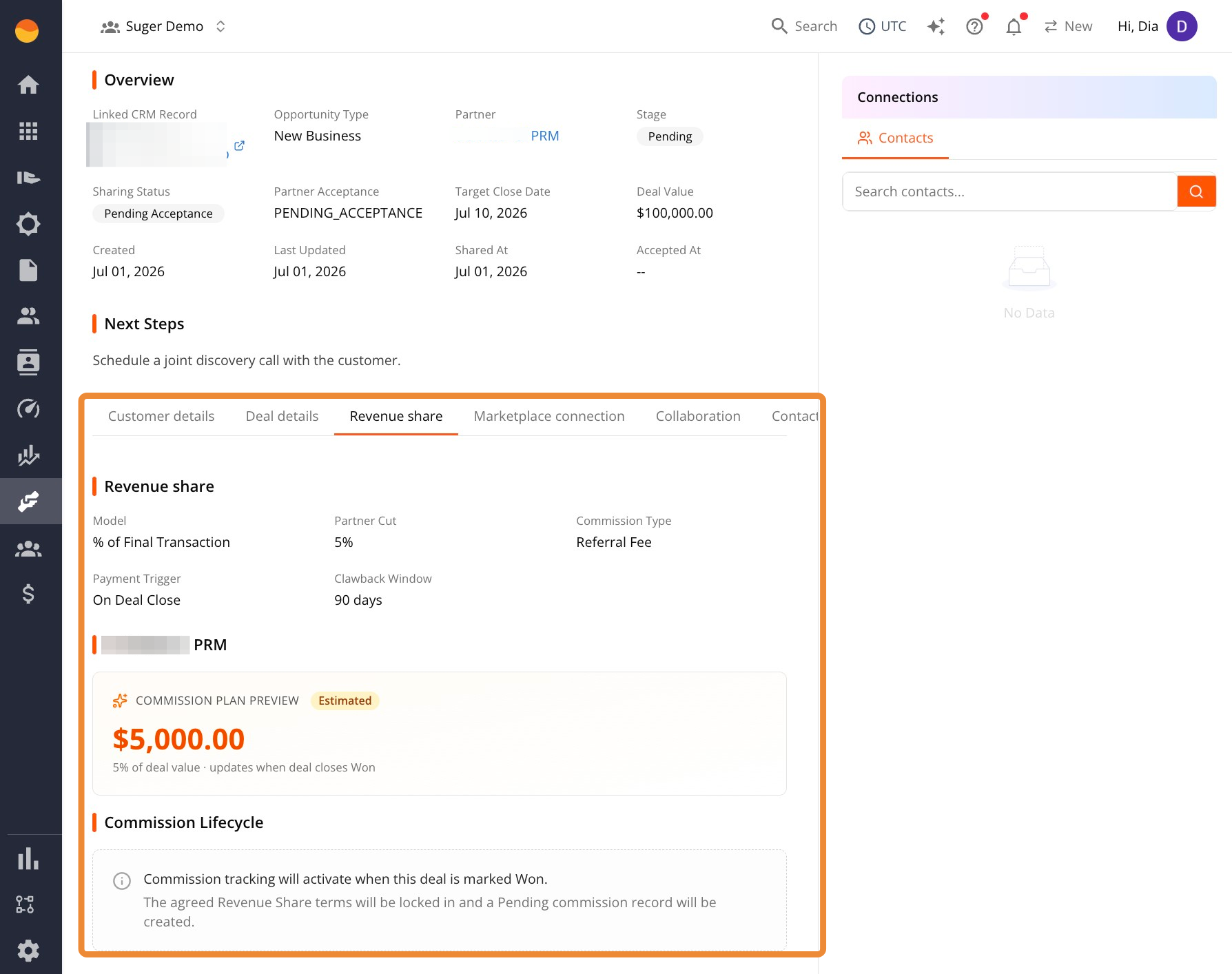
Once a co-sell is created, its Revenue Share tab shows the resolved terms — the model, rate, payment trigger, and clawback window that apply — based on the priority order above.