
Private Offer Field Mapping
Define how data from your CRM (Salesforce or HubSpot) populates the fields in a cloud marketplace private offer.
Overview
Private Offer Field Mapping controls how the final legal and financial terms of a deal — such as contract value, payment terms, and EULAs — are transmitted from your CRM to AWS, Azure, GCP, or Snowflake when a private offer is created. While co-sell mapping focuses on deal registration, private offer mapping ensures the offer’s terms are populated correctly and offer creation does not fail.
Set Up Private Offer Settings
Step 1: Access Mapping Settings
-
Log in to the Suger Console.
-
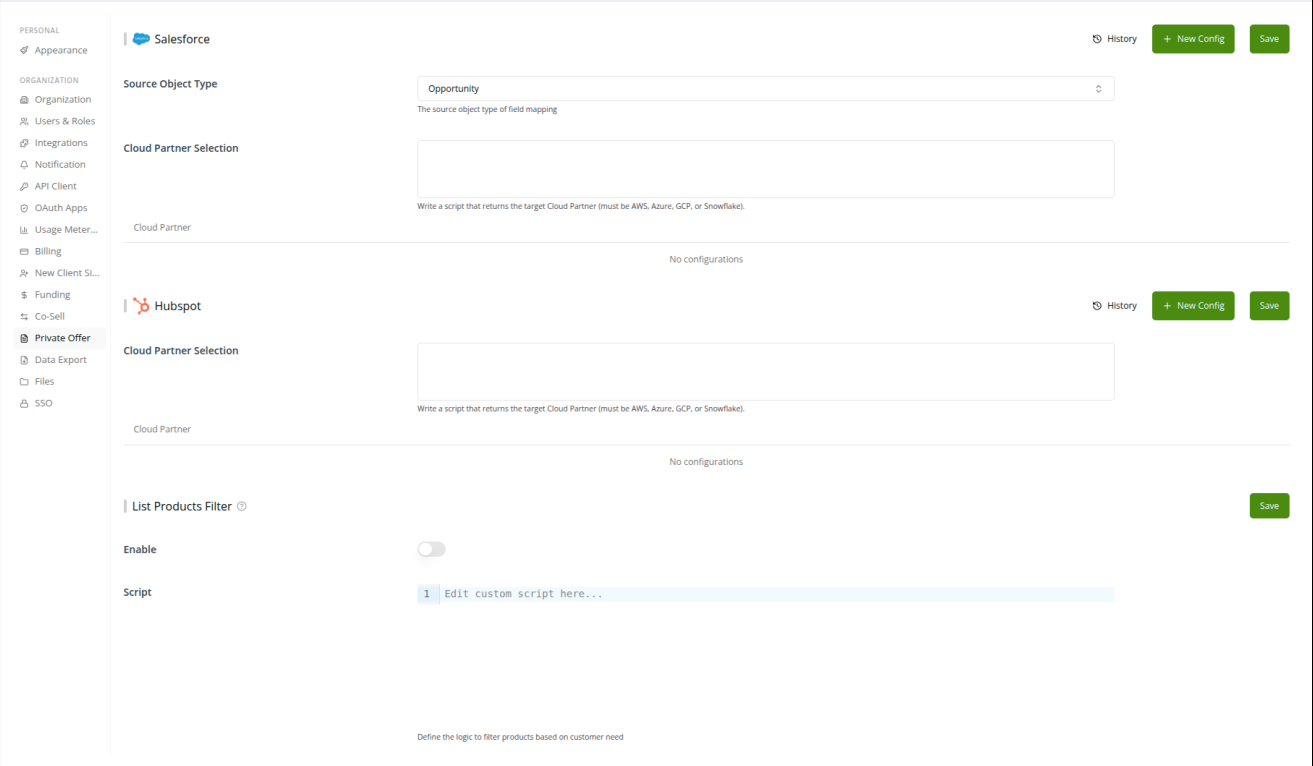
Navigate to Settings > Private Offer.
-
Locate the section for your CRM (Salesforce or HubSpot).
-
Click + New Config in that section.
-
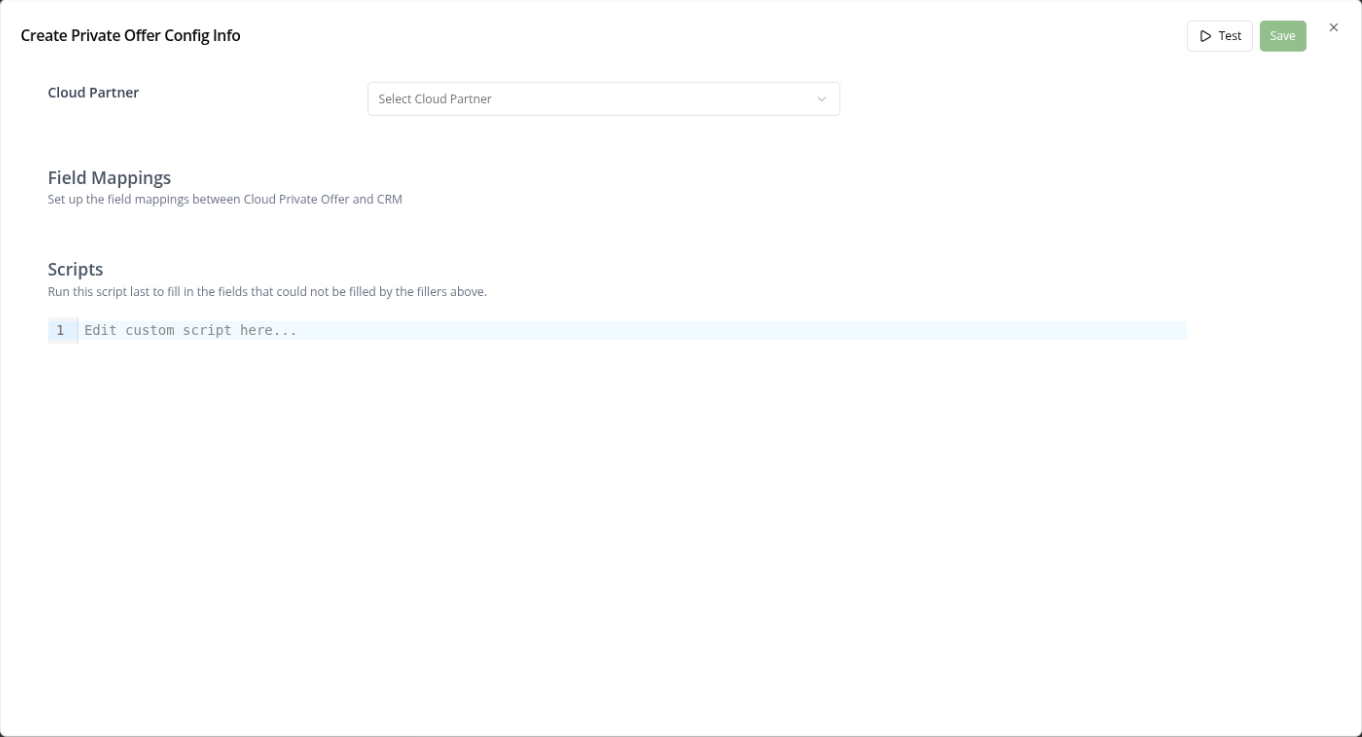
In the Create Private Offer Config Info modal:
-
Cloud Partner — Select the hyperscaler (AWS, Azure, GCP, or Snowflake) you are configuring.
-
Field Mappings — Map individual fields between the offer and your CRM (detailed in the next step).
-
Scripts — (Optional) Provide custom scripts to fill fields that cannot be handled by standard mapping.
-
-
Click Save.
Step 2: Define Outbound Mappings (CRM → Offer)
Cloud partners have rigid data requirements, so you must map your internal CRM fields to the corresponding marketplace schema. Suger supports these types of field mappings:
- Static Values (Default Value) — Use for fields that are mandatory but identical for every offer, such as your standard Support Terms or a specific Seller Note.
- Direct Mapping — Link fields 1.
- Salesforce example: Map
Opportunity.Amount→Offer.Amount. - HubSpot example: Map
Deal.Amount→Offer.Total_Value.
- Salesforce example: Map
- Expression Mode (Advanced) — Use logic for data transformations.
- Example: Calculate a custom discount:
Opportunity.Amount * (1 - Opportunity.Discount_Pct__c). - Example: Concatenate a unique offer name:
Account.Name + " - Private Offer - " + Today().
- Example: Calculate a custom discount:
Key Fields to Map
Ensure these high-impact fields are correctly mapped to prevent offer creation failures.
AWS private offer
| Field Name | Source Type | Operational Purpose |
|---|---|---|
| Salesforce Opportunity ID | Salesforce Field (Id) | Links the private offer to the correct CRM record for tracking. |
| Product ID | Salesforce Field | Maps the Suger product to the specific AWS listing ID. |
| Offer Name | Expression | Defines the offer title. Example: {{ .Name }} - {{ .Account.Name }}. |
| Buyer AWS Account ID | Salesforce Field | Required for AWS to authorize the specific buyer to view the offer. |
| Contacts | Field / Manual | Defines who receives notification emails when the offer is live. |
| EULA Type | Salesforce Field | Specifies the legal terms (Standard AWS Terms vs. Custom EULA). |
| Offer Expiry Date | Salesforce Field | The “Accept By” date (format: YYYY-MM-DD). |
| Start / End Date | Salesforce Field | Defines the contract term duration. |
Azure private offer
Azure mappings focus on identifying the correct billing account and ensuring offer dates align with Microsoft’s UTC requirements.
| Field Name | Source Type | Operational Purpose |
|---|---|---|
| Salesforce Opportunity Id | Salesforce Field | Identifies the CRM record for cross-platform tracking. |
| Product Id | Salesforce Field | Links the offer to the specific Azure Marketplace listing. |
| Offer Name | Expression | Custom title for the offer (e.g., {{ .Name }}). |
| Buyer Azure Billing Account ID | Salesforce Field | Authorizes the specific Azure account to accept the offer. |
| Prepared By Email | Salesforce Field | Identifies the person responsible for offer creation. |
| Offer Expiry Date | Salesforce Field | The acceptance deadline (format: YYYY-MM-DD). |
| Offer End Date | Salesforce Field | The official termination date of the contract. |
| Start Date | Salesforce Field | The service commencement date (default: acceptance date). |
GCP private offer
GCP requires more granular contact information than other partners to keep both the buyer and seller teams informed throughout the procurement lifecycle.
| Field Name | Source Type | Operational Purpose |
|---|---|---|
| Buyer GCP Billing Account ID | Salesforce Field | Must follow the 000000-000000-000000 format. |
| Buyer Organization Name | Salesforce Field | The legal entity name of the buyer being notified. |
| Buyer Contact Email | Salesforce Field | The specific buyer address notified by GCP to accept the offer. |
| Sales Contact Email | Salesforce Field | Your team’s contact for GCP-led communications. |
| Term Length in Months | Salesforce Field | Determines the contract duration (range: 1 to 60 months). |
| Offer Expiry Date | Salesforce Field | The UTC date before which the offer must be accepted. |
Snowflake private offer
Snowflake mappings introduce the Offer Display Name, designed for customer-facing clarity within the Snowflake Marketplace UI.
| Field Name | Source Type | Operational Purpose |
|---|---|---|
| Offer Display Name | Salesforce Field | The customer-facing title shown in the Snowflake Marketplace. |
| Offer Expiry Date | Salesforce Field | The date the offer becomes invalid if not accepted. |
| Start Date | Salesforce Field | When the Snowflake service entitlements begin. |
| Offer End Date | Salesforce Field | The final day of the service term. |
Step 3: Set Listing Filters (Optional)
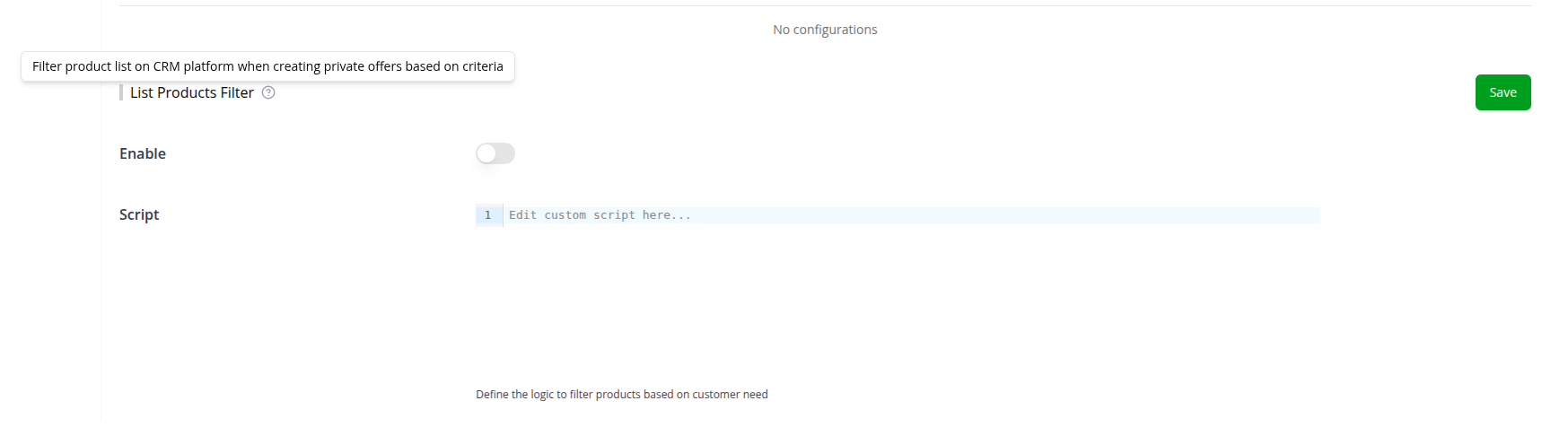
On the main Private Offer settings page, you can enable a List Products Filter. This lets you write a custom script that restricts which marketplace products your sales team can choose from when creating an offer, based on specific customer needs.
Troubleshooting
| Issue | Cause | Resolution |
|---|---|---|
| ”Invalid ID” on creation | The CRM field contains a typo or an incorrectly formatted account ID. | Copy-paste the ID directly from the AWS/Azure portal into the CRM record and refresh the creation modal. |
| Pricing logic error | Mathematical errors or missing parenthesis in Expression Mode. | Use the Test button in the mapping modal to validate your script before saving. |
| Missing required fields | The mapping points to a CRM field that is currently blank on that record. | Populate the data in your CRM, or add a Default Value in the configuration to act as a fallback. |
| Widget says “Integration Missing” | The CRM integration is disconnected or the API key is invalid. | Verify connection status in Settings > Integrations and ensure your API client is active. |
| ”Field Not Found” error | A CRM field used in a mapping was deleted or renamed. | Update the corresponding Private Offer Field Mappings in Suger to reflect the new field names. |
FAQ
Can I manage contract renewals and upsells from HubSpot or Salesforce?
Yes. Suger supports Agreement-Based Offers (ABO) natively within the Suger widget, allowing sales teams to modify active entitlements directly from the deal record.
What happens if I try to edit an offer after it has been sent?
You cannot edit an ongoing offer once it is in a Pending_Acceptance state. The best practice is to cancel the existing offer and create a new one with the corrected terms.
Can I map different pricing models (Flat Fee vs. Consumption) through field mapping?
Yes. Use Expression Mode to dynamically set the pricing model based on a CRM field. For example, if your HubSpot deal includes a custom property for “Billing Type,” you can write an expression that instructs Suger to select “Usage-Based” or “Contract” pricing on the marketplace offer automatically.
Does Suger support mapping for multi-year installment plans?
Yes. If your CRM (like Salesforce) uses a related list for payment schedules, you can map these to the marketplace’s installment fields. This ensures the buyer sees the exact payment dates and amounts in their marketplace console that were agreed upon in your CRM.
How does Suger handle EULA (End User License Agreement) mapping?
You have two options:
- Static — Set a Default Value with a URL to your standard EULA.
- Dynamic — Map a CRM field (e.g.,
Custom_EULA_Link__c) to the marketplace legal terms field. This is ideal when you negotiate custom legal terms for specific enterprise deals.
If I change the “Amount” in my CRM, will an already-sent private offer update automatically?
No. Once a private offer is created and sent to a buyer, its terms are locked by the cloud provider (AWS/Azure/GCP). To change the amount, cancel the existing offer in the Suger Console, update the CRM record, and generate a new offer.
What is the “Scripts” section in the private offer configuration used for?
The Scripts section allows advanced automation beyond simple 1
mapping. You can write custom JavaScript to perform complex lookups or conditional logic — such as applying specific tax codes or partner incentives — before the offer object is finalized.Can I restrict which products my team can map to?
Yes. Use the List Products Filter script on the main Private Offer settings page to filter the marketplace catalog available to your sales reps, ensuring they only create offers for approved products or SKUs.
How do I ensure the “Buyer Identifier” is always accurate?
Make the Buyer Account ID (AWS Account ID or Azure Tenant ID) a required field in your CRM. In Suger, you can use Expression Mode to validate the length of the string (e.g., ensuring it is exactly 12 digits for AWS) before allowing the offer to be created.
Does Suger track who modified the mapping logic?
Yes. Every configuration has a History button showing the previous version of the mapping, the new version, the user who made the change, and the timestamp — useful for troubleshooting pricing mismatches after a logic update.