
Partner Tiers
Create levels within your partner program so you can recognize partners differently based on their engagement or success.
Overview
Partner Tiers let you build a structure like Registered → Silver → Gold → Platinum. Each partner belongs to one tier at a time, and their assigned tier is visible to both you and the partner.
Create a Tier
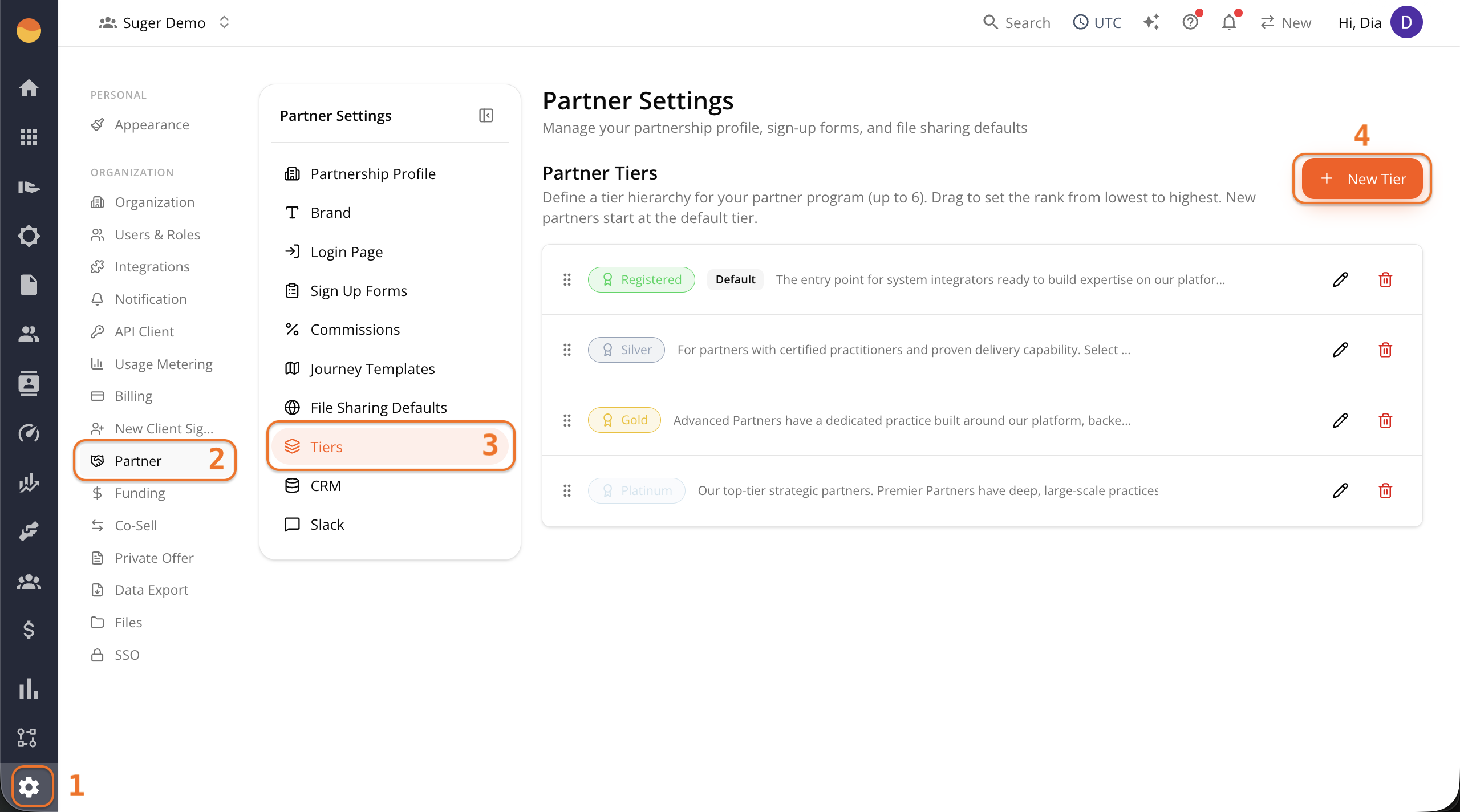
- Go to Suger Console, then Settings.
- Click Partner, then Tiers.
- Click + New Tier.
-
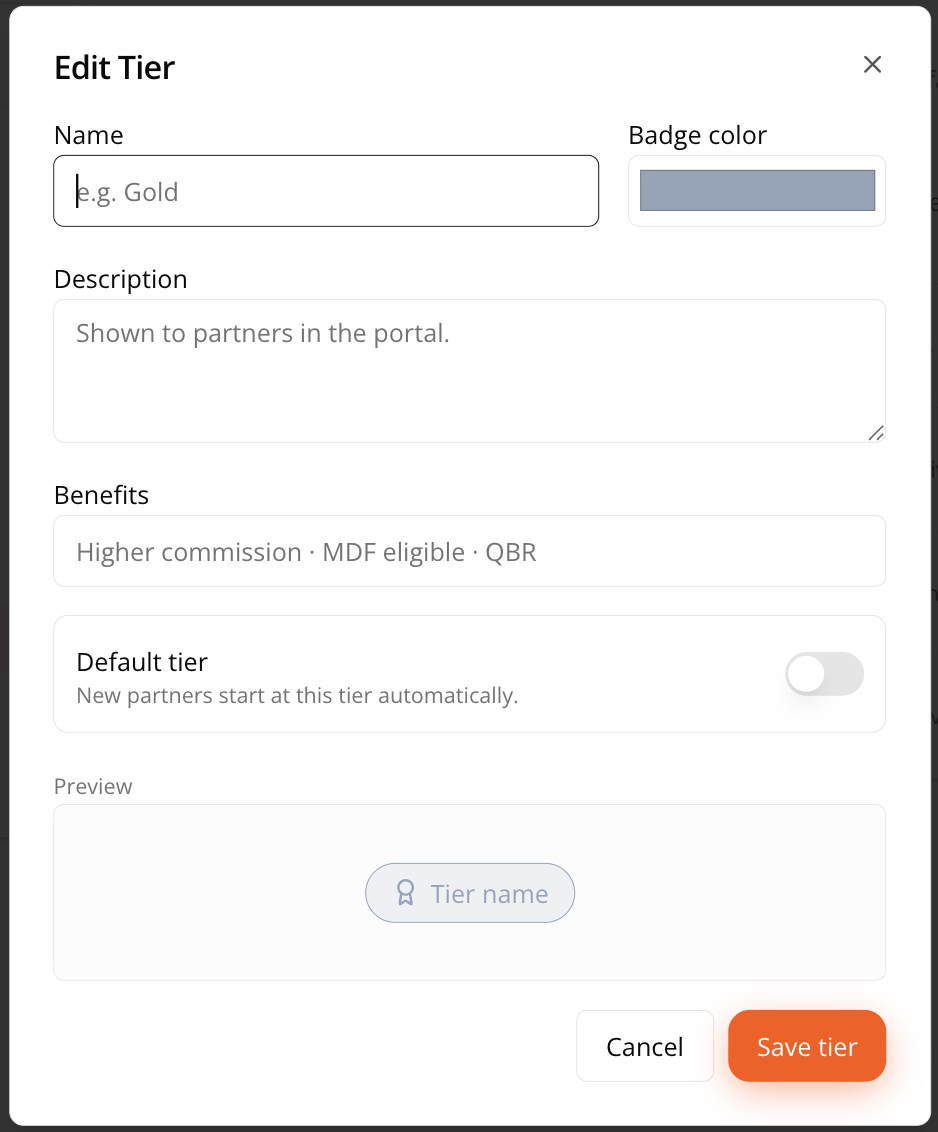
Fill in the tier details:
- Name — What the tier is called, for example “Gold.” This shows to partners.
- Badge color — The color used for this tier’s badge wherever it appears, including on the partner’s own view of their status.
- Description — Shown directly to partners in their portal. Use this to explain what the tier represents and what it took to get there, for example: “Advanced Partners have a dedicated practice built around our platform, backed by a track record of successful customer outcomes.”
- Benefits — A list of what the tier actually unlocks, for example “Higher commission · MDF eligible · QBR.” This is also partner-facing, so write it as something a partner would want to read, not just an internal note.
- Default tier — Toggle this on for the one tier new partners should automatically start at. Only one tier can be marked default at a time.
-
Click Save tier when you’re done.
Reorder Tiers
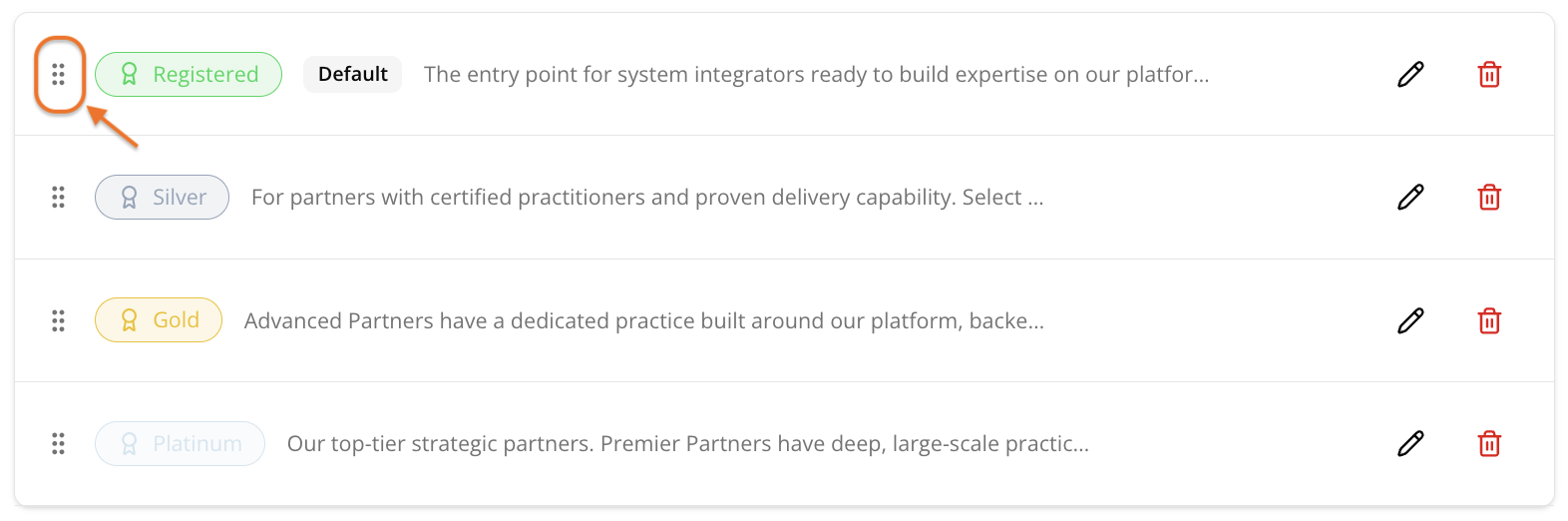
Back on the main Tiers page, drag tiers using the grip handle on the left to set their rank from lowest to highest. This ranking is what determines which tier is “above” or “below” another, for example whether Gold outranks Silver.
You can create up to 6 tiers total.
Edit or Delete a Tier
- Go to Suger Console, then Settings.
- Click Partner, then Tiers.
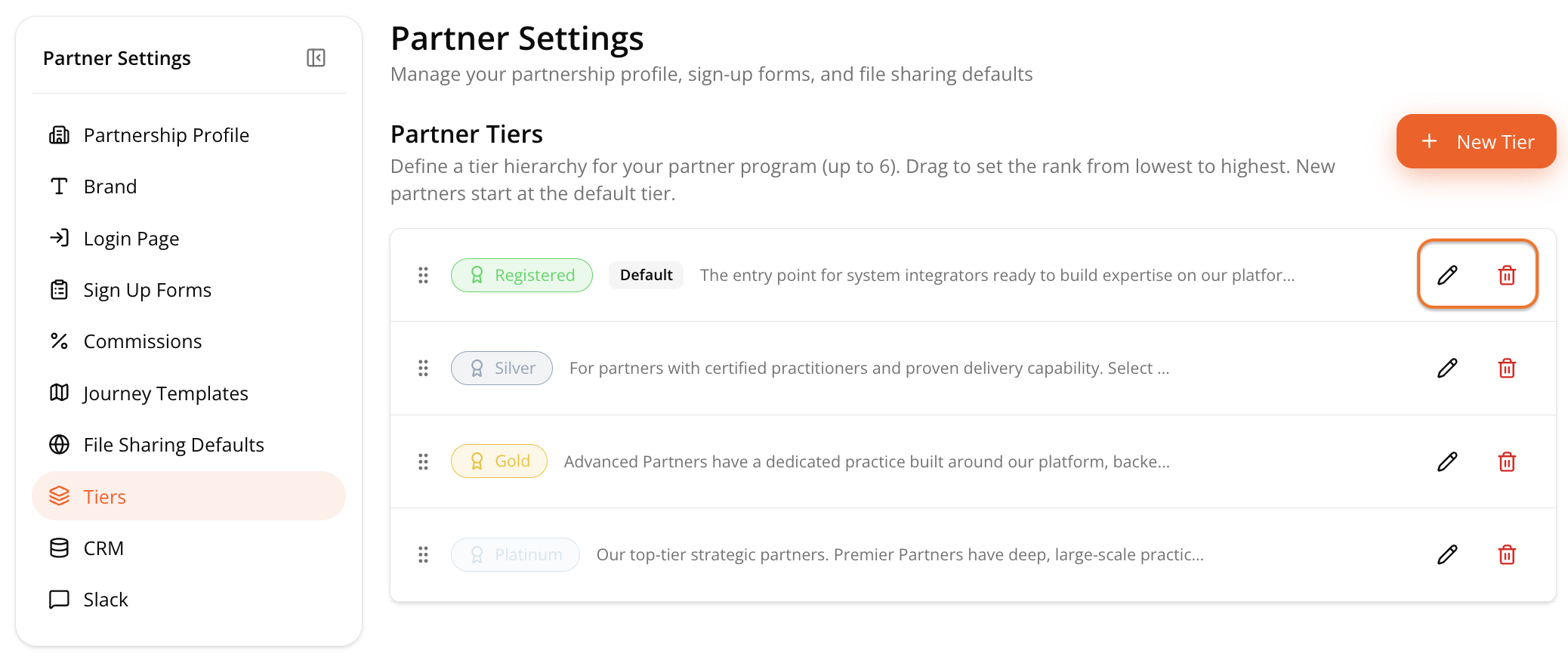
- Click Edit (pencil icon) or Delete (trash icon) on the tier you want to change.
Assign a Tier to a Partner
Tiers aren’t just definitions — they need to be assigned to actual partners. To change a partner’s tier:
-
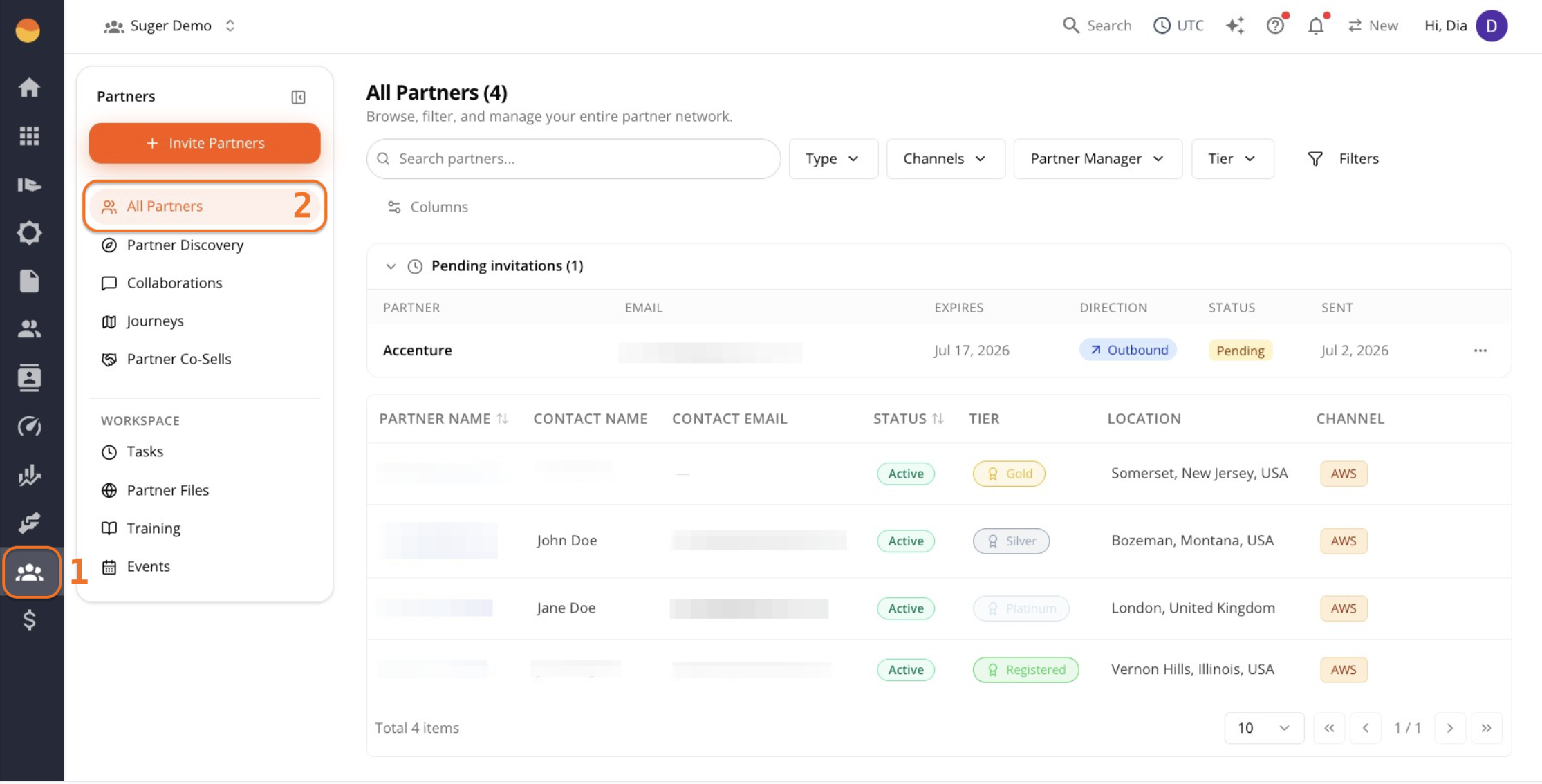
Go to Suger Console, then Partners.
-
Click the partner’s name from All Partners.
-
On their Overview page, find the Tier card in the right sidebar.
-
Use the dropdown under “Their tier in your program” to select a different tier.
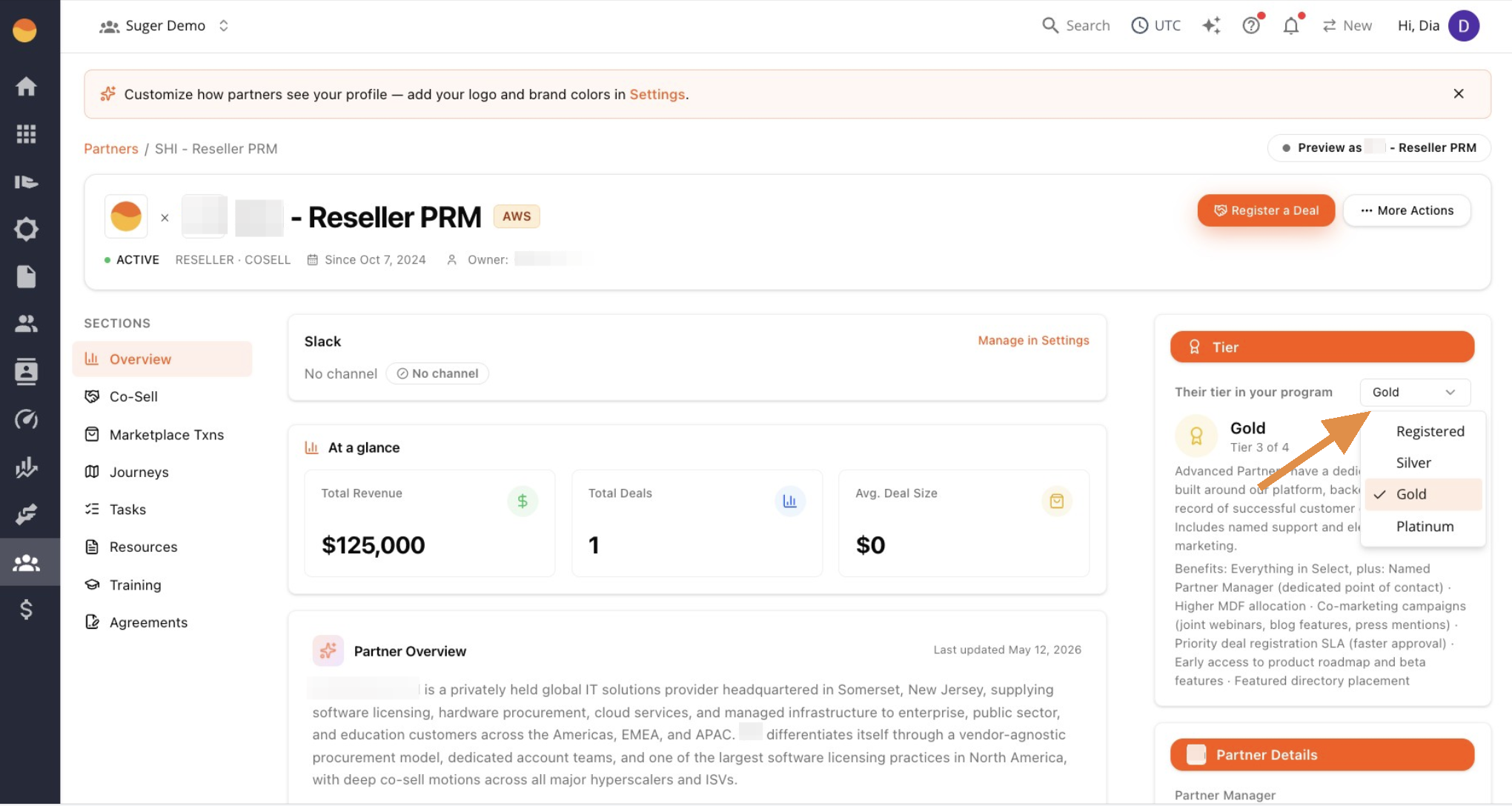
The card updates immediately to show that tier’s description and benefits, pulled directly from what you configured.