Partner Certifications
Certifications help partners prove they’ve completed your training and let you track who’s qualified to sell or support your product.
Overview
In this guide, you’ll learn how to create and manage certificates, assign them to courses, and see which learners have earned them.
Create a Certificate
-
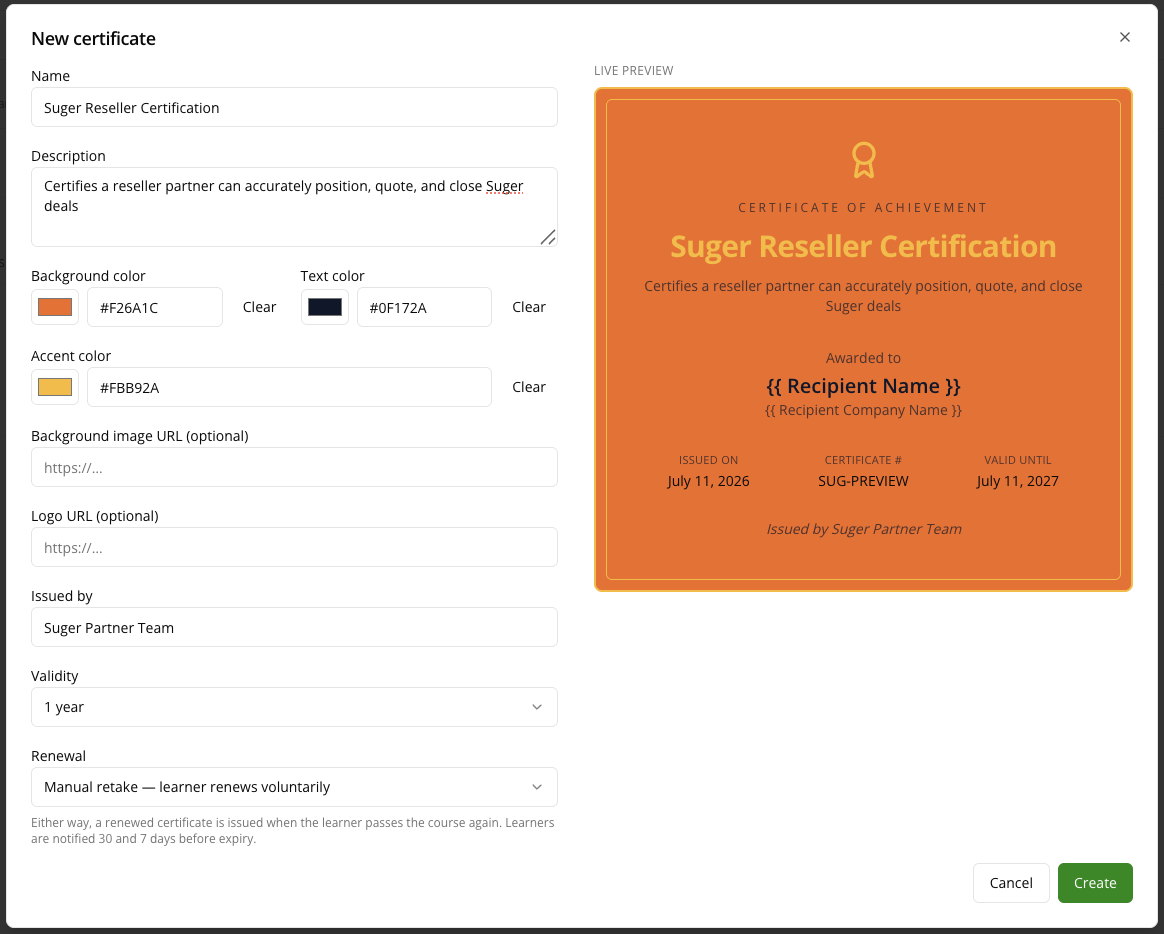
Go to Suger Console, then Partners.
-
Click Training, then open the Certificates tab.
-
Click + New certificate.
-
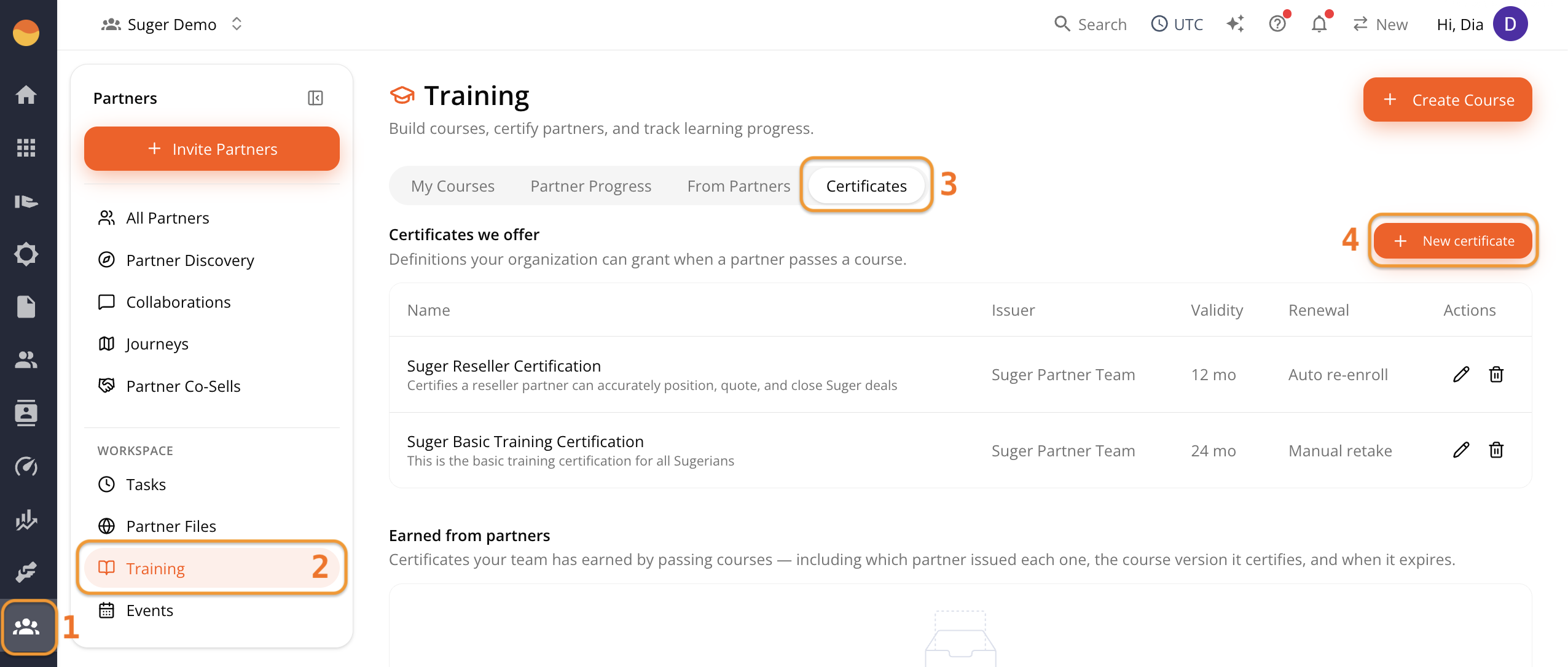
Give the certificate a Name and Description.
-
Set the Background color, Text color, and Accent color. Use the hex input or the color swatch.
-
Optionally add a Background image URL and Logo URL.
-
Enter Issued by — the name or team shown as the issuer on the certificate.
-
Set Validity. Options are No expiry, 6 months, 1 year, 2 years, or 3 years.
-
If you set a Validity other than “No expiry,” a Renewal field appears. Choose:
- Manual retake — the learner renews voluntarily.
- Auto re-enroll — the learner is re-enrolled automatically.
-
Check the Live Preview on the right to confirm the certificate looks right.
-
Click Create.
Edit or Delete a Certificate
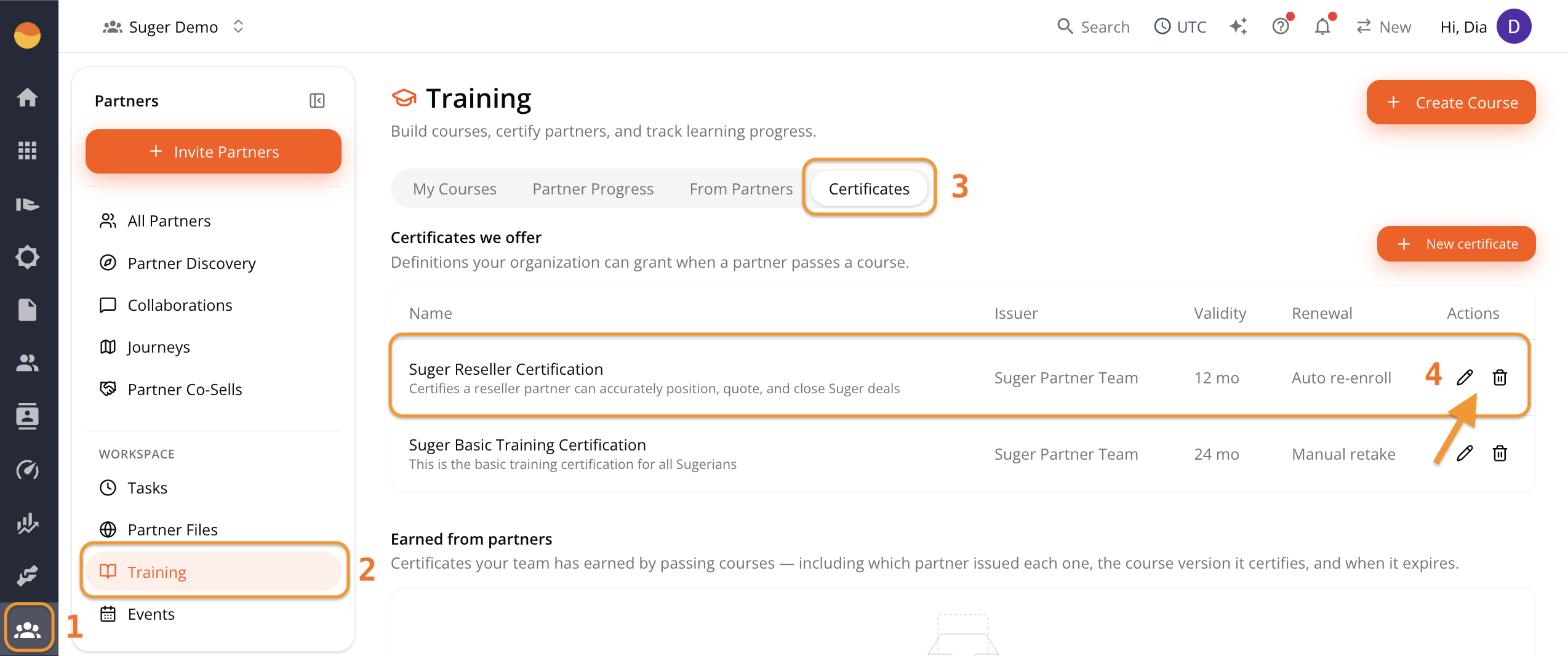
- Go to Suger Console, then Partners.
- Click Training, then open the Certificates tab.
- Click the pencil or trash icon next to the certificate to update or delete it.
Assign a Certificate to a Course
Certificates aren’t linked to a course automatically — assign them from inside the course builder.
- Go to Suger Console, then Partners.
- Click Training, then open the My courses tab.
- Under Certificate(s) granted on completion, search for and select the certificate.
For the full course creation process, see Build a Partner Training Course.
Check Who’s Certified
This only applies if the course has a certificate attached under Certificate(s) granted on completion. If that field is blank, the course doesn’t award a certificate. If a certificate is attached:
- Open the course from Partners → Training → My Courses.
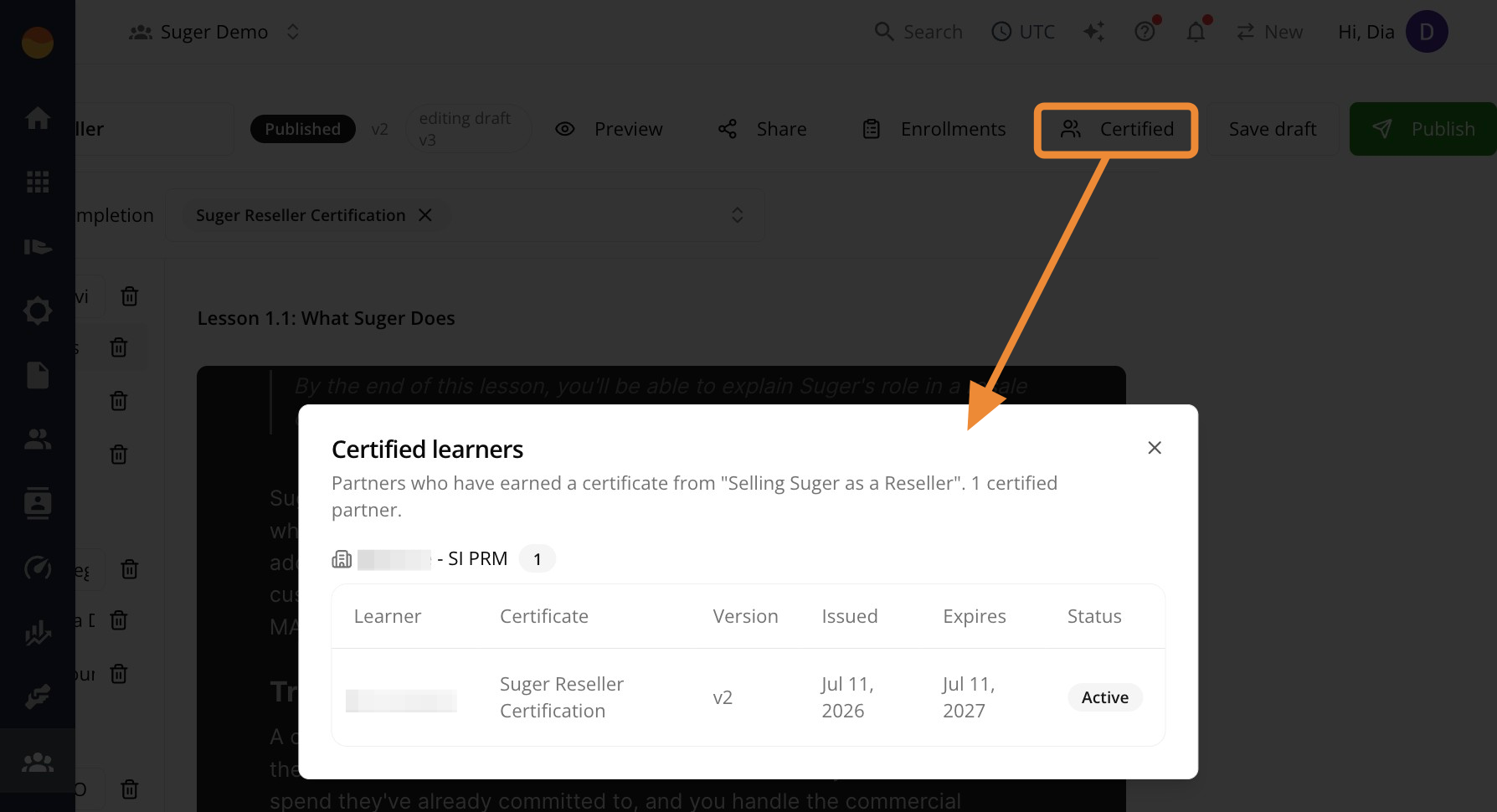
- Click Certified in the top toolbar.
- Review the list of learners who’ve earned the certificate, grouped by partner organization.
Each row shows the certificate name, version (the course version the learner completed), issue date, expiry date, and status (Active).