
Channels
Channels are group conversations where multiple users and agents collaborate in a shared thread.
What Are Channels?
A channel is a persistent group chat within Insulin. Unlike a standard conversation, which is between you and one agent, a channel brings together multiple team members and multiple agents into a single thread. Everyone in the channel sees the same messages, can ask questions, and can interact with agents that have been added.
Channels are useful when a task requires input from several people or benefits from multiple specialized agents working together.
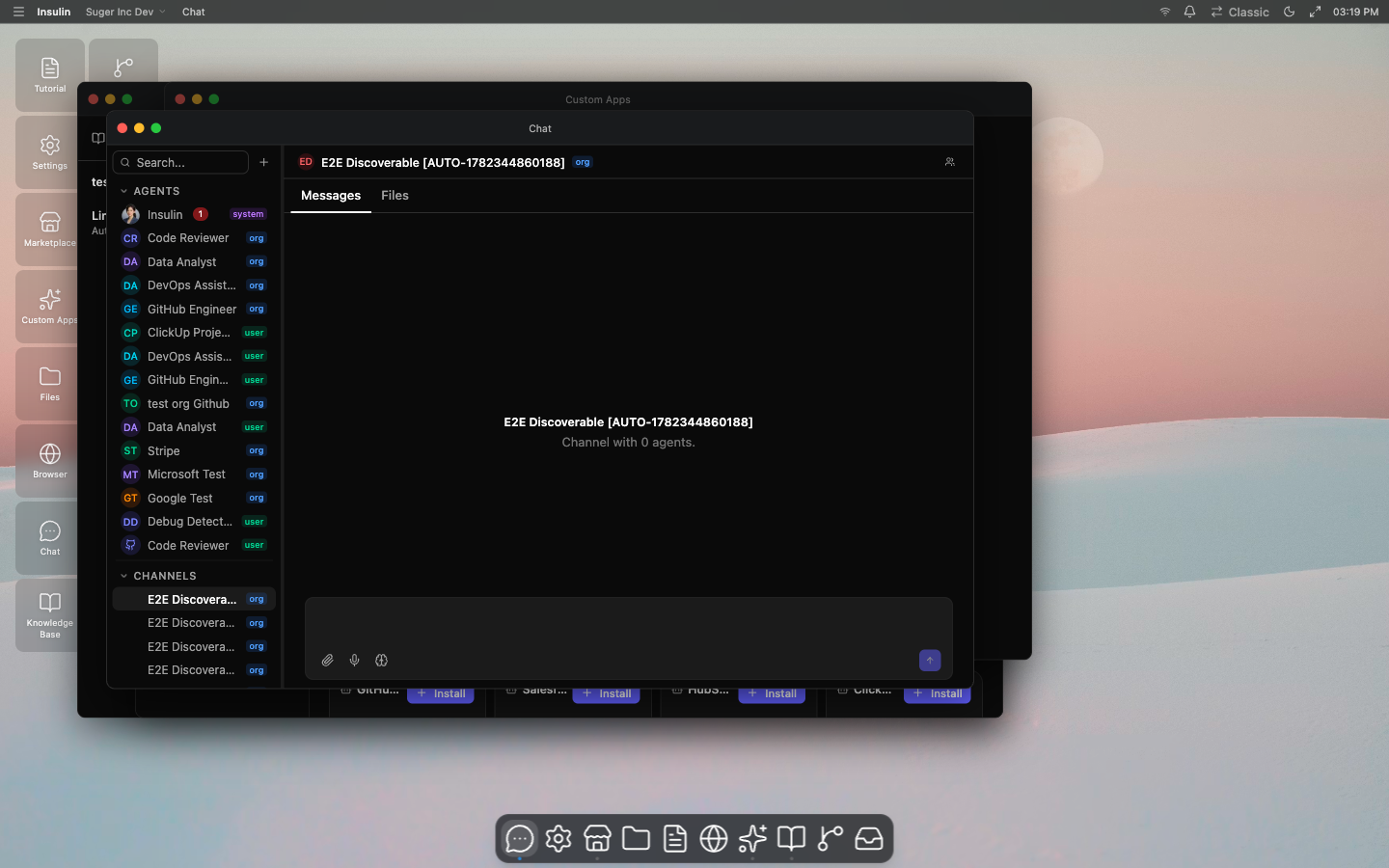
Creating a Channel
- Click the + button next to Channels in the sidebar
- Enter a channel name and optional description
- Add agents as members
- Choose the ownership type:
- Personal — Only you can manage the channel. Can add both user-level and org-level agents.
- Organization — The channel belongs to the organization. Only org-level agents can be added as members.
- Click Create
You can also set a custom icon for the channel to help distinguish it visually in the sidebar.
Every channel has a built-in coordinator agent. The coordinator is created with the channel and cannot be replaced.
Channel Roles
Every user in a channel has one of these access roles:
| Role | Permissions |
|---|---|
| OWNER | Full control — manage members, edit channel settings, delete the channel, transfer ownership |
| ADMIN | Manage members and edit channel settings |
| EDITOR | Send messages and interact with agents |
| USER | Send messages and interact with agents |
| VIEWER | Read messages only — cannot send messages or trigger agent actions |
The user who creates a channel is automatically the OWNER. Ownership can be transferred to another member.
Organization admins do not automatically become channel admins. Org-level channel access comes from explicit membership or org-wide sharing, so private collaboration spaces stay private until the channel owner or admin shares them.
Adding Members
Channel members can be users or agents.
To add a user (org-level channels only):
- Open the channel
- Click the members icon in the channel header
- Select Add member and choose a user from your organization
- Assign an access role (ADMIN, EDITOR, USER, or VIEWER)
Only org-level channels can have user members. Personal channels are limited to you and your agents.
To add an agent:
- Open the channel
- Click the members icon
- Select Add member and choose an agent
- Assign a role label that describes the agent’s function (e.g., “researcher”, “analyst”)
Channels enforce membership limits to keep collaboration focused. If a channel is full, remove an inactive member before adding another one.
Joining and Previewing Channels
Organization-level channels that are shared with you appear in the sidebar. You can:
- Preview a channel to read its messages before joining
- Join a channel to start participating
Your effective role is determined by the channel’s shared role setting or the role explicitly assigned to you by the channel owner.
How Agents Participate
When you send a message in a channel, agents added as members can respond. You can mention a specific agent using @agent-name to direct your message to that agent. The mention autocomplete shows agents and users in the channel.
Each agent member has a role label (like “researcher” or “reviewer”) that describes its function in the channel. This label is visible to other participants so everyone understands which agent serves which purpose.
Editing and Deleting Channels
Channel owners and admins can:
- Rename the channel or update its description
- Change the icon
- Remove members (both users and agents)
- Transfer ownership to another user who is already a member
- Delete the channel entirely
Use Cases
- Deal review — Add a sales agent, a data analyst agent, and your sales team to review a deal together.
- Incident response — Bring together operations, engineering, and an alert-monitoring agent to coordinate a response.
- Weekly reporting — Set up a channel with a reporting agent and stakeholders who need visibility into weekly metrics.
- Cross-functional collaboration — Combine agents with different specializations (CRM, marketplace data, revenue analysis) in one thread so the team gets multi-domain answers without switching contexts.