
Overview
Quick guide to how billing works in Suger — from creating a product to tracking the money that lands in your account.
Overview
Suger gives you one place to manage the full billing lifecycle: create products, send offers, meter usage, invoice buyers, and track revenue across every cloud marketplace.
How you get paid depends on how the deal is sold:
- Selling through your own Stripe account (as-buyer flow) — Suger uses Stripe to invoice your customer and collect payment directly. Follow the Billing workflow below.
- Selling through a cloud marketplace (AWS, Azure, GCP, and others) — the marketplace bills the buyer, collects payment, and sends you your share. Suger does not move the money; it consolidates the numbers so you can see what is happening. See How marketplace revenue flows through Suger.
Billing workflow
1. Create product
Create a product to represent your sellable product or service. When create the product, select Stripe as partner because Suger will use Stripe to collect payments.

2. Define billable metrics
If you want to use usage based pricing, you need to define the billable metrics for the product you created in the previous step. They will be used in price models when creating offers and reporting usage data.
3. Create buyer
Create a buyer to represent your customer. You can set the billing address, currency, and other information for the buyer.
4. Create and send offer
Create a offer including price models and send it to your customer. You can configure the contract duration, billing interval, flat fee, and usage metering and other details in the offer. Send the offer to your customer, if the customer accepts the offer, a entitlement will be created.
5. Manage entitlement
You can view the entitlement just created, track the usage and billing status. Edit or cancel it when needed.
6. Report usage data
Report usage metering data to Suger using the API or SDK. Suger will aggregate the usage data periodically which will be used to calculate the charges.
7. Invoicing
Invoices will be generated automatically for each entitlement according to price models in it. There are several types of invoices including installments, recurring commitments, usage based and one-time.
8. Payments
Suger will process payments automatically to collect money from the buyer via Stripe when the invoice is due. The money collected will be deposited to your Stripe account.
9. Revenue
Revenue reports will be generated for each entitlement and also aggregated by product and buyer.
How marketplace revenue flows through Suger
When a buyer accepts your offer through a cloud marketplace, your deal becomes active and the revenue process starts. At this point you are not getting paid yet — first the marketplace has to bill the buyer, collect payment, and then send you your share.
Once a deal is accepted, it becomes an active contract (an entitlement in Suger). From here, Suger does not handle payments. The cloud marketplace bills the buyer and collects the money. Suger’s job is to show you what is happening with your revenue in one place.
If you charge based on usage
If your product uses usage-based pricing (API calls, storage, active users, and so on), the marketplace needs usage data before it can generate an invoice. Without it, there is nothing to bill.
You can send usage data to Suger in three ways:
- Billing engine integration — connect Suger to your internal billing tool (such as Metronome, Orb, or Lago) and usage is reported automatically.
- Suger API — your engineering team calls the Suger Metering API directly to push usage records programmatically.
- CSV upload — your billing or operations team manually uploads a CSV file in the Suger Console. For more information, see Metering.
Suger collects this data, cleans it up, and sends the final numbers to the cloud marketplace so it can generate the invoice.
When will I get paid?
Once the contract is active (and usage is sent, if needed), payment moves through three phases.
Phase 1: Invoice is created (invoice date). The marketplace issues the invoice to the buyer, based on the entitlement’s payment schedule. The invoice date is the start of the billing cycle, not the payout date.
Phase 2: Buyer pays the cloud provider (due date). The buyer pays based on their payment terms with the cloud provider (for example Net 30, Net 60, or Net 90). This is not the same as the invoice issue date — the invoice may be issued on one date, but the buyer may only be required to pay 30–90 days later.
Phase 3: You get paid (disbursement date). After payment is collected, the marketplace deducts its fee and sends you the remaining amount as a single payout. This happens only after the buyer has paid the invoice and the marketplace has completed its processing window.
To check your payment schedule, go to Revenue → Joined Records and review the Invoice Date, Due Date, and Disburse Date columns.
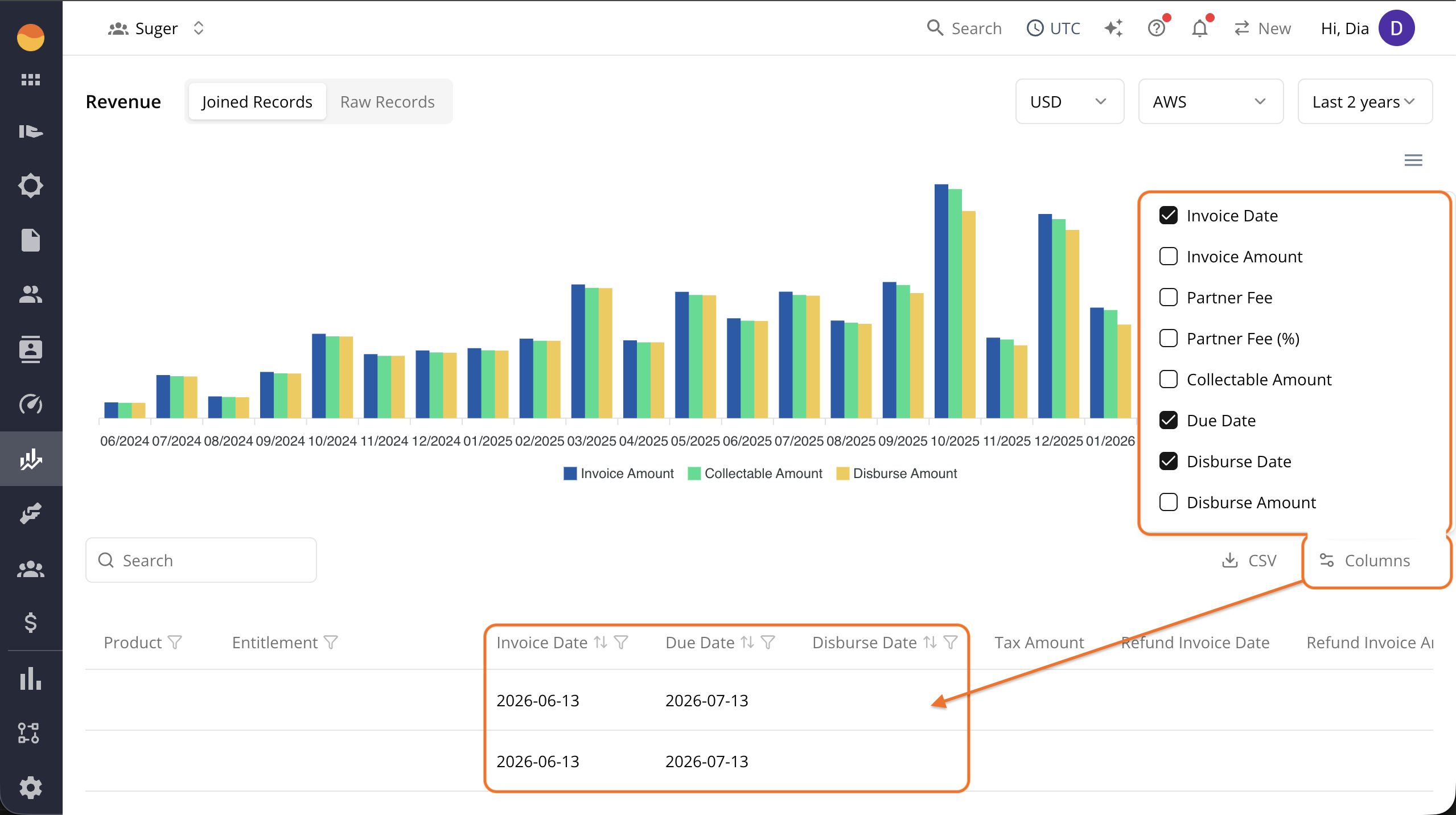
Find and track your revenue
The Revenue tab in the Suger Console is your consolidated financial ledger across all cloud marketplaces. It aggregates all invoice-level data tied to your active entitlements.
At the top of the Revenue tab you can toggle between two views:
- Joined Records — the default view. It stitches together all billing events (invoices, taxes, fees, and disbursements) into one clean line item per transaction. This is where most teams work day to day.
- Raw Records — shows unfiltered financial data exactly as it comes from the cloud provider’s billing system. Use this for deep auditing or line-item reconciliation.
For more details on tracking revenue, see Revenue.
Reconcile marketplace revenue with your accounting system
Marketplace payouts usually arrive as a single deposit that covers multiple invoices, customers, and transactions. That makes it hard to match what landed in your bank account with the revenue recorded in your accounting system.
Suger helps by providing a detailed breakdown of every invoice, fee, tax, and disbursement associated with a marketplace transaction. Your finance team can:
- Review transaction details in the Revenue tab
- Export revenue data for month-end reconciliation
- Sync marketplace revenue directly into supported ERP systems
Spotted something wrong or out of date on this page? Tell us and we'll correct it.